Mobile Caption Readability: 5 Essential Typography Fixes
You spent four hours color grading and tight-cutting a podcast clip, only to lose 85% of your viewers in three seconds. Why? Your captions look like unreadable white scratches on a phone screen. Most
You spent four hours color grading and tight-cutting a podcast clip, only to lose 85% of your viewers in three seconds. Why? Your captions look like unreadable white scratches on a phone screen. Most editors in Adobe Premiere Pro still treat subtitling like an afterthought, slapping default fonts onto vertical footage without testing on actual hardware.
When I first started cutting short-form clips for client feeds, I thought caption design was simple. Pick a font that looks clean on a 27-inch desktop monitor and call it a day. But after reviewing retention analytics across hundreds of vertical edits, the reality hit me. Bad mobile typography destroys watch time faster than bad audio.
Here are the five typography mistakes hurting your metrics in 2026, backed by data, along with a faster way to fix them directly on your timeline.
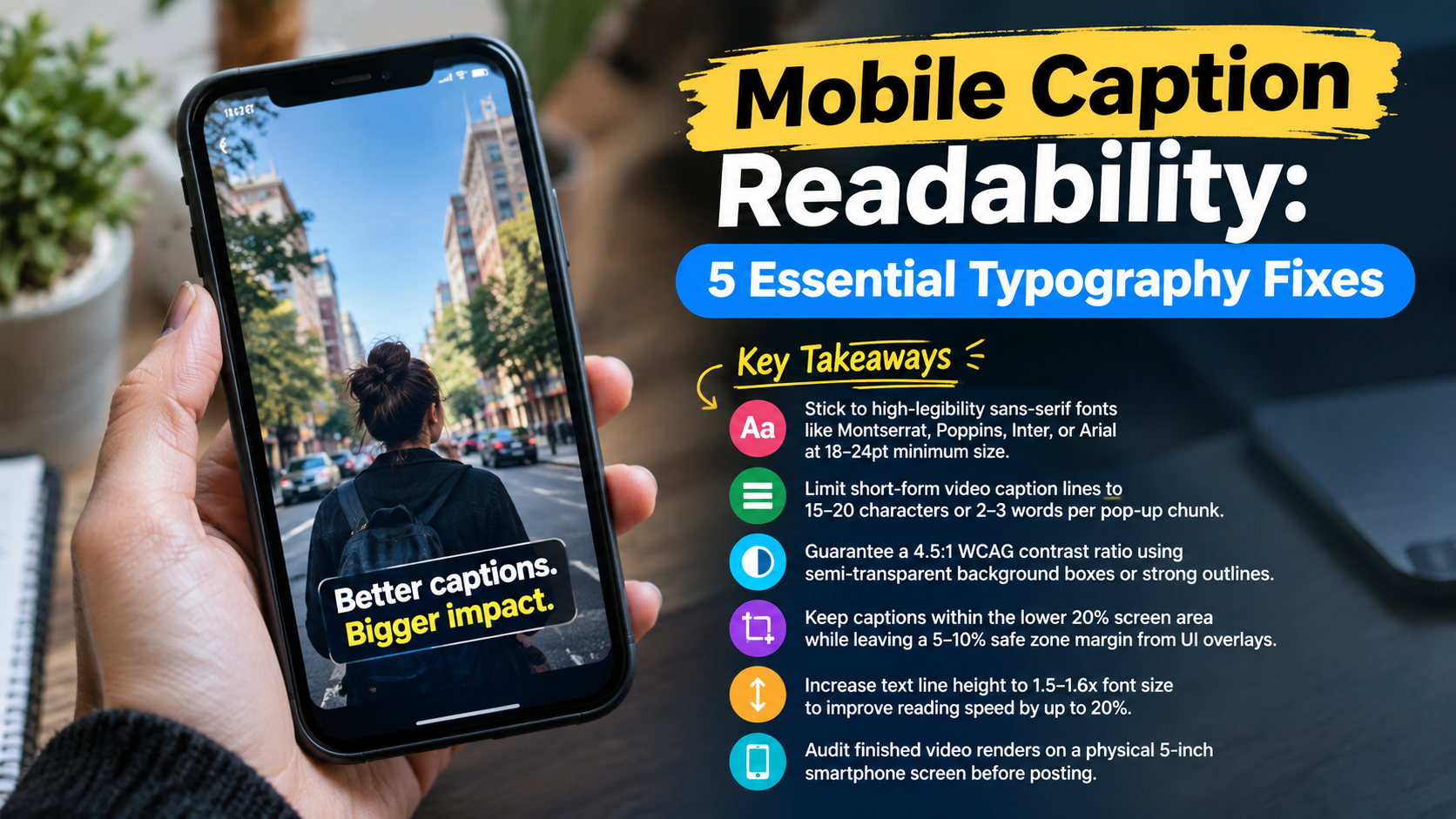
Key Takeaways
- Stick to high-legibility sans-serif fonts like Montserrat, Poppins, Inter, or Arial at 18–24pt minimum size.
- Limit short-form video caption lines to 15–20 characters or 2–3 words per pop-up chunk.
- Guarantee a 4.5:1 WCAG contrast ratio using semi-transparent background boxes or strong outlines.
- Keep captions within the lower 20% screen area while leaving a 5–10% safe zone margin from UI overlays.
- Increase text line height to 1.5–1.6x font size to improve reading speed by up to 20%.
- Audit finished video renders on a physical 5-inch smartphone screen before posting.
Why Mute Watching Makes Mobile Typography Critical
If your video relies on audio to deliver its core message, you throw away most of your audience before the hook lands. Social media feeds are built for silent scrolling. That means your text layout is your primary dialogue track.
The 85% Mute Viewer Reality
According to research from Facebook, 85% of short-form social media videos are watched with the sound off [1]. Whether viewers are riding the subway, scrolling in bed, or sitting in a quiet office, they consume video visually first.
85% watch mute
When sound is off, typography becomes the entire voice of your video. Furthermore, industry surveys confirm that U.S. audiences now expect captions everywhere they consume video [9]. If your text is hard to read or clipped off by phone edges, viewers will not turn up their volume. They will simply swipe to the next creator.
Why Auto-Captions Are Not Enough
Relying on built-in auto-captions from TikTok or Instagram Reels is a lazy gamble. Studies show that auto-generated captions on platforms reach only 60-70% accuracy [2], with timing or formatting errors popping up in approximately 1 out of every 3 words.
When platform algorithms generate captions automatically, you lose control over visual hierarchy, brand fonts, and line breaks. Worse, unrefined auto-caption layouts create visual noise that degrades watch time [6]. Baking custom, perfectly timed captions directly into your Adobe Premiere Pro master export guarantees clean text across every platform.
"If viewers have to strain to read your text for even half a second, you have already lost the retention battle."
Actionable Takeaway: Treat captions as a core visual element during post-production rather than relying on native app auto-captions after export.
5 Typography Mistakes Ruining Mobile Caption Readability: Sizing and Placement
Most subtitle flaws come down to two basic physical factors: text size and screen position. Let's look at the spatial errors editors make every single day.
+------------------------------------+  <-- Top UI Danger Zone (15%)
| [Back]   @username    [Search]     |
|                                    |
|                                    |
|         +----------------+         |
|         |  SAFE CAPTION  |         |  <-- Optimal Lower-Third Area
|         |  ZONE (20%)    |         |      (5-10% Side Margin)
|         +----------------+         |
|                                    |
| [Like] [Comment] [Share] [Sound]   |  <-- Right Side UI Danger Zone (20%)
+------------------------------------+  <-- Bottom UI Caption Bar (15%)
Mistake 1: Tiny Font Sizes Under 18pt
Setting your caption size below 18–24pt on a 9:16 vertical sequence looks fine inside Premiere Pro's Program Monitor. But on a physical 5-inch smartphone display, that text turns into microscopic scrawl.
Industry guidelines confirm that primary mobile video captions require a minimum font size of 18-24pt [7] to remain legible on handheld screens. For fast-paced short-form clips like Reels or TikToks, bump main emphasis text up to 32–40pt.
When text is too small, the viewer's brain spends extra energy trying to decode letterforms instead of absorbing your content. That added friction triggers instant cognitive fatigue. The result? They swipe away.
Mistake 2: Ignoring Platform UI Safe Zones
Nothing looks more amateur than spending hours hand-keyframing titles only to watch Instagram's UI overlay block the bottom two lines. Every platform overlays icons, sound titles, usernames, and comment boxes over vertical video feeds.
To prevent your text from getting buried under interface elements:
- Position captions strictly within the lower 20% of the screen.
- Maintain a mandatory 5% to 10% margin from the left and right screen boundaries.
- Keep text clear of the right-hand icon column (like buttons, comment counters, and share arrows).
- Avoid placing text in the top 15% of the frame where channel names and search bars sit.
Testing your layout against standard 9:16 safe zone overlays in your timeline keeps your dialogue visible regardless of where the clip gets reposted.
Actionable Takeaway: Lock your caption baseline into the lower 20% of the 9:16 frame and never drop below an 18pt font size.
5 Typography Mistakes Ruining Mobile Caption Readability: Contrast and Line Measure

Once your text size and position are locked, color contrast and word spacing dictate how fast a viewer reads your dialogue.
Mistake 3: Low Contrast Against Moving Footage
White text over dynamic video is a trap. The moment your subject walks past a light wall or wears a white shirt, plain white text disappears completely.
Captioning expert Meryl Evans emphasizes that "captions are meant to be plain" [2], warning that overly bright white text without proper background backing visually strains viewers. Official accessibility standards like WCAG 2.1 AA require a minimum 4.5:1 contrast ratio [3] for standard text.
Here is how to maintain readable contrast over changing footage:
- Add a semi-transparent black background box (60–80% opacity) behind your captions.
- Apply a heavy, solid stroke outline (3px to 5px) in black or dark gray around light text.
- Use high-contrast color pairs like vibrant yellow text over a dark background box.
- Test your video against light and dark scenes to ensure contrast holds throughout the edit.
Mistake 4: Overcrowding the Screen with Full Sentences
Dumping three lines of text containing 15 words onto the screen works for documentary subtitles. On fast-paced mobile feeds, it kills engagement.
Data shows that short-form video caption lines should stay between 15-20 characters per line [8] for fast-scrolling platforms. Displaying full paragraphs forces the eye to scan back and forth, pulling focus away from the visual action.
POOR PRACTICE (Full Paragraph Block):
"Today we are going to look at the top five typography errors that kill your mobile audience retention."
(102 characters - causes reading fatigue)

GOOD PRACTICE (Bite-Sized Pop-Up Chunks):
Chunk 1: "Top 5 Typography Errors" (24 chars)
Chunk 2: "That Kill Your Retention" (24 chars)
Additionally, typography research reveals that increasing typography line spacing from 1.2 to 1.6 times font size improves reading speed by up to 20% [4] and reduces viewer confusion. Giving your letters room to breathe prevents stacked multi-line captions from blurring together into an intimidating block of text.
Pro Tip: Split your transcript into bite-sized pop-up chunks of 2 to 3 words per line. Your viewers absorb the message faster without taking their eyes off the center of the frame.
Actionable Takeaway: Combine semi-transparent dark background boxes with a 1.5x line height to hit accessibility standards and maximize scanning speed.
The Final Typography Mistake Ruining Mobile Caption Readability: Animation Desync
The fifth mistake happens when editors try too hard to make text look dynamic, sacrificing readability for flashy keyframe movement.
Mistake 5: Lagging Word Highlights
Few things annoy a viewer faster than word-by-word highlights trailing behind the speaker's voice. If a yellow highlight lands on a word 300 milliseconds after it was spoken, it breaks the viewer's natural reading rhythm.
Sync desync usually happens when editors rely on automated tools that estimate timing based on phrase averages rather than precise audio waveforms. When dialogue speeds up or includes sudden pauses, static timing templates fall apart.
Balancing Motion Effect with Reading Speed
Bouncy text transitions and dramatic 3D flips might look fancy in a template pack, but over-animating every single word creates visual clutter. Keep your text movements purposeful.
How to keep your caption motion clean:
- Use instant pop-up transitions or subtle scale bumps (100% to 108%) for active word highlights.
- Avoid slow fade-ins or floaty easing curves that make text take too long to resolve.
- Lock keyframe changes directly to speech onset so the word appears on the exact frame audio starts.
- Limit aggressive shaking or bounce effects to key emphasis words rather than applying them across entire sentences.
Actionable Takeaway: Align word highlights strictly to audio waveforms and strip away floaty motion curves that delay text legibility.
Best Font Choices and Styling Guidelines for Social Video
Selecting the right typeface isn't about artistic flair. It's about clean geometric structure that survives heavy video compression algorithms.
| Font Name | Category | Best Use Case | Legibility Rating | Mobile Character Stroke |
|---|---|---|---|---|
| Montserrat | Geometric Sans-Serif | High-energy clips, bold headlines | 9.8 / 10 | Wide, uniform weight |
| Poppins | Geometric Sans-Serif | Tech podcasts, modern tutorials | 9.5 / 10 | Open counters, highly legible |
| Inter | Neo-Grotesque Sans | Clean interviews, agency edits | 9.6 / 10 | Designed specifically for digital screens |
| Arial Bold | Standard Sans-Serif | Fallback universally supported | 8.9 / 10 | Classic weight, highly predictable |
The Top 4 High-Legibility Sans-Serif Fonts
Serif fonts with delicate strokes (like Times New Roman or Bodoni) degrade when compressed by social networks. The thin lines pixelate on mobile displays, causing text to flicker during playback.
Stick with heavy geometric sans-serif fonts:
- Montserrat: Offers wide letterforms and strong horizontal strokes that stand out over complex video backgrounds.
- Poppins: Features clean, circular curves that maintain high legibility even at smaller font scales.
- Inter: Crafted specifically for computer monitors and mobile displays, offering clear letter differentiation.
- Arial / Helvetica (Bold): Reliable, neutral options that deliver clean line weights across all rendering engines.
| 40|Poppins | NaN |
|---|
Limiting Typefaces for Visual Consistency
A common rookie mistake is mixing three or four different fonts inside a single 30-second reel. Design experts warn that designers recommend sticking to 1 or 2 font families per video [5], as mixing multiple typefaces creates visual chaos.
Pick one solid typeface for your captions. Vary emphasis using font weight (Medium vs. ExtraBold) or text color (White to Yellow) rather than swapping font families mid-video.
RECOMMENDED FONT HIERARCHY:
Main Dialogue Text: Poppins Medium (White, 24pt)
Emphasis Keywords:  Poppins ExtraBold (Yellow, 28pt)
Background Box:    Solid Black (70% Opacity)
Actionable Takeaway: Choose one geometric sans-serif family like Montserrat or Poppins and create visual hierarchy using font weight and color shifts alone.
How to Run a 60-Second Mobile Caption Audit
Before exporting your sequence and sending it to a client, run this quick manual audit.
The Physical Device Squint Test
Never approve your final captions based solely on how they look on a large desktop monitor. Desktop displays hide legibility flaws that become painfully obvious on mobile devices.
To run a proper squint test:
- Export a 10-second test render of your sequence.
- Transfer the file to your physical smartphone.
- Hold the device at arm's length in normal lighting.
- Half-close your eyes while playing the video.
- If you cannot easily read every word while squinting, your color contrast or text size is failing.
Furthermore, responsive text scaling prevents cramped mobile layouts [10] when viewers watch clips across different device screen dimensions.
"Testing on a monitor tells you if it looks pretty. Testing on a phone tells you if it actually converts."
Contrast and Line Measure Checklists
Run through this brief checklist before pushing your edit to final render:
Pre-Export Mobile Caption Checklist
- Is your primary text font size set to at least 18–24pt (or higher for fast pop-up text)?
- Does your text maintain a 4.5:1 contrast ratio against light and dark background scenes?
- Are your captions anchored safely inside the lower 20% of the 9:16 frame?
- Are side margins kept 5% to 10% away from mobile UI buttons and screen edges?
- Are lines limited to 15–20 characters max (2–3 words per pop-up chunk)?
- Is line height set to roughly 1.5x font size for multi-line text blocks?
- Do word highlight animations sync precisely with audio speech onset?
Pro Tip: Save this checklist as a preset note beside your editing desk. Catching text bugs before rendering saves hours of revision time down the line.
Actionable Takeaway: Always review test exports on an actual smartphone screen using the squint test before publishing.
Fixing Your Caption Workflow in Premiere Pro
Styling captions manually in Premiere Pro using the Essential Graphics panel can consume hours of tedious keyframing per project.
Eliminating the Render-to-See-Changes Loop
Standard subtitling workflows inside Premiere Pro force you into an annoying cycle. Make an adjustment, wait for the timeline to render, preview the motion effect, realize the timing is off, and repeat.
If you cut 10 to 20 short clips a week, that render-to-see-changes loop burns hours of billable time.
That is why we built CaptionFlow, a dedicated styling and animation tool inside KreateFlo. Instead of relying on slow, nested Mogrts, CaptionFlow uses a custom WebAssembly (WASM) engine directly inside Premiere Pro. You get real-time previews of animated caption presets without waiting for timeline rendering.
| Before | 4 Hours Manual |
|---|---|
| After | 90 Sec CaptionFlow |
Automating Styles with CaptionFlow
With CaptionFlow, you can apply 22 animated caption presets—including Hormozi-style pop-ups, word-by-word highlights, and clean modern subtitles—in a couple of clicks. That turns 4 hours of manual keyframing into 90 seconds of work.
MANUAL PREMIERE WORKFLOW:
Transcribe -> Convert to Captions -> Split Lines Manually -> Adjust Essential Graphics -> Hand-Keyframe Colors -> Render Preview (3-4 Hours)

KREATEFLO CAPTIONFLOW WORKFLOW:
Select Sequence -> Run CaptionFlow AI -> Choose 1 of 22 Presets -> Instant WASM Preview -> Export (90 Seconds)
You can save custom brand styling templates that automatically enforce safe zones, high-contrast background boxes, and minimum 18pt font sizes across every clip your agency produces.
Now, let me be transparent about when KreateFlo isn't for you. KreateFlo is strictly an Adobe Premiere Pro extension (CEP plugin) running on version v1.0.3. If you edit in DaVinci Resolve or Final Cut Pro, KreateFlo will not work for you. And if you prefer standalone web dashboards like Opus Clip or Descript, this isn't that—KreateFlo keeps your entire workflow native inside Premiere Pro so you never have to round-trip media files.
Our pricing model is built for working editors. KreateFlo includes a Free Tier with 3 tools forever (Silence Remover, Transition Assistant, and Copy & Paste). For full AI access, Pro is $19.99/mo with 20 AI processing hours, and Studio is $44.99/mo with 50 AI processing hours. That's $19.99/mo vs FireCut's per-hour credit billing, making costs predictable month after month.
Beyond subtitling, KreateFlo bundles 33+ editor tools into one extension. That includes an AI Multi-Cam Editor that manages up to 8 speakers and 8 cameras with automatic wide-shot designation, filler word removal, and voice transcription supporting 40+ languages (including Bangla and Hindi).
Actionable Takeaway: Use automated Premiere Pro extensions like CaptionFlow to lock in brand typography presets and eliminate manual subtitling keyframes.
Frequently Asked Questions
What font size is best for mobile video captions on TikTok and Reels?
Primary mobile video captions require a minimum font size of 18–24pt for standard viewing. For fast-paced short-form clips, bump main text up to 32–40pt. Always verify sizing on a physical smartphone screen before publishing.
Which sans-serif fonts offer the best legibility for short-form video subtitles?
Clean, geometric sans-serif fonts such as Montserrat, Poppins, Inter, and Arial offer the highest legibility on small displays. Their consistent stroke weights prevent letters from blurring during motion.
How do you maintain high color contrast for captions on changing video backgrounds?
To maintain a WCAG-compliant 4.5:1 contrast ratio, add a semi-transparent dark background box behind text. Alternatively, apply a strong black stroke outline (3–5px) around white or yellow text.
What are platform safe zones for placing captions on mobile video formats?
Platform safe zones require keeping text within the lower 20% of the screen while leaving a 5–10% margin from all screen edges. This prevents text from being hidden behind like buttons, captions, or platform headers.
How many words per line should short-form video captions contain?
Short-form video captions perform best with 2–3 words per line, capped at 15–20 characters. Rapid, bite-sized pop-up text matches scrolling viewer cadence better than multi-line paragraphs.
Conclusion: Stop Sacrificing Watch Time to Bad Captions
Legible typography isn't an artistic preference; it's the baseline for keeping silent viewers tuned into your video. By dodging small font sizes, keeping text inside safe zones, and enforcing high contrast, you instantly separate your edits from amateur uploads.
If you edit podcasts and short-form content in Adobe Premiere Pro every day and want to skip hours of manual keyframing, test out CaptionFlow or get started with our free tier to style clean, animated captions in seconds.
References
- taption.com/blog/en/2025-short-video-subtitle-design-tips-en
- evelize.com/blog/captioning-mistakes-avoid
- opus.pro/blog/video-caption-design-placement
- typographymaster.com/guide/common-typography-mistakes
- supercharge.design/blog/20-common-typography-mistakes-in-ui-design
- rendercut.io/why-auto-captions-look-bad
- teleprompter.com/blog/social-media-video-statistics
- viralnote.app/blog/complete-guide-video-captions-subtitles
- xr.global/press-releases/captions-are-no-longer-optional-u-s-audiences-now-expect-them-everywhere-they-watch-video
- dancelogo.com/blog/why-mobile-typography-breaks-common-fixes/
- zignuts.com/blog/mastering-mobile-app-typography-best-practices-pro-tips
- adoc-studio.app/blog/typography-guide
- logoswebdesigns.com/blog/website-typography-best-practices-2026/
Try KreateFlo free
3 tools forever, 7-day trial on the rest. No credit card to start.
Download KreateFlo