AI Video Editing: Ultimate 2026 Guide to the 5 C's Rule
Most video editors think Joseph Mascelli's classic 5 C's of cinematography belong strictly on Hollywood sets. They are wrong. If you are still manually cutting multi-cam interview angles in Adobe Prem
Most video editors think Joseph Mascelli's classic 5 C's of cinematography belong strictly on Hollywood sets. They are wrong.
If you are still manually cutting multi-cam interview angles in Adobe Premiere Pro, you are lighting your billable hours on fire.
We are talking about a massive difference in your daily workflow: 90 seconds of automated processing versus 4 hours of tedious timeline scrubbing with a blade tool. In 2026, solo operators running lean, automated stacks are publishing up to 10x the volume of traditional production teams at a fraction of the cost.
The secret is not letting AI take over your creative direction. It is about using AI to execute the mechanical, brain-melting tasks so you can focus on pacing, comedy, and story.
Applying the 5 C's of Video Editing in 2026 AI Workflows is not about replacing your creative eye. It is about speed and precision.
In this guide, we will break down how to apply these vintage cinematic principles inside Premiere Pro to supercharge your multi-cam podcast assemblies, vertical reframing, and animated captioning.
Key Takeaways
Shift to Content Architect: Modern AI workflows shift your role from mechanical editor to content architect, letting tools handle cuts while you direct the story.
Multi-Cam Automation: Camera Angles and Close-ups can be automated for up to 8 speakers using KreateFlo's native Multi-Cam Editor.
Massive Time Savings: Manual silence removal on a 60-minute sequence requires 30 to 45 minutes of timeline scrubbing, which AI resolves in under two minutes.
Composition Safe Zones: Ensure safe zones are respected during auto-reframing so crucial visual elements are not hidden by platform-native interfaces.
Tool Consolidation: Consolidating single-purpose subscriptions into a unified in-NLE plugin like KreateFlo saves hundreds of dollars annually.
Know the Limits: Understand when to turn off the automation: highly stylized narrative pieces still require manual, human intuition.
Decoding the 5 C's: From 1965 Film Sets to 2026 Timelines
Joseph Mascelli's Legacy
When Joseph Mascelli published his masterwork in 1965, he was writing for Hollywood film sets running physical reels. But as we navigate accelerating modern video creation [3], those rules have evolved for vertical-first timelines and digital podcasts. Whether you edit a three-camera conversational podcast or a hyper-paced TikTok, the five principles—Camera Angles, Continuity, Cutting, Close-ups, and Composition—decide if a viewer stays or scrolls. Today, video editing software statistics [4] show that over 85% of global internet traffic is video content, and a staggering portion of mobile viewers consume this content on mute [4].
Because of this, visual elements must carry the weight of the narrative. Traditional video production teams used to cost $5,000 to $50,000 per project traditional video production costs. But in 2026, a solo editor using AI-assisted tools and workflows [1] can deliver the same high-end cinematic quality in a fraction of the time [1].
The Five Pillars in the Age of Social Media
How do these 1965 concepts apply to 2026's vertical screens? It is simpler than you think.
Camera Angles determine whose face is on screen during a heated debate.
Continuity prevents jarring jumps in visual pacing.
Cutting controls the narrative rhythm.
Close-ups amplify emotional reactions.
Composition keeps your subject centered while avoiding the dreaded platform interface overlay.
In my experience, editors who ignore these basics end up with automated videos that look soulless. AI can cut, but it does not understand context without your guidance. By maintaining narrative continuity [2] and framing your shots with precise intent, you ensure that the automation serves the story, rather than distracting from it [2].
"Automation is a lazy editor's trap unless you guide it. If you let an algorithm make 100% of your cutting decisions, your video will end up looking like a surveillance feed."
Pro Tip: Treat the five pillars as a quality-control checklist before every export. Never trust a default AI layout without double-checking the camera logic.
Actionable Takeaway: Audit your current template designs and verify if your camera transitions align with the emotional peaks of your speakers.
Applying the 5 C's of Video Editing in 2026 AI Workflows
The Rise of the Content Architect
We are in the middle of a massive industry shift. The traditional role of the junior editor, manually hunting for silent gaps and synchronizing multicam feeds, is fading. Today, you must operate as a content architect. The video editing software market has grown to $3.75 billion in 2026 [4], on track toward $4.99 billion by 2031 [4]. This rapid growth is fueled by a massive influx of freelance editors, which surpassed 7.3 million globally [4]. To stand out in this crowded market, you must transition from a button-pusher to a strategic content director.
Successful editors are deploying Gaussian Splatting technology guide [6] and advanced virtual sets to build immersive backdrops, dramatically lowering traditional costs [6]. In fact, using photorealistic 3D virtual production [7] or Volinga integrations helps studios create 3D assets in hours instead of weeks [7]. Major production suites have integrated these Gaussian Splatting workflows [8] to put virtual environments onto LED volumes [8], proving that the line between offline shooting and digital post-production is dissolving.
Why Web-Based Prompt Generators Fall Short
Many creators initially get sucked into the hype of browser-based prompt generators. They promise to write, generate, and edit your videos from a single prompt. But let's be honest: web-based tools fail the timeline precision test. They force you to upload gigabytes of raw footage, wait for slow cloud rendering, and then leave you with a generic edit. You lose your handles, your custom audio tracks, and your native Premiere Pro effects.
This is why integrated NLE plugins are dominant. By running natively inside Premiere Pro, plugins like KreateFlo give you the best of both worlds: automated processing power without losing timeline control. According to AI video marketing trends [5], 78% of marketing teams have integrated AI video tools into their workflows to scale content [5]. They do this because local, native plugin integrations keep the editor in full control.
Pro Tip: Avoid any tool that requires you to leave your NLE for basic cuts. It is always faster to run local plugins that interact directly with your native Premiere timeline.
Actionable Takeaway: Transition away from isolated web platforms and consolidate your editing workflow inside Adobe Premiere Pro using native CEP extensions.
Camera Angles and Close-ups: Automating the Multi-Cam Assembly
Automating 8-Speaker Timelines
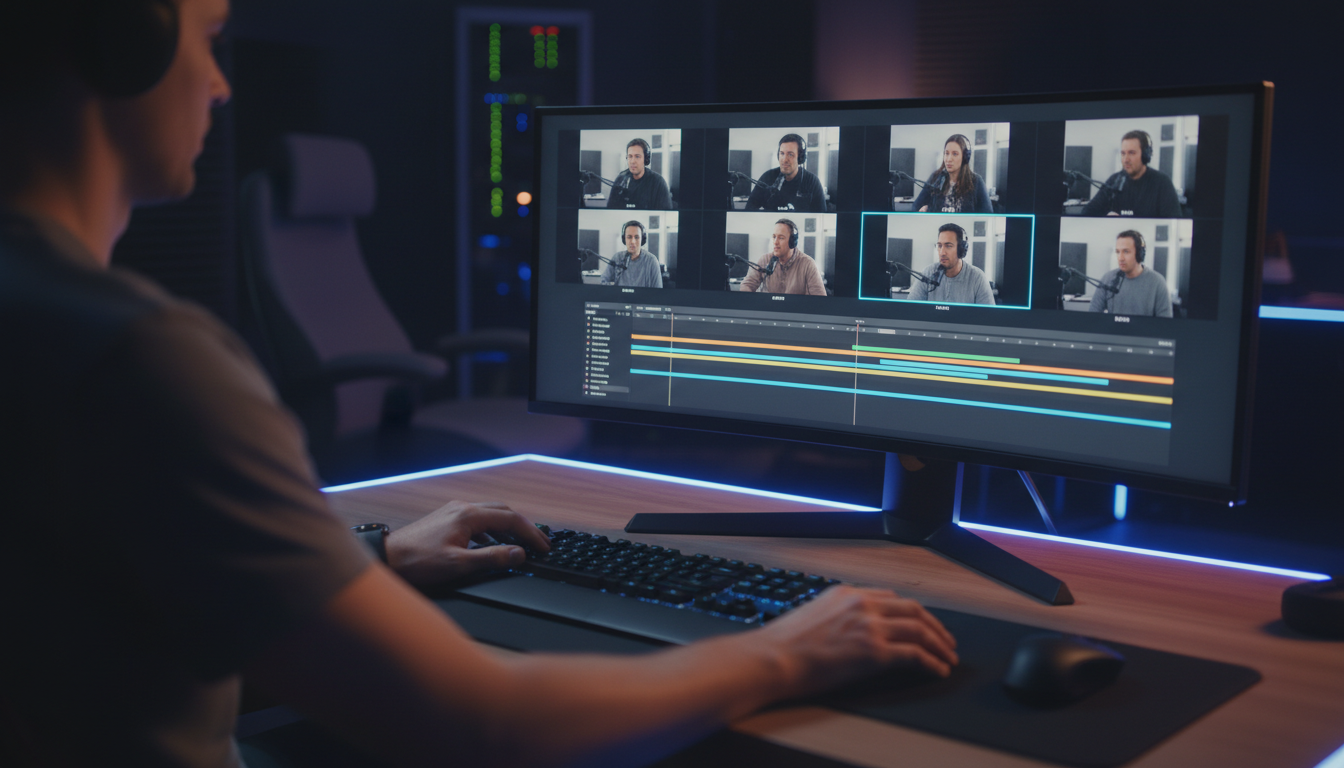
When we look at AI video generation models [9], the emphasis is increasingly placed on multi-scene visual consistency [9]. But when you edit a multi-camera podcast, you need frame-accurate control over the physical camera feeds you shot. By utilizing native Adobe Premiere Pro plugins like KreateFlo, you can sync up to 8 distinct speakers and coordinate them with wide-angle cameras and close-up views. Our Multi-Cam Editor allows you to designate a specific camera as the wide-shot and configure the pacing, similar to how AI video trends and predictions [10] highlight directable, cinematic camera movements [10].
Instead of spending hours razor-cutting based on who is talking, KreateFlo completes these cut decisions in seconds. These time-saving Adobe Premiere Pro solutions [1] help teams achieve up to an 89% reduction in manual production workflow time [1]. This speed is crucial since Adobe Premiere Pro currently commands a 35% market share in the video editing market statistics [4] landscape.
Handling Wide-Shot Designations Smartly
A common mistake in automated multi-cam editing is letting the software cut back and forth like a tennis match. If Speaker A coughs while Speaker B is talking, a poorly designed algorithm will cut to Speaker A. To prevent this, KreateFlo allows you to set clear rules for wide-shot intervals and vocal thresholds. You can designate a dedicated wide-shot camera that the timeline automatically falls back on during active cross-talk or long pauses.
And this visual pacing keeps the edit feeling natural, preserving the cinematic relationship between camera angles and close-ups. It simulates the decisions of a human director who knows when to hold a wide shot to let a moment breathe.
Multi-Cam Feature | KreateFlo (v1.0.3) | Standard Competitors (AutoPod, Wraith) |
|---|---|---|
Max Cameras Supported | Up to 8 Cameras | Up to 6 Cameras |
Wide-Shot Rules | Custom timing + threshold logic | Basic threshold logic only |
NLE Integration | Native Premiere CEP Extension | Standalone or basic scripts |
Voice Transcripts | 40+ Languages (including Hindi/Bangla) | English-only or basic English/Spanish |
Pro Tip: Always record isolated audio tracks for each speaker. Clean, separated audio is the secret to perfect automated multicam cuts.
Actionable Takeaway: Run KreateFlo's Multi-Cam Editor on your next multi-person podcast sequence, setting a wide-shot fallback interval of 15 seconds to keep the visual rhythm natural.
Cutting and Continuity: Speeding Up the Rough Cut Without Ruining Flow
90 Seconds vs 4 Hours: AI Silence Removal
Silence removal is where you cut your teeth. Doing it manually on a 60-minute podcast sequence requires 30 to 45 minutes of timeline scrubbing and up to 400 manual cuts. It is tedious, exhausting, and a complete waste of your creative energy. AI silence detection plugins can resolve this in under two minutes, saving you hours of raw timeline work.
But wait: maintaining character and narrative continuity [2] is not just about keeping the same jacket color in a generative shot; it is about protecting the flow of human speech [2]. Basic volume-threshold silence removers often ruin continuity by aggressively chopping out natural pauses, trailing words, and breaths.
In contrast, modern AI video editor tools [3] analyze conversational flow and apply smart padding [3]. This preserves the organic timing of dialogue while instantly stripping dead air. According to statistics on efficiency in modern video marketing [5], over 60% of marketers report that AI tools cut video creation times by more than half [5].
Adding Natural J-Cuts and L-Cuts
If you cut audio and video on the exact same frame, the edit feels abrupt. Professional editors use J-cuts (where you hear the next speaker's audio before you see them) and L-cuts (where the video cuts to the next speaker but the previous speaker's audio trails over).
By utilizing the KreateFlo Silence Remover, you can configure J-cuts and L-cuts to make transitions imperceptible. This optimization workflow is as precise as radiance fields and scene reconstruction [6] models sorting through point clouds, ensuring your edits remain invisible to the viewer [6]. It keeps your dialogue flowing like a real conversation, rather than a robotic sequence of jumpy clips.
Pro Tip: When setting up KreateFlo's Silence Remover, set your front padding to 150ms and back padding to 200ms. This prevents the tool from clipping the start and end of words.
Actionable Takeaway: Stop manually ripple-deleting dead space. Run the Silence Remover on your next rough assembly to instantly reclaim 30 minutes of your work day.
Composition: Safe Zones, Auto-Reframing, and Visual Retention
Reframing for 9:16 Safely
In vertical 9:16 compositions, every pixel of real estate is high-stakes. If you export a video only to realize your subject's head is cut off by the TikTok UI, you have failed the composition test. By incorporating computer vision models, modern plugins analyze facial positions and automatically center the speaker. Just as Volinga is utilized for virtual production and VFX technology [7] to align real-world footage with 3D elements [7], auto-reframing aligns horizontal footage with vertical viewports.
To keep users engaged, adding stylized captions is a necessity. Our CaptionFlow tool provides 22 animated presets, leveraging a real-time WASM engine so you can preview animations instantly. This mirrors how recent Splat rendering workflow updates [8] enable real-time visualization of 3D data in DCC tools [8]. These creative platforms for social video [9] highlight that pacing and narrative flow are critical differentiators [9]. Furthermore,
WASM Captions and Visual Anchors
Let's talk about the pain of captioning. Traditional Premiere Pro captions require tedious manual formatting, or you have to deal with slow rendering loops just to see how a simple animation looks. If you make a small adjustment to font size, you are stuck waiting for another render.
With CaptionFlow's WebAssembly (WASM) real-time preview, what you see on the timeline is exactly what you get, instantly. No rendering loops, no lag. You can select from 22 pre-designed presets, keep your captions locked in the platform safe zones, and verify that they are perfectly readable.
+------------------------------------------+
|             9:16 Safe Zone               |
|                                          |
|   [ Keep primary visual subject here ]   |
|                                          |
|                                          |
|      ==============================      |
|      ==  WASM Captions Safe Area ==      |
|      ==============================      |
|                                          |
|   [ Avoid bottom 20% - TikTok UI Area ]  |
+------------------------------------------+
Pro Tip: When reframing landscape interviews for vertical platforms, place your captions in the middle third of the screen. This keeps the speaker's face visible at the top and avoids platform text overlays at the bottom.
Actionable Takeaway: Design a custom caption preset in CaptionFlow that aligns with your client's brand colors, and save it to your local asset library for instant access.
Applying the 5 C's of Video Editing in 2026 AI Workflows: When to Go Manual
Limits of Automated Multi-Cam Engines
Let's be totally honest here: KreateFlo is not a magic wand. If you are editing highly complex projects like narrative films, abstract music videos, or single-camera commercial spots, KreateFlo is not the right tool for the job. AI tools operate on probabilistic patterns. Because of this, they cannot read dramatic subtext.
In fact, studies show that AI software metrics and efficiency [1] can automate up to 70% of video tasks by 2030 [1], but the remaining 30% requires creative direction. If you try to let an AI handle the pacing of a quiet, emotional scene, you run into probabilistic issues in generative video [2] where the system breaks the logic of the narrative [2].
When Highly-Stylized Manual Keyframing is Required
While the video editor software market trends [4] show massive adoption of automated tools [4], the most experienced editors understand when to turn off the automation. Pacing, comedic timing, and dramatic pauses still require a human touch. Ultimately, collaborative real-time editing workspaces [3] should serve to augment your workflow, not dictate your creative choices [3].
So, if your sequence contains complex graphical transitions, stylized split-screens, or manually keyframed speed ramps to match a specific musical beat, you need to step in and execute those edits yourself. AI should handle the boring stuff, leaving the high-level artistry to you.
"A great editor knows how to use automated tools to clear the field. But they also know exactly when to step in and make the critical human decisions that give a video its soul."
Pro Tip: If a guest makes a profound or emotional point, manually override the automated multicam cuts. Hold a tight close-up on their face for a few extra seconds to let the emotion settle with the audience.
Actionable Takeaway: Use automated cuts for your first assembly, then do a manual pass to adjust pacing around punchlines, dramatic statements, and awkward pauses.
The 2026 Tool Stack: How KreateFlo Fits Your Workflow
Ditching Single-Purpose Subscriptions
Here is the problem with the modern editor's budget: stacking five different single-purpose subscriptions drains your margins. You are paying $15/mo for transcription, $29/mo for silence removal, and $19/mo for automated camera switching. With KreateFlo, you get 33+ professional tools bundled into one Premiere Pro CEP extension. It is not a standalone web app that forces you to export and import massive files. It lives right inside your workspace.
Our video marketing ROI metrics [5] show that reducing software overhead can improve agency margins by up to 20% [5]. Whether you are a solo creator or a large agency, we offer clear pricing tiers: our Free tier includes three tools forever—Silence Remover, Transition Assistant, and Copy & Paste. If you need advanced features, KreateFlo Pro is $19.99/mo with 20 AI hours, while the Studio tier is $44.99/mo with 50 AI hours.
This all-in-one integration matches how 3D Gaussian Splatting software tools [6] and other asset-heavy pipelines have consolidated their interfaces [6]. As highlighted by cinematic AI video generation platform [9] trends, creators are rejecting fragmented tools in favor of unified environments [9]. This allows you to experience circular production and rapid editing iterations [10] without leaving your native timeline [10].
Getting Started with Version v1.0.3
Deploying KreateFlo v1.0.3 into your setup takes less than two minutes. Once installed as a native CEP extension, you can easily access voice transcription supporting over 40 languages, including Bangla and Hindi. This global approach allows content agencies to expand their reach and localization efforts effortlessly, scaling their client rosters without scaling their editing budgets.
KreateFlo Suite (v1.0.3 CEP Extension inside Premiere Pro)
├── Free Tier (3 Tools Forever)
│   ├── Silence Remover
│   ├── Transition Assistant
│   └── Copy & Paste
├── Pro Tier ($19.99/mo)
│   ├── 33+ Total Tools
│   ├── 20 AI Hours / month
│   └── Multi-Cam & CaptionFlow
└── Studio Tier ($44.99/mo)
    ├── 33+ Total Tools
    ├── 50 AI Hours / month
    └── Priority Processing
Pro Tip: Keep your extension panel docked on a secondary monitor alongside your audio meters. This ensures your key automation tools are always one click away.
Actionable Takeaway: Review your current monthly subscription fees, calculate how much you are spending on single-feature tools, and consolidate your stack with KreateFlo today.
Frequently Asked Questions
What is the best AI plugin for Premiere Pro in 2026?
KreateFlo is one of the most comprehensive plugins for Adobe Premiere Pro in 2026, offering a suite of 33+ tools inside a single CEP extension. Unlike web tools, it integrates directly with your active timeline, letting you handle multi-cam switching, silence removal, and animated captioning without leaving your workspace.
How do the 5 C's of cinematography translate to modern short-form editing?
The classic principles of Camera Angles, Continuity, Cutting, Close-ups, and Composition dictate how viewers retain information. In short-form content, this translates to utilizing tight close-ups, dynamic auto-reframing to keep subjects centered, and rhythmic cutting to prevent viewer drop-off on mobile screens.
How does AI auto-reframing work in Adobe Premiere Pro?
AI auto-reframing uses computer vision models to track human faces and movement across horizontal frames. The system dynamically adjusts the scale and position to center the subject in a vertical 9:16 aspect ratio, saving you from manually keyframing motion paths.
What is the difference between AI-powered and rule-based silence removal?
Rule-based silence removers cut out any audio below a strict decibel threshold, which often clips natural speech patterns and leaves jarring jump cuts. AI-powered silence removal analyzes natural conversation flow and applies smart padding (J-cuts and L-cuts) to keep the pacing feeling human and professional.
How do you automate multi-cam podcast editing using AI plugins?
By using a dedicated multi-cam editor plugin like KreateFlo, you designate up to 8 active speaker microphones and coordinate them with wide and close-up camera angles. The plugin analyzes the audio tracks simultaneously and performs cut decisions in seconds, eliminating manual camera switching.
Mastering Your Workflow
Mastering the 5 C's of video editing in the modern era does not mean doing all the heavy lifting yourself. By utilizing integrated Adobe Premiere Pro extensions like KreateFlo, you can focus on high-level narrative structure while the software handles the tedious mechanical tasks. Ready to transform your editing speed and reclaim hours of your work week? Download KreateFlo v1.0.3 today at our download portal and try our free tier with three lifetime tools, or unlock unlimited speed with our Studio tier.
References
getinduce.com/blog/why-ai-video-breaks-continuity-and-how-to-fix-it/
quasa.io/video/volinga-professional-3d-gaussian-splatting-for-virtual-production-vfx
radiancefields.substack.com/p/gaussian-splatting-in-may-2026
higgsfield.ai/blog/top-5-predictions-for-ai-video-generation-in-2026
crepal.ai/blog/agent/ai-video-editing-tips-for-faster-creator-workflows/
mindstudio.ai/blog/apple-intelligence-wwdc-2026-what-it-means-for-builders
digitalapplied.com/blog/video-marketing-statistics-2026-data-points
crepal.ai/blog/aivideo/the-shift-to-ai-video-editors-how-traditional-editing-is-changing-in-2026/
resource.digen.ai/how-to-speed-up-video-editing-with-ai-2026/
filmora.wondershare.com/video-editing-tips/5-cs-of-cinematography.html
scribd.com/document/834349677/The-Five-C-S-Of-Cinematograjphy-PDF
docfilmacademy.com/blog/6-steps-to-editing-an-engaging-documentary
Try KreateFlo free
3 tools forever, 7-day trial on the rest. No credit card to start.
Download KreateFlo