CapCut vs Premiere Pro: 5 Key Differences (2024 Guide)
I used to laugh at CapCut editors, calling them "bedroom TikTokers" while I sat inside Adobe Premiere Pro building custom templates from scratch. Then a client forced me to use it, and I finished a ve
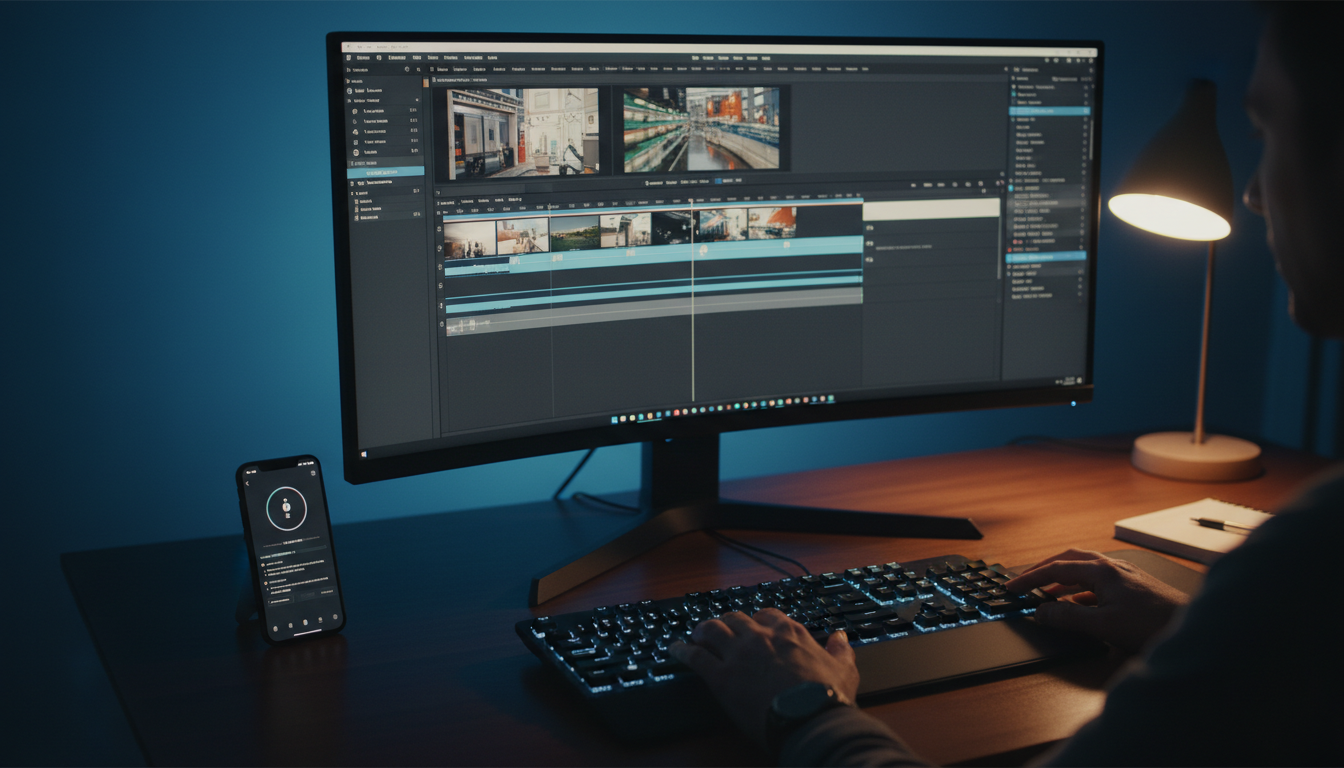
I used to laugh at CapCut editors, calling them "bedroom TikTokers" while I sat inside Adobe Premiere Pro building custom templates from scratch. Then a client forced me to use it, and I finished a vertical short in 4 minutes that would have taken me 25 minutes of manual keyframing. But before you dump your Creative Cloud subscription, you need to know the cold, hard limits of mobile-first editors.
The editing industry is split right down the middle. Adobe Premiere Pro still commands a dominant 35% of the global video editing software market [3] [8], with an estimated 30 million active editors clicking away on it daily [7]. But let's be real: more than 75% of video views now happen on phones [3] [5]. This mobile-first explosion is why ByteDance's CapCut surpassed 1 billion downloads [3] [10], building an army of creators who value raw speed over absolute pixel precision [6] [9].
Can a simplified, template-driven app actually replace a professional-grade non-linear editor (NLE)? Or is a hybrid approach the only real path forward?
To answer that, we have to look closely at their technical limits, financial costs, and daily rendering speeds. Here is what happens when you try to run a high-volume editing business on both platforms.
Key Takeaways
- CapCut is 3 to 5 times faster for simple vertical social media videos, taking 5-10 minutes versus Premiere's 20-45 minutes.
- CapCut Desktop Pro caps your timeline at 12 tracks and lacks native multi-cam or nesting features.
- Premiere Pro handles up to 64 camera angles and professional color grading with the Lumetri panel.
- A hybrid workflow—rough-cutting in Premiere and finishing in CapCut—is highly popular but suffers from zero native project compatibility.
- KreateFlo bridges the speed gap by bringing CapCut-like automated speed to your existing Premiere Pro timeline.
The Brutal Truth: CapCut vs Adobe Premiere Pro: Mobile vs Desktop Editing
Speed vs Precision
If you edit social media videos for a living, your biggest enemy is the clock. When a client needs daily vertical videos, manual asset creation inside Adobe Premiere Pro feels like trying to build a wristwatch with a sledgehammer [1] [7].
I timed it. Putting together a standard 60-second vertical social media video takes about 5 to 10 minutes total in CapCut [1]. That same clip requires 20 to 45 minutes of tedious keyframing, manual audio leveling, and subtitle styling in Premiere Pro [1] [3].
The primary difference lies in how each tool handles automation. CapCut's desktop app uses aggressive AI auto-editing. It can compile a rough cut from raw footage in about 15 seconds [1] [2].
In contrast, Premiere Pro's manual workflow is designed for absolute control. Premiere forces you to build sequences, manage custom clip frame rates, and manually coordinate nested assets [1] [7]. While Premiere's precision is unmatched for broadcast deliverables [7], that level of detail is completely wasted when your video's final destination is a compressed phone screen [1] [5].
[[STAT:3-5x:faster short-form video editing:CapCut vs Premiere Pro]]
The 12-Track Hard Ceiling
Here is where CapCut's mobile-first DNA hits a brick wall. The desktop version of CapCut Desktop Pro limits timeline editing to a maximum of 12 tracks [2]. If you are building a complex client project with layered sound effects, secondary b-roll, text callouts, adjustment layers, and color correction tracks, you will hit this ceiling in the first five minutes [2] [6]. For professional editors who are used to managing dense audio and video layers, this constraint is a massive headache [2] [8].
Premiere Pro, on the other hand, offers unlimited timeline tracks and full support for nested sequences [2]. Nested sequences allow you to group dozens of tracks into a single, clean asset, which keeps your timeline organized and manageable [2] [8]. If you try to run a high-end corporate project or a documentary within CapCut, the lack of nesting and the track limit will create major productivity bottlenecks [2] [6].
"I tried editing a three-camera corporate panel in CapCut Desktop once. By the time I stacked the angles, added the external audio, and tried to insert b-roll, the timeline turned into an unworkable mess. I lost two hours just trying to keep things in sync."
Actionable Takeaway: Use CapCut when you need to turn around simple, single-track vertical clips under tight deadlines, but stick to Premiere Pro for any timeline that requires complex multi-layered storytelling.
Feature Showdown: Adobe Premiere vs CapCut Pro
Color Grading: Lumetri vs. Fast LUTs
In professional environments, color grading is not just about slapping on a filter. It is about establishing a brand's visual identity. Premiere Pro features the professional-grade Lumetri Color panel, giving you complete access to detailed curves, color wheels, and HSL secondary adjustments [2]. You can monitor your footage in real time using vectorscopes, waveform monitors, and RGB parades to ensure absolute color accuracy [2].
CapCut Pro approaches color through simple, pre-packaged LUTs [2] and basic adjustment sliders [1]. It is fast, and the automatic color matching works surprisingly well for quick phone-screen content [2] [6]. But if your client demands strict compliance with their brand's color codes, CapCut's simplified color workspace will leave you stranded [2] [6].
Pro Tip: If you must use CapCut for a quick turnaround but need exact brand colors, do your primary grading in Premiere first. Export with a clean REC709 profile, and apply zero filters inside CapCut. Don't let CapCut's auto-adjust tool ruin your color scopes.
Audio and Multi-Cam Headaches
When editing a podcast, audio quality is just as important as the video. Premiere Pro supports native multi-camera editing with up to 64 camera angles [2]. You can highlight your tracks, click sync, and let the software align your cameras via audio waveforms instantly [2] [7].
Conversely, CapCut has zero native multi-cam support [2]. If you want to cut between two or three cameras in CapCut, you must manually align the tracks, stack them on top of each other, and cut them clip-by-clip [2] [6]. This makes editing multi-cam projects an absolute nightmare [2] [6]. Furthermore, Premiere Pro integrates deeply with Adobe Audition, offering professional-grade noise reduction, multitrack mixing, and essential sound panels that CapCut's basic noise gate cannot match [1] [2].
Transcription and Captions
If you edit vertical short-form content, captions are non-negotiable. CapCut has built an incredible auto-captioning engine supporting over 100 languages [2] with emotion-aware settings. The app automatically formats your words into animated, trendy styles that match current social media aesthetics in a single tap [2] [6].
Premiere Pro's native transcription supports 18 languages [2]. While the transcription is highly accurate, the styling options are notoriously basic [2] [6]. You have to manually adjust keyframes or build essential graphics templates [2] just to get decent looking kinetic text. For creators who publish multiple clips a day, CapCut's caption speed is an undeniable advantage [1] [6].
| 35|Final Cut Pro | NaN |
|---|
Actionable Takeaway: Choose Premiere Pro if you are editing multi-camera interviews, podcasts, or color-critical brand campaigns, but switch to CapCut if your primary focus is rapid, auto-captioned social media content.
The Hidden Cost: Pricing and System Resources
Monthly Cost Breakdown
Let's talk about the money. CapCut Pro is priced at $7.99/month [1], while Adobe Premiere Pro costs $22.99/month for a standalone subscription [1] [2]. If you need the full Adobe Creative Cloud suite, that price climbs to $59.99/month [1] [2].
Over a year, those subscription costs add up quickly:
- CapCut Pro: ~$95.88/year [2]
- Premiere Pro (Standalone): ~$275.88/year [2]
- Adobe Creative Cloud (All Apps): ~$719.88/year [1] [2]
Interestingly, CapCut's desktop app allows users to gain up to 70 days of free CapCut Pro access simply by sending referral links to their friends. Additionally, ByteDance offers tiered cloud storage subscriptions [10] starting at $2.49/month for 100 GB and $7.49/month for 1000 GB, making it incredibly cheap to keep your mobile and desktop assets synced.
| Before | $7.99 |
|---|---|
| After | $22.99 |
| Feature / Metric | CapCut Desktop Pro | Adobe Premiere Pro |
|---|---|---|
| Pricing | $7.99/month [2] | $22.99/month [2] |
| Max Track Count | 12 Tracks [2] | Unlimited Tracks [2] |
| Multi-Cam Support | None [2] | Up to 64 angles [2] |
| Max Resolution | 4K (Pro) [2] | 8K+ [2] |
| Color Workspace | Basic Slider & LUTs [2] | Lumetri Color Panel [2] |
| Transcription | 100+ languages [2] | 18 languages [2] |
System Requirements and Optimization
The software you choose determines the hardware you need. CapCut's desktop app is incredibly lightweight and optimized to run on low-resource machines [3] [5]. It leverages basic system graphics, allowing you to edit 4K footage smoothly on a standard travel laptop without experiencing timeline lag [2] [5].
Premiere Pro is a resource hog. To edit complex timelines without dropping frames, Premiere Pro demands a dedicated GPU, high-speed SSDs, and at least 32GB of RAM [2] [7]. If you edit on a mid-range laptop, Premiere's timeline playback can stutter, leading to frequent crashes that ruin your creative flow [2] [3].
Actionable Takeaway: If you are operating on a tight budget or editing on a lightweight laptop while traveling, CapCut Pro's low subscription cost and lightweight system footprint make it the clear winner.
The Professional Hybrid Workflow: How to Combine Both Worlds
The Direct Round-Trip Myth
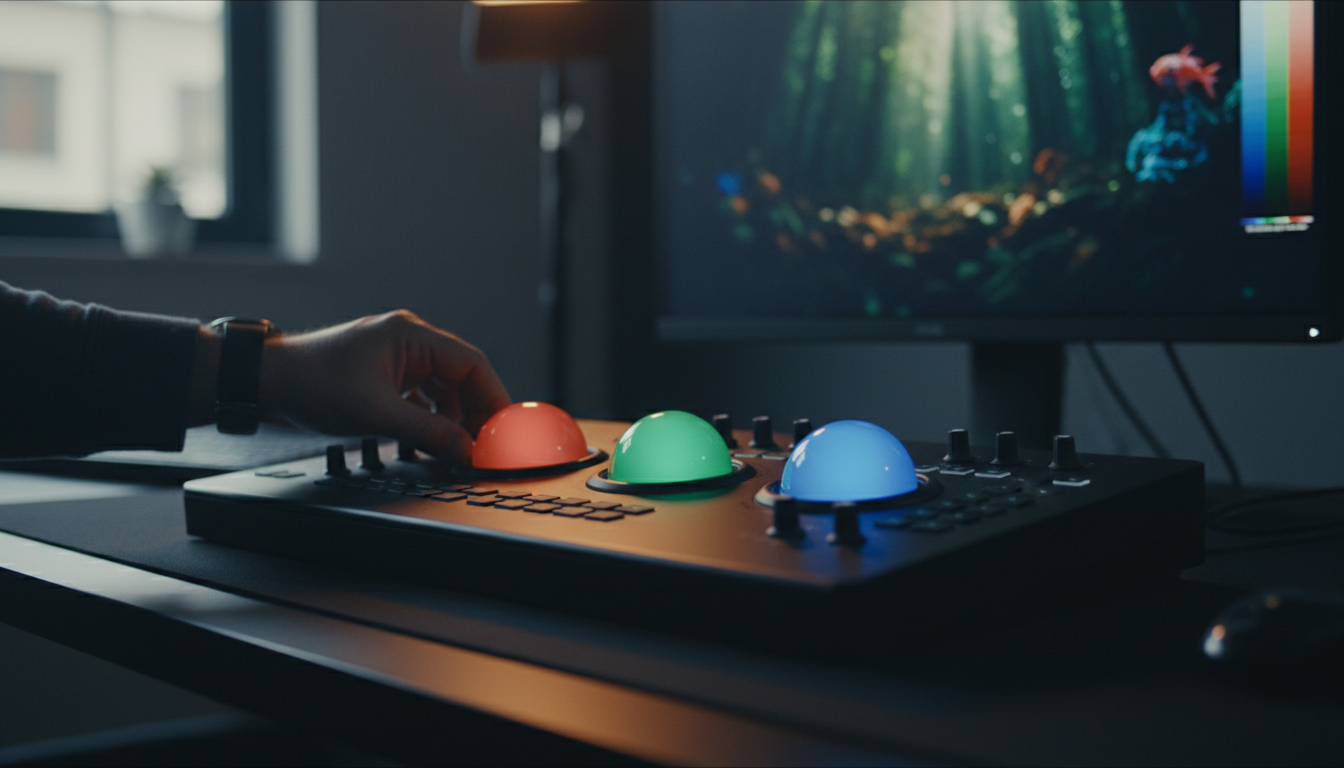
Many editors dream of a fluid workflow [6] where they cut their master sequence in Premiere Pro and then send it to CapCut for trendy transitions and captions. Let's dispel this myth immediately. There is no native project-level compatibility between CapCut and Premiere Pro [6].
You cannot export a Premiere Pro project file (.prproj) and open it inside CapCut, nor can you export an XML timeline from CapCut and bring it back into Premiere [2] [6]. Attempting to force a project-level round-trip will fail completely, resulting in broken clips and lost keyframes [2] [6].
How to Execute the Hybrid Cut
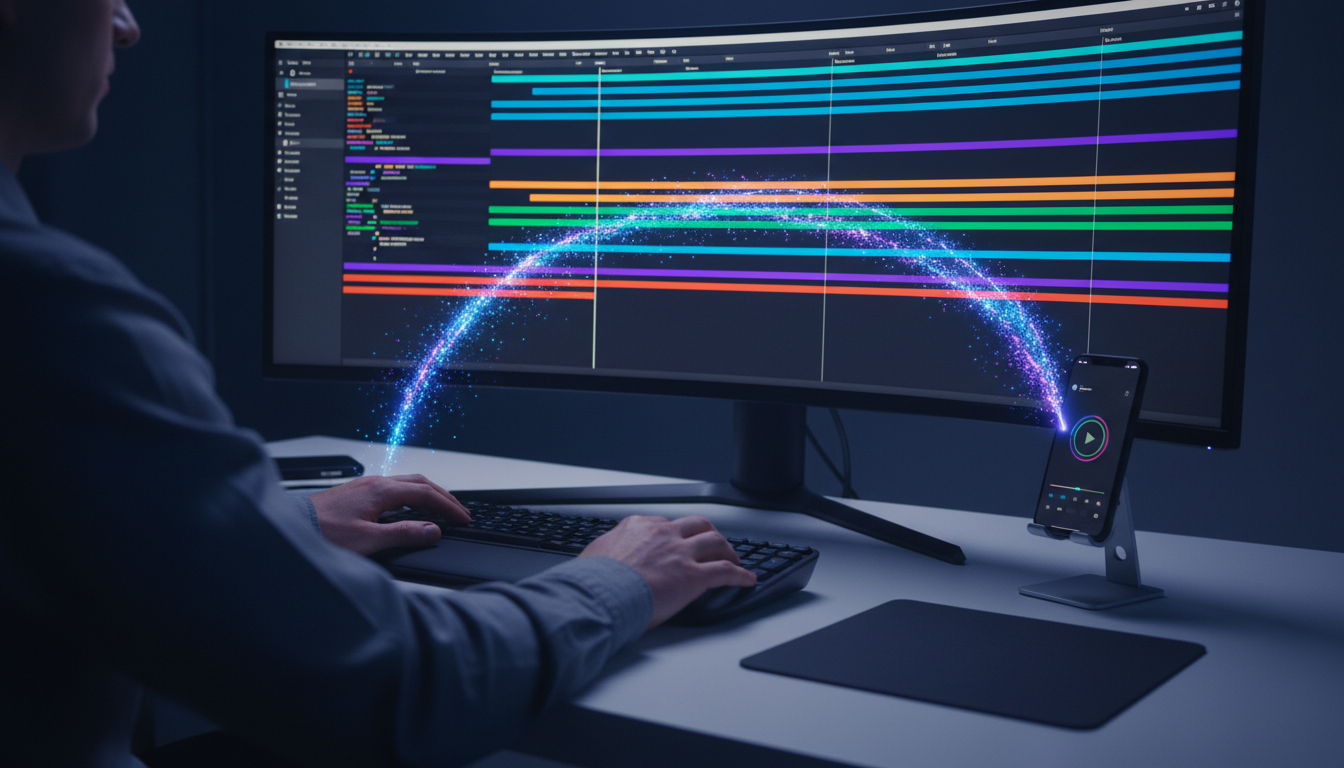
If you want to combine Premiere's precision with CapCut's speed, you have to use a flattened-file approach. This hybrid workflow is highly popular [1] among professional editors who handle social media accounts for major brands.
- Foundational Editing: Import your raw footage into Premiere Pro. Perform all your structural cuts, multi-cam switching, and audio cleanup [1] [2].
- Audio Polish: Use Premiere's Essential Sound panel to clean up your voiceover and background tracks [1] [2]. Do not perform audio mixing in CapCut; its tools are too basic.
- Master Export: Lock your aspect ratio and frame rate, then export a high-quality master file using a professional codec like ProRes or high-bitrate H.264 [1] [2].
- CapCut Finishing: Import that flattened high-quality file into CapCut Desktop Pro [2]. Use this stage strictly to add auto-captions, trendy stickers, and mobile-optimized visual effects [1] [2].
Actionable Takeaway: Avoid doing any structural cuts or audio syncing in CapCut. Handle all foundational editing inside Premiere Pro first to maintain timeline precision, then export a master clip to CapCut strictly for social finishing.
Leveling Up Premiere Pro with KreateFlo
Why We Built KreateFlo for Premiere Pro Editors
If you are like most professional editors, you love Premiere Pro's precision but hate how long it takes to perform repetitive tasks. You shouldn't have to bounce between two different software platforms just to get fast captions or clean up silences. That is why we built KreateFlo.
KreateFlo is a CEP extension built directly into Adobe Premiere Pro. It is currently on version v1.0.3. It bundles over 33 professional tools into a single panel, giving you CapCut-like automation speed without forcing you to abandon your professional timeline.
- No More Manual Cutting: Our automatic Silence Remover and voice transcription engine help you cut down hours of raw interviews in seconds.
- Real-time Captioning: With CaptionFlow, you get 22 animated caption presets powered by WASM real-time previews. You can see your changes instantly without waiting for a render loop.
- Automated Multi-Cam: If you edit podcasts, our Multi-Cam Editor automatically switches up to 8 speakers and 8 cameras, complete with a dedicated wide-shot setting.
- Globally Accessible: KreateFlo's voice transcription supports 40+ languages, including Bangla and Hindi, so you can service international clients with ease.
We keep our pricing simple and predictable. Unlike FireCut's per-hour billing, which makes your monthly invoice a guessing game based on processed footage, KreateFlo charges a flat monthly rate:
- Free Tier: Includes our Silence Remover, Transition Assistant, and Copy & Paste tools forever. No credit card required.
- Pro Tier ($19.99/mo): Unlocks the full suite of 33+ tools with 20 AI hours.
- Studio Tier ($44.99/mo): Designed for heavy production pipelines, offering 50 AI hours.
"Switching between Premiere Pro and CapCut for social shorts used to eat up two hours of my day in rendering and transferring files. Installing KreateFlo meant I could auto-caption and cut silences right inside my original sequence. It saved me roughly 90 minutes per video."
When KreateFlo is NOT the Right Pick
Let's be completely honest. KreateFlo is an extension designed specifically for professional editors who live in Premiere Pro daily. It is not a standalone web app, and it is not a mobile tool.
If you do all your editing on your phone, or if you don't own a Premiere Pro license, KreateFlo is not for you. In that scenario, you are much better off sticking with CapCut's mobile app [1] or using standalone web-based tools like Descript, Opus Clip, or Phantom Editor. We built this for desktop editors who want to stay inside their premium NLE workspace without losing the speed of automated tools.
Actionable Takeaway: If you want to keep Premiere Pro's professional-grade timeline but need to automate your captions, silences, and multi-cam sequences, install the KreateFlo plugin to eliminate your post-production bottlenecks.
Final Verdict: CapCut Pro vs Adobe Premiere Pro
When to Stick with CapCut
If you are a solo content creator producing high-volume, short-form vertical videos for platforms like TikTok or Instagram Reels, CapCut is your best choice [1]. Its speed, template library, and outstanding auto-caption engine make it impossible to beat for daily posting [2] [6].
If you are working on a low-spec travel laptop or don't have the budget for an expensive Adobe subscription, CapCut Pro's $7.99/month price point offers incredible value without sacrificing the visual quality your audience expects [1] [2].
When You Must Graduate to Premiere Pro
If you are editing long-form YouTube content, documentaries, or handling commercial client deliverables, Premiere Pro is irreplaceable [1] [2]. You need its unlimited timeline tracks, nested sequence support, and professional Lumetri Color workspace to meet industry standards [2] [6].
Premiere Pro also remains the undisputed choice [6] for collaborative team environments and agency pipelines, where projects must integrate seamlessly with After Effects and Adobe Audition [1] [2] [8].
Actionable Takeaway: Audit your current client list. If more than 80% of your revenue comes from simple short-form vertical clips, optimize your speed with CapCut. But keep Premiere Pro as your primary workspace for high-paying commercial contracts and complex multi-camera edits.
Frequently Asked Questions (FAQ)
Can you import Premiere Pro projects into CapCut?
No. There is no native project-level compatibility or XML transfer support between Premiere Pro and CapCut [6]. If you want to use both, you must edit your foundational cut in Premiere Pro, export a high-quality master clip (like ProRes), and then import that flattened file into CapCut [2].
Is CapCut Pro worth it compared to Adobe Premiere Pro?
Yes, if you primarily produce vertical short-form content under tight deadlines [1] [2]. CapCut Pro offers automated templates, fast transitions, and highly stylistic captions at a fraction of the cost of Premiere Pro [2] [6]. However, CapCut is not a replacement for Premiere Pro if your work involves complex audio mixing, long timelines, or multi-cam editing [2].
Why do professional editors still choose Premiere Pro over CapCut?
Professional editors choose Premiere Pro because it offers unlimited timeline tracks, precise keyframing control, a professional Lumetri Color panel, and robust multi-cam editing for up to 64 camera angles [2]. Premiere's integration with the Adobe Creative Cloud suite allows for cohesive collaborative team workflows that mobile-first apps cannot support [2] [8].
What is the best hybrid workflow between Premiere Pro and CapCut?
Perform your structural edit, multi-cam switching, and audio
Should I transition to Premiere Pro from CapCut?
You should transition if you are starting to take on high-paying commercial clients who require professional project handoffs, or if your projects are consistently hitting CapCut's 12-track timeline limit [2]. If your business is growing but you are still producing basic short-form vertical clips, you should stick with CapCut's speed [1] [2].
You don't have to choose between the rapid speed of CapCut and the precision power of Premiere Pro. If you want to speed up your editing workflow directly inside Premiere Pro, try KreateFlo v1.0.3 today. Get started with our 3 free-forever tools by visiting our download page.
Actionable Takeaway: Go download the KreateFlo plugin, run the Silence Remover on your next interview sequence, and see how much time you save before your next client deadline.
References
- flowith.io/blog/capcut-vs-premiere-pro-which-better-social-media-creators/
- flowith.io/blog/capcut-desktop-pro-vs-adobe-premiere-social-media-creators/
- autofaceless.ai/blog/video-editing-software-statistics-2026
- mordorintelligence.com/industry-reports/video-editing-market
- marketgrowthreports.com/market-reports/video-editing-apps-market-104183
- subclip.app/compare/capcut-vs-premiere-pro
- sendshort.ai/statistics/premiere-pro/
- electroiq.com/stats/adobe-premiere-pro-vs-final-cut-pro-statistics/
- expandedramblings.com/index.php/capcut/
- sendshort.ai/statistics/capcut/
- sendshort.ai/guides/capcut-vs-premiere/
- blitzcutai.com/blog/mobile-vs-desktop-video-editing-comparison
- youtube.com/watch
- midiaresearch.com/blog/how-capcut-is-challenging-adobe-premiere-pros-dominance-of-the-video-editing-market
- pdfchef.com/compare/capcut-vs-premiere-pro/
- youtube.com/watch
Try KreateFlo free
3 tools forever, 7-day trial on the rest. No credit card to start.
Download KreateFlo