CapCut vs Premiere Pro: 7 Best Animated Caption Hacks
Bouncing your finished sequence out of Adobe Premiere Pro into CapCut just for word-by-word animated captions isn't a clever hack. It's an absolute waste of rendering time, color depth, and disk space
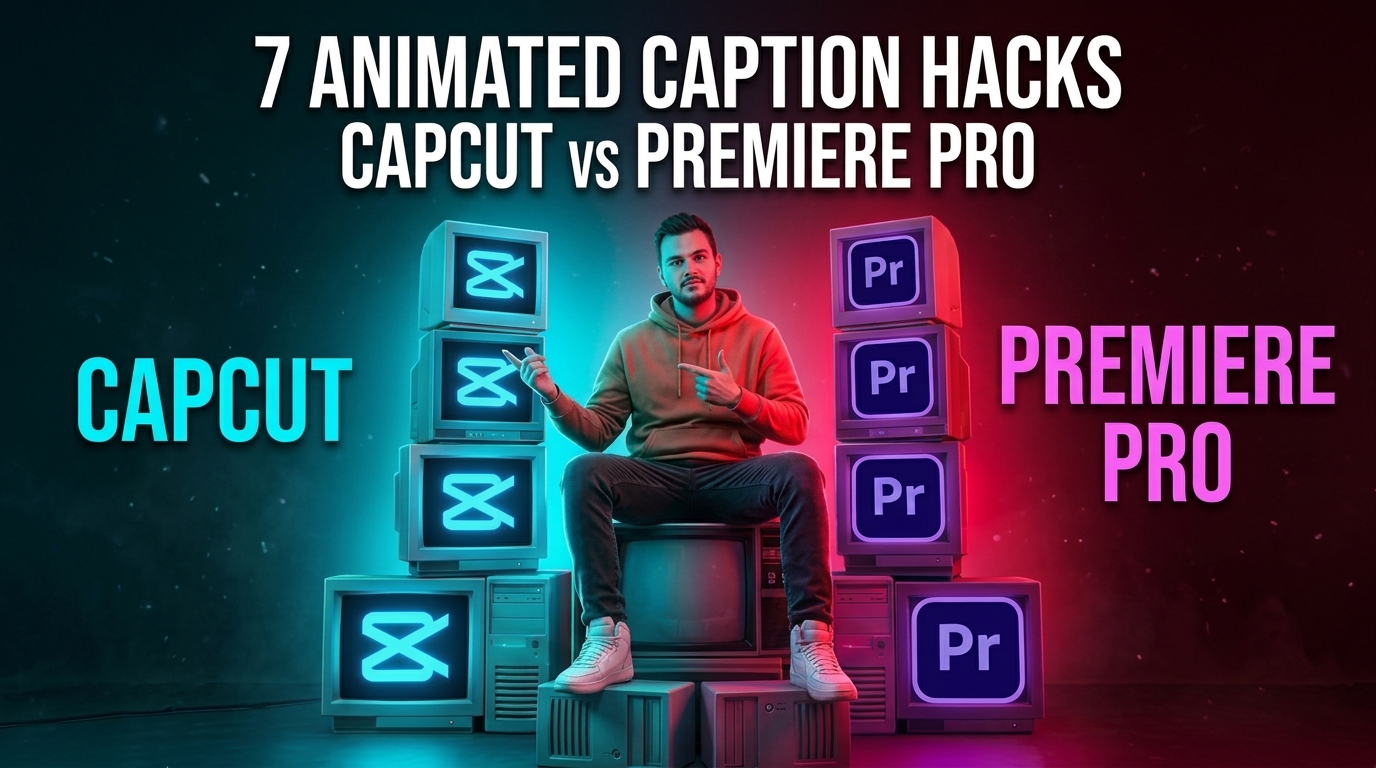
Bouncing your finished sequence out of Adobe Premiere Pro into CapCut just for word-by-word animated captions isn't a clever hack. It's an absolute waste of rendering time, color depth, and disk space. You lose 15 to 30 minutes on every social clip just waiting for file exports and re-imports.
With up to 75% of social media content viewed on mute [3], kinetic text is mandatory. But jumping between consumer mobile apps and your main NLE costs real billable hours every week.
Key Takeaways
Round-tripping is a productivity trap: Exporting master files from Adobe Premiere Pro to CapCut and re-importing them wastes 15 to 30 minutes per clip and causes generation loss.
CapCut Pro offers quick templates: At $19.99 per month, CapCut Pro [2] delivers fast mobile templates, but lacks native multi-cam tools, deep audio routing, and long-form project organization.
Premiere Pro natively lacks auto-kinetic text: While Adobe Premiere Pro costs $22.99 per month [2] on an annual plan, its native captions require manual keyframing or heavy MOGRTs to achieve bouncy word-by-word animations.
Commercial licensing liabilities: Using consumer template fonts and stock assets from mobile apps for paid client deliverables introduces serious legal risks.
Native plugins solve the bottleneck: CEP extensions like KreateFlo let you render CapCut-style animated captions directly on your Premiere timeline with real-time WASM previews.
CapCut vs Premiere Pro for Animated Captions: Feature Breakdown at a Glance
I talk to podcast editors every week who split their timeline right down the middle. They cut their main show in Adobe Premiere Pro, handle the multi-track audio mix, balance colors, and then export ProRes masters. Why? Just so they can drag those heavy files into CapCut for fancy, word-by-word animated captions.
It feels fast on clip number one. CapCut has grown to over 800 million monthly active users [1] across desktop and mobile because its dynamic text presets work right away.
But here's the kicker. As soon as your client asks for a single trim or a name spelling correction, that round-trip workflow falls apart. You end up managing stacked file exports, re-uploading renders, and hoping compression artifacts don't ruin your broadcast grade.
| Before | $19.99/mo |
|---|---|
| After | $22.99/mo |
Let's look at the actual cost. CapCut Pro runs $19.99 per month [2]. An individual Adobe Premiere Pro subscription costs $22.99 per month [2] on an annual plan. While monthly software tags look identical on paper, the real drain is lost editing time.
Manual transcription used to burn 4 to 6 minutes per minute of video [3]. Modern AI speech-to-text engines process an hour-long podcast in under 60 seconds. That gives you an immediate 80% to 90% time savings [3].
If you edit high-volume social clips from long-form podcasts, relying on a consumer app for client deliverables creates unnecessary drag. You need speed combined with editorial fidelity.
Core Feature Side-by-Side
Feature / Metric | CapCut Pro | Adobe Premiere Pro (Native) | Premiere Pro + KreateFlo |
|---|---|---|---|
Primary Platform | Desktop / Mobile / Web | Desktop (Windows / macOS) | Premiere Pro CEP Extension |
Multi-Cam Support | No native multi-cam engine [2] | Up to 16 multi-cam angles [2] | |
Kinetic Captions | 100+ consumer presets | Manual keyframing or MOGRTs | |
Caption Preview | Native real-time engine | Frame-by-frame timeline render | WASM real-time engine |
Transcription Languages | ~30 languages | 28+ languages | |
Commercial Rights | Consumer-focused templates | Full commercial clearance | Clear rights for client delivery |
Round-Trip Required? | Yes (if editing in NLE) [4] | No | No (100% inside Premiere timeline) |
Cost and Subscription Realities
Software costs stack up fast when you layer subscriptions on top of each other. Running Premiere Pro at $22.99/mo and CapCut Pro at $19.99/mo just for quick dynamic text means you are paying $42.98 every month for a broken system [2].
Other dedicated Premiere Pro caption tools quickly hit your wallet. Extensions like FireCut charge on per-hour billing models or high monthly tiers. Standalone web apps like Descript, Opus Clip, or Phantom Editor lock you into separate cloud spaces.
By contrast, KreateFlo runs as an Adobe Premiere Pro CEP extension (v1.0.3) that packs 33+ tools into one panel. You get a forever-free tier with 3 essential tools: Silence Remover, Transition Assistant, and Copy & Paste.
When you need full AI transcription power, KreateFlo Pro costs $19.99/mo for 20 AI hours. The Studio plan offers 50 AI hours for $44.99/mo. That brings CapCut-style animated captions and AI multi-cam editing straight to your timeline without per-hour billing anxiety.
Pro Tip: Stop evaluating software price tags in isolation. Calculate your billable hourly rate against the 15 to 30 minutes lost on every round-trip file render to discover the true cost of your software stack.
Actionable Takeaway: Audit your monthly plugin subscriptions to eliminate redundant tools that force you out of your primary NLE.
Speed vs Control: AI Transcription Accuracy and Style Customization
The battle between speed and control defines the choice between consumer video tools and professional NLEs. Drop a video clip into CapCut Desktop for short-form editing [10], and the app builds auto-captions within seconds. It offers trendy text animation templates with glowing neon outlines, word-by-word active pop-ins, and dynamic background boxes.
So what's the downside?
When the speech engine misinterprets technical terms, industry jargon, or speaker names, fixing those typos across stylized text blocks gets clunky. You end up clicking individual text blocks on a simplified subtitle track, tweaking font sizes line by line without deep typography options.
+-----------------------------------------------------------------------+
| TYPOGRAPHY & TIMELINE CONTROL COMPARISON                             |
+-----------------------------------------------------------------------+
| CAPCUT PRO                                                            |
| [ Fast AI Captions ] --> [ Trendy Presets ] --> [ Limited Adjustment ] |
|                                                                       |
| PREMIERE PRO NATIVE                                                   |
| [ Speech-to-Text ]  --> [ Graphic Track ]   --> [ Manual Keyframing ] |
|                                                                       |
| PREMIERE PRO + KREATEFLO CAPTIONFLOW                                 |
| [ AI Transcription ]--> [ WASM Preview ]    --> [ Instant Kinetic Style]|
+-----------------------------------------------------------------------+
Premiere Pro takes the opposite path. Adobe built native Speech-to-Text that creates dedicated Subtitle Tracks on your timeline. You can edit transcripts in a
But applying active word-by-word kinetic animation inside native Premiere Pro is painful.
To make words bounce or highlight on exact spoken audio frames, you must build complex MOGRTs in After Effects or manually drop keyframes on kerning and scale parameters. For an editor turning around 10 TikTok clips a day, that manual workflow stops you dead in your tracks.
| 40|Primary Editorial | NaN |
|---|
Text Animation Speed and Kinetic Highlight Controls
Dynamic captions aren't optional anymore. Audiences scrolling through TikTok, Instagram Reels, and YouTube Shorts expect visual text that lights up as speakers talk [8]. Word-by-word dynamic kinetic text animations [8] hook viewers early, holding attention through visual pacing during muted playback.
CapCut handles basic kinetic highlights well out of the box. Its preset library contains popular viral styles, yellow highlight overlays, and pop-up scale effects.
And yet, when you need custom brand colors, exact kerning tweaks, or specific font pairings across a whole client campaign, CapCut's automated templates stall out. You can't save team design systems easily without jumping through mobile template export steps. When client brand guidelines demand precise RGB hex codes and exact margins, consumer template libraries get restrictive fast.
Granular Typography and Audio-Driven Precision
Professional editors need sub-frame accuracy. When an audio track contains overlapping crosstalk or background noise, consumer speech-to-text algorithms frequently lose sync.
Premiere Pro gives you granular timeline snapping,
When you pair Premier Pro's timeline precision with specialized AI engines, you eliminate manual keyframing while keeping complete control over character spacing, stroke thickness, shadow angles, and text placement.
Pro Tip: Choose transcription engines that allow search-and-replace dictionaries for recurring technical terminology, client names, and industry acronyms to save hours of manual proofreading.
Actionable Takeaway: Use dynamic word-by-word highlighting on your initial 3-second hook to maximize viewer retention on muted social feeds.
CapCut vs Premiere Pro for Animated Captions: Feature Breakdown of Workflows

The biggest operational difference between CapCut and Adobe Premiere Pro is how they manage complex project files. When you edit a multi-cam interview or an agency podcast, your project file contains multi-track audio, color adjustment layers, graphics, and multiple sequence cuts.
+-----------------------------------------------------------------------+
| THE INEFFICIENT ROUND-TRIP WORKFLOW                                   |
+-----------------------------------------------------------------------+
| [ Premiere Timeline ] --> Render Master File (.MOV)                  |
|                                    |                                  |
|                                    v                                  |
| [ CapCut Desktop ]    --> Apply Captions & Re-Render (.MP4)           |
|                                    |                                  |
|                                    v                                  |
| [ Client Feedback ]   --> Re-edit in Premiere --> Re-export to CapCut|
+-----------------------------------------------------------------------+
When you attempt to use CapCut vs Premiere Pro in a hybrid workflow [4], you hit a brutal wall known as round-tripping.
Here is what that tedious loop looks like in real life:
You edit your full sequence inside Premiere Pro.
You export a high-bitrate master file to your local drive.
You import that master file into CapCut Desktop.
You run CapCut's auto-caption engine and choose a text preset.
You export a second time from CapCut, compressing the video again.
You send the file to the client, only for them to request a simple trim or music tweak.
You open Premiere Pro, make the edit, re-export, re-import into CapCut, re-apply captions, and re-export.
90 seconds vs 4 hours. That is the actual time gap between making a live timeline change and re-running a full export round-trip loop.
[[TIMELINE:1. Premiere Edit:Cut Master Timeline|2. Master Export:Render High-Bitrate MOV|3. CapCut Import:Apply Auto-Captions|4. Client Revision:Repeat Entire Loop:The Inefficient Round-Trip Loop]]
The Hidden Cost of Exporting and Re-importing Files
Round-tripping between software applications causes generation loss, file clutter, and drive bloat [4]. Every time you export video using a lossy codec like H.264 or H.265 through a consumer app, you degrade color depth and introduce visual artifacts [4].
If you edit long-form client projects, storing duplicate 4K master files for every short-form social clip quickly fills up your SSD storage arrays.
+-----------------------------------------------------------------------+
| THE PREMIERE-NATIVE STREAMLINED WORKFLOW                              |
+-----------------------------------------------------------------------+
| [ Premiere Timeline ]                                                 |
|       |                                                               |
|       +--> KreateFlo Extension (AI Transcription & WASM Captions)     |
|       |                                                               |
|       v                                                               |
| [ Client Feedback ] --> Instant Timeline Tweak --> Direct Export      |
+-----------------------------------------------------------------------+
Keeping your sequence entirely inside Premiere Pro ensures captions remain linked directly to raw media assets. If you shift an edit point or move an audio cut on the timeline, your captions move along with source clips automatically without extra renders.
Multi-Cam and Long-Form Project Management
CapCut lacks native multi-cam engine support [2]. If you cut a multi-angle podcast with 2 to 8 speakers, you cannot build multi-cam source sequences, switch camera angles on the fly, or perform automated speaker-based cutting inside CapCut.
Adobe Premiere Pro supports up to 16 multi-cam angles natively [2]. With recent Premiere Pro version releases [2], professional editors manage massive timelines, complex audio routing, and multi-track mixing with solid stability.
When you add specialized multi-cam tools straight into Premiere, you automate speaker switching for up to 8 cameras and 8 speakers with dedicated wide-shot designations. That skips manual multicam chopping completely.
Pro Tip: Keep all short-form social derivatives inside nested sequences within your primary Premiere Pro project file so client revisions update globally across all aspect ratios.
Actionable Takeaway: Eliminate external app round-tripping to protect raw visual quality and prevent multi-gigabyte file duplication.
Commercial Licensing, Safe Zones, and Client Deliverables
When delivering work for paying clients, agencies, or brand sponsors, copyright compliance and technical accuracy matter just as much as slick edits. This is where consumer mobile apps and professional NLE environments part ways.
+-----------------------------------------------------------------------+
| 9:16 VERTICAL SAFE ZONE OVERLAY MAP                                   |
+-----------------------------------------------------------------------+
| [ Top UI: Search & Camera Icons ]     <-- KEEP CAPTIONS BELOW         |
| ..................................................................... |
|                                                                       |
|                  SAFE CAPTION VISUAL ZONE                             |
|          (Word-by-Word Kinetic Highlights Live Here)                  |
|                                                                       |
| ..................................................................... |
| [ Right UI: Like, Comment, Share ]    <-- KEEP CAPTIONS LEFT          |
| [ Bottom UI: Username, Audio, Bar ]   <-- KEEP CAPTIONS ABOVE         |
+-----------------------------------------------------------------------+
9:16 Vertical Safe Zones and Platform UI Overlays
A common mistake is placing animated captions too low or too far to the right on vertical 9:16 clips. When videos hit TikTok, Instagram Reels, or YouTube Shorts, native platform interface elements—usernames, captions, like buttons, and comment icons—cover the edges of your frame.
If your animated text sits underneath platform UI overlays, viewers miss your message. Professional NLE workflows rely on strict 9:16 vertical safe zone overlays right on the program monitor.
CapCut's auto-caption presets default to low-center positioning. That regularly collides with TikTok's text description box.
Adjusting text placement across dozens of separate caption lines in consumer apps takes forever. In Premiere Pro, you adjust global vertical offsets across your entire caption track in one click, keeping kinetic text safe from mobile platform UI overlap.
Asset Rights and Commercial Deliverable Safety
Many editors assume every font, sticker, music track, and text animation preset built into free apps carries open commercial usage rights. That assumption can lead to serious legal headaches [5].
Consumer video tools often license fonts, sound effects, and graphic elements strictly for non-commercial, personal social media use [5]. If you deliver a commercial spot or paid client video containing consumer-licensed assets, your client risks copyright strike notices or licensing claims [5].
Adobe Premiere Pro Licensing: Includes commercially cleared typography via Adobe Fonts and royalty-free asset access through Adobe Stock, backed by legal indemnity.
Consumer Mobile/Desktop Tools: Asset libraries routinely mix personal-use fonts with commercial templates without clear warning markers.
Native CEP Plugins: Built-in font renderers load system fonts or Google Fonts with open commercial licensing, protecting agencies from legal claims.
Exporting standalone sidecar files is another major advantage of native NLE workflows. Platforms like YouTube and LinkedIn rely on sidecar files to index spoken content for search accessibility.
While consumer apps burn text graphics permanently into video pixels,
Pro Tip: Always enable 9:16 platform safe-zone overlays on your program monitor before fine-tuning caption placement to prevent UI clutter on mobile feeds.
Actionable Takeaway: Use commercially licensed typography and sidecar SRT exports to protect clients from copyright disputes and improve video search indexing.
How to Get CapCut-Style Animations Inside Premiere Pro Without Exporting
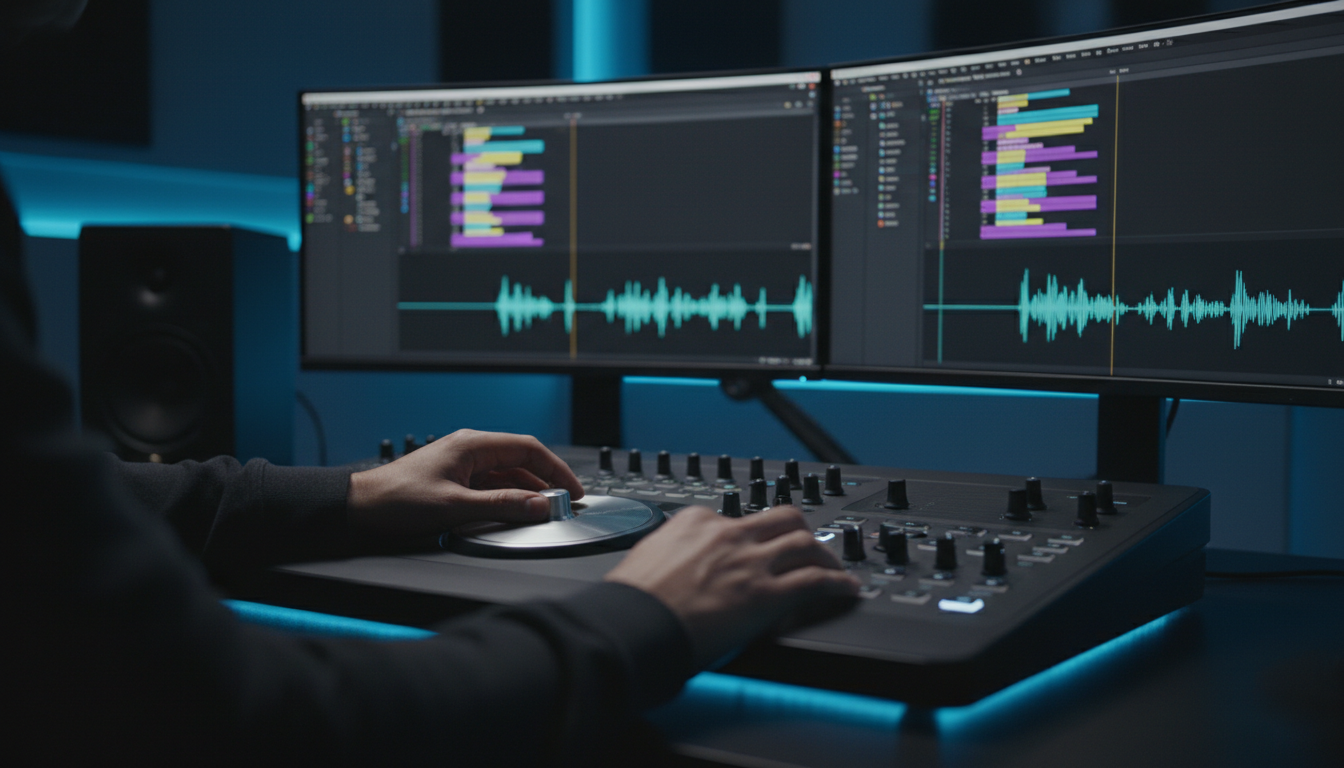
You don't need to export video out of Adobe Premiere Pro to get fast, word-by-word kinetic captions. Native panel extensions bring animated text tools right into your Premiere Pro workspace.
+-----------------------------------------------------------------------+
| KREATEFLO CEP EXTENSION PANEL INSIDE PREMIERE PRO                      |
+-----------------------------------------------------------------------+
| [ Multi-Cam ] [ Silence Remover ] [ CaptionFlow ] [ Auto-Reframe ]   |
|                                                                       |
| Caption Options:                                                      |
| * Select Preset: [ Dynamic Kinetic Bounce v2     v ]                  |
| * Language:      [ English (40+ Available)       v ]                  |
| * Preview Engine: [ WASM Real-Time Active        ]                    |
|                                                                       |
| [ GENERATE CAPTIONS ON TIMELINE ]                                    |
+-----------------------------------------------------------------------+
Eliminating the Round-Trip with Premiere-Native Plugins
Running a CEP extension natively inside Premiere Pro keeps your post-production pipeline under one roof. You get automated speech recognition, dynamic text styling, and kinetic motion without leaving your timeline.
That is where KreateFlo comes in. KreateFlo is an Adobe Premiere Pro plugin (CEP extension) on version v1.0.3. It bundles 33+ tools into a single dockable panel, replacing standalone apps like Descript or Opus Clip, and eliminating single-purpose plugins like FireCut, AutoPod, or Phantom Editor.
Using KreateFlo's CaptionFlow for Real-Time Previews
Inside KreateFlo, the dedicated CaptionFlow feature page gives editors 22 animated caption presets built specifically for short-form social video.
Standard MOGRTs in Premiere Pro can drag down timeline playback because Adobe's engine re-renders graphic keyframes frame-by-frame. CaptionFlow bypasses this lag with a WASM (WebAssembly) real-time preview engine. You can tweak font choices, stroke colors, active word highlight rules, and text shadows with zero render-lag delays.
Working with international content? KreateFlo supports voice transcription across 40+ languages, including full support for languages like Bangla and Hindi.
You run AI transcription, generate active word highlights, strip out silent pauses using KreateFlo's Silence Remover, and reframe horizontal footage into 9:16 vertical clips without rendering temporary video files.
Pro Tip: Test KreateFlo's free tier—which includes 3 core tools (Silence Remover, Transition Assistant, and Copy & Paste) forever—on your current sequence before deciding on a paid plan.
Actionable Takeaway: Adopt native CEP extensions with real-time WASM previews to eliminate render loops and keep your entire post-production pipeline inside Premiere Pro.
CapCut vs Premiere Pro for Animated Captions: Feature Breakdown Verdict

Choosing between CapCut and Adobe Premiere Pro comes down to your project complexity, client standards, and production volume.
+-----------------------------------------------------------------------+
| EDITING PLATFORM DECISION MATRIX                                      |
+-----------------------------------------------------------------------+
| ARE YOU A...                                                          |
|                                                                       |
| Solo Creator on Mobile? -------> [ CAPCUT PRO ]                       |
| (Fast, basic social clips)       (Quick templates, low complexity)    |
|                                                                       |
| Pro Editor / Agency? ---------> [ PREMIERE PRO + KREATEFLO ]          |
| (Client edits, multi-cam)        (Full control, zero round-tripping)  |
+-----------------------------------------------------------------------+
When CapCut is the Right Choice
CapCut is a sensible choice if you fit this specific profile:
You edit simple, non-commercial clips on a smartphone or mobile laptop [1].
You don't cut multi-camera interviews or manage multi-track audio layouts [2].
You don't have client review cycles or corporate brand guidelines to meet.
You prefer quick mobile templates over deep typography control [10].
So when should you avoid it?
If you cut long-form podcasts, manage client review loops, or run a video production agency, relying on CapCut creates expensive bottlenecks.
When Premiere Pro + Native Plugins Win
Adobe Premiere Pro paired with native extensions like KreateFlo is the clear setup for professional editors [7].
You keep your master sequence, raw media, and captions inside one project file [7].
You reclaim 15 to 30 minutes of wasted render time per clip by avoiding round-trips [4].
You get automated multi-cam editing for up to 8 speakers alongside 22 dynamic caption presets.
You safeguard commercial asset licensing and keep precise safe-zone positioning for high-stakes client work [5].
To be completely honest, KreateFlo is NOT the right pick for everyone.
If you edit simple personal TikToks on your phone and never open Premiere Pro, KreateFlo won't help you. It is strictly a Premiere Pro CEP extension. But if you live inside Premiere Pro every single day and want to speed up your workflow, bouncing out to secondary web or mobile apps is an outdated habit.
Stop wasting hours exporting back and forth between apps. Try out KreateFlo's free tier or download the full plugin to bring CapCut-style animated captions directly to your Premiere Pro timeline.
Frequently Asked Questions
Can you import CapCut animated caption templates directly into Adobe Premiere Pro?
No, CapCut templates use a proprietary closed file format that cannot be imported directly into Adobe Premiere Pro [4]. Editors must either export baked-in video files from CapCut or use native Premiere Pro extensions like KreateFlo to generate dynamic kinetic text directly on their timeline [4].
How do you auto-generate animated captions in Adobe Premiere Pro without external apps?
You can use Premiere Pro's built-in Speech-to-Text feature to generate static caption tracks and convert them into graphic text layers [2]. However, to get active word highlights and kinetic motion without manual keyframing, third-party CEP plugins like KreateFlo provide built-in animated presets with WASM real-time previews.
Is CapCut Pro or Premiere Pro better for creating viral TikTok and Reels auto-captions?
CapCut Pro ($19.99/mo) is fast for solo creators editing quick mobile clips [1]. Premiere Pro combined with dedicated caption plugins offers superior typography control, frame-accurate timing, platform safe-zone positioning, high-bitrate export options, and zero visual quality loss from file round-tripping [6].
What are the commercial licensing differences between CapCut Pro and Adobe Premiere Pro?
Premiere Pro and Adobe Stock assets provide clear commercial usage rights for client deliverables [5]. CapCut's media library and mobile templates frequently contain consumer-only licenses, which can introduce copyright liabilities when used for commercial client work [5].
Why does round-tripping video between Premiere Pro and CapCut slow down workflow?
Round-tripping requires rendering a master file from Premiere, uploading it into CapCut, applying captions, rendering a second time, and re-importing the compressed file [4]. This adds 15 to 30 minutes of processing time per clip and creates massive file redundancy [4].
References
happyduckai.com/en/blog/capcut-vs-premiere-pro-short-form-video-editing
timebolt.io/blog/ai-editor-benchmark-premiere-capcut-timebolt
benclaremont.com/blog/get-10x-engagement-with-animated-captions
lorem.be/blog/capcut-desktop-vs-premiere-pro-the-surprising-social-editing-winner
typito.com/blog/capcut-auto-captions-add-subtitles-in-capcut/
Try KreateFlo free
3 tools forever, 7-day trial on the rest. No credit card to start.
Download KreateFlo