Caption Safe Zones: Ultimate 2026 Guide for Short Video
Spending two hours tweaking subtitle animations in Adobe Premiere Pro only to watch TikTok's share button cover your punchline makes you want to throw your monitor out the window. Social platforms don
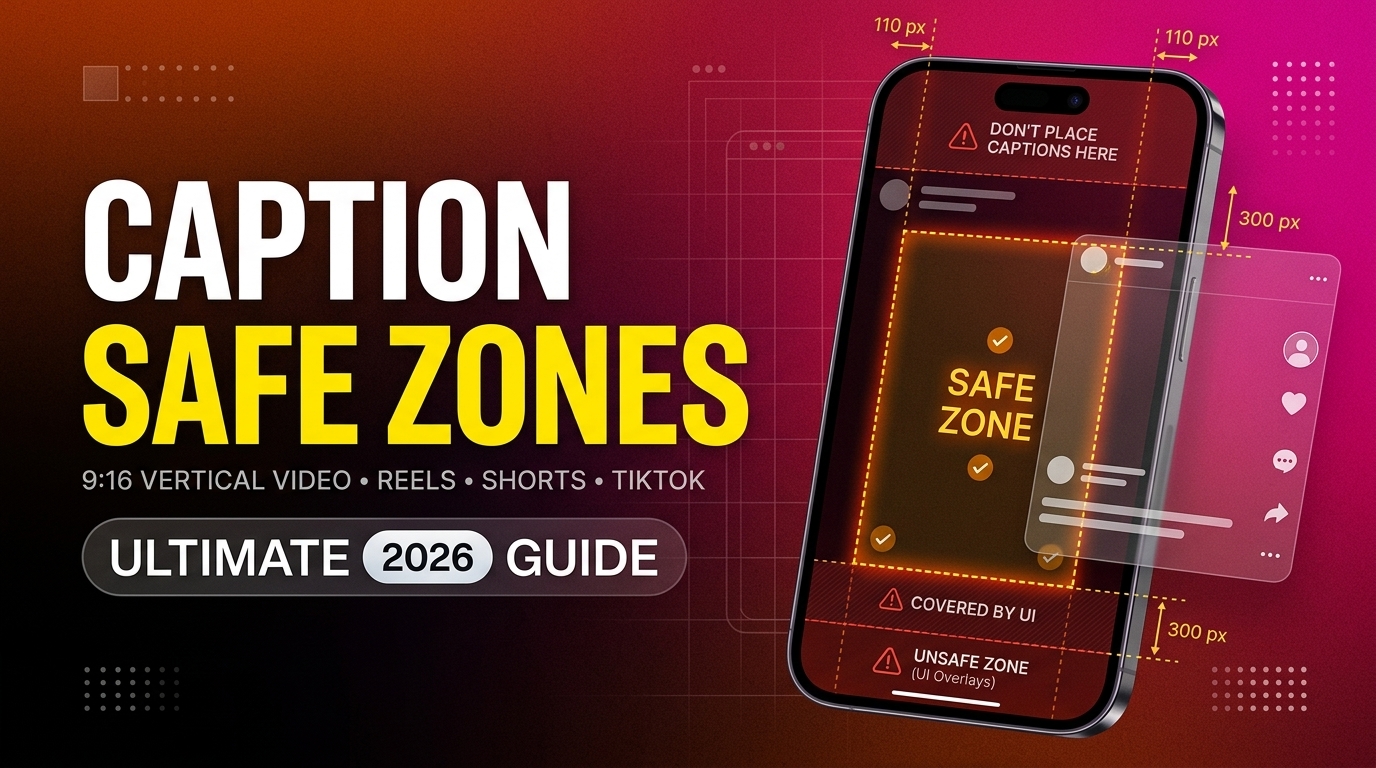
Spending two hours tweaking subtitle animations in Adobe Premiere Pro only to watch TikTok's share button cover your punchline makes you want to throw your monitor out the window. Social platforms don't hate your videos. They just stack heavy native interface buttons over your footage, and if you don't edit around them, you're burning engagement for zero reason.
I see editors make this layout mistake every day. They open up a standard 1080×1920 canvas, drop their subtitles across the bottom edge, and hit render. Three hours later, the client messages them because half the words sit directly behind the audio attribution bar on Instagram Reels.
Here's the good news: you don't need to export three separate edits for every short-form video you deliver. By building your Premiere timeline around unified caption safe zones for TikTok, Instagram Reels, and YouTube Shorts, you can edit a single vertical master that looks clean on every mobile feed.
Key Takeaways
- Keep all primary text and subtitles inside a centered 900×1400px box on your 1080×1920 frame to avoid platform interface elements.
- TikTok reserves the bottom 320–350px and a 120–164px right-side column for native engagement buttons [1].
- Instagram Reels hides up to 450px at the bottom under user descriptions and expanded audio attribution labels [8].
- Feed previews crop vertical 9:16 videos into 4:5 vertical cards and 1:1 square profile thumbnails, clipping top and bottom headlines [2].
- Custom Safe Margins in Premiere Pro or transparent PNG overlays let you spot UI collisions before you export.
- Tools like CaptionFlow automate safe-zone subtitle positioning inside Premiere Pro in seconds.
Universal Caption Safe Zones for TikTok, Instagram Reels, and YouTube Shorts
Every major mobile app places interactive icons directly on top of your 1080×1920 canvas. The actual screen space left for readable text is far smaller than your Program Monitor suggests [4]. Ignore these native overlays, and your text gets buried under comment icons, sound titles, and profile handles [1].
+-------------------------------------------------------+  Y = 0
|                   TOP DEAD ZONE                       |  Top ~380px reserved
|   (TikTok Search/Tabs, IG Profile, Shorts Top Bar)    |  (Avoid top headlines)
+-------------------------------------------------------+  Y = 380
| |                                                   | |
| |                                                   | |
| |                                                   | |  R
| |               UNIVERSAL SAFE ZONE                 | |  I  Right ~120px reserved
| L                                                   | G  G  (TikTok buttons:
| E               Center 900 x 1400px                 | H  H   Like, Comment,
| F               (All subtitles, CTAs,               | T  T   Share, Bookmark)
| T                and key visual hooks)              |
|                                                     | D  D
| ~60px                                               | E  E  ~120px
|                                                     | A  A
| |                                                   | D  D
| |                                                   | |
+-------------------------------------------------------+  Y = 1780
|                  BOTTOM DEAD ZONE                     |  Bottom ~420px reserved
|   (Audio titles, Captions, CTAs, Shorts Subscribe)    |  (Never put text here!)
+-------------------------------------------------------+  Y = 1920
  X = 0                                               X = 1080
Instead of building three separate sequence setups for TikTok, Reels, and YouTube Shorts, target the tightest common denominator [6]. Designing for the strictest margins allows you to master one single vertical edit without re-framing text for every platform [7].
[[STAT:900x1400px:Universal Safe Zone Area]]
When you manage content packages for five different agency clients, re-exporting individual clips for different apps eats up your entire afternoon [1]. But setting up a standard caption safe zone shrinks your turnaround workflow from 4 hours down to 90 seconds.
Why Platform UI Breaks Subtitles
Mobile apps treat your video like a simple background image for their own controls. TikTok overlays like, comment, share, and bookmark icons directly along the right margin [5].
Instagram displays long caption text blocks, account names, and scrolling music tags across the bottom third [2]. YouTube Shorts inserts dynamic subscribe banners near the base of the frame [9].
If your subtitle tracks stretch to the far edges of a standard 1080×1920 sequence, mobile app interfaces will cover key words [1]. Viewers watching on mute miss critical context and scroll past immediately.
The Single Template Workflow for Editors
Building a single vertical master sequence requires working inside a strict boundary [4]. This keeps all subtitle tracks, brand logos, and animated callouts clear of native buttons across all three apps [6].
You cut out repetitive adjustment work, eliminate client correction rounds, and speed up project turnarounds [7].
Actionable Takeaway: Lock your master subtitle sequence to a conservative center grid that accounts for all platform overlays simultaneously before placing your first text block.
Breakdown of Platform UI Overlays: TikTok vs Reels vs Shorts
Not all mobile platforms penalize your layout in the same way. Knowing the exact dead zone coordinates for each app helps you spot text collisions before rendering [1].
| Before | 120-164px |
|---|---|
| After | 48px |
| Platform | Top Dead Zone | Bottom Dead Zone | Right-Edge Dead Zone | Primary Layout Risk |
|---|---|---|---|---|
| TikTok | Top 130px [1] | Bottom 320–350px [5] | 120–164px [10] | Right-aligned text covered by engagement icons |
| Instagram Reels | Top 108–220px [8] | Bottom 310–450px [2] | ~120px [1] | Subtitles buried under expanded audio tags |
| YouTube Shorts | Top ~120px [9] | Bottom ~300px [3] | ~48px [1] | Lower subtitles blocked by subscribe banners |
TikTok Clear Zone Coordinates
TikTok imposes the most aggressive right-margin penalty of any short-form app [10]. The platform reserves the top 130px for search and tab navigation [1]. The bottom 320–350px holds user descriptions, sound bars, and native caption toggles [5].
But the biggest trap is the right side of the screen. TikTok stacks engagement icons inside a 120–164px column on the right edge [1]. Text lines that span full width get covered by the like and bookmark buttons on mobile screens [10].
Instagram Reels Bottom Dead Zone
Instagram Reels features a massive bottom dead zone [2]. Late UI updates expanded the audio attribution bar and caption preview height, extending the bottom dead zone to between 310px and 450px [8].
If you place burned-in subtitles near the bottom 20% of your frame, Instagram's native account handles and music titles sit directly on top of your text [1]. Keep your lower subtitles elevated into the lower-middle third of the frame [2].
YouTube Shorts Right-Edge UI
YouTube Shorts offers the most forgiving horizontal layout among the major platforms [9]. Shorts limits its right-side button column to roughly 48px, leaving far more horizontal room than TikTok [1].
However, YouTube constantly tests new placement styles for its subscribe button along the bottom-left area [3]. Subtitles sitting too low in the frame still clash with native viewer controls [9].
Actionable Takeaway: When cross-posting, treat TikTok as your strict standard for right-side margins and Instagram Reels as your standard for bottom margins.
The Universal 900x1400 Safe Zone Template for Cross-Posting

To guarantee clean playback across all mobile platforms without re-rendering, you need exact pixel boundaries [4]. Designing inside a centered 900×1400px rectangle inside your 1080×1920 canvas provides complete protection against native UI elements [1].
1080 px Wide
+-------------------------------------------------------+
| <-- 60px --> |     CENTERED 900px     | <-- 120px --> |
|   Left Margin|       SAFE AREA        |  Right Margin |
+-------------------------------------------------------+
Pixel Dimensions and Margins
To set up this universal cross-platform template, apply these specific margin offset values across your 1080×1920 timeline [6]:
- Top Reserve: 380px from the top frame edge [1].
- Bottom Reserve: 420px from the bottom frame edge [8].
- Left Reserve: 60px from the left frame edge [5].
- Right Reserve: 120px (or up to 160px for TikTok ads) from the right frame edge [10].
Restricting your subtitles to this centered box leaves enough breathing room for TikTok's right-hand icons, Instagram's lower attribution bars, and top navigation headers on all platforms [7].
Left vs Right Alignment Rules
Full-width center alignment is risky for multi-line subtitles [1]. When a text line stretches wide, right-aligned characters spill straight into TikTok's button column [10].
Keep your subtitle blocks left-aligned or tightly center-aligned inside the 900px horizontal boundary [1]. Treating the rightmost 160px of your 1080px sequence as non-existent ensures zero button interference [5].
Pro Tip: Position your subtitle anchor point at Y=1300 in your 1080×1920 Premiere Pro sequence. This keeps text neatly in the lower-middle third—far enough down to avoid blocking speaker faces, but safely above platform dead zones.
Actionable Takeaway: Center all text layers within a 900×1400px grid and never let subtitle blocks drift beyond Y=1500 on your vertical timeline axis.
Setting Up Custom Safe Margins in Adobe Premiere Pro
You don't need to guess where platform UI elements fall while editing inside Adobe Premiere Pro [4]. You can configure custom visual guides directly inside your Program Monitor to spot layout errors immediately [1].
+-------------------------------------------------------+
|  Premiere Pro Program Monitor Settings                |
+-------------------------------------------------------+
|  [x] Enable Safe Margins                              |
|                                                       |
|  Horizontal Safe Margin: 11%  (Clears ~120px sides)   |
|  Vertical Safe Margin:   22%  (Clears ~420px top/bot) |
+-------------------------------------------------------+
Configuring Program Monitor Safe Margins
Setting up custom overlays in Premiere Pro takes under two minutes [6]:
- Open your 1080×1920 sequence in Adobe Premiere Pro.
- Right-click anywhere inside the Program Monitor window.
- Select Source/Program Monitor Settings and choose Safe Margins.
- Adjust the percentage offsets: set Horizontal Safe Margin to 11% (to clear ~120px on the sides) and Vertical Safe Margin to 22% (to mark off top and bottom dead zones) [1].
- Toggle the Safe Margins icon on your Program Monitor playback toolbar to view your safe boundaries in real time.
Using Track Matte Overlay PNGs
Another practical trick is keeping a semi-transparent guide layer on your top video track [4]. You can download or design a 1080×1920 PNG containing colored blocks representing TikTok, Reels, and Shorts interface buttons [1].
Drop this transparent guide layer onto video track V3 or V4 above your footage [7]. Enable the track while placing subtitles to confirm text positioning, then hide the track before exporting [6].
Pro Tip: Map the "Toggle Safe Margins" command to a custom keyboard shortcut (like Shift + F4) in Premiere Pro. This lets you quickly check text clearance without navigating menu drop-downs.
Actionable Takeaway: Set your Premiere Pro Program Monitor safe margins to 11% horizontal and 22% vertical to instantly reflect cross-platform clear zones while editing.
Avoiding Mistakes with Caption Safe Zones for TikTok, Instagram Reels, and YouTube Shorts
Even seasoned video editors fall into simple layout traps when rushing tight agency deadlines [1]. Catching these formatting errors early saves hours of re-rendering [6].
COMMON SUBTITLE PLACEMENT ERRORS
+-------------------------------------------------------+
| BAD: Full-width text gets clipped by right UI icons   |
| [ This subtitle line is way too long for TikTok ]  (X)| <- Right buttons block text!
+-------------------------------------------------------+
| GOOD: Centered text stays safely inside margins       |
|      [ Clean subtitle line inside ]                   | <- 100% readable!
|      [ the 900px safe zone area   ]                   |
+-------------------------------------------------------+
The Full-Width Text Trap
The most common mistake is stretching subtitle blocks across the entire 1080px width [1]. Desktop monitors give you a clean view of the frame, hiding mobile UI elements [5].
On a smartphone screen, TikTok's like button covers the last word of every long line [10]. Keep text lines short, stack words across two or three lines, and wrap text tightly inside the center 900px [1].
Forgetting the Export Overlay Toggle
Using visual PNG guide layers on top video tracks works great—until you forget to hide them before rendering [6]. Delivering a client project with red safe-zone boxes baked into the final MP4 forces an embarrassing re-export [7].
Always double-check your top track visibility before queuing jobs in Media Encoder.
Actionable Takeaway: Limit subtitle lines to 3-5 words per line to keep text narrow enough to clear TikTok's right-side button column.
How Feed Cropping (4:5 and 1:1) Breaks Vertical Video Captions

Your short-form videos don't only appear in full-screen 9:16 vertical player modes [2]. Social media algorithms display clips across multiple app placement areas, each applying different framing crops [8].
| 5 Feed Crop | 4 |
|---|
In-Feed 4:5 Vertical Previews
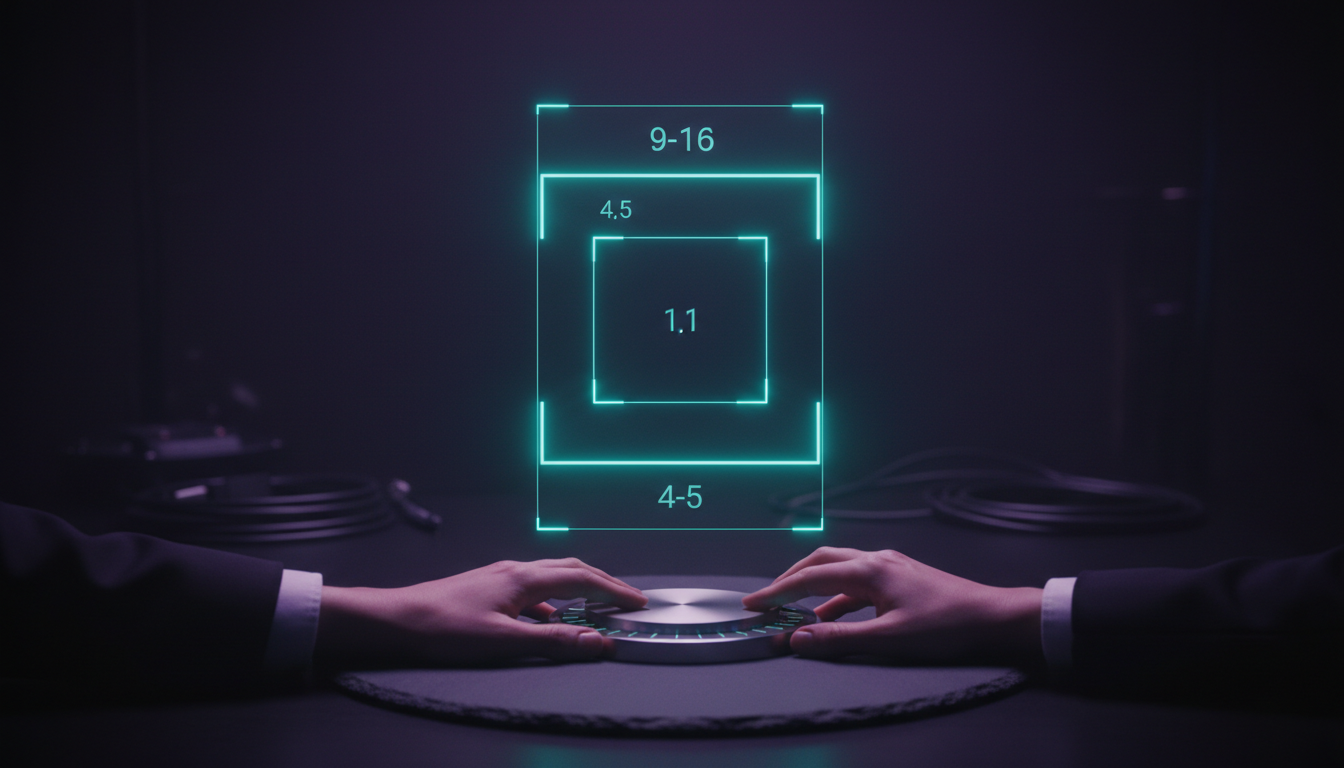
When an Instagram Reel appears inside a user's main home feed, Instagram crops the vertical 9:16 frame down to a 4:5 aspect ratio [2]. This crop trims roughly 15% off the top and 15% off the bottom of your video [8].
9:16 Full Screen (1080x1920)
+-------------------------------------------------------+
| (Top 15% Cropped in 4:5 Feed View)                    |
+=======================================================+
|                                                       |
|               4:5 Main Feed View                      |
|              (Centered 1080x1350px)                   |
|                                                       |
+=======================================================+
| (Bottom 15% Cropped in 4:5 Feed View)                 |
+-------------------------------------------------------+
If you place headline hooks or title banners near the upper edge of your 9:16 canvas, feed scrollers will see clipped, unreadable graphics [1]. Keep headline hooks inside the central 4:5 area so feed previews grab attention immediately [2].
Profile Grid 1:1 Square Thumbnail Safety
On Instagram profile grids, reels are cropped into a centered 1:1 square image [2]. If you place brand logos or title cards near the upper or lower edges, they vanish completely on profile pages [8].
Design main titles and thumbnail text inside a centered 1080×1080 square so your profile grid stays clean and readable [2].
Actionable Takeaway: Keep all critical text hooks and thumbnail titles centered within a 1080×1080px square so they survive 4:5 feed previews and 1:1 profile crops.
How to Automate Safe-Zone Captions with KreateFlo
Manually adjusting subtitle box positions, keyframing margins, and tweaking text line wraps across 20 reels a week takes hours [1]. Web tools like Opus Clip or Descript force you to export assets out of Premiere Pro and re-import low-bitrate MP4s.
Native plugins fix this by letting you edit directly inside your sequence workspace.
EDITING WORKFLOW TIME COMPARISON
+-------------------------------------------------------+
| Manual Subtitle Positioning in Premiere Pro           |
| [=======================================] 45-60 mins  |
+-------------------------------------------------------+
| KreateFlo CaptionFlow Plugin Workflow                 |
| [==] 90 seconds                                       |
+-------------------------------------------------------+
Real-Time WASM Subtitle Previews with CaptionFlow
KreateFlo is a CEP extension built specifically for Adobe Premiere Pro. Our CaptionFlow tool handles automated captioning directly inside your project timeline.
Instead of rendering draft previews over and over, CaptionFlow uses a WebAssembly (WASM) engine to deliver real-time subtitle previews right inside your Program Monitor. You see exact text positions, colors, and margins instantly without rendering lag.
22 Built-In Animated Caption Presets
CaptionFlow comes with 22 animated subtitle presets pre-configured to sit inside standard mobile clear zones [1]. You can generate word-by-word highlighted text, bouncing karaoke captions, or clean pop-in titles with one click.
Every preset is built to fit within the universal 900×1400px safe zone template, ensuring your captions clear mobile UI buttons every time [4].
KreateFlo bundles 33+ total editing tools into one plugin—including an AI Multi-Cam Editor that handles up to 8 speakers and 8 cameras, silence removal, and filler-word cleanup. Our pricing tier keeps costs simple:
- Free Tier: 3 tools free forever (Silence Remover, Transition Assistant, Copy & Paste).
- Pro Tier ($19.99/mo): Access all tools with 20 AI processing hours per month.
- Studio Tier ($44.99/mo): 50 AI processing hours per month for high-volume agency workflows.
Compared to FireCut's per-hour billing structure or standalone web apps that force round-trip file exports, KreateFlo keeps your entire workflow native inside Premiere Pro v1.0.3.
When KreateFlo is NOT the Right Pick
Let's be honest: KreateFlo isn't for everyone.
If you edit one short-form video a month for fun, paying for a dedicated Premiere Pro extension doesn't make sense. Standard manual text alignment or Premiere's built-in speech-to-text tools work fine for light workloads.
If you prefer browser-based video editing or standalone desktop apps, KreateFlo won't fit your setup—it requires Adobe Premiere Pro to run.
So who is it for? If you're a freelance editor or agency producer shipping 10 to 30 vertical clips every week, spending 45 minutes per video manually setting subtitle boundaries is a waste of money. Automating caption placement cuts turnarounds from hours down to 90 seconds per video.
Actionable Takeaway: Download KreateFlo today to test our free editing tools and automate safe-zone subtitle creation directly inside Adobe Premiere Pro.
Frequently Asked Questions
What is the universal safe zone size for vertical video cross-posting?
A universal vertical video safe zone is a centered 900×1400px rectangle inside a standard 1080×1920px (9:16) video canvas [1]. Sticking to this clear area ensures your text and subtitles clear native user interface elements on TikTok, Instagram Reels, and YouTube Shorts simultaneously [4].
Why do my TikTok captions get hidden behind the like and share buttons?
TikTok reserves a 120–164px column along the right edge of the screen for engagement buttons [1]. If your subtitle lines stretch across the full 1080px width, right-aligned words sit directly under the like, comment, and bookmark icons [10]. Keep text inside the center 900px to avoid this issue [5].
How do I set up custom safe margins in Premiere Pro for 9:16 vertical videos?
Right-click your Program Monitor in Adobe Premiere Pro, select Source/Program Monitor Settings, and click Safe Margins. Set the horizontal margin to 11% and the vertical margin to 22% [1]. This marks off top and bottom dead zones directly on your monitor screen while editing [6].
What are the bottom margin dimensions for Instagram Reels UI?
Instagram Reels reserves the bottom 310–450px of the frame for user captions, account handles, and audio attribution labels [2]. Keep all critical text, subtitles, and call-to-action graphics above 450px from the bottom edge to avoid text overlap [8].
How does Instagram Reel feed cropping affect caption placement?
Instagram crops full-screen 9:16 vertical videos to a 4:5 aspect ratio when displayed in main home feeds, cutting off roughly 15% at the top and bottom [2]. Text placed near the extreme upper or lower edges will be clipped in feed previews [8]. Keep key headline graphics centered inside a 1080×1080px square area [2].
Lock Your Margins and Stop Wasting Time on Re-Exports
You don't need to spend four hours tweaking subtitle boundaries across three different apps for every short-form video you produce. Lock your edits into a universal 900×1400px clear zone, set up custom safe margins in Adobe Premiere Pro, and let your software handle the layout work [1].
Ready to automate your vertical caption workflow? If you want 22 custom presets that fit mobile margins every time, download KreateFlo today and cut your export turnaround time in half.
References
- blitzcutai.com/blog/best-caption-placement-short-form-video
- invideo.io/blog/instagram-reel-size-guide/
- getkoro.app/blog/youtube-shorts-dimensions
- adaptlypost.com/blog/social-media-safe-zones-2026-complete-guide
- getkoro.app/blog/tiktok-safe-zone-guide
- postmypost.io/resources/vertical-video-2026-safe-zones-text-and-editing-how-to-create-content-that-doesn-t-cut-through-algorithms
- ugcfactory.io/blog/the-ultimate-guide-to-safe-zones-for-tiktok-facebook-and-instagram-stories-reels-2025
- campaignswift.com/blog/instagram-safe-zone-sizes
- youtubetoolkit.com/blog/youtube-shorts-dimensions
- ezugc.ai/blog/tiktok-safe-zones-guide
- zeely.ai/blog/master-instagram-safe-zones/
- lucidmedia.co.nz/blog/instagram-facebook-ad-safe-zones-2026/
- creatorflow.so/blog/instagram-post-size-guide/
- adsuploader.com/blog/meta-ads-safe-zones
- somake.ai/blog/youtube-shorts-aspect-ratio
- solidlabs.com/social-safe-zones
- mediacheatsheet.com/blog/social-media-safe-zones-explained-instagram-reels-tiktok-shorts-and-ads/
- kreatli.com/guides/safe-zone-guide
- kreateflo.com/blog/safe-caption-placement-for-1080x1920-vertical-videos-1
- orsonlord.com/articles/free-safe-zone-overlays-for-reels-tiktok-and-shorts
- syllaby.io/blog/aspect-ratios-safe-zones-shorts-reels-tiktok/
- zeely.ai/blog/tiktok-safe-zones/
Try KreateFlo free
3 tools forever, 7-day trial on the rest. No credit card to start.
Download KreateFlo