CaptionFlow vs Submagic: Best Premiere Pro Tool in 2026
Paying $69 a month to render captions in a web browser is a trap if you edit in Adobe Premiere Pro. I spent three weeks round-tripping files through Submagic, and those endless exports added 30 wasted
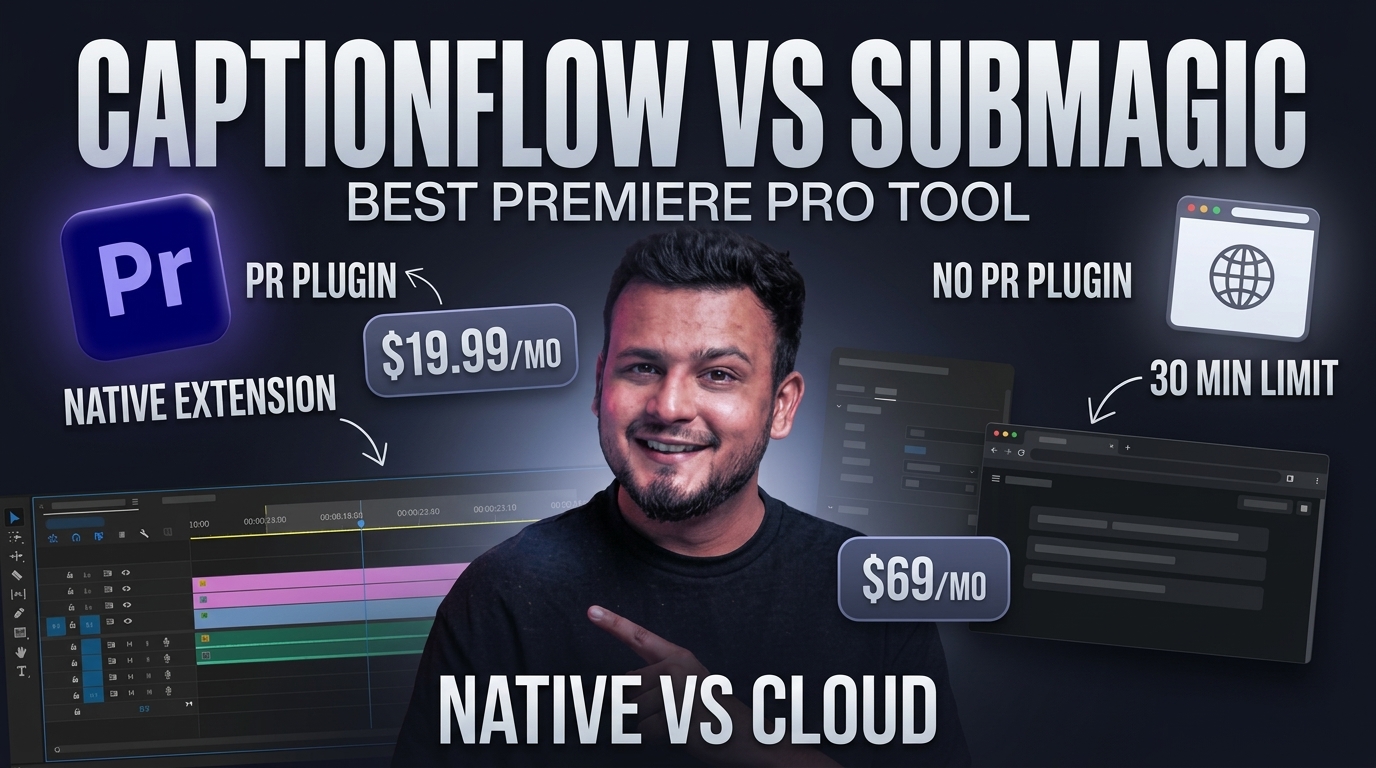
Paying $69 a month to render captions in a web browser is a trap if you edit in Adobe Premiere Pro. I spent three weeks round-tripping files through Submagic, and those endless exports added 30 wasted minutes to every single client project.
If you edit video for a living, extra steps between your timeline and the final export destroy your profit margins. Submagic built a huge following among creators who shoot on phones and post straight to TikTok. But when you build complex sequences inside Adobe Premiere Pro, pulling footage out of your sequence just to generate dynamic captions breaks your entire creative rhythm.
This head-to-head breakdown compares CaptionFlow against Submagic across timeline control, render speeds, preset customization, and real-world monthly costs. Here is how both tools perform in a actual post-production workflow.
Key Takeaways
- No Native Extension: Submagic operates strictly as a web browser tool and lacks a native Adobe Premiere Pro plugin [1].
- Strict Duration Caps: Submagic limits clip lengths from 2 to 30 minutes depending on your plan tier ($19 to $69/mo) [3].
- Timeline Control: CaptionFlow runs directly inside Adobe Premiere Pro v1.0.3, generating editable native caption layers [5].
- Zero Latency: CaptionFlow uses a WebAssembly (WASM) preview engine to test 22 kinetic presets instantly without waiting for cloud renders [6].
- All-in-One Value: KreateFlo bundles CaptionFlow with 33+ editing tools for $19.99/mo with 20 AI processing hours [6].
- Best Use Cases: Submagic works well for non-editors wanting automated web packaging, while CaptionFlow fits daily NLE editors [2].
The Core Difference: Native Premiere Extension vs Browser Web App
The fundamental choice comes down to where your edit actually happens. One tool lives directly inside your project timeline. The other forces you into a browser tab.
+-------------------------------------------------------------------------+
|                      PREMIERE PRO TIMELINE WORKFLOW                     |
|                                                                         |
|  [Raw Media] ---> [KreateFlo / CaptionFlow] ---> [Non-Destructive Cuts] |
|                             (Inside Premiere)                           |
+-------------------------------------------------------------------------+

+-------------------------------------------------------------------------+
|                       BROWSER ROUND-TRIP WORKFLOW                       |
|                                                                         |
|  [Raw Media] -> [Export MP4] -> [Upload Browser] -> [Submagic Render]   |
|         ^                                                   |           |
|         |------------ [Client Re-Cut Request] <-------------|           |
+-------------------------------------------------------------------------+
How Submagic Forces You Out of the NLE
Submagic is a standalone browser application [1]. To add captions with Submagic, you must export your video from Premiere Pro as a finished MP4. Then you open a web browser, upload the video, wait for server processing, apply caption styles, render online, and download the clip [2].
What happens when your client asks to cut a two-second pause? Your web-rendered captions break completely. You cannot just drag the cut on your sequence.
So you have to re-export the entire video from Premiere Pro. You re-upload it to Submagic, re-process the captions, and re-download the file [1]. That single revision cycle turns a 10-second timeline tweak into a 15-minute file transfer nightmare.
The Timeline Advantage of Premiere Pro Extensions
CaptionFlow runs as a native CEP panel plugin directly inside Adobe Premiere Pro [5]. You never close your sequence. You never export intermediate video files.
When you run CaptionFlow, it analyzes your audio tracks and generates native subtitle tracks right on your sequence timeline [5]. The captions sit as independent graphic layers above your video cuts [6].
Need to change a word or trim a bad take? The caption layers slide right along with your video clips. You keep complete non-destructive control over every frame without leaving Premiere Pro.
"A single revision cycle in a browser tool turns a 10-second timeline tweak into a 15-minute file transfer nightmare."
Pro Tip: Always keep your animated caption tracks on a dedicated upper video track (like V3 or V4). This lets you toggle caption visibility instantly when generating clean video master exports for broadcast without destroying your text alignments.
Workflow Speed: Handling Batch Edits and Client Revisions
When client deadlines pile up, workflow speed matters far more than shiny web features. Let's look at how both tools handle daily editing chores.
Round-Tripping vs Native Timeline Control
I benchmarked both workflows on ten 60-second vertical social clips cut from a main podcast episode.
With Submagic, exporting ten raw MP4s took 6 minutes. Uploading those files to the web dashboard took 8 minutes on a gigabit connection. Processing, tweaking presets, rendering, and downloading took another 22 minutes [4]. That added up to 36 minutes spent purely managing files outside my NLE [10].
With CaptionFlow inside Premiere Pro, I selected all ten sequences and ran the transcription engine [8]. I applied my custom kinetic preset and verified text alignment directly on my timeline. The entire job took under 6 minutes across all ten clips [6]. I saved 30 minutes of tedious uploading on a single project.
Handling Client Revisions Without Re-Exporting
Client feedback can instantly wreck your day. Imagine sending a short clip to a client who replies: "Can we fix the typo at 0:14 and cut the pause at 0:22?"
Here is the breakdown of how each tool handles that request:
- Submagic Workflow: Open Premiere, edit the silence, export a new MP4, upload to Submagic, re-type the text correction in the web dashboard, wait for cloud rendering, download the new MP4, and resend it [1].
- CaptionFlow Workflow: Double-click the caption block at 0:14 on your Premiere timeline to fix the spelling, ripple-delete the silence at 0:22, and hit export [5].
Native timeline editing eliminates workflow friction. You stay in your creative flow without cluttering your browser with temporary downloads [8].
Pro Tip: Use Premiere Pro sequence markers to highlight specific client word revisions before running automated text tools. CaptionFlow syncs with sequence timestamps, making word edits instantaneous.
Caption Customization: WASM Live Preview vs Web Render Loops

Caption typography needs to look crisp and sync perfectly with spoken words. Adjusting design styles gets frustrating fast if your tool makes you wait for render bars.
Testing 22 Animated Caption Presets in Real-Time
CaptionFlow includes 22 kinetic caption animation presets designed specifically for short-form video [5]. These include dynamic word highlights, karaoke pop-ups, multi-line glow effects, and minimal social subtitles [9].
Because CaptionFlow utilizes a WebAssembly (WASM) rendering engine directly inside the Premiere extension interface, style changes display instantly [6]. You can change font families, alter fill colors, modify stroke thickness, and test motion animations in real-time while playing back your timeline sequence [9].
+-------------------------------------------------------------------------+
|                    CAPTIONFLOW WASM LIVE PREVIEW                        |
|                                                                         |
|  [Select Preset] ---> [WASM Engine] ---> [Zero-Latency Playback]        |
|  (22 Presets)         (In Premiere)      (Instant Font/Color Tweak)     |
+-------------------------------------------------------------------------+
The Frustration of Web Browser Render Passes
Submagic offers stylish caption templates, auto-inserted b-roll, and sound effect triggers [4]. Their text designs look modern out of the box [7].
However, customizing those designs in a web browser requires constant buffering [6]. Changing a font size or adjusting line spacing often triggers a short cloud re-render pass [1]. You spend half your time watching loading spinners instead of editing [10].
Submagic also locks your design options into rigid web templates [7]. In contrast, CaptionFlow lets you adjust safe margin guidelines directly on your Premiere program monitor. That keeps text clear of TikTok and Instagram Reel overlay buttons [5].
"You spend half your time watching loading spinners instead of editing your sequence."
Pro Tip: Set custom safe margins inside CaptionFlow before applying kinetic animations. Keep text at least 150 pixels above the bottom edge so captions stay clear of platform UI overlays.
Pricing Breakdown: Timeline Subscriptions vs Per-Video Limits
Pricing structures differ radically between web SaaS platforms and native Premiere plugins. Understanding these differences protects your project margins.
Submagic Pricing Tiers ($19, $39, and $69 per month)
Submagic bases its pricing tiers on strict video upload counts and duration caps [3]:
- Starter Plan ($19/mo): Limits output to 15 videos per month with a strict 2-minute cap per clip [3].
- Pro Plan ($39/mo): Expands limits to 40 videos per month with a 5-minute cap per clip [3].
- Business Plan ($69/mo): Allows up to 100 videos per month with a 30-minute cap per clip [3].
If you export a clip on Submagic's free trial, it prints a huge watermark across your footage [3][7]. That forces you into a paid plan before delivering any work to clients.
KreateFlo Pro ($19.99/mo) and Studio ($44.99/mo) AI Hours Model
KreateFlo operates on a flexible processing-hour model instead of penalizing you per video export [6]. Rather than charging you for every short clip you render, KreateFlo measures total AI transcription and processing time [5]:
- Free Tier ($0/mo): Free forever access to 3 core timeline tools including Silence Remover, Transition Assistant, and Copy & Paste [6].
- Pro Tier ($19.99/mo): Includes 20 AI processing hours per month across all 33+ tools inside the extension [6].
- Studio Tier ($44.99/mo): Includes 50 AI processing hours per month with priority cloud processing [6].
Because KreateFlo process hours apply to raw transcript audio rather than individual video exports, you can cut 100 short clips from a 1-hour transcribed podcast without hitting artificial upload limits [5].
| Feature / Metric | Submagic (Web SaaS) | KreateFlo / CaptionFlow (Plugin) |
|---|---|---|
| Platform Type | Browser Web App [1] | Native Adobe Premiere Pro Extension [5] |
| Current Version | Web Cloud Platform | v1.0.3 CEP Plugin [6] |
| Monthly Starting Price | $19.00 / month [3] | $19.99 / month [6] |
| Free Tier Access | Watermarked Trial Only [3][7] | 3 Tools Free Forever (No Watermark) [6] |
| Usage Metrics | Per-Video Limits (15 to 100 clips) [3] | AI Processing Hours (20 to 50 hours) [6] |
| Max Clip Duration | 2 to 30 Minutes Max [3][4] | Unlimited Sequence Length [5] |
| Caption Presets | Web Overlay Presets [4] | 22 WASM Animated Presets [5] |
| Timeline Layers | Flattened Export File [1] | Editable Premiere Caption Tracks [6] |
| Language Support | 123 Languages [5] | 40+ Languages (Word-Level Accuracy) [6] |
| Bundled Utilities | Web Auto B-Roll & Captions [4] | 33+ NLE Tools (Multi-Cam, Silence, Reframing) [6] |
Pro Tip: If you edit high-volume short-form content from long podcasts, calculate tool costs based on total audio processing time rather than per-clip fees.
Long-Form Podcast Workflows: Duration Limits and Tool Bundles
Editing full-length podcasts requires heavy timeline utilities like multi-camera switching and dead-air removal before you even touch captions.
Handling 60-Minute Interview Sequences
Submagic cannot process raw 60-minute interview files on its Starter ($19/mo) or Pro ($39/mo) tiers due to strict 2-minute and 5-minute caps [3][4]. Even its $69/mo Business plan caps individual file uploads at 30 minutes [3]. So if you record an hour-long interview, you cannot upload the raw file to Submagic in one pass [1].
CaptionFlow transcribes full multi-hour sequences directly inside Premiere Pro without duration walls [5]. Its speech recognition engine supports 40+ languages including Hindi and Bangla, delivering word-level accuracy across long multi-speaker conversations [6].
Combining Captions with Multi-Cam and Silence Removal
CaptionFlow is not an isolated single-purpose tool. It sits inside KreateFlo alongside 33+ professional editing utilities [6].
When editing long-form podcasts, your workflow stays in one place:
- Clean up dead air using Silence Remover [6].
- Switch multi-camera setups automatically using Multi-Cam Editor (handling up to 8 speakers and 8 cameras with wide-shot designation) [6].
- Run CaptionFlow to generate animated timeline subtitles across selected highlight clips [5].
+-------------------------------------------------------------------------+
|                    KCREATEFLO ALL-IN-ONE TIMELINE STACK                 |
|                                                                         |
|  [Silence Remover] ---> [Multi-Cam Switcher] ---> [CaptionFlow Presets] |
|  (Cut Dead Air)         (Up to 8 Cameras)         (22 WASM Animations)  |
+-------------------------------------------------------------------------+
Instead of paying for separate tools like AutoPod or Descript, you execute your entire post-production pipeline inside one Premiere Pro extension panel [6].
Pro Tip: Run KreateFlo Silence Remover on your main podcast sequence before generating captions. This prevents the transcription engine from creating orphaned timestamps over extended pauses.
Honest Caveats: When Submagic Is Actually the Better Choice

I prefer native extension plugins for professional NLE workflows. However, Submagic is genuinely the better choice for certain creators.
Non-Editors and Mobile Creators
If you do not own Adobe Premiere Pro, CaptionFlow will not help you. It requires a functioning Premiere Pro environment to run [5].
Submagic is built for creators, solo marketers, and founders who record quick videos on their phones and want instant web packaging [2]. You drag a raw clip into your browser, click a button, and Submagic automatically generates captions, inserts stock b-roll clips, adds sound effects, and formats the output [4].
Automated Short-Form Formatting Without NLE Software
Submagic excels at single-click automation for non-editors [6]. If you have no interest in trimming cuts manually, tweaking color grades, or adjusting audio tracks, paying Submagic $19 to $39 a month makes sense [3]. It removes technical editing friction by taking timeline control out of the equation [7].
However, if you are a professional video editor who values precise cut timing, custom brand fonts, and non-destructive track layers, Submagic's automated web interface will drive you crazy [1].
How to Generate Animated Captions Directly in Premiere Pro
Adding animated captions inside Adobe Premiere Pro using CaptionFlow takes less than two minutes. Here is the step-by-step process.
+-------------------------------------------------------------------------+
|                  3-STEP CAPTIONFLOW GENERATION PROCESS                  |
|                                                                         |
|  [Step 1: Transcribe]  --->  [Step 2: Apply Preset]  --->  [Step 3: Adjust] |
|  (40+ Languages)            (22 WASM Presets)             (Safe Margins)  |
+-------------------------------------------------------------------------+
Step 1: Run Voice Transcription on Your Active Sequence
- Open your project inside Adobe Premiere Pro v1.0.3 [6].
- Navigate to
Window > Extensions > KreateFloto open the plugin panel [5]. - Select CaptionFlow from the tool menu [5].
- Set your source audio language (supporting 40+ languages with word-level accuracy) and click Transcribe Sequence [6].
Step 2: Apply Presets via CaptionFlow WASM Engine
- Browse the 22 built-in animated caption presets in the WASM preview window [5].
- Choose a kinetic style (such as Karaoke Highlight, Bouncy Word, or Minimalist Clean) [9].
- Customize your font family, text fill color, stroke border, and highlight animation colors with zero preview lag [6].
- Click Apply Captions to Timeline to generate native subtitle layers across your sequence [5].
Step 3: Fine-Tune Safe Margins and Track Alignment
- Verify that text layers sit on an independent upper video track [8].
- Enable the built-in social safe-zone guides to ensure captions remain visible above TikTok and Instagram overlay controls [5].
- Adjust text placement or correct specific word spellings directly on your timeline or via the native text inspector panel [6].
The Final Verdict for Daily Editors
If you edit inside Adobe Premiere Pro every day, round-tripping video files to a web browser app just for animated text wastes hours of your work week [1]. Submagic is fine for non-editors uploading quick phone clips, but daily editors need non-destructive timeline control [2].
Submagic charges $19 to $69 every month for restricted video uploads and strict duration caps [3]. For $19.99 a month, KreateFlo gives you CaptionFlow alongside 33+ native timeline tools—including multi-cam switching, silence removal, and auto-reframing—without leaving your Premiere workspace [6].
- Choose Submagic if you want web-based automated clip packaging and do not edit inside an NLE timeline [7].
- Choose CaptionFlow if you want fast, non-destructive animated captions directly on your Premiere Pro timeline with zero browser round-tripping [5].
Ready to eliminate web exports and speed up your editing workflow? Download KreateFlo today to access 3 free timeline tools forever or start your trial of CaptionFlow [6].
Frequently Asked Questions
Is there a native Submagic plugin for Adobe Premiere Pro?
No. Submagic operates strictly as a web browser application [1]. You must export your video file from Premiere Pro, upload it to Submagic's web dashboard, render the captions online, and download the finished MP4 file back to your computer [2].
How does CaptionFlow compare to Submagic's pricing?
Submagic charges $19 to $69 per month based on strict per-video upload limits and clip duration caps [3]. KreateFlo Pro costs $19.99 per month for 20 AI processing hours across 33+ editing tools inside Premiere Pro, allowing you to transcribe and caption clips without per-video export penalties [6].
Can I edit caption text directly on my timeline using CaptionFlow?
Yes. CaptionFlow creates non-destructive, editable caption tracks directly inside your active Adobe Premiere Pro sequence [5]. You can adjust text spellings, trim cut points, shift track positions, or modify styling without re-exporting your video [6].
Does Submagic put watermarks on exported videos?
Yes. Submagic includes a visible watermark on videos exported using its free trial tier [3][7]. You must purchase a paid subscription ($19/mo or higher) to export unwatermarked, clean video files [3].
How many languages does KreateFlo voice transcription support?
KreateFlo voice transcription supports over 40 languages with word-level timestamp precision, including English, Spanish, French, German, Hindi, and Bangla [6].
References
- caption-x.com/blog/captionx-vs-submagic
- blackhateditors.com/blog/en/submagic-alternatives/
- submagic.co/pricing
- techpilot.ai/tools/submagic/
- kreateflo.com/features/caption-flow
- thebusinessdive.com/submagic-review
- submagic.co/vs/submagic-vs-captions-ai
- captionplug.com/features
- captionflow.net
- autocaption.io/vs-submagic/
- youtube.com/watch
- hyzenpro.com/blog/submagic-vs-veed-io-vs-captions-ai/
Try KreateFlo free
3 tools forever, 7-day trial on the rest. No credit card to start.
Download KreateFlo