Premiere Pro Text Captions: Ultimate Guide to Gradients
Creating Gradient and Underline Text Captions in Premiere Pro I used to waste 20 minutes per video drawing vector lines under title layers. Nesting tracks just to build a simple text gradient was a da
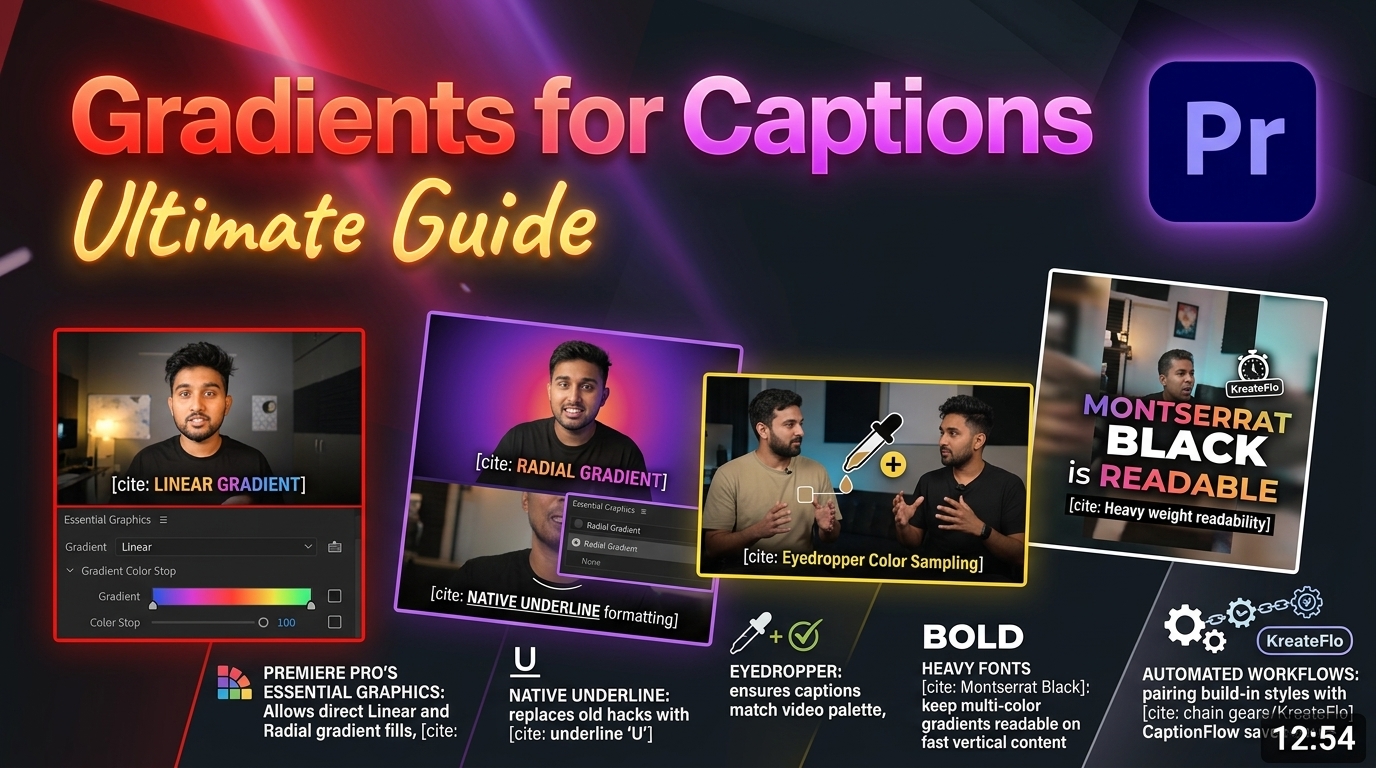
I used to waste 20 minutes per video drawing vector lines under title layers. Nesting tracks just to build a simple text gradient was a daily nightmare. Then Adobe Premiere Pro added native gradient fills and underline toggles directly into the Essential Graphics panel. That single feature turned a 4-hour caption process into a 90-second tweak. If you still type underscore characters or stack legacy titler effects, you are throwing away billable editing hours.
Creating gradient and underline text captions in Premiere Pro does not require complex motion graphic templates. You also do not need external compositing apps. You can format striking subtitles, highlight host commentary, and keep short-form viewers hooked directly inside your main editing workspace.
Key Takeaways
- Premiere Pro's Essential Graphics panel allows direct Linear and Radial gradient fills on text without external plugins.
- Native underline formatting replaces tedious legacy hacks like drawing rectangle shapes or typing underscores.
- Eyedropper color sampling ensures gradient captions match the exact video color palette and brand aesthetic.
- Heavy font weights like Montserrat Black keep multi-color gradients readable on fast-moving vertical content.
- For bulk captioning and animated presets across long interviews, pairing built-in styles with KreateFlo's CaptionFlow tool saves hours of manual work.
Why Native Underlines and Gradients Beat Legacy Workarounds
Remember the old Premiere Pro workflow for underlined text? You had to select the Pen tool and draw a vector rectangle under your title. Then you aligned it manually and nested the tracks together.
If the client asked to change a single word in the subtitle, your underline alignment broke instantly. So you spent another five minutes adjusting shapes. It was tedious, frustrating work.
Modern text formatting inside Premiere Pro's Essential Graphics panel [1] eliminates that mess entirely. When you apply native text attributes, the underline scales, shifts, and wraps dynamically alongside your text. You never have to re-align vector rectangles when editing transcript lines.
+-------------------------------------------------------------+
| LEGACY WORKFLOW vs NATIVE ESSENTIAL GRAPHICS                |
+-------------------------------------------------------------+
| Legacy: Draw Vector Shape -> Align -> Nest -> Re-edit Shape |
| Native: Highlight Text -> Click Underline -> Done           |
+-------------------------------------------------------------+
| Before | 0% Opacity |
|---|---|
| After | 100% Opacity |
Managing fewer graphic items keeps your sequence clean. Stacking dozens of unnested shape layers across V1 to V6 bogs down GPU memory and forces cache renders during playback. Upgrading your text styling to native graphic caption layers [2] keeps your video tracks streamlined. Native text formatting cuts timeline overhead and prevents dropped frames during real-time playback.
When you edit high-volume client work like podcasts or talk shows, timeline efficiency translates directly to income. Fewer clip layers mean less vertical scrolling, faster project loads, and fewer accidental alignment mistakes.
Actionable Takeaway: Stop drawing separate shape layers for subtitle highlights; convert your text tracks to essential graphics and use native formatting controls to keep your timeline lightweight.
Creating Gradient and Underline Text Captions in Premiere Pro: Essential Steps
To master creating gradient and underline text captions in Premiere Pro, you need to understand where Adobe hides these controls in the interface. Everything starts with the Type Tool and the Essential Graphics panel.
Follow this quick step-by-step process to format your first styled title:
- Select the Type Tool by pressing shortcut key T on your keyboard [10].
- Click inside the Program Monitor to create a new text frame [10].
- Type out your caption or subtitle phrase [10].
- Open your workspace layout by selecting Window > Workspaces > Captions and Graphics [1].
- Highlight your text layer inside the Essential Graphics Appearance panel [1].
Once your text layer is active, look at the Appearance section inside Essential Graphics. By default, Premiere Pro assigns a solid white Fill color to new text boxes.
Click the Fill color box to open the Color Picker window. In the top-left dropdown menu, click Solid and switch it to Linear Gradient or Radial Gradient [1], [2]. You will immediately see a horizontal color gradient bar appear across the bottom of the picker window [3].
+-------------------------------------------------------------+
| PREMIERE PRO COLOR PICKER GRADIENT BAR                      |
+-------------------------------------------------------------+
| [Top Stop: Opacity 100%]             [Top Stop: Opacity 100%]|
| |====================== Gradient Bar =====================| |
| [Bottom Stop: Color A]  <-- Midpoint --> [Bottom Stop: Color B]|
+-------------------------------------------------------------+
To toggle native text underlining, look under the Text section directly above Appearance [4]. Click the 'T' icon with a horizontal line beneath it [4], [5]. Premiere Pro instantly draws a styled underline directly beneath your text that updates automatically if you edit the wording [4].
Pro Tip: Double-click your text box in the Program Monitor to select individual words. You can apply a bright yellow-to-orange Linear Gradient fill to a single high-impact keyword while leaving the rest of the sentence solid white.
Actionable Takeaway: Access text fills through the Essential Graphics Appearance block to apply linear gradients and native underlines to individual words without breaking character formatting.
How to Fine-Tune Linear and Radial Gradients in Essential Graphics
Setting up a gradient fill is easy, but making it look professional requires tweaking color stops and midpoint balance. Premiere Pro gives you granular control over how colors blend across your font characters.
The gradient bar inside the Color Picker features four main adjustment points:
- Bottom Color Stops: Define the starting, middle, and ending hues across your characters [3].
- Top Opacity Stops: Control character transparency levels ranging from 0% to 100% opacity [3], [2].
- Midpoint Diamond Sliders: Shift the transition center point between two adjacent color stops [7].
- Angle Dial: Controls whether the color gradient flows horizontally, vertically, or diagonally [3].
When configuring bottom color stops, click directly on the bottom edge of the gradient bar to add color points [3]. For instance, you can set the far-left stop to vibrant cyan, add a middle stop for magenta, and set the far-right stop to bright gold.
To adjust how quickly cyan bleeds into magenta, drag the small diamond slider located along the bottom edge [7]. Moving the diamond closer to cyan creates a sharp, punchy color break. Moving it toward magenta produces a soft color transition.
Always pay close attention to the top color stops! A common mistake editors make is sliding upper opacity stops inward, which causes the center of your caption text to turn transparent [3], [2]. Unless you are designing a specialized see-through glass title effect, keep both top opacity stops set strictly to 100% [3].
To align your title design with your clip's overall look, use the built-in Eyedropper tool [7]. Click the Eyedropper icon next to your color stop, then click directly on a bright rim light or background accent in your Program Monitor video frame [7]. Sampling colors directly from your footage builds natural visual harmony across your edit [7].
| Gradient Feature | Controls | Typical Use Case |
|---|---|---|
| Linear Gradient | Angle, Hue Stops, Midpoint Sliders [3], [7] | Modern subtitle fills, neon title highlights [9] |
| Radial Gradient | Center Radius, Hue Stops [1], [2] | Spotlight center effects, metallic button text [1] |
| Top Opacity Stops | 0% to 100% Transparency Sliders [3] | Fade-to-clear graphics, lower-third overlays [3] |
| Stroke Gradients | Angle, Color Stops, Outline Width [6], [12] | High-contrast short-form vertical captions [9] |
Actionable Takeaway: Use the Eyedropper tool to sample accent lighting colors from your footage, and keep upper opacity stops locked at 100% to avoid unwanted text transparency.
Adding Native Underlines Without Drawing Vector Shapes
In older versions of Premiere Pro, editors had to draw manual stroke lines or type long strings of underscore characters beneath title text. Underscores rarely matched font stroke weights. Manual lines also drifted out of place whenever captions reframed for vertical aspect ratios.
Using the native underline formatting button [4] solves these layout issues completely. The underline option behaves like traditional word processor styling—it locks directly to the baseline of your chosen typeface [4], [5].
To build clean, bold underline styles that pop on screen:
- Highlight your subtitle text layer in the Essential Graphics panel [1].
- Click the Underline toggle button located in the Text formatting group [4], [5].
- Choose a heavy font family weight such as Bold, Extra Bold, or Black [9].
- Enable the Stroke checkbox in the Appearance section to add an outer edge around both the text and underline bar [12], [6].
+-------------------------------------------------------------+
| NATIVE UNDERLINE BEHAVIOR WITH STROKE OUTLINES             |
+-------------------------------------------------------------+
|   +---------------------------------------------------+     |
|   |  YOUR BOLD CAPTION TEXT WITH GRADIENT FILL        |     |
|   +---------------------------------------------------+     |
|   =====================================================     |
|   (Dynamic Underline Bar automatically adopts Stroke)       |
+-------------------------------------------------------------+
When you apply an outer stroke to your text layer, Premiere Pro automatically wraps that same stroke outline around the native underline bar [6], [12]. This prevents bright video backgrounds from eating into your text legibility.
If you notice your stroke edge clipping or cutting into small characters, open your Essential Graphics text settings and adjust your alignment from Inner Stroke or Center Stroke to Outer Stroke. That keeps your letterforms crisp while maintaining a solid protective border around both the text and the underline bar.
Actionable Takeaway: Pair native text underlines with heavy font weights and outer stroke edges to preserve caption readability across changing video backgrounds.
Creating Gradient and Underline Text Captions in Premiere Pro for Short-Form Video
If you edit clips for TikTok, Instagram Reels, or YouTube Shorts, subtitling is mandatory. Over 80% of viewers scroll through social media feeds with sound turned off. But plain white subtitles do not grab attention anymore. Creating gradient and underline text captions in Premiere Pro gives your vertical videos a distinct aesthetic edge.
To maximize viewer retention on short-form platforms, follow these layout rules:
- Use Heavy Sans-Serif Fonts: Typefaces like Montserrat Black, Anton, or Bold Futura offer thick character shapes that display color gradients cleanly [9]. Thin, delicate serif fonts make gradients look muddy and unreadable [9].
- Apply Strong Contrast Outer Strokes: Enable the Stroke setting in Essential Graphics [6] and set it to a solid dark color (like black or deep navy) with a width between 10px and 18px [12].
- Position Captions Safely: Keep subtitle text positioned in the middle or lower-third area of your 9:16 frame to avoid overlapping TikTok account handles or Instagram action buttons.
+-------------------------------------------------------------+
| 9:16 VERTICAL FRAME SAFE ZONES                              |
+-------------------------------------------------------------+
| [ Top Header / Account Name UI ]                            |
|                                                             |
|           +----------------------------------+              |
|           |  BOLD GRADIENT CAPTION TEXT     |              |
|           |  ===========================     |              |
|           +----------------------------------+              |
|                                                             |
| [ Bottom Action Buttons / Caption Overlay UI ]              |
+-------------------------------------------------------------+
Gradient choices matter just as much as font selection. High-contrast dual-color pairs—like bright yellow to deep orange, cyan to blue, or white to lime green—draw the viewer's eye straight to key words.
If you are converting long-form multi-speaker interviews into 9:16 clips, manual caption positioning gets exhausting. Check out our detailed guide on editing podcast clips in Premiere Pro to streamline your vertical frame workflows.
Pro Tip: Apply your gradient fill directly to the text stroke while leaving the text fill solid white [6]. A bright neon gradient outline around white text creates a vibrant neon sign effect that looks great on mobile displays.
Actionable Takeaway: Use ultra-bold sans-serif fonts with thick outer strokes when designing vertical short-form captions to ensure your color gradients remain clear on mobile screens.
Batch Styling and Automating Subtitles with AI Tools
Editing short 15-second teaser clips manually in Premiere Pro is manageable. But what happens when you edit a 60-minute podcast episode with three cameras and thousands of words of dialogue?
Premiere Pro's built-in speech-to-text engine can generate auto-captions quickly. However, applying custom linear gradients, native underlines, and word-by-word animated pop-in effects across hundreds of individual caption blocks manually takes hours of tedious clicking.
+-------------------------------------------------------------+
| MANUAL CAPTIONING vs KREATEFLO CAPTIONFLOW                  |
+-------------------------------------------------------------+
| Manual: 4 Hours of Frame-by-Frame Tweaking per Episode      |
| KreateFlo: 90 Seconds Auto-Transcription & Preset Styling  |
+-------------------------------------------------------------+
That is where KreateFlo's CaptionFlow tool transforms your post-production pipeline. KreateFlo is an Adobe Premiere Pro CEP extension plugin (currently v1.0.3)—not an external browser app or standalone program. It runs directly inside your timeline workspace alongside your native Premiere panels.
[[STAT:80+:languages supported:Caption Transcription]]
While competing plugins like FireCut rely on rigid per-hour billing models that burn through budget on long edits, KreateFlo gives you access to 33+ professional editing tools under simple, flat plans. The Pro tier costs $19.99/mo for 20 AI hours, while the Studio tier runs $44.99/mo for 50 AI hours. We even offer a permanent free tier with 3 core tools—including our Silence Remover tool, Transition Assistant, and Copy & Paste—so you can streamline your edits without spending a dime.
With CaptionFlow, you can:
- Transcribe spoken audio in 40+ languages (including Bangla and Hindi) with accurate word-level timestamps [8].
- Apply 22 animated caption presets featuring instant WASM real-time previews—no waiting around for render clips [8].
- Automatically highlight energetic keywords with vibrant gradient fills and dynamic underlines across entire timelines in 90 seconds.
Let's be completely honest about tool selection. If you only edit one quick 10-second video a month for fun, you do not need KreateFlo. Stick to Premiere Pro's built-in Essential Graphics controls. But if you edit long-form interviews, run a content agency, or manage daily client turnarounds, automating your subtitle styling turns 4 hours of tedious manual work into a 90-second automated task.
Actionable Takeaway: Combine Premiere Pro's native graphics engine with KreateFlo's CaptionFlow extension to transcribe, style, and animate gradient subtitles across long sequences automatically.
Common Mistakes That Ruin Text Legibility in Premiere Pro
Even experienced video editors run into visual glitches when styling text inside Essential Graphics. Avoid these common mistakes to keep your titles looking polished:
- Modifying Settings Without Selecting Text Fills: Clicking on a graphic layer clip in your timeline is not enough. You must highlight the specific text box inside the Program Monitor or select the text sub-layer in Essential Graphics before color picker changes will apply [2].
- Accidental Opacity Drops on Upper Color Stops: If your gradient text appears strange or semi-transparent, check the top opacity stops on the gradient bar. Setting top stops below 100% causes background footage to show through your letterforms [3], [2].
- Overusing Multi-Color Gradients on Thin Typefaces: Packing five different rainbow colors onto a light, thin font makes words completely unreadable on mobile screens [9]. Stick to two or three complementary colors on ultra-bold font weights [9].
- Forgetting to Adjust Alignment Safe Zones: Placing underlined captions too low in the frame causes social media UI buttons (like likes, comments, and captions) to cover your text on TikTok and Reels.
Pro Tip: If your subtitle graphics feel hard to read over complex backgrounds, add a slight Drop Shadow or a semi-transparent Background shape box in the Essential Graphics Appearance panel to create instant separation from your footage.
Actionable Takeaway: Always select your text sub-layer before styling, verify top opacity stops remain at 100%, and limit color fills to two high-contrast hues on heavy fonts.
Master Your Subtitle Workflow in Premiere Pro Today

Mastering native gradient fills and underline toggles in Premiere Pro eliminates unnecessary graphic layers and keeps your project timelines
Take control of your editing timeline today. Explore KreateFlo's CaptionFlow tool to automate word-by-word subtitle styling, or download KreateFlo for free to test our 3-tool free tier on your next Premiere Pro project!
Frequently Asked Questions
How do you create gradient text in Adobe Premiere Pro?
Select your text layer, open the Essential Graphics panel, click the Fill color box, and change the top dropdown from Solid to Linear Gradient or Radial Gradient [1], [2]. Choose your start and end colors using the bottom color stops on the gradient bar [3].
How to underline text in Premiere Pro without drawing vector shapes?
Highlight your text in the Program Monitor or Essential Graphics panel, navigate to the Text formatting section, and click the 'T' icon with an underline underneath [4], [5]. This automatically applies a dynamic underline that scales and shifts alongside your text [4].
Can you add gradient stroke outlines to captions in Premiere Pro?
Yes. Check the Stroke box in the Essential Graphics Appearance panel, click its color box, and switch the fill type to Linear or Radial Gradient just like a standard text fill [6], [12].
Why are my text gradient colors appearing transparent in Premiere Pro?
You likely reduced the opacity on the top color stops of the gradient bar [3], [2]. Click the upper stops on the gradient slider and ensure their opacity values are set back to 100% [3].
What is the fastest way to apply animated gradient captions to an entire video?
While native tools require manual styling per caption block, using an extension like KreateFlo lets you auto-transcribe audio in 40+ languages and apply word-level animated gradient styles across long timelines in 90 seconds [8].
References
- helpwiki.evergreen.edu/wiki/index.php/Titles_with_Essential_Graphics_-_Premiere_Pro
- junoschool.org/article/premiere-pro-upgrade-caption-to-graphic/
- youtube.com/watch
- youtube.com/shorts/ayjJy3VkP6Q
- youtube.com/watch
- youtube.com/watch
- youtube.com/watch
- youtube.com/watch
- autocut.com/en/autocaptions/
- youtube.com/watch
- youtube.com/watch
- ai-media.tv/wp-content/uploads/AI_Media_Whitepaper_Engagement_and_Retention.pdf
- contentfries.com/blog/the-science-of-video-captions-how-they-impact-audience-retention
- sonix.ai/resources/subtitle-generation-trends/
- youtube.com/watch
- youtube.com/watch
- lemonlight.com/blog/how-video-captions-help-attract-and-engage-more-users/
- youtube.com/watch
- blog.nobledesktop.com/learn/premiere-pro/transforming-captions-to-graphics-for-enhanced-visibility-in-adobe-premiere-pro
- youtube.com/watch
Try KreateFlo free
3 tools forever, 7-day trial on the rest. No credit card to start.
Download KreateFlo