Automated Video Editing: 5 Essential Shortcuts for 2026
Scrubbing through audio waveforms for four straight hours to remove pauses and bad takes is a total waste of your creative energy. When I edit long talking-head interviews in Adobe Premiere Pro, I ref
Scrubbing through audio waveforms for four straight hours to remove pauses and bad takes is a total waste of your creative energy. When I edit long talking-head interviews in Adobe Premiere Pro, I refuse to spend half my day doing mechanical cutting that software can handle in 90 seconds. Automating five specific steps reduces six-hour editing sessions down to under two hours without turning your speaker into a breathless robot.
Key Takeaways
- Automating mechanical tasks like silence trimming cuts rough cut creation time from 4 hours down to under 90 seconds.
- Retain 0.3 to 0.7 seconds of padding on automated silence detection to avoid breathless, robotic dialogue pacing.
- Use text-based transcript editing in Adobe Premiere Pro to trim bad takes in script text before making timeline refinements.
- Shoot talking-head content in 4K with 9:16 safe zones to allow automated vertical reframing and virtual multi-cam punch-ins.
- KreateFlo bundles 33+ tools directly inside Premiere Pro for $19.99/mo, avoiding round-trip export hassles from apps like Descript.
Stop Scrubbing Waveforms: Why Manual Cuts Waste Hours
If you spend your days inside Adobe Premiere Pro, you know the grind. You import two hours of raw interview footage. You set C on your keyboard, zoom into the timeline, and start slicing every gap where the speaker pauses to think. So you select the gap, hit ripple delete, and repeat that sequence 400 times.
It is tedious, repetitive work. Worse, it drains your mental energy before you ever touch pacing, color grading, or storytelling. Automating mechanical editing passes can cut a six-hour editing job down to two hours [3] without compromising creative decisions. When you do everything by hand, manual timeline scrubbing accounts for up to 70% of total post-production time on talking-head projects.
+-----------------------------------------------------------------+
| TRADITIONAL MANUAL WORKFLOW (8-12 Hours)                         |
| [Scrub Waveforms] -> [Razor Cuts] -> [Manual Ducking] -> [Text]  |
+-----------------------------------------------------------------+
| AUTOMATED KREATEFLO WORKFLOW (1-2 Hours)                         |
| [Silence Removal] -> [Transcript Edit] -> [Auto Duck/Captions]  |
+-----------------------------------------------------------------+
Recent research on creator workflows proves that editors who move from manual timeline slicing to an automated review model ship 3 to 5 times more content in about one-fifth the editing time [5]. A traditional manual batch takes 8 to 12 hours to produce a handful of finished clips [5]. An automated pass handles the repetitive rough cut in minutes, letting you focus entirely on high-value creative direction.
| Before | 8-12 Hours |
|---|---|
| After | 1-2 Hours |
And this efficiency directly impacts performance. Videos edited in under 2 hours achieve a 12% higher completion rate [2] than those taking longer than 5 hours. Why? Because editors who are not exhausted from four hours of razor-tool clicking actually have the energy to build tight hooks, punchy visual pacing, and clean audio mixes.
In a recent survey of video editors, 74.3% of users save up to 3 hours weekly using AI tools [6], while power users save over 5 hours every week [6]. Cost and workflow friction remain the biggest reasons editors hesitate to adopt automation [6]. But when you integrate automation directly into your NLE instead of switching back and forth between web browser tools, the friction disappears.
The Mechanical Editing Trap
The mechanical editing trap happens when you treat software like a glorified razor blade. You sit down, hit spacebar, stop at every pause, zoom in, trim the left, trim the right, and close the gap.
You feel productive because your hands are moving constantly. But you are not making creative choices. You are acting as a human garbage collector for dead air.
Focusing Energy on Storytelling and Pacing
When you offload the dead air pass to software, your role shifts from operator to director. Instead of asking "where is the next dead pause?", you ask "does this story point land well?"
You save your creative focus for choosing the right B-roll cutaway, fine-tuning the visual pacing, and shaping the emotional arc of the interview.
Actionable Takeaway: Stop making your first rough cut pass manually; use automated tools to strip away silent air before making any creative edits.
Shortcut 1: Automate Silence Removal Without Sounding Breathless
The biggest mistake editors make with automated silence removal is setting the sensitivity too aggressive. If you delete every audio pause under 0.5 seconds, your speaker sounds like a breathless auctioneer. Viewers pick up on that artificial pacing instantly, creating subconscious viewer anxiety.
The goal of automated trimming is not to eliminate breathing room entirely. The goal is to strip dead air while keeping the natural rhythm of human speech.
Setting Ideal Pause Padding (0.3s to 0.7s)
To keep speech sounding natural, you need pause padding. When configuring automated silence detection, set the minimum pause threshold to around 1.0 second, but set the safety padding (or cushion) between 0.3 and 0.7 seconds.
[[STAT:0.3s to 0.7s:padding duration:for natural speech pacing]]
This ensures that when the software cuts out a two-second pause where the speaker checked their notes, it leaves 0.3 to 0.7 seconds of natural breathing room [2] between sentences. The cut stays smooth, the speaker sounds relaxed, and the viewer never notices an edit happened.
Executing One-Click Cuts with KreateFlo Silence Remover
Instead of exporting XML files or running audio through external web applications, you can process the timeline directly inside Adobe Premiere Pro. Using the KreateFlo Silence Remover, you select your primary audio track, dial in your padding parameters, and click process.
+-----------------------------------------------------------------+
| SILENCE REMOVER PARAMETERS                                       |
| - Minimum Silence Duration: 0.8 seconds                         |
| - Padding Before Cut: 0.4 seconds                               |
| - Padding After Cut: 0.4 seconds                                |
| - Threshold: -35 dB                                             |
+-----------------------------------------------------------------+
The extension analyzes the waveforms on your Premiere Pro timeline, identifies all dead space below your decibel threshold, and ripple-deletes the empty space across all linked video and audio tracks in roughly 90 seconds. What used to take two hours of timeline clicking is finished before your coffee gets cold.
Pro Tip: Always lock your background music and dedicated graphic tracks before running automated silence removal so your ripple cuts only apply to talking-head A-roll and dialogue tracks.
To see this in action on real timeline workflows, watch this video editing workflow demonstration [10] showing how automated cut passes handle multitrack audio sync.
Actionable Takeaway: Configure your silence removal tool with a 0.4-second padding buffer on both sides of every cut to retain natural conversational rhythm.
Shortcut 2: Use Text-Based Trimming to Delete False Starts Fast
After removing silences, your next hurdle is dealing with false starts, repeated sentences, and filler words. Scrubbing through audio to find where a speaker stumbled forces you to listen to bad takes over and over.
Text-based editing changes this completely. Instead of scrubbing waveforms blind, you skim a generated transcript.
Deleting Bad Takes From the Transcript
In Premiere Pro's native Text-Based Editing workflow, editors can transcribe dialogue and trim footage directly from the transcript [4] before touching a single clip on the timeline.
When you see a sentence where the speaker stuttered or restarted, highlight the text on screen and press backspace. Premiere Pro immediately deletes the corresponding video and audio on the timeline, performing a ripple edit.
Transcript View:
"I think the best way... [DELETE: I mean, what I really think is] ...the best way to scale is automation."
                                   │
                                   ▼
Timeline View:
[Clip A: "I think the best way..."] [Clip B: "...to scale is automation."]
Reading text is roughly four times faster than listening to real-time audio playback. You can scan a 30-minute interview transcript in five minutes, highlight six false starts, hit delete, and move on.
Prompt-Based EDL Cleaning for Repeat Words
For long interview projects, manual transcript skimming can still take time. This is where AI-driven prompt tools and dedicated Premiere CEP extensions step in.
Tools like KreateFlo analyze the transcript for repeated phrases, filler words ("um", "ah", "you know"), and false starts. Instead of searching for them manually, the plugin flags filler words across the entire sequence. You review the flagged cuts in bulk, click apply, and clean up dozens of bad takes in a single pass.
| Editing Approach | Speed Per 30-Min Raw Clip | Precision | NLE Integration |
|---|---|---|---|
| Manual Timeline Razor Cuts | 120–180 minutes | High (Manual) | Native |
| Premiere Text-Based Editing | 30–45 minutes | High (Manual) | Native |
| Standalone Apps (Descript) | 15–20 minutes | Medium | External (Requires Export/XML) |
| KreateFlo Premiere Plugin | 2–5 minutes | High (Automated) | Native CEP Extension |
According to industry breakdowns comparing talking-head workflows, text-based editing editors cut total rough-assembly time by more than half [9] compared to traditional playback scrubbing.
Actionable Takeaway: Perform your content pass inside the transcript window to eliminate bad takes visually before making single-frame adjustments on your timeline.
Shortcut 3: Editing Talking-Head Videos Fast With AI Audio Cleanup and Ducking
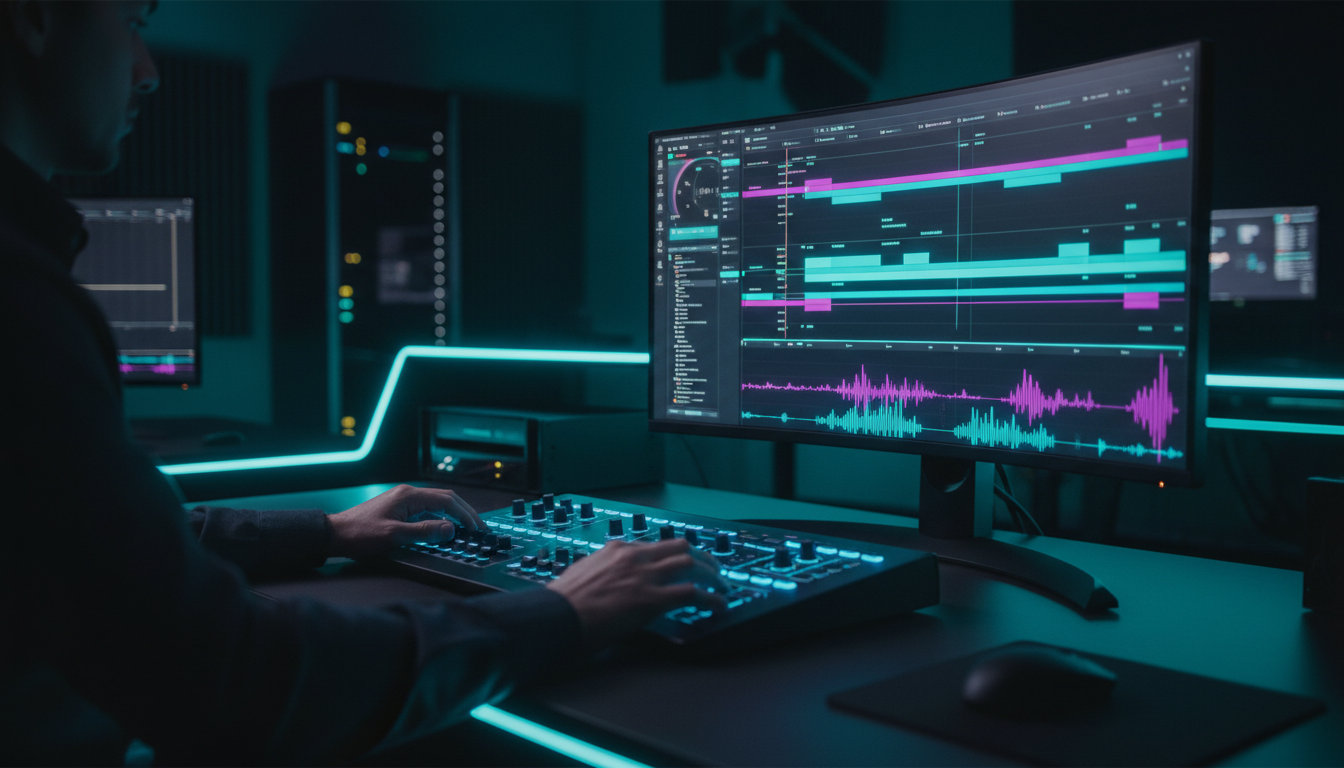
Poor audio ruins a talking-head video faster than bad lighting or basic camera work. But manually applying parametric EQ, noise gates, multiband compressors, and volume keyframes across multiple interview mic tracks eats up hours.
To move fast, establish an automated audio chain and leverage essential ducking rules.
Dialogue Leveling (-12 dB to -6 dB Range)
Your dialogue should sit consistently in the mix without clipping or dipping into quiet mumbles. Standard technical guidelines for talking-head audio call for recording clean sound using a quality lapel or directional mic set to 48 kHz, 16-bit resolution [2].
[[STAT:48 kHz:16-bit audio recording spec:recommended baseline for dialogue]]
Once imported, normalize dialogue peaks to stay strictly between -12 dB and -6 dB.
Audio Level Guidelines:
+-------------------------------------------------------------+
| CLIP DANGER ZONE (Above 0 dB)                               |
+-------------------------------------------------------------+
| DIALOGUE PEAKS (-12 dB to -6 dB)                            |
| [============== Dialog Range ==============]               |
+-------------------------------------------------------------+
| BACKGROUND MUSIC (-24 dB to -18 dB when speech is active)   |
| [====== Music Range ======]                                 |
+-------------------------------------------------------------+
| NOISE FLOOR (Below -45 dB)                                  |
+-------------------------------------------------------------+
Instead of manually tweaking gain on every clip, save a track effect preset in Premiere Pro's Essential Sound panel or Track Mixer. Apply dialogue processing at the track level so every clip placed on Audio Track 1 automatically receives light denoise, speech leveling, and subtle compression.
Automated Music Ducking Under Spoken Voice
Manually keyframing background music volume up and down around every sentence is another massive time sink.
Use automated ducking inside Premiere Pro or KreateFlo's audio suite:
- Assign your speaker tracks as Dialogue.
- Assign your background audio track as Music.
- Enable Auto-Ducking with a ducking amount of -18 dB to -24 dB and a fade duration of 0.5 seconds.
Whenever the speaker talks, the background music automatically dips to a quiet, supporting level. When the speaker stops for a dramatic pause, the music swells smoothly without a single manual keyframe.
Front-loading your project template with track-level audio effects and automated ducking rules removes 90% of audio mixing tasks. You set it once at project launch, and it processes every clip you drop on the timeline automatically.
Actionable Takeaway: Apply noise reduction and compression at the track level in Premiere Pro rather than copying and pasting clip effects across hundreds of edits.
Shortcut 4: Automate Multi-Angle Punch-Ins and 9:16 Reframing
A single static talking-head shot gets boring fast. Viewers tune out if the visual framing never changes. But setting up a two-camera shoot adds setup time, extra sync steps, and double the file storage.
The solution is shooting in 4K resolution and building a virtual multi-cam setup in post-production.
Shooting in 4K for 1080p Virtual Multi-Cam
When you deliver your final project in 1080p Full HD, a 4K source video gives you 200% scaling headroom without losing image sharpness. You can treat a single 4K camera angle as two separate camera setups:
- Wide Angle (Angle A): 100% scale (Full 4K frame fitted to 1080p sequence).
- Tight Close-Up (Angle B): 130% to 140% scale punched in on the speaker's face and shoulders.
4K Source Frame (3840x2160)
+-------------------------------------------------------------+
| Wide Shot (100% Scale)                                      |
|                                                             |
|         +---------------------------------------+           |
|         | Tight Close-Up Punch-In (135% Scale)  |           |
|         |                                       |           |
|         |                 [O]                   |           |
|         |                / | \                  |           |
|         +---------------------------------------+           |
|                                                             |
+-------------------------------------------------------------+
Switching between Angle A and Angle B on key statements creates visual energy and masks jump cuts. When you cut out an "um" or a mid-sentence stumble, switching angles hides the jump cut entirely.
And if you are working on actual multi-person podcasts, KreateFlo's Multi-Cam Editor handles up to 8 speakers and 8 cameras automatically, complete with a dedicated wide-shot designation to switch speakers seamlessly.
9:16 Vertical Safe Zones on Set
Short-form vertical video is no longer an afterthought. Vertical 1080x1920 video uploads grew by roughly 24% year-over-year [1], making 9:16 the dominant format for social reach. Industry data shows that vertical formats now account for 59% of all short-form marketing videos [8].
When shooting your talking-head footage:
- Turn on frame guides on your camera monitor showing both 16:9 and vertical 9:16 safe zones.
- Frame the speaker dead-center so their face and torso stay inside the central vertical column.
- Keep lower-third graphics and key text within vertical safe bounds so platform UI elements don't cover them.
When reframing 16:9 horizontal master interviews into 9:16 vertical clips, manual motion tracking is painfully slow. KreateFlo's auto-reframe engine tracks speaker facial movements automatically, keeping the subject centered inside the 9:16 frame across the entire timeline in seconds.
Actionable Takeaway: Frame all 4K talking-head shoots with a central vertical 9:16 safe zone so you can auto-reframe horizontal master edits into short clips without cropping out the speaker.
Shortcut 5: Editing Talking-Head Videos Fast Using Animated Captions
Over 80% of short-form vertical videos are watched on mobile devices with the sound turned off. If your video does not have bold, readable captions on screen, scrollers skip right past it. In fact, clips under a minute hold approximately 50% average engagement [1], but only when viewers can follow the narrative visually.
Engagement by Video Duration:
Under 1 Min : [=================== 50% ===================]
1 to 3 Mins : [================= 46% =================]
3 to 5 Mins : [================ 45% ================]
| 50|1-3 Mins | NaN |
|---|
Instant Subtitle Generation with Real-Time WASM Preview
Traditional subtitle workflows in Premiere Pro often mean dealing with slow caption generation or clunky Essential Graphics templates that choke playback performance.
KreateFlo solves this with CaptionFlow, which uses a WebAssembly (WASM) preview engine directly inside the Premiere CEP extension panel. WASM allows real-time subtitle rendering and styling updates without forcing Premiere to render
TRADITIONAL PREMIERE CAPTION WORKFLOW:
[Edit Text] -> [Apply MOGRT] -> [Wait for Render Bar] -> [Preview Playback] (30-60s delay)

KCREATEFLO WASM CAPTIONFLOW WORKFLOW:
[Edit Text/Style] -> [Instant WASM Real-Time Preview] (0s delay)
Voice transcription in KreateFlo supports over 40 languages—including Bangla and Hindi—making it easy to generate accurate time-coded transcriptions for global content pipelines.
Styling Captions with Animated Presets
To catch viewer attention, static subtitles are not enough. Social platforms reward word-by-word active highlighting, kinetic text animation, and custom brand colors.
CaptionFlow includes 22 animated caption presets designed specifically for social feeds. You can pick popular kinetic styles (like word-by-word karaoke highlighting or pop-in scale effects), tweak font colors and strokes, and apply them across your sequence in one click.
22 in KreateFlo CaptionFlow
Dynamic captions aren't just decorative; they act as visual anchors that pull the viewer's eyes back to the middle of the frame every time a new word flashes on screen.
Pro Tip: Keep short-form caption presets positioned slightly above the bottom third of the frame. This keeps text clear of native app UI overlays on TikTok, Instagram Reels, and YouTube Shorts.
Actionable Takeaway: Use WASM-powered subtitle tools inside Premiere Pro to preview animated captions in real time without wasting minutes rendering
Comparison: KreateFlo vs. Traditional & Standalone Talking-Head Editors
Choosing the right tool stack comes down to where you want your workflow to live. If you are already built around Adobe Premiere Pro, switching out to browser tools creates export friction and metadata loss.
Here is how KreateFlo compares against traditional manual workflows and competing video editing solutions:
| Feature / Metric | Manual Premiere Pro | Standalone Web Apps (e.g., Descript, Opus) | Competitor Premiere Plugins (FireCut, AutoPod) | KreateFlo Plugin (v1.0.3) |
|---|---|---|---|---|
| Workflow Environment | Native Premiere Pro | External Browser / App | Native Premiere Pro (CEP) | Native Premiere Pro (CEP) |
| Automated Silence Removal | No (Manual cuts) | Yes (Cloud based) | Yes (Single feature) | Yes (Included) |
| Multi-Cam Speaker Support | Manual | Basic | Up to 2-4 speakers | Up to 8 speakers + wide shot |
| Captioning & Presets | Basic Captions | Basic Text Styles | Basic Templates | 22 WASM Animated Presets |
| Language Transcription | Premiere Speech-to-Text | 23+ Languages | Limited | 40+ Languages (Hindi, Bangla, etc.) |
| Pricing Model | Included in Creative Cloud | $16–$24/mo (Per user/credits) | Per-hour billing / $15/mo single tool | $19.99/mo (Pro, 20 AI hrs) / $44.99 (Studio) |
| Free Tier | Free with CC | Limited trial | Limited trial | 3 tools free forever |
As shown in recent editor comparisons, all-in-one plugins directly inside Premiere Pro streamline performance [7] by cutting out the file export step entirely.
When KreateFlo Isn't the Right Fit for Your Workflow
I believe in absolute honesty when recommending tools. Trust matters more than hype. KreateFlo is a purpose-built extension for Adobe Premiere Pro, but it is not the right choice for every creator or editor.
Here is when you should NOT pick KreateFlo:
You Do Not Use Adobe Premiere Pro
KreateFlo is a CEP (Common Extensibility Platform) panel plugin built exclusively for Adobe Premiere Pro (current version v1.0.3). If your primary NLE is Final Cut Pro, DaVinci Resolve, or CapCut Desktop, KreateFlo will not run on your system. You are better off using native tools inside Resolve or platform-specific apps.
You Want an All-in-One Cloud Browser Editor
If you edit videos on a Chromebook, iPad, or low-powered laptop, you don't need a heavy desktop NLE. Non-editors who want a simple drag-and-drop browser workspace to auto-generate social shorts without touching an NLE timeline should look at standalone web apps like Descript, Jupitrr, or Opus Clip [9].
You Only Want Hands-Off Clip Generation Without Manual Control
If your goal is to feed a long YouTube link into a web tool and have an algorithm automatically clip, crop, and auto-post 10 shorts to TikTok without reviewing cuts on a professional timeline, standalone clip generator tools are built for that hands-off approach. KreateFlo is built for working editors who want professional, frame-accurate control over their final timeline inside Premiere Pro.
Editing Talking-Head Videos Fast: Building Your 2-Hour Workflow System

To consistently turn long talking-head interviews into polished videos in under two hours, you need a structured assembly line. Do not skip around between tasks. Execute your edits in a strict, linear order.
THE 2-HOUR TALKING-HEAD WORKFLOW PIPELINE
┌─────────────────────────────────────────────────────────┐
| STEP 1: Import & Multitrack Sync (0–10 Mins)            |
├─────────────────────────────────────────────────────────┤
| STEP 2: Automated Silence Removal Pass (10–15 Mins)     |
├─────────────────────────────────────────────────────────┤
| STEP 3: Text-Based Content & Bad Take Edit (15–40 Mins) |
├─────────────────────────────────────────────────────────┤
| STEP 4: Track-Level Audio Mix & Ducking (40–50 Mins)    |
├─────────────────────────────────────────────────────────┤
| STEP 5: Virtual Multi-Cam Punch-Ins (50–70 Mins)        |
├─────────────────────────────────────────────────────────┤
| STEP 6: CaptionFlow Animated Captions (70–90 Mins)      |
├─────────────────────────────────────────────────────────┤
| STEP 7: Color Pass & Final Export (90–100 Mins)         |
└─────────────────────────────────────────────────────────┘
The Step-by-Step Execution Stack
- Import & Sync (0–10 Mins): Organize raw footage, drop 4K master audio/video onto Audio/Video Track 1, and set up project templates.
- Automated Silence Removal (10–15 Mins): Run KreateFlo Silence Remover with 0.4s pause padding to strip dead air across the timeline.
- Transcript Trim (15–40 Mins): Open the transcript panel, scan for false starts or stutters, and delete bad takes in text.
- Audio Processing & Ducking (40–50 Mins): Apply dialogue compression presets to Track 1 (-12 dB to -6 dB peak range) and turn on auto-ducking for background music.
- Punch-Ins & Re-Framing (50–70 Mins): Add 135% scale punch-in cuts on key statements to simulate a dual-camera setup. Use auto-reframe for 9:16 vertical exports.
- Animated Captions (70–90 Mins): Run CaptionFlow to generate time-coded subtitles with animated presets.
- Color & Final Render (90–100 Mins): Apply your primary LUT and export your final master.
Scaling Output Without Increasing Subscriptions
Managing half a dozen single-purpose plugin subscriptions quickly gets expensive. Subscription costs represent the #1 adoption barrier [6] for creator video tools.
Instead of paying FireCut for cut passes, AutoPod for multi-cam, and separate web tools for captions, KreateFlo bundles 33+ professional editing tools into a single extension.
The Pro Plan at $19.99/mo gives you 20 AI hours per month—more than enough time to edit 15 to 20 long-form episodes. If you run a high-volume agency or post daily, the Studio Plan ($44.99/mo) provides 50 AI hours. And if you just want basic tools, KreateFlo offers a free tier with 3 tools forever (Silence Remover, Transition Assistant, Copy & Paste) with no credit card required.
Actionable Takeaway: Build a standardized step-by-step editing pipeline so every interview project follows the exact same automated pass from import to export.
Frequently Asked Questions
How do I remove silences automatically in Adobe Premiere Pro?
You can remove silences automatically in Adobe Premiere Pro by using a CEP extension plugin like KreateFlo's Silence Remover. The plugin analyzes audio waveforms on your sequence, detects dead space based on your threshold settings, and ripples cuts across your timeline in seconds.
How much breathing room or pause duration should be kept in a talking-head edit?
You should retain between 0.3 to 0.7 seconds of natural padding around spoken phrases. Completely deleting every pause below 0.5 seconds makes the speaker sound unnatural, rushed, and breathless.
What is the fastest workflow to edit long podcast interviews into short clips?
The fastest workflow is shooting in 4K with vertical 9:16 safe zones, using transcript-based editing inside Premiere Pro to isolate key moments, running automated silence removal, and applying animated caption presets via KreateFlo CaptionFlow.
How do AI Premiere Pro plugins compare to standalone tools like Descript?
Premiere Pro plugins like KreateFlo operate directly inside your professional NLE, eliminating time-consuming file exports and XML round-trips. Standalone apps like Descript require constant cloud uploading and external app switching, which breaks native timeline workflows.
What are the best export settings for vertical short-form videos on Instagram and TikTok?
Export vertical short-form videos in H.264 at a resolution of 1080x1920, 30 fps or 60 fps, with VBR 2-pass encoding set between 10 to 15 Mbps, and AAC audio at 48 kHz, 320 kbps.
Editing talking-head videos fast isn't about rushing your artistic decisions—it is about offloading mechanical razor-tool cuts to software. By establishing simple rules for silence padding, transcript cuts, and vertical framing, you turn six hours of repetitive timeline scrubbing into a smooth 90-minute pass.
If you edit daily in Adobe Premiere Pro, download KreateFlo's free tier and test the Silence Remover tool on your current rough cut today.
References
- moonb.io/blog/video-production-trends
- resumly.ai/blog/how-to-edit-talking-head-videos-efficiently
- jmltechstudios.com/blog/edit-talking-head-videos-faster
- brevidy.pro/blog/how-to-edit-talking-head-videos-faster-in-premiere-pro
- loopdesk.ai/research
- vidio.ai/blog/article/ai-video-editing-adoption-sentiment-early-2026-vidio-user-survey
- vivideo.ai/blog/ai-video-statistics-2026
- lumalabs.ai/news/ai-video-generation-statistics
- jupitrr.com/best/video-editors-for-talking-head-videos
- youtube.com/watch
- wireflow.ai/blog/best-agent-that-edits-video-tools-in-2026
- valmera.io/research/ai-video-editor-market-map
- vikimediatec.com/top-video-editing-trends-in-2026-every-creator-should-know/
- metricool.com/ai-video-editor-trends/
- firecut.ai/blog/editing-video-with-ai-5-trends-you-cant-ignore-in-2026/
- youtube.com/watch
- offshoreclipping.com/blog/video-editing-trends/
- youtube.com/watch
- teamunitymedia.com/blogs/artificial-intelligence-video-production-trends-2026
Try KreateFlo free
3 tools forever, 7-day trial on the rest. No credit card to start.
Download KreateFlo