Educational Captions: 5 Proven Tips for Complex Lectures
I spent three hours last week manually fixing subtitles for an organic chemistry lecture in Adobe Premiere Pro because standard transcription software turned "stereochemistry" into "stereo chemistry s
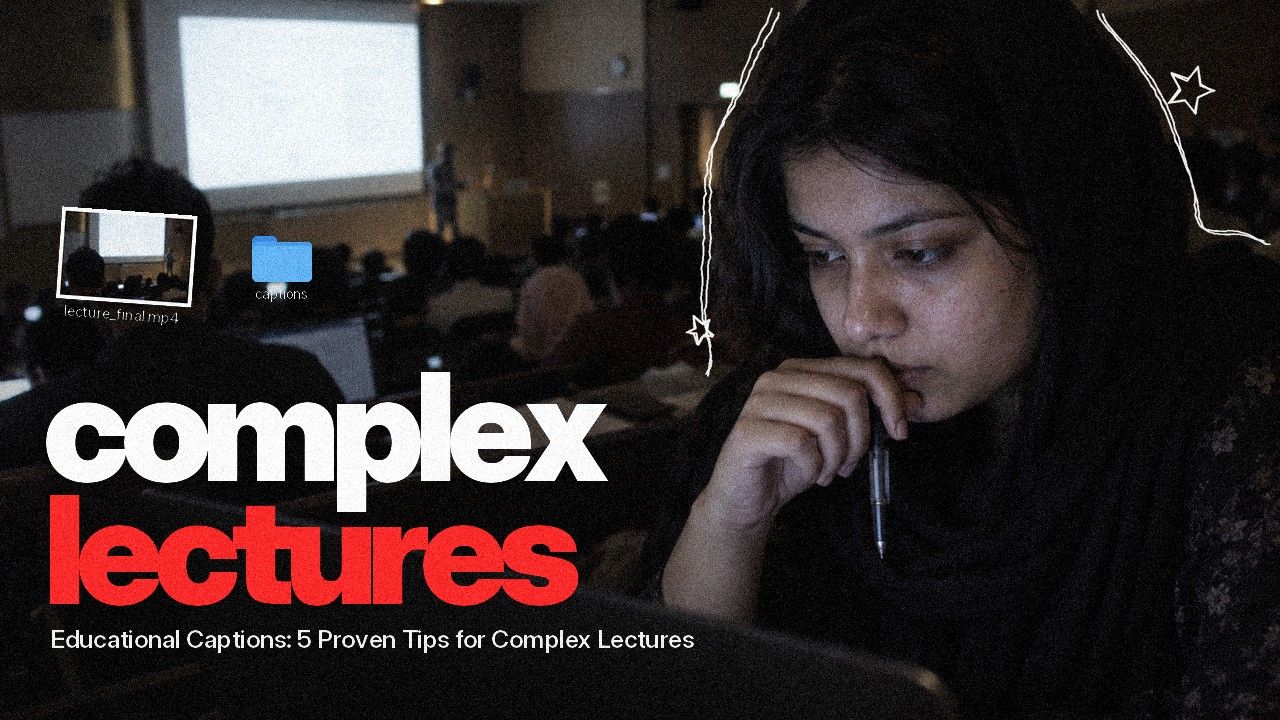
I spent three hours last week manually fixing subtitles for an organic chemistry lecture in Adobe Premiere Pro because standard transcription software turned "stereochemistry" into "stereo chemistry set." Most editors treat subtitling as a tedious compliance chore for ADA regulations. But here is the truth: 98.6% of college students rely on captions for learning [7], and 71% of students without any hearing impairment use them regularly [7]. If you edit educational content or university lectures in Premiere Pro, mastering captions is the fastest way to bump student assessment scores by 7% [7] while saving yourself from post-production hell.
Key Takeaways
- Dual-Channel Processing: Pairing spoken lectures with visual text triggers simultaneous cognitive processing, reducing brain strain during dense technical topics [6].
- The 145 WPM Limit: Caption delivery exceeding 145 words per minute causes student comprehension to drop sharply [4].
- Universal Utility: Research shows 80% of regular caption users are not Deaf or hard-of-hearing [2].
- Smart Screen Placement: Keeping subtitles off lower-third graphics prevents visual clutter and protects complex lecture slides [4].
- Timeline Automation: Tools like KreateFlo's CaptionFlow inside Adobe Premiere Pro cut caption styling time from 4 hours down to 90 seconds.
- LMS Indexing: Exporting clean SRT or VTT files allows students to search lecture text and boost exam retention by 63% [7].
Why Making Complex Lectures Easy to Follow Starts with Visual Science
When an instructor presents dense technical material—like quantum mechanics or neuroanatomy—the human brain struggles to process heavy verbal data alone. Understanding how to make complex lectures easy to follow starts with human cognitive architecture.
According to Richard Mayer's Cognitive Theory of Multimedia Learning [6], our working memory processes information through two separate channels: auditory and visual. When a student hears a complex term while reading it on screen, the brain distributes the load across both channels [6]. This dual-channel delivery expands working memory capacity. The result? Students digest intricate concepts without getting overwhelmed [8].
| 20|Non-Deaf Caption Users | NaN |
|---|
Dual-Channel Cognitive Processing Explained
Editing a 60-minute lecture isn't just about putting words on screen. You are managing cognitive bandwidth.
When an educator introduces new terminology, auditory delivery alone forces students to perform mental translation on the fly [8]. They stumble over phonetics instead of grasping concepts.
Comprehensive research on caption usage demonstrates that 80% of people who turn on captions have no hearing impairment whatsoever [2]. By pairing precise text with speech, you remove the audio friction caused by reverberant lecture halls or rapid speech rates [10].
Literacy Reinforcement for Specialized Technical Vocabulary
Every academic discipline relies on specialized vocabulary. Hearing an unfamiliar word once isn't enough for most students to grasp its spelling or meaning [7].
An extensive Oregon State University study revealed that 65% of students report improved focus when captions are present [7]. Furthermore, 63% of students cite on-screen text as their primary tool for retaining technical jargon [7].
When students see "deoxyribonucleic" spelled out the exact second the professor speaks it, their brain reinforces visual recognition instantly [6].
"Pairing dense auditory terms with verbatim visual captions in Premiere Pro activates dual-channel processing and minimizes student cognitive overload."
Cognitive Load Theory and the 145 Words-Per-Minute Rule
As editors, we often feel pressured to cut pauses and speed up lecture footage. We want to keep runtimes down. But accelerating educational video can wreck student retention if your caption pacing breaks down.
[[STAT:145 WPM:Max Caption Speed for Optimal Comprehension]]
The Reading Speed Threshold for Dense Material
Published human-computer interaction studies establish that viewer caption comprehension drops rapidly when speech and subtitle display speeds exceed 145 words per minute [4].
When an educator speaks faster than 145 WPM during a
When editing academic videos, aim for a maximum reading speed of 130 to 140 WPM. This gives viewers enough time to read text and look back at slide graphics [4].
Pacing Edits and Audio Cuts for Maximum Retention
Applying proper Cognitive Load Theory principles requires editors to balance audio cuts with caption breaks [8]. If you use automated tools to trim dead air, do not over-cut speech to the point where it sounds rushed [10].
Pro Tip: When editing long lectures in Premiere Pro, use KreateFlo's Silence Remover to clean up dead space, but set your padding buffer to at least 250 milliseconds. This prevents word clipping and lets captions land naturally on screen without jarring cuts.
Maintaining proper pacing ensures that 65% of viewers experience real focus improvements [7]. When captions align cleanly with natural speech pauses, students digest the material without feeling rushed [10].
Building an Automated Subtitle Pipeline in Adobe Premiere Pro

Editing a two-hour lecture manually will destroy your production schedule. Typing, timing, and formatting subtitles in Premiere Pro by hand can take upwards of 4 hours per lecture hour.
You need an efficient, automated editing pipeline.
| Before | 4 Hours |
|---|---|
| After | 90 Seconds |
| Workflow Method | Time per 60-Min Lecture | Accuracy on Technical Terms | Real-Time Styling Preview | Subscription Model |
|---|---|---|---|---|
| Manual Typing & Timing | 4.0 Hours | High (Human Verified) | No (Static Titles) | Labor Cost ($50+/hr) |
| Native Premiere Speech-to-Text | 15 Minutes | Moderate (Requires Edits) | No (Standard Mogrts) | Included with Creative Cloud |
| KreateFlo CaptionFlow | 90 Seconds | High (AI Engine + Transcripts) | Yes (WASM Real-Time) | $19.99/mo (20 AI Hours) |
| FireCut / Competitor Plugins | 3-5 Minutes | Moderate to High | Standard Render Loop | Per-Hour Metered Billing |
Automating Speech-to-Text Without Leaving the Timeline
Adobe Premiere Pro offers built-in speech-to-text, but customizing those captions for high-impact educational delivery often requires external tools. Instead of jumping between web apps like Descript or paying high per-hour fees on tools like FireCut, I stay directly inside Premiere using native extensions.
Using KreateFlo v1.0.3, you can generate transcriptions across 40+ languages (including Hindi and Bangla) right on your Premiere Pro timeline. What used to take 4 hours of tedious subtitling drops down to 90 seconds.
If you edit multi-speaker panels, pairing transcription with automated tools like KreateFlo's Multi-Cam Editor—which handles up to 8 speakers and 8 cameras with automatic wide-shot switching—lets you complete multi-cam cuts and captions in one pass. Check out our detailed guide on accelerating Premiere Pro captioning workflows for more timeline strategies.
+------------------------------------------------------------------+
| ADOBE PREMIERE PRO TIMELINE                                      |
|                                                                  |
| [ V3: Caption Track ]  --->  Generated via KreateFlo CaptionFlow  |
| [ V2: Lecture Slides ] --->  Formula Graphics & Diagrams        |
| [ V1: Speaker Camera ] --->  Instructor Multi-Cam Cut           |
| [ A1: Dialogue Audio ] --->  Cleaned via Silence Remover         |
+------------------------------------------------------------------+
Accelerating Styles with Animated Caption Presets
Educational micro-lectures designed for mobile Learning Management Systems (LMS) demand modern styling. Standard static subtitles feel dry, but over-animating them distracts from the lesson.
KreateFlo's CaptionFlow provides 22 animated caption presets engineered specifically for clarity. Unlike traditional Mogrt templates that force you to render the timeline just to check font placement, CaptionFlow utilizes WebAssembly (WASM) for real-time live previews inside Premiere Pro.
You can tweak font weights, box strokes, and word-highlight animations instantly without hitting render loops.
Subtitling Rules: Visual Placement Over Dense Technical Slides
One of the worst mistakes editors make with educational content is dropping text directly over crucial slide information. You must protect visual slide content at all costs.
+------------------------------------------------------------------+
| BAD PLACEMENT: Subtitles cover slide graphics                    |
| +--------------------------------------------------------------+ |
| |  CHEMICAL FORMULA: C6H12O6 + 6O2 -> 6CO2 + 6H2O              | |
| |  [ OVERLAPPING CAPTION: "Now let's examine glucose..." ]     | |
| +--------------------------------------------------------------+ |
|                                                                  |
| GOOD PLACEMENT: Captions boxed cleanly at the bottom             |
| +--------------------------------------------------------------+ |
| |  CHEMICAL FORMULA: C6H12O6 + 6O2 -> 6CO2 + 6H2O              | |
| +--------------------------------------------------------------+ |
| | [ CLEAN CAPTION BOX: "Now let's examine glucose..." ]        | |
+------------------------------------------------------------------+
Avoiding Visual Clutter Over Diagrams and Formulas
Academic lectures rely on slides with chemical equations, math proofs, or code snippets.
According to guidance on subtitle placement, placing raw text captions over lower-third slide content creates visual overlap [4]. This forces the viewer's eyes to jump between competing text layers, increasing cognitive friction [8].
To keep your lecture videos clean:
- Position captions consistently in the lower center of the frame, leaving space above lower-third titles.
- Use semi-opaque background bounding boxes (60–80% black opacity) to separate subtitle text from underlying video backgrounds.
- Scale down your lecture slide video track slightly (to roughly 90%) and anchor captions in the dedicated letterbox space below.
High-Contrast Typography and Subtitle Styling
Subtitles must remain legible regardless of screen size or display contrast. Small mobile screens compound visual fatigue if your font choices are poor.
Pro Tip: For academic lectures, stick to clean sans-serif typefaces like Inter, Roboto, or Helvetica. Set font sizes between 42pt and 54pt for 1080p timelines, and add a subtle 2px stroke outline alongside a background box to maintain legibility against light-colored slides.
Avoid decorative scripts, thin display fonts, or bouncing word animations for full-length technical lectures. Save fast word-by-word highlight animations for short 60-second social clips. Keep full-length lectures locked to clean, two-line phrase blocks [4].
Repurposing Transcripts into Searchable Study Guides
Captions are not just useful during video playback. They serve as the backbone for written study materials.
Exporting SRT and VTT Files for LMS Integration
Modern universities rely on Learning Management Systems like Canvas, Blackboard, and Moodle. Publishing raw MP4 files without sidecar subtitle files limits how students interact with your content.
When you finish editing in Premiere Pro, export closed captions as standardized sidecar files (.SRT or .VTT).
According to LMS transcript integration research, uploading VTT files alongside video streams enables native video players to make lecture audio fully searchable inside the LMS search bar [9].
Creating Indexable Written Lecture Notes
A landmark USFSP distance learning research study showed that 99% of online students find closed captions and searchable transcripts helpful for course navigation [5]. This holds true even though only 7% identified as deaf or hard of hearing [5].
+------------------------------------------------------------------+
| SEARCHABLE LMS LECTURE TRANSCRIPT INDEX                          |
|                                                                  |
| [00:04:12] "Understanding Deoxyribonucleic Acid Structure..."   |
| [00:12:45] "Enzyme Kinetics and Michaelis-Menten Equation..."   |
| [00:28:30] "Thermodynamic Equilibrium in Cellular Respiration..." |
+------------------------------------------------------------------+
When students prepare for midterms, they rarely re-watch a 10-hour lecture series end-to-end. They search written transcripts for key terms and click timestamp markers to review specific explanations [9].
Studies show that students using captions score 7% higher on course assessments [7]. This performance bump stems directly from studying text transcripts alongside video clips [7].
Supporting Global and ESL Learners

In modern higher education, many students watch lectures delivered in their second or third language. Providing clean captions is vital for international student success.
"Data shows 66% of ESL college students rate video captions as essential for understanding course material."
Boosting Course Completion Across International Populations
Non-native English speakers face heavy cognitive fatigue during long lectures. Accents, fast delivery, and regional idioms make spoken lectures hard to digest in real time [1].
Data from an Oregon State University national survey reveals that 66% of English as a Second Language (ESL) college students rate video captions as very or extremely helpful [7]. Written text acts as a translation bridge, allowing non-native speakers to confirm pronunciation and syntax on the fly [1].
A published Coursera study on multilingual captions demonstrated that providing open and closed captions across multiple languages boosted enrollment while significantly reducing student dropout rates [3].
Handling Multilingual Transcription and Technical Translation
If you edit educational series for global audiences, maintaining multi-language caption capabilities is essential. KreateFlo supports voice transcription across 40+ languages, including major regional languages like Hindi and Bangla.
When generating multi-language subtitles:
- Keep translation phrasing simple and direct; avoid localized slang.
- Maintain consistent terminology glossaries so technical terms translate accurately across languages.
- Adjust subtitle display timing to account for text expansion (German translations often require 20–30% more screen space than English phrasing).
Where Automated AI Tools Fall Short (And When to Avoid Plugins)
Automated AI tools save massive amounts of time. But blind reliance on automation can lead to embarrassing mistakes in technical media. You must know when to perform manual quality control.
Domain-Specific Technical Jargon and Acronyms
Speech recognition engines rely on statistical language models. While they excel at standard conversational speech, automated tools frequently trip up on obscure proper nouns, niche medical terminology, or scientific equations [8].
For example, an automated AI tool might misinterpret:
- "CRISPR-Cas9" as "Crisper Can 9"
- "Euler's Identity" as "Oilers Identity"
- "Ischemia" as "His Key Mia"
Publishing raw automated captions with glaring technical errors undermines the instructor's authority and confuses students during exam prep [8]. According to ADA compliance standards, higher education legal guidelines require high accuracy rates, making unedited AI captions insufficient for official legal compliance [8].
Honest Caveats: When KreateFlo Isn't the Right Pick
I love building tools that solve real editor problems, but KreateFlo is NOT the right choice for every situation:
- You only edit one short video a month: If you produce content infrequently, paying for a monthly subscription makes no sense. Stick with Premiere Pro's built-in text panel or free web tools.
- You need certified human legal compliance: If your university compliance office mandates certified, 99.9% human-verified transcripts for formal ADA legal audits, hire specialized transcription services (like Rev's human tier or 3Play Media) instead of relying solely on automated plugins.
- You work outside Adobe Premiere Pro: KreateFlo is a CEP extension built strictly for Premiere Pro (v1.0.3). If you edit in Final Cut Pro or DaVinci Resolve, KreateFlo will not run in your NLE.
For professional editors creating high-volume lectures, podcasts, and social clips in Premiere, KreateFlo Pro ($19.99/mo for 20 AI hours) or Studio ($44.99/mo for 50 AI hours) provides exceptional value—especially compared to competitors like FireCut that bill on a per-hour basis.
KreateFlo also offers a free tier with 3 tools forever (Silence Remover, Transition Assistant, Copy & Paste) so you can test the core suite without pulling out your credit card.
Mastering Educational Captions in Premiere Pro
Captions are far more than an accessibility checkbox. They are essential visual infrastructure that makes complex lectures significantly easier to follow [6].
By triggering dual-channel processing, keeping reading speeds under 145 WPM, placing subtitles thoughtfully over visual slides, and exporting searchable transcripts, you transform dense academic videos into engaging, high-retention learning assets [4], [7], [9].
If you edit lectures, interviews, or podcasts daily in Premiere Pro, stop wasting hours styling subtitles by hand. Try KreateFlo's free tier to test our 3 free-forever tools, or upgrade to Pro for $19.99/mo to get full access to CaptionFlow and speed up your timeline.
Download KreateFlo for Adobe Premiere Pro
Frequently Asked Questions
How do video captions improve student focus and memory retention during complex lectures?
Captions activate dual-channel cognitive processing, allowing students to digest auditory speech and visual text simultaneously [6]. Research shows this multi-modal approach improves student information retention by up to 63% and yields an average 7% score increase on course assessments [7].
What is the recommended caption reading speed for educational videos?
Caption pacing should remain below 145 words per minute [4]. Exceeding this reading speed causes comprehension levels to drop, especially during dense technical lectures filled with complex terms [4].
What is the difference between open captions and closed captions in educational settings?
Closed captions (CC) can be toggled on or off by the viewer within a video player or LMS platform, whereas open captions are permanently burned into the video file itself. Open captions ensure consistent font styling across all devices, but closed captions offer better screen reader accessibility and LMS search indexing [9].
How do captions support ESL and non-native English speaking students?
Over 66% of ESL students rate video captions as essential for academic comprehension [7]. Subtitles help non-native speakers bridge gaps in accents, unfamiliar slang, and spoken delivery speeds by providing real-time written spelling [1].
Can Adobe Premiere Pro automate lecture captions and transcription?
Yes. Premiere Pro features native speech-to-text capabilities, and editors can expand these features using extensions like KreateFlo CaptionFlow to auto-generate, style, and animate captions with WASM real-time previews, cutting captioning time from hours down to seconds.
References
- pmc.ncbi.nlm.nih.gov/articles/PMC9038223/
- pmc.ncbi.nlm.nih.gov/articles/PMC5214590/
- pubmed.ncbi.nlm.nih.gov/36073435/ academic
- pmc.ncbi.nlm.nih.gov/articles/PMC12326614/
- mn.gov/deaf-commission/news/
- usu.edu/accessibility/captions/benefits
- ecampus.oregonstate.edu/research/wp-content/uploads/OSU_DETA-Research-Brief-experiment_final.pdf
- uakron.edu/socialwork/faculty-staff/NWhite2018_NSDTA_CognitiveLoadTheoryMeetsTechnology.pdf
- firstmonday.org/ojs/index.php/fm/article/view/13301/11614
- everylearnereverywhere.org/blog/does-cognitive-load-impact-equity-in-higher-ed-an-intro-to-cognitive-load-theory/
- download.hlcommission.org/HLCTrends_INF.pdf
- sorenson.com/blog/enterprise/captioning-in-education-benefits-of-next-generation-captioning-solutions-in-learning-environments/
- captioningstar.com/blog/analyzing-the-effectiveness-of-open-captions-accessibility-in-online-education/
- sinc-lab.com/files/nguyen2026like.pdf
- verbit.ai/closed-captioning-in-education-enhancing-accessibility-learning-for-all/
- captioningstar.com/blog/captions-for-university-lectures-and-seminars/
- echo360.com/articles/closed-captioning-making-video-content-accessible-to-all-learners/
- learningandthebrain.com/blog/video-captions-benefit-everyone-an-investigation/
- verbit.ai/blog/education-elearning/captions-transcripts-provide-a-more-inclusive-learning-experience/
- captioningstar.com/blog/guiding-higher-education-with-captioning-services/
- facultyfocus.com/articles/effective-teaching-strategies/managing-the-load-ai-and-cognitive-load-in-education/
Try KreateFlo free
3 tools forever, 7-day trial on the rest. No credit card to start.
Download KreateFlo