Bouncy Animated Subtitles: 2026 Guide to Fast Video Edits
If you're still hand-keyframing kinetic subtitle bounces for a 30-second TikTok in Adobe Premiere Pro, you are burning four hours on a 90-second job. I spent years manually tweaking speed curves on in
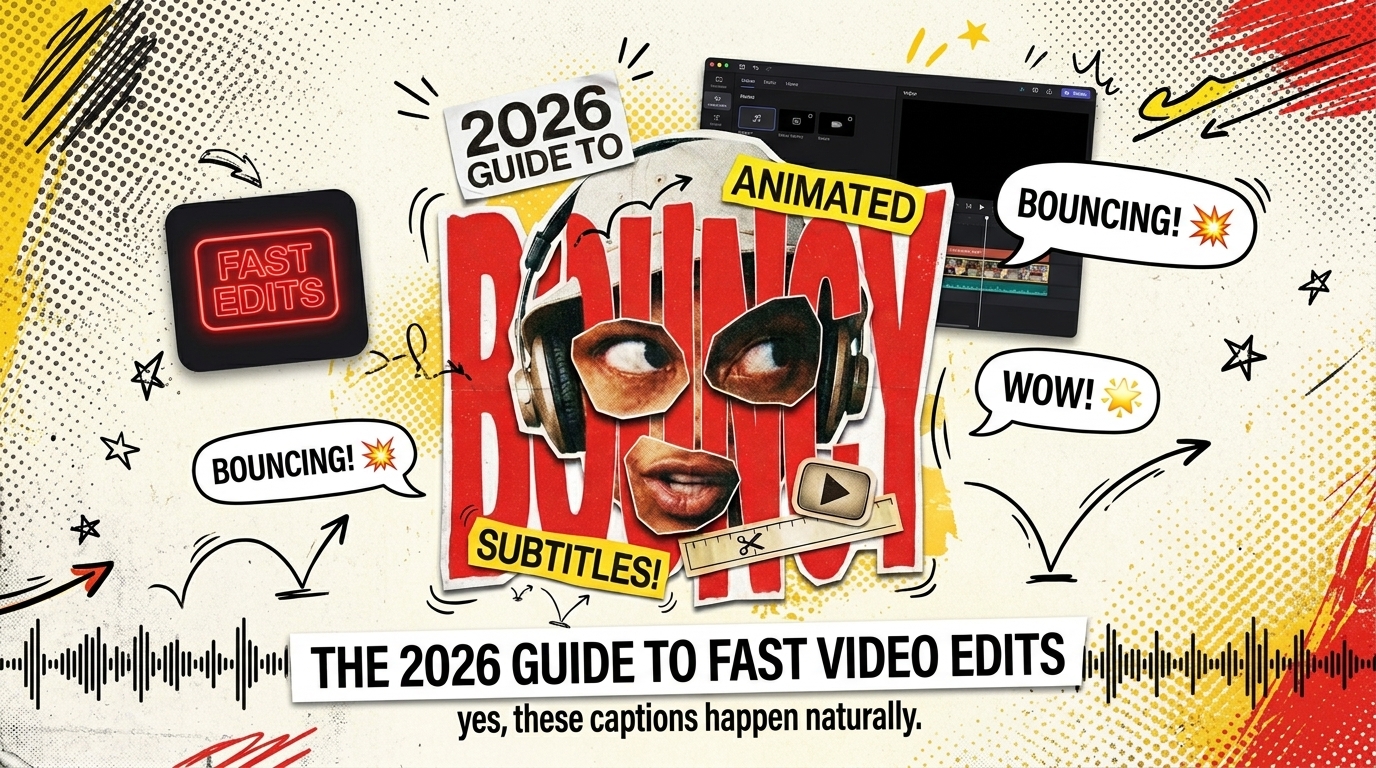
If you're still hand-keyframing kinetic subtitle bounces for a 30-second TikTok in Adobe Premiere Pro, you are burning four hours on a 90-second job. I spent years manually tweaking speed curves on individual text blocks before admitting the cold truth: clients do not pay us for keyframe art. They pay us to deliver polished clips before the trend dies short video production turnaround.
Here is the reality. Research shows that 85% of social media videos are watched with the sound off [1]. That means animated captions are not decorative flair—they are your visual lead actor social video retention strategy. If text sits flat on the screen, viewers scroll past [2]. But when you add a snappy, physical bounce, retention metrics immediately climb [3].
This guide covers two distinct approaches to learning How to Add Bouncy Animated Subtitles to Short Form Video. We will start with manual position keyframing and velocity curve tweaking in Premiere Pro. Then, we will look at how to automate the entire process using timeline-integrated AI plugins.
Key Takeaways
- Over 85% of short-form social video is watched without sound [2], making animated captions essential for viewer retention.
- Manual keyframing requires setting precision Y-axis position offsets and Cubic Out speed curves in Premiere Pro [7].
- Spring-based physics give subtitle text physical mass, requiring bold font weights to sell the inertia [3].
- Bounce animations should settle strictly within 15 to 25 frames to prevent text from feeling floaty over fast speech [3].
- Using in-timeline CEP plugins like KreateFlo cuts subtitle creation time from 4 hours down to under 90 seconds [4].
- Avoiding round-tripping to standalone web apps preserves full keyframe control directly on your Premiere timeline [4].
Table of Contents
- Why Kinetic Captions Drive Retention on Social Media
- How to Add Bouncy Animated Subtitles to Short Form Video Manually in Premiere Pro
- Understanding Physics-Based Damped Spring Curves vs Ease Keyframes
- How to Add Bouncy Animated Subtitles to Short Form Video Using AI Extensions
- Common Subtitle Keyframing Mistakes That Ruin Video Legibility
- Designing High-Contrast Typography for Fast-Paced Subtitles
- How to Add Bouncy Animated Subtitles to Short Form Video in an Automated AI Workflow
- Frequently Asked Questions
Why Kinetic Captions Drive Retention on Social Media
Stopping the Scroll When 85% Watch on Mute
Social media algorithms reward watch time above all else. When silent autoplay kicks in on Instagram Reels or TikTok, text on screen must replace audio hooks immediately short video algorithm watch time. Industry retention reports indicate that silent viewers decide whether to stay within 1.5 seconds [9].
Static subtitles fail because they lack visual rhythm. Kinetic text creates continuous micro-movements on screen [1]. That constant movement resets viewer visual focus every single second visual micro hooks video editing.
"If your captions sit flat on screen during the first three seconds, silent scrollers assume your content is slow. Motion creates urgency."
Why Single-Word Pop Subtitles Keep Viewers Watching
Long multi-line captions overload the viewer reading buffer. High-performing short clips rely on rapid single-word or two-word subtitle blocks [3].
When each spoken word triggers a physical bounce animation, reading speed matches natural speaking cadence [10]. Viewers do not read ahead or tune out. Their eyes stay locked onto the dynamic focal center of the frame eye tracking short form video captions.
In Animations vs Loop Animations Explained
Understanding subtitle motion taxonomy prevents messy timelines:
- In Animations: These trigger once as the caption segment enters the frame [6]. A spring pop, scale bump, or vertical offset slide are standard entry triggers [3].
- Loop Animations: These apply continuous motion throughout the display duration [6]. Subtle floating, color pulsing, or continuous wiggle effects fall under this category loop vs entry subtitle animation.
For high-energy interviews and podcast clips, heavy reliance on fast In Animations tied directly to speech syllables yields the cleanest results [3]. Overusing continuous loop animations turns readable text into a chaotic blur [3].
Pro Tip: Format short-form sequences to display 1 to 3 words per caption block, pairing entry spring pop animations strictly to spoken audio transients [3].
How to Add Bouncy Animated Subtitles to Short Form Video Manually in Premiere Pro
Setting Precision Y-Axis Offset Keyframes
Creating a physical spring bounce in Adobe Premiere Pro requires keyframing the Position property inside the Essential Graphics or Effect Controls panel [7].
Start by creating a text block using the Type Tool (T) premiere pro essential graphics text creation. Move your playhead to the exact frame where the speaker utters the word [4].
- Set your first Position keyframe 3 frames before audio onset [7]. Offset the Y-axis downward by 30% to 50% of total font height [3].
- Move forward 4 frames on your sequence timeline [7]. Set a second keyframe at your target rest position [3].
- Advance 2 frames forward [7]. Move the Y-axis position 2% to 3% above rest position to create the kinetic overshoot [3].
- Advance another 3 frames and return the Y-axis value to the exact target rest position [3].
Frame Index:  F0 (Start)    F4 (Peak)     F6 (Overshoot)   F9 (Settle)
Y-Position:   Baseline+40%  Baseline      Baseline-3%      Baseline
Applying Cubic Out Speed Curves in Essential Graphics
Default linear keyframes look stiff and robotic. Select all created position keyframes in Effect Controls, right-click, and select Temporal Interpolation > Bezier [7].
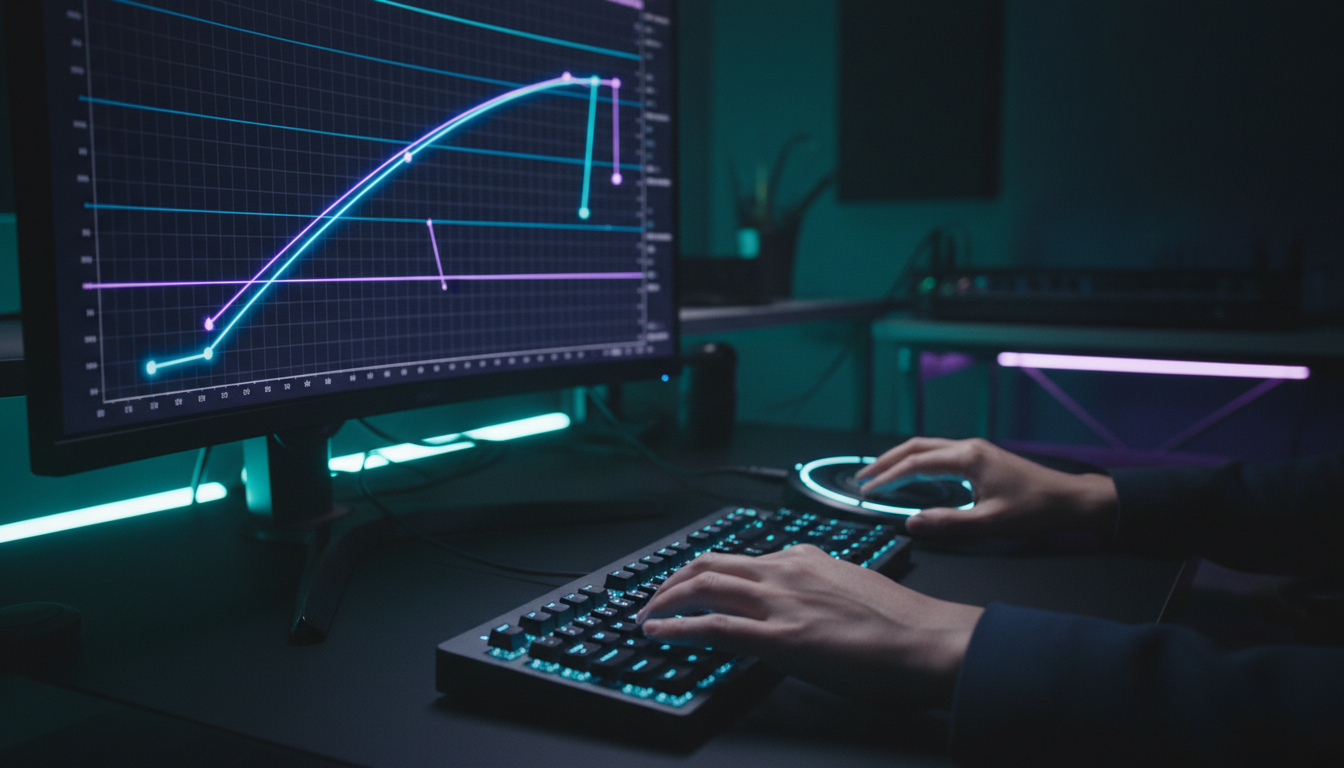
Expand the Position drop-down twisty to view the velocity graph premiere pro velocity graph handles. Drag the keyframe handles to form a steep Cubic Out curve [7]. The movement must start with maximum speed off the baseline and decelerate rapidly as it hits rest position [3].
So how do you scale this across an entire timeline? Copy your customized keyframe position block in Effect Controls, select target subtitle clips across your timeline, and hit Paste Attributes (Cmd/Ctrl+V) to replicate spring timing instantly across identical word lengths.
Tuning Settling Time Within 15 to 25 Frames
Animation length dictates readability. If text takes longer than 25 frames to settle, it feels sluggish over quick voiceovers [3].
Technical spring simulation tests confirm that standard subtitle bounce animations must stabilize within 15 to 25 frames [3]. Over-shooting by more than 1 pixel after frame 20 causes visual vibration that strains viewer eyes [3].
Adding Motion Blur for Cinematic Polish
Raw keyframe motion without blur looks artificial. Premiere Pro does not render native motion blur on basic Essential Graphics transform tracks without additional effects premiere pro motion blur graphics.
To add real blur:
- Apply the Transform effect from the Effects panel onto your text graphic layer [7].
- Uncheck Use Composition's Shutter Angle [7].
- Set Shutter Angle to 180 degrees [7].
- Perform your Y-axis position keyframing directly inside the Transform effect parameters rather than standard Graphic properties [7].
Pro Tip: Master the Transform effect with a 180-degree shutter angle to apply organic directional motion blur across manually keyframed subtitle bounces [7].
Understanding Physics-Based Damped Spring Curves vs Ease Keyframes
How Spring Damping Simulates Visual Weight
Standard ease-in and ease-out keyframes operate on simple mathematical curves [3]. They lack physical weight simulation. Damped spring physics calculate mass, stiffness, and friction forces in real time [3].
When caption typography mimics real-world physics, heavy bold fonts feel like dense visual objects landing on screen [3]. Lighter fonts pop fast with minimal inertia [3]. Damping parameters force text to settle naturally without mechanical stiffness [3].
Linear Ease:      [Start] ------------------------------------> [Stop] (Robotic)
Bezier Curve:     [Start] ======> .................. > [Stop] (Smooth)
Damped Spring:    [Start] ========> [Overshoot] <--> [Settle] (Organic Weight)
Overshooting Rest Position Without Causing Motion Sickness
The core secret of the viral bounce caption lies in the single-frame overshoot [3]. Standard subtitle keyframes stop dead on target coordinates. Real objects spring past their landing mark before snapping back [3].
Keep overshoot amplitude strictly under 5% of total text scale or vertical height [3]. Pushing overshoot past 10% creates a rubber-band distraction that pulls focus away from video content [3].
Matching Font Inertia to Animation Speed
Visual physics must align with graphic styling [1]. Heavy condensed fonts like Montserrat Black, Impact, or Futura Bold require strong damping forces [1]. Light sans-serif styles require quick 10-frame snappy settle curves [3].
| Animation Style | Keyframe | :--- | :--- | :--- | :--- | :--- | | Linear Motion | Standard Linear | 0% (No overshoot) | Instant stop | Rigid & amateur | | Bezier Ease | Ease In / Ease Out | 0% (No overshoot) | 10–12 frames | Smooth but floaty | | Damped Spring | Physics Curve | 3% to 5% Peak | 15–20 frames | Snappy & organic weight |
Pro Tip: Match font weight to keyframe duration—use heavy display fonts with a 3% vertical overshoot settling across 20 frames for high-impact hook sections [3].
How to Add Bouncy Animated Subtitles to Short Form Video Using AI Extensions
Installing CEP Extensions Directly in Premiere Pro
Manual keyframing works fine for a 10-second clip. But what happens when you edit a 45-minute podcast interview requiring 30 short clips a week? Hand-keyframing every single word burns you out fast [4]. Modern agency workflows rely on CEP (Common Extensibility Platform) panel plugins running natively inside Adobe Premiere Pro [4].
Timeline extension tools eliminate manual keyframe tweaking by applying spring motion directly to sequence text tracks [4]. KreateFlo functions as an all-in-one CEP panel (currently v1.0.3). It keeps your editing workflow strictly inside Premiere Pro without requiring external app exports or web round-tripping [4].
+-------------------------------------------------------------------+
| Adobe Premiere Pro Sequence Timeline                              |
|                                                                   |
| [V3]  [   AI Animated Caption Track (CaptionFlow WASM)   ]       |
| [V2]  [ Speaker Video / B-Roll Clip                      ]       |
| [A1]  [ Dialogue Track (Multi-Cam / Clean Voice)        ]       |
+-------------------------------------------------------------------+
Real-Time WASM Previews vs Render-Loop Waiting
Old MOGRT graphics and After Effects round-trips force you into constant preview rendering [4]. If you adjust font size or keyframe timing, Premiere forces you to wait for dynamic link updates or scratch disk caching premiere mogrt rendering speed.
Using WebAssembly (WASM) engine architecture inside CEP extensions allows you to preview 22 animated caption presets in real time [4]. You tweak bounce intensity, stroke thickness, or spring damping, and playback updates instantly on your sequence monitor without render delays [4].
Applying CaptionFlow Presets in 90 Seconds
Here is how fast kinetic captions process using KreateFlo's CaptionFlow tool:
- Open the KreateFlo CEP panel inside Premiere Pro under Window > Extensions > KreateFlo.
- Run voice transcription on your sequence dialogue track [8].
- Select your preferred style from 22 animated caption presets (including Alex Hormozi bounce, single-word pop, and highlighted phrase styles) [5].
- Click Apply to Timeline [4].
The extension builds styled text tracks on your sequence in under 90 seconds [4]. Word timing aligns automatically with audio transients [5].
Honesty Check: When Automation Isn't the Right Pick
Let's be completely honest. If you edit one short-form video a month and enjoy spending hours tweaking individual Bezier velocity curves in Essential Graphics, buying a plugin subscription makes zero sense.
Manual keyframing gives you frame-by-frame precision for custom artistic motion graphics [7]. But if you edit content for agencies, podcasts, or YouTube channels shipping multiple clips weekly, automated timeline plugins are mandatory to protect your hourly margins [4].
| Feature / Workflow | Manual Keyframing | KreateFlo CEP Plugin |
|---|---|---|
| Time per 60s Clip | 3 to 4 Hours | Under 90 Seconds |
| Workflow Location | Premiere Graphics | Premiere Native Extension |
| Preview Performance | Frame Caching Needed | WASM Real-Time Preview |
| Scalability | Low (Manual Labor) | High (Batch Automation) |
| Pricing Model | Free (Burns human hours) | $19.99/mo (Pro Tier) |
Pro Tip: Install timeline-native CEP extensions to run transcription and bounce presets inside Premiere Pro, reserving manual keyframing only for highly custom hero graphics [4].
Common Subtitle Keyframing Mistakes That Ruin Video Legibility
Floaty Damping Parameters and Unreadable Overshoot
The most common mistake editors make is over-animating text [3]. Setting initial Y-axis offsets too far off screen forces captions to travel extreme distances in short durations [3].
When spring damping is too low, text bounces repeatedly like a pogo stick before settling [3]. Viewers spend energy tracking text movement rather than consuming your content [1]. Keep bounce animations snappy, subtle, and quick [3].
Misaligned Anchor Points on Multi-Line Subtitles
If your anchor point sits at the bottom-left of a text box, a scale or position bounce expands weirdly diagonally off-center premiere graphics anchor point positioning.
Set anchor points directly to Center-Center on text bounding boxes center anchor point subtitle graphics. When single-word or multi-line captions pop on screen, motion expands symmetrically from the optical center [3].
Round-Tripping Between Premiere, After Effects, and Web Tools
Exporting XMLs or video files out to web app clip generators like CapCut or external browser tools ruins non-destructive post-production [4].
Flawed Workflow:
Premiere Cut -> Export ProRes -> Upload Web Tool -> Auto Captions -> Download MP4 -> Re-import Premiere
(Result: Burned-in text, lost raw audio channels, generation loss, zero keyframe tweakability)

Professional Workflow:
Premiere Cut -> Open KreateFlo CEP Extension -> Native Timeline Captions -> Direct Export
(Result: Full non-destructive timeline control, 4K resolution preserved, instant adjustment)
Round-tripping burns in text, prevents late dialogue edits, and locks audio tracks [4]. Keeping subtitle generation inside Premiere Pro maintains complete timeline flexibility [4].
"Every time you export a video to a web browser tool just to get captions, you destroy your non-destructive edit. Keep your text on native Premiere tracks."
Designing High-Contrast Typography for Fast-Paced Subtitles
Selecting Bold Fonts That Carry Spring Physics
Thin serif fonts dissolve against busy video backgrounds [1]. Kinetic bounce captions require heavy font weights with solid character geometry [3].
Top typography choices for short-form video captions:
- Montserrat (Black / Extra Bold): Excellent character width, perfect visual mass for physics bounce effects [3].
- Futura (Bold / Extra Bold): Sharp geometric edges that hold clarity during motion blur transitions [7].
- Impact / Anton: Tall condensed display faces ideal for high-impact single-word pops [3].
Good:  [ MONTSERRAT BLACK ] - Thick stems hold stroke, shadow, and kinetic motion easily.
Bad:   [ Times New Roman ]   - Thin serifs disappear and flicker during motion blur execution.
Text Shadows and Background Boxes for Complex Backgrounds
Short-form background footage changes rapidly [1]. White text easily gets lost when talking heads pass in front of bright windows or light walls [1].
To preserve contrast:
- Add a solid black text stroke (3px to 6px) to define character boundaries [1].
- Apply a drop shadow with 80% Opacity, 0 Distance, and 15 Blur to create visual separation from background footage [1].
- For erratic footage, use semi-transparent background box shapes behind subtitle text blocks [1].
Single-Word Timing vs Multi-Word Chunking
Single-word pop captions drive intense fast pacing [3]. However, for technical interviews or educational videos, single-word timing can cause eye fatigue [10].
Pro Tip: Pair heavy geometric sans-serif fonts with soft drop shadows and black border strokes to maintain text contrast across changing background colors [1].
How to Add Bouncy Animated Subtitles to Short Form Video in an Automated AI Workflow
Voice Transcription Across 40+ Languages
Global agency editing requires multi-language subtitle support [8]. Modern timeline plugins run speech-to-text engines across 40+ languages, including English, Spanish, Hindi, and Bangla [8].
Transcribing dialogue directly on sequence audio tracks generates word-level timestamps automatically [8]. Subtitle sync locks to speaker cadence without manual marker placement [5].
Combining Viral Hook Detection with Dynamic Captions
Instead of watching 2-hour podcast recordings to spot 30-second clips, integrated AI toolsets scan timelines for high-energy dialogue hooks [5].
Tools like KreateFlo combine viral hook detection with automatic reframing and subtitle generation in one step [5]. The AI identifies engaging hooks, cuts candidate clips, reframes 16:9 shots to vertical 9:16, and applies bouncy subtitle presets simultaneously [5].
Raw Long-Form Timeline (16:9 Interview)
   │
   ├── 1. AI Multi-Cam Cut (Up to 8 Speakers / 8 Cams)
   ├── 2. Silence & Filler Word Removal
   ├── 3. Vertical Reframing (9:16 Aspect Ratio)
   └── 4. CaptionFlow Bouncy Subtitles (22 Presets)
   │
Social-Ready Vertical Short Clips (TikTok / Reels / Shorts)
Tiered Pricing Built for Workhorse Editors
KreateFlo packages this 33-tool workflow into predictable tier pricing:
- Free Tier: Includes Silence Remover, Transition Assistant, and Copy & Paste tools free forever.
- Pro Tier ($19.99/mo): Includes 20 AI processing hours per month KreateFlo plugin pricing plan.
- Studio Tier ($44.99/mo): Includes 50 AI processing hours per month for production agencies KreateFlo studio plan AI hours.
Main competitors like FireCut rely on per-hour meters, while AutoPod, Phantom Editor, Descript, and Opus Clip force cloud round-trips or limited toolsets. Running CEP plugins inside Premiere gives you complete control over your sequence without per-hour billing anxiety [4].
Pro Tip: Combine automatic transcription, auto-reframing, and animated subtitle presets into a single sequence workflow to process dozens of short-form clips per hour [5].
Frequently Asked Questions
How do you create bouncy animated captions in Premiere Pro without plugins?
You can create bouncy captions manually by setting Y-axis position keyframes in Premiere Pro's Essential Graphics or Effect Controls panel [7]. Offset text 40% below target rest position on frame 1, move to rest position by frame 4, overshoot slightly upward on frame 6, and settle by frame 9 [3]. Apply Bezier spatial interpolation with a steep Cubic Out speed curve so the movement snaps quickly and stabilizes within 15 to 25 frames [7].
Why are bouncy animated subtitles so popular on short-form videos?
Bouncy captions drive visual pacing and retain viewer attention, especially considering over 85% of social media clips are viewed on mute [10]. The rapid word-by-word motion creates continuous visual micro-hooks that keep eyes on screen, boosting view duration and completion metrics in platform recommendation algorithms [1].
What is the difference between In animation and Loop animation in subtitle tools?
An In animation triggers once when a subtitle block first appears on screen, such as a spring pop, scale bump, or vertical offset slide [6]. A Loop animation continuously moves, shifts, wiggles, or pulses text across the entire duration the caption stays on the timeline [6]. High-energy short clips rely primarily on snappy entry In animations to match spoken speech transients [3].
How long does standard bounce subtitle animation take to settle?
A standard physics-based bounce animation should complete its movement and stabilize strictly within 15 to 25 frames [3]. Anything longer feels floaty and sluggish over fast speech cadence, while anything under 10 frames lacks visible kinetic bounce [3].
Can I automate bouncy subtitle animations directly inside Adobe Premiere Pro?
Yes. Instead of exporting clips to external web applications or manually keyframing every word in After Effects, CEP panel extensions like KreateFlo let you auto-transcribe audio and apply 22 animated subtitle presets directly on your Premiere sequence timeline [4].
If you are ready to stop burning hours manually tweaking velocity graphs in Essential Graphics, speed up your editing workflow today. You can try KreateFlo free forever to access core workflow tools like Silence Remover, or upgrade to Pro to run complete AI dynamic captioning directly on your Premiere Pro timeline.
References
- taption.com/blog/en/2025-short-video-subtitle-design-tips-en
- vfxai.com/blog/trending-caption-styles-for-2026
- videocaptions.ai/caption-styles/bounce
- cutback.video/blog/how-to-create-animated-captions-in-premiere-pro-(no-after-effects-needed)
- opus.pro/blog/best-text-animation-packs-captions-titles
- youtube.com/watch
- youtube.com/watch
- sonix.ai/resources/subtitle-generation-trends/
- kapwing.com/resources/short-form-video-statistics-tiktok-reels-and-shorts-by-the-numbers-in-2026/
- vidpros.com/short-form-video-statistics/
- kapwing.com/resources/subtitle-statistics/
- vexub.com/blog/captions-increase-video-engagement
- loopexdigital.com/blog/video-marketing-statistics
- zelios.agency/short-form-video/
- firework.com/blog/2026-short-form-video-stats
- poko.video/blog/best-caption-styles-for-marketing-videos-2026-guide
- capcut.com/resource/animated-subtitles-premiere-pro
- youtube.com/watch
- youtube.com/watch
- klap.app/blog/short-form-video-trends
- flyingvgroup.com/short-form-video-trends/
- opus.pro/blog/short-form-video-trends-reshaping-creator-marketing-2026
Try KreateFlo free
3 tools forever, 7-day trial on the rest. No credit card to start.
Download KreateFlo