Adjust Caption Line Spacing for Vertical Videos: 5 Steps
Default Premiere Pro subtitle tracks lock your line spacing, forcing multi-line captions to smother your speaker's face in 9:16 vertical clips. I used to waste 4 hours converting subtitle tracks to gr
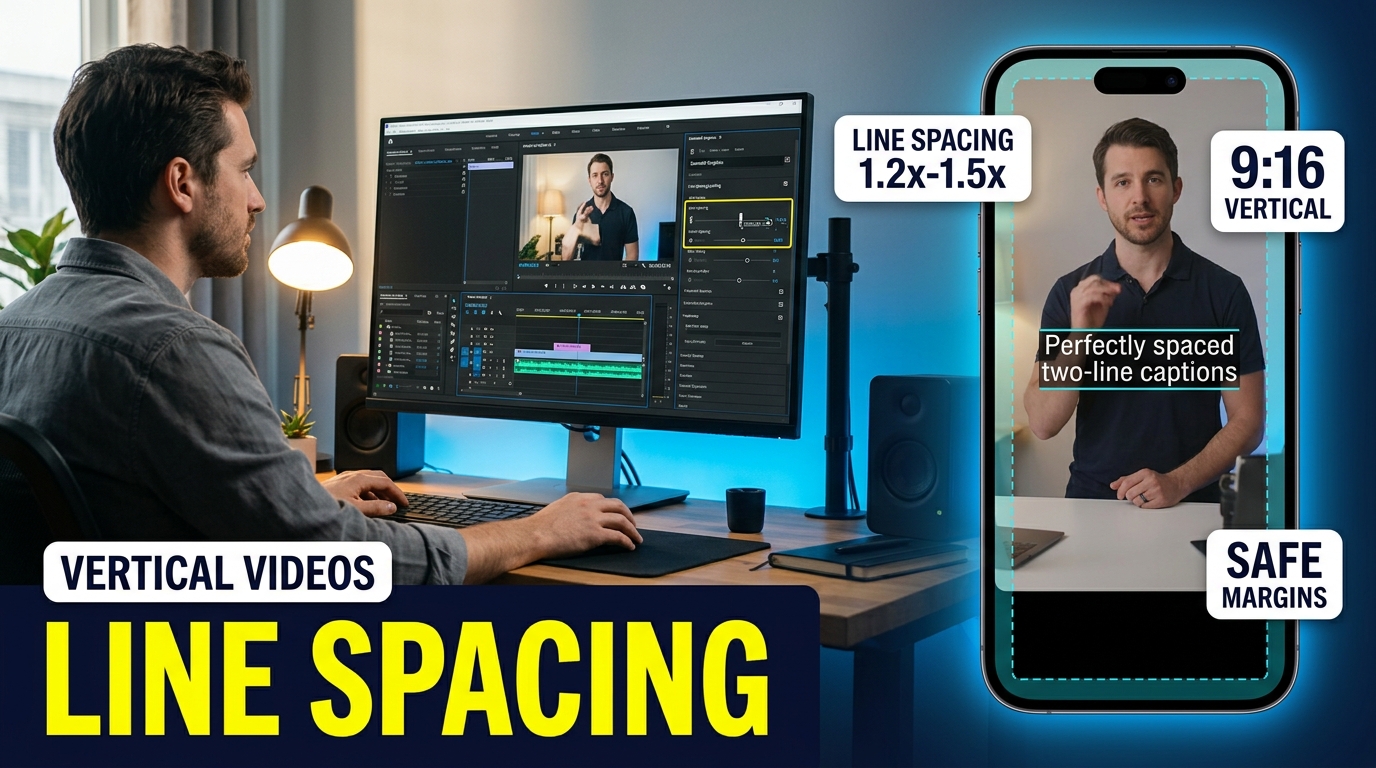
Default Premiere Pro subtitle tracks lock your line spacing, forcing multi-line captions to smother your speaker's face in 9:16 vertical clips. I used to waste 4 hours converting subtitle tracks to graphic layers manually just to fix ugly leading, until I dialed in a 1.2x line height rule that takes 90 seconds.
If you edit podcasts or short-form clips in Adobe Premiere Pro daily, you already know the frustration. You transcribe a 30-second interview, generate automatic captions, and switch your sequence resolution to 1080x1920.
Then disaster strikes. Your two-line subtitle block collapses on itself.
The top line overlaps the bottom line, or the entire block lands right across your guest's nose. When you select the text tool to adjust leading, Premiere Pro grays out the option.
Adjusting caption line spacing for vertical videos requires understanding how Premiere Pro handles subtitle tracks versus graphic text layers. I will walk you through why native sidecar subtitles trap your formatting, how to upgrade captions to graphic layers, the exact math behind readable mobile typography, and how to automate the entire process using KreateFlo's CaptionFlow plugin.
Key Takeaways
- Upgrade default subtitle tracks to graphic layers via Graphics and Titles to unlock full line spacing (leading) controls in Premiere Pro.
- Set line spacing between 1.2x and 1.5x font size to stop stacked caption lines from overlapping on 9:16 screens.
- Restrict text blocks to 20–28 characters per line and 1–2 lines maximum for fast mobile consumption.
- Keep a 10%–15% safe margin around frame borders so native TikTok, Reels, and Shorts UI elements do not hide your subtitles.
- Save your text formatting, leading, and tracking choices as a Premiere Pro Track Style to re-apply them across future projects.
- Automate caption styling in Premiere Pro using plugins like KreateFlo's CaptionFlow to preview text changes in real time via WASM without render lag.
Table of Contents
- Why Default Premiere Pro Subtitles Ruin Your 9:16 Shorts
- How to Adjust Caption Line Spacing for Vertical Videos in Premiere Pro
- The 1.2x to 1.5x Line Height Rule for Mobile Readability
- Step-by-Step: How to Adjust Caption Line Spacing for Vertical Videos Manually
- Safe Zones, Margins, and Character Counts for TikTok and Reels
- Automating Subtitle Styling with Premiere Pro Plugins
- How to Adjust Caption Line Spacing for Vertical Videos Using CaptionFlow
- Frequently Asked Questions
Why Default Premiere Pro Subtitles Ruin Your 9:16 Shorts
The Sidecar Subtitle Trapping Mechanism
Premiere Pro creates speech-to-text captions on dedicated Subtitle Tracks at the top of your timeline. These tracks are designed primarily for broadcast closed captioning standards like CEA-608 or SubRip (.srt) files [1].
Because sidecar caption formats adhere to legacy broadcast specifications, Adobe limits what formatting controls you can adjust directly on the subtitle track [2].
"Standard broadcast subtitle specs were never built for vertical screens. When you rotate geometry to 9:16, locked character leading turns crisp transcripts into visual clutter."
When you edit traditional 16:9 widescreen video, these native subtitle tracks work fine. Words stretch horizontally across 1920 pixels, leaving ample room for single-line captions that rest comfortably at the bottom of the frame [2].
But short-form vertical video flips that geometry on its head.
In a 9:16 frame, you only have 1080 pixels of horizontal screen width. Words wrap onto two or three lines almost immediately [3]. Because sidecar subtitle tracks restrict character leading sliders, stacked words become squished together.
The result? You end up with tight, unreadable text blocks that frustrate viewers scrolling through social feeds [4].
Text Collisions on Faces and Focal Points
A recent short-form video study revealed that 81% of consumers watch short video clips on smartphones in vertical orientation [10]. Mobile viewers expect high-impact visual clarity within the first two seconds.
If your multi-line captions stack with zero vertical breathing room, reading comprehension drops instantly [7].
81% watch on mobile in vertical format
Worse yet, standard caption placement defaults to the exact middle vertical axis of lower-third zones. In tight vertical crops of interview podcasts, that space is where your subject's neck, chin, or lower face sits.
Without proper leading adjustments, a three-line sentence turns into an opaque visual wall over the speaker.
You cannot fix this issue simply by shrinking the font size. Making the font smaller forces viewers to strain their eyes on handheld screens, destroying video completion rates [3]. You need precise control over line spacing—known in typography as leading—to maintain readable text while keeping focal points clear [5].
Actionable Takeaway: Check your subtitle track type before styling so you do not waste time adjusting locked leading sliders on native sidecar tracks.
How to Adjust Caption Line Spacing for Vertical Videos in Premiere Pro
Converting Captions to Graphic Layers
To unlock full control over line spacing, character tracking, and keyframe motion in Adobe Premiere Pro, you must convert your subtitle clips into standard Essential Graphics text layers [1].
Adobe introduced a native menu command built specifically for this workflow [2].
Highlight the caption blocks on your Subtitle Track, navigate to the top menu bar, select Graphics and Titles, and click Upgrade Caption to Graphic [1].
This single command converts locked sidecar captions into standard Essential Graphics clips on your main video tracks (such as V2 or V3) [2].
Once converted, your captions behave like standard graphic overlays [1]. You gain access to full typography controls, including font weight, text alignment, background shape padding, drop shadows, and most importantly, line height leading [8].
Essential Graphics Panel Leading Controls
Open the Essential Graphics or Properties panel in Premiere Pro after upgrading your captions. Under the Text category, locate the leading icon—represented by two stacked 'A' letters with a vertical double arrow.
"In short-form video, captions aren't just accessibility tools—they are graphic hooks. If line spacing crowds the speaker's eyes, viewers swipe away in less than two seconds."
By default, Premiere Pro assigns a standard baseline leading value proportional to your font size [8]. On widescreen monitors, this default spacing looks acceptable.
On vertical 9:16 mobile screens, default leading leaves insufficient gap space between stacked lines [5].
With graphic layers, you can click and drag the leading slider or manually type a specific pixel value [1]. Increasing leading creates clear separation between multi-line sentences.
So, it allows your audience's eyes to scan from line one to line two without visual overlap [7].
Pro Tip: Convert captions to graphics only after finalizing your transcription edits. If you re-transcribe later, you will lose your custom graphic track layers and need to re-apply your leading adjustments manually.
Actionable Takeaway: Use the menu path Graphics and Titles > Upgrade Caption to Graphic to instantly unlock leading and tracking sliders for timeline subtitles.
The 1.2x to 1.5x Line Height Rule for Mobile Readability

Calculating the Ideal Line Height Ratio
How much line spacing should you actually add? Through hundreds of podcast edits and clip exports, I have found that setting your leading between 1.2x and 1.5x your font point size yields the cleanest typography on mobile screens [5].
For example, if your vertical video font size is set to 60pt, calculate your ideal leading range as follows:
- Minimum leading (1.2x): 60pt × 1.2 = 72pt
- Ideal leading (1.3x): 60pt × 1.3 = 78pt
- Maximum leading (1.5x): 60pt × 1.5 = 90pt
Setting line height below 1.2x causes ascenders (like the top of the letter 'h' or 't') on the bottom line to touch descenders (like the tail of 'g' or 'y') on the top line [8].
Conversely, pushing leading beyond 1.5x separates lines so far that words no longer read as a unified sentence [5].
Avoiding Multi-Line Stack Crowding
Applying a 1.3x leading multiplier ensures that multi-line subtitle blocks maintain structural integrity even when speakers talk quickly [7].
Industry data shows that vertical video formats generate 34% higher engagement compared to square or horizontal layouts [9].
| Before | 0% |
|---|---|
| After | 34% |
Proper line spacing directly supports that engagement by removing visual friction [5].
When text lines are properly spaced, viewers process the text in their peripheral vision while staying focused on your subject's face [7].
This is why professional agency editors never leave line height on auto settings when reformatting widescreen podcast footage for TikTok or Instagram Reels [5].
Actionable Takeaway: Calculate leading by multiplying your font point size by 1.3 as a baseline starting point for vertical 9:16 compositions.
Step-by-Step: How to Adjust Caption Line Spacing for Vertical Videos Manually
Step 1: Upgrade Captions to Graphics
Start by cutting your master video clip and generating automatic transcriptions in Premiere Pro [2]. Once your text transcript is verified for spelling accuracy, click Create Captions in the Text panel [1].
- Select all caption clips on your timeline Subtitle Track.
- Go to the top application menu and click
Graphics and Titles. - Choose
Upgrade Caption to Graphic[1]. - Verify that your captions have moved onto a standard video track (e.g., Video 2).
Step 2: Set Leading and Character Limits
With your graphic text layers active on the timeline, open the Essential Graphics panel [8]. Select all text clips across the track so your changes apply globally [2].
+-------------------------------------------------------------+
| PREMIERE PRO MANUAL CAPTION WORKFLOW                        |
|                                                             |
| 1. Auto-Transcribe Audio -> Create Subtitle Track           |
| 2. Graphics & Titles -> Upgrade Caption to Graphic          |
| 3. Set Font Size: 60pt | Set Leading: 78pt (1.3x)            |
| 4. Restrict Line Length: 20-28 Characters Max               |
| 5. Track Style -> Create Master Style for Timeline          |
+-------------------------------------------------------------+
Choose a bold, easily legible typeface like Montserrat, Futura, or The Bold Font [3].
Set your font size to roughly 55pt to 65pt for standard 1080x1920 canvas sizes [5]. Adjust the leading value to roughly 78pt using the 1.3x multiplier [5].
Next, check your character length.
Professional social media subtitling rules dictate capping vertical video captions at 20 to 28 characters per line [3], [4]. Limiting character count keeps your text block compact, preventing awkward word wraps across three lines [4].
Step 3: Save as a Premiere Track Style
Adjusting font sizes and leading values frame-by-frame takes forever.
Fortunately, Premiere Pro lets you bundle your typography, background shapes, alignment, and leading values into a master Track Style [8].
In the Essential Graphics panel, locate the Track Style drop-down menu near the top [8]. Click Create Style, name your preset (e.g., "9x16_Vertical_1.3x_Leading"), and hit OK [2].
Premiere Pro applies these exact leading and character parameters across every graphic caption on that video track [8].
Pro Tip: Always create a named Track Style in the Essential Graphics panel right after dialing in your line height. That way, any new graphics clip added to the track inherits your line spacing automatically.
Actionable Takeaway: Restrict short-form subtitle lines to 20–28 characters so text never wraps onto a third line or crowds your subject.
Safe Zones, Margins, and Character Counts for TikTok and Reels

The 10% to 15% Screen Margin
Line spacing is only half the battle when preparing short-form edits for social media platforms. You must also position your spaced text within mobile platform safe zones [5].
According to native subtitles placement guidelines, maintaining a 10% to 15% margin from frame edges prevents text from touching screen boundaries [6].
On a standard 1080x1920 frame, this means keeping your text bounding box at least 108 pixels away from the left and right borders [5].
Data from Media.net highlights that YouTube Shorts (56%), TikTok (50%), and Instagram Reels (41%) represent the top destinations for vertical consumption [10]. Each platform places user interface overlays directly on top of your video player [6].
Steering Clear of Platform UI Overlays
If you place your perfectly spaced multi-line captions too low in the frame, native app interfaces will completely block them [6].
TikTok, Instagram Reels, and YouTube Shorts stack interactive icons—including like buttons, comment icons, share arrows, account handles, sound titles, and search bars—along the right edge and bottom 20% of the screen [6].
+---------------------------------------------------+
| 9:16 FRAME SAFE ZONE DIAGRAM                      |
|                                                   |
| [ Top 10% UI: Search Bar / Following Tab ]        |
| +-----------------------------------------------+ |
| |                                               | |
| |                                               | |
| |          RECOMMENDED CAPTION ZONE             | |
| |        (1.2x - 1.5x Line Spacing Here)        | |
| |                                               | |
| +-----------------------------------------------+ |
| [ Bottom 20% UI: Caption Text / Sound / Icons ]  |
+---------------------------------------------------+
Always align your caption track in the middle-lower third of your 9:16 frame—roughly 35% to 45% up from the bottom edge [5].
This sweet spot ensures your multi-line stacked text stays entirely clear of native app buttons while staying close enough to your subject's face to maintain viewer eye contact [6].
Actionable Takeaway: Position your caption bounding box at least 20% above the bottom frame edge to keep text clear of native platform UI buttons.
Automating Subtitle Styling with Premiere Pro Plugins
Native Premiere Pro vs Third-Party Plugins
Manual line spacing adjustments work fine if you cut one short clip a week.
But if you edit 10 to 30 hours of long-form podcast interviews every week and slice them into dozens of Reels, upgrading caption tracks and tweaking leading sliders manually becomes a massive bottleneck.
Upgrading native Premiere captions into graphics strips away dynamic link connections to your transcript [2].
"Automating subtitle formatting inside your NLE eliminates manual conversion friction. You keep creative control while saving hours of tedious timeline tweaks."
If a client asks for a script change after you have already styled your text graphics, you have to recreate the subtitle track, re-upgrade it to graphics, and re-apply your Track Styles from scratch [1].
This friction is why professional editors rely on specialized Adobe Premiere Pro CEP extension plugins. Tools like FireCut, AutoPod, Phantom Editor, Descript, and Opus Clip attempt to solve video workflows in different ways.
When KreateFlo Isn't the Right Choice for You
Let's be completely honest: KreateFlo is built for editors who live inside Adobe Premiere Pro all day.
If you prefer working in browser-based tools like Descript or web clip generators like Opus Clip, KreateFlo is not for you. KreateFlo is an Adobe Premiere Pro CEP extension, not a standalone web app or browser tool.
Similarly, if you only edit horizontal YouTube videos once a month and never publish vertical shorts, you do not need dedicated caption plugins. Native Premiere Pro Track Styles will serve you perfectly fine without spending a dime extra.
However, if you edit long-form podcasts, multi-cam shows, and short-form video in Premiere Pro daily, jumping between third-party web apps or paying per-hour transcription rates gets expensive fast. That is where integrated Premiere plugins save massive amounts of time.
| Feature / Metric | Manual Premiere Pro | Web Clippers (Descript/Opus) | FireCut Plugin | KreateFlo v1.0.3 |
|---|---|---|---|---|
| Workflow Type | Native Menu Conversion | External Browser App | Premiere CEP Extension | Premiere CEP Extension |
| Line Spacing Control | Manual Leading Slider | Basic Font Settings | Preset Styling Options | Full WASM Real-Time Slider |
| Preview Speed | Render Lag on Playback | Web Stream Buffering | Timeline Render Loops | Real-Time WASM Engine |
| Pricing Model | Included with Creative Cloud | Subscription ($15–$30/mo) | Per-Hour Credit Billing | $19.99/mo Pro (20 AI Hours) |
| Tool Bundle Size | Captions Only | Video Clipping Only | 10+ Automation Tools | 33+ Professional Tools |
If you want to streamline your broader podcast editing setup, check out our guide on Premiere Pro podcast workflow automation or learn how to eliminate dead air fast with our silence remover feature.
Actionable Takeaway: If you only cut one horizontal video a month, stick with native Premiere styles; if you edit daily podcast shorts, use a CEP extension to eliminate manual conversions.
How to Adjust Caption Line Spacing for Vertical Videos Using CaptionFlow
Real-Time WASM Preview Without Render Loops
We built CaptionFlow inside KreateFlo v1.0.3 to solve the exact line spacing and rendering frustration that plagues Premiere Pro editors.
When you style native graphic text in Premiere, changing leading values or swapping font animations often forces your playhead to lag or buffer [1].
CaptionFlow runs on a high-performance WebAssembly (WASM) engine inside Premiere Pro.
This architecture gives you instant, real-time font, line height, and animation previews directly inside your panel canvas without waiting for timeline render bars to turn green [3].
+-------------------------------------------------------------+
| KREATEFLO CAPTIONFLOW AUTOMATED WORKFLOW                    |
|                                                             |
| 1. Open CaptionFlow Extension in Premiere Pro               |
| 2. Select 1 of 22 Animated Caption Presets                  |
| 3. Adjust Line Spacing & Safe Zones in Real-Time (WASM)     |
| 4. Click 'Apply' -> Done in 90 Seconds                      |
+-------------------------------------------------------------+
Applying 22 Animated Caption Presets
Instead of manually upgrading tracks, calculating leading math, and setting safe margins, CaptionFlow packages everything into one streamlined workflow [7]:
- Open KreateFlo inside Premiere Pro (
Window > Extensions > KreateFlo). - Navigate to the
CaptionFlowmodule. - Select from 22 animated caption presets designed specifically for 9:16 vertical video [3].
- Adjust your line spacing and safe zone paddings visually using real-time sliders.
- Apply the captions directly to your sequence in under 90 seconds.
KreateFlo bundles 33+ professional tools into a single Premiere extension—including AI multi-cam editing for up to 8 speakers and 8 cameras, silence removal, filler word cleanup, auto-reframing, and viral clip detection.
Unlike competitors like FireCut that bill you on restrictive per-hour credit models, KreateFlo offers a Free tier with 3 tools forever (Silence Remover, Transition Assistant, Copy & Paste).
When you are ready to scale, our Pro plan costs $19.99/month for 20 AI hours, while our Studio plan costs $44.99/month for 50 AI hours.
For more hands-on editing workflows, explore our deep dive into podcast editing tips for Premiere Pro.
Pro Tip: Test different preset animations directly in CaptionFlow's WASM canvas before pushing to the sequence so you never lag your timeline playhead.
Actionable Takeaway: Use CaptionFlow inside Premiere Pro to apply 9:16 animated caption presets with built-in line height safety in under 90 seconds.
Frequently Asked Questions
How do you adjust line spacing for captions in Adobe Premiere Pro?
Select your subtitle clips on the timeline and go to Graphics and Titles > Upgrade Caption to Graphic [1]. Once converted into text graphic layers, open the Essential Graphics or Properties panel to adjust the Leading slider to your preferred line height [8].
What is the recommended character count per line for vertical video captions?
Keep vertical video captions between 20 and 28 characters per line [3], [4]. This prevents text blocks from taking up too much horizontal space or wrapping awkwardly on small 9:16 mobile screens [4].
How do you convert subtitle tracks into editable graphics in Premiere Pro?
Highlight the caption blocks on your Subtitle Track, navigate to the top menu bar, select Graphics and Titles, and click Upgrade Caption to Graphic [1]. This moves the text onto standard video tracks where full styling and keyframing controls become available [2].
What is the best line height multiplier for 9:16 short-form video text?
The ideal line height multiplier for vertical video captions is 1.2x to 1.5x your font size [5]. For example, if your text font size is 60pt, set your leading between 72pt and 90pt for clean separation [5].
Why are my captions getting covered by TikTok and Instagram Reels buttons?
Default captions often land too low in the frame [6]. Maintain a 10% to 15% margin from screen edges and keep text out of the bottom 20% of the 9:16 frame to avoid native platform UI overlays like usernames, sound titles, and comment buttons [5], [6].
Streamline Your Premiere Pro Caption Workflow
Fixing caption line spacing does not have to sink your editing timeline. By upgrading subtitles to graphics and setting a clean 1.2x to 1.5x leading ratio, you keep vertical video captions legible without blocking your speaker's face.
If you want to skip manual line-spacing tweaks entirely across long podcast edits, download KreateFlo v1.0.3 or explore our dedicated CaptionFlow tool to automate your short-form subtitle workflow in seconds.
References
- graduateschool.edu/learn/premiere-pro/video-captioning-premiere-pro
- riverside.com/blog/how-to-add-captions-and-subtitles-in-premiere-pro
- caption-x.com/video-captions-guide
- bminty.com/social-media-subtitling-best-practices
- github.com/msitarzewski/agency-agents/blob/main/marketing/marketing-short-video-editing-coach.md
- capcut.com/create/vertical-video-subtitles-placement-tips
- air.io/en/youtube-hacks/best-practices-for-writing-and-formatting-subtitles
- sinc-lab.com/files/nguyen2026like.pdf
- teleprompter.com/blog/linkedin-video-statistics
- media.net/press/consumers-short-form-video-study
- digitalapplied.com/blog/video-marketing-statistics-2026-data-points
- swydo.com/blog/video-marketing-metrics/
- closedcaptioncreator.com/blog/articles/captioning-for-9x16-video.html
- subtitlesfast.com/blog/subtitle-styles-that-convert
- newtarget.com/web-insights-blog/vertical-video/
- nimdzi.com/subtitling-vertical-videos-guidelines-where-art-thou/
- getsubly.com/post/captioning-standards-and-protocol
- contentfries.com/blog/the-science-of-video-captions-how-they-impact-audience-retention
Try KreateFlo free
3 tools forever, 7-day trial on the rest. No credit card to start.
Download KreateFlo