Animate Captions in Premiere: The Complete 2026 Guide
Manual caption tracking in Adobe Premiere Pro is a total scam of your editing time. You spend four hours sliding text boxes across the frame frame-by-frame, only for one bad anchor point to ruin the e
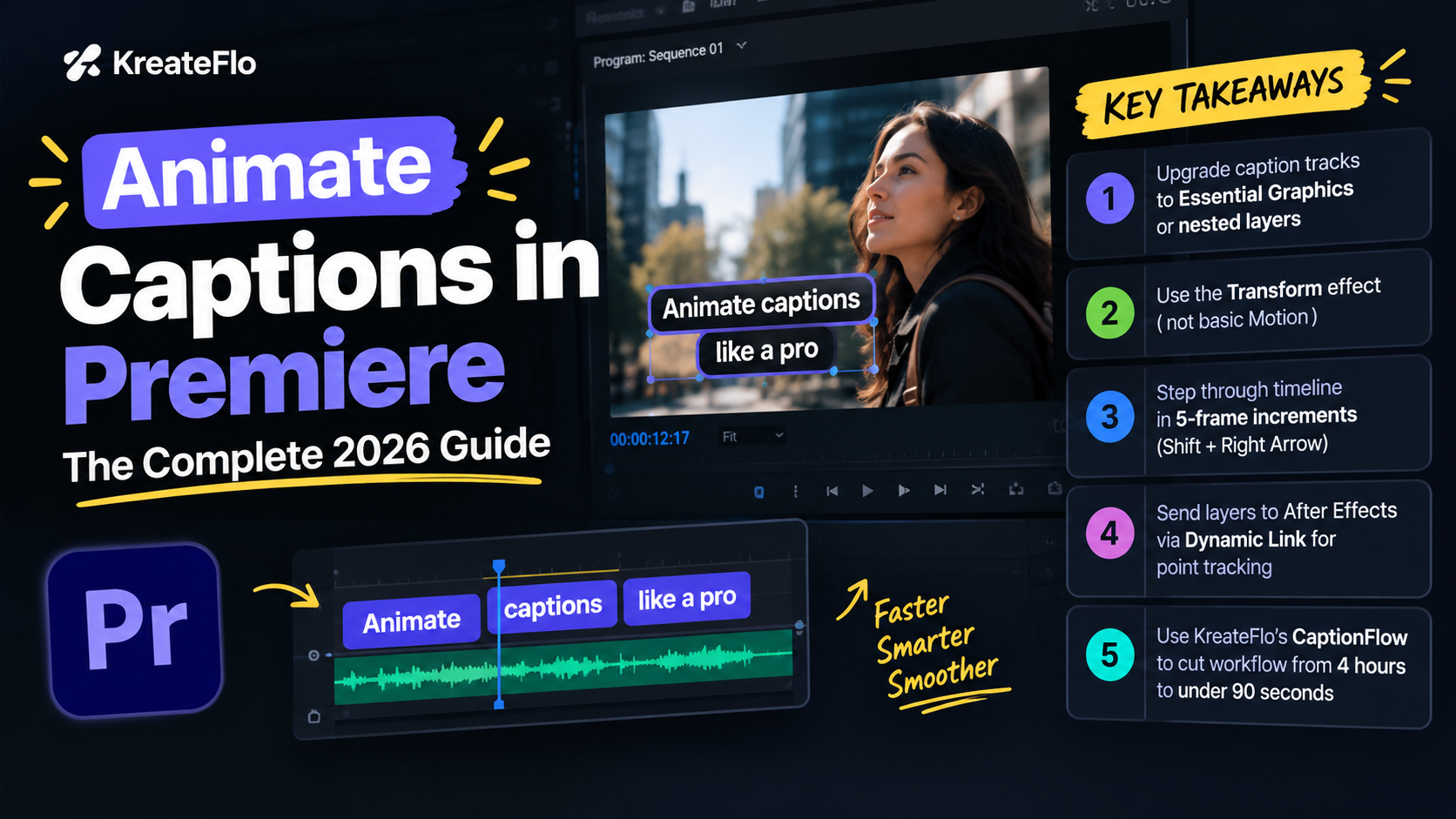
Manual caption tracking in Adobe Premiere Pro is a total scam of your editing time. You spend four hours sliding text boxes across the frame frame-by-frame, only for one bad anchor point to ruin the entire render. I used to burn half my workday pushing bounding boxes around manually before I dialed in a system that actually works.
Clients demand dynamic captions that follow moving speakers on vertical clips and split-screen podcasts. But static lower-thirds in Adobe Premiere Pro look completely dead when your guest leans forward or gestures across the shot. Text feels detached from the person speaking.
Here is the good news: you can fix this inside Premiere without losing your mind. Below is my exact step-by-step breakdown for manual Transform tracking, After Effects Dynamic Linking, and automated workflows when deadline pressure hits.
Key Takeaways
Native Premiere Pro caption tracks must be upgraded to Essential Graphics layers or nested before you can animate position keyframes effectively [1].
Always apply the Transform effect instead of basic Motion controls to preserve anchor point precision and unlock shutter angle motion blur [8].
Speed up manual position tracking by stepping through timeline clips in 5-frame increments using
Shift + Right Arrow[3].Send graphic layers to After Effects via Dynamic Link to attach text boxes directly to Null Objects with point tracking [5].
Automated tools like KreateFlo's CaptionFlow cut motion-captioning workflows down from 4 hours to under 90 seconds in Premiere Pro v1.0.3.
How to Animate Caption Boxes to Follow Speakers in Premiere Using Native Effects
Standard Motion controls lead to nightmare alignment bugs when pinning text bubbles to a moving host. The basic Motion tab scales and shifts clips relative to your sequence frame instead of the graphic box [8]. That is a massive problem.
You need a localized motion structure instead. Setting proper anchor points is the first step.
Setting Anchor Points and Text Alignment
Select your text graphic on the timeline. Open the Essential Graphics panel and set your text alignment to center both horizontally and vertically [1].
Jump over to the Effect Controls panel and expand the Text component properties. Move the local Anchor Point crosshair directly to the center of your caption box [8].
"If your anchor point is off by even five pixels, your caption box won't track the speaker—it will orbit them like a satellite."
A bottom-left anchor point makes text pivot awkwardly whenever your speaker shifts. Centering it guarantees predictable movement across keyframes.
Applying the Transform Effect for Motion Blur
Skip the Vector Motion position sliders entirely. Head to the Effects panel, grab the Transform effect, and drop it straight onto your text clip [8].
The Transform effect gives you two major upgrades:
It keeps local coordinates locked relative to the text block.
It lets you uncheck "Use Composition's Shutter Angle" and dial in a custom Shutter Angle like 180 degrees [8].
That shutter angle creates realistic motion blur whenever the caption box glides across the screen [8]. Without it, keyframed text looks stiff and robotic.
Keyframing in 5-Frame Increments
Manual frame-by-frame tracking is a complete trap. Editing 30 or 60 individual frames per second causes nasty visual jitter because human hands cannot set sub-pixel positions perfectly every time [3].
So how do you fix it? Set your first Position keyframe under the Transform effect at the start of the speaker's line [8].
Hold Shift and hit Right Arrow to step forward 5 frames at a time [3]. Adjust X and Y coordinates to re-center the caption box over your speaker.
[Start Frame] -----(5 frames)-----> [Keyframe] -----(5 frames)-----> [Keyframe]
      |                                   |                                |
  Initial Pos                         Adjust X/Y                       Adjust X/Y
Premiere handles the spatial math between your keyframes automatically [3]. You only need extra keyframes if the speaker makes a sudden, erratic move.
Once you are done, select all keyframes, right-click, and pick Temporal Interpolation > Easy Ease [3]. That smooths out the start and stop transitions instantly.
Pro Tip: If your speaker moves in a linear path, convert your keyframes to Continuous Bezier. This prevents the caption box from dipping or looping unexpectedly between keyframes.
Actionable Takeaway: Always use the Transform effect with a 180-degree shutter angle and keyframe in 5-frame increments to create smooth, natural text tracking inside Premiere [3], [8].
Convert Static Premiere Captions into Graphic Layers First
Adobe expanded caption options in recent releases, allowing editors to create multi-track caption workflows [1]. But native caption tracks still hit a wall when you need kinetic motion and spatial tracking [2].
+-----------------------------------------------------------------+
| Native Caption Track (Subtitle Ribbon)                          |
|  - Static screen positioning                                    |
|  - Restricted effect stack (No Transform effect)               |
+-----------------------------------------------------------------+
                                |
                   [Upgrade Captions to Graphics]
                                v
+-----------------------------------------------------------------+
| Essential Graphics Clip (V1/V2 Timeline Tracks)                |
|  - Keyframeable position and scale                              |
|  - Full effect compatibility (Transform, Motion Blur, Glow)     |
+-----------------------------------------------------------------+
Limitations of Native Premiere Caption Tracks
Native subtitle tracks in Premiere Pro (the orange clips on your C1 or C2 tracks) are locked into fixed lower-third delivery [1]. You cannot apply keyframeable motion effects like Transform or Distort directly to native caption segments [2].
If you try to move a native caption line across the screen during playback, Premiere forces you to adjust the static positioning across the whole style file [2]. To animate position over time, you must elevate your captions into standard graphic layers [1].
Upgrading Captions to Essential Graphics Clips
Converting subtitles into fully editable text layers takes four fast steps:
Auto-generate your transcript using Premiere's native Speech-to-Text [6].
Click Create Captions in the Text panel to build your base subtitle track [1].
Select all caption clips on the C1 track [1].
Go to the top menu and select Graphics and Titles > Upgrade Caption to Graphic [1].
Your static captions will instantly move down onto your standard video tracks (V2 or V3) as Essential Graphics clips [1]. Now you can apply the Transform effect, add keyframes, stack layers, and adjust positions freely per speaker [8].
Indexing Speakers via the Transcript Panel
Identifying who is talking before applying position tracks saves massive amounts of time [2]. Keep the Transcript panel docked right beside your timeline [2].
Premiere automatically assigns speaker labels (like Speaker 1 and Speaker 2) inside the transcript draft [2]. Clicking on a dialogue block in the Transcript panel instantly jumps your timeline playhead to the exact start frame of that speaker's turn [2].
From there, you can chop the graphic layer, color-code it, and lock the position target for that specific person [2].
85% watch content with captions enabled
Recent viewer behavior studies confirm that captions significantly improve watch time and viewer retention [10], especially when visual positioning clearly attributes who is speaking [2]. Furthermore, platform data shows that captions directly drive higher overall video engagement [9].
Actionable Takeaway: Convert native caption tracks to Essential Graphics using "Upgrade Caption to Graphic" before attempting any motion tracking keyframes [1].
How to Animate Caption Boxes to Follow Speakers in Premiere via After Effects
When a speaker moves rapidly, dances, or leans across complex angles, keyframing by hand inside Premiere gets painful. For high-precision tracking, linking your text clip directly to Adobe After Effects provides true feature-based motion tracking [5].
+-------------------------------+      Dynamic Link      +-------------------------------+
|     Adobe Premiere Pro        | ---------------------> |      Adobe After Effects      |
| Graphic Clip on Timeline      | <--------------------- | Point Tracking -> Null Object |
+-------------------------------+                        +-------------------------------+
Sending Captions to AE via Dynamic Link
Highlight the Essential Graphics text layer on your Premiere timeline [1]. Right-click the clip and select Replace with After Effects Composition [5].
After Effects opens automatically and generates a linked composition [5]. Any changes you make inside AE render live on your Premiere timeline without manual file exports [5].
Point Tracking Speakers to Null Objects
Inside After Effects, lock text to a moving subject with these steps:
Double-click your video layer to open it in the Layer window [5].
Open the Tracker panel (
Window > Tracker) and click Track Motion [5].Position Track Point 1 over a high-contrast spot on the speaker (like an earring, collar pin, or the bridge of their glasses) [5].
Set the track type to Transform (Position) and click Analyze Forward [5].
Create a new Null Object (
Layer > New > Null Object) [5].In the Tracker panel, click Edit Target, select your Null Object, and click Apply [5].
The Null Object now holds all the motion tracking position data extracted from the video frame [5].
"Always track high-contrast facial features like nostrils or glass frames. Never track shirt folds—they deform the second your guest takes a breath."
Parenting Graphic Boxes to Track Data
Locate your text graphic layer inside the After Effects composition timeline [5]. Grab the Pick Whip icon (the spiral symbol next to the layer name) on your text layer and drag it directly to the Null Object layer [5].
Your text box is now parented to the tracked point [5]. As the speaker moves, the text box locks to their position.
If you want to refine tracking data inside Premiere without jumping to AE every time, extensions like Mask to Transform [4] can pull mask path coordinates into Premiere's native Transform plugin [4].
Actionable Takeaway: Use Dynamic Link to After Effects for complex speaker movement so you can delegate position tracking to a Null Object rather than pushing keyframes manually [5].
Common Mistakes That Ruin Your Speaker Tracking Keyframes
Tracking text to moving subjects seems simple on paper. But a few subtle workflow errors can wreck your timeline stability.
Duplicating Sequences for Multi-Speaker Tracks
Duplicating entire video sequences to separate captions per speaker is a massive mistake [2]. Creating "Host Sequence" and "Guest Sequence" duplicates results in redundant, fragile timeline structures [2].
If you trim the master video later, your duplicated caption sequences desync instantly [2]. Always keep text layers stacked on a single master timeline above your primary edit [2].
If you edit multi-speaker shows regularly, learn how to build clean multi-cam workflows in Premiere Pro before tackling caption pass layers.
Manual Keyframing Every Single Frame
Placing a keyframe on frame 1, frame 2, frame 3, and frame 4 creates harsh, jittery movement [3]. Video tracking requires linear or Bezier interpolation between widely spaced anchor points [3].
Keyframing every frame manually creates visible motion buzz from slight pixel misalignments. Stick to 5-frame or 10-frame gaps and let Premiere calculate smooth vector motion paths [3].
Ignoring Speaker Label Styles in Transcription
Generating captions without checking speaker tags leaves you with uniform text styles for every person in the video [2]. Listeners judge caption quality by how fast they can identify who is talking.
+---------------------------------------------------------------------------------+
| Manual vs Dynamic Link vs CaptionFlow Workflow Comparison                      |
+------------------------------------+-------------------+------------------------+
| Feature / Workflow                 | Premiere Native   | After Effects Link     |
+------------------------------------+-------------------+------------------------+
| Setup Time Per Speaker             | 15-20 Minutes     | 8-10 Minutes           |
| Processing Speed                   | Slow Keyframing   | Point Tracking Required|
| Real-Time Motion Preview           | Native Sequence   | RAM Preview Loop       |
| Presets & Kinetic Styles           | Manual Creation   | AE Expressions         |
| Cost                               | Included in CC    | Included in CC         |
+------------------------------------+-------------------+------------------------+
| Before | 4 Hours |
|---|---|
| After | 90 Seconds |
Actionable Takeaway: Keep all caption tracks stacked on one master sequence and avoid keyframing every single frame to keep your motion lines smooth [2], [3].
How to Animate Caption Boxes to Follow Speakers in Premiere in 90 Seconds with CaptionFlow

Manual keyframing in Premiere is a good foundational skill. But burning four hours per episode across long-form interviews or dozens of social clips will kill your editing turnaround. That is why we built KreateFlo.
KreateFlo is an Adobe Premiere Pro plugin (a native CEP extension, not a web app or external desktop tool) running directly inside your workspace. Version v1.0.3 bundles 33+ tools built to take repetitive podcast editing off your plate.
Eliminating the Render-to-See-Changes Loop
Most caption extensions force you into an annoying cycle: change a setting, wait for it to render a preview, check position, and repeat.
KreateFlo's CaptionFlow eliminates that lag using WebAssembly (WASM) real-time previews. You can adjust text offsets, speaker tracking positions, and motion styles right inside your Premiere panel with instant feedback. Zero rendering required just to see where your text box lands.
Applying 22 Animated Caption Presets Instantly
Instead of building Transform effect keyframes and shutter angles by hand [8], CaptionFlow gives you 22 customizable animated presets:
Word-by-word active highlight pop
Bounce and slide-in tracking
Dynamic speaker color boxing
Kinetic typography auto-reframing
CaptionFlow reads your transcript speaker tags automatically [2]. It assigns distinct visual styles, box colors, and screen positions to Speaker 1, Speaker 2, or up to 8 distinct voices in seconds.
Integrating KreateFlo into Your Daily Workflow
Here is how fast the workflow runs inside Premiere Pro v1.0.3:
Open KreateFlo from
Window > Extensions > KreateFlo.Select your dialogue track and click Transcribe (supporting 40+ languages including Hindi and Bangla) [6].
Choose your preset from the CaptionFlow tool.
Assign screen placement offset per speaker and click Apply.
Your captions populate on your timeline with precise speaker positioning and motion animation applied automatically.
Need to chop dead air before captioning? Combine CaptionFlow with our free Silence Remover tool. Or run our Multi-Cam Editor to cut up to 8 cameras and 8 speakers with dedicated wide-shot rules.
Actionable Takeaway: Swap manual keyframe tracking for CaptionFlow to handle multi-speaker text layout and animations in seconds without leaving Premiere Pro.
When Manual Tracking Makes Sense (And When It Is a Waste of Time)
We build editing tools, but let us be honest: KreateFlo is not the right fit for every single edit.
High-Budget Commercials vs. High-Volume Podcasts
If you edit 30-second commercial spots, high-end music videos, or narrative films, manual keyframing inside After Effects is the better choice [5]. When every frame requires micro-adjustments, custom kinetic typography, or complex 3D camera tracking, automated extensions cannot replace dedicated compositing software [5].
But if you edit high-volume podcast interviews, YouTube channels, or dozens of TikTok and Reels clips per week, hand-keyframing text boxes is a massive waste of time.
Evaluating Cost vs Time: $19.99/mo vs 4 Hours Per Edit
Let us look at the actual math:
Manual Keyframing: ~4 hours per 45-minute episode (or 30 minutes per short clip) [3].
FireCut / Competitor Tools: Often charge complex per-hour cloud rendering models.
KreateFlo Pro Plan: $19.99/month for 20 AI hours (or $44.99/month Studio for 50 AI hours).
KreateFlo Free Tier: 3 tools free forever (Silence Remover, Transition Assistant, Copy & Paste).
Spending 4 hours doing tedious manual tracking costs far more in lost editing capacity than $19.99 per month. If you produce high-volume content, automation lets you take on double the client workload without working late nights.
+---------------------------------------------------------------------------------+
| Cost & Efficiency Comparison                                                    |
+-------------------+-----------------------------+-------------------------------+
| Approach          | Time Spent Per Edit         | Financial Cost                |
+-------------------+-----------------------------+-------------------------------+
| Manual Keyframing | ~4 Hours per episode        | $0 (Costs 4 hrs editor labor) |
| AE Dynamic Link   | ~1 Hour per episode         | $0 (Included in Creative Cloud)|
| KreateFlo Pro     | ~90 Seconds per episode     | $19.99/mo (Includes 20 AI hrs)|
+-------------------+-----------------------------+-------------------------------+
Actionable Takeaway: Use After Effects for high-budget, custom kinetic keyframing [5]. Use KreateFlo for high-volume podcasts and vertical short-form content to maximize your hourly earnings.
Advanced Formatting: Multi-Speaker Color Coding and Shutter Blur

If you prefer building manual caption styles inside Premiere Pro, adding
Matching Caption Box Colors to Speaker Branding
Visual distinction prevents audience confusion during rapid back-and-forth dialogue [2]. Assign complementary background colors to your Essential Graphics text boxes based on speaker identities:
Host: High-contrast neutral color (e.g., Pure White text on Charcoal background box).
Guest: Brand accent color (e.g., Electric Blue or Yellow background box).
Inside the Essential Graphics panel, check the Background box parameter. Set padding to 12–16 pixels and round the corners to 8 pixels for a modern rounded bubble aesthetic [1].
Setting Shutter Angle for Realistic Motion Blur
When animating position using the Transform effect, default settings look stiff because shutter angle is disabled [8].
Scroll down to the bottom of the Transform properties in Effect Controls [8]. Uncheck Use Composition's Shutter Angle [8]. Increase the Shutter Angle to 180 degrees (standard cinematic angle) or 360 degrees for heavy whip-pan text movements [8].
Shutter Angle Comparison:
[0 Degrees]   ---> [Text Block]         (Sharp edges, robotic jump)
[180 Degrees] ---> [Blurred Text Block] (Natural motion blur during travel)
Adding shutter blur softens the displacement across keyframes, making rapid text positioning updates look like intentional motion graphics rather than tracking glitches [8].
Actionable Takeaway: Always set your Transform shutter angle to 180 degrees and assign distinct background box colors to separate speakers for maximum legibility [2], [8].
Frequently Asked Questions
How do I move captions to a specific screen position for different speakers in Premiere Pro?
Convert your captions into Essential Graphics clips using Graphics and Titles > Upgrade Caption to Graphic [1]. Apply the Transform effect to adjust and keyframe position coordinates per speaker on your timeline [8].
Can Premiere Pro auto-track text to a moving speaker without After Effects?
Premiere Pro lacks a native auto-tracker for text layers [8]. You must keyframe position manually using the Transform effect [8] or use a Premiere plugin like KreateFlo to automate multi-speaker placement.
Why should I use the Transform effect instead of Motion controls for keyframing captions?
The Transform effect lets you adjust the Shutter Angle parameter, creating realistic motion blur when text moves [8]. Standard Motion controls lack shutter angle settings, resulting in rigid animation [8].
How do I style different speakers automatically in Premiere Pro captions?
Premiere Pro transcribes speaker tags in the Transcript panel [2], but you must style and position text boxes manually on the timeline [2]. Extensions like KreateFlo's CaptionFlow auto-assign distinct visual styles, box colors, and screen positions based on speaker tags [2].
What is the fastest way to manually keyframe caption position in Premiere?
Set keyframes using Shift + Right Arrow to jump in 5-frame increments down your timeline [3]. Premiere smoothly interpolates position between those points without requiring frame-by-frame adjustments [3].
Manual keyframing is a solid skill to have in your back pocket. But doing it by hand on a 45-minute interview will burn you out fast.
If you want to keep your entire caption workflow inside Premiere Pro without bouncing out to third-party web apps or After Effects comps, grab KreateFlo and test our 3 free tools today at /download.html.
References
resourceumc.org/en/content/how-to-caption-videos-in-adobe-premiere-pro
cutback.video/blog/how-to-auto-generate-captions-in-premiere-pro-(using-ai)
storyblocks.com/resources/tutorials/how-to-add-subtitles-in-premiere-pro
cutback.video/blog/how-to-create-animated-captions-in-premiere-pro-(no-after-effects-needed)
ai-media.tv/wp-content/uploads/AI_Media_Whitepaper_Engagement_and_Retention.pdf
3playmedia.com/blog/studies-find-captions-improve-engagement/
borisfx.com/blog/how-to-do-motion-tracking-in-premiere-pro-boris-fx/
Try KreateFlo free
3 tools forever, 7-day trial on the rest. No credit card to start.
Download KreateFlo