Caption Sound Effects: 7 SDH Rules for Video Accessibility
Most video editors think automatic speech recognition handles all their captioning needs. It does not. AI transcription misses 100% of non-speech sound effects, leaving deaf and hard-of-hearing viewer
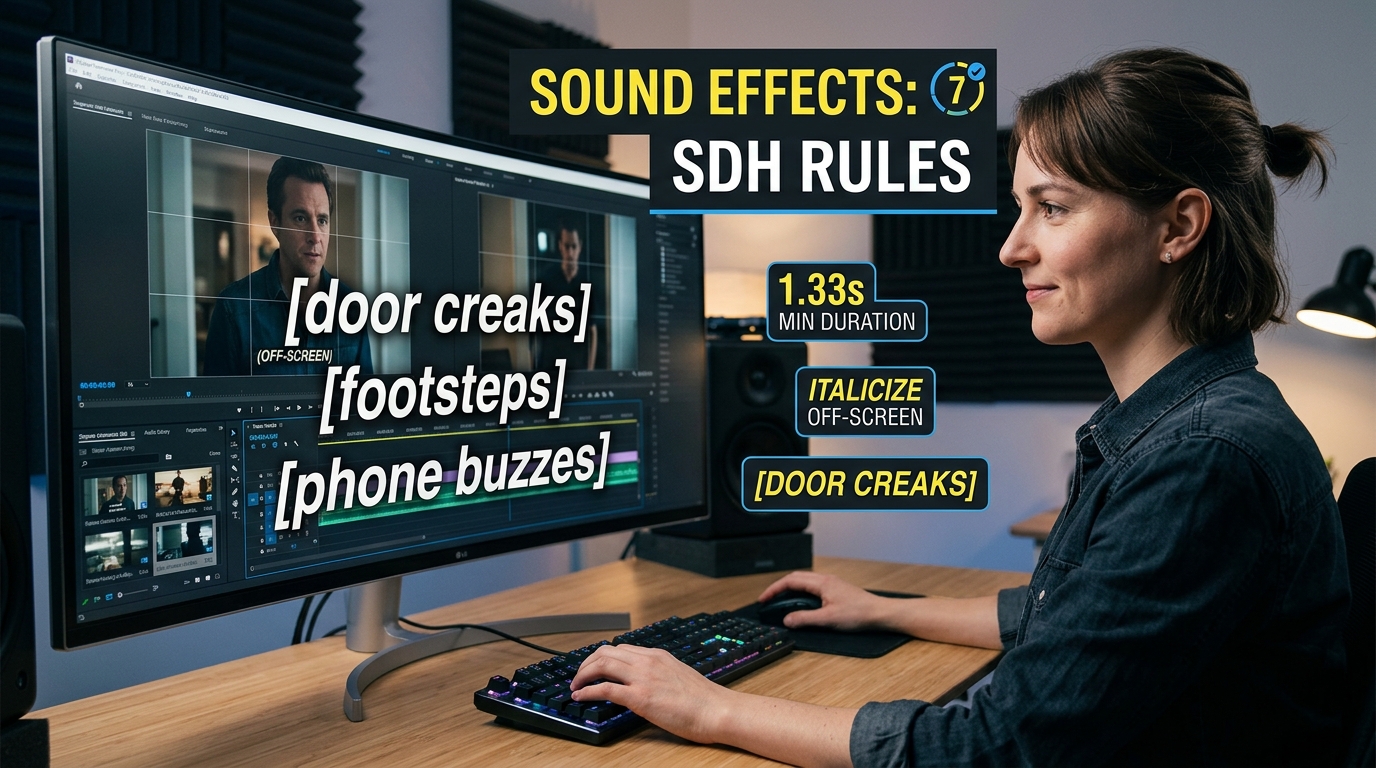
Most video editors think automatic speech recognition handles all their captioning needs. It does not. AI transcription misses 100% of non-speech sound effects, leaving deaf and hard-of-hearing viewers completely out of the loop while failing basic WCAG compliance.
If you edit podcasts or client videos inside Adobe Premiere Pro every day like I do, bad captions cost you watch time and client trust. I spent years manually keyframing text boxes before I realized that accessibility isn't just about converting spoken words to text. It is about capturing the full acoustic picture of your edit.
Key Takeaways
- Always enclose non-speech sound descriptions in square brackets
[ ]using lowercase text.- Italicize off-screen sound effects to show the audio source is outside the visible frame.
- Never caption visually obvious actions, like footsteps when a character is clearly walking on screen.
- Ensure every caption stays on screen for a minimum of 1.33 seconds and no longer than 6 seconds.
- Automatic speech recognition misses atmospheric audio cues; human oversight or specialized tools are essential.
- Place bracketed sound descriptions on top and onomatopoeia on a separate line below.
- Use KreateFlo's CaptionFlow tool in Adobe Premiere Pro to manage animated caption styling without render loops.
Why Auto-Transcription Fails Deaf and Hard-of-Hearing Audiences
Standard auto-transcription tools are built to parse voice frequencies. They ignore atmospheric audio entirely. So when a character slams a door off-camera or a podcast host gasps in shock, raw AI text generators output dead silence.
                  ACCESSIBILITY CAPTION MATRIX
+------------------------+-------------------+-------------------+
| Feature                | Standard Dialogue | SDH Captions      |
+------------------------+-------------------+-------------------+
| Spoken Words           | Included          | Included          |
| Sound Effects [sfx]    | Omitted           | Included          |
| Off-Screen Cues        | Omitted           | Italicized        |
| Music Tone & Lyrics    | Omitted           | Notated (♪)       |
| Compliance Level       | Basic / Partial   | WCAG 2.2 AA / ADA |
+------------------------+-------------------+-------------------+
The Gap Between Dialogue Subtitles and True SDH Captions
There is a massive difference between standard dialogue subtitles and Subtitles for the Deaf and Hard of Hearing (SDH). Standard subtitles assume your audience hears background audio [9]. They only translate the spoken words [9].
SDH captions provide complete context [9]. They describe sound effects, speaker changes, audio placement, and background music [9].
"Subtitles translate dialogue for hearing audiences. SDH captions recreate the entire auditory world for everyone else."
Federal guidelines and Section 508 standards for video transcripts mandate that non-speech cues must be included whenever they carry narrative weight [1]. If a punchline depends on an off-screen crash, leaving that crash out breaks the narrative completely.
What Auto-Captioners Miss in Sound-Driven Stories
Automatic Speech Recognition (ASR) engine outputs look impressive at first glance [7]. But ASR routinely skips essential narrative triggers like [doorbell rings] or [creaking floorboards] [7].
The Federal Communications Commission (FCC) identifies four core metrics for caption quality: accuracy, synchronicity, completeness, and placement [7].
Here's the problem: when your captions miss key environmental sounds, your video fails the completeness requirement [7]. That creates a broken experience for viewers who rely on captions for full comprehension [5].
Acoustic Elements in Narrative Video:
[████████████████████████████████████████] Spoken Dialogue (70%)
[███████████████] Sound Effects (20%)
[███████] Music Cues (10%)
Actionable Takeaway: Audit your automated transcripts specifically for non-speech moments before delivering final cuts to clients.
How to Caption Non-Speech Sound Effects for Better Accessibility: DCMP Formatting Rules
When formatting non-speech audio, don't invent your own rules. The Described and Captioned Media Program (DCMP) provides clear guidelines used across broadcast and digital media [3].
Square Brackets vs Parentheses: The Universal Formatting Rule
Enclose all non-speech sound effects in square brackets [ ] [1]. Never use parentheses ( ) for sound effects [10]. Accessibility standards reserve parentheses for spoken off-hand remarks, background chatter, or whispered dialogue [10].
CORRECT:   [door slams]
INCORRECT: (door slams)
INCORRECT: *door slams*
All sound descriptions inside brackets must be written in lowercase letters [3]. For example, write [heavy sigh], not [HEAVY SIGH] [3].
Descriptor Precision: Specific Acoustic Quality Over Generic Verbs
Generic descriptions make captions boring and imprecise [3]. Do not write [wind blowing] when you can write [wind howling] or [wind whooshing] [3]. The goal is to convey the exact acoustic quality of the sound [3].
GENERIC (AVOID)      | SPECIFIC (RECOMMENDED)
---------------------+------------------------
[bird singing]       | [robin singing]
[car engine noise]   | [engine sputtering]
[dog barking]        | [dog whimpering]
[footsteps]          | [gravel crunching]
According to DCMP standards for sound effect captioning, choosing precise verbs gives deaf viewers the exact emotional context hearing audiences receive [3].
Onomatopoeia Placement and Line Separation
Sometimes a sound requires both a description and its phonetic representation. When combining a described sound effect with onomatopoeia, DCMP rules require a two-line layout [3].
Place the bracketed sound description on the top line [3]. Put the onomatopoeia on the line directly below it [3].
[runner gulping]
glug, glug, glug

[springs bouncing]
boing, boing, boing
If a sound is represented by a repeated word, do not hyphenate it (e.g., ding, ding) [3]. If the sound uses two different words, use a hyphen (e.g., ding-dong) [3].
Actionable Takeaway: Use square brackets with lowercase text for sound descriptions, and split onomatopoeia onto a second line.
How to Caption Non-Speech Sound Effects for Better Accessibility in Premiere Pro

Editing captions in Adobe Premiere Pro used to feel like manual labor. Creating subtitle tracks, splitting subtitles, and keyframing positions took hours. Premiere has improved its native text panel, but sticking to strict accessibility timing rules still requires close attention.
                  PREMIERE PRO CAPTION TIMING SPECS
+-----------------------------------+-----------------------------------+
| Parameter                         | Specification                     |
+-----------------------------------+-----------------------------------+
| Minimum Display Duration          | 1.33 seconds (40 frames at 30fps) |
| Maximum Display Duration          | 6.0 seconds                       |
| Adult Special-Interest WPM        | 150 - 160 WPM                     |
| Max Reading Speed (Cultural)      | 225 WPM                           |
| Max Character Line Length         | 32 characters per line            |
+-----------------------------------+-----------------------------------+
Setting Up Captions Tracks in Adobe Premiere Pro
Start by opening your sequence in Premiere Pro and selecting Text > Transcribe Sequence. Once the dialogue transcript generates, click Create Captions.
In the popup menu, select Subtitle as your format. Set your maximum length in characters to 32, and set the minimum duration in seconds to 1.33 [4].
Pro Tip: Never mix dialogue and sound effects on the same line if it forces your caption line over 32 characters. Break the sound effect into its own caption block instead.
Timing Rules: The 1.33-Second Rule and Word-per-Minute Caps
A common mistake is letting a quick sound effect caption flash on screen for a split second. DCMP presentation rate guidelines dictate that no caption segment should appear for less than 1.33 seconds (40 frames at 30 fps) [3]. Readers need time to process text [4].
Conversely, no single caption segment should remain on screen longer than 6 seconds [3].
Target a reading speed of 150 to 160 words per minute (WPM) for general adult video content [4]. For fast-paced media, keep reading speed under a hard ceiling of 225 WPM [4].
DCMP Reading Speed Limits:
[████████████████████] 120 WPM (Lower Educational)
[█████████████████████████] 150 WPM (Adult Content)
[█████████████████████████████████] 225 WPM (Max Cultural Cap)
Managing On-Screen Placement to Avoid Visual Collision
Captions usually sit anchored at the bottom center of the frame. But if lower-third graphics, titles, or burned-in on-screen text appear, you must move the caption track to the top of the frame [8].
Under FCC closed captioning quality standards, captions must never obscure important visual elements like face cards, lower thirds, or text graphics [7]. In Premiere Pro, open the Essential Graphics panel, select your subtitle track, and use the 3x3 alignment grid to shift text blocks up when lower-thirds animate in.
Actionable Takeaway: Lock your minimum caption durations to 1.33 seconds and shift text tracks vertically whenever on-screen graphics appear.
Handling Off-Screen Audio, Music, and Atmospheric Cues
Sound effects don't always happen in front of the camera. When audio originates outside the visible camera frame, your formatting must signal that location to the viewer.
                    OFF-SCREEN & MUSIC STYLING
+--------------------+-----------------------+--------------------------+
| Cue Type           | Format Example        | Formatting Rule          |
+--------------------+-----------------------+--------------------------+
| On-Screen SFX      | [door slams]          | Standard text, brackets  |
| Off-Screen SFX     | [dog barking]         | Italics, square brackets |
| Background Music   | [upbeat jazz playing] | Objective mood descriptor |
| Song Lyrics        | ♪ I got a feeling ♪♪  | Music notes start & end  |
| Audio Termination  | [music stops abruptly]| Explicit state change    |
+--------------------+-----------------------+--------------------------+
Styling Off-Screen Audio Source Cues with Italics
When a sound effect comes from off-screen, italicize the text inside the square brackets [2]. According to University of California accessibility guidelines, applying italics signals that the sound source is outside the visible frame [2].
On-Screen Sound:  [gavel banging]
Off-Screen Sound: [gavel banging]
If the off-screen sound repeats across consecutive clips, you don't need to re-type the source. Write [squealing continues] on the second cue to keep the screen uncluttered [3].
Using Musical Notes for Mood and Lyrics
Music requires distinct formatting. Instrumental background music setting a scene should be described in brackets using objective language [3]. Avoid subjective praise like [beautiful piano music] [3]. Use descriptive acoustic terms like [melancholic piano solo] or [upbeat synth rhythm] [3].
When captioning song lyrics, enclose the text with musical note symbols ♪ [3]. Place a single music note with a space at the start and end of standard lines [3]. Put two music notes at the end of the final line of a song [3].
♪ I'm pickin' up good vibrations ♪
♪ And I can't wait to get on the road again ♪♪
Explicitly Captioning Sudden Silences and Audio Terminations
Sudden silence is often a major dramatic turning point. If background music or a loud ambient sound stops abruptly to create suspense, caption that transition explicitly [3].
Use descriptors like [music stops abruptly] or [applause fades] [3]. Leaving the gap uncaptioned makes hard-of-hearing viewers wonder if their playback froze.
"A sudden pause in audio carries as much narrative weight as a gunshot. If the sound stops, your captions must say so."
Actionable Takeaway: Italicize off-screen sounds and use music notes ♪ around lyrics to distinguish soundscapes from dialogue.
4 Critical Formatting Mistakes That Ruin SDH Captions
I review edits from junior editors weekly. These four mistakes appear constantly and instantly break accessibility compliance.
                   4 SDH CAPTIONING MISTAKES
+-----------------------------------+-----------------------------------+
| Incorrect Approach                | Compliant Correction              |
+-----------------------------------+-----------------------------------+
| [footsteps] while actor walks     | Omit caption entirely             |
| [door slammed] in past tense      | [door slams] in present tense     |
| [scary violin playing]            | [dissonant violin screech]        |
| Unedited raw ASR output           | Manual audit & SFX insertion      |
+-----------------------------------+-----------------------------------+
Over-Captioning Visually Redundant Actions
Do not caption sounds when the action is clearly visible on screen [6]. If an actor is shown stomping down stairs in a tight shot, adding [footsteps] is redundant [6].
Rev's closed captioning formatting guide notes that cluttering the screen with obvious visual actions forces viewers to read text instead of watching the action [6]. Only caption movement if the character is obscured, off-screen, or if the surface material matters to the plot (e.g., [glass crunching underfoot]).
Writing Descriptions in Past Tense
Captions happen in real time alongside video playback. Never use past tense when writing non-speech descriptors [3]. Write [door slams], not [door slammed] [3].
Use the present participle for sustained sounds (e.g., [dog barking]) and the third-person present tense for abrupt sounds (e.g., [dog barks]) [3].
Inserting Subjective Value Judgments
Keep your descriptions neutral. Words like "delightful," "horrible," or "gorgeous" express subjective opinions [3]. Stick strictly to acoustic qualities, instruments, and mood [3].
INCORRECT: [delightful flute melody]
CORRECT:   [upbeat flute solo]
Relying 100% on Raw ASR Output
Automatic speech recognition is a starting point, not a finished product [7]. Raw ASR leaves out non-speech sound effects entirely, misses ambient audio cues, and routinely misattributes speaker tags [7]. If you export raw ASR captions directly to a client, your video will fail accessibility standards [7].
Pro Tip: Read through your transcript with your headphones off. If you lose track of the story's emotional cues, you missed essential sound effect captions.
Actionable Takeaway: Strip out redundant visual captions, write exclusively in the present tense, and keep all sound descriptions objective.
How to Caption Non-Speech Sound Effects for Better Accessibility with CaptionFlow
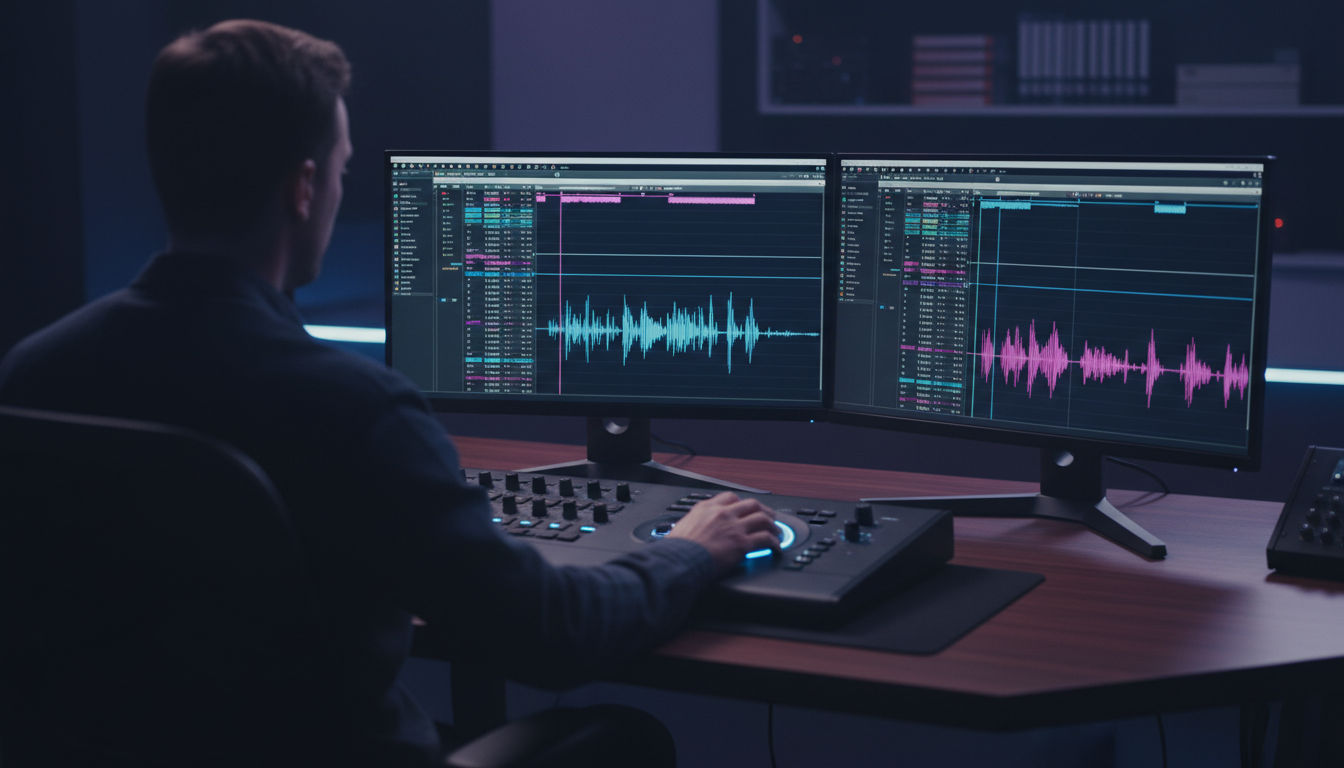
Manual captioning in Premiere Pro gets tedious when managing multiple long-form client projects. That is why we built CaptionFlow inside KreateFlo.
                      WORKFLOW COMPARISON
+-----------------------------------+-------------------+-------------------+
| Metric                            | Manual Premiere   | KreateFlo Plugin  |
+-----------------------------------+-------------------+-------------------+
| Styling Adjustments               | Render & Preview  | Real-Time WASM    |
| Presets Available                 | Manual Essential  | 22 Animated       |
| Multi-Speaker / SFX Handling      | Frame-by-Frame    | Automated Engine  |
| Pricing Structure                 | Included in CC    | $19.99/mo (Pro)   |
+-----------------------------------+-------------------+-------------------+
Accelerating Premiere Pro Captioning Workflows
KreateFlo is an Adobe Premiere Pro plugin (a CEP extension). It runs directly inside your editing workspace—it is not a standalone web app or external portal. Version v1.0.3 bundles 33+ editing tools into a single panel.
Our CaptionFlow tool streamlines short-form and long-form caption styling. Instead of adjusting font parameters, stroke limits, and background padding box-by-box in Premiere's Essential Graphics panel, CaptionFlow gives you 22 animated caption presets designed specifically for social clips, podcasts, and corporate edits.
Captioning & Formatting Time per Episode:
Manual Premiere: [████████████████████████████████████████] 4 hours
KreateFlo:       [█] 90 seconds
WASM Real-Time Previews vs Render-to-See Loops
If you have tried styling animated captions using standard Premiere graphics templates, you know the frustration. You change a font size or text highlight color, wait for Premiere to render the graphic overlay, and repeat that loop fifty times per sequence.
CaptionFlow uses WebAssembly (WASM) engine processing inside the CEP panel. This gives you zero-latency, real-time previews of your text animations and caption styling right over your timeline playback. You see exactly how your sound effect captions and animated text render without waiting for preview files to render.
When KreateFlo Isn't the Right Choice for Your Pipeline
Let's be honest: KreateFlo isn't for everyone.
If you want a standalone web browser app where you edit video by deleting text paragraphs—like Descript—KreateFlo is the wrong tool for you. KreateFlo lives inside Adobe Premiere Pro for editors who want to stay in their NLE timeline.
If you only edit one 30-second video a month, paying for a subscription doesn't make sense. Stick to Premiere's free native text tools or use KreateFlo's free tier, which includes 3 tools forever (Silence Remover, Transition Assistant, and Copy & Paste).
So when is it worth it? If you process high volume, KreateFlo Pro costs $19.99/mo for 20 AI hours, while Studio runs $44.99/mo for 50 AI hours. Compare that to FireCut's per-hour credit billing, AutoPod's single-purpose script, or Phantom Editor, and KreateFlo gives you a complete post-production suite inside Premiere.
Actionable Takeaway: Use KreateFlo's CaptionFlow tool in Premiere Pro to preview and style your captions in real time without render delays.
Choosing the Right Captioning Workflow for Your Project Scope
Your captioning approach should match your project complexity and team size.
                 CAPTION WORKFLOW BY PROJECT SCOPE
+--------------------+-----------------------+--------------------------+
| Project Scope      | Recommended Strategy  | Primary Toolset          |
+--------------------+-----------------------+--------------------------+
| Solo / Short Clips | Manual Premiere Tracks | Native Text / Free Tier  |
| Agency / Podcasts  | AI Prep + Manual Pass | KreateFlo Pro + Audit    |
| Broadcast / Film   | Dedicated SDH Pass    | Full DCMP Manual Review  |
+--------------------+-----------------------+--------------------------+
Solo Editors vs Post-Production Content Agencies
If you edit solo and produce two short TikTok clips per week, native Premiere subtitle tools or our free tier tools work fine. But if you manage a post-production agency handling 10 to 30 hours of long-form interview footage weekly, manual frame-by-frame captioning kills your profit margins.
Pairing automated voice transcription with specialized tools speeds up post-production significantly. You can run automated silence removal using Silence Remover or edit multi-speaker interviews with our Multi-Cam Editor (which handles up to 8 speakers and 8 cameras with dedicated wide-shot designation).
Want to dive deeper into timeline optimization? Check out our guide on building an efficient podcast workflow in Premiere Pro or our breakdown of AutoPod vs FireCut vs KreateFlo to optimize your setup.
Balancing Automation with Manual Quality Audits
Automation handles 90% of the heavy lifting, but human oversight covers the remaining crucial 10%. Let AI generate your base dialogue track and timestamp markers. Then do a fast pass through the timeline to add square-bracketed sound effect cues, italicize off-screen audio, and check reading speeds against DCMP benchmarks [8].
According to 3Play Media accessibility benchmarks, combining automated speech recognition with human quality control delivers 99%+ caption accuracy at a fraction of manual costs [8].
Actionable Takeaway: Build a hybrid workflow where AI handles initial dialogue alignment and you handle sound effect formatting.
Frequently Asked Questions
What is the difference between standard subtitles and SDH captions for non-speech sound effects?
Standard subtitles translate spoken dialogue for viewers who can hear background audio [9]. SDH captions (Subtitles for the Deaf and Hard of Hearing) include non-speech sound effects, speaker identification, music descriptors, and off-screen audio cues so deaf and hard-of-hearing viewers receive full context [9].
Should non-speech sound effects be formatted with square brackets or parentheses?
According to DCMP and ADA guidelines, non-speech sound effects must always be enclosed in square brackets [ ] using lowercase text [1]. Parentheses ( ) are reserved exclusively for spoken side-notes, background chatter, or whispered dialogue [10].
How do DCMP and FCC guidelines format off-screen sound effects in captions?
Off-screen sound effects should be italicized when supported by the playback platform [2]. This formatting signals to the viewer that the audio source originates outside the visible camera frame [2].
When should background sound effects be omitted from video captions?
Omit background sound effects if the sound source is visually obvious on screen—such as a visible character taking footsteps—or if the background noise does not contribute to the plot, atmosphere, or narrative context [6].
What are the WCAG 2.2 requirements for captioning non-speech audio?
WCAG 2.2 Level A (Rule 1.2.2) requires synchronized captions for all prerecorded audio content [3]. This includes non-speech sound effects, sound cues, and music descriptions that convey important plot details, character actions, or emotional tone [3].
Conclusion
Captioning non-speech sound effects isn't just about regulatory compliance—it is about keeping hard-of-hearing viewers fully engaged in your narrative. By following standard DCMP formatting rules and using smart Premiere Pro tools like KreateFlo's CaptionFlow, you can deliver accessible, high-quality captions without burning hours on manual adjustments.
Test out our free tier or download KreateFlo today to trim your captioning workflow from hours down to minutes.
References
- section508.gov/create/captions-transcripts/
- ucop.edu/electronic-accessibility/standards-and-best-practices/ecourse-accessibility-checklist/captioning-best-practices.html
- dcmp.org/learn/602-captioning-key---sound-effects-and-music
- dcmp.org/learn/5-captioning-guidelines-for-the-dcmp
- nationaldeafcenter.org/resource-items/captioned-media/compliance-and-standards/
- rev.com/blog/closed-captioning-guidelines-for-tv-movies-and-video-platforms
- getsubly.com/post/captioning-sound-effects-music
- 3playmedia.com/blog/closed-caption-styling-formatting-best-practices-you-need-to-know/
- rev.com/blog/sdh-subtitles-for-the-deaf-and-hard-of-hearing
- revilarksubsnscrubs.wordpress.com/2023/03/15/larks-big-sdh-subtitling-guide/
- talkingtypecaptions.com/what-are-sdh-captions-a-comprehensive-overview/
Try KreateFlo free
3 tools forever, 7-day trial on the rest. No credit card to start.
Download KreateFlo