Color-Code Podcast Videos: Best 5 Proven Workflow Steps
Most video editors spend three hours per episode manually splitting caption blocks. They waste another hour changing text fill colors just to distinguish the host from the guest. If you are still chan
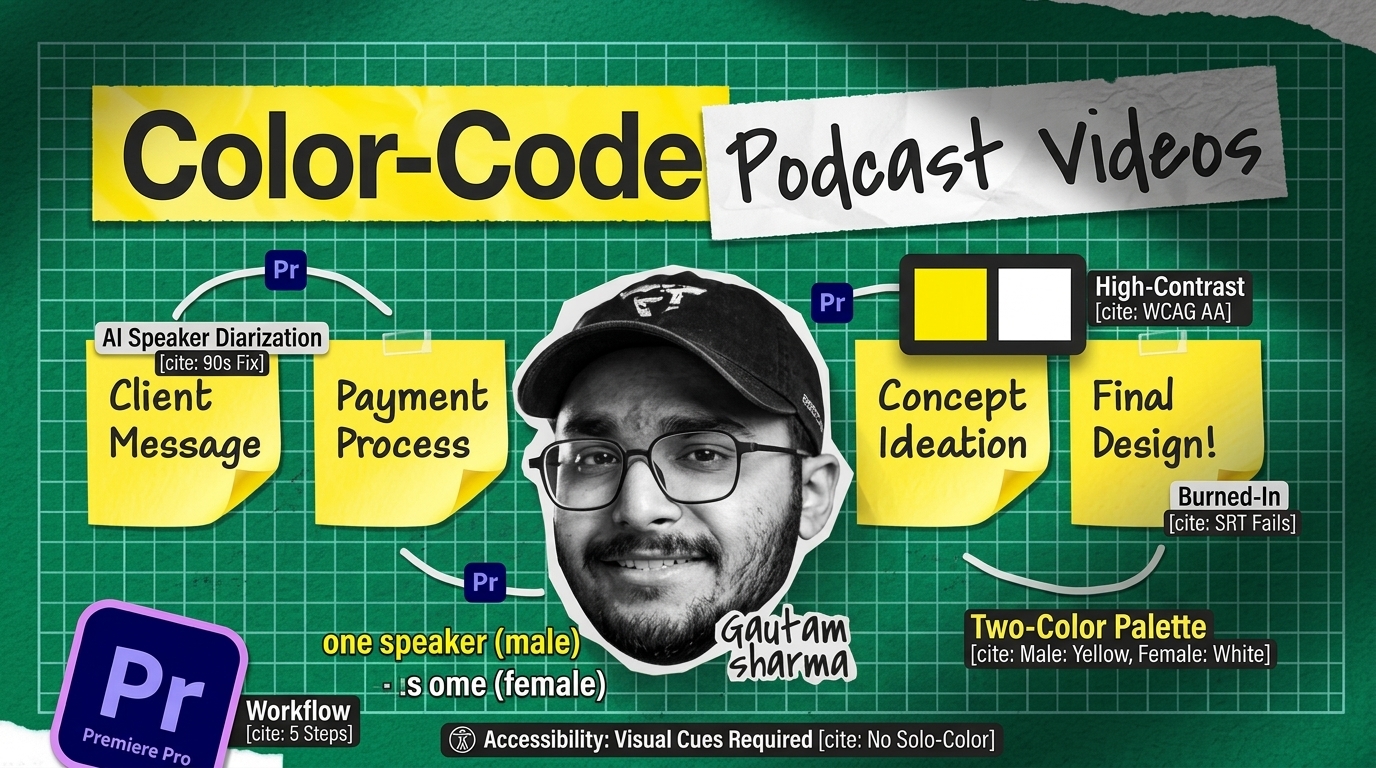
Most video editors spend three hours per episode manually splitting caption blocks. They waste another hour changing text fill colors just to distinguish the host from the guest. If you are still changing individual clip styles line by line in Adobe Premiere Pro, you are burning client billables for zero reason.
Color-coding speakers is not just a cosmetic touch for social clips. It is a readability requirement when turning long-form podcasts into vertical clips for Instagram Reels, YouTube Shorts, and TikTok.
Here is how you build a fast, foolproof subtitle styling workflow that keeps viewers engaged and saves you real editing time.
Key Takeaways
- Native Premiere Pro track styles apply globally, meaning dual-speaker edits require converting captions to graphic clips for individual styling.
- Limit your subtitle color palette to two high-contrast options like bright yellow and crisp white paired with 2-3 pixel dark stroke outlines.
- Standard .SRT files discard color formatting on platforms like Instagram Reels and TikTok, requiring burned-in open captions.
- Relying solely on text color violates WCAG 2.1 AA accessibility guidelines without secondary cues like speaker tags or leading dashes.
- AI speaker diarization can reduce caption styling time from 4 hours down to under 90 seconds.
Why You Need to Color-Code Speakers in Two-Person Podcast Videos
Unstyled, single-color captions quickly turn into a wall of unreadable text during fast interview back-and-forths. I have watched viewer retention numbers drop on client reels simply because people could not tell who was speaking.
Assigning permanent text colors to your host and guest solves this instantly. It gives the viewer an immediate visual anchor while scrolling.
Improving Viewer Comprehension on Muted Social Feeds
Over 80 percent of mobile video on social feeds is watched with the sound turned completely off [5]. When audio is disabled, subtitle text carries the entire narrative weight of your video.
If both speakers share identical white text, rapid exchanges force viewers to guess who spoke. According to established video transcription standards and guidelines [5], clear visual separation of speaker audio tracks directly increases completion rates on short clips.
"When speaker styling shifts randomly mid-video, viewer drop-off spikes. Visual predictability is what keeps people watching instead of scrolling past."
Streamlining Multi-Speaker Visual Direction
Broadcasters have used speaker-specific colors for decades. The BBC closed captioning and accessibility guidelines [10] dictate that speaker color coding must remain static throughout an entire program.
When your viewer knows the host is always yellow and the guest is always white, their brain stops working to decode the conversation. They focus entirely on the content.
Pro Tip: Label your timeline tracks with distinct clip colors (like Mango for Host and Violet for Guest) before transcribing. This visual mapping makes spot-checking caption alignment ten times faster later on.
Actionable Takeaway: Select two high-contrast colors during pre-production and keep them consistent across every episode cut from that podcast series.
How to Color-Code Speakers in Two-Person Podcast Videos in Premiere Pro
Adobe Premiere Pro has reliable Speech-to-Text built right in, but its native caption engine has a major bottleneck. Native Caption Tracks use global Track Styles. If you select one caption block and change its fill color to yellow, every single caption block on that track turns yellow too [1].
To color-code individual speakers natively, you must break captions out of the standard Subtitle Track. You have to turn them into animatable Essential Graphics clips [6].
Here is the exact step-by-step process:
Step 1: Generating Native Speech-to-Text Transcripts
Start by opening your sequence in Premiere Pro. Navigate to the Text panel and click Transcribe.
Once Premiere finishes processing your timeline audio, click Create Captions. Set your max length in characters to 25–30 for vertical video, pick Single Line, and hit Create. At this point, all captions sit on a standard Subtitle Track (C1) with identical formatting.
Step 2: Upgrading Captions to Graphic Clips
To unlock independent styling, select your caption track on the timeline. Go to the top menu bar, click Graphics and Titles, and choose Upgrade Captions to Graphics [6].
This step converts your rigid subtitle track into standard video clips sitting on Video Track 2 or 3. As noted in Adobe community discussions on multi-speaker captions [3], transforming captions to graphic items allows editors to alter font size, fill colors, and keyframe positions clip by clip.
Step 3: Applying Essential Graphics Fill and Stroke Styles
Select all graphic blocks where your host speaks. Open the Essential Graphics panel (or Text Properties in current releases) and change the Fill color to a bright yellow (#FFFF00).
Next, select the guest caption blocks and set their Fill color to clean white (#FFFFFF). Add a 2–3 pixel solid black Stroke (#000000) or a dark background box to both styles. This keeps the text legible when speakers pass over bright backgrounds or light clothing [4].
Pro Tip: Select all graphic clips for Speaker 1 at once by holding Shift and clicking across the sequence. You can then swap the Fill color for the entire host dialog in one click rather than doing it block by block.
Actionable Takeaway: Use Graphics and Titles > Upgrade Captions to Graphics in Premiere Pro whenever you need independent color styling for host and guest dialogue.
Color Contrast and WCAG Accessibility Rules for Podcast Captions
Eye-catching captions are useless if viewers cannot actually read them. If a viewer with visual impairments or color blindness struggles with your text, they swipe away immediately. Following baseline accessibility rules ensures your video works for everyone.
Avoiding Red-Green Pitfalls for Colorblind Viewers
A common mistake among junior editors is picking red for one speaker and green for the other. Protanopia and deuteranopia (red-green color blindness) affect millions of viewers worldwide.
According to closed caption color contrast recommendations [9], pairing red and green text creates severe accessibility barriers. Stick to high-contrast pairs like yellow and white, or cyan and white, backed by dark outlines.
Adding Non-Color Secondary Indicators
Under Web Content Accessibility Guidelines (WCAG 2.1 AA Criterion 1.2.2), relying exclusively on color to convey information violates compliance rules [8]. Colorblind viewers might not notice the subtle shift between light yellow and white text.
So how do you stay compliant? You pair color coding with secondary visual cues. The Limecraft subtitle guidelines for speaker changes [8] recommend adding a leading dash (-) or a short speaker tag whenever the speaker changes.
Non-Compliant (Color Only):
[Yellow Text] So what made you start this company?
[White Text] I realized nobody was solving the editing bottleneck.

WCAG Compliant (Color + Symbol):
[Yellow Text] - So what made you start this company?
[White Text] - I realized nobody was solving the editing bottleneck.
Managing Character Limits and Reading Speeds
Even clean colors fail if your text flashes by too quickly. The BBC editorial standards for subtitling [10] cap line lengths at 37 characters and limit reading speeds to 250 words per minute. Keep vertical captions to 1–3 words per line for snappy shorts, or 1–2 lines max for horizontal interview cuts.
Actionable Takeaway: Combine high-contrast fill colors with a 3px dark stroke and leading dashes to meet WCAG 2.1 AA guidelines cleanly.
Exporting Open Captions vs Sidecar Subtitle Files (.SRT vs .VTT)
After styling your text, you have to render the file without losing your formatting. Here is where many editors get tripped up. They export a standard .SRT file, upload it to TikTok or Instagram Reels, and watch all their custom color work vanish.
"SRT sidecar files discard 100% of custom color formatting on mobile apps. If you want colored text on social media, you must burn open captions directly into your render."
The Limitations of .SRT Files on Social Platforms
SubRip Subtitle (.SRT) files are standard for traditional closed captions, but they only store raw text strings, line numbers, and timecodes. They do not retain custom fonts, colors, or background shapes [2].
Web-based .VTT files support basic color tags on specialized browser players, but native mobile social media apps strip that formatting during upload anyway [2]. Relying on sidecar files for social platforms forces both speakers back into default system white text.
Burning In Open Captions for Vertical Social Exports
To preserve speaker colors, custom fonts, and animations across platforms, you need Open Captions (burned-in graphics). Burning captions bakes your styled text directly into the video frames during export [7].
In Premiere Pro, open the Export tab, scroll down to Captions, and set the export option to Burn Captions Into Video. If you already converted your captions to Essential Graphics clips in the timeline, they automatically render as standard video overlays.
Pro Tip: If a client requests an .SRT file for YouTube SEO alongside a vertical Reel, export both. Burn the styled graphics into the MP4 file for social feeds, and generate a clean sidecar .SRT file from Premiere's Text panel for the YouTube upload.
Actionable Takeaway: Always burn open graphic captions into your vertical video exports so speaker color coding displays accurately on Instagram, TikTok, and Shorts.
Automated Workflow: How to Color-Code Speakers in Two-Person Podcast Videos with AI
Reading through a 45-minute transcript, splitting text blocks, and applying fill colors manually takes hours. For an editor delivering 10 podcast clips a week, that manual process wipes out your hourly margin.
But you can automate this entire pipeline directly inside Premiere Pro using extensions that handle speaker diarization and automated styling in seconds.
Automating Speaker Separation with Diarization
AI speaker diarization analyzes multi-track audio or isolates distinct voice frequencies from a single track [1]. Instead of forcing you to hunt down speaker changes line by line, diarization detects speaker switches automatically and splits dialogue onto separate styled subtitle tracks [5].
Our plugin, KreateFlo (v1.0.3), is an Adobe Premiere Pro CEP extension built for this exact workflow. Using its integrated /features/captionflow.html tool, KreateFlo transcribes audio across 40+ languages (including Bangla and Hindi), separates up to 8 distinct speakers, and formats the text onto visual layers. What usually takes 4 hours of manual blade cuts drops to under 90 seconds.
Real-Time Previewing with WASM Engine Tools
A major pain point with native graphics or heavy MOGRT templates is the constant render delay. Every time you change font sizes, outlines, or color accents across 200 caption blocks, Premiere slows down while generating preview files.
CaptionFlow uses a WebAssembly (WASM) real-time engine inside the CEP panel. You can test 22 animated caption presets, tweak host and guest fill colors, and scrub your timeline with zero rendering lag.
Manual Premiere Workflow vs. KreateFlo CaptionFlow:

[Manual Workflow]
Transcribe -> Create Captions -> Upgrade to Graphics -> Select Host Clips
-> Set Fill/Stroke -> Select Guest Clips -> Set Fill/Stroke -> Manual Align
Total Time: ~3 to 4 Hours per episode

[KreateFlo AI Workflow]
Open Panel -> Run CaptionFlow Diarization -> Pick Preset -> Apply Host/Guest Palette
Total Time: ~90 Seconds total
If you edit multi-camera podcasts, run your initial edits through KreateFlo's Multi-Cam Editor first. It handles up to 8 cameras and 8 speakers with automatic speaker tracking and dedicated wide-shot rules. That gives you a clean multi-cam edit before you even start styling captions.
Actionable Takeaway: Use AI speaker diarization to separate transcript dialogue automatically rather than slicing subtitle blocks line by line manually.
Common Color-Coding Mistakes That Ruin Your Podcast Edits
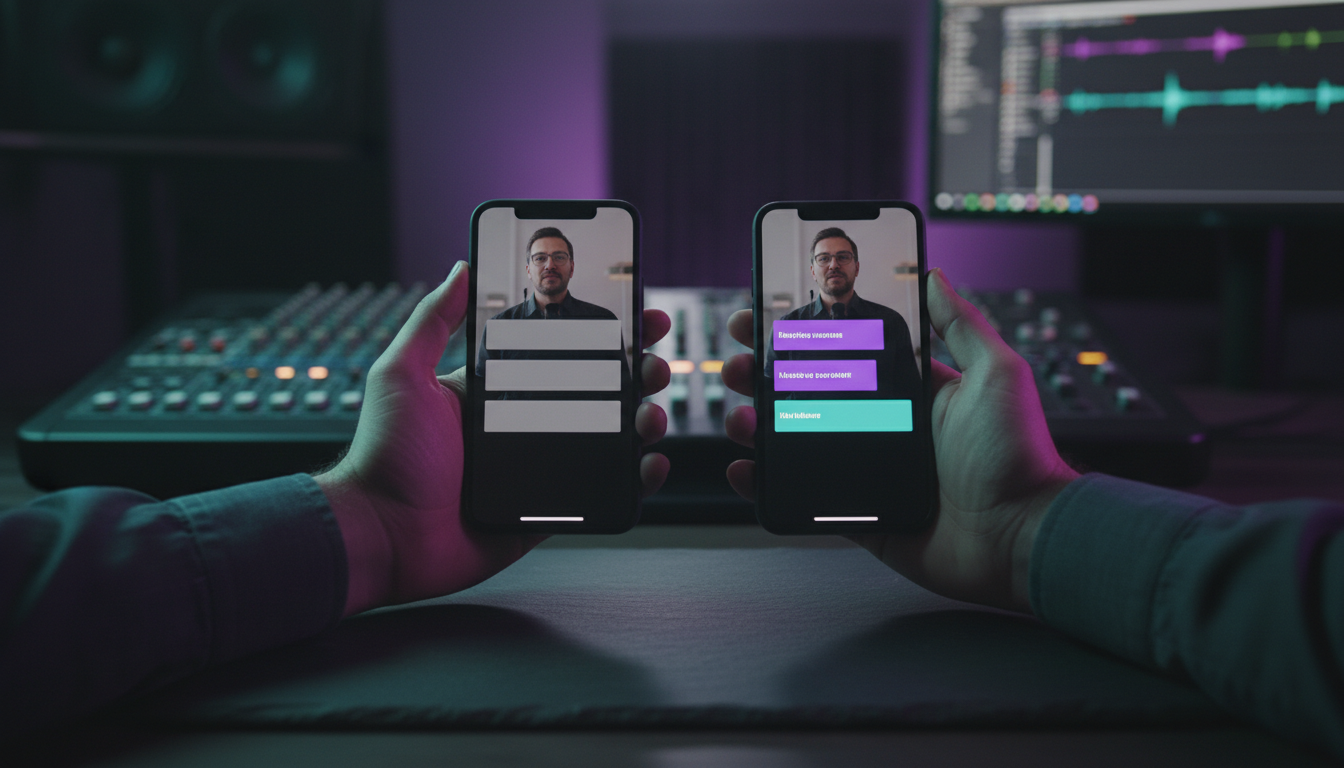
Even seasoned editors fall into bad habits under tight deadline pressure. Here are three common mistakes that hurt caption readability.
Changing Assigned Colors Mid-Episode
Visual consistency matters. If your host is yellow text on Camera A, they must stay yellow text when the shot cuts to a split-screen or a wide angle.
Flipping host and guest colors midway through an edit breaks the viewer's mental model [3]. Once you assign Yellow to Host and White to Guest, keep those settings fixed across every cut.
Skipping Dark Background Boxes or Strokes
Never drop colored text over video footage without a high-contrast stroke outline or background box [9]. If your guest wears a white t-shirt and speaks in white text, those captions disappear the moment the camera cuts to a tight shot.
Always add a minimum 2–3px black stroke, a drop shadow, or a dark background shape behind your text layers.
Overcomplicating Palette Selection with 3+ Bright Colors
Limit your palette strictly to two primary text colors for two-person podcasts. Adding third or fourth colors for emphasis (like highlighting random words in neon green) creates visual clutter.
Bad Palette (Visual Confusion):
Host: Yellow | Guest: Cyan | Keywords: Neon Green | Punctuation: Red

Good Palette (High Readability):
Host: Bright Yellow (#FFFF00) with 3px Black Stroke
Guest: Pure White (#FFFFFF) with 3px Black Stroke
Actionable Takeaway: Keep your speaker color palette strict, simple, and backed by solid dark outlines on every frame.
Choosing the Right Subtitle Tools for Your Studio Setup
Every editing studio runs on a different budget and workflow setup. Depending on your project volume, native tools might be enough—or you might need an automated extension stack.
| Feature / Metric | Native Premiere Pro | Descript (Web App) | FireCut (Plugin) | KreateFlo v1.0.3 (Extension) |
|---|---|---|---|---|
| Workflow Environment | Adobe Premiere Pro | Standalone Browser / App | Adobe Premiere Pro | Adobe Premiere Pro (CEP) |
| Speaker Separation | Manual (Convert to Graphics) | Automatic AI Diarization | Automatic AI Diarization | Automatic AI Diarization |
| Caption Styling Engine | Essential Graphics | Native Text Styles | Basic MOGRT Presets | WASM Real-Time Engine (22 Presets) |
| Pricing Model | Included with Creative Cloud | $12–$24/mo per seat | Per-Hour AI Credit Billing | $19.99/mo Pro (20h) / $44.99 Studio (50h) |
| Free Tier Available | Yes | Limited Free Minutes | Free Trial Only | 3 Tools Free Forever |
When Native Premiere Tools Are Sufficient
If you edit one YouTube podcast per month and social captions are just an occasional task, native Premiere Pro tools work fine. You can transcribe the audio, hit Upgrade Captions to Graphics [6], style your host and guest lines, and export without paying for extra software.
Comparing Third-Party Plugins and Extensions
When client volume grows to 5–30 hours of long-form video per week, manual native steps quickly hold you back.
- FireCut: A useful Premiere plugin, but its per-hour AI credit billing model adds up quickly when editing long multi-cam interviews.
- Descript: Great transcription and text-based editing features, but it forces you out of Premiere Pro into a separate desktop app, requiring XML round-tripping.
- KreateFlo: Operates entirely inside Premiere Pro as a CEP extension. For $19.99/mo (Pro tier with 20 AI hours) or $44.99/mo (Studio tier with 50 AI hours), you get access to 33+ integrated tools. If you process long interviews daily, read our full guide on optimizing podcast edits in Premiere Pro.
When KreateFlo Is NOT the Right Pick for You
Let's be direct. KreateFlo is strictly an Adobe Premiere Pro CEP extension. If you edit in Final Cut Pro or DaVinci Resolve, KreateFlo will not work for your setup.
Likewise, if you prefer browser tools where you edit video by deleting transcript text in a web page (like Descript or Opus Clip), a native Premiere extension is not what you need.
KreateFlo is designed specifically for editors who work inside Premiere Pro every day and want to automate multi-cam cuts, silence removal, and dual-speaker captioning without leaving their timeline.
Actionable Takeaway: Factor in your monthly editing volume and environment; flat-rate native extensions save money over per-hour billing plugins if you edit high volumes of interview footage inside Premiere Pro.
Frequently Asked Questions
How do you assign different subtitle colors to multiple speakers in Adobe Premiere Pro?
Generate your transcript in the Text panel, create your caption track, select the track, and choose Graphics and Titles > Upgrade Captions to Graphics. This turns subtitles into standard Essential Graphics clips in your sequence. You can then select individual speaker clips and adjust their Fill, Stroke, and Background parameters independently in the Essential Graphics panel.
Does the .SRT subtitle file format support text colors and speaker styling?
No. Standard .SRT files contain only plain text, line numbers, and start/end timecodes [2]. They do not store font, color, or layout metadata. To keep custom speaker colors on platforms like TikTok, Instagram Reels, or YouTube Shorts, you must export open captions (burned-in graphics) rendered directly into the MP4 file.
What are the best caption color combinations for video accessibility and contrast?
The most reliable accessibility pairing for two-person interviews is bright yellow (#FFFF00) for the host and clean white (#FFFFFF) for the guest [9]. Both colors should feature a 2–3 pixel solid black stroke (#000000) or a dark background box to stay legible over varied backgrounds. Avoid red and green text pairs due to red-green color blindness (deuteranopia).
How do you upgrade Premiere Pro captions to editable graphic text?
Select the caption track on your timeline, open the top menu bar, click Graphics and Titles, and select Upgrade Captions to Graphics [6]. Premiere Pro transforms every caption block on that track into a standard graphic clip on a new video track, unlocking per-clip color styling, motion graphic presets, and keyframing options.
What is the difference between open burned-in captions and closed captions for speaker color coding?
Closed captions (.SRT or .VTT) exist as separate text tracks that viewers turn on or off in a media player. Media players and mobile apps often strip color formatting from closed captions during playback. Open captions are rendered permanently onto the video frames during export, ensuring your exact fonts, speaker colors, and graphic layouts display identically on every screen.
Conclusion
Color-coding speakers in two-person podcasts does not have to eat up hours of your editing week. By upgrading captions to native graphic clips or automating speaker separation with AI diarization, you turn a tedious manual chore into a quick, predictable routine.
If you want to skip manual clip slicing and build an automated caption and multi-cam workflow inside Premiere Pro, try KreateFlo for free today by visiting our download page.
References
- pmc.ncbi.nlm.nih.gov/articles/PMC7901653/
- section508.gov/create/captions-transcripts/
- community.adobe.com/questions-729/colour-for-each-speaker-in-closed-captions-1389235
- facebook.com/groups/descriptusers/posts/755680166717923/
- brasstranscripts.com/blog/video-transcription-complete-guide
- blog.nobledesktop.com/learn/premiere-pro/transforming-captions-to-graphics-for-enhanced-visibility-in-adobe-premiere-pro
- youtube.com/shorts/wowOSjazKic
- support.limecraft.com/support/solutions/articles/48001274236-indicating-speaker-changes-in-subtitles
- rev.com/blog/the-best-and-worst-font-colors-for-closed-captions
- capitalcaptions.com/2024/03/14/accessibility-services-for-bbc-and-iplayer/
- ssrs.com/insights/how-new-consumers-are-shaping-podcastings-next-chapter/
- kairos.technorhetoric.net/23.1/topoi/zdenek/typography.html
- zapsubs.com/podcast-subtitles
- subvideo.ai/guides/speaker-recognition-in-subtitles
Try KreateFlo free
3 tools forever, 7-day trial on the rest. No credit card to start.
Download KreateFlo