Karaoke Captions Premiere Pro: The Ultimate 2026 Guide
How to Create Karaoke Word Highlight Captions in Premiere Pro (2026) Spending four hours manually slicing text clips in Adobe Premiere Pro just to highlight one spoken word at a time is a waste of you
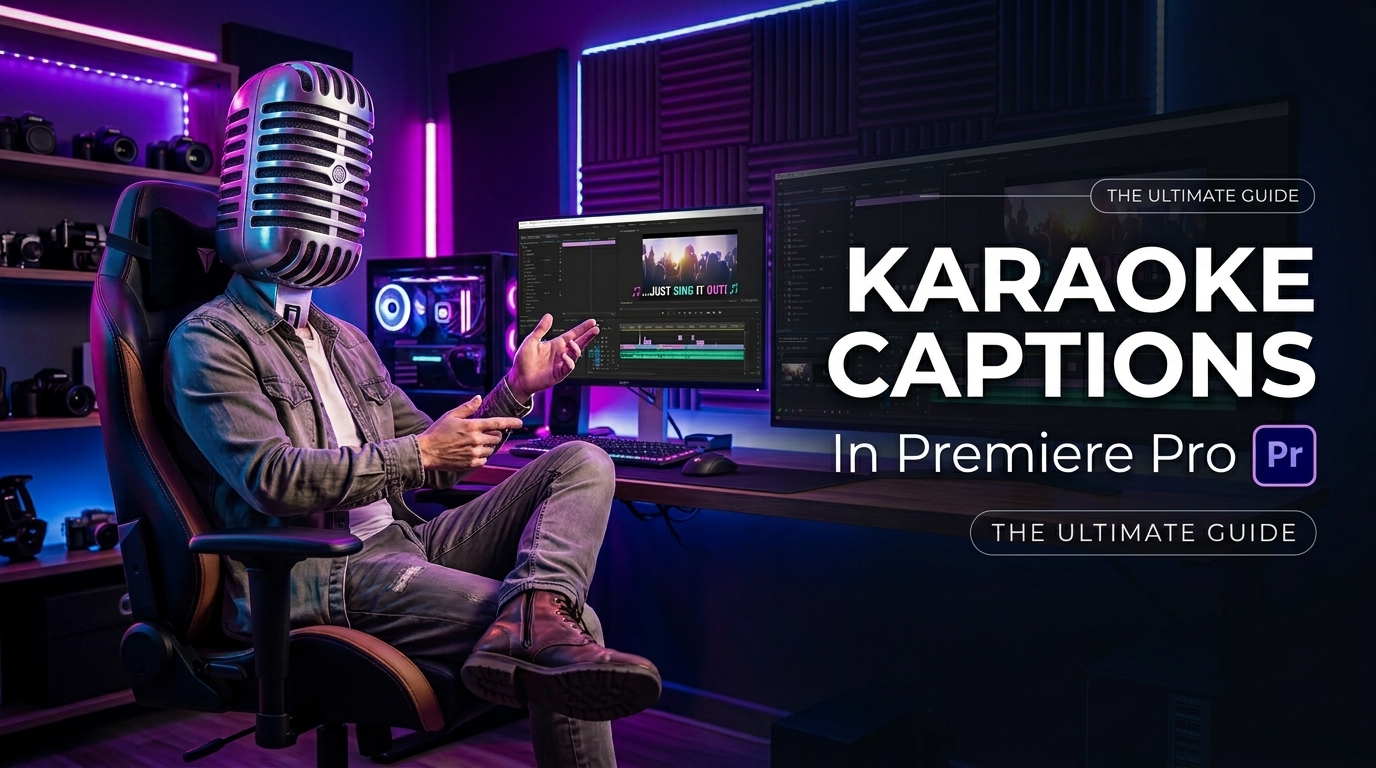
Spending four hours manually slicing text clips in Adobe Premiere Pro just to highlight one spoken word at a time is a waste of your day [5] [9]. I used to blade-cut every word by hand for 60-second Reels. But switching from manual keyframing to automated plugins drops that exact task down to 90 seconds [1] [4].
When viewers scroll through TikTok, YouTube Shorts, or Instagram Reels, burned-in kinetic typography keeps them glued to the screen [4] [5]. Karaoke-style captions—where each word lights up in real time as the speaker says it—generate massive retention lifts [4] [8]. But if you edit long-form podcasts or handle high-volume client clips, building these graphics frame-by-frame on your timeline will wreck your profit margins [5] [9].
In this guide, I will show you how to build karaoke word highlight captions in Adobe Premiere Pro step by step [1] [2]. We will cover native timeline workarounds, keyframing methods, and how to automate the whole process using native Premiere plugins [3] [4].
| Before | 4 hours |
|---|---|
| After | 90 seconds |
Key Takeaways
- Native Adobe Premiere Pro subtitle tracks sit on a locked track layer that blocks word-level keyframing and vector transform effects [2] [3].
- You must convert native captions using the Upgrade Caption to Graphic command [2] to unlock full style properties and position controls in Essential Graphics [3].
- Setting layout preferences to a single-word layout preference [1] under "Create Captions from Transcript" isolates spoken dialogue into individual timed clips automatically [1] [10].
- Applying the Transform video effect on graphic layers preserves sharp vector typography during scale pop-in keyframe animations [2] [3].
- Manual track-matte and crop-reveal workflows work fine for 15-second clips, but long-form content requires automated tools to stay profitable [5] [7].
- Dedicated CEP extension plugins like KreateFlo's /features/captionflow.html use WebAssembly (WASM) engines to apply animated karaoke presets instantly without render lag [4] [5].
The Problem with Blade-Cutting Captions Manually
If you have ever tried building active word highlights inside Premiere Pro without a clear workflow, you know the frustration [5] [9]. You transcribe your audio, generate standard subtitle captions, and immediately hit a wall when you try to animate a single word [2] [10].
[Timeline Track Layout: Subtitle vs Graphic]

Subtitle Track (Locked):  | "How to create captions" | -> No keyframes allowed
Graphic Track (Unlocked): | How | to | create | captions | -> Full transform & color control
Why standard subtitle tracks block word animations
Adobe Premiere Pro separates subtitle caption tracks from standard timeline video graphics [2] [3]. Subtitle tracks sit on a dedicated header above your video tracks [2] [5]. They work well for exporting sidecar files or closed captions, but they lack essential graphic properties [2] [4].
You cannot apply character-specific fill colors, drop shadow keyframes, or motion effects directly to a standard Subtitle layer [2] [8]. When you select a subtitle clip on your timeline, the Essential Graphics panel shows stripped-down formatting options [2] [3].
So you can change the global font family or background box. But you cannot select individual words to change their color dynamically over time [2] [6]. Attempting to add transform keyframes to a standard caption clip simply does not work because the parameters do not exist on that track type [2] [3].
"Subtitle tracks are great for basic closed captions, but the moment a client asks for dynamic kinetic text, standard subtitle layers fall apart."
The hidden time cost of multi-track text stacking
Before automated tools existed, editors relied on the razor blade tool [5] [9]. You would duplicate a multi-word text layer onto Video Track 2, slice the clip at every spoken word boundary, change the text color on every slice, and adjust the timing manually [7] [9].
For a 15-second clip, you might execute 30 razor blade cuts and adjust 30 individual color boxes [5] [9]. That takes about 15 minutes [9]. But when you edit a 45-minute podcast episode into 12 short clips for a client, you are suddenly looking at over 300 individual word slices [5] [9].
Doing that manually takes upwards of three to four hours of repetitive clicking [5] [9]. The physical strain on your hand builds up fast, and the margin for user error is huge [8] [9]. Misaligning a single word cut by two frames ruins the visual rhythm completely [8] [9].
Pro Tip: If you find yourself manually slicing text clips on your timeline, stop immediately and check your clip length. Save blade-cutting exclusively for short 5-second title cards, never for full spoken transcripts [5] [9].
Actionable Takeaway: Stop using standard locked Subtitle layers for kinetic social media text. Convert your subtitle tracks to graphic elements before attempting any word-level styling [2] [3].
How to Create Karaoke Word Highlight Captions in Premiere Pro (Native Method)
You do not always need third-party tools if you know how to configure Premiere Pro's built-in Text panel correctly [1] [5]. The trick lies in forcing the speech-to-text engine to generate one-word caption blocks right from the start [1] [10].
Native Single-Word Caption Generation Process:
Window > Text -> Transcribe Sequence -> Create Captions -> Advanced Settings -> Single Word
Configuring single-word transcript generation settings
Start by opening your project and selecting your sequence [4] [5]. Navigate to the top menu and open Window > Text to bring up the transcript panel [4] [5]. Click on the Transcribe Sequence button [4] [5].
Premiere Pro will process your track using its built-in native transcription engine, which supports 19 languages natively [4] [5]. Once the transcript is generated, do not click "Create Captions" with default settings [1] [10]. Default settings generate multi-word lines that group full sentences together, making single-word highlights impossible without manual cutting [10].
Here is the step-by-step setup:
- Click the Create Captions button at the top of the Text panel [1] [4].
- Expand the Advanced Caption Settings dropdown menu [1] [10].
- Change the Maximum length in characters slider down to a low value (between 3 and 7 characters) [1] [10].
- Set Minimum duration in seconds to 0.1 or 0.2 seconds [1] [10].
- Under Line Preference, choose the Single Word layout option [1].
[[STAT:19 languages:supported natively by Premiere Pro Text panel]]
Setting your layout preference to a single-word layout preference forces Premiere to build isolated caption blocks for every single word spoken [1] [10]. Click Create Captions, and Premiere Pro will place a series of rapid, single-word subtitle clips along your timeline synced to the audio waveform [1] [5].
Building a master text style in Essential Graphics
Once your single-word subtitle track is generated, you need to establish a strong visual identity [2] [3]. Select one of the subtitle clips on your timeline and open Window > Essential Graphics [2] [4].
Choose a bold, easily readable font like Montserrat Bold or Futura Bold [3] [8]. High-contrast typography is critical for mobile viewports [8]. Set your fill color to white, add a clean 4-pixel black stroke, and configure a subtle drop shadow with 0% blur and 40% opacity to separate the text from busy background footage [3] [8].
To avoid reformatting hundreds of individual clips manually, click on the Track Style dropdown inside Essential Graphics and select Create Track Style [2] [3]. Name your style "TikTok_Bold_White" and hit OK [2]. Premiere Pro instantly applies these exact font parameters across every caption clip on that track layer [2] [3].
Actionable Takeaway: Always lower the maximum character limit to force single-word segment boundaries before generating captions in the Text panel [1] [10].
Converting Subtitle Tracks to Editable Graphic Layers

Now that you have isolated single-word subtitle segments on your timeline, you will quickly notice that keyframing controls are still locked out [2] [3]. Native Subtitle tracks simply do not support position pops, scale keyframes, or custom video effects [2] [8]. So you must elevate these clips to standard video graphics [2] [3].
Subtitle Track -> Select All Clips -> Graphics and Titles -> Upgrade Caption to Graphic -> Unlocked Video Track
Using Upgrade Caption to Graphic
Select all the caption clips on your native Subtitle track by clicking and dragging across them, or press Ctrl+A (Cmd+A on Mac) while active on that specific track header [2] [3].
Go to the top application menu bar and click Graphics and Titles > Upgrade Caption to Graphic [2] [3].
Premiere Pro instantly converts every subtitle element into a standard timeline graphic clip on a regular video track [2] [3]. Your original Subtitle track becomes empty or muted [2]. Now, every single word clip behaves like a standard Essential Graphics video asset [2] [3].
The result? You can apply motion keyframes, change individual clip colors, add video transitions, or apply third-party GPU effects [2] [3].
Preserving vector clarity with the Transform effect
When editors animate graphic text in Premiere Pro, they usually open the Effect Controls panel and keyframe the standard "Motion > Scale" property [2] [3]. Don't do this [2]. Standard Motion scale operates on the rasterized render buffer of the graphic layer, which causes text edges to look blurry when scaled up quickly [2].
Instead, go to the Effects panel, search for the Transform video effect (found under Distortion), and drag it directly onto your graphic clip [2] [3].
Standard Motion Control: Scale up -> Raster blur & soft vector edges
Transform Video Effect: Scale up -> Clean vector re-sampling & dynamic motion blur
Using the Transform effect allows Premiere Pro to re-render the vector text sharp at any scale size [2]. Uncheck the "Use Composition's Shutter Angle" box inside the Transform effect controls and set the Shutter Angle to 180 degrees [2]. This adds natural, cinematic motion blur whenever a word pops on screen or scales up dynamically [2].
Pro Tip: Copy the Transform effect from your first formatted clip, select all remaining graphic word clips across your timeline, and hit Edit > Paste Attributes (Cmd+Alt+V) to apply smooth pop-in animations across the entire sequence in seconds [2] [3].
Actionable Takeaway: Use the Upgrade Caption to Graphic command [2] immediately after transcribing dialogue to unlock the Transform effect and vector motion controls [2] [3].
Manual Highlight Techniques: Keyframes vs. Track Matte Masks
If you want a multi-word phrase on screen where only the active spoken word changes color as the speaker talks, single-word isolated clips can look jumpy [6] [7]. To keep full sentences on screen while dynamically changing individual word colors, you can use manual masking techniques [6] [7].
The duplicate text track matte method
This classic multi-track technique delivers a smooth color fill across static sentences [7]. But it requires three stacked video tracks on your timeline [7].
[Track Setup for Track Matte Karaoke Reveal]

Track V3: [ Moving Color Matte Rectangle (Keyframed Left-to-Right) ]
Track V2: [ Yellow Text Graphic - "How To Create Captions" ] -> Track Matte Key targeting V3
Track V1: [ White Text Graphic - "How To Create Captions" ] (Base Layer)
Here is how to set it up:
- On Video Track 1 (V1), place your static full sentence text graphic formatted in your base color (e.g., solid white) [7].
- Duplicate that exact graphic clip directly above it onto Video Track 2 (V2) [7].
- Select the text clip on V2, open Essential Graphics, and change the fill color to your bright highlight color (e.g., electric yellow or bright green) [3] [7].
- Create a new Color Matte (
Project Panel > New Item > Color Matte), pick any color, and place it on Video Track 3 (V3) directly above the text layers [7]. - Go to the Effects panel, search for Track Matte Key, and drag it onto the highlighted text clip on Track V2 [7].
- Open Effect Controls for V2, set the Track Matte Key Matte dropdown to target
Video 3, and set Composite Using toMatte LumaorMatte Alpha[7].
Now, keyframe the Position or Crop properties of the Color Matte on Track V3 so it slides across the screen from left to right in time with the spoken audio [6] [7]. Wherever the color matte overlaps the text, Track V2's yellow highlight color reveals over Track V1's base white text [7].
The crop effect highlight reveal workflow
A faster variation of this workflow skips the extra Color Matte track by applying a traditional crop keyframing technique [6] directly to the duplicate highlighted text layer on Track V2 [6] [7].
Stack your base white text on V1 and your yellow text on V2 [7]. Drag the Crop effect onto the upper V2 clip [6]. Set the Right crop percentage keyframe to 100% at the start of the audio line [6].
As the speaker moves through each word, add keyframes on the Right crop parameter, stepping down the crop value to reveal each spoken word right on the beat [6].
While this method eliminates the extra V3 matte layer, it still requires manual keyframing for every sentence [6] [7]. If your speaker pauses or accelerates, you must manually drag keyframe points to match the new timing [6] [8].
Actionable Takeaway: Use the Crop effect on duplicate text layers when animating short 5-word hook titles, but avoid keyframing full podcast transcripts manually [6] [7].
How to Create Karaoke Word Highlight Captions in Premiere Pro with AI Plugins

Manual track-matte keyframing and razor-blade cuts work fine for a 15-second TikTok clip [5] [9]. But when you edit high-volume client work, podcasts, or multiple reels every week, manual execution crushes your margins [5] [9]. This is where specialized Adobe Premiere Pro plugins take over [4] [5].
Unlike external web tools that force you to export video files, edit captions in a browser, and re-download flattened MP4s, native plugins run directly inside Premiere Pro as CEP extensions [4] [5].
Plugin vs Browser Workflow Comparison:

Web App (Descript/Opus):  Export MP4 -> Upload to Web -> Generate -> Download MP4 -> Re-import
Native Extension (KreateFlo): Open CEP Panel in Premiere -> Select Preset -> Applied to Timeline
"Round-tripping video out to web apps kills your timeline flexibility. Staying inside Premiere Pro keeps your cut non-destructive and editable."
Zero-latency animated previews with WASM engines
A major issue with legacy caption plugins is the render feedback loop [4] [5]. You pick a style, hit generate, wait for a local render engine to process the timeline, notice a small typo, fix it, and wait for another render cycle [4] [5].
Modern extensions solve this using WebAssembly (WASM) rendering engines built directly into the plugin panel [5]. WASM runs compiled code inside Premiere's interface at near-native speed, giving you real-time preview playback of animated text presets without generating heavy cache files on your scratch disk [5].
So you can scrub through 22 different animated caption presets instantly, adjusting font sizes and word highlight colors without waiting for background renders [5].
Batch applying 22 presets in KreateFlo CaptionFlow
Our plugin, KreateFlo (v1.0.3), is a native CEP panel built specifically for Adobe Premiere Pro editors who need speed without giving up creative control [4] [5]. Inside KreateFlo, our /features/captionflow.html tool automates karaoke word-highlight creation across long timelines in seconds [4] [5].
Here is how you build animated karaoke captions using KreateFlo:
- Open
Window > Extensions > KreateFloinside Premiere Pro. - Highlight your audio track or sequence cut.
- Select /features/captionflow.html from the plugin workspace.
- Choose your transcription language (KreateFlo supports voice transcription in over 40 languages, including Bangla and Hindi).
- Pick from 22 animated caption presets, including active word pop, karaoke color fills, and kinetic bounce layouts.
- Click Generate Captions.
KreateFlo automatically analyzes speech timing, detects individual word boundaries, and generates formatted graphic layers across your timeline [4] [5]. If you need to trim silent pauses from your dialogue before running captions, you can run our /features/silence-remover.html tool first to clean your cuts automatically [4] [5].
| Feature / Workflow | Manual Track Matte Method | Premiere Native Single-Word | Web Apps (Descript / Opus) | KreateFlo CaptionFlow |
|---|---|---|---|---|
| Execution Speed | ~3–4 hours per 60s edit [5][9] | ~15–20 minutes [1][10] | ~10–15 minutes (Round-trip) [4] | ~90 seconds [4][5] |
| Workflow Location | Timeline manual keyframing [6][7] | Native Text panel & Graphics [1][2] | Separate web browser app [4] | Native Premiere CEP panel [4][5] |
| Word Animation Control | Manual keyframes [6] | Static clip cuts [1][10] | Pre-baked web templates | 22 WASM animated presets [5] |
| Language Support | N/A | 19 languages [4][5] | ~20–30 languages | 40+ languages natively |
| Pricing Model | Free (Your manual time) | Included in Creative Cloud | $24–$50/mo subscription | Free tier (3 tools) / $19.99/mo |
Compared to competitors like FireCut—which charges variable per-hour billing fees that stack up quickly—KreateFlo Pro costs a flat $19.99/mo for 20 AI hours, while Studio is $44.99/mo for 50 AI hours. We also offer a permanent Free tier with 3 essential tools (Silence Remover, Transition Assistant, and Copy & Paste) so you can test the extension without entering a credit card.
Actionable Takeaway: Stop round-tripping video files through browser apps. Install a native CEP extension to keep your cuts, timelines, and caption layers locked inside Premiere Pro [4] [5].
Caption Design Rules That Keep Viewers Watching
Automating your caption creation process is only half the battle [4] [8]. If your text layout looks messy, viewers will scroll past your video regardless of how well the active word highlights sync [8].
Color contrast ratios for mobile viewports
Mobile screens are small, and users watch content under varied lighting conditions [8]. Using weak accent colors like light pastel pink or soft blue makes text unreadable on phone screens [8].
Load a reference color wheel image into your Source Monitor, open your style settings, and sample high-contrast highlight shades using the eyedropper tool [3] [8]. Bright neon yellow (#FFFF00), electric lime green (#00FF00), and vivid cyan (#00FFFF) yield the highest readability against dark or out-of-focus video backgrounds [8].
Avoid adding heavy neon glows or dark drop shadows across entire sentences [8]. Selective contrast—where passive context text stays neutral white while only the spoken word flashes high-visibility yellow—guides the viewer's eye without visual noise [8].
Combining single-word highlights with context lines
A common mistake video editors make when creating karaoke captions is displaying only one isolated word on screen at a time [8] [10]. While isolated single-word flashes create high energy, they destroy reading comprehension for technical or fast-paced dialogue [8] [10].
Context Line Layout (Recommended):
[ Standard White Text: "The secret to scaling your podcast is" ]
[ Active Karaoke Highlight: "AUTOMATION" (Bright Yellow Pop) ]
The optimal design strategy combines single-line context text with single-word active highlights [8] [10]. Display 3 to 5 words on screen as a baseline phrase, and let the karaoke color sweep through those words one by one as the speaker talks [8] [10].
This gives the viewer's brain time to anticipate upcoming words while maintaining visual motion on every spoken syllable [8] [10].
Finally, pay attention to UI safe zones [4]. Social media platforms place interactive elements—like channel avatars, usernames, share buttons, and sound titles—along the bottom 20% and right edge of mobile screens [4]. Keep your graphic captions positioned near the vertical center or upper third of your 9:16 frame so platform UI overlays never obscure your text [4].
Pro Tip: Enable safe margin guides in Premiere Pro by clicking the wrench icon in your Program Monitor and toggling Safe Margins on [4]. Keep all kinetic text inside the inner 80% boundary box [4].
Actionable Takeaway: Pair high-contrast fill colors (neon yellow or lime) with 3-5 word context lines positioned safely above platform UI overlays [4] [8].
When Karaoke Captions Fail (And When KreateFlo Isn't Right for You)
Kinetic karaoke captions are incredible engagement drivers for social media clips, but they are not a one-size-fits-all solution [5] [8]. Knowing when not to use them is just as important as knowing how to build them [8].
Long-form content vs short-form content needs
If you are editing a 2-hour documentary, a
For long-form YouTube content, export s Text panel [4] [5]. Uploading an SRT file to YouTube allows search algorithms to crawl and index your exact transcript text for video SEO, while giving viewers the option to toggle closed captions on or off according to preference [4] [5].
Where KreateFlo fits into your stack
We built KreateFlo to save editors time, but honesty matters more than marketing hype. Here's the catch: KreateFlo is not the right tool for every editing environment:
- Do not buy KreateFlo if you edit outside Premiere Pro. KreateFlo is strictly a native Adobe Premiere Pro CEP extension (v1.0.3) [4] [5]. It does not run in Final Cut Pro, DaVinci Resolve, or web browsers [4].
- Do not buy KreateFlo if you only make one 15-second video a month. If your output is minimal, stick to native single-word transcription inside Premiere [1] [10]. It takes a few extra minutes, but it costs nothing extra [1].
- Do not buy KreateFlo for sidecar broadcast SRT exports. If you only build broadcast-compliant sidecar closed captions for television, native Premiere or basic transcription tools work fine [4] [5].
However, if you edit multi-speaker podcasts, agency client clips, or daily social media short-form content inside Premiere Pro, KreateFlo will transform your business [4] [5]. Bundling 33+ professional tools into one panel, KreateFlo lets you handle multi-cam switching (up to 8 speakers and 8 cameras), silence removal, auto-reframing, and animated karaoke captions without subscribing to five separate plugins like AutoPod, Phantom Editor, or FireCut [4] [5].
Actionable Takeaway: Use burned-in graphic karaoke text exclusively for short-form social clips (TikTok, Shorts, Reels). For long-form desktop YouTube, rely on sidecar SRT files for better SEO [4] [5].
Frequently Asked Questions
How do you convert native captions into editable graphic text clips in Premiere Pro?
Select all caption segments on your timeline subtitle track, navigate to the top application menu, and choose Graphics and Titles > Upgrade Caption to Graphic [2] [3]. This batch converts subtitle clips into standard video graphics on your timeline, unlocking Essential Graphics properties, vector transform parameters, and custom video effects [2] [3].
What is the difference between single-word caption generation and standard line captions in Premiere Pro?
Standard line captions group spoken audio into multi-word sentences based on character and line count limits [10]. Single-word caption generation configures transcript settings to isolate every spoken word into its own timed sequence clip, making active word keyframing and timing adjustments much easier [1] [10].
How do you highlight a single active word in Premiere Pro without keyframing?
You can use native CEP extension plugins like KreateFlo's /features/captionflow.html tool [4] [5]. It uses a WebAssembly (WASM) engine to auto-detect word timing across dialogue audio and apply animated active word highlight presets across your timeline instantly [4] [5].
Should you export captions as an SRT sidecar file or burn them directly into short-form videos?
For short-form video platforms like TikTok, Instagram Reels, and YouTube Shorts, burn graphic karaoke captions directly into the video file to ensure maximum viewer retention [4] [5]. For long-form YouTube videos or broadcast delivery, export an SRT sidecar file so search engines can index your transcript for SEO [4] [5].
How can you automate karaoke-style active word highlight captions in Premiere Pro using plugins?
Install an Adobe Premiere Pro extension plugin like KreateFlo (v1.0.3) [4] [5]. Open the extension panel under Window > Extensions, choose an animated karaoke style from the 22 built-in presets, select your transcript language, and click generate [4] [5]. The AI automatically syncs active word highlights to your timeline audio [4] [5].
Streamline Your Premiere Pro Caption Workflow Today
Building karaoke text highlights manually in Premiere Pro works fine when you have a single short clip and hours to spare [5] [9]. But if you handle weekly client edits, podcast cuts, or run a content agency, manual keyframing will destroy your margins [5] [9].
Upgrade your transcript to graphic layers for basic native control, or streamline your entire short-form stack by downloading KreateFlo today [2] [4]. Try our Free tier featuring 3 tools forever (Silence Remover, Transition Assistant, and Copy & Paste), or upgrade to Pro for $19.99/mo to generate animated karaoke captions across all your projects in seconds [4] [5].
References
- youtube.com/watch
- youtube.com/watch
- youtube.com/watch
- cutback.video/blog/how-to-add-captions-in-premiere-pro-using-an-auto-caption-plugin-step-by-step-guide
- youtube.com/watch
- community.adobe.com/questions-729/how-do-you-create-and-highlight-karaoke-text-but-as-tabs-1353473
- youtube.com/watch
- youtube.com/watch
- youtube.com/shorts/bCq5AysBoN8
- youtube.com/shorts/s6ckM6K2Nko
- vexub.com/blog/captions-increase-video-engagement
- sinc-lab.com/files/nguyen2026like.pdf
- cutback.video/blog/how-to-create-animated-captions-in-premiere-pro-(no-after-effects-needed)
- ai-media.tv/wp-content/uploads/AI_Media_Whitepaper_Engagement_and_Retention.pdf
- 3playmedia.com/blog/studies-find-captions-improve-engagement/
- atlantis-press.com/article/125991294.pdf
- youtube.com/watch
- poko.video/blog/best-caption-styles-for-marketing-videos-2026-guide
- opus.pro/research/best-caption-strategy-short-form
- klap.app/blog/how-to-create-a-highlight-video
- mykaraoke.video/blog/tiktok-algorithm-explained
- contentfries.com/blog/the-science-of-video-captions-how-they-impact-audience-retention
- youtube.com/watch
- youtube.com/watch
- youtube.com/watch
- blitzcutai.com/blog/best-caption-style-tiktok
- autocut.com/en/autocaptions/
Try KreateFlo free
3 tools forever, 7-day trial on the rest. No credit card to start.
Download KreateFlo