How to Edit a Multi-Cam Podcast in Premiere Pro (90 Seconds with AI)
A 60-minute three-camera podcast used to take me 4 hours to cut by hand. Here is the AI-assisted workflow that gets it done in under two minutes — including the gotchas nobody warns you about.
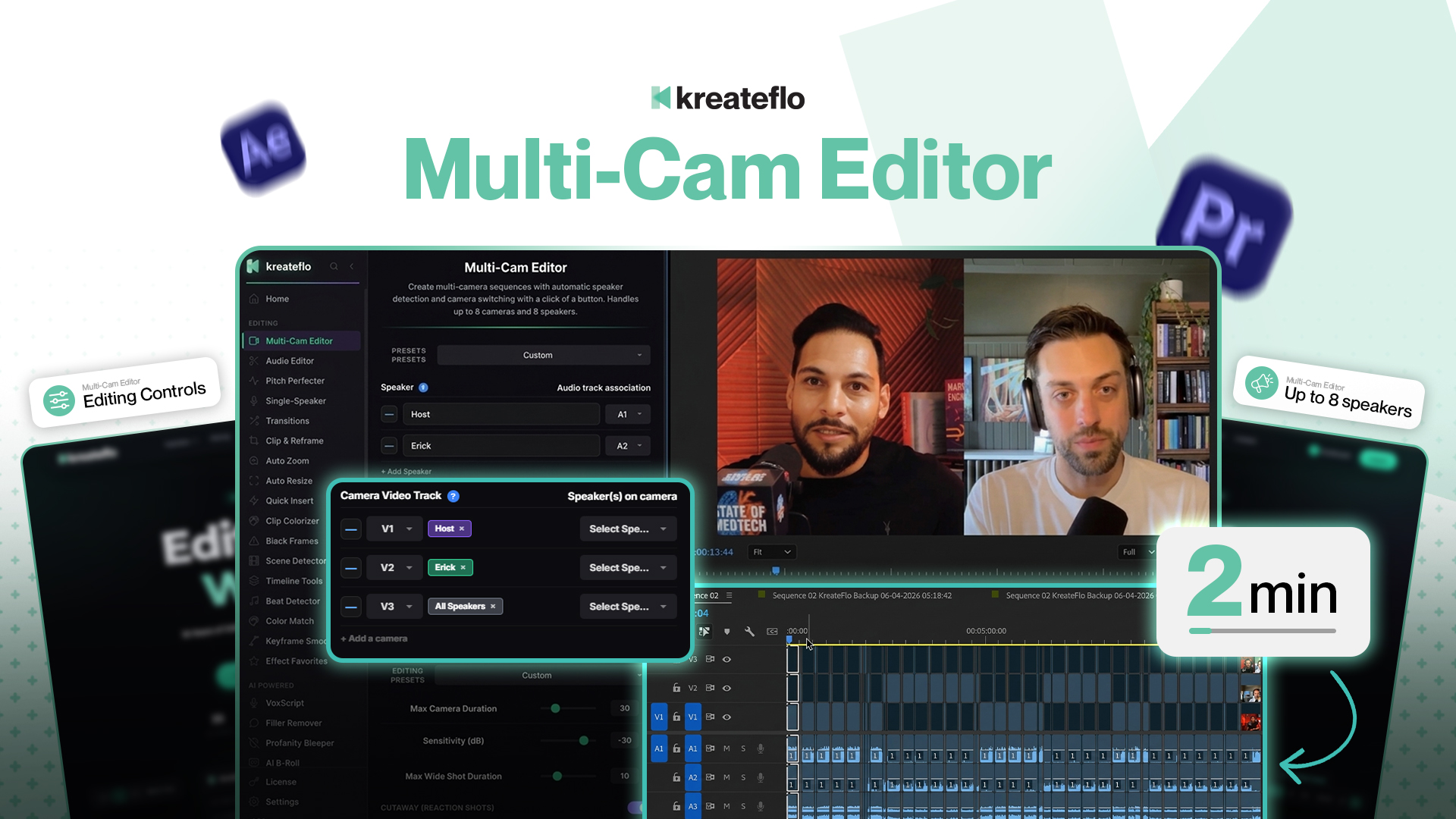
Editing a multi-camera podcast by hand is one of the worst time sinks in modern video production. You scrub through three or four hours of footage, manually cutting to whoever is talking, fixing botched switches, and trying to remember why you got into editing in the first place.
This tutorial walks through the workflow I use to cut a one-hour, three-camera podcast in under two minutes inside Adobe Premiere Pro. Same workflow works for two to eight cameras and one to eight speakers.
What you need
- Adobe Premiere Pro 2023 or newer (build 23.0+)
- KreateFlo plugin installed (free trial works for this tutorial)
- A multi-cam recording with one mic per speaker on separate audio tracks (mixed-track works but is less accurate)
Step 1: Set up your sequence
Drop all your camera angles onto V1 through V8 (or however many you have), and put each speaker's lavalier mic on its own audio track (A1, A2, A3, etc). Sync everything using Premiere's built-in waveform sync — Right-click clips, choose Synchronize, set "Audio" as the sync method. This usually takes 10–20 seconds.

Step 2: Open Multi-Cam Editor
Open KreateFlo (Window → Extensions → KreateFlo) and click into the Multi-Cam Editor tool. The interface walks you through three setup steps:
- Speaker count: How many human speakers are in this recording.
- Camera mapping: Drag each speaker to their dedicated camera. If two speakers share a wide shot, designate which video track is your wide.
- Cutting controls: Min camera duration, max camera duration, and sensitivity. Defaults work for 90% of podcasts.
Step 3: Run the cut
Click "Generate Multi-Cam Sequence" and let the AI work. For a one-hour podcast on a recent M-series Mac, expect 60–120 seconds of processing. The plugin analyzes voice activity on each microphone track, builds a cut matrix that respects your timing rules, and applies the cuts.
Step 4: Polish (the part nobody talks about)
AI multi-cam is 95% of the way there. The last 5% is where you save your reputation as an editor. Watch through the cut and look for:
- Cuts mid-thought: The AI errs on the side of switching too often. Soft-spoken hosts can get cut at breath pauses. Solution: bump the min camera duration to 1.5–2 seconds.
- Missed wide shots: If you have an interruption that the AI did not flag as overlap, manually add the wide shot. Or rerun with a lower overlap-detection threshold.
- Reaction shots: The AI cuts to whoever is talking, not whoever is reacting. Manually drop in 2–4 reaction shots per podcast for energy.
Common mistakes
Mixed audio on a single track
You can get away with this if your speakers do not overlap much, but accuracy drops 10–15%. Per-speaker mic tracks are worth the setup time.
Music bed too loud
If your background music is above -18 dB during dialogue, voice activity detection gets confused. Duck your music to -22 dB during speech and run the cut again.
Sensitivity set too aggressive
On the default sensitivity, the AI tends to assume even brief silences mean a speaker stopped. Bump the silence threshold to -45 dB instead of -50 dB if you are getting too many false breaks.
Time saved
A one-hour, three-camera podcast that took me 3.5 hours by hand now takes 8–12 minutes total: 90 seconds of AI processing plus 6–10 minutes of polish. That is not a marginal improvement — it changes what is possible to ship in a week.
Try KreateFlo free
3 tools forever, 7-day trial on the rest. No credit card to start.
Download KreateFlo