Japanese Captions Premiere: Proven 5-Step Guide for 2026
You spend three hours cutting a Japanese client podcast in Adobe Premiere Pro, hit export, and every single caption renders as empty square boxes. That hurts. Standard Latin fonts like Arial physicall
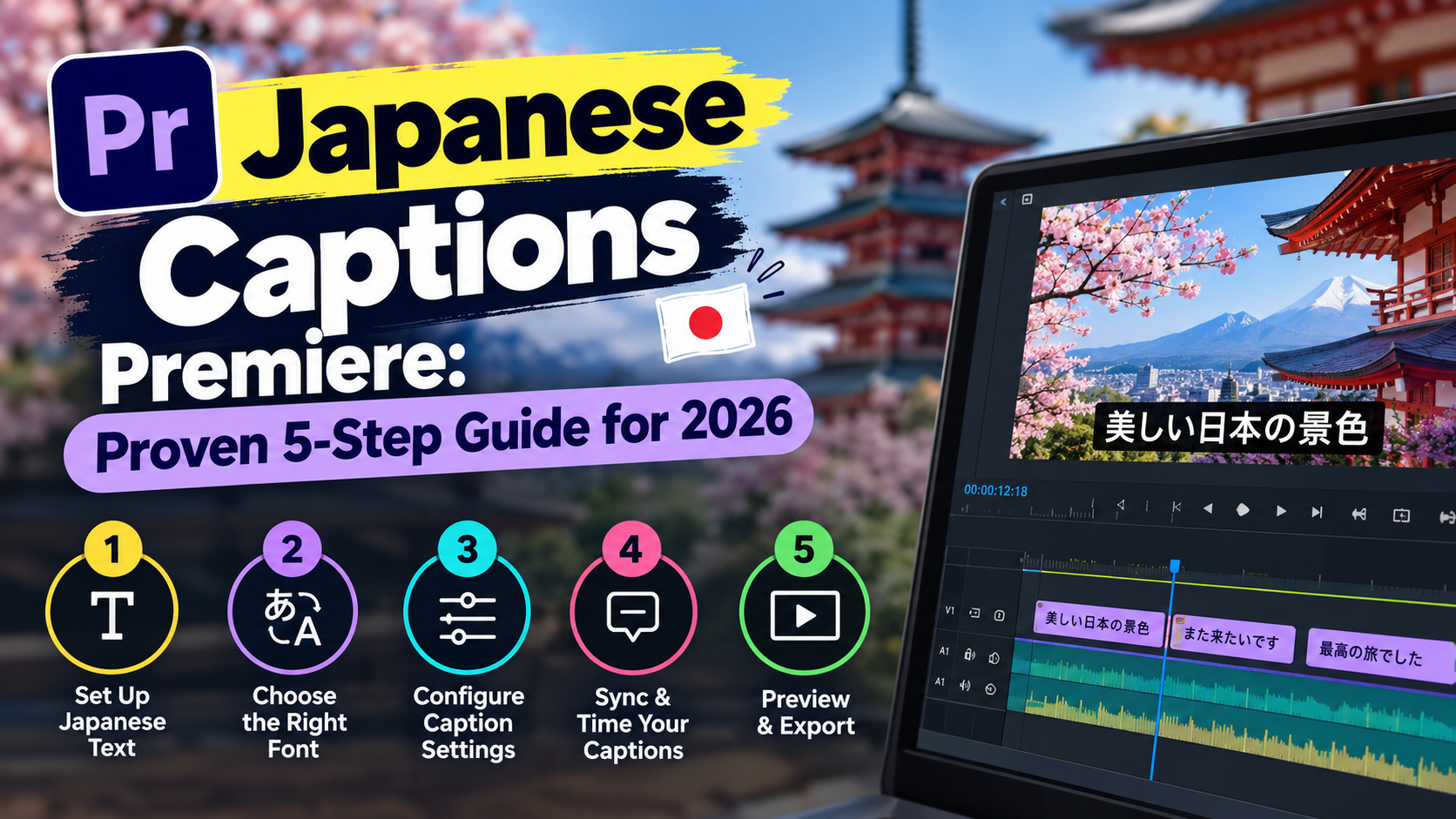
You spend three hours cutting a Japanese client podcast in Adobe Premiere Pro, hit export, and every single caption renders as empty square boxes. That hurts. Standard Latin fonts like Arial physically cannot display Kanji or Hiragana glyphs. So Premiere default-swaps them into broken "tofu" shapes.
I used to waste 4 hours re-formatting corrupted SRT files and tweaking glyph margins manually before I built a 90-second system. Learning how to format Asian fonts for Japanese captions in Premiere comes down to fixing three core bottlenecks: text engine settings, file encoding, and CJK typeface selection. In this guide, I will show you how to configure Premiere's East Asian text engine, fix garbled UTF-8 SRT imports, and format Japanese typography for high-retention video edits.
Key Takeaways
- Switch Premiere Pro Preferences > Graphics to "European and East Asian" before importing CJK subtitle tracks.
- Always save Japanese SRT sidecar files with UTF-8 character encoding to prevent garbled text glitches.
- Use native CJK fonts like Source Han Sans Japanese to guarantee complete character set coverage.
- Tighten glyph margins with Tsume controls to improve mobile readability on vertical videos.
- Select entire caption tracks using Shift + A to apply batch font styles across an entire timeline.
- Convert caption tracks to Essential Graphics objects when building dual-language or animated Japanese subtitles.
Why Japanese Captions Turn Into Tofu Boxes in Premiere Pro
When you open a fresh timeline in Adobe Premiere Pro, the software defaults to a Latin text rendering engine built for English, Spanish, and standard Western scripts. If you paste Japanese text into a title block or import an SRT track while this default is active, Premiere attempts to render characters using whatever Latin typeface is currently assigned. Standard Latin typefaces lack the complex character matrices required for Asian typography CJK character matrix design principles.
Because fonts like Helvetica or Impact contain zero character code mappings for Japanese ideograms, Premiere drops a generic placeholder glyph font fallback rendering mechanisms. These empty rectangular outlines are known across the editing bay as "tofu" boxes.
[[STAT:125M:Japanese speakers worldwide]]
The Glyph Coverage Problem in Latin Fonts
Japanese written communication relies on three distinct scripts running concurrently: Hiragana, Katakana, and Kanji Japanese writing system overview. A standard Western font file packages anywhere from 200 to 800 glyphs covering the Latin alphabet, numbers, and basic punctuation. By comparison, a production-ready Japanese font must index thousands of distinct characters to display basic vocabulary cleanly.
When you paste Japanese transcriptions into Premiere without targeting a CJK-compatible font, the graphics engine encounters unmapped Unicode addresses Unicode standard CJK unified ideographs. When editors report that Japanese characters fail to type across Adobe apps [1], the culprit is rarely a corrupted software installation. Instead, the active font family lacks the physical glyph shapes needed to draw those characters on screen.
Understanding Adobe CJK Font Fallback Mechanics
Adobe built an automatic font fallback system into its video tools to mitigate missing glyph errors Adobe typography fallback engine. When Premiere detects a character missing from your active typeface, it searches your local system for an installed default CJK font like Kozuka Gothic or MS Gothic to fill the gap.
But this automatic substitution mechanism has distinct limits. If your timeline text engine preferences are improperly set, Premiere fails to calculate the baseline offset and character width of the fallback font CJK baseline text alignment video editing. The app either defaults straight back to tofu boxes or distorts line spacing. Understanding how Adobe handles automatic font substitution [3] helps you troubleshoot rendering issues before client review deadlines hit.
Actionable Takeaway: Always verify that your active text layer targets a verified CJK font rather than relying on automated OS font fallback during final renders.
How to Format Asian Fonts for Japanese Captions in Premiere: Text Engine Setup
Fixing tofu boxes permanently requires toggling Premiere's underlying graphics rendering core. By default, Adobe configures standard installations for European languages. Switching this preference reconfigures how Premiere handles character spacing, text direction, and multi-byte font scripts.
Enabling European and East Asian Text Engine
To configure your workspace for CJK typography, open your global settings menu before importing subtitle tracks or creating new text layers.
- On Windows, navigate to Edit > Preferences > Graphics. On macOS, select Premiere Pro > Preferences > Graphics.
- Locate the Text Engine section near the top of the preference window.
- Change the active selection from European and Latin to European and East Asian.
- Click OK to commit the setting changes.
+-------------------------------------------------------------+
| Preferences: Graphics                                       |
+-------------------------------------------------------------+
| Text Engine                                                 |
|  ( ) European and Latin                                     |
|  (*) European and East Asian  <-- Select this option        |
+-------------------------------------------------------------+
Configuring the East Asian text engine in Adobe preferences [1] unlocks dedicated Asian typography controls inside the Essential Graphics and Properties panels. These controls include Tsume margin compression, Mojikumi punctuation rules, and vertical text orientation modes that remain completely hidden under the standard Western engine layout.
Restarting and Re-indexing Preference Changes
Here is the kicker. Simply clicking OK in the preference panel does not retroactively rewrite existing title clips sitting on your sequence timeline. Premiere loads font engine rules into memory when clips are first created.
Once you enable the European and East Asian engine, save your project file and restart Adobe Premiere Pro. Upon reboot, Premiere re-indexes installed system typefaces and correctly references CJK baseline metrics Premiere Pro font cache rebuilding process. If you skip this restart step, existing caption tracks may continue to display broken rendering behavior. Editors dealing with white and black boxes on Japanese subtitle layers [2] usually trace their issues back to un-restarted preference changes.
"A quick preferences switch without an app restart is the number one reason editors think CJK font rendering is broken in Premiere."
Pro Tip: Set up a dedicated CJK Video Editing workspace preset in Premiere after enabling the East Asian text engine. This keeps your Character panel expanded with Tsume and Mojikumi options permanently visible.
Actionable Takeaway: Turn on the European and East Asian text engine in Preferences > Graphics and restart Premiere Pro before importing any Japanese text files.
Fixing Scrambled Japanese SRT Imports with UTF-8 Encoding
You import a Japanese .srt subtitle file provided by a client or translation agency, drag it onto your timeline, and the text displays as random, unreadable gibberish. This phenomenon is known in localization workflows as mojibake. It occurs when text files are saved using legacy regional text encodings instead of modern web standards.
Legacy File (Shift-JIS)  --> Premiere Import Engine --> Scrambled Text (Mojibake)
Converted File (UTF-8)   --> Premiere Import Engine --> Clean Japanese Kanji/Hiragana
Converting Shift-JIS to UTF-8
Japanese text documents originating from older Windows environments or specialized broadcast tools are frequently exported in Shift-JIS encoding Shift-JIS vs UTF-8 text encoding differences. Premiere Pro's subtitle parser requires UTF-8 character encoding to map multi-byte Japanese glyphs accurately to timeline timestamps.
To repair corrupted sidecar files:
- Right-click your
.srtfile on your computer and open it with a plain text editor like VS Code, Sublime Text, or Windows Notepad. - Observe the current text encoding shown in the editor status bar (which will likely read ANSI, Shift-JIS, or Windows-932).
- Select File > Save As (or Export Encoding in advanced editors).
- Change the target encoding dropdown explicitly to UTF-8 (or UTF-8 with BOM if standard UTF-8 fails).
- Save the file with the
.srtextension preserved.
Re-importing Subtitles Without Character Corruption
Once your sidecar file is saved in UTF-8 format, delete the corrupted subtitle track from your Premiere Pro sequence bin. Drag the newly encoded file straight into your project panel and drop it back onto your sequence timeline.
Because UTF-8 standardizes 8-bit to 32-bit character representations UTF-8 encoding specification RFC 3629, Premiere reads the Hiragana and Katakana strings without garbling characters. Properly encoding sidecar files ensures compatibility when building multilingual subtitles for global distribution [4]. If you frequently edit international content, adopting standard encoding protocols prevents hours of manual transcription fixes down the line.
Actionable Takeaway: Never drag raw agency SRTs straight to your timeline without confirming they are explicitly saved in UTF-8 format.
Selecting the Right CJK Typefaces in Adobe Fonts
Even with your text engine properly configured and your file encodings fixed, selecting an incompatible font will break your edit. You need professional CJK typefaces that package full character sets for Japanese broadcasting.
Top Free and Adobe Font Picks for Japanese Videos
Adobe Creative Cloud includes direct access to Adobe Fonts, which hosts several broadcast-certified Japanese font families Adobe Fonts Japanese library collections. These fonts cover standard joyo Kanji as well as specialized character variations.
| Font Family | Style Classification | Best Used For | Adobe Fonts Available |
|---|---|---|---|
| Source Han Sans Japanese | Gothic (Sans-Serif) | Modern Podcasts, Reels, Shorts | Yes |
| Source Han Serif Japanese | Mincho (Serif) | Documentaries, Formal Interviews | Yes |
| Kaisei Decol | Decorative Serif | Lifestyle Vlogs, Branding | Yes |
| Togalite | Pop / Display Sans | High-Energy YouTube Edits | Yes |
| MS Gothic | System Sans-Serif | Legacy Backup / Technical Subtitles | Pre-installed (Win) |
For modern video production, Source Han Sans Japanese serves as the gold standard. Co-developed by Adobe and Google, it offers clean, geometric letterforms that remain sharp even when scaled down on smaller mobile displays.
Pairing CJK Fonts with Scaled Latin Characters
A subtle typographic problem occurs when Japanese video scripts contain embedded English words, brand names, or
The fix? Use dual-font styling or scale adjustments. When editing captions in Premiere Pro, increase the font weight or relative scaling parameter of standard English characters by 5% to 10% Optically matching Latin and CJK letterforms. This adjustment ensures that English brand names match the visual weight of surrounding Japanese text. Understanding how to manage subtitle font styling across multiple languages [7] prevents awkward hierarchy shifts during playback.
Pro Tip: Avoid using decorative script fonts for captions running longer than three words. Decorative scripts strain viewer eyes, especially on fast-paced mobile feeds where retention drops quickly.
Actionable Takeaway: Standardize your Japanese subtitle workflow around Source Han Sans Japanese for
Fine-Tuning Japanese Layouts: Tsume, Mojikumi, and Line Rules
Western text formatting tools focus primarily on tracking and kerning. Asian typography requires additional controls to manage character boundaries and line wrapping.
Reducing Character Spacing with Tsume Controls
In standard CJK fonts, each character occupies a rigid, fixed-width square boundary regardless of the character's natural width. Punctuation marks, numbers, and narrow characters leave wide empty gaps on either side CJK proportional character spacing concepts.
Standard Spacing: [  い  ][  た  ][  だ  ][  き  ]  (Wide gaps around characters)
Tsume Applied:    [い][た][だ][き]                (Tight, readable margins)
Premiere Pro includes dedicated Tsume controls inside the Character panel when the East Asian text engine is active. Tsume proportionally reduces the empty background margin around ideograms without distorting the actual shapes of the characters.
- Open the Essential Graphics or Properties panel.
- Locate the Tsume input box (represented by an icon with tight horizontal arrows between CJK characters).
- Enter a percentage value between 10% and 40% for body subtitles.
Applying Tsume tightens your subtitle lines, allowing more content to fit comfortably on screen without reducing font size Applying Tsume settings in Adobe video tools.
Limiting Line Lengths for Mobile Retention
Viewer retention on short-form platforms like TikTok, Instagram Reels, and YouTube Shorts relies on fast legibility. Japanese text reads much faster per character than English because Kanji ideograms convey entire concepts in single glyphs CJK reading speed and information density.
When working with mobile video formats, keep line breaks compact:
- Cap caption segments at 1 to 2 short lines per display block.
- Aim for a maximum of 10 to 14 characters per line on vertical clips.
- Use Mojikumi presets (such as Mojikumi Set 1) to prevent Japanese commas (読点, toten) and full stops (句点, kuten) from wrapping onto the start of a new line.
Following strict structural rules keeps Japanese video captions clear and readable [4] when viewers watch videos on mute on mobile screens.
Actionable Takeaway: Set Tsume between 20% and 30% for Japanese captions, and limit lines to 12 characters max for vertical mobile content.
How to Format Asian Fonts for Japanese Captions in Premiere at Scale with CaptionFlow
Formatting text manually in Premiere Pro works fine for a 30-second promo. But if you edit a 60-minute interview or package dozens of social clips every week, clicking through individual native caption blocks quickly becomes a tedious grind.
This repetitive friction led us to build KreateFlo, a native CEP extension plugin built directly into Adobe Premiere Pro (v1.0.3). We bundle 33+ professional editing tools into one unified extension panel. Instead of bouncing between external web tools, transcription web apps, and native Premiere menus, you run your entire caption workflow directly on your editing timeline.
Manual Native Workflow:  Transcribe -> Import SRT -> Fix UTF-8 -> Toggle Engine -> Style Track (4 Hours)
KreateFlo Workflow:     Run CaptionFlow -> Pick Preset -> Auto-Generate Styled CJK Captions (90 Seconds)
Our primary captioning tool, /features/captionflow.html, handles voice transcription across 40+ languages, including Japanese, Hindi, and Bangla. It comes loaded with 22 animated caption presets engineered specifically for fast-paced video edits.
| Before | 4 Hours |
|---|---|
| After | 90 Seconds |
Real-Time WASM Previews Without Render Loops
A major headache with native subtitle styling in Premiere Pro is waiting for track previews to catch up when tweaking text effects. Standard Premiere caption tracks do not support advanced motion graphics. This forces editors to manually upgrade captions to graphic layers just to add drop shadows or background animations.
CaptionFlow solves this by running a WebAssembly (WASM) preview engine inside the KreateFlo panel. You can tweak font styles, select CJK typefaces, adjust Tsume values, and preview active text animations in real time without triggering timeline render loops.
| Workflow Feature | Standard Premiere Native Subtitles | KreateFlo CaptionFlow Plugin |
|---|---|---|
| CJK Text Engine Setup | Manual preference toggle & app restart | Handled automatically by plugin engine |
| Caption Animation Presets | Zero animated presets built-in | 22 customizable animated presets |
| Real-Time Styling Preview | Requires full frame rendering | Instant WebAssembly (WASM) preview |
| Language Support | Basic OS speech-to-text | 40+ languages with high accuracy |
| Multi-Cam Speaker Sync | Manual cutting required | Automated via Multi-Cam Editor (up to 8 speakers) |
| Pricing Model | Included with Adobe CC | Free tier (3 tools) / Pro at $19.99/mo |
When to Use Built-In Tools vs KreateFlo
Let's be clear about when our tool fits your workflow and when it does not.
Stick to built-in Premiere Pro tools if:
- You only edit one or two short videos per year.
- Your projects require basic, un-animated broadcast closed captions (CEA-608/708 standards).
- You have plenty of extra editing time to adjust subtitle tracks character by character.
Upgrade to KreateFlo if:
- You run an agency, content production team, or YouTube channel shipping multiple videos weekly.
- You need to generate styled, animated captions for TikTok, Shorts, and Reels in seconds.
- You want an affordable alternative to competitors like FireCut, AutoPod, Phantom Editor, or Descript.
While FireCut charges per-hour billing that adds up fast on long projects, KreateFlo offers predictable pricing. Our Free tier gives you 3 core tools forever (Silence Remover, Transition Assistant, and Copy & Paste). Our Pro tier costs $19.99/mo for 20 AI processing hours, while our Studio tier runs $44.99/mo for 50 AI hours.
If you edit long interviews, our panel also includes an automated Multi-Cam Editor that handles up to 8 speakers across 8 camera angles, complete with dedicated wide-shot logic. You can test out our tools by downloading the installer from /download.html.
Actionable Takeaway: Use Premiere's built-in tools for static broadcast delivery, but switch to /features/captionflow.html when you need high-speed, animated CJK captions for client shorts.
Upgrading Subtitles to Graphics Layers for Advanced Styling
If you prefer using Premiere's built-in caption track workflow, you will eventually hit a wall when attempting to apply advanced text styling. Native subtitle tracks in Premiere Pro limit your access to fill gradients, custom strokes, multi-layer drop shadows, and visual keyframing.
Converting Subtitle Tracks via Graphics and Titles Menu
To unlock complete design control over your Japanese captions, convert your native timeline subtitle track into Essential Graphics objects.
- Highlight your subtitle track on the timeline or click within the Captions track header.
- Go to the top menu bar and select Graphics and Titles > Upgrade Caption to Graphic.
- Premiere processes the entire subtitle track, converting individual caption blocks into independent graphic clips on a standard video track (e.g., Video Track 2 or 3).
[ Native Subtitle Track (Limited Styling) ]
                     |
                     v  Graphics and Titles > Upgrade Caption to Graphic
[ Standard Video Track (Full Essential Graphics & Keyframing Access) ]
Converting your subtitles to graphic elements unlocks full access to the Effects Control panel Converting captions to graphic clips in Premiere Pro. You can now apply motion presets, add background shapes, and execute frame-accurate position keyframes on Japanese text.
Learning how to convert caption tracks into graphics layers [5] provides design freedom for high-end commercial projects.
Batch Styling Entire Tracks with Shift + A
Once your captions are upgraded to graphic layers, styling each clip individually is unacceptably slow. How do you fix it? Use Premiere's track selection shortcuts to apply global styling across your sequence in seconds.
- Press Shift + A to activate the Track Select Backward / Forward Tool (targeting all clips on a specific track).
- Click the first graphic text clip on your caption video track to select every subtitle element on that layer across the timeline Premiere Pro track select tools keyboard shortcuts.
- Open the Properties or Essential Graphics panel.
- Select your primary CJK typeface (e.g., Source Han Sans Japanese), adjust the font size, set your stroke properties, and dial in your Tsume character spacing.
Premiere updates every selected text object instantly. Editors relying on batch font replacement techniques [6] can style thousands of caption blocks in a single click, keeping client turnarounds fast and predictable.
"Mastering Shift + A track selection for graphic captions saves hours of repetitive clicking on long podcast sequences."
Pro Tip: If you need to make global style adjustments later, keep all upgraded graphic text clips on their own dedicated video track. Avoid mixing lower thirds or callout titles onto that same layer.
Actionable Takeaway: Use Graphics and Titles > Upgrade Caption to Graphic combined with Shift + A track selection to style your entire timeline's Japanese captions at once.
Frequently Asked Questions About Japanese Captions in Premiere

Why are Japanese caption characters showing up as empty boxes in Adobe Premiere Pro?
This issue occurs when your active text layer relies on a Latin-only font like Arial or Helvetica that lacks CJK (Chinese, Japanese, Korean) character glyphs [1]. Because standard Western fonts contain zero physical drawings for Kanji or Hiragana ideograms, Premiere Pro renders missing glyphs as empty square "tofu" boxes [3]. To fix this, set Premiere's Text Engine preference to "European and East Asian" and select a native CJK font like Source Han Sans Japanese [1].
How do I enable the East Asian text engine in Premiere Pro preferences?
To enable the East Asian text engine:
- Go to Edit > Preferences > Graphics on Windows, or Premiere Pro > Preferences > Graphics on macOS [1].
- Locate the Text Engine selection box near the top of the preference menu.
- Switch the active radio button from European and Latin to European and East Asian [1].
- Click OK, save your project, and restart Premiere Pro to apply the changes to your font index [2].
What are the best Japanese fonts for video captions in Adobe Premiere Pro?
The most reliable broadcast-ready CJK typefaces available through Adobe Fonts include:
- Source Han Sans Japanese (ideal for modern, clean sans-serif captions) [4]
- Source Han Serif Japanese (best for formal interviews and documentaries)
- Kaisei Decol (great for stylized lifestyle content)
- Togalite (suited for bold, high-energy YouTube content)
System backup fonts like MS Gothic (Windows) also provide complete character coverage [2].
How do I bulk change the font style for Japanese captions in Premiere Pro?
To bulk change caption font styles:
- Select your caption track on the sequence timeline.
- Use the Track Select Forward Tool (keyboard shortcut Shift + A) to select all caption clips on that track Premiere Pro track select tools keyboard shortcuts.
- Open the Essential Graphics or Properties panel [7].
- Change the typeface to your target CJK font, adjust the font size, and set your Tsume spacing. Premiere updates every selected caption block on your timeline simultaneously [7].
How do I fix scrambled Japanese text when importing an SRT file into Premiere Pro?
Scrambled text (mojibake) occurs when imported .srt sidecar files are saved using legacy regional encodings like Shift-JIS or ANSI [3]. Open the .srt file in a text editor like VS Code or Notepad, click File > Save As, change the encoding dropdown explicitly to UTF-8, and save the file [3]. Re-importing the UTF-8 encoded SRT file into Premiere Pro resolves character corruption instantly [4].
Stop Wasting Hours on Subtitle Formatting
Formatting Asian fonts for Japanese captions in Premiere Pro doesn't have to break your editing workflow. Once you enable the European and East Asian text engine, save your SRT sidecar files in UTF-8, and standardize on clean CJK typefaces like Source Han Sans Japanese, tofu boxes and scrambled characters become a thing of the past.
If you want to skip manual text styling entirely and apply animated Japanese caption presets to your sequence in seconds, test out our plugin workflow. Download the native KreateFlo extension directly at /download.html and explore our free tools today.
References
- community.adobe.com/questions-712/not-able-to-type-japanese-characters-in-all-adobe-products-1146726
- community.adobe.com/questions-729/japanese-subtitles-on-adobe-premiere-pro-1421592
- community.adobe.com/questions-734/discuss-chinese-japanese-and-korean-cjk-automatic-font-substitution-312378
- caption-x.com/adobe-premiere-captions/japanese
- youtube.com/watch
- youtube.com/watch
- community.adobe.com/questions-729/change-font-of-subtitles-but-only-for-one-language-1402085
Try KreateFlo free
3 tools forever, 7-day trial on the rest. No credit card to start.
Download KreateFlo