Subtitle Formatting Rules: The Ultimate Guide for 2026
I spent four hours fixing broken subtitle line breaks and converted currency on a documentary edit last month because a client's auto-caption generator turned £50 into $63. Subtitle style guides aren'
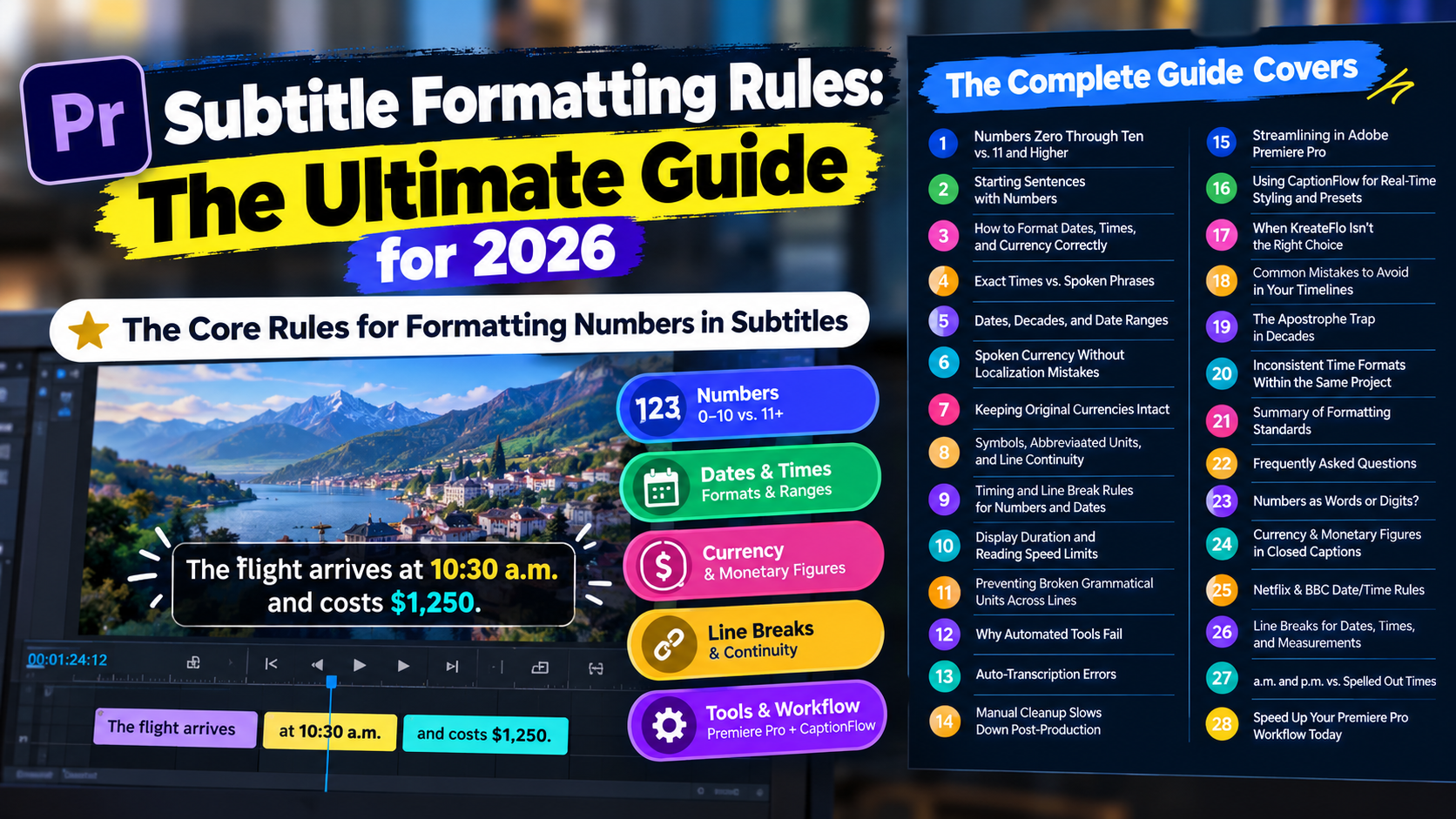
I spent four hours fixing broken subtitle line breaks and converted currency on a documentary edit last month because a client's auto-caption generator turned £50 into $63. Subtitle style guides aren't just rigid technical specs for streaming giants. Formatting dates, times, and numbers cleanly keeps your audience watching instead of squinting. When you build subtitle tracks in Adobe Premiere Pro, sloppy numbers, random currency symbols, and broken date lines instantly signal amateur post-production.
If you edit long-form interviews, podcasts, or client videos, getting these details right saves you from endless revision rounds. Here is how professional subtitlers format dates, times, and currency across major platforms, along with the exact rules you need to streamline your timeline workflow.
Key Takeaways
- Spell out numbers zero through ten as words, and use digits for 11 and higher.
- Format exact times with numerals and lowercase 'a.m.' or 'p.m.', but spell out phrases like 'half past' or 'midnight'.
- Never convert spoken currency values; always retain the exact original spoken currency in your subtitle files.
- Omit unnecessary stop words like 'of' and 'the' when subtitling spoken dates to improve reading speed.
- Write decades with a leading apostrophe for missing numbers (e.g., ''90s' or '1990s'), never with a plural apostrophe like '90's'.
- Maintain a minimum subtitle display duration of 5/6 of a second (20 frames at 24fps) for readability.
- Keep numbers, dates, and currency symbols on the same subtitle line as their associated nouns or descriptors.
The Core Rules for Formatting Numbers in Subtitles
When audio dialogue features numbers, your main objective is readability without cluttering the screen. Most professional style guides rely on the standard rules outlined in AP style journalistic writing standards [1] and extended by video delivery specs.
[[STAT:42 CPL:Netflix maximum:characters per line]]
Numbers Zero Through Ten vs. 11 and Higher
The foundational rule across post-production is simple. Numbers from zero through ten are spelled out as complete words, while numbers 11 and above are written as numerical digits [1]. For example, if a speaker says, "I have three cameras and 12 memory cards," your text line must reflect exactly that balance.
Streaming platforms like Netflix enforce this rule strictly to maintain visual balance across screens [2]. Spelling out smaller numbers prevents tiny single-digit characters like "1" or "2" from getting lost visually against fast-moving video frames.
Conversely, writing large numbers like "1,500" as digits saves valuable screen real estate. It keeps your text well under the standard limit of 42 characters per line [2].
Starting Sentences with Numbers
What happens when a sentence starts with a numerical figure? Style guidelines dictate that the number should be spelled out as a full word regardless of its value [1]. A spoken line such as "15 people walked into the studio" must be subtitled as "Fifteen people walked into the studio" [2].
But real-world editing requires flexibility. If spelling out a massive number at the start of a line causes the text to exceed character-per-line (CPL) limits or breaks reading speed thresholds, broadcast specs permit using numerals [2]. As editors, we have to make judgment calls when character limits get tight.
Pro Tip: Maintain consistency across the entire scene. Never mix digits and spelled-out words for the same context within a single dialogue exchange. If a speaker compares "six out of 15 assets," keep the formatting logical so the reader isn't forced to re-read the sentence.
Actionable Takeaway: Spell out numbers zero through ten as words, use numerical digits for 11 and above, and always spell out numbers that open a new sentence unless tight line limits force a digit.
How to Format Dates, Times, and Currency in Subtitles Correctly
Dates and times appear constantly in documentary dialogue and
Formatting Exact Times vs. Spoken Phrases
When dialogue includes specific, precise times of day, format them using digits combined with lowercase, period-delimited time indicators [2]. Write "9:30 a.m." or "4:15 p.m." rather than "nine thirty A.M." [2].
Incorrect: We scheduled the shoot for 9:30 AM tomorrow.
Correct:   We scheduled the shoot for 9:30 a.m. tomorrow.
When a speaker uses conversational phrases or approximations without exact minutes, spell out the words entirely [2]. If someone says, "I will meet you at half past four" or "we wrapped around midnight," do not force digits into the caption text [2].
Additionally, when the word "o'clock" is explicitly spoken, style standards requiring adherence to global timed text templates [3] specify spelling out the number (e.g., "eight o'clock" instead of "8 o'clock") [2].
Writing Dates, Decades, and Date Ranges
Spoken English often includes unnecessary filler words when mentioning calendar dates. People naturally say "the fourth of July" or "March the sixth." When creating timed text according to BBC subtitling guidelines [4], omit stop words like "of" and "the" to maximize reading speed [4]. Transcribe those phrases cleanly as "July 4" or "March 6" [2].
For decades, write the decade as a four-digit year followed by a lowercase "s" (e.g., "1990s"), or use a leading apostrophe to indicate omitted century digits (e.g., "'90s") [5]. Never add an apostrophe before the "s" (avoid "90's"), as that incorrectly implies possession [5]. When subtitling date ranges, use the word "to" rather than a hyphen or dash (e.g., "from 1990 to 1995") [5].
Actionable Takeaway: Use digits with lowercase "a.m." or "p.m." for exact clock times, drop extra filler words like "the" and "of" from spoken dates, and write decades as "'90s" or "1990s" without possessive apostrophes.
Formatting Spoken Currency in Subtitles Without Localization Mistakes
Currency formatting errors ruin narrative context faster than almost any other subtitling mistake. Automated tools often attempt to localize currency symbols based on user geographic settings, which destroys spoken dialogue intent.
+--------------------------+-----------------------+-----------------------+
| Spoken Audio             | Incorrect Subtitle    | Correct Subtitle      |
+--------------------------+-----------------------+-----------------------+
| "Fifty British pounds"   | $63.00 USD            | £50                   |
| "Ten dollars"            | 10 dollars            | $10                   |
| "Five hundred euros"     | 500 EUR               | €500                  |
| "Millions of dollars"    | $ millions            | millions of dollars   |
+--------------------------+-----------------------+-----------------------+
Keeping Original Dialogue Currencies Intact
Currency mentioned in audio dialogue must never be converted or localized in subtitle files [3]. If an interview subject in London discusses spending "fifty pounds," the subtitle must reflect £50 or 50 pounds [3]. Converting that figure to "$63" based on exchange rates creates complete confusion for the viewer watching the speaker's lips move [6].
As highlighted in the Netflix captioning manual [6], maintaining monetary authenticity is essential for global content distribution [6]. Preserving exact spoken currencies protects narrative integrity across multi-language tracks.
Symbols, Abbreviated Units, and Line Continuity
Place standard currency symbols ($ , € , £) directly before the numerical figure without an intervening space [7]. If a character mentions "twenty-five dollars," display it as "$25" [7].
However, if money is mentioned abstractly without a specific numerical amount, spell out the currency name [7]. If someone says, "He made millions of dollars on that real estate deal," do not write "He made $ millions." Leave it spelled out naturally as "millions of dollars" [7].
Incorrect: He lost $ 500 on the transaction.
Correct:   He lost $500 on the transaction.
When wrapping subtitle text across two lines, never isolate a currency symbol or large numerical multiplier from its base figure [7]. Keep "$10" and "million" on the exact same line of text [7].
Pro Tip: When editing financial podcasts or corporate interviews, double-check that large abbreviations like "B" (billion) or "M" (million) match your style guide's preferred formatting (e.g., "$50M" vs. "$50 million"). Stick with full words for general audiences to maximize comprehension speed.
Actionable Takeaway: Retain spoken currencies without converting monetary values, place currency symbols directly against digits, and never separate currency markers from their associated figures across line breaks.
Subtitle Timing and Line Break Rules for Numbers and Dates
Formatting text correctly is only half the battle. How your subtitles appear on the timeline dictates whether viewers can read them comfortably.
| Before | 160 WPM |
|---|---|
| After | 180 WPM |
Display Duration and Reading Speed Limits
Numbers, dates, and currency values take slightly longer for the human brain to process visually than standard words. Because of this cognitive overhead, your timeline events must allow sufficient display duration.
Technical specifications detailed in the AVTpro audiovisual translation specs [7] require a minimum subtitle duration of 5/6 of a second (20 frames at 24fps) for any subtitle event [2]. Furthermore, established standards from the BBC recommend maintaining a reading speed between 160 and 180 words per minute (WPM) [6]. Pushing subtitle text faster than 180 WPM causes viewers to miss critical numerical context [6].
Preventing Broken Grammatical Units Across Lines
Line break positioning is critical when displaying financial data or dates. A bad line break forces the viewer's eye to jump back and forth across the screen to piece together connected concepts [8].
According to the global transcription standards checklist [8], you should never separate connected grammatical units across line breaks [8]. Keep currency symbols, numbers, scale words, and measurement units linked together on the same line [8].
Poor Line Break:
I managed to save $15
million during the merger.

Proper Line Break:
I managed to save
$15 million during the merger.
Actionable Takeaway: Set a minimum subtitle duration of 20 frames at 24fps, keep reading speed under 180 WPM, and ensure line breaks never isolate numbers from their currency symbols, dates, or scale words.
Why Automated Tools Fail at How to Format Dates, Times, and Currency in Subtitles
Most video editors rely on built-in AI tools or external web apps to generate initial caption tracks. While speech-to-text engines have improved dramatically, they still struggle with timed-text formatting rules.
Auto-Transcription Errors with Numbers and Symbols
Generic transcription models treat speech as raw text without understanding subtitling constraints [9]. When processing podcast dialogue, standard auto-transcription software frequently makes errors like:
- Writing decades with possessive apostrophes (e.g., "in the 90's" instead of "'90s") [5].
- Converting currency words literally or introducing bad spaces (e.g., "$ 50 dollars") [7].
- Breaking dates awkwardly across line wraps (placing "July" on line one and "4, 2026" on line two) [8].
- Spelling out long numbers verbosely (e.g., "twenty-five thousand dollars"), which instantly breaks character-per-line caps [2].
How Manual Cleanup Slows Down Post-Production
Fixing these automated errors manually is a massive workflow bottleneck.
If you edit a two-hour multi-speaker podcast, scrubbing through hundreds of caption blocks to fix line breaks, remove redundant currency words, and adjust decade formatting can easily cost you three to four hours of editing time per project.
When working under tight client deadlines, spending half your day fixing apostrophes and currency symbols takes time away from story pacing, color grading, and audio mixing.
Actionable Takeaway: Recognize that raw auto-transcriptions require heavy style guide corrections, and adopt tools that clean up numbers, dates, and line breaks directly inside your editor.
Streamlining Subtitle Formatting in Adobe Premiere Pro

If you build your video edits inside Adobe Premiere Pro, you don't need to jump between external web tools or manually fix every bad line wrap by hand.
+------------------------------------+--------------------------+--------------------------+
| Feature                            | Native Premiere Captions | KreateFlo CaptionFlow    |
+------------------------------------+--------------------------+--------------------------+
| Real-Time WASM Preset Preview     | No                       | Yes                      |
| Animated Caption Style Presets     | Basic / Manual           | 22 Professional Presets  |
| Integrated Multi-Cam Auto Editing  | No                       | Yes (Up to 8 speakers)   |
| Engine Architecture                | Native Panel             | CEP Extension Plugin     |
| Pricing Tier                       | Included with CC         | Free Tier / $19.99 Pro   |
+------------------------------------+--------------------------+--------------------------+
Using CaptionFlow for Real-Time Styling and Presets
We built KreateFlo directly as an Adobe Premiere Pro plugin (CEP extension) to solve these exact post-production headaches. Instead of forcing you to export SRT files to third-party web apps or deal with clunky external round-trips like Descript or Opus Clip, KreateFlo operates right inside your Premiere workspace.
Inside KreateFlo's v1.0.3 update, our /features/captionflow.html tool features 22 animated caption presets engineered specifically for fast-paced podcasts and short-form social clips. It uses WebAssembly (WASM) real-time previews, allowing you to tweak text styling, position, and timing instantly without waiting on draft rendering loops.
Beyond captioning, KreateFlo bundles 33+ tools into one panel. You can handle up to 8 speakers and 8 cameras with dedicated wide-shot designations in our /features/multicam-editor.html, clean up silences automatically with /features/silence-remover.html, and generate transcripts across 40+ languages—including Bangla and Hindi.
Our pricing is straightforward: a free tier with 3 tools forever (Silence Remover, Transition Assistant, Copy & Paste), a Pro plan at $19.99/mo (includes 20 AI hours), and a Studio plan at $44.99/mo (50 AI hours). Compared to FireCut's per-hour billing or paying for multiple subscriptions across AutoPod and Phantom Editor, KreateFlo keeps your costs predictable.
When KreateFlo Isn't the Right Choice
I want to be completely honest here: KreateFlo is built for editors producing volume—podcasters, agencies, and social video creators who need to edit long-form interviews, generate viral clips, and apply polished animated captions fast.
If you only edit simple 30-second talking-head clips with basic static lower-third subtitles, Premiere's native speech-to-text tool is completely fine. You don't need a plugin or a subscription if your caption needs are minimal and you don't mind fixing line breaks manually. But if you are cutting multiple podcast hours a week and spending 90 seconds versus 4 hours on caption formatting matters to your bottom line, KreateFlo pays for itself on day one.
Actionable Takeaway: Use dedicated NLE plugins like KreateFlo CaptionFlow to automate caption styling, line wrapping, and animated presets inside Adobe Premiere Pro without leaving your timeline.
Common Subtitle Formatting Mistakes to Avoid in Your Timelines
Even experienced video editors fall into simple formatting traps when rushing to hit client render deadlines.
Incorrect Decade:   "Music from the 90's was unmatched."
Correct Decade:     "Music from the '90s was unmatched."

Incorrect Time:     "We start at 9:00 AM, then break at ten o'clock."
Correct Time:       "We start at 9:00 a.m., then break at 10:00 a.m."
The Apostrophe Trap in Decades
The single most frequent mistake in caption tracks is placing an apostrophe before the "s" in decade abbreviations (e.g., writing "90's" or "80's"). As covered in standard audiovisual subtitling guidelines [9], an apostrophe indicates missing letters or numbers, not a plural noun [9]. Write "'90s" with the apostrophe curving to the left before the numbers, or write "1990s" with no apostrophe at all [5].
Inconsistent Time Formats Within the Same Project
Mixing time formatting styles within a single video timeline looks careless. Don't write "9:00 AM" in one scene and "nine o'clock" in the next dialogue box when both speakers are referring to exact meeting schedules [2]. Pick one format—preferably digits with lowercase "a.m." or "p.m." for exact times—and enforce it across every track in your sequence [2].
For additional timeline management techniques, check out our guide on optimizing podcast editing workflows in Premiere Pro. You can also watch step-by-step video editing demonstrations on timeline editing caption tutorials [10] to see how professional subtitlers handle complex formatting on live tracks.
Actionable Takeaway: Audit your sequence for possessive decade apostrophes and inconsistent time markers before exporting final client deliverables.
Summary of Subtitle Formatting Standards
+----------------------+-----------------------------+-----------------------------+
| Category             | Correct Standard            | Common Incorrect Format     |
+----------------------+-----------------------------+-----------------------------+
| Numbers (0 to 10)    | "three cameras"             | "3 cameras"                 |
| Numbers (11+)        | "15 tracks"                 | "fifteen tracks"            |
| Sentence Openers     | "Twenty people came..."     | "20 people came..."         |
| Clock Times          | "9:30 a.m."                 | "9:30 AM" or "nine 30"      |
| Spoken Phrases       | "half past four"            | "4:30" (if spoken as words) |
| Decades              | "'90s" or "1990s"           | "90's"                      |
| Currency             | "$50"                       | "$ 50 dollars"              |
| Spoken Currency      | Retain spoken unit (£50)    | Converted rate ($63 USD)    |
+----------------------+-----------------------------+-----------------------------+
Frequently Asked Questions
Should numbers in video captions be spelled out as words or written as digits?
According to major style guides like Netflix and the BBC, numbers zero through ten should be spelled out as complete words (zero, one, two, etc.), while numbers 11 and higher should be written as digits (11, 12, 13) [2]. However, if a number begins a sentence, always spell it out as a word unless tight character-per-line constraints require a digit [2].
What are the rules for formatting currency and monetary figures in closed captioning?
Currency mentioned in dialogue must never be converted or localized in subtitle files [3]. Place standard currency symbols ($50, €20, £100) directly before the numerical amount without a space, and keep the currency symbol and number on the exact same line of text [7]. If currency is mentioned abstractly without a specific number (e.g., "millions of dollars"), spell out the full words [7].
How do major style guides like Netflix and BBC format dates and times in subtitles?
Exact times use numerical digits followed by lowercase, period-delimited markers (e.g., 9:30 a.m. or 2:30 p.m.) [2]. Spoken phrases without exact numbers (e.g., "noon", "half past") or dialogue using "o'clock" are spelled out as words [2]. Spoken dates drop extra stop words like "of" and "the" (transcribing "the fourth of July" cleanly as "July 4") [2].
How do you handle line breaks in subtitles that contain dates, times, and measurements?
Line breaks must never break apart connected grammatical units [8]. Keep currency symbols, numbers, scale words (like "million" or "billion"), dates, and measurement units on the exact same line of subtitle text to maintain readability and reading speed limits [8].
When should you use a.m. and p.m. versus spelling out times of day in subtitles?
Use lowercase "a.m." and "p.m." when specific numerical times are explicitly spoken in dialogue (e.g., "6:15 p.m.") [2]. If the speaker says conversational phrases like "six in the evening," "quarter past six," or "midnight," spell out the complete phrase exactly as spoken [2].
Speed Up Your Premiere Pro Subtitle Workflow Today
Formatting numbers, dates, and currency according to established subtitle style guides keeps your video edits clean, professional, and easy to read. Instead of spending four hours manually correcting bad auto-captions and broken line wraps on every project, build a faster, standardized workflow right inside Adobe Premiere Pro.
Ready to automate your caption styling and edit podcasts faster? Head over to /download.html to try KreateFlo v1.0.3 today. Explore our 22 animated caption presets in CaptionFlow, test our free 3-tool tier, and take your editing turnaround from hours down to seconds.
References
- owl.purdue.edu/owl/subject_specific_writing/journalism_and_journalistic_writing/ap_style.html
- partnerhelp.netflixstudios.com/hc/en-us/articles/217350977-English-USA-Timed-Text-Style-Guide
- partnerhelp.netflixstudios.com/hc/en-us/articles/219375728-Timed-Text-Style-Guide-Subtitle-Templates
- clevercast.com/bbc-subtitling-guidelines/
- scribd.com/document/935212913/Subtitle-Guidelines
- scribd.com/document/590832898/MANUAL-DE-LEGENDAGEM-NETFLIX
- avtpro.ooona.net/wp-content/uploads/2025/05/AVTpro_StyleGuide_Zh-Can.pdf
- gotranscript.com/en/blog/global-date-number-standards-time-zones-currency-consistency-checklist
- samtext.com/services/translation-agency/audiovisual-text/subtitling-guidelines/
- youtube.com/watch
- 3playmedia.com/blog/netflix-captioning-specs/
Try KreateFlo free
3 tools forever, 7-day trial on the rest. No credit card to start.
Download KreateFlo