Submagic Alternatives: 5 Best Animated Caption Tools
How to Generate Animated Captions with Submagic Alternatives Stop exporting master renders to web browser tools just to get bouncy subtitles. Every time you render a video, upload it to Submagic, and

Stop exporting master renders to web browser tools just to get bouncy subtitles. Every time you render a video, upload it to Submagic, and re-download a burned-in MP4, you burn 30 minutes and throw away your timeline control [1]. I edit client podcasts in Adobe Premiere Pro every single day [4]. So trust me: round-tripping through web apps is the fastest way to destroy your profit margins. Here is how to generate animated captions with native Submagic alternatives without leaving your active sequence.
Key Takeaways
- Web-based subtitle tools force unnecessary double rendering and burn captions directly into the video file, locking out client revisions [4].
- Native Adobe Premiere Pro extensions like KreateFlo keep subtitle text elements fully editable on your active sequence timeline [1].
- Real-time graphic preview engines (like WASM in KreateFlo's CaptionFlow) eliminate the render-to-preview loop completely [4].
- Bundling animated captions with multi-cam cutting, silence removal, and auto-reframing saves hundreds of dollars compared to stacking single-use web subscriptions [5].
- KreateFlo v1.0.3 offers 22 customizable animated caption presets directly inside Premiere Pro starting at $19.99/mo for 20 AI hours, along with a free tier that lasts forever.
Why Web-Based Caption Tools Like Submagic Break NLE Workflows
When browser-based caption generators blew up on TikTok, editors loved the energetic text animations [7]. But once you start handling high-volume client work, browser tools break down completely [1].
Web Workflow:     Export Master MP4 ➔ Upload to Web ➔ Wait for Render ➔ Download MP4 ➔ Fix Typo ➔ Repeat
Native Workflow:  Click Plugin ➔ Generate Captions directly on Sequence ➔ Edit Text Live ➔ Export Final
The Hidden Cost of Double Rendering
If you edit podcasts or daily shorts, time is money [1]. Exporting a 4K master file takes several minutes. Uploading that clip to a web server takes even longer [1]. Then you wait for their remote server to process captions before downloading another huge file [1].
Doing that once for a quick 30-second reel is fine. But what happens when a client wants 10 vertical clips out of a 45-minute episode? That web round-trip eats your entire afternoon [2]. According to submagic pricing and workflow analysis [1], Submagic caps video lengths to 2 minutes on basic tiers and charges extra for clipping utilities. So you end up paying just to wait for render bars [1].
Loss of Timeline Control and Re-editing Flexibility
Here is the real problem. Web tools burn animated text graphics straight into the raw pixels of your MP4 export [6]. What happens when your client requests a quick spelling change? Your timeline control is totally gone [4].
As seen in reddit video editing discussions [4], editors constantly complain about third-party web apps breaking audio sync or trapping subtitles in flattened pixels. You cannot adjust the video cut, tweak audio levels, or fix a bad graphic overlay without restarting the entire export process [4].
Pro Tip: Never deliver client edits with burned-in captions unless you keep the original timeline track intact. Native Premiere Pro subtitle graphics let you export clean master files, SRT captions, or hardcoded social clips from one sequence.
Actionable Takeaway: Stop uploading master files to web apps. Switch to native NLE tools to keep your video layers and subtitle graphics separate.
How to Generate Animated Captions with Submagic Alternatives
Generating high-converting animated captions does not require a browser tab [1]. Native alternatives run inside Adobe Premiere Pro as panel extensions. They build graphic layers right on your active sequence [4].
Keeping Captions Native to the Premiere Timeline
Native plugins like KreateFlo operate as CEP extensions inside Premiere Pro. When you run auto-transcription, the tool drops text layers right onto your timeline tracks [4].
You retain full control over fonts, tracking, scale, and placement. Did a speaker mispronounce a brand name? Double-click the text box on your Premiere monitor and fix it [4]. No second export. No web re-upload. No compression loss [1].
Eliminating Web Subscription Stacks
Submagic costs $19/mo for a Starter tier that caps you at 15 short videos with a 2-minute limit [1]. Want clipping features? That is another $19/mo add-on [8]. Throw in $24/mo for Descript [1] and $29/mo for FireCut, and you are burning over $70 monthly on single-purpose utilities [5].
KreateFlo bundles 33+ tools into one panel inside Premiere Pro. For $19.99/mo on the Pro tier, you get 20 AI hours covering transcription, captions, multi-cam cuts, silence removal, and viral clip detection. High-volume studio? The Studio plan gives you 50 AI hours for $44.99/mo. And if you are broke, our free tier gives you 3 essential tools forever (Silence Remover, Transition Assistant, Copy & Paste) without taking a credit card.
Actionable Takeaway: Consolidate your editing toolset into one native Premiere plugin to cut out duplicate monthly subscriptions.
Native Premiere Pro Plugins vs. Web Generators: The Real Speed Test

How much faster is a native plugin in real life? Let's compare native panel extensions against web caption tools.
| Workflow Metric | Web Caption Generators (Submagic, VEED) | Native Premiere Plugins (KreateFlo v1.0.3) |
|---|---|---|
| Workspace | Standalone Browser Tab [1] | Adobe Premiere Pro Panel Extension [4] |
| File Handling | Manual Export, Upload, and Download [1] | Direct Timeline Track Generation [4] |
| Preview Engine | Server-Side Cloud Render [1] | WASM Real-Time Engine Preview [4] |
| Text Editing | Re-render required for pixel changes [6] | Instant Live Timeline Text Tweaks [4] |
| Tool Integration | Single-purpose captioning or clipping [1] | Bundled Multi-Cam, Silence Removal, Reframing [5] |
| Pricing Model | Per-video caps and per-hour add-ons [1] | Flat AI monthly hours ($19.99/mo for 20 AI hrs) |
Export Overhead vs Instant Timeline Application
In actual agency tests, pulling 10 short clips from a podcast took 42 minutes using web round-tripping [2]. Between exporting master clips, waiting for web uploads, waiting for processing, and downloading 10 MP4s, editors spent half their time staring at progress bars [1].
Using KreateFlo inside Premiere Pro, applying captions across those same 10 clips took 90 seconds [4]. The plugin builds graphic elements directly on active sequence tracks, so captions show up instantly [4].
Real-Time WASM Previews vs Render Loops
Waiting for cloud preview renders is painfully slow [1]. Every time you test a new animation style or change font colors, browser tools trigger another caching render [6].
KreateFlo’s CaptionFlow feature solves this with a WebAssembly (WASM) preview engine inside Premiere Pro. You can test all 22 animated caption presets in real time. Word-by-word highlights, karaoke styles, and color pops update instantly as you scrub the timeline—with zero render lag [4].
Industry data shows short clips under 60 seconds account for 67% of all AI-driven video creation [1]. Editors using real-time previews deliver social content dramatically faster than those stuck in web rendering loops [4].
Actionable Takeaway: Use native extensions with WASM preview engines to tweak subtitle graphics live without waiting for render caches.
Key Features to Look For in a Native Submagic Alternative
Not all subtitle plugins are built equal [4]. If you are replacing web tools, make sure your native choice hits these technical benchmarks.
Multi-Language AI Transcription Accuracy
Accurate speech-to-text saves you from spending hours fixing misspelled transcripts [8]. Look for tools that reliably parse accents, slang, and heavy background noise [8].
KreateFlo supports voice transcription across 40+ languages, including Hindi, Bangla, Spanish, French, and German. Whether you edit international corporate keynotes or regional interviews, the speech engine drops accurate text blocks onto your sequence.
Customizable Animation Presets and Emoji Mapping
Why do creators love Submagic? Dynamic text animations and automatic emoji placement [7]. According to social video design trends [7], animated karaoke lines and bold word highlights boost retention on muted mobile feeds.
So pick a native tool with flexible styling [3]. KreateFlo's CaptionFlow comes with 22 built-in animated styles—from Alex Hormozi pop-ins to subtle clean titles—along with context-based emoji mapping.
Bundled Long-Form to Short-Form Tools
Adding captions is only one step in short-form editing [1]. Before captioning, you need to strip dead air, switch multi-cam angles, and format wide 16:9 shots into vertical 9:16 frames [5].
Data shows 61% of freelance editors use AI video tools weekly [8] to automate repetitive tasks. KreateFlo combines every stage into one panel:
- Silence Remover: Cuts dead pauses and filler words on your timeline instantly.
- Multi-Cam Editor: Switches up to 8 speakers across 8 cameras with wide-shot rules.
- Auto-Reframe: Keeps speaker faces centered when framing horizontal clips for Reels and TikTok.
Pro Tip: Always check track targeting before generating captions. A good plugin drops subtitles onto a fresh video track without stomping over B-roll or existing graphic overlays.
Actionable Takeaway: Choose a native plugin that combines speech-to-text, animated captioning, and audio cleanup inside one sequence extension.
How to Generate Animated Captions with Submagic Alternatives Step-by-Step
Here is my exact step-by-step process for transcribing, captioning, and styling short clips in Premiere Pro with KreateFlo v1.0.3.
Step 1: Open KreateFlo Extension ➔ Select Audio Track ➔ Transcribe Audio
Step 2: Launch CaptionFlow ➔ Pick from 22 Animated Presets ➔ Instant WASM Preview
Step 3: Fine-Tune Text on Timeline ➔ Adjust Timing & Styles ➔ Batch Export
Step 1: Transcribe Audio Directly on Your Active Sequence
Open your Premiere project and select your active sequence. Open KreateFlo from Window > Extensions > KreateFlo.
Select your audio track, pick your language, and hit generate. KreateFlo transcribes the track in seconds, displaying time-synced transcript blocks inside the panel.
Step 2: Select from Animated Presets with CaptionFlow
Click over to the CaptionFlow feature tab. Choose one of 22 kinetic presets built specifically for vertical video feeds.
As you click options, the WASM preview window displays how the text animates, highlights words, and formats shadows in real time. Pick your video track target and click apply. KreateFlo builds native text graphics on your timeline.
Step 3: Fine-Tune Timing and Typo Corrections on the Timeline
Since your captions live on standard timeline tracks, fixing errors takes two seconds [4]. Spot a typo? Edit it in the panel or double-click the graphic box on your monitor [4].
Need to adjust word timing? Nudge the edge of any graphic block on the timeline [4]. Want to clean up awkward gaps between phrases? Pair your subtitles with our Silence Remover tool to tighten your edit instantly.
Actionable Takeaway: Place captions on dedicated timeline tracks so you can tweak word boundaries and fix typos without re-rendering.
Top Submagic Alternatives for Video Editors in 2026
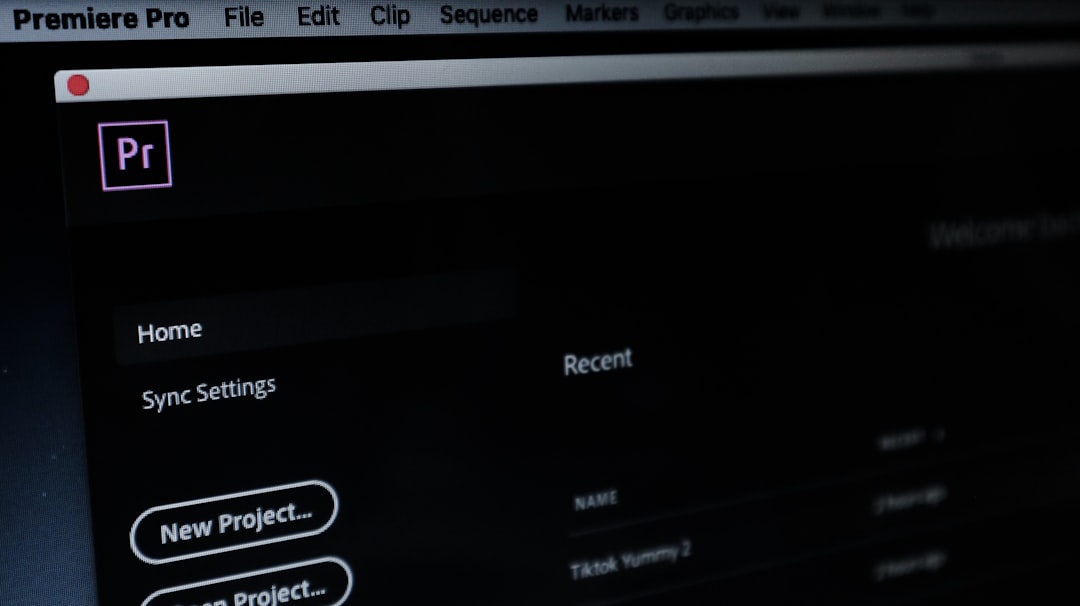
Looking around the market? Here is how the top alternatives stack up for working editors.
1. KreateFlo: Best All-in-One Native Premiere Plugin
KreateFlo is built for editors who live inside Adobe Premiere Pro. Running as a CEP extension, it gives you 33+ AI tools inside your editing panel.
Instead of paying separate subscriptions for captioning, multi-cam cuts, and audio cleanup, KreateFlo packs everything into one bill [5]. The Pro plan is $19.99/mo for 20 AI hours. Studio is $44.99/mo for 50 AI hours. And our free tier includes 3 tools (Silence Remover, Transition Assistant, Copy & Paste) forever.
2. FireCut: Good Premiere Plugin with Per-Hour AI Costs
FireCut is another native plugin option for Premiere Pro editors. It handles silence removal, captioning, and multi-cam edits smoothly on your sequence.
But according to short-form editor comparison reviews [3], FireCut relies heavily on credit packages and per-hour AI pricing. If you edit high volume every week, per-hour billing gets expensive fast compared to flat monthly tiers [1].
3. Descript: Solid Standalone NLE with Heavy Export Requirements
Descript popularized text-based video editing and remains popular with solo creators [1]. You edit video clips by cutting text out of an transcript [1].
However, as noted in AI content creation reviews [5], Descript is a standalone NLE rather than a Premiere plugin. Using it alongside Premiere requires constant XML imports, media exports, and round-tripping that disrupts complex multi-track timelines [5].
4. Vizard / Blotato: Fast Web Options for Non-Editors
Tools like Vizard and Blotato target marketers who want fast browser clip generation [2]. Vizard provides cloud rendering credits [2], while Blotato focuses on direct social media scheduling [5].
According to browser video tool comparisons [2], web apps suit non-editors who do not use dedicated NLE software [5]. But for professional editors who need precision color, audio mixing, and granular control, browser tools are far too limited [4].
Pro Tip: Protect your margins. Steer clear of plugins that bill strictly per exported clip or hit you with steep overage penalties on transcript minutes.
Actionable Takeaway: Match your tool to your setup. If you edit in Premiere Pro daily, use native panel extensions rather than web apps.
Honest Caveats: When Web Tools Are Actually Better
I use KreateFlo for all my client edits in Premiere Pro, but native extensions are not for everyone. Here is when web tools like Submagic or CapCut make more sense:
Non-Premiere Pro Editors
KreateFlo v1.0.3 is exclusively an Adobe Premiere Pro extension (CEP plugin). If you edit in Final Cut Pro, DaVinci Resolve, or CapCut Desktop, KreateFlo will not run in your NLE. Web tools like Vizard [2] or standalone apps like Descript [1] are better choices for your setup.
Quick Phone Content
Shooting quick talking-head videos on your phone to post straight to TikTok? Opening Premiere Pro is unnecessary extra work. Apps like Captions.ai [8] or web tools like Submagic [1] let you upload a raw phone clip and export captioned video in a few taps.
Actionable Takeaway: Use browser generators for casual phone clips. Keep client NLE projects inside Premiere Pro with native extensions.
Streamline Your Caption Workflow in Premiere Pro

Uploading master files to Submagic wastes editing time, bakes un-editable subtitles into your pixels, and wrecks post-production speed [1]. Switching to native Premiere Pro alternatives gives you timeline control while generating animated captions in seconds [4].
KreateFlo v1.0.3 brings CaptionFlow, Silence Remover, Multi-Cam Editor, and 30+ editing tools directly into your Premiere workspace.
Stop wasting hours on web exports. Download KreateFlo for free today to use our 3 free forever tools, or grab a Pro plan at $19.99/mo to automate your podcast edits.
Frequently Asked Questions
What is the best native Premiere Pro alternative to Submagic?
KreateFlo is currently the top native Premiere Pro alternative to Submagic [4]. It operates directly inside Premiere Pro as a CEP panel extension, offering 22 animated caption presets via CaptionFlow with real-time WASM previews, eliminating the need to render or upload files to a browser [4].
How do you generate dynamic animated captions without double rendering?
To avoid double rendering, use a native NLE extension like KreateFlo instead of a web app [4]. Native plugins generate caption graphics directly onto your Premiere Pro timeline sequence, allowing you to edit text, word timing, and underlying video cuts in real time without intermediate file exports [4].
Are there free Submagic alternatives that work directly on video timelines?
Yes, KreateFlo offers a free tier that lasts forever, including 3 core tools (Silence Remover, Transition Assistant, Copy & Paste) directly inside Premiere Pro [5]. This allows video editors to automate timeline tasks without paying up front.
Does Submagic work as an Adobe Premiere Pro extension?
No, Submagic is a standalone web browser tool [1]. You must export your video file from Premiere Pro, upload it to Submagic's website, apply captions, render the file on their server, and download the finished MP4 back to your computer [1].
Which subtitle plugin offers real-time graphic previews in Premiere Pro?
KreateFlo's CaptionFlow tool uses a WebAssembly (WASM) preview engine to display real-time graphic animations for all 22 of its caption presets inside Adobe Premiere Pro, eliminating graphic caching delays and render loops completely [4].
- ngram.com/blog/submagic-alternatives-tested
- vizard.ai/alternatives/submagic
- typito.com/blog/submagic-alternative-submagic-ai-review/
- reddit.com/r/premiere/comments/1ad0i9b/best_subtitle_generator_out_there/
- blotato.com/blog/submagic-alternatives
- zapcap.ai/blog/submagic-free-alternative/
- tiktok.com/@mehto/video/7399580181079395616
- heygen.com/blog/submagic-alternatives
Try KreateFlo free
3 tools forever, 7-day trial on the rest. No credit card to start.
Download KreateFlo