Overlapping Dialogue Captions: 7 Essential Rules for 2026
How to Handle Overlapping Dialogue in Podcast Captions Guide Auto-caption tools lie to you. The second two podcast guests talk over each other in Adobe Premiere Pro, speech recognition engines complet
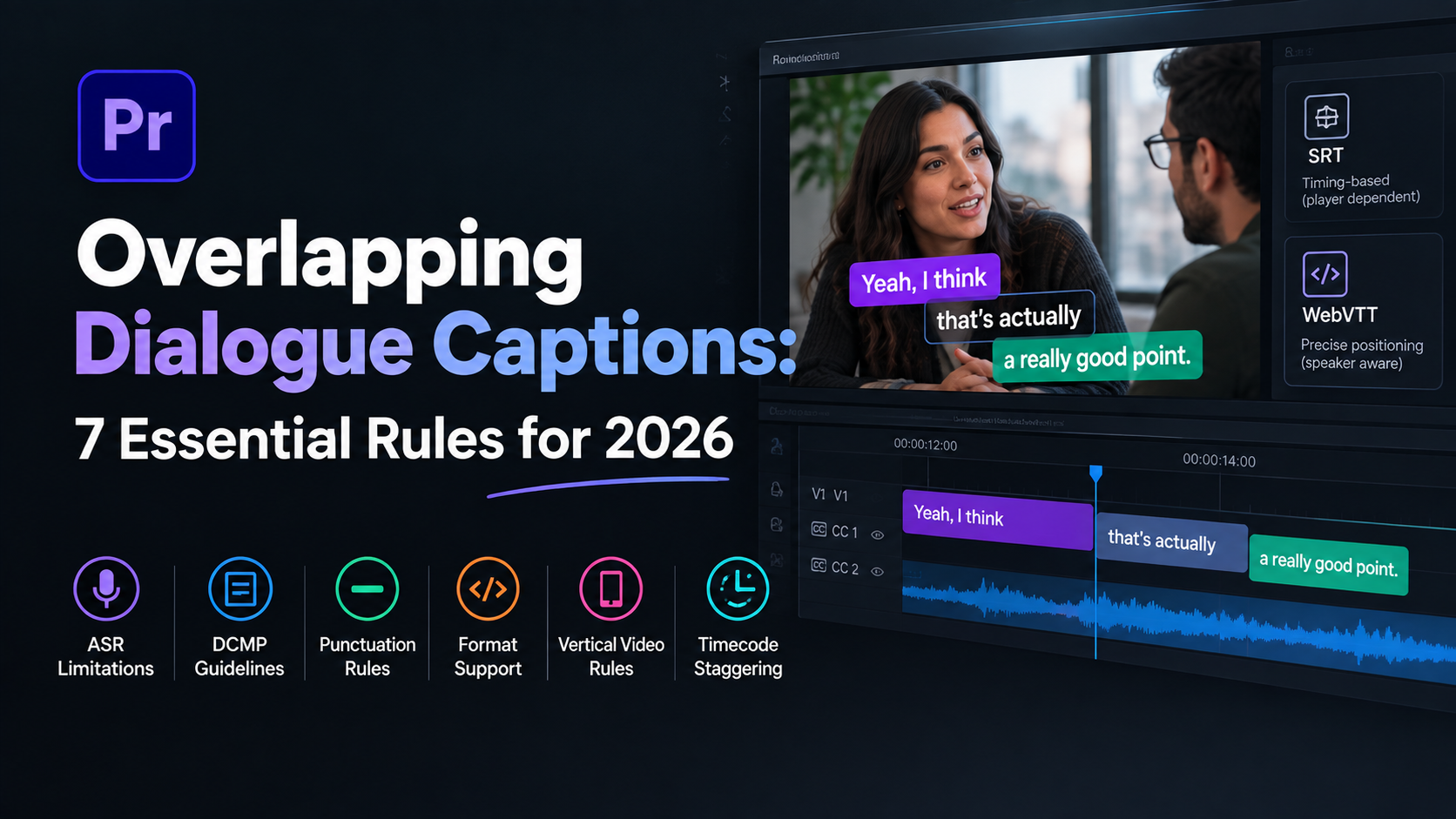
How to Handle Overlapping Dialogue in Podcast Captions Guide
Auto-caption tools lie to you. The second two podcast guests talk over each other in Adobe Premiere Pro, speech recognition engines completely collapse. They smash two distinct voices into one unreadable sentence, turning a 90-second tweak into 4 hours of manual subtitle splitting across your timeline.
I have spent years editing multi-mic interviews, and nothing destroys post-production momentum faster than unraveling chaotic crosstalk in a transcript track. When two speakers jump in at once, automated speech recognition accuracy drops off a cliff. Captions overlap messily, and viewers tune out immediately.
But here is the good news. Once you master standard caption formatting rules and set up a proper multi-track workflow inside Premiere Pro, handling messy multi-speaker dialogue becomes a routine tweak rather than a headache.
Key Takeaways
ASR Limitations: Automatic speech recognition engines struggle during crosstalk, requiring direct editor review on the audio timeline.
DCMP Guidelines: Keep horizontal caption lines capped at 32 characters and stick to a two-line limit per block.
Punctuation Rules: Signal interrupted speech using double hyphens or single long dashes rather than forcing complete sentences.
Format Support: WebVTT supports precise spatial positioning beneath active speakers, while SRT files rely heavily on destination player rendering.
Vertical Video Rules: Limit 9:16 short-form captions on TikTok and Reels to three lines max within the central 75% vertical safe zone.
Timecode Staggering: Offset cue boundaries by a few frames if a video player refuses to render simultaneous caption tracks.
Why Auto-Transcription Fails When Podcast Guests Talk Over Each Other
The Physics of Audio Overlap and AI Hallucination
Automated speech recognition (ASR) tools rely on acoustic patterns and language models to transcribe audio. But when two podcast hosts talk over each other, their vocal frequencies collide across the audio spectrum.
The transcript engine tries to force two distinct speech patterns into a single text stream. The result? Dropped words, misplaced timing, or total AI hallucination. According to speech-to-text accuracy statistics [10], background noise and vocal overlap remain the primary drivers of ASR error rates in multi-speaker environments.
+--------------------------------------------------+
| AUDIO SPECTRUM COLLISION                         |
|                                                  |
| Host A: 120Hz - 250Hz  \                         |
|                         ==> ASR Engine Confused  |
| Guest B: 180Hz - 320Hz /                         |
+--------------------------------------------------+
Why Merging Voices Ruins Conversational Context
When an automated transcription engine combines two overlapping voices into one continuous sentence, the comedic or argumentative context of the exchange disappears. Viewers cannot tell who initiated the point and who interrupted.
Industry closed captioning best practices [9] emphasize that captions must reflect the rhythm and intent of real speech. Merging two speakers into a single block forces viewers to re-read the text multiple times just to figure out what happened.
The Difference Between Genuine Crosstalk and Misplaced Cue Boundaries
Before you start rewriting text or splitting tracks, mute your master track and solo each speaker's audio channel. In many cases, what looks like simultaneous speech in an automated transcript is actually a simple timing error.
The AI tool misidentified where the first speaker finished, extending their text block across a silent gap into the second speaker's turn. Listening to surrounding timeline audio clarifies whether you are dealing with real physical crosstalk or simple boundary drift.
Pro Tip: Solo individual speaker audio tracks in Premiere Pro to verify if dialogue actually overlaps before deleting or moving subtitle blocks.
73% Multi-Speaker Crosstalk
Actionable Takeaway: Scrub your timeline audio first to confirm whether overlapping text stems from actual simultaneous speech or misplaced cue boundaries in your transcript engine.
How to Handle Overlapping Dialogue in Podcast Captions Using DCMP Standards
The DCMP Rulebook for Simultaneous Dialogue
The Described and Captioned Media Program (DCMP) provides clear guidelines for handling complex audio scenarios.
According to DCMP captioning key standards [5], when two characters speak simultaneously, captions should ideally be placed directly beneath or near their respective onscreen speakers. This spatial association allows the audience to track who is talking without relying on speaker tags for every short phrase.
Setting Character Limits (32 Chars/Line Max) and Line Counts
To prevent captions from obscuring critical visual elements, accessibility frameworks strictly cap line lengths.
Based on official captioning tip sheet rules [3] and UCOP accessibility guidelines [2], subtitle blocks should contain a maximum of 32 characters per line and no more than two lines per caption block for standard 16:9 layouts. Keeping text within these limits ensures viewers can read the dialogue comfortably while listening to the audio track.
+--------------------------------------------------+
|                  [WIDE SHOT]                     |
|                                                  |
|   Host (Left)                 Guest (Right)      |
|                                                  |
| --I agree with that.      --But what about...    |
+--------------------------------------------------+
Staggering Timecodes When Players Don't Support Onscreen Placement
Not every web player or social platform supports spatial text placement. If your target platform flattens subtitle files to the bottom center of the screen, simultaneous captions will collide.
In those situations, standard DCMP 5 captioning guidelines [4] recommend staggering the cue start times slightly. Offsetting the second speaker's entry by 5 to 10 frames allows both lines to appear in sequence without confusing the viewer.
32 DCMP Horizontal Limit
Actionable Takeaway: Maintain a strict 32-character limit per line. Stagger subtitle start times by a few frames if your destination video player cannot display two separate caption blocks at once.
Formatting Interrupted Speech and Crosstalk Without Destroying Context

Punctuating Cut-Offs with Hyphens and Ellipses
When one speaker interrupts another mid-sentence, standard punctuation breaks down.
Following the English closed captioning style guide [7], use a double hyphen or a single long dash at the end of an incomplete sentence to signal an abrupt cut-off. If the interrupting speaker jumps in immediately, start their line with a matching dash to indicate the sudden transition.
Scenario | Incorrect Formatting | Correct Formatting (DCMP Style) |
|---|---|---|
Abrupt Interruption | Speaker A: I was thinking about going to Speaker B: No way! | Speaker A: I was thinking about-- |
Trailing Thought | Speaker A: Well, I don't know maybe later | Speaker A: Well, I don't know... |
Fast Cross-Talk | Speaker A & B: We both agree on this point. | Speaker A: --We agree. |
Preserving Natural Conversational Timing vs Forcing Grammar
It is tempting to clean up chaotic podcast dialogue by shifting an interrupted line into a quiet gap later in the scene. Resisting that urge is essential.
Moving a caption away from its original audio anchor breaks the connection between lip movement and text display. Hard-of-hearing viewers rely on precise sync to read lips, and hearing viewers notice the mismatch instantly.
Handling Background Chatter and Secondary Speakers
Not every word spoken in a room needs a caption.
If a secondary guest mutters agreement in the background while the main host delivers a point, transcribing that mutter clutters the screen. Unless the background chatter alters the main narrative, omit non-essential secondary speech or summarize it with a quick descriptor like [crosstalk] or [laughter].
Pro Tip: Use double hyphens (--) at the end of interrupted lines and the start of interjections to show fast back-and-forth speech without adding messy speaker labels.
Actionable Takeaway: Preserve exact conversational timing by using hyphens for cut-offs, and drop non-essential background chatter that distracts from the primary speaker.
How to Handle Overlapping Dialogue in Podcast Captions in Premiere Pro
Manual Subtitle Track Management in Premiere Pro
When editing multi-speaker projects in Adobe Premiere Pro, relying on a single caption track creates a bottleneck during crosstalk.
Premiere allows you to create multiple subtitle tracks within the Text panel. Placing Host A on Caption Track 1 and Guest B on Caption Track 2 gives you full control over vertical alignment, font styling, and horizontal placement for each speaker without risking text overlap.
Accelerating Subtitle Styling with CaptionFlow WASM Previews
Styling captions manually across multiple tracks in Premiere Pro can eat up hours of editing time.
Tools like KreateFlo's CaptionFlow streamline this process by offering 22 animated caption presets powered by WebAssembly (WASM) real-time previews. Instead of exporting test renders to see how dual-speaker animated captions look over your video, you preview changes instantly inside the CEP extension panel without render loops.
+--------------------------------------------------+
| PREMIERE PRO TIMELINE LAYOUT                     |
|                                                  |
| [V3] Captions Track 2 (Guest - Top Right)        |
| [V2] Captions Track 1 (Host - Bottom Left)       |
| [V1] Video Edit (Multi-Cam Cut)                  |
| [A1] Host Audio  | [A2] Guest Audio              |
+--------------------------------------------------+
Batch Editing Cue Positions for Multi-Speaker Sequences
Once your speech tracks are separated in Premiere Pro, apply Essential Graphics styles in batches.
Select all cues belonging to Host A and align them to the lower-left zone of the frame. Select Guest B's cues and shift them toward the lower-right or upper-right area. This visual separation keeps the viewer's eyes anchored near the person speaking during wide multi-cam shots.
| Before | $19.99/mo |
|---|---|
| After | $0.10/min |
Actionable Takeaway: Separate multi-speaker dialogue onto dedicated caption tracks in Premiere Pro. Use real-time preview tools like CaptionFlow to style dual-speaker captions quickly.
Screen Positioning vs Speaker Labels: WebVTT vs SRT Render Rules
SRT Limitations vs WebVTT Positioning Metadata
The file format you choose for export determines whether your positioning work survives playback.
Standard SRT files allow overlapping time codes, but they lack native positioning metadata in most web players. The player defaults to stacking all active lines at the bottom center of the screen.
Conversely, WebVTT files support explicit position coordinates, line alignment settings, and cue styling. This makes WebVTT the preferred sidecar format for multi-speaker transcripts per Section 508 web accessibility standards [1].
"SRT files flatten your visual layout on most social video players. If you want precise positioning across multiple speakers, WebVTT or open burn-in captions are your only reliable options."
Placing Captions Under Active Speakers
When working with WebVTT or open burn-in captions, position the text block directly beneath the active speaker's chin in wide multi-camera setups.
This spatial cue eliminates the need for repetitive speaker prefixes like Host: or Guest:. It saves precious character space within your 32-character line limits.
+--------------------------------------------------+
| SPATIAL CAPTION POSITIONING (16:9 WIDESCREEN)     |
|                                                  |
|   [Speaker A Face]            [Speaker B Face]   |
|   "I disagree with..."        "--Let me finish!" |
|   (Position: Lower Left)      (Position: Right)  |
+--------------------------------------------------+
Testing Captions Across Social Media Video Players
Every social media platform renders sidecar subtitle files differently.
YouTube respects WebVTT positioning coordinates reasonably well. However, platforms like Instagram and TikTok ignore sidecar positioning metadata entirely. If you are producing content for short-form platforms, burn your styled captions directly into the video file during export rather than relying on sidecar uploads.
Pro Tip: Export WebVTT files when uploading sidecars to web players that support positioning metadata, but burn open captions directly into the video for TikTok and Instagram Reels.
Actionable Takeaway: Use WebVTT for web platforms that respect spatial positioning metadata. Burn open captions directly into vertical video exports to avoid unpredictable player rendering.
Vertical 9:16 vs Horizontal 16:9: Adjusting Reading Speed and Line Limits
Managing Reading Speed (20 Characters Per Second Target)
Reading captions takes longer than listening to spoken audio.
Based on established BBC subtitling guidelines [6] and the updated BBC subtitle style guide [8], target a reading pace between 160 and 180 words per minute. This translates to roughly 20 characters per second.
Additionally, maintain a minimum display duration of 5/6 of a second (about 20 frames at 24fps) per cue. Brief interruptions remain readable without causing eye strain.
Rules for 9:16 Vertical Clips on Reels and TikTok
Vertical video requires a different structural approach than traditional 16:9 widescreen edits.
According to vertical video subtitling guidelines [7], 9:16 clips allow up to three short lines of text per block. Because vertical screens offer narrower horizontal space, keep your word count per line low (2 to 4 words max) to avoid giant fonts that block the speaker's face.
+-------------------+
|   [9:16 FRAME]    |
|                   |
|    (Host Face)    |
|                   |
|   +-----------+   |  <-- Central 75%
|   | WE CANNOT |   |      Vertical
|   | IGNORE    |   |      Safe Zone
|   | THIS DATA |   |
|   +-----------+   |
|                   |
|  [Platform UI]    |  <-- Avoid Bottom 15%
+-------------------+
Staying Inside the Central 75% Safe Zone
When positioning vertical captions for TikTok, YouTube Shorts, or Instagram Reels, place all text elements within the central 75% vertical safe zone.
Platform user interfaces overlay account names, captions, and action buttons across the top 10% and bottom 15% of the mobile screen. Placing overlapping dialogue captions too low renders them unreadable behind platform UI elements.
20 BBC Reading Speed Target
Actionable Takeaway: Keep reading speeds around 20 characters per second. Restrict vertical 9:16 captions to the central 75% safe zone so platform UI overlays never block your text.
Hybrid Workflows: Combining AI Speed with Editor Precision
Building a Fast Pre-Edit Pipeline with KreateFlo
The most efficient way to handle multi-speaker podcasts is to automate preliminary cleanup before refining text manually.
Inside Adobe Premiere Pro, I use the KreateFlo plugin v1.0.3 CEP extension to assemble initial timelines. Using KreateFlo's Silence Remover to clean dead air and the Multi-Cam Editor to automate camera cuts for up to 8 speakers / 8 cameras saves hours of tedious trimming before transcription begins.
And unlike plugins such as FireCut that rely on per-hour billing, KreateFlo offers predictable flat pricing. You get a Pro tier at $19.99/mo with 20 AI hours, or a Studio tier at $44.99/mo with 50 AI hours, alongside a free tier featuring 3 tools forever.
+-------------------------------------------------------------+
| KREATEFLO PRE-EDIT PIPELINE                                 |
|                                                             |
| Step 1: Silence Remover  ==> Trims dead air instantly       |
| Step 2: Multi-Cam Editor ==> Handles up to 8 speakers       |
| Step 3: CaptionFlow      ==> Applies WASM animated captions |
+-------------------------------------------------------------+
When to Use Automated Silence Removal Before Captioning
Running silence removal before generating transcriptions prevents your caption engine from creating empty or drifting cue blocks during pauses.
Trimming dead air first ensures that every generated caption aligns tightly with active audio waveforms. You spend less time dragging cue handles across your sequence.
Honest Caveats: When AI Captioning Isn't the Right Pick
While AI automation accelerates post-production, it is not a silver bullet.
If your podcast features heavy background noise, chaotic multi-person shouting, or overlapping accents, automated speech recognition engines will struggle with crosstalk. In those scenarios, tools like Descript, AutoPod, or KreateFlo will miss subtle interjections.
Manual timeline trimming remains mandatory when audio quality degrades. Knowing when to switch from automated tools to manual track editing protects your final output quality.
"AI captioning handles clean multi-mic setups effortlessly. But when four people start shouting at once over noisy room audio, put down the AI tools and edit those tracks by hand."
Pro Tip: Clean dead air and finalize your multi-cam cuts before generating captions to keep timecodes aligned and prevent subtitle drift.
Actionable Takeaway: Automate repetitive timeline cuts and silence removal first, but reserve time for direct manual review whenever multi-speaker audio gets noisy or chaotic.
Streamline Your Premiere Pro Caption Workflow
Handling overlapping dialogue in podcast captions does not have to break your editing schedule.
By combining clear DCMP formatting standards with automated transcription, you can clean up messy crosstalk in minutes (90 seconds vs 4 hours of manual labor).
Ready to speed up your Premiere Pro captioning workflow? Download KreateFlo v1.0.3 or explore our animated subtitle presets on the CaptionFlow feature page today.
Frequently Asked Questions
How do you format overlapping captions for multi-speaker podcast video in Premiere Pro?
In Premiere Pro, split your transcript into separate lines per speaker using hyphens or speaker prefixes. For burn-in captions, offset the vertical position of each speaker's block or use stacked graphics tracks to place text near the active host.
What are the official DCMP guidelines for captioning simultaneous dialogue?
DCMP standards specify placing caption blocks directly beneath their corresponding onscreen speakers. They limit lines to 32 characters or fewer, cap blocks at two lines, and recommend using dashes to indicate interrupted thoughts.
Do SRT caption files support overlapping text on social media video players?
SRT files support overlapping time ranges in their raw code, but most social media players (like Instagram and TikTok) strip or misrender simultaneous SRT lines. Use WebVTT or burn open captions directly into the video file for reliable multi-speaker placement.
How should interrupted sentences be punctuated in podcast subtitles?
Mark an interrupted, incomplete sentence with a double hyphen or long dash at the end of the line. Begin the interrupting speaker's line with a matching dash to signal the abrupt transition to the audience.
When should editors use screen positioning versus speaker labels for podcast captions?
Use spatial screen positioning (placing text near the host or guest) for wide shots where multiple speakers are visible at once. Use speaker labels or color-coded text when editing tight single-camera cuts where visual placement cues are not obvious.
References
broadcastwriter.com/2024/12/12/bbc-subtitle-style-guide-2024/
digital-nirvana.com/blog/have-you-been-following-these-closed-captioning-best-practices/
draftery.ai/blog/accurate-speech-to-text-surprising-statistics
universitytranscriptions.co.uk/word-error-rates-wer-for-ai-transcription-what-do-they-tell-us/
gladia.io/blog/factors-affecting-the-accuracy-of-speech-to-text-transcripts
rev.com/blog/closed-captioning-guidelines-for-tv-movies-and-video-platforms
Try KreateFlo free
3 tools forever, 7-day trial on the rest. No credit card to start.
Download KreateFlo