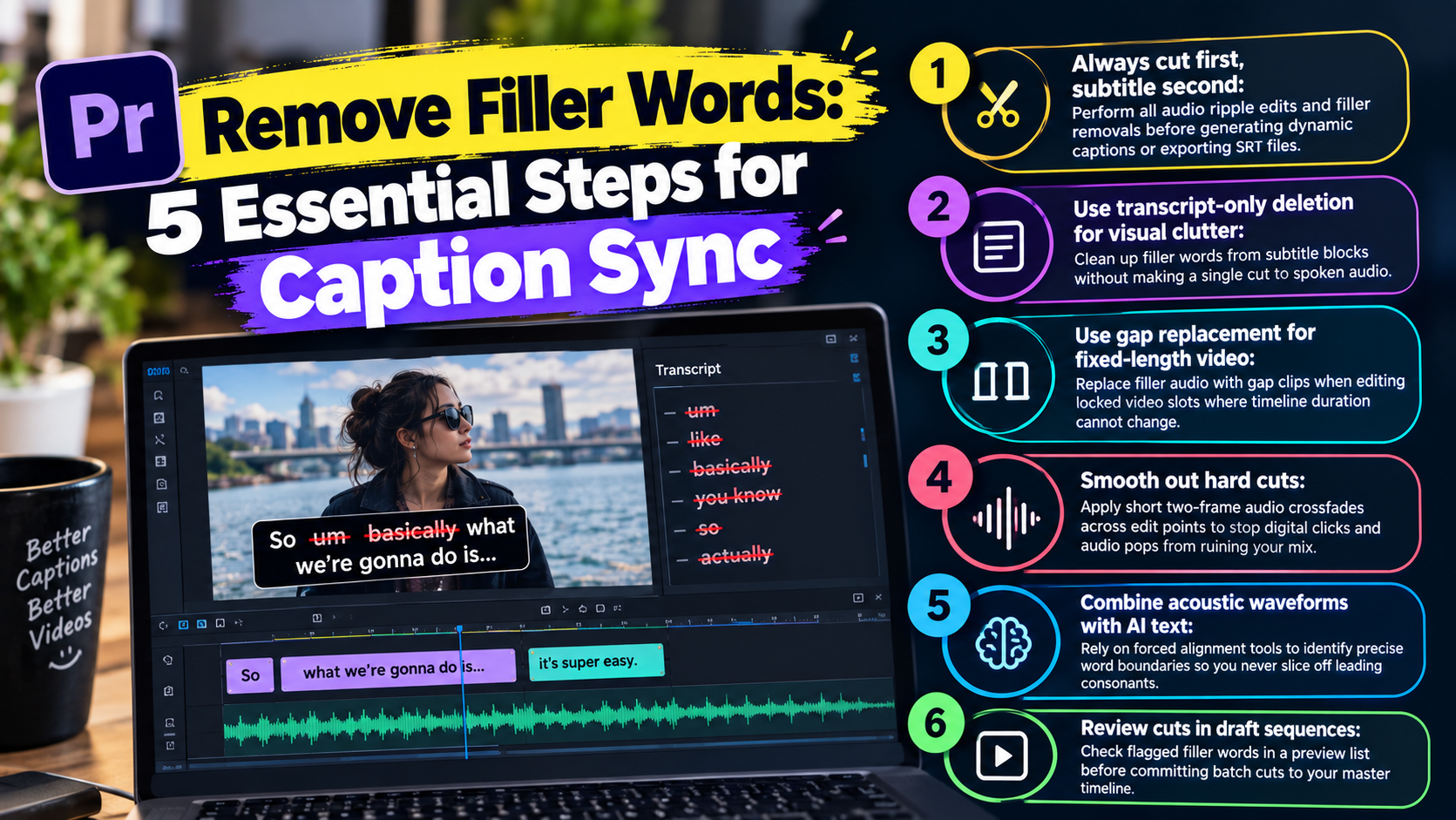
Remove Filler Words: 5 Essential Steps for Caption Sync
If you batch-delete every single "um" and "uh" from a two-hour podcast timeline in Adobe Premiere Pro, you haven't saved time. You've created a four-hour caption sync nightmare. Deleting every vocal h
If you batch-delete every single "um" and "uh" from a two-hour podcast timeline in Adobe Premiere Pro, you haven't saved time. You've created a four-hour caption sync nightmare.
Deleting every vocal hiccup manually makes your speakers sound like glitched robots. Running aggressive automated ripple deletes pushes your subtitle track completely out of alignment. I learned this the hard way. I spent an entire Sunday afternoon re-aligning 45 minutes of captions line-by-line because I ran a bulk cut after generating my subtitles.
The secret to clean speech isn't removing every pause. It comes down to knowing when to cut the audio track, when to edit only the subtitle transcript, and how to automate the heavy lifting directly inside Premiere Pro without breaking your sequence timing.
Here is how I cut my timeline cleanup down from 90 minutes to 10 minutes per episode while keeping captions pixel-perfect.
Key Takeaways
- Always cut first, subtitle second: Perform all audio ripple edits and filler removals before generating dynamic captions or exporting SRT files.
- Use transcript-only deletion for visual clutter: Clean up filler words from subtitle blocks without making a single cut to spoken audio.
- Use gap replacement for fixed-length video: Replace filler audio with gap clips when editing locked video slots where timeline duration cannot change.
- Smooth out hard cuts: Apply short two-frame audio crossfades across edit points to stop digital clicks and audio pops from ruining your mix.
- Combine acoustic waveforms with AI text: Rely on forced alignment tools to identify precise word boundaries so you never slice off leading consonants.
- Review cuts in draft sequences: Check flagged filler words in a preview list before committing batch cuts to your master timeline.
Why Batch-Deleting Filler Words Breaks Your Subtitle Track
Every video editor who handles long-form interviews eventually hits the same wall. You transcribe your audio, generate animated captions, and then realize the host said "you know" forty times in ten minutes.
You hit batch delete on those filler words. Suddenly, every subtitle block after minute three appears two seconds before the speaker opens their mouth.
Here's why this happens. When you execute a traditional ripple edit on an audio track, Premiere Pro pulls all subsequent timeline media backward by the exact duration of the removed clip. If your subtitle blocks live on a separate caption track or essential graphics track that wasn't locked or selected during the cut, those blocks stay anchored to their original timecodes.
90% automated filler removal
The Cause of Caption Drift in NLE Timelines
Caption drift happens because non-linear editors treat text layers as discrete visual clips anchored to absolute sequence timecodes.
According to industry testing on automated filler word removers [1], AI tools detect and flag spoken hesitations with 85 to 95 percent accuracy. But if those cuts occur after captions exist, every single ripple delete shortens the underlying media track while leaving the text duration intact [1].
[Original Timeline]
Audio:   |--- "Um" ---|--- "Welcome to the show" ---|
Caption:              |--- "Welcome to the show" ---| (Timecode: 00:02 - 00:05)

[After Unsynchronized Ripple Edit]
Audio:   |--- "Welcome to the show" ---| (Timecode: 00:00 - 00:03)
Caption:              |--- "Welcome to the show" ---| (Timecode: 00:02 - 00:05) -> OUT OF SYNC
When you remove thirty 500-millisecond pauses across a sequence, you shift the audio backward by 15 full seconds. Your text track stays where it was.
The result? Captions that run far ahead of the spoken word.
Modern waveform precision editing tools [4] resolve this by analyzing audio waveforms alongside speech transcripts. This ensures exported SRT caption files remain synchronized in NLEs like Premiere Pro, Final Cut, and DaVinci Resolve [4].
Over-Editing Kills Conversational Flow
Beyond broken timing, hyper-aggressive editing ruins natural human cadence. When editors delete every micro-pause and vocal clearing, the speaker loses their natural speech rhythm.
So what goes wrong when you over-edit?
- Robotic delivery: Humans need breathing room. Removing every 100ms pause makes interviewees sound hyperventilated.
- Audio popping: Cutting directly on a vocal waveform without crossfades leaves abrupt voltage drops that sound like static pops.
- Visual jump cuts: On single-camera video tracks, cutting a one-word filler creates a subtle head-twitch that draws the viewer's eye straight to the edit.
The goal isn't to purge every breath. The goal is to eliminate distracting hesitations while keeping the speaker sounding articulate and natural.
Pro Tip: If an "um" occurs mid-sentence while the speaker is making a thoughtful point, leave it in or use a transcript-only edit. Only cut audio filler when the hesitation stretches past 400 milliseconds or disrupts sentence structure.
Actionable Takeaway: Never generate final burned-in dynamic captions or export SRT files until your physical audio cuts and ripple edits are completely finalized.
How to Remove Filler Words Without Ruining Caption Timing: Audio vs Transcript Edits
Not all filler word removals require cutting your sequence timeline. As an editor, you have three distinct methods for dealing with vocal clutter. The right choice depends on whether you edit for audio pacing, subtitle readability, or fixed broadcast durations.
| Edit Method | Modifies Audio Track? | Modifies Video Length? | Changes Caption Text? | Primary Use Case |
|---|---|---|---|---|
| Audio Ripple Delete | Yes | Yes (Shortens sequence) | Yes (Re-time required) | Speeding up slow interviews and removing dead air |
| Transcript-Only Removal | No | No | Yes | Cleaning up cluttered subtitles for fast reading |
| Delete and Replace with Gap | Yes | No (Pushes blank space) | Yes | Commercial spots and fixed-duration video blocks |
Transcript-Only Removal for
Sometimes a speaker says "like" five times in a sentence, but their spoken delivery sounds completely natural. Cutting those words out of the audio timeline requires five awkward jump cuts on video.
In these situations, use transcript-only removal. As documented in Descript's script editing guides [2], transcript-only controls allow editors to strip filler words from visual captions while keeping the underlying audio track untouched [2].
You get clean, readable subtitles on screen. It is perfect for mobile viewers reading along on silent devices without introducing jarring audio cuts or video head twitches [3].
Audio Timeline Removal for Speeding Up Delivery
When a speaker rambles, struggles to recall a term, or fills space with long "uhhhh" sounds, you need a physical audio edit. Removing these sections reduces sequence runtime and tightens the overall video pace.
Workflows outlined by Cutback Video's automation guides [5] show how AI plugins execute ripple edits on timeline media tracks to close the gap left by deleted audio automatically [5].
To prevent caption sync failure during audio timeline edits, you must use an NLE plugin that calculates word-level timecode shifts in real time. Or, simply execute all ripple cuts before generating your caption track.
Delete and Replace with Gap for Fixed-Duration Videos
If you edit an ad spot, a YouTube Short locked to 60 seconds, or a broadcast segment, you cannot allow ripple edits to alter your sequence duration.
Using gap preservation techniques—such as the "Delete and replace with gap" functions found in advanced transcript editing software [2]—replaces deleted filler speech with blank gap clips [2].
This silences the vocal distraction. It also keeps your video edit points locked on the master sequence timeline.
| Before | 90 mins |
|---|---|
| After | 10 mins |
Actionable Takeaway: Use transcript-only removal when spoken audio sounds fine but onscreen text looks cluttered. Use gap replacement whenever your total video runtime is strictly locked.
How to Remove Filler Words Without Ruining Caption Timing Using KreateFlo in Premiere Pro

Round-tripping your video files out to external web applications or separate desktop apps wastes hours on rendering, exporting, and re-importing XML files.
Every time you push media back and forth, you risk losing nested sequences, color grades, and custom audio track routing.
We built KreateFlo directly as an Adobe Premiere Pro CEP extension to fix that fragmented workflow. You get 33+ tools inside a single panel right inside Premiere.
+-------------------------------------------------------+
| Adobe Premiere Pro CC                                 |
| +-----------------------+ +-------------------------+ |
| | Sequence Monitor      | | KreateFlo Extension Panel| |
| |                       | | [Silence Remover]       | |
| |                       | | [CaptionFlow Engine]    | |
| |                       | | [Multi-Cam Engine]      | |
| +-----------------------+ +-------------------------+ |
| +---------------------------------------------------+ |
| | Timeline / Audio Tracks                           | |
| +---------------------------------------------------+ |
+-------------------------------------------------------+
Setting Up KreateFlo v1.0.3 Inside Premiere Pro
Setting up KreateFlo v1.0.3 doesn't require complex script installations or external server bridges. Here is the process:
- Open Adobe Premiere Pro and open your project.
- Navigate to
Window>Extensions>KreateFlo. - Log in to your KreateFlo account.
- Select your target sequence in the Premiere Pro timeline.
Our free tier includes three permanent tools: Silence Remover, Transition Assistant, and Copy & Paste.
If you need full AI transcript cleanup and multi-cam editing, our Pro plan ($19.99/mo with 20 AI hours) or Studio plan ($44.99/mo with 50 AI hours) hooks directly into your sequence tracks without per-hour overage surprises.
Using Waveform-Plus-Transcript AI to Catch Tricky Hesitations
Basic text-based editors rely solely on speech-to-text engines.
Here's the problem. Speech-to-text models guess where words start and end based on statistical language patterns. That often leads to cutting off the first "T" sound in "Today" when it follows an "um."
KreateFlo solves this by combining AI transcription with acoustic waveform analysis. By integrating high-precision timecoding techniques like Whisper-timestamped audio processing [10] and forced alignment acoustic mapping [8], the plugin identifies the exact silence padding before and after every spoken syllable [8, 10].
This prevents accidental word clipping. It ensures your cuts land cleanly on absolute zero-crossings in the audio waveform.
Previewing Cuts in Draft Sequences Before Applying Ripple Edits
Never perform batch operations on your primary master sequence without a safety net.
As highlighted in EchoWave's audio editing workflows [6], professional editors always preview proposed edits in draft sequences or review lists before committing ripple deletions [6].
In KreateFlo, you can scan your sequence and view every flagged "um," "uh," "like," and "you know" in an interactive preview list.
[KreateFlo Preview List]
[X] 00:01:12 - "um" (Duration: 0.4s) --> [Preview Cut]
[ ] 00:02:45 - "you know" (Duration: 0.8s) --> UNCHECKED (Preserved for emphasis)
[X] 00:04:18 - "uh" (Duration: 0.6s) --> [Preview Cut]
You can uncheck specific instances where a speaker used "you know" for dramatic emphasis. Then test the cut playback instantly, and hit apply only when you are satisfied with the speech pacing.
Pro Tip: Always keep a duplicate of your main sequence (like Episode_01_RAW and Episode_01_CLEAN) before running any batch ripple edit tool.
Actionable Takeaway: Scan and preview your sequence in KreateFlo first to uncheck intentional speaker pauses before applying global ripple edits to your master timeline.
Step-by-Step: Removing Spoken Fillers While Keeping Video Pacing Intact
Here is the exact step-by-step workflow I use to clean up multi-speaker interviews in Premiere Pro without breaking timeline synchronization.
Step 1: Run AI Filler Word Detection
Open your master sequence containing your synchronized audio tracks. If you edit an interview with separate host and guest mics, select both tracks.
Using multi-track speech processing algorithms like those detailed in Async's filler word analysis guides [7], automated detection systems identify overlapping hesitations across independent audio channels [7].
In KreateFlo, hit Detect Fillers. The engine transcribes the audio across 40+ supported languages—including Bangla and Hindi—and highlights every vocal tic along your timeline.
Step 2: Filter Speaker Tics and Custom Words
Every speaker has a unique verbal crutch. Host A might repeat "basically," while Guest B says "right?" at the end of every sentence.
- Select pre-set categories: "Ums & Uhs," "Repeated Words," or "Stutters."
- Add custom words to the filter box (e.g., "literally," "honestly").
- Adjust detection sensitivity sliders: set hesitation duration thresholds (e.g., only flag pauses longer than 300ms).
For speech models using local timestamped tools like EasyTranscriber processing engines [9], word boundary detection operates with millisecond accuracy, giving you precise control over cut start and end points [9].
Step 3: Execute Precise Timeline Edits
Once your preview list is configured, choose your execution mode:
- Ripple Delete: Cuts the filler audio and video, shifting all subsequent clips forward.
- Mute & Pad: Replaces the vocal tic with quiet room tone padding while leaving video duration untouched.
- Marker Mode: Places color-coded sequence markers at every filler location so you can review edits manually.
Click Apply Edits. KreateFlo processes a 60-minute timeline in about 90 seconds. It performs hundreds of surgical cuts across your media tracks automatically.
Actionable Takeaway: Customize your filter list per speaker to avoid accidentally removing words that are part of the core conversation.
Preventing Audio Pops and Visual Jump Cuts on Ripple Edits
Executing fifty quick cuts on an audio track creates two major quality issues:
If you don't fix these, your final video will look and sound unpolished regardless of how articulate the speaker is.
Applying Automated Crossfades Across Edit Points
When an audio waveform is cut abruptly at a point where the wave isn't at zero amplitude, your speakers emit a digital "pop" or "click."
To fix this manually in Premiere Pro, you would have to select every single edit point on A1 and A2 and apply a Constant Power crossfade. That is a tedious process on long timelines.
[Hard Cut - Causes Audio Pop]
Waveform: ~~~~|\____ (Abrupt voltage drop at cut)

[Crossfaded Cut - Smooth Audio Transition]
Waveform: ~~~~\____ (2-frame linear crossfade)
KreateFlo handles this automatically during the deletion pass by applying customizable 2-frame audio crossfades across every edit boundary. This softens the transition between clips and ensures smooth, natural-sounding audio background decay.
Hiding Jump Cuts with Multi-Cam Swaps or B-Roll
Removing a two-second "uhhhh" from a single-camera shot results in a visual jump cut where the speaker's head snaps to a new position.
You can hide these visual edits using two main strategies:
- Multi-Cam Angle Switching: If you edit multi-cam podcasts, switch the video angle to the second speaker or a wide shot right over the cut point. KreateFlo's built-in Multi-Cam Editor handles up to 8 speakers and 8 camera angles, automatically switching angles based on who is speaking while maintaining dedicated wide shots.
- B-Roll and Text Overlays: On single-camera footage, insert relevant B-roll clips, stock footage, or lower-third graphic callouts across jump cuts to mask the visual transition seamlessly. Learn how to optimize your multi-cam podcast editing workflow to handle camera cuts faster.
Pro Tip: If you don't have B-roll or a second camera angle to hide a jump cut on single-cam footage, apply a subtle 2% scale push-in (e.g., 100% to 102%) on the second clip to make the edit look like an intentional camera cut.
Actionable Takeaway: Always pair audio ripple edits with automatic crossfades and multi-cam switches to eliminate
Exporting SRT Captions After Timeline Cleanups

Now that your sequence timeline is fully trimmed, tightened, and polished, you can generate dynamic subtitles without worrying about caption drift or out-of-sync text.
Order of Operations: Cut First, Subtitle Second
The golden rule of video editing remains unchanged: Complete your picture lock and audio edit before generating subtitle tracks.
[[TIMELINE:1:Raw Audio Import|2:AI Filler & Silence Removal|3:Multi-Cam Angle Switching|4:Dynamic Caption Generation:Standard Podcast Editing Order]]
By following this order of operations:
- Import raw audio and video files.
- Run KreateFlo Silence Remover and Filler Word removal.
- Apply multi-cam edits and clean up jump cuts.
- Generate dynamic captions or export SRT files.
Because your sequence timing is now locked, every word generated by the speech engine matches the exact timecode of your finalized master tracks.
Generating Dynamic Subtitles with CaptionFlow
Once your timeline is set, open CaptionFlow inside the KreateFlo extension panel.
Rather than relying on Premiere Pro's basic subtitle tools, CaptionFlow offers 22 animated caption presets engineered for YouTube Shorts, Instagram Reels, and TikTok clips.
[CaptionFlow Engine]
+-------------------------------------------------------+
| Preset: "Hormozi Style" [Selected]                    |
| Real-Time WASM Preview: Active                         |
| Words Per Line: [ 2 ]                                 |
| Animation: Pop-Up / Word Highlight                    |
+-------------------------------------------------------+
Because CaptionFlow features a WebAssembly (WASM) real-time preview engine inside Premiere Pro, you can customize fonts, highlight colors, and word animations instantly without waiting through render-to-see-changes playback loops. When exported, your SRT or sidecar caption files remain pixel-perfect across all platforms.
Actionable Takeaway: Lock your picture edit completely before running CaptionFlow to ensure 100% accurate timecodes on exported subtitle files.
KreateFlo vs Descript and FireCut: Choosing the Right Workflow
Selecting the right editing plugin comes down to how you prefer to build your sequence and how much you are willing to pay per month.
| Feature / Metric | KreateFlo | Descript | FireCut |
|---|---|---|---|
| Platform Integration | Native Premiere Pro Plugin (CEP) | Standalone External Web/Desktop App | Native Premiere Pro Plugin |
| Pricing Model | Flat $19.99/mo (Pro) or $44.99/mo (Studio) | $12-$24/mo per user (Seat limits) | Per-hour usage billing |
| Free Tier | 3 tools free forever | Limited trial minutes | Limited free trial |
| Multi-Cam Support | Up to 8 speakers / 8 cameras | Text-based multi-track | Basic speaker switching |
| Caption Presets | 22 WASM Real-Time Animated Presets | Standard animated captions | Basic subtitle styling |
| Offline Performance | Runs natively inside Premiere | Requires media uploading/cloud sync | Runs inside Premiere |
Standalone Web Apps vs Native Premiere Pro Plugins
Tools like Descript popularized text-based editing, but they require you to upload your raw footage to cloud servers. Then you perform edits in a separate interface, and export XML or EDL files back to Premiere Pro.
This round-trip process often strips nested sequences, breaks custom audio track routing, and creates file relinking errors.
Native CEP plugins like KreateFlo and FireCut run directly inside your host application. You never leave your timeline, your original media files stay where they belong on your local drives, and your sequence structure remains intact.
Pricing and Value Comparison
Cost structure is another major differentiator. FireCut relies heavily on per-hour usage billing, which escalates quickly if you edit multiple hours of long-form podcasts each week. A 10-hour editing week can run up heavy usage charges fast.
Descript charges per user seat and limits cloud storage and transcription hours based on tiered subscriptions.
KreateFlo keeps pricing straightforward:
- Free Tier: 3 tools free forever (Silence Remover, Transition Assistant, Copy & Paste).
- Pro Plan: $19.99/mo with 20 AI hours included.
- Studio Plan: $44.99/mo with 50 AI hours included.
Honest Caveat: When KreateFlo Is NOT the Right Pick
We want KreateFlo to be the best tool for timeline editors, but it isn't the right choice for everyone:
- If you do not use Adobe Premiere Pro: KreateFlo is strictly a CEP plugin for Premiere Pro. If you edit exclusively in DaVinci Resolve or Final Cut Pro, a standalone web app like Descript or Opus Clip is a better fit.
- If you want a full cloud-based DAW: If you prefer editing podcasts entirely in a browser without touching an NLE timeline, KreateFlo is not designed for you.
- If you need text-based storyboarding before editing: If your workflow requires non-editors (like producers or writers) to highlight text in a browser to generate a rough script, external browser apps suit that collaborative workflow better.
For professional editors who live inside Premiere Pro every day, KreateFlo puts all 33+ workflow tools right where you need them.
Actionable Takeaway: Pick native NLE plugins like KreateFlo to keep your timeline routing intact, and avoid per-hour billing tools if you handle high volumes of long-form podcast content.
Conclusion

Removing filler words from your videos doesn't have to mean spending half your editing shift re-syncing subtitle blocks, re-aligning text timecodes, and fixing harsh audio pops.
By following a strict order of operations—cutting your main timeline audio before generating captions, or using transcript-only
Ready to streamline your Premiere Pro editing workflow? Download KreateFlo today to try our free silence and filler removal tools natively inside your sequence timeline.
Frequently Asked Questions
How do I remove filler words in Premiere Pro without breaking caption sync?
Perform all audio and video ripple edits first before generating dynamic captions [4]. If you already have existing text on your timeline, use transcript-only removal to edit the subtitle text while leaving spoken audio tracks completely untouched [2].
Should I delete filler words from audio or just from transcript captions?
Delete filler words from audio when the speaker's delivery is noticeably slow, rambling, or full of distracting hesitations [5]. Edit only the transcript when spoken speech sounds natural but visual captions look cluttered for fast reading on mobile devices [3].
What is the difference between deleting filler words and removing them from transcripts?
Deleting filler words performs ripple cuts on your actual timeline media tracks, changing overall video length and speech timing [5]. Removing them from transcripts
Why do subtitles get out of sync after removing silences and filler words?
Subtitles desync because traditional ripple edits shorten physical media track durations without automatically shifting pre-existing caption layers or essential graphic blocks to match the new timeline timecodes [1, 4].
How do AI plugins keep captions aligned when making timeline ripple edits?
AI plugins analyze acoustic waveforms and transcription timecodes simultaneously [8, 10]. When you execute cuts before generating subtitles, or use plugins that programmatically track word-level timecode shifts inside Premiere Pro, text tracks update dynamically to stay aligned [4, 6].
References
- opus.pro/blog/best-filler-word-removers
- help.descript.com/script-editing/filler-words
- youtube.com/shorts/UH34gdS0m54
- youtube.com/watch
- cutback.video/blog/how-to-automatically-remove-filler-words-in-premiere-pro-using-ai
- echowave.io/tools/remove-filler-words/
- async.com/tools/filler-word-detection
- versely.studio/glossary/forced-alignment
- kb-labb.github.io/posts/2026-02-26-easytranscriber/
- github.com/linto-ai/whisper-timestamped
- forasoft.com/learn/ai-for-video-engineering/glossary/terms-ai/word-level-timestamps
- research.adobe.com/publication/filler-word-detection-and-classification-a-dataset-and-benchmark/
- whispertranscribe.com/blog/best-speech-recognition-software
- opus.pro/tools/remove-filler-words-from-video
- timebolt.io/blog/ai-video-editor-showdown-timebolt-vs-descript-vs-loom-real-test-results
- vizard.ai/blog/top-10-ai-caption-and-transcription-tools-in-2025
- blitzcutai.com/blog/premiere-pro-text-based-editing-filler-words
- vexascribe.com/compare/best-subtitle-generation-tools
- gling.ai/blog/removing-filler-words-guide
- support.limecraft.com/support/solutions/articles/48001281700-remove-disfluencies-or-filler-words-in-audio-transcription
- checksub.com/blog/how-create-optimize-remove-subtitle-timecode
- vidio.ai/blog/article/is-there-a-way-to-automatically-remove-filler-words-and-awkward-pauses-across-multiple-clips-in-camtasia
Try KreateFlo free
3 tools forever, 7-day trial on the rest. No credit card to start.
Download KreateFlo