KreateFlo vs FireCut: Ultimate 2026 Comparison Guide
Most AI editing tools do not actually save you time; they just trade physical clicking on your timeline for mental exhaustion as you wait on buggy cloud renders. If you edit client podcasts in Adobe P
Most AI editing tools do not actually save you time; they just trade physical clicking on your timeline for mental exhaustion as you wait on buggy cloud renders. If you edit client podcasts in Adobe Premiere Pro every single day, you know that keeping your hands on the keyboard is the only way to preserve your sanity and hit your deadlines.
Why stack six to eight single-purpose utility plugins when you can run a single panel that does it all? Let's be honest. Stacking single-purpose tools clutters your workspace. It kills your system memory. And it drains your bank account with recurring fees.
Key Takeaways
- KreateFlo v1.0.3 operates exclusively as a native CEP panel for Adobe Premiere Pro, keeping your edits local [3].
- FireCut supports both Premiere Pro and DaVinci Resolve, making it the better choice for cross-platform editors [7].
- CaptionFlow utilizes a WASM engine for instant, real-time previews of 22 animated presets without requiring a render loop [3].
- Pricing advantages favor KreateFlo's entry-tier Pro plan at $19.99/mo for 20 AI hours, alongside its 3-tool free forever plan [3].
- Multi-cam switching in KreateFlo supports up to 8 speaker angles with dedicated wide-shot fallbacks [3], while FireCut relies on standard multi-track setups [7].
Kreateflo vs Firecut: Full Feature Breakdown: Which Wins?
The Battle of the Premiere Pro Panels
When you are staring at a tight client deadline, every mouse click matters. If you are forced to bounce between a browser window and your timeline, your focus breaks. I have tried working with external, cloud-based automatic clipping tools. But the constant uploading and downloading felt like death by a thousand cuts.
This is the primary battleground between KreateFlo and FireCut. Both tools aim to solve this issue by nesting their features directly inside Adobe Premiere Pro. However, their development philosophies differ. KreateFlo v1.0.3 focuses deeply on consolidating your entire post-production toolkit [3]. It bundles 33+ utility and AI tools inside a single panel [3]. On the other hand, FireCut spreads its focus across multiple video editing hosts, offering a lighter toolset with specific visual accents [7].
The Direct Cost of Tool Fragmentation
Buying individual plugins for basic tasks is a money pit. You pay one subscription for silence removal. You pay another for transitions. You pay a third for animated captions. Before you know it, you are spending $80 a month on tools that barely talk to each other.
By grouping 33+ tools under one panel [3], KreateFlo stops this subscription creep. In my daily workflow, having my asset management, transitions, and audio
[[STAT:33+:native tools:available in KreateFlo]]
Quick Comparison Matrix
| Feature | KreateFlo v1.0.3 [3] | FireCut [7] |
|---|---|---|
| Host Application | Adobe Premiere Pro Only (CEP Panel) | Premiere Pro & DaVinci Resolve |
| Max Multi-Cam Speakers | Up to 8 speakers (with wide-shot designation) | Unlimited basic multi-track audio sync |
| Caption Engine | WASM (Real-time timeline previews, 22 presets) | Native Render (Styled, auto-emoji) |
| Free Tier | 3 tools free forever (No credit card needed) | Free trial only |
| Base Price | $19.99/mo (Includes 20 AI hours) | $19.00/mo (Starter - limits features) |
Actionable Takeaway: Audit your active editing subscriptions today and identify how many single-purpose utility plugins can be replaced by a consolidated native panel.
Integration and Workspace: CEP Extension vs Multi-Platform Setup
KreateFlo's Dedicated Premiere Panel
KreateFlo is built purely as an Adobe Premiere Pro CEP extension [3]. This means it integrates directly into Premiere's graphic interface. It behaves like a native window, allowing you to scale, dock, or stack it anywhere on your dual-monitor setup. Because it is highly optimized for Premiere's underlying API, it runs light on system RAM [3].
In my editing room, the ultimate speed hack is KreateFlo's Spotlight feature. By pressing Command + Shift + Space (or Ctrl + Shift + Space on Windows), a quick-search bar pops up instantly. You do not have to dig through nested panels or drop-down menus. You simply type the name of the tool you need—like our transition assistant [9] or copy and paste helper [10]—and hit enter. It keeps your hands on the keyboard and your eyes on the edit.
"A cluttered timeline is a sign of a cluttered workflow. If you are constantly moving your mouse to utility panels just to copy attributes or add a standard cut, you are losing hours of creative energy every single week."
FireCut's Cross-Platform Flexibility
If your daily editing routine requires jumping between Adobe and DaVinci Resolve, FireCut has a clear advantage. Its code is designed to run across multiple editing platforms [7]. This makes it a highly flexible choice for agencies that employ editors on different operating setups [7].
But multi-platform design usually requires UX compromises. Because FireCut must work inside both Premiere's CEP architecture and Resolve's API, it lacks some of the deeply integrated keyboard shortcuts and workspace flexibility found in KreateFlo. For editors who live entirely within the Creative Cloud ecosystem, KreateFlo's dedicated focus provides a smoother daily workspace experience [3].
Actionable Takeaway: Choose KreateFlo if you are committed to a Premiere Pro-only pipeline, but consider FireCut if you frequently collaborate with Resolve-based editors.
Multi-Cam Automation: Handing Over the Rough Cut
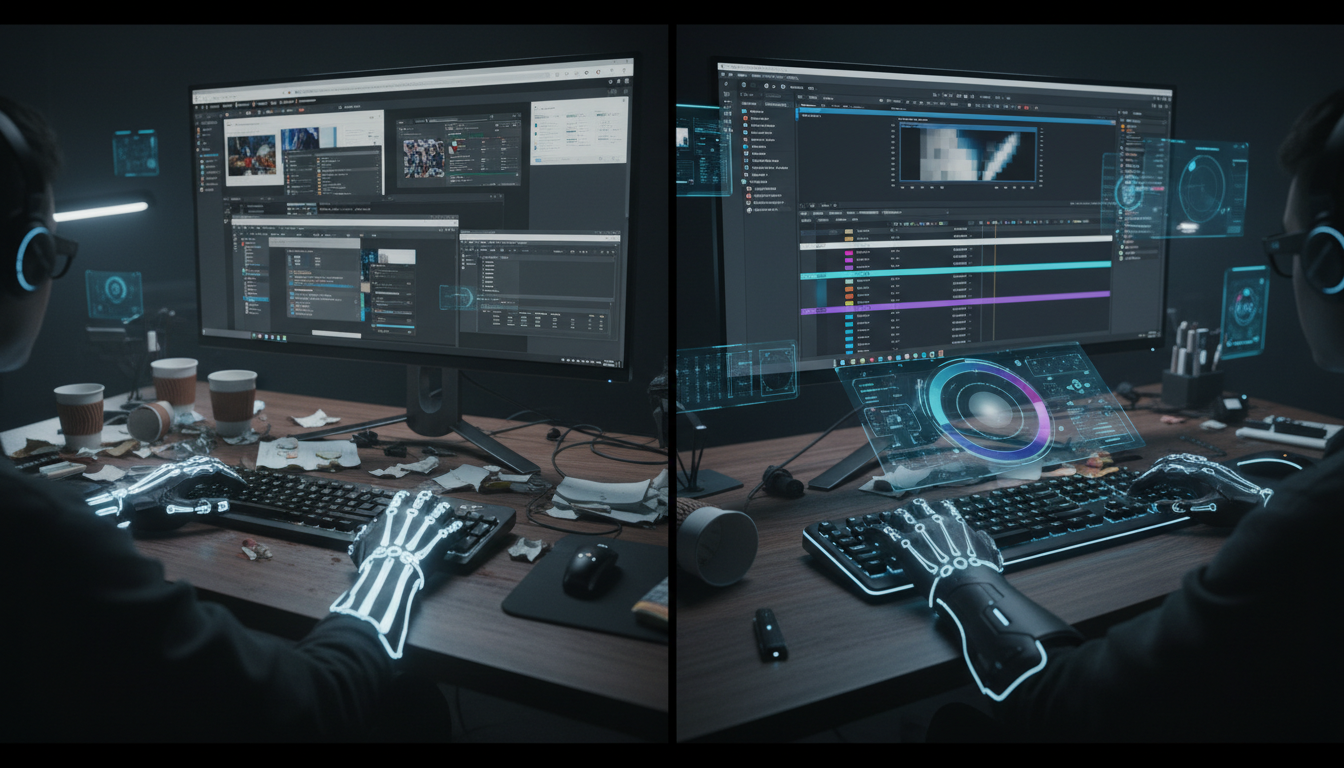
KreateFlo's 8-Speaker Switcher
Editing an interview with three or four cameras is a mind-numbing task. Doing it manually means spending hours listening to audio cues and clicking numbers on your keypad. KreateFlo's automated Multi-Cam Editor [9] handles up to 8 distinct speakers and camera angles in a single pass [3].
To get the
FireCut's Multi-Track Podcast Workflow
FireCut takes a different approach to podcast edits. It syncs multi-track audio and cuts camera angles based on active audio tracks [7]. It is highly efficient for standard two-person talking head layouts [7].
But when you scale up to larger setups with 4 or more participants, FireCut's automatic switching can sometimes feel erratic. It lacks the safety fallback of a designated master wide-shot angle. This can lead to rapid-fire cuts that distract your viewers. KreateFlo's multi-cam script feels more deliberate, mimicking the decision-making process of a real human technical director.
Actionable Takeaway: When setting up any AI multi-cam cut, always designate one camera track as your master wide shot to prevent visual whiplash during multi-speaker cross-talk.
Captioning Workflows: Real-Time WASM vs Render Loops
CaptionFlow's Preview Engine
Creating engaging, high-retention animated captions for social clips is notoriously slow. Traditional text plugins force you into a frustrating workflow. You apply a style, render the preview, spot a typo, change the text, and wait for it to render all over again.
KreateFlo’s CaptionFlow tool [9] bypasses this delay with its JASSUB WebAssembly (WASM) engine [3]. It displays 22 highly animated caption presets—including popular pop, bounce, and karaoke text styles—directly on your timeline in real time [3]. You can scrub through your sequence, edit typos instantly, and see the exact layout without waiting on render bars [3]. If you want to see this speed in action, you can explore the workflow details on our CaptionFlow features page [9].
FireCut's Captions and Creative Effects
FireCut also excels at social caption generation, supporting styled subtitles in over 50 languages [7]. It automatically adds relevant emojis based on your audio context, which is highly useful for fast-paced TikTok or Reels edits [7].
However, FireCut relies on traditional native rendering to display complex text animations. If you are running a heavy 4K timeline on an older machine, previewing these animated files can stutter. Additionally, KreateFlo handles transcription in 40+ languages—including native support for Bangla and Hindi [3]—using modern, accurate models [3] to ensure your spelling is clean on the first pass.
"Waiting on a render bar just to see if your subtitle is centered is a massive waste of energy. The moment you move to real-time WASM previews, you realize how much time you were actually throwing away."
Actionable Takeaway: Use KreateFlo's real-time WASM engine to make direct text edits on your active timeline, bypassing the traditional render-to-see-changes cycle.
Feature Overlap: Silence Removal and Timeline Clean-Up
Detecting Silence Without Ruining Pacing
Automated silence removal is a core feature of both panels. Stripping out dead air manually can eat up hours of your day. But running automated cuts across a two-hour recording without testing your settings first is a recipe for disaster. You can easily clip off the first syllable of a speaker's word.
Pro Tip: Always test your silence removal settings on a short 1-minute reference clip before applying them to your entire sequence.
With KreateFlo's Silence Remover tool [9], you can easily customize the threshold decibel level and pad settings [3]. This ensures the cuts feel natural and maintain a conversational rhythm. Best of all, KreateFlo includes this tool in its free forever tier [3], making it accessible to any editor looking to optimize their workflow.
Automated Zoom Cuts and Visual Accents
FireCut brings some clever visual tricks to the table, including automatic zoom cuts [7]. This tool analyzes your talking-head footage and applies instant, stepped scale adjustments to emphasize key sentences or highlight transitions [7]. This is an effective way to keep single-camera interviews visually engaging without manual keyframing.
While KreateFlo offers visual zoom and auto-resize controls [3], FireCut's zoom cuts are highly optimized for fast, TikTok-style edits. If your projects rely heavily on these visual adjustments, FireCut offers a highly specialized toolset for the job [7]. However, for traditional long-form edits, KreateFlo's clean timeline organization and robust audio tools provide a more versatile foundation [3].
Actionable Takeaway: Before running a batch silence removal, set a padding threshold of at least 150-200 milliseconds to preserve natural breathing room between sentences.
Pricing Battle: Free Forever vs Flat Monthly Subscriptions
KreateFlo's Three-Tier Model
Pricing structure is where these two tools differ significantly. KreateFlo offers a highly flexible three-tier pricing model designed to grow with your workload [3].
- Free Tier: Includes 3 basic tools forever (Silence Remover with a 5-minute limit per sequence, Transition Assistant, and Copy & Paste) [3].
- Pro Tier ($19.99/mo): Includes all 35 tools and gives you 20 AI processing hours per month for transcription and heavy editing [3].
- Studio Tier ($44.99/mo): Built for high-volume production agencies, providing 50 AI hours and priority processing [3].
This flat-rate approach to monthly AI hours gives editors predictable operating costs [3]. You do not have to worry about unpredictable per-second billing or sudden credit charges when working on long-form client projects.
FireCut's Billing Structure
FireCut offers a tiered pricing setup of its own, though it lacks a completely free utility tier [7].
- Starter Plan ($19/mo billed monthly): Gives you basic and advanced silence cutting [7].
- Pro Plan ($34/mo billed monthly): Unlocks captions, automatic podcast editing, filler word removal, and zoom cuts [7].
- Team Plan ($34/mo/user): Standardized monthly billing for teams [7].
If you edit on both Premiere and Resolve, FireCut's monthly flat rate provides solid value [7]. But if you only work inside Premiere, paying $34 a month for FireCut Pro [7] when you can get KreateFlo's full toolset for $19.99 a month [3] makes the math hard to justify.
| Before | $19.99 |
|---|---|
| After | $34.00 |
Actionable Takeaway: Calculate your monthly editing volume; if you process under 20 hours of raw footage, KreateFlo Pro offers the most cost-effective entry point.
Honest Caveats: When KreateFlo is NOT the Right Pick
The Resolve Dependency
Let's be completely direct: KreateFlo is not the right tool for everyone. If you run your entire post-production pipeline inside DaVinci Resolve, do not buy KreateFlo. It is built strictly as an Adobe Premiere Pro CEP extension [3]. While this native design makes it incredibly fast for Premiere editors, it does not support Resolve's ecosystem. FireCut is the obvious choice if you work in Resolve [7].
Advanced Timeline Tricks in FireCut
FireCut also holds a distinct edge in specialized automation [7]. If your clients demand precise automated profanity muting or automated YouTube chapter generation directly on the timeline, FireCut's Pro plan handles this smoothly [7]. KreateFlo offers beta-level chaptering and transcript options [3], but FireCut's features are more mature for these specific tasks.
If you are a solo content creator who doesn't need a massive multi-cam setup and prefers automated zoom cuts and emojis on subtitles, FireCut's specific feature set may fit your creative style better [7].
"Do not force a tool into a workflow where it does not fit. If you are jumping between Premiere and DaVinci Resolve on a daily basis, FireCut's multi-platform compatibility is worth the extra premium."
Actionable Takeaway: Opt for FireCut if you rely heavily on automated profanity muting or need cross-compatibility with DaVinci Resolve.
The Verdict: Kreateflo vs Firecut: Full Feature Breakdown: Which Wins?
The Ultimate Winner for Premiere Power Users
For editors who live inside Adobe Premiere Pro and manage multi-cam interviews, long-form podcasts, or fast social cuts, KreateFlo is the clear winner.
By bundling 33+ tools directly into one CEP panel [3], it eliminates the clutter of multiple subscriptions and keeps your focus on the timeline. Its Multi-Cam Editor handles complex speaker layouts easily [3], and CaptionFlow's WASM-powered real-time previews remove the frustrating render loops that slow down your editing speed [3].
Your Next Action Step
You do not have to take my word for it. You can test the baseline tools yourself without spending a dime. Download the plugin directly and start using our free forever Silence Remover, Transition Assistant, and Copy & Paste tools.
Ready to speed up your editing workflow? You can download the KreateFlo extension directly [2] and start saving hours on your very next project.
Actionable Takeaway: Download the free version of KreateFlo to try our core utility tools on your active sequence today.
Frequently Asked Questions
Is KreateFlo a good alternative to AutoPod or FireCut? Yes. If you edit primarily inside Adobe Premiere Pro, KreateFlo consolidates features that would otherwise require multiple separate plugins [3]. It combines 8-speaker multi-cam editing, real-time WASM captions, and silence removal inside a single panel [3].
How do AI processing hours work in Premiere Pro plugins? AI hours are used when running complex cloud-based processes like speech-to-text transcription or multi-cam speaker analysis [3]. KreateFlo Pro provides 20 hours of AI processing time per month [3], which resets on your billing date with no hidden per-second charges.
Does FireCut work on DaVinci Resolve as well as Premiere Pro? Yes. FireCut is designed to support both platforms [7]. It is an excellent option for editing teams that move projects between Premiere Pro and DaVinci Resolve [7]. KreateFlo focuses exclusively on optimizing its CEP extension for Premiere Pro [3].
What is the best AI captioning plugin for Premiere Pro in 2026? KreateFlo's CaptionFlow is a top choice [3]. Thanks to its JASSUB WASM preview engine, you can customize, tweak, and edit any of the 22 animated text presets directly on your timeline in real time without rendering first [3].
Can KreateFlo be run offline without an internet connection? Yes, but only for utility features. Local offline tools like the Transition Assistant, Copy & Paste, and various timeline cleanup helpers run on your machine's hardware [3]. However, AI-driven tools like transcription and automatic multi-cam analysis require an active internet connection [3].
References
- resource.digen.ai/best-ai-plugins-for-video-editing/
- kreateflo.com/download
- kreateflo.com
- kreateflo.com/blog/top-5-ai-plugins-premiere-pro-2026
- premierecopilot.com/en/best-ai-plugins-premiere-pro-2026
- youtube.com/watch
- firecut.ai/pricing/all/
- chatvideopro.com/compare/chat-video-pro-vs-firecut/
- kreateflo.com/features
- kreateflo.com/features/copy-paste
- youtube.com/watch
- firecut.ai/pages/reviews
- real-reviews.com/products/firecut-ai
- phantomeditor.video/blog/top-5-ai-plugins-premiere-pro-2026
- youtube.com/watch
- firecut.ai/blog/essential-davinci-resolve-plugin-for-efficiency/
- firecut.ai/pricing/davinci-resolve/
- kreateflo.com/features/silence-remover
- firecut.ai/blog/top-10-davinci-resolve-plugins-for-2026/
- youtube.com/@kreateflo
- firecut.ai/blog/stop-wasting-hours-how-firecut-ai-transforms-your-premiere-pro-editing-workflow/
- youtube.com/watch
Try KreateFlo free
3 tools forever, 7-day trial on the rest. No credit card to start.
Download KreateFlo