Filler Word Removal Premiere Pro: 5 AI Tips for 2026
Most professional editors I know are still leaving massive profits on the table by charging for tasks that a script can now handle in ninety seconds. If you're still manually scrubbing your timeline f
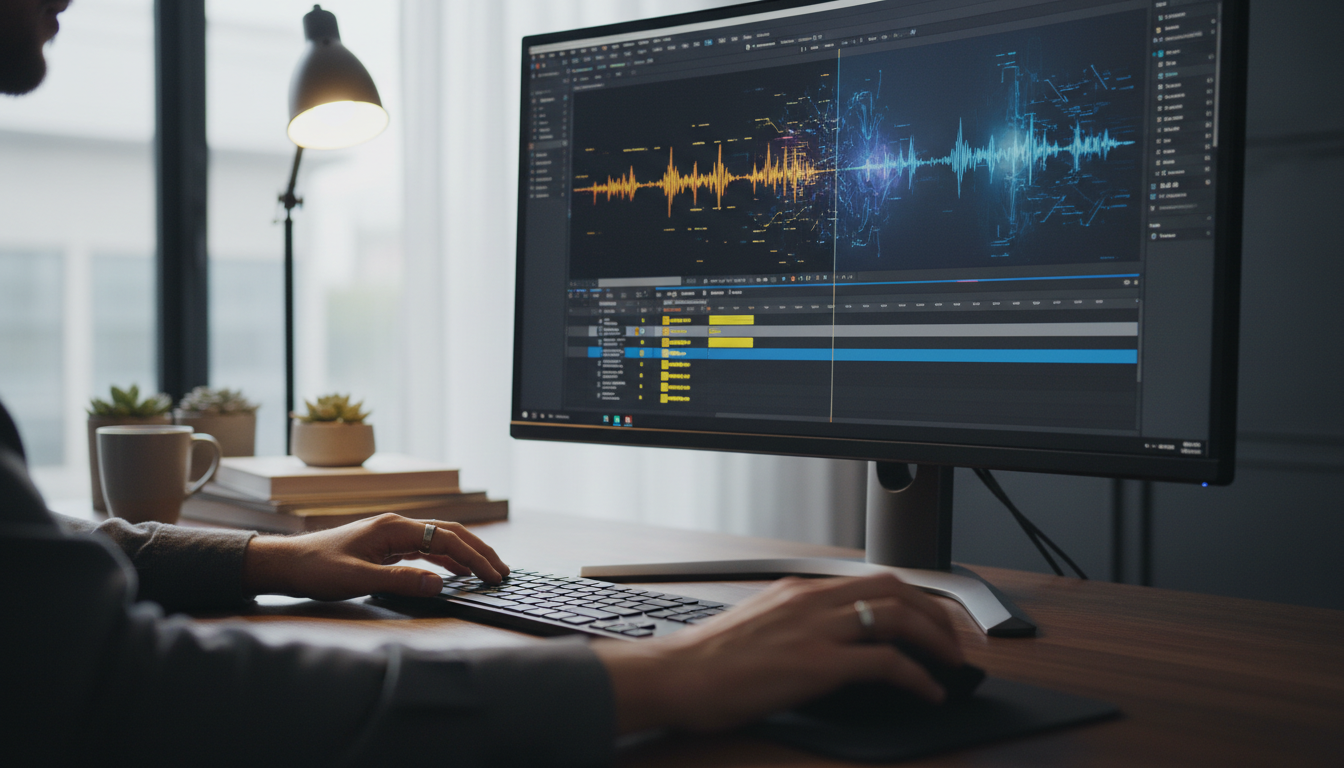
Most professional editors I know are still leaving massive profits on the table by charging for tasks that a script can now handle in ninety seconds. If you're still manually scrubbing your timeline for "ums" and "uhs" in Adobe Premiere Pro, you aren't just wasting your afternoon. You're actively killing your margins.
The reality of editing in 2026 is brutal. Audience retention drops by nearly 20% when speakers stumble over filler words [9]. While your client wants those "ums" gone, they won't pay for the four hours of manual clicking it used to take. AI-powered tools now reduce the initial assembly time by up to 80% [2].
If you aren't leveraging this, you're choosing to work for less than minimum wage.
Key Takeaways
- AI tools slash filler word removal time by 80%, turning hours of manual labor into minutes of review [2].
- Removing "ums" and "uhs" isn't just about polish; it boosts audience retention by up to 20% [9].
- The 2026 "Hybrid Workflow" uses AI for technical "grunt work" while you focus on creative pacing and story [8].
- Always use "Extract" (Ripple Delete) instead of "Lift" to avoid leaving hundreds of gaps in your timeline.
- Hide jump cuts with 5-10% scale shifts or B-roll to keep the visual flow as clean as the audio.
- Professional Premiere Pro plugins like KreateFlo bundle 33+ tools to keep you inside one app.
Filler Word Removal Premiere Pro: The Manual Grind
We've all been there. You get a raw 60-minute interview and it's a graveyard of "likes," "you knows," and throat clears. Manually editing these out is the ultimate test of patience.
In a 2026 benchmark, manual editing for a 3-minute video took 2 hours [4]. Think about that for a second. You're spending 120 minutes of your life on just 180 seconds of content. Is that really why you got into film?
What's the Big Deal with "Ums" and "Uhs"?
It sounds minor until you hear the difference. Filler words create cognitive friction. They force the listener's brain to filter out noise rather than focus on the message. Excessive fillers make speakers sound less authoritative [5]. For podcast producers and YouTube creators, this is a death sentence for retention.
The Time Sink: How Manual Removal Eats Your Day
When you edit manually, you're trapped in a repetitive loop. You find the spike in the waveform, listen, select, Ripple Delete, and then check the transition. Now, imagine doing this 300 times for a single podcast episode.
The result? It isn't just the time you lose; it's the mental fatigue. By the time you've "cleaned" the audio, your creative energy for actual storytelling is gone.
Manual Techniques: Cut, Ripple, Repeat
If you must do it manually, use the Razor tool (C) and Ripple Delete (Shift+Delete). But even with keyboard shortcuts, you're looking at a massive delay. Traditional editing requires meticulous attention [4] to avoid cutting off the "S" at the end of a word or the "B" at the start of the next.
One wrong cut and the whole sentence sounds robotic.
Pro Tip: If you're stuck doing this manually, always zoom in until you can see the individual "ticks" of the waveform. It's the only way to ensure you aren't leaving a clicking sound at the edit point.
[[STAT:80%:reduction in assembly time using AI]]
Why AI Changes Everything for Editors
The shift from manual to AI isn't just a "nice to have" anymore. It's the difference between a profitable agency and a struggling freelancer. Subscription-based AI tools average $15 to $40 per month [10]. That is a fraction of the $50-$150 per hour most professional editors charge for their time.
The Efficiency Boost: AI vs. Manual Time
Let's look at the numbers. That 3-minute video that took you two hours to cull manually? AI-assisted workflows finish it in 30 minutes [2]. That includes the time it takes to review the AI's work.
| Feature | Manual Editing | AI-Powered Workflow |
|---|---|---|
| 3-Min Video Prep | 120 Minutes | 30 Minutes |
| Accuracy | High (Fatigue-prone) | 90-96% (Consistent) |
| Workflow | Repetitive Clicking | Batch Review & Action |
| Profit Margin | Shrinking | Scalable |
Beyond Just "Ums": AI's Smarter Detection
Modern AI doesn't just look for "um." It uses transcription models like Whisper large-v3, which achieves a Word Error Rate of 2.8% [7] on clean audio. These tools detect stutters, repeated words, and long silences that drag down the pacing.
This is where a tool like KreateFlo starts to pay for itself. Instead of jumping between a web app and Premiere, KreateFlo lives as a CEP extension right in your workspace. It handles the AI filler word removal directly on your timeline. You don't have to export or wait for a server.
Keeping Viewers Hooked: The Retention Factor
Removing filler words boosts audience retention by 20% [9]. In the age of TikTok and Reels, every millisecond counts. If your video has a 2-second gap where the speaker is saying "uh...", the viewer has already swiped. AI allows you to tighten the edit to a degree that was previously too time-consuming to be viable.
AI Filler Word Removal in Premiere Pro: Your New Workflow
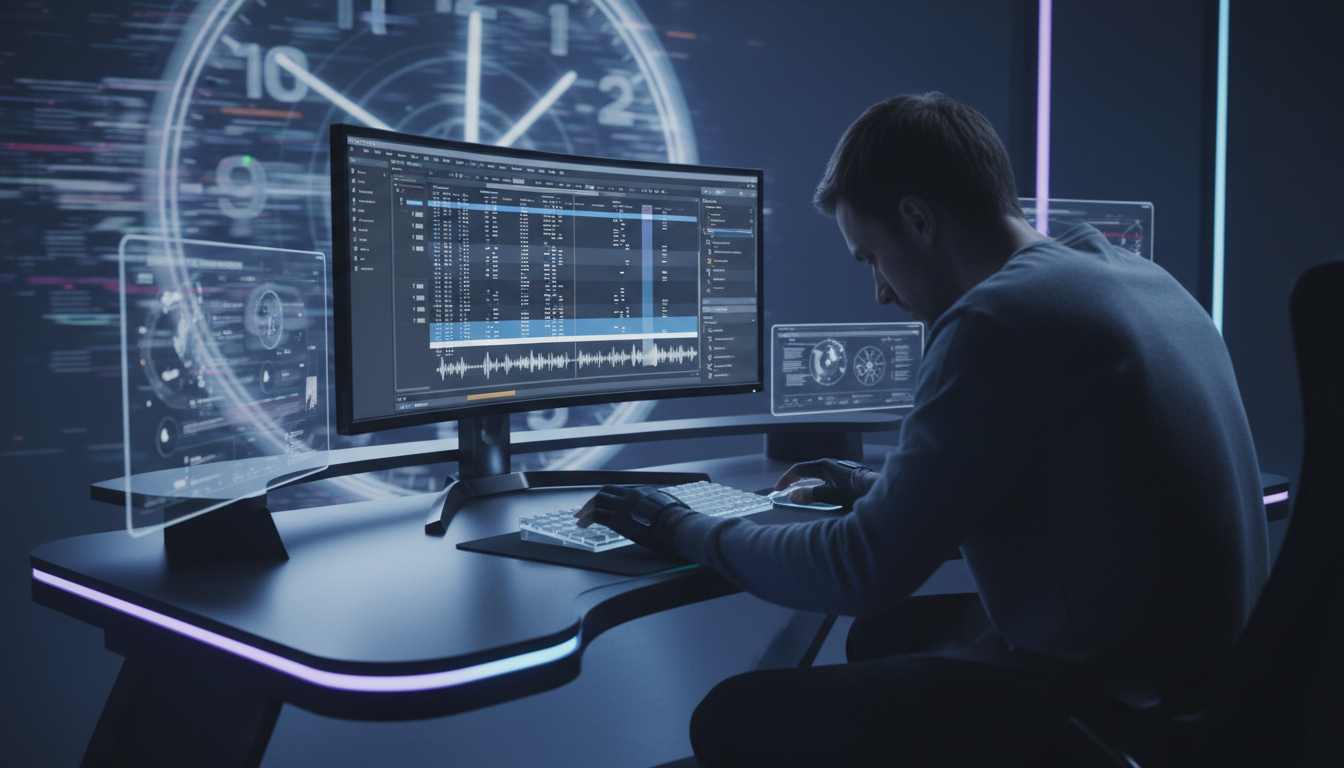
If you're still round-tripping your footage—exporting to a web-based AI, waiting for a download, then re-importing—you're doing it wrong. That workflow was okay in 2022. By 2026, the gold standard is native integration within Adobe Premiere Pro [3].
Setting Up Your AI Tool
A professional setup uses a CEP extension. These sit inside Premiere's panel system. Once you install your plugin, you'll see a "Transcribe" or "Analyze" button. Because these tools use advanced transcription models [7], they can handle everything from English to Bangla and Hindi.
Quick Start with Filler Word Removal
- Open your AI plugin panel in Premiere.
- Select your sequence or specific clips.
- Run the transcription.
- Toggle the "Filler Words" filter.
- Click "Remove All" or "Extract."
Important Note: Always use Extract. If you use "Lift," Premiere will remove the clip but leave a hole in your timeline. Extract closes that gap automatically, keeping your edit tight.
Reviewing and Refining AI Suggestions
AI transcription and detection accuracy averages 90-96% [2] for clear audio. That's high, but not 100%. Sometimes a speaker uses a pause for dramatic effect.
I always recommend a 1.5x speed playback review. Look at the highlighted sections in the transcript view before you apply the bulk delete.
Hiding Those Jump Cuts: Pro Tips
The biggest giveaway of an AI-cut video is the jarring jump cut. When you remove a filler word, the speaker's head might snap to a new position. To fix this:
- Layer B-roll: Place a clip of what they're talking about over the cut.
- AutoZoom: If you're on a 4K timeline but exporting in 1080p, scale the "after" clip by 5-10%. It looks like a deliberate camera punch-in.
- Cross-Dissolves: Sometimes a very short (2-4 frame) Morph Cut can smooth out a neck-snap. Use this sparingly as it can look "melty."
The Hybrid Workflow: Editor's Gold Standard for 2026
The industry has moved past the fear that "AI will replace editors." Instead, we've entered the era of the Hybrid Workflow [2]. In this model, the editor isn't a "cleanup technician" anymore; they are a creative director.
"AI doesn't replace the editor; it replaces the technician, allowing the creator to finally become a storyteller again."
AI Handles the Grunt Work, You Do the Art
AI is great at objective tasks: find silence, find "um," find a specific word. It is terrible at subjective tasks: is this joke funny? Is this silence poignant or just awkward?
AI has shifted the editing process [8] to the storytelling level rather than the organizational level. Using KreateFlo for the initial silence removal allows me to get to the "story edit" in ten minutes.
Contextual Pacing: Beyond Simple Cuts
Advanced 2026 plugins now utilize Contextual Pacing AI to analyze speaker cadence [8]. This ensures that cuts land on natural emotional beats. If the AI detects a speaker is getting excited, it might leave the pacing tighter.
When to Leave a Pause (or an "Um")
Editors are cautioned against "over-sanitization" [2]. Humans use intentional imperfections to create tension [2]. If you remove every single breath, the speaker sounds like a robot.
Pro Tip: Set your "Minimum Silence" threshold to at least 0.5 seconds. Anything shorter is usually a natural breath or a necessary pause for the listener to digest a point.
Common Blunders with Automated Removal
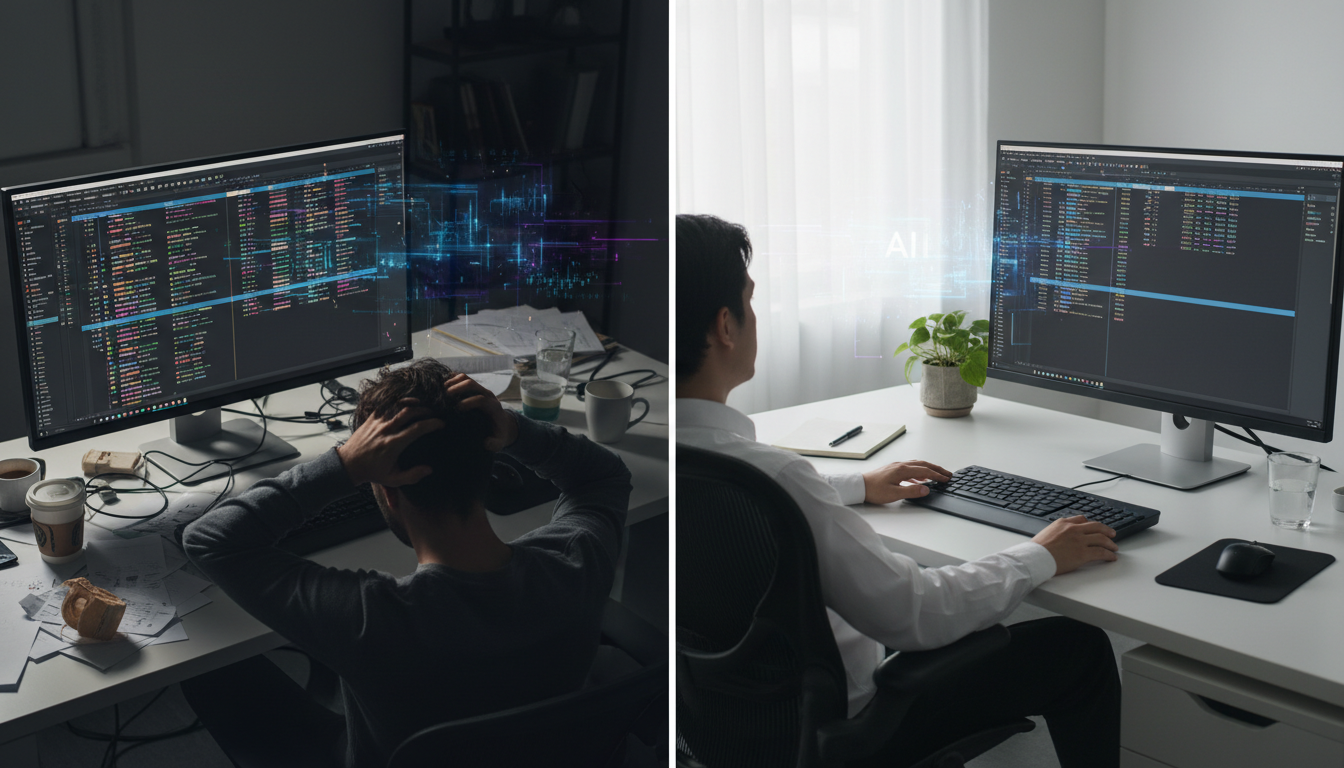
Automation is a sharp tool. It can cut your work in half, or it can cut your finger off. Most editors who try AI for the first time make the same mistakes.
The Jump Cut Trap
Creating jarring jump cuts by bulk-deleting [8] is the fastest way to make your video look amateur. If you have 50 cuts in a 2-minute video, you need a visual strategy. Use "AutoZoom" or subtle scale shifts to "justify" the jump.
Audio Pops: Your Worst Enemy
Neglecting audio pops is a cardinal sin. When you cut audio at a point that isn't a "zero crossing," you get a digital click. Automated tools sometimes miss this.
Pro Tip: Always apply a 2-frame constant power crossfade at every cut point. It's short enough that you won't hear a "fade," but it eliminates the click.
Over-Sanitization: The Human Touch
Don't rely 100% on "Delete All." Intentional word repetitions [2] are often used for emphasis. If a speaker says "It is very, very important," and the AI flags the second "very" as a repetition, deleting it changes the intent.
Always review the transcript.
| Before | 2 Hours |
|---|---|
| After | 30 Minutes |
Beyond Filler Words: More AI Power for Premiere Pro
Filler word removal is just the gateway drug to AI editing. Once you see the time savings, you'll want to automate everything else.
Automated Multi-Cam: Up to 8 Speakers
If you edit interviews with multiple cameras, you know the pain of switching angles. Modern AI multi-cam editing handles up to 8 speakers simultaneously. It analyzes who is talking and automatically cuts to the active speaker.
Captions in Seconds: 22 Presets, No Render
Captions are no longer optional for social media. But the "render-to-see-changes" loop in Premiere is a nightmare. KreateFlo's CaptionFlow tool uses a WASM real-time preview. You can see your animated captions in real-time [3] without waiting for a render bar.
Finding the Gold: Viral Clip Detection
Don't spend hours re-watching a 2-hour podcast to find the clips. AI can now detect viral moments by analyzing transcript sentiment and speaker energy. This makes it easy to convert long-form into short-form content [6].
Choosing Your AI Co-Pilot: What to Look For

Not all AI plugins are created equal. Some are essentially "wrappers" for web tools that force you into a slow, expensive workflow.
Native Integration vs. Round-Trip
Prioritize tools that are native Adobe Premiere Pro plugins (CEP extensions) [3]. You want to stay in your timeline. If a tool requires you to upload your raw 50GB file to a server just to remove "ums," find a new tool.
Transparent Pricing
Avoid tools that use "per-minute" billing. Those costs scale fast and make it impossible to quote projects accurately. Subscription-based models [10] are much better for business.
When Not to Use AI
Honest caveat: AI isn't the right pick for everything. For high-end cinematic storytelling where every breath is a creative choice, do it manually. AI also struggles with extremely noisy environments [5].
The goal? Use AI for the podcasts and interviews; manual for your Oscar-contender short film.
Conclusion
The editing landscape has shifted. If you're still manually slogging through every "um" and "uh" in Premiere Pro, you're leaving thousands of dollars on the table every year.
AI isn't here to replace your creative eye. It is here to act as your assistant, handling the soul-crushing work so you can focus on the story. By adopting a hybrid workflow [2], you can ship cleaner content faster and finally stop working until 2 AM.
Ready to see how much time you can actually save? Download our Premiere Pro plugin now and start editing smarter.
FAQ: Filler Word Removal Premiere Pro
1. How do I bulk delete filler words in Adobe Premiere Pro 2026? The most efficient way is using an AI plugin like KreateFlo. These tools transcribe your audio, highlight all detected filler words, and allow you to "Extract" them in a single click, automatically closing the gaps in your timeline.
2. What is the best AI plugin for removing "ums" and "uhs" in Premiere? The "best" plugin integrates directly as a CEP extension, supports multiple languages, and offers a flat subscription. KreateFlo is a top choice because it bundles 33+ professional tools into one license.
3. How can I hide jump cuts when using AI filler word removal? Use visual masking techniques like layering B-roll, using "AutoZoom" (scaling up by 5-10% on every other cut), or applying Morph Cuts. Always ensure you have a constant "Room Tone" track underneath to hide audio shifts.
4. Is AI filler word removal always better than manual editing? Not always. While AI provides up to 80% time savings [2], manual editing is still superior for highly artistic content where pacing is subjective or when the audio quality is too poor for transcription.
5. How accurate is the built-in text-based editing in Premiere Pro 2026? Adobe's native tools are accurate for clear English audio, but they often lack the "bulk" features found in third-party plugins. Specialized plugins often use Whisper large-v3 [7], which offers superior accuracy in 99+ languages.
| 50|YouTube | NaN |
|---|
References
- gitnux.org/best/ai-editing-software/
- resource.digen.ai/ai-video-editing-vs-manual-editing-2026/
- resource.digen.ai/best-ai-video-editing-plugins-premiere-pro-2026-2/
- resource.digen.ai/ai-video-editing-vs-traditional-editing-2026/
- binaintelligence.com/ai-video-editing-vs-manual-editing-a-comparative-overview/
- livemint.com/technology/capcut-runway-descript-adobe-premiere-pro-opus-clip-top-5-ai-powered-video-editing-apps-2026-11779869867212.html
- aimadesimple0.substack.com/p/99-of-people-use-ai-wrong-these-ai
- cutback.video/blog/ai-video-editing-in-2026-best-tools-workflows-automation-explained
- tubentum.com/blog/remove-filler-words-from-video
- videotto.com/blog/ai-video-editing-vs-freelance-editor-cost
- vexub.com/blog/ai-video-generators-vs-traditional-editing-2026
- gling.ai/blog/removing-filler-words-guide
- longstories.ai/blog/ai-vs-manual-video-production-cost-comparison
- phantomeditor.video/blog/best-ai-plugins-adobe-premiere-pro-2026
- novascribe.ai/blog/transcription-accuracy-comparison
- brasstranscripts.com/blog/ai-transcription-services-how-to-choose-2026-guide
- resource.digen.ai/ai-video-editing-vs-traditional-2026-comparison/
- toolaipilot.com/blog/ai-video-editing-tools-in-2026-that-cut-post-production-time-for-solo-creators
- aitooltutorials.com/ai-workflows-in-adobe-premiere-pro/
- gudsho.com/blog/video-editing-statistics/
- community.adobe.com/announcements-732/now-in-beta-filler-words-and-other-text-based-editing-updates-in-premiere-pro-313483
- youtube.com/watch
- note.com/world_trend_jp/n/n8714692ee673
- screenapp.io/blog/ai-video-editing-trends
- atlascloud.ai/blog/guides/ai-video-api-vs-manual-editing-which-delivers-better-engagement-in-2026
- metricool.com/ai-video-editor-trends/
- deborah-bickel.de/premiere-pro-2026-how-ai-radically-accelerates-video-editing
- crepal.ai/blog/aivideo/the-shift-to-ai-video-editors-how-traditional-editing-is-changing-in-2026/
- youtube.com/watch
Try KreateFlo free
3 tools forever, 7-day trial on the rest. No credit card to start.
Download KreateFlo