Open Captions vs Subtitles: 2026 Accessibility Guide
Most video editors think burning flashy kinetic text onto a TikTok clip automatically makes it accessible. It does not. If your burned-in text lacks non-speech audio cues or gets covered by social UI
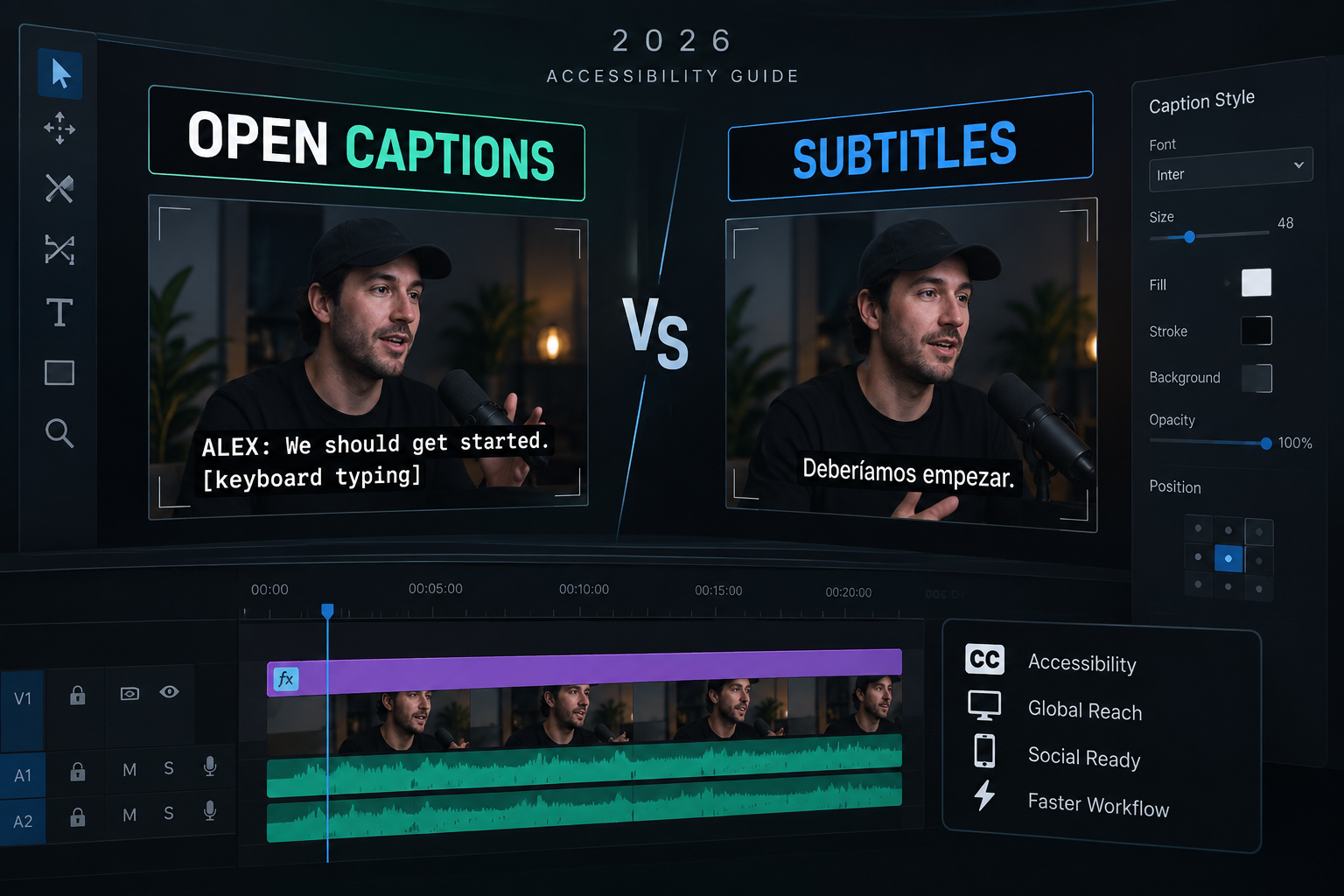
Most video editors think burning flashy kinetic text onto a TikTok clip automatically makes it accessible. It does not.
If your burned-in text lacks non-speech audio cues or gets covered by social UI buttons, you are breaking WCAG compliance rules. Worse, you are driving away hard-of-hearing viewers.
I used to waste 3 hours every single afternoon manually tweaking text blocks and Essential Graphics tracks inside Adobe Premiere Pro. That was before I realized open captions and subtitles follow completely different rules.
Understanding Open Captions vs Subtitles: Styling for Accessibility is no longer optional for working editors. With strict legal mandates kicking in across the US and Europe, getting your on-screen typography right is a legal requirement for commercial clients. Plus, it acts as a massive retention multiplier on muted social feeds.
Key Takeaways:
Captions transcribe dialogue plus non-speech audio (sound effects, speaker IDs) for Deaf and hard-of-hearing viewers; subtitles only translate spoken words.
WCAG 2.2 Level AA standards mandate a minimum 4.5:1 color contrast ratio for standard body text against video background containers.
For 9:16 vertical video, keep all open captions out of the bottom 20% safe zone to prevent social media app interface overlays from blocking the text.
Stick to strict line limits: 32 characters per line for traditional standards, expanding up to 42 characters for modern mobile feeds, capped at two lines on screen.
Tools like KreateFlo CaptionFlow accelerate caption styling in Premiere Pro with 22 animated presets and real-time WASM previews, cutting editing time from 4 hours down to 90 seconds.
Open captions are permanently burned into the video export, ensuring 100% display rate on muted feed autoplays across TikTok, Instagram Reels, and YouTube Shorts.
Open Captions vs Subtitles: Styling for Accessibility Basics
If you edit video for a living, confusing captions with subtitles is the fastest way to get your master export rejected by broadcast Quality Control (QC) or corporate legal teams. They sound similar on paper. But they serve two distinct technical and accessibility functions.
| Before | Captions |
|---|---|
| After | Subtitles |
Transcribing vs Translating: Essential Definitions
Subtitles assume your viewer can hear the original audio track perfectly well, but simply does not speak the language on screen [9]. The job of a subtitle track is purely linguistic: convert foreign speech into the viewer's native tongue.
Subtitles completely ignore background audio context. A hearing viewer can already tell when a door slams, thunder rumbles, or a new speaker jumps into the conversation.
Captions assume your viewer cannot hear the audio track at all. This applies to viewers with auditory impairments or anyone scrolling on mute in a crowded room [10].
Because of this, captions must transcribe all spoken dialogue alongside critical non-speech audio indicators. That means including speaker identifications, tone descriptors, and sound effect tags like [soft acoustic music playing] or [nervous laughter]. Mastered captions preserve the full narrative context of the video, not just the spoken vocabulary [2].
Burned-In Open Captions vs Sidecar Closed Captions
The technical delivery method determines whether your captions are "open" or "closed."
Closed captions exist as independent metadata tracks or separate sidecar text files—such as .srt or .vtt formats—that sit alongside the video file [1]. The end user holds total control over closed captions. They can toggle them on or off, swap the font size, adjust the text background color, or switch languages depending on platform capabilities [6].
Open captions are permanently baked directly into the video frames during final export [6]. They are image-based pixels, not selectable text tracks. The viewer cannot turn open captions off, change their font, or adjust their position.
Accessibility advocates generally prefer closed captions on desktop web players because of user customization options. But open captions are essential for short-form social feeds like TikTok, Instagram Reels, and YouTube Shorts [6].
Most native mobile apps strip sidecar files during upload, and mobile feeds default to muted video playback [4]. Burning open captions into your 9:16 master file ensures your message survives muted scrolling every single time.
Actionable Takeaway: Use sidecar closed caption files (.srt) for long-form YouTube videos, broadcast TV, and corporate web embeds. Use burned-in open captions for vertical social media clips where platform players strip metadata and play audio muted by default.
Legal Standards: WCAG 2.2, ADA Title II, and EAA Compliance
Styling on-screen text used to be a stylistic choice left to the motion designer. In 2026, it is governed by federal civil rights laws and international trade mandates.
Ignoring basic legibility standards exposes your agency or clients to accessibility compliance audits and legal liability.
Contrast Ratio Guidelines:
- WCAG 2.2 Level AA (Standard Text): 4.5:1
- WCAG 2.2 Level AA (Large Text): 3:1
- WCAG 2.2 Level AAA (Strict Text): 7:1
Contrast Ratio Requirements (4.5:1 vs 7:1)
The Web Content Accessibility Guidelines (WCAG) 2.2 define the global
4.5 WCAG AA Contrast Ratio
What if your client demands Level AAA compliance? This is increasingly common for government institutions, higher education, and healthcare brands. In that case, the baseline requirement jumps to a strict 7:1 contrast ratio for standard text [3].
Achieving a 4.5:1 ratio on static web pages is straightforward. On dynamic video footage, background light levels shift from frame to frame.
A bright white font that reads clearly against an editor's dark t-shirt will disappear completely when the subject walks past a sunny window two seconds later. To maintain compliant contrast across an entire timeline, you must apply dark bounding boxes, drop shadows, or heavy outline strokes to your text styling [8].
Upcoming 2026-2028 Government and EU Accessibility Mandates
Legal enforcement around digital video accessibility is accelerating rapidly. Under the U.S. Department of Justice Title II ADA regulations, state and local government entities serving populations of 50,000 or more must ensure all digital media meets WCAG 2.1 Level AA accessibility standards by April 26, 2027 [4]. Smaller public entities must reach full compliance by April 26, 2028 [4].
Simultaneously, the European Accessibility Act (EAA) enforces strict accessible media regulations across all 27 EU member states [5]. Commercial agencies producing branded content, online courses, or public communications can no longer publish uncaptioned video or illegible open captions without facing regulatory fines [5].
Building compliant Open Captions vs Subtitles: Styling for Accessibility templates inside Premiere Pro now protects your agency from painful re-renders down the road.
Pro Tip: Test your primary caption text colors using an eyedropper tool against the brightest and darkest frames of your video background. If your contrast drops below 4.5:1 at any point, add a solid dark background box with at least 75% opacity behind the text track.
Actionable Takeaway: Audit your client video templates today against WCAG 2.2 Level AA contrast requirements (4.5:1 minimum) to prepare for strict US ADA Title II and European Accessibility Act enforcement timelines.
Open Captions vs Subtitles: Styling for Accessibility in 9:16 Video
Editing 9:16 vertical video presents brutal layout challenges. You have roughly one-third of the horizontal visual space compared to a traditional 16:9 widescreen timeline. Worse yet, social media platforms plaster interface buttons across massive chunks of the mobile screen.
Platform / Format | Character Limit per Line | Maximum Lines | Vertical Safe Zone | Key Styling Rule |
|---|---|---|---|---|
Traditional Broadcast | 32 Characters | 2 Lines | Center 80% | White text, black background box [1] |
Streaming / Web (16:9) | 42 Characters | 2 Lines | Center 90% | Sans-serif font, 2px stroke shadow [1] |
TikTok / Reels (9:16) | 28–36 Characters | 2 Lines | Middle 60% (Clear bottom 20%) [7] | Heavy outline, high-contrast bounding box [8] |
YouTube Shorts (9:16) | 32–40 Characters | 2 Lines | Middle 65% (Clear right edge UI) [7] | Centered alignment, no single-word rapid flashes [10] |
The 20% Safe Zone Rule for Reels, Shorts, and TikTok
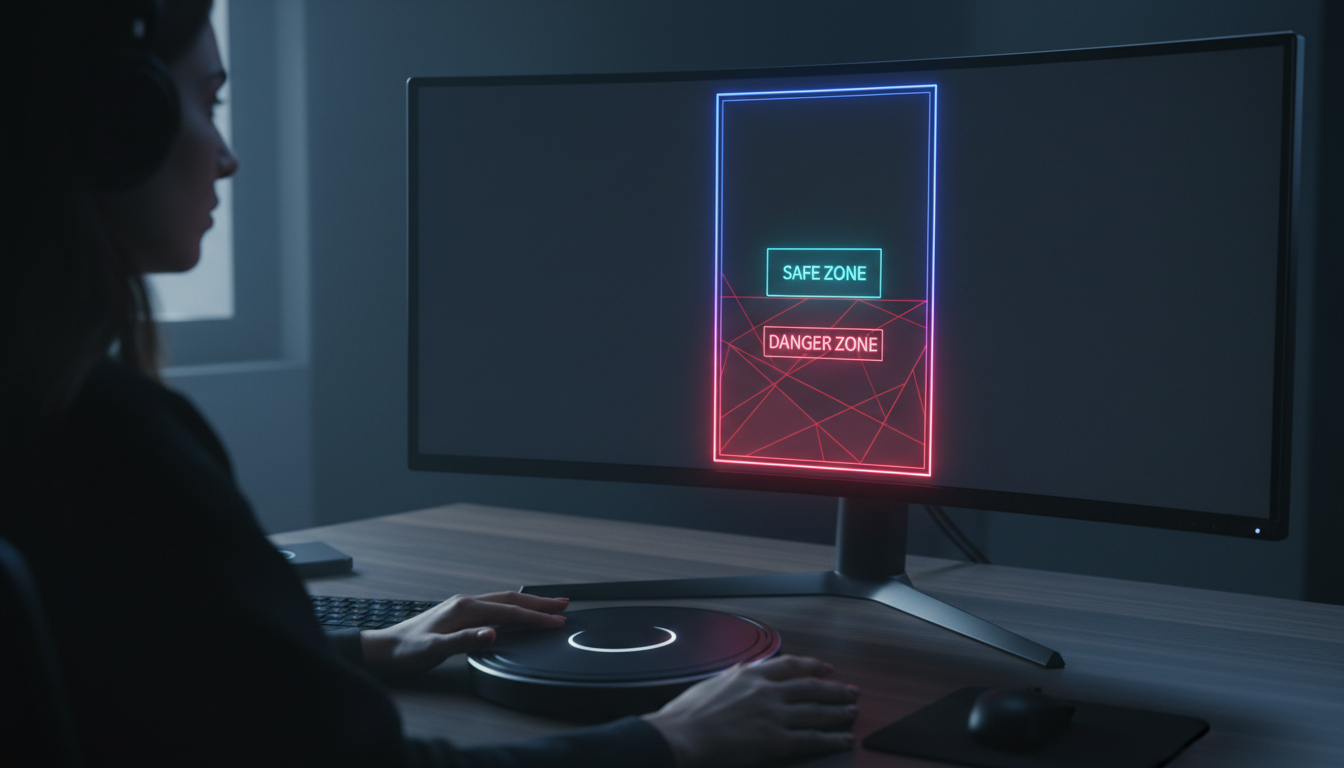
The biggest mistake junior editors make when styling open captions for short-form clips is placing text near the bottom edge of the frame. On TikTok, Instagram Reels, and YouTube Shorts, the bottom 20% of the screen is cluttered with account handles, audio clip titles, video captions, hashtags, and giant call-to-action buttons [7].
[[STAT:20%:Blocked UI Overlay Zone]]
If your open captions drop into this bottom 20% danger zone, platform UI elements will overlay your text and make it completely unreadable [7].
Here is how to keep your vertical videos accessible:
Shift your caption track vertically into the middle safe area of the 1080×1920 canvas.
Keep text centered between 35% and 70% of total screen height.
Leave ample side padding so long words do not slam against the right-hand interaction buttons like Share and Comment [7].
Line Lengths and Character Counts (32 to 42 Characters)
Traditional Federal Communications Commission (FCC) guidelines for closed captions limit text to 32 characters per line with a maximum of two lines on screen simultaneously [1]. Modern streaming standards like Netflix allow up to 42 characters per line for widescreen desktop displays [1].
For 9:16 vertical mobile feeds, stick strictly to 28 to 36 characters per line. Because vertical screens narrow your line width, fitting 42 characters onto a single line forces you to shrink your font size down to unreadable body text.
Never display more than two lines of text on screen at a time. Three or four lines of open captions cover the subject's face, clutter the visual hierarchy, and overload the viewer's brain.
Pro Tip: Avoid single-word kinetic "flash captions" that bounce on screen every 150 milliseconds. While popular on TikTok, hyper-aggressive word-by-word animation actually degrades accessibility for neurodivergent viewers and readers with cognitive processing differences. Group text into logical 3-to-6 word phrases instead.
Actionable Takeaway: Set your vertical video caption tracks within the vertical middle section of your 9:16 canvas, keeping all text strictly clear of the bottom 20% platform UI overlay zone.
Styling Accessible Open Captions in Adobe Premiere Pro
Adobe Premiere Pro offers built-in tools for generating and styling captions. However, dialing in compliant typography manually can be painfully slow when dealing with tight client turnarounds.
Typography Rules: Sans-Serif Fonts, Strokes, and Background Boxes
When styling accessible open captions in Premiere Pro's Essential Graphics panel, typography choices dictate legibility:
Typeface Selection: Stick strictly to clean, proportionally-spaced sans-serif fonts such as Arial, Helvetica, Trebuchet MS, or Tahoma [17]. Avoid decorative scripts, condensed fonts, or slab serifs with thin stroke contrast.
Font Weight: Use Bold or Semi-Bold weights to ensure letters retain structural shape on low-resolution mobile displays.
Stroke and Shadow: Apply an outline stroke with a minimum width of 2 to 4 pixels (or approximately 10% of font size) [8]. A sharp black stroke creates visual separation when bright video elements pass behind white font glyphs [8].
Background Containers: For ultimate readability, place text inside a solid or 80% opaque dark background bounding box [1]. This guarantees a compliant 4.5:1 contrast ratio regardless of how crazy the underlying footage gets [9].
Standard Caption Typography Setup:
- Font: Arial Bold or Helvetica Bold
- Size: 42pt–54pt (for 1080x1920 vertical canvas)
- Alignment: Center aligned
- Outline Stroke: 3px Solid Black (#000000)
- Background Box: 80% Opacity Dark Gray (#111111)
Speeding Up Styling with KreateFlo CaptionFlow
Styling captions manually in native Premiere Pro requires selecting text blocks line by line, tweaking tracking values, and constantly re-rendering timeline previews to check motion timing. If you edit 10 to 20 social clips per week, this tedious process eats up half your working day.
That is where KreateFlo's CaptionFlow tool changes your day-to-day workflow. As a native Adobe Premiere Pro CEP extension plugin (currently on version v1.0.3), KreateFlo runs directly inside your Premiere panel workspace.
Instead of building graphics from scratch, CaptionFlow gives you 22 professionally designed animated caption presets built specifically for short-form clips and podcast highlights. Because it uses an underlying WebAssembly (WASM) real-time preview engine, you can tweak text contrast, background padding, font sizes, and entry animations instantly. You never have to wait through endless render-to-see-changes loops again.
| Before | $19.99/mo Pro Tier |
|---|---|
| After | Per-Hour Billing |
Main competitors like FireCut charge steep per-hour usage fees on AI transcriptions. In contrast, KreateFlo provides a transparent flat-rate model that makes financial sense for busy editors.
The Free tier gives you 3 core tools forever (Silence Remover, Transition Assistant, and Copy & Paste). Upgrading to Pro costs $19.99/mo for 20 AI hours, while Studio offers 50 AI hours for $44.99/mo. You can style WCAG-compliant open captions across dozens of client clips without watching a meter tick up every minute.
Pro Tip: Create a master Essential Graphics style template in Premiere Pro with pre-validated 4.5:1 contrast ratios, 32-character line wraps, and vertical safe-zone positioning. Save it to your Creative Cloud Library for instant one-click application across your entire team.
Actionable Takeaway: Ditch single-line manual graphics creation in Premiere Pro. Use dedicated styling engines like KreateFlo CaptionFlow to apply responsive, high-contrast open caption presets in real time.
Open Captions vs Subtitles: Styling for Accessibility Mistakes
Automated Speech Recognition (ASR) engines have gotten ridiculously fast over the past few years. But relying blindly on automated outputs creates massive accessibility blunders.
Relying 100% on Unedited ASR (Automated Speech Recognition)
AI transcription engines routinely struggle with proper nouns, technical jargon, brand names, and overlapping dialogue [13]. Publishing raw, unedited AI text without human verification ruins viewer trust and violates formal WCAG accuracy standards [14].
Here are the most common ASR failures I see every day:
Phonetic misspellings of client product names or guest speaker handles.
Completely missing punctuation, causing run-on sentences that confuse readers.
Awkward line breaks that split compound words or separate adjectives from the nouns they modify.
Always perform a fast human pass over your generated caption track. Verify proper capitalization, fix line-break rhythms, and ensure text pacing matches the speaker's natural vocal cadence [14].
Ignoring Non-Speech Cues, Sound Effects, and Speaker Tags
Remember the golden rule: subtitles only translate dialogue, but true accessibility captions must transcribe essential audio context [9]. If two people are speaking back-to-back in an interview clip, failing to include speaker tags leaves Deaf viewers guessing who said what.
| 75|Speaker Identification | NaN |
|---|
When styling accessible open captions, explicitly add bracketed audio descriptors whenever non-verbal cues drive the story [2]:
Use
[John]or[Host]when switching speakers in multi-mic setups.Note dramatic audio shifts:
[dramatic synth music swells],[crowd cheers],[sighs].Indicate tone when sarcasm or emotion alters the meaning of spoken words:
[sarcastically].
Without these cues, hard-of-hearing audiences receive less than half of your video's emotional impact [2].
Actionable Takeaway: Always perform a manual 60-second review of your transcript before exporting to insert bracketed sound effects [applause] and speaker tags [Host] for true accessibility compliance.
Automating Your Captioning Workflow in Premiere Pro
If you edit long-form interview podcasts and slice them into short-form clips for social media, manual multi-cam trimming, reframing, and captioning can easily devour 4 hours per project. Automating those repetitive tasks lets you ship more content per week without burning out.
Combining Multi-Cam Trimming and Auto-Reframing
The modern podcast clip pipeline involves three core steps. First, you cut the multi-cam timeline. Second, you reframe 16:9 widescreen footage into 9:16 vertical clips. Finally, you burn in accessible open captions.
By pairing KreateFlo's Multi-Cam Editor with CaptionFlow, you can run this entire pipeline inside Premiere Pro in about 90 seconds.
The Multi-Cam tool automatically analyzes up to 8 cameras and 8 speaker audio tracks. It makes intelligent cuts based on who is speaking, while dedicated wide-shot logic prevents jarring multi-speaker jump cuts.
Once your multi-cam edit is locked, KreateFlo auto-reframes the speakers into vertical format and passes the transcript directly to CaptionFlow for instant, high-contrast open caption styling. What used to take 4 hours of tedious timeline splitting happens automatically inside your workspace.
When KreateFlo Isn't the Right Pick for Your Project
I believe in absolute honesty when recommending tools to other editors. KreateFlo is engineered specifically as a native Adobe Premiere Pro CEP extension plugin (v1.0.3).
It is NOT the right tool for every workflow:
If you edit in Final Cut Pro or DaVinci Resolve: KreateFlo will not run on your system. You are better off using standalone web tools like Opus Clip or Descript.
If you need complex XML sidecar exports for broadcast TV: KreateFlo focuses on direct timeline integration and open caption rendering inside Premiere. For specialized broadcast sidecar authoring, native Premiere SRT workflows or 3PlayMedia are better choices.
If you want a fully browser-based editor: If you prefer editing video in a Chrome tab without opening professional NLE software, KreateFlo is not built for you.
However, if you live inside Adobe Premiere Pro every single day, editing long-form podcasts and cranking out vertical social clips, having 33+ AI-powered tools bundled right into your NLE panel saves immense time. Plus, it eliminates the expensive monthly subscription costs of stacking separate apps like AutoPod, Phantom Editor, or FireCut.
Pro Tip: Want to eliminate silent gaps in your podcast audio before generating captions? Run KreateFlo's Silence Remover—one of the 3 tools included completely free forever—to clean up dead air across all tracks instantly.
Actionable Takeaway: Streamline your short-form factory by combining automated multi-cam cutting, vertical auto-reframing, and instant open caption styling inside a single Premiere Pro timeline.
Frequently Asked Questions
What is the main difference between open captions, closed captions, and subtitles?
Open captions are permanently burned into the video file pixels and cannot be turned off by the viewer [6]. Closed captions exist as separate metadata tracks (.srt / .vtt) that viewers can toggle on or off and customize [1]. Subtitles assume the viewer can hear and only translate spoken dialogue into a different language, omitting sound effects and speaker tags [9].
Are open burned-in captions compliant with WCAG 2.2 standards?
Yes, provided they satisfy all core visual legibility criteria [6]. To meet WCAG 2.2 Level AA compliance, open captions must maintain a minimum 4.5:1 color contrast ratio against the video background [9], use clear sans-serif typography [17], include bracketed non-speech audio cues [2], and remain completely unobstructed by platform interface overlays [7].
What font size and character limit should I use for open captions?
For traditional 16:9 widescreen video, keep text between 32 and 42 characters per line with a maximum of two lines on screen [1]. For 9:16 vertical video on TikTok, Reels, and Shorts, limit lines to 28–36 characters so font sizes remain large and readable (typically 42pt–54pt on a 1080×1920 canvas) without crowding screen edges.
How do you position open captions in 9:16 vertical videos for TikTok and Reels?
Position open captions within the middle vertical safe area of the screen (between 35% and 70% frame height) [7]. Keep all burned-in text completely clear of the bottom 20% overlay zone where platform account names, audio titles, captions, and interactive buttons render [7].
Why are translated subtitles alone not sufficient for Deaf accessibility?
Subtitles only translate spoken vocabulary while completely ignoring ambient audio context [9]. They omit crucial narrative cues required by Deaf or hard-of-hearing viewers, such as off-screen sound effects, background music moods, speaker transitions, and vocal tone descriptors [2].
Master Your Caption Styling Workflow Today
Styling captions for accessibility isn't just about avoiding ADA compliance lawsuits. It's about keeping viewers hooked when watching videos on mute across crowded feeds.
Manual caption styling in Premiere Pro can consume half your workday, but using dedicated workflow tools speeds up the process significantly. Test your templates against WCAG contrast tools, keep your text inside vertical safe zones, and stop treating captions like an afterthought.
Ready to automate your vertical clip pipeline? Grab the free tier of KreateFlo or download the latest plugin build to style compliant open captions in seconds.
References
accessibility.du.edu/content/closed-captioning-statement authority
usu.edu/accessibility/captions/benefits authority
dap.berkeley.edu/websites/accessibility-content-editors/captions-and-videos authority
publish.illinois.edu/accessibility-training/2017/08/09/captions/ authority
digitalaccessibilitycentre.org/blogs/Caption-Characteristics.html
boia.org/blog/open-vs.-closed-captions-which-is-more-accessible
nationaldeafcenter.org/resource-items/captioned-media/compliance-and-standards/
gothamlab.com/why-subtitle-caption-files-get-rejected-2027-data/
closedcaptioncreator.com/blog/articles/closed-captioning-vs-subtitles.html
houseofmarketers.com/guide-to-safe-zones-tiktok-facebook-instagram-stories-reels/
rev.com/resources/open-caption-vs-closed-caption-whats-the-difference
3playmedia.com/blog/closed-caption-styling-formatting-best-practices-you-need-to-know/
accessibility.com/blog/closed-captioning-why-it-matters-and-how-to-get-it-right
rev.com/blog/closed-captioning-guidelines-for-tv-movies-and-video-platforms
closedcaptioncreator.com/blog/articles/eaa-compliance-requirements-for-video.html
Try KreateFlo free
3 tools forever, 7-day trial on the rest. No credit card to start.
Download KreateFlo