Video Editing Tips: Ultimate 80/20 Rule Guide for 2026
Stop color grading footage that is destined for the cutting room floor. Most editors waste 80% of their post-production time on mechanical grunt work—like manual silence chopping and multicam syncing—
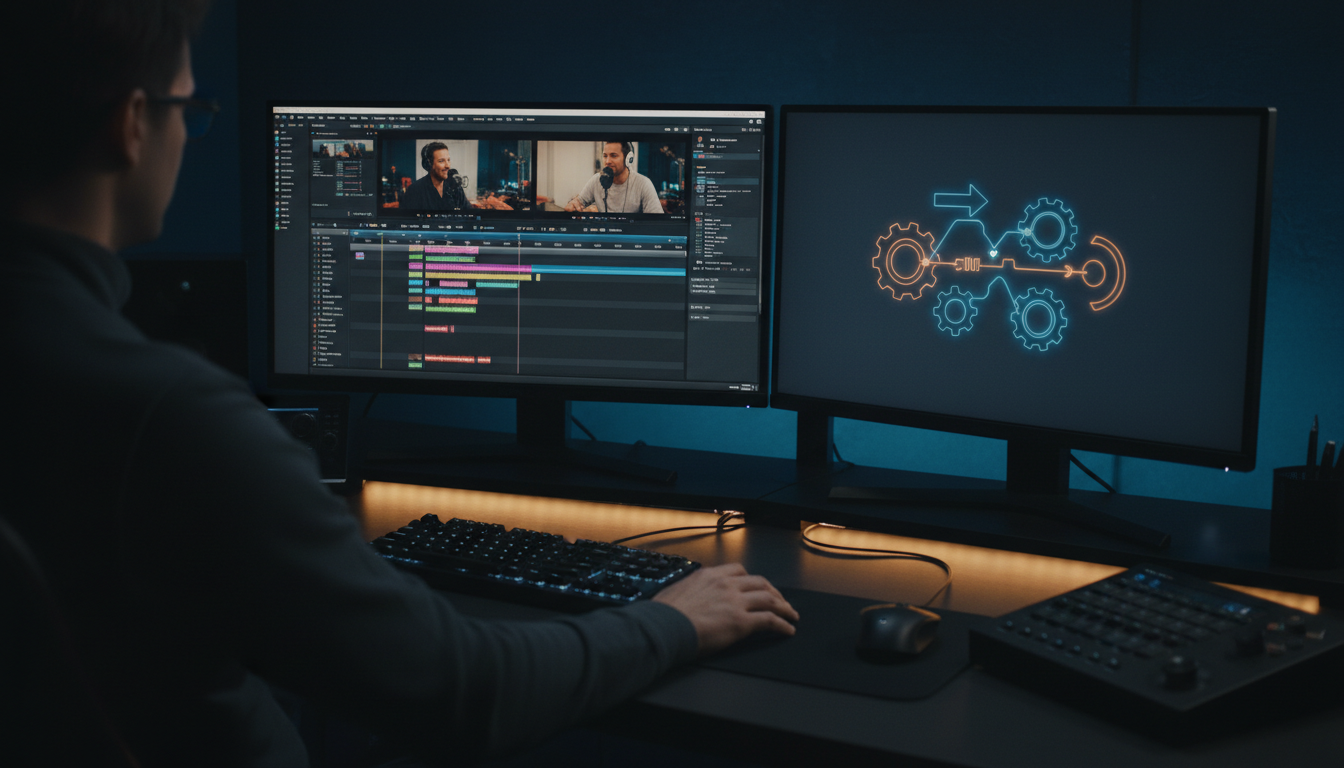
The most expensive thing in your post-production workflow is not your Adobe subscription or your hard drives. It is the countless hours you spend doing work that can be automated and done in under two minutes.
Most editors waste 80% of their time on mechanical grunt work like manual silence chopping and multicam syncing leaving only a fraction of their energy for the actual narrative structure.
If you want to remain profitable, you need to flip this ratio on its head inside Adobe Premiere Pro. In my years of editing commercial projects and high-volume podcasts, I have watched countless talented creators burn out.
In 2026, we need a faster, automated systems and workflows. Software should handle the technical baseline so we can preserve our cognitive energy for the storytelling that keeps viewers on the screen.
Using KreateFlo allows you to integrate a complete automation toolkit right into your native Premiere workspace. This is not about taking shortcuts or lazy editing, but about working with the math of viewer retention.
In this guide, I will show you how to apply the classic 80/20 rule to your post-production pipeline so you can slash manual editing times down to seconds.
Key Takeaways
Focus your energy on the top 20% of decisions (hooks, story structure, comedic timing) that drive 80% of audience retention.
Stop wasting hours manually cutting silent pauses; automate the rough cut process in 90 seconds.
Use tools built natively for Adobe Premiere Pro instead of disrupting your workflow with web apps or complex round-tripping.
Calculate the real cost of manual labor spending hours on tedious tasks caps your income as an editor.
Know when automation fits your project (like podcasts and interviews) and when it does not (like cinematic or narrative films).
What Is the 80-20 Rule Video Editing Strategy?
The Pareto Principle in Post-Production
The Pareto Principle, or the 80/20 rule, states that 80% of your results come from 20% of your efforts. In our world, this means 80% of your video's emotional impact, brand authority, and viewer retention is determined by 20% of your editing decisions.
That critical 20% includes your narrative pacing, the structural placement of the hook, and the comedic or dramatic timing of your cuts. Yet, when we look at how a typical day goes, the average video editor spends 55% of their time on technical grunt work [6].
We spend hours cleaning up awkward pauses, matching audio tracks, and aligning multi-camera shoots. That is time stolen directly from the creative tasks that actually determine whether a video performs well.
If you spend the first four hours of your day dragging cut points and deleting silence, your creative brain is already fried before you write a single visual hook. When you look at the macro data, the scale of this content demand becomes obvious.
Research shows that high-quality video marketing is standard infrastructure [1] because demand for video content continues to explode globally [3].
This means editors are forced to produce higher volumes than ever before.
If you spend 4 hours building a rough cut of a 30-minute interview, you are operating at an unsustainable deficit. You must automate the boring parts of the timeline.
This lets you focus entirely on the storytelling that drives engagement.
Why Modern Editors Get Trapped in the Trivial 80%
We get trapped because we are perfectionists by nature. We want the color grade to be cinematic, the sound design to have flawless Foley, and the transitions to be completely custom.
But let's be honest.
Nobody cares about a pixel-perfect color grade if your narrative structure is boring and viewers click away after 4 seconds.
The truth? I see editors spend half a day manually deleting "um" and "uh" from a transcript before they even know if the scene will make the final cut.
That is a massive waste of creative energy. You are spending your highest-focus hours on tasks that require zero creative thought. By offloading these mechanical tasks to specialized Premiere Pro CEP plugins like KreateFlo, you protect your brain from editing fatigue.
Current industry trends show that production teams are rapidly adopting automation [2] to streamline these exact bottleneck phases. Keeping your focus on structural flow is how you scale an agency or creator brand without sacrificing your sanity.
Pro Tip: Treat your editing timeline like an assembly line. Never do creative work (like color grading or micro-audio mixing) during the organizational or structural cutting phase. Keep these tasks completely isolated to avoid breaking your creative flow.
Actionable Takeaway: Review your last three projects and calculate exactly how many hours you spent on sync, pause trimming, and basic rough cuts versus creative pacing and storytelling.
Optimize Your 2026 Content: 80 20 Rule Video Editing Tips for Real Retention
Nailing the Hook (The Critical First 3 to 5 Seconds)
If your video does not hook the viewer immediately, the rest of your timeline does not matter. The first 3 to 5 seconds of any social video are the "vital 20%" that dictate 80% of your retention curve.
You can have the most brilliant ending in the world, but if your hook is slow, nobody will ever see it.
Because of this rapid drop-off, short-form video content engagement remains incredibly dominant [2]. The vast majority of consumers explicitly express a preference for short-form clips [4] when researching topics or looking for entertainment.
When I edit a short-form clip, I spend at least 40% of my total editing time perfecting those first 5 seconds. I test different text layouts, adjust the frame-by-frame pacing, and make sure the opening audio line hits with maximum punch.
Focus on Pacing and Audio Quality
Audiences will forgive mediocre video quality, but they will immediately exit a video with bad audio or awkward pacing. The most common mistake I see junior editors make is trying to mask bad narrative pacing with flashy visual effects, transitions, and heavy overlays.
It tanks your entire edit.
You must optimize your pacing for how people actually consume content on their phones. We know that a huge percentage of mobile viewers watch videos with the sound completely off [7], which makes visual pacing and captions your primary communication tools. But when the sound is on, the dialogue needs to feel tight and natural.
If you are trying to figure out how to structure these visual interruptions, check out our guide on how to optimize social media video retention.
When you use KreateFlo to instantly tighten your dialogue, you maintain a consistent, high-energy rhythm. The software helps you cut out the dead space while preserving the natural cadence of human speech. You want your cuts to feel invisible, guiding the viewer's eye and ear from one point to the next without jarring them out of the experience.
Pro Tip: Listen to your rough cut with your eyes closed. If you can follow the story and feel the energy of the video through the audio pacing alone, your cut is structurally sound. If it feels slow or disjointed, no amount of b-roll or visual effects will save it.
Actionable Takeaway: When cutting social clips, hard-code a strict rule for your first 3 seconds: include at least three visual pattern interrupts (like a zoom, a text pop, or a b-roll cut) to lock in viewer attention.
80-20 Rule Video Editing Tips to Automate Your Timeline Grunt Work
Silence Removal: From 4 Hours of Trimming to 90 Seconds
Let's look at the absolute biggest time sink in post-production: trimming silences and removing dead space.
If you are editing a one-hour raw interview, you might spend up to 4 hours manually ripple-deleting silent gaps, breaths, and awkward pauses. That is mind-numbing work that destroys your creative energy.
With KreateFlo's Silence Remover which is one of our three free forever tools you can complete this entire process in about 90 seconds. You simply set your decibel threshold and padding duration, and the plugin automatically slices out all the dead space across your Premiere timeline. It handles multi-track audio perfectly, so you never have to worry about knocking your tracks out of sync.
This type of timeline automation is exactly why the AI video editing tools market is growing rapidly [5]. Editors are realizing that manual cutting is a legacy workflow. Offloading this grunt work to a dedicated extension panel lets you jump straight into the fun part of editing: shaping the narrative.
Multi-Cam Management for Up to 8 Speakers
Editing multi-cam interviews manually is another massive bottleneck. Toggling between camera angles, matching audio waveforms, and trying to cut to the speaker in real-time can take hours of tedious clicking. If you are managing a group podcast with three or four guests, it is a nightmare.
KreateFlo's Multi-Cam Editor completely automates this process for up to 8 speakers and 8 camera angles. The plugin analyzes the audio tracks and automatically switches the active video feed to whoever is speaking.
It even includes a dedicated wide-shot setting, so you can program the tool to cut back to a wide shot during group laughter or when multiple people are speaking at once.
You shouldn't have to manually cycle through camera tracks for an hour just to show who's talking. That's a math problem, and software is better at math than you are.
This is an absolute lifesaver for high-volume content agencies. Instead of spending your day clicking camera 1, camera 2, wide shot, camera 3, you let the plugin build your initial multicam cut. You then go back and make a few minor adjustments to the pacing, saving you hours of manual track management.
Real-Time Captions Without the Constant Render Loop
Adding captions is crucial for retention, but the native Premiere Pro captioning tool can be incredibly slow and resource-heavy. If you want to use animated, modern styles, you often have to export to After Effects or deal with heavy Mogrt templates. These require constant background rendering just to preview a simple style change.
To solve this, KreateFlo includes CaptionFlow, featuring 22 animated caption presets.
Because it uses WASM real-time preview technology, you can see your animated changes instantly without waiting on a background render-to-preview loop. It also supports voice transcription in 40+ languages, including Bangla and Hindi, so you can quickly generate accurate transcripts and subtitles for global audiences.
These types of automated animated whiteboard and text video styles [8] are essential for keeping viewers hooked on silent feeds. But you also need a platform that handles highly interactive video formats and rapid turnaround times [10] to stay competitive.
CaptionFlow gives you those trendy, high-engagement social media captions in a fraction of the time.
Feature / Workflow | Traditional Manual Process | KreateFlo Automated Process (v1.0.3) | Time Saved |
|---|---|---|---|
Silence Trimming | Manual blade cuts and ripple deletes | Silence Remover auto-cut | 90 seconds vs 4 hours |
Multi-Cam Switching | Manual track cutting frame-by-frame | Multi-Cam Editor (up to 8 cameras) | 10 minutes vs 3 hours |
Caption Animation | Heavy Mogrt templates & background rendering | CaptionFlow with WASM live preview | Instant preview vs 30 min render |
Audio Transcription | Manual typing or expensive external tools | Multi-language AI transcription (40+ languages) | Minutes vs hours |
Pro Tip: When setting up your automated silence removal, keep your padding around 150ms to 200ms. If you set the padding too short, the dialogue will sound unnatural and clipped. If it is too long, you will lose that snappy, high-retention pacing.
Actionable Takeaway: Download KreateFlo's free tier and run the Silence Remover on your next raw voiceover track. Compare the automated cut directly to your manual trimming speed.
The Financials: $19.99/month vs Wasting 10 Hours a Week
The Real Cost of Mechanical Editing
Let's talk about the actual business economics of editing for a second.
Many editors hesitate to buy plugins because they want to keep their overhead low. But this is a classic example of being penny-wise and pound-foolish.
If you bill your clients $50 per hour, your time is your most valuable asset.
If you spend 10 hours a week on basic timeline syncing, audio cleaning, and manual cuts, you are quite literally losing $500 of billable time every single week - let that "sync" in, pun intended.
Over a month, that is $2,000 of lost revenue potential. By continuing to edit manually, you are capping your income because you simply do not have the time to take on more clients.
We know that independent freelance editors face intense competition [6] as the market scales. At the same time, brands are seeing a massive rise in digital video ad spending globally [3], creating a huge opportunity for editors who can deliver clean cuts quickly. To capitalize on this, you need to treat your editing stack like a business and invest in tools that buy back your time.
How KreateFlo Compares to Competitors
When you compare KreateFlo to other tools on the market, the financial math is incredibly simple. Standard tools like FireCut, AutoPod, Phantom Editor, Descript, and Opus Clip offer various automation features.
However, some competitors use credit-based, per-hour billing models that can quickly become expensive and unpredictable if you edit long-form podcasts. Other tools offer single-purpose automation but charge a heavy premium.
KreateFlo bundles 33+ professional video tools into a single, lightweight Premiere Pro extension panel. Our pricing structure is designed to be transparent and highly predictable:
Free Tier: Includes 3 essential tools forever (Silence Remover, Transition Assistant, Copy & Paste).
Pro Plan ($19.99/month): Unlocks all 33+ tools and includes 20 AI processing hours per month.
Studio Plan ($44.99/month): Designed for high-volume content agencies, offering 50 AI processing hours.
Because the growth of video marketing ROI remains incredibly strong [1], content agencies are under constant pressure to deliver fast turnaround times. Juggling multiple subscriptions for transcription, multi-cam, and captioning gets messy.
Having all of these tools integrated directly inside Premiere Pro v1.0.3 saves you from constantly importing and exporting files between different platforms.
Pro Tip: If you run an agency, calculate your subscription costs on a "per-client" basis. A $19.99/month subscription to KreateFlo pays for itself within the first 25 minutes of your very first client project of the month.
Actionable Takeaway: Calculate your average hourly billing rate and determine if saving just one hour of editing per week justifies the $19.99/month Pro subscription.
Honest Caveats: When KreateFlo Is NOT the Right Tool
You Work Outside of Adobe Premiere Pro
I want to be completely honest with you.
KreateFlo is built strictly as a CEP extension plugin for Adobe Premiere Pro and if your primary editing software is DaVinci Resolve, Final Cut Pro, or Avid Media Composer, this plugin is not going to work for you.
Many editors enjoy using browser-based, standalone applications for quick edits. If you are looking for an all-in-one web app to generate faceless videos from scratch without touching a traditional timeline, you might want to look at standalone faceless video tools like AutoFaceless or Descript [5]. KreateFlo is specifically designed for professional editors who want to remain inside the Premiere Pro workspace.
You Are Editing Highly Abstract, Single-Camera Cinema
If you are cutting a highly cinematic indie film, a slow-paced documentary, or a commercial spot where silence is used as a deliberate artistic tool, fully automated pacing tools are not the right fit. The artistic pauses in a narrative scene require human intuition and emotional sensitivity.
A general rule of thumb is to never let an algorithm dictate the pacing of a dramatic pause. If the silence carries emotional weight, cut it by hand.
For these projects, cinematic editing and custom color grading styles [10] are far more important than snappiness. You want to take your time and sculpt the pacing frame-by-frame. While you can still use KreateFlo's utility tools like Copy & Paste or Transition Assistant, the heavy AI-automated cutting features should be used with caution on projects that require cinematic breathing room.
But if your business model relies on turning long-form interviews, webinars, or podcasts into engaging online video learning formats [4], KreateFlo is an absolute necessity.
You need to turn around content fast to match the speed of modern social feeds, and that is exactly what this tool is built to do.
Warning: Do not run fully automated silence removal on dramatic narrative scenes. You will destroy the tension and subtext that the actors built during the shoot. Keep the AI automation focused on informational, interview, and dialogue-heavy content.
Actionable Takeaway: Assess your current project portfolio. If more than 60% of your work consists of podcasts, social clips, interviews, or corporate videos, you are in the sweet spot for timeline automation.
Setting Up a Bulletproof 2026 Content Workflow

The Locked Rough Cut Rule
One of the biggest mistakes I see editors make is trying to polish a video before they have finalized the core narrative structure. They will spend hours color grading, adding b-roll, adjusting sound design, and building custom text animations on a scene.
Then, they delete the entire segment later because the pacing of the video felt off.
You must establish a strict "Locked Rough Cut Rule." This means you do not touch any creative polish until your A-roll dialogue is 100% locked. Use KreateFlo to quickly clean your audio tracks, sync your cameras, and slice out silences to build your initial assembly. Once you have a clean, fast-moving narrative, you lock that track and proceed to the secondary creative passes.
This highly structured approach is why remote cloud editing workflows and hybrid teams [9] are able to deliver such high volumes. By dividing the project into distinct, non-overlapping phases, you avoid the exhausting context-switching that slows down your editing speed.
Batching Your Audio and Video Processes
To maximize your efficiency, you should batch your timeline actions. Do all of your organizational work first: log your footage, set up your project folders, and create your sequence templates. Then, move to your structural pass using automated tools to handle the rough cutting.
Once your rough cut is locked, batch your audio processing: level your dialogue, add your background music tracks, and run your noise reduction tools. Finally, move to your visual polish pass. Apply your color grades, add b-roll overlays, and generate your animated captions using KreateFlo's integrated script translation and live caption workflows [9].
Standardizing your timeline layout, color-coding your tracks, and utilizing inclusive, accessible video design standards [8] will keep your workspace clean. The cleaner your timeline, the faster you can navigate your project. It also makes it easier to spot structural pacing issues before they reach your client's desk.
Pro Tip: Set up a master Premiere Pro template project that already has your tracks color-coded, your audio effect racks applied, and your KreateFlo panel pre-configured. Every time you start a new edit, open this template to save 15 minutes of setup time.
Actionable Takeaway: For your next project, write down your workflow steps and force yourself to complete each step entirely before moving to the next. Do not touch a color wheel or look for b-roll until your rough cut is fully locked.
Frequently Asked Questions
What is the 80/20 rule in video editing?
It is the strategic application of the Pareto Principle to video post-production. It means that 80% of a video's narrative impact and viewer retention is determined by 20% of your editing decisions (like the hook, pacing, and overall structure).
Meanwhile, 80% of your actual time is often wasted on mechanical tasks (like syncing, trimming silences, and transcribing). By automating the technical grunt work, you preserve your creative energy for the storytelling that keeps viewers on the screen.
Does KreateFlo work as a standalone program?
No, KreateFlo is built strictly as a CEP extension plugin for Adobe Premiere Pro. It is not a standalone desktop application or a browser-based web tool. It integrates directly into your native Premiere Pro workspace, letting you run powerful automation tools without ever having to import or export files between different editing programs.
What is the difference between KreateFlo's free and paid tiers?
KreateFlo's free tier gives you lifetime access to three essential workflow tools: Silence Remover, Transition Assistant, and Copy & Paste. Upgrading to the Pro Plan ($19.99/month) unlocks all 33+ professional tools and includes 20 AI processing hours per month. The Studio Plan ($44.99/mo) is designed for agencies, unlocking all tools with 50 AI processing hours per month.
How many speakers can the Multi-Cam Editor support?
KreateFlo's Multi-Cam Editor supports up to 8 individual speakers and 8 dedicated camera feeds. It includes a smart wide-shot setting that automatically cuts back to a wide shot during group conversation or laughter, saving editors from hours of manual frame-by-frame track switching.
Stop wasting your high-focus hours on mechanical timeline trimming. Keep your creative brain fresh for the vital 20% of the project that actually keeps your viewers hooked and drives brand growth. Go ahead and download KreateFlo to automate the boring 80% of your post-production workflow today.
References
Try KreateFlo free
3 tools forever, 7-day trial on the rest. No credit card to start.
Download KreateFlo