Premiere Pro Silence Removal: 5 Best Workflow Tips 2026
Exporting XML files to a standalone app just to trim silence is a complete waste of your editing day. I wasted three years bouncing between Adobe Premiere Pro and tools like TimeBolt, constantly fixin

Exporting XML files to a standalone app just to trim silence is a complete waste of your editing day. I wasted three years bouncing between Adobe Premiere Pro and tools like TimeBolt, constantly fixing offline media errors, lost color grades, and broken multi-track sync.
If you are tired of dropping $247 on a single-purpose utility or juggling external desktop windows to meet client deadlines, stop. Native silence removal directly inside your active Premiere sequence is the fastest way to buy back four hours on every podcast edit.
Key Takeaways
- Standalone apps like TimeBolt ($247 lifetime) force you into fragile XML exports, relinking audio, and broken timeline contexts.
- Unscripted podcast audio and talking-head footage contain between 20% and 35% silent dead air that slows your edit pace.
- Native CEP panel extensions process cuts directly on your active Adobe Premiere Pro sequence without exporting media or losing clip handles.
- Setting decibel thresholds between -30 dB and -40 dB with 0.15-second padding prevents chopped word endings and maintains natural speech flow.
- Cutting multi-cam audio requires synchronized multi-track ripple deleting across up to 8 speakers to prevent lip-sync drift.
- KreateFlo includes a free-forever Silence Remover alongside 33+ post-production tools, while TimeBolt charges $247 upfront for a single utility.
Why Exporting XMLs Out of Premiere Pro is Killing Your Workflow
Unscripted interview footage has a pacing problem. Industry analysis of unscripted talking-head video content [1] shows that dead air, mid-thought pauses, and hesitations account for 20% to 35% of total runtime. Trimming those gaps by hand means hours of tedious razor-tool work.
Standalone jump-cut apps promise to solve this grunt work. But they force you into an outdated, indirect workflow. You have to export an XML, launch a separate app, process cuts outside your NLE, and import the modified sequence back into Premiere Pro.
That back-and-forth round-trip breaks your focus. It creates endless technical debt inside your project file.
The Round-Trip Tax: XML Exports and Offline Media
Every time you round-trip media through an external application, you pay what I call the round-trip tax. Standalone desktop apps like TimeBolt [5] process audio files independently from your Premiere Pro project file. You rely on fragile XML files to bring those edit decisions back home.
XML transfers break easily. Missing media dialogs, offline proxy warnings, and frame rate mismatches show up constantly. Instead of editing, you waste 30 minutes relinking files and troubleshooting broken track paths.
Lost Timeline Context and Broken Plugin Effects
The bigger issue is lost context. External apps treat your media as raw unedited clips. If you already applied Lumetri color grades, sidechain compression, or sequence markers, that metadata gets stripped during the XML re-import.
Running a clip-by-clip extension workflow [3] on a structured timeline ruins nested sequences and audio routing. I once edited a two-hour multi-mic interview where an XML re-import flattened my audio buses and wiped four hours of color work.
Lesson learned: never strip silence outside your primary active sequence.
Pro Tip: Keep your master timeline active during silence removal rather than duplicating sequences via XML import. This preserves audio track routing, submix buses, and Lumetri color grades.
Actionable Takeaway: Stop exporting XML files for silence removal. Process your raw audio directly within your primary NLE sequence to protect your metadata.
Replacing TimeBolt: Faster Silence Removal Inside Premiere Pro Without External Apps
You do not need to leave Adobe Premiere Pro to delete dead air. Replacing TimeBolt with an in-panel CEP extension lets you perform silence removal directly on your active sequence timeline.
Native extension panels live inside your Premiere workspace. They tap directly into the host software's native audio engine.
How CEP Extensions Work Directly on Your Active Sequence
Common Editing Panel (CEP) extensions operate right inside your workspace window. Tools like KreateFlo (v1.0.3) execute commands directly on your sequence using internal API hooks.
When you use native Premiere Pro plugins [4], the extension reads audio waveforms on your selected tracks. It calculates silent intervals based on your threshold settings and applies ripple deletes straight to the sequence.
Zero rendering required. Zero file relinking. No secondary XML files cluttering your bins.
You keep every original clip handle intact. If a speaker takes a dramatic pause you want to keep, pull the edge back manually. You retain complete creative control while trimming dead air directly in Premiere [10].
Cutting 90 Seconds of Setup Time Down to 5 Seconds
Look at the math. Standalone apps like TimeBolt or Recut force you to open a separate desktop window, locate raw files, wait for external waveform rendering, export an XML, and import it back into Premiere. That entire process wastes 90 to 120 seconds per file in pure administrative overhead.
In-panel tools eliminate that friction completely. You select your target track, hit execute inside the extension, and watch your sequence collapse silent gaps in under five seconds.
Actionable Takeaway: Switch to in-panel CEP extensions to eliminate setup friction and keep all clip handles intact on your target timeline.
The Mechanics of In-Panel Silence Removal: Decibels, Waveforms, and Thresholds

Automated silence removal relies on precise acoustic parameters. Set your cut parameters incorrectly, and your sequence will sound choppy, unnatural, or clipped.
Understanding decibel floors and padding buffers is critical for broadcast-quality speech.
Finding the Decibel Sweet Spot (-30 dB to -40 dB)
The decibel (dB) threshold determines what signal level counts as silence. Room tone, fan noise, and background HVAC hum usually rest between -45 dB and -60 dB. Spoken dialogue sits between -12 dB and -24 dB.
According to recommended decibel threshold settings [3], setting your threshold floor between -30 dB and -40 dB yields the cleanest cuts.
Set the threshold too high (above -25 dB), and soft word endings or trailing consonants ("s", "t", "k") get chopped off. Set it too low (below -50 dB), and the algorithm mistakes air conditioner hum for speech, leaving awkward pauses behind.
Minimum Silence Duration and Buffer Padding
Decibel levels alone cannot define natural speech gaps. Speakers take micro-pauses between sentences. If your software cuts every gap longer than 0.05 seconds, your speaker sounds like a robotic auctioneer.
To keep conversational cadence intact, set your minimum silence duration between 0.20 and 0.50 seconds, as recommended in AI silence removal workflows [8].
Pair that duration with a 0.10 to 0.15-second buffer padding on both sides of every cut. This cushion protects soft breath intakes and prevents aggressive cuts from slicing into initial consonants.
Waveform Boundary Snapping vs Transcript Mismatches
Transcript-only silence removers have a major flaw. They frequently misfire when handling heavy accents, background noise, or subtle vocal fry.
To solve this problem, TimeBolt's 3-layer cut system [2] maps silence using a combination of transcript data and direct waveform boundary snapping within 10 milliseconds.
Native Premiere tools use high-resolution waveform analysis inside your timeline sequence. This ensures cut points align with zero-crossing audio points, preventing audible clicks or pops.
Pro Tip: Always add a 0.12-second padding buffer on both sides of a detected audio gap. This prevents harsh audio pops and keeps natural breath intakes from sounding like sudden cuts.
Actionable Takeaway: Calibrate your silence removal threshold between -30 dB and -40 dB with a 0.15-second buffer to protect trailing consonants and speech cadence.
Replacing TimeBolt: Faster Silence Removal Inside Premiere Pro for Multi-Cam Podcasts
Trimming silence on a single talking-head track is simple. Doing it across a multi-camera podcast with multiple active mics is where edits break down.
Keeping Multi-Track Audio In Sync Across Speakers
If you run a basic silence remover on Track 1 without locking Track 2, your speakers fall out of sync instantly. The second Speaker A pauses while Speaker B stays silent, ripple deleting track 1 shifts downstream audio to the left. Your interview lip sync is destroyed.
To prevent sync drift, silence tools rely on waveform-based multi-track alignment [6].
The silence engine evaluates all audio tracks together. It only cuts dead air when all speakers are silent at the exact same moment. If Speaker A stops talking while Speaker B answers, the gap stays intact.
Integrating Silence Removal with AI Multi-Cam Switching
In a professional workflow, trimming dead air is only step one. Once silent pauses are gone, you still have to cut camera angles between host and guest.
With separate apps, you process silence in TimeBolt, export an XML, import it back, and then cut camera angles manually in Premiere.
Using KreateFlo changes that. You combine Silence Remover directly with the native Multi-Cam Editor.
The plugin processes up to 8 speakers and 8 dedicated camera tracks simultaneously. It even includes a wide-shot designation for group laughter and cross-talk.
As published in long-form benchmark testing [9], combining silence removal and multi-cam switching inside one panel drops interview post-production times from 3 hours down to under 10 minutes.
Actionable Takeaway: Use track-grouped ripple deletion across all active multi-cam tracks simultaneously to strip silence without causing audio-video sync drift.
TimeBolt vs KreateFlo vs Recut: Feature Breakdown and Pricing Comparison
Choosing a silence removal tool comes down to software architecture, workflow integration, and real cost. Here is how the top options compare.
| Feature / Metric | TimeBolt | Recut | KreateFlo |
|---|---|---|---|
| Software Architecture | Standalone Desktop App (Mac/Win) | Standalone Desktop App (Mac Only) | Native Adobe Premiere Pro Extension (CEP) |
| Workflow Method | Round-Trip XML / EDL Export | Round-Trip XML Export | Direct In-Panel Sequence Execution |
| Upfront Cost | $247 One-Time Purchase [1] | $99 One-Time Purchase [5] | Free Tier Forever (3 Tools Included) |
| Paid Subscription Tiers | $17/mo or $247 Lifetime | $99 Lifetime | Pro ($19.99/mo) / Studio ($44.99/mo) |
| Multi-Cam Audio Support | Basic Multi-Track | Basic Multi-Track | Multi-Cam up to 8 Speakers / 8 Cameras |
| Animated Captions | No | No | Yes (22 WASM Presets via CaptionFlow) |
| Integrated AI Suite | Silence Removal Only | Silence Removal Only | 33+ Tools (Multi-Cam, Short Clips, Reframe) |
Upfront Costs: $247 One-Time vs $19.99/mo All-In-One
TimeBolt pushes a $247 lifetime purchase or a $17/mo plan. Recut costs $99 as a standalone Mac utility. Paying upfront sounds nice, but you are spending hundreds of dollars on a single-purpose utility that lives outside your NLE.
KreateFlo takes a different path. The Silence Remover, Transition Assistant, and Copy & Paste tools are 100% free forever. You do not pay a cent to trim dead air inside Premiere Pro.
When you need more power, the Pro plan ($19.99/mo with 20 AI hours) or Studio plan ($44.99/mo with 50 AI hours) unlocks multi-cam switching, automated clip generation, and dynamic captions in one license.
Single-Purpose Utility vs Full Post-Production Suite
If you buy TimeBolt, you still need extra plugins to finish your work. You end up paying TimeBolt for silence, AutoPod or FireCut for multi-cam cuts, Descript or Opus Clip for short clips, and CapCut for captions.
Juggling four subscriptions inflates your monthly software bill. It fragments your editing process.
Bundling 33+ tools into one Premiere extension fixes this. You can process raw interviews, switch multi-cam angles, generate short clips, and render animated captions with real-time WASM previews without leaving your sequence.
Pro Tip: If you edit 10+ hours of video content per week, don't buy a single-utility tool. Bundle silence removal, multi-cam switching, and dynamic captions into one extension to avoid managing 4 different subscriptions or desktop windows.
Actionable Takeaway: Choose an integrated in-panel suite over single-purpose desktop apps to streamline your post-production stack and lower overall software overhead.
Replacing TimeBolt: Faster Silence Removal Inside Premiere Pro - Step-by-Step Tutorial

Here is the exact step-by-step workflow for stripping dead air directly on your Premiere Pro timeline without exporting XML files.
Step 1: Open KreateFlo Silence Remover inside Premiere Pro
Open your project sequence inside Adobe Premiere Pro. Go to Window > Extensions > KreateFlo.
The CEP panel opens directly in your workspace. Select the Silence Remover tool from the dashboard.
Step 2: Calibrate dB Threshold and Padding Settings
Highlight the audio tracks on your sequence containing dialogue. Adjust your parameters based on your room acoustics:
- Silence Floor Threshold: Set to -35 dB for clean studio audio, or -30 dB for light background noise.
- Minimum Silence Duration: Set to 0.30 seconds to preserve natural dialogue pacing.
- Buffer Padding: Set to 0.15 seconds to cushion sentence openings and endings.
Step 3: Preview Cut Points and Apply to Sequence
Click Analyze Waveform. The extension scans your timeline audio in seconds and flags all silent segments.
As shown in previewing auto-generated cut points [7], you can inspect visual cut markers directly on your sequence tracks before committing to edits. Click Execute Ripple Delete.
The tool trims dead air, collapses the gaps, and keeps all audio and video tracks aligned automatically.
Actionable Takeaway: Perform a quick 30-second spot-check on key dialogue transitions before running sequence-wide ripple deletion to verify cut accuracy.
When KreateFlo Isn't the Right Choice for Your Edit
Use the right tool for your specific workflow. While native Premiere extensions offer major speed benefits for daily Premiere editors, KreateFlo is not right for everyone.
When You Need Standalone Pre-Processing Without Premiere Pro
If you edit strictly in Final Cut Pro, DaVinci Resolve, ScreenFlow, or Camtasia, KreateFlo will not fit your pipeline. It is built strictly as an Adobe Premiere Pro CEP extension panel.
Editors outside Premiere should stick with desktop apps like TimeBolt ($247) or Recut ($99). They process raw files independently and export generalized XML or EDL files compatible with other software.
When You Prefer Permanent One-Time Purchases Over Subscriptions
If you edit one video a month and refuse recurring software fees, paying a single $247 fee for TimeBolt or $99 for Recut might make sense for your budget.
KreateFlo gives you a free-forever tier for basic silence removal. However, its advanced AI tools (like automated multi-cam cutting and voice transcription) run on a subscription model ($19.99/mo Pro / $44.99/mo Studio) to cover continuous cloud processing costs.
Actionable Takeaway: Stick with standalone desktop options if you edit outside Adobe Premiere Pro or refuse monthly software subscriptions.
Conclusion
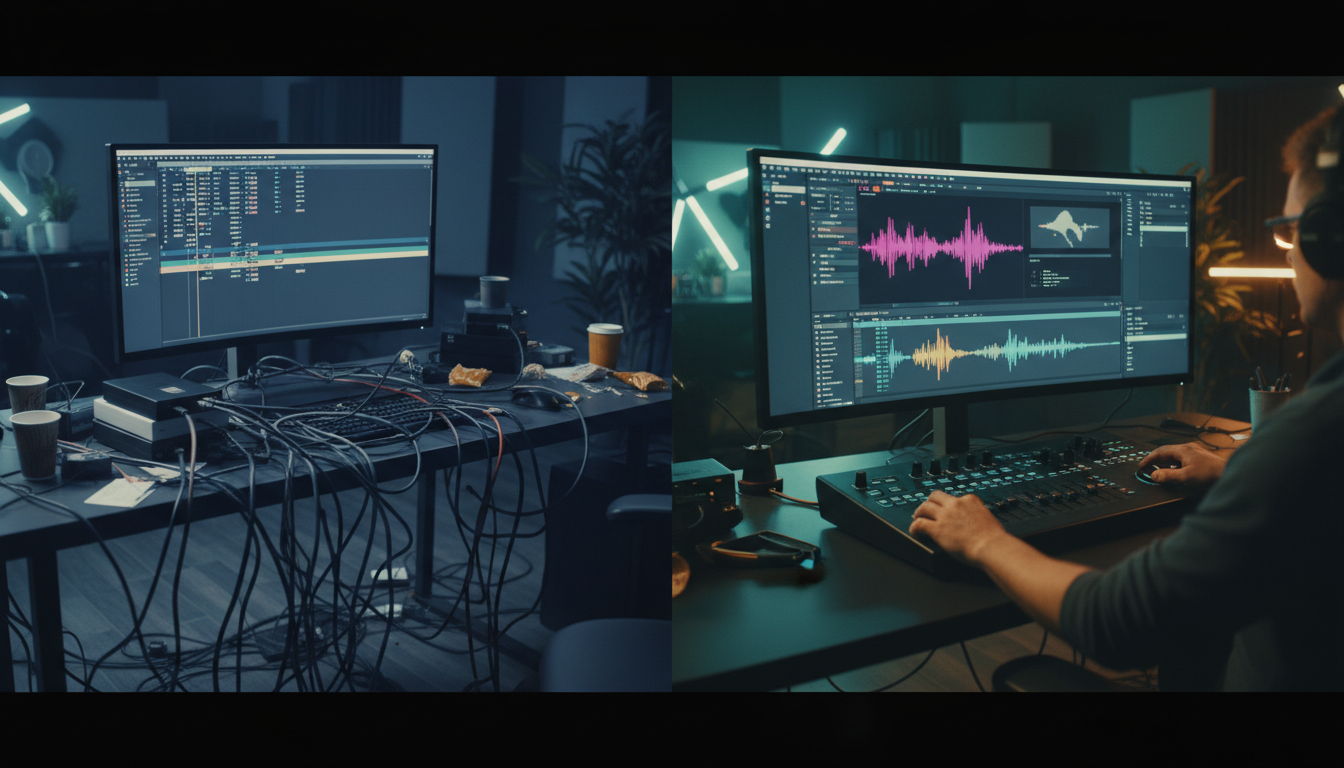
Stop throwing away hours on XML exports and standalone apps that wreck your sequence metadata. Trimming dead air from a talking-head video or podcast interview should take five seconds inside your active timeline, not a 20-minute round-trip headache.
Ready to eliminate the XML tax from your editing workflow? Download KreateFlo for free today and start stripping silence directly inside Adobe Premiere Pro.
Frequently Asked Questions
Is TimeBolt a native Premiere Pro plugin or a desktop application?
TimeBolt is a standalone desktop application for Mac and Windows. It processes video files outside your primary editing software, requiring you to export and import XML/EDL files to transfer cut points back into Adobe Premiere Pro [1], [5].
How do native Premiere Pro silence removal plugins compare to TimeBolt's XML workflow?
Native extensions like KreateFlo run inside the Premiere Pro CEP panel. They execute silence cuts instantly on your active target sequence without requiring external rendering, XML file exports, offline media relinking, or broken clip effects [4], [5].
Can you remove silence in Adobe Premiere Pro without exporting to external software?
Yes. Using a native panel extension like KreateFlo, you can analyze track audio waveforms and execute ripple deletes directly on your active sequence tracks in seconds without leaving Premiere Pro [8], [10].
What are the best decibel threshold settings for removing silence?
A decibel floor threshold between -30 dB and -40 dB combined with a minimum silence duration of 0.20 to 0.50 seconds works best for voice recordings. Adding a 0.15-second padding buffer prevents clipping soft trailing consonants [3], [8].
Does KreateFlo offer a free silence removal tool?
Yes. KreateFlo includes Silence Remover, Transition Assistant, and Copy & Paste tools completely free forever. Paid plans (starting at $19.99/mo) add AI processing hours for automated multi-cam switching, voice transcription, and animated WASM caption presets.
References
- blitzcutai.com/blog/best-silence-remover-apps-2026
- timebolt.io/remove-silence-from-video
- timebolt.io/jump-cutter-adobe-premiere
- goatedit.com/blog/best-ai-plugins-premiere-pro
- getrecut.com/alternatives/timebolt/
- opus.pro/blog/best-ai-silence-removers
- timebolt.io/blog/ai-video-editor-showdown-long-form-accuracy-test
- cutback.video/blog/how-to-automatically-remove-silence-in-premiere-pro-using-ai-(2025-guide)
- timebolt.io/blog/ai-editor-benchmark-premiere-capcut-timebolt
- blackhateditors.com/blog/en/remove-silences-premiere-pro/
- blitzcutai.com/blog/timebolt-vs-recut-vs-blitzcut
- shortgenius.com/blog/ai-video-editing-workflow
- redsharknews.com/how-to-delete-pauses-and-filler-words-with-text-based-editing
- ninefivetofreedom.com/timebolt-review/
- blitzcutai.com/blog/best-app-remove-silence-from-video
Try KreateFlo free
3 tools forever, 7-day trial on the rest. No credit card to start.
Download KreateFlo