SRT Files vs Burned-In Captions: Ultimate 2026 Guide
SRT Files vs Burned-In Captions: When to Use Each Format (2026) Burning captions directly into your video render when you should have used an SRT sidecar is the fastest way to ruin your YouTube SEO an
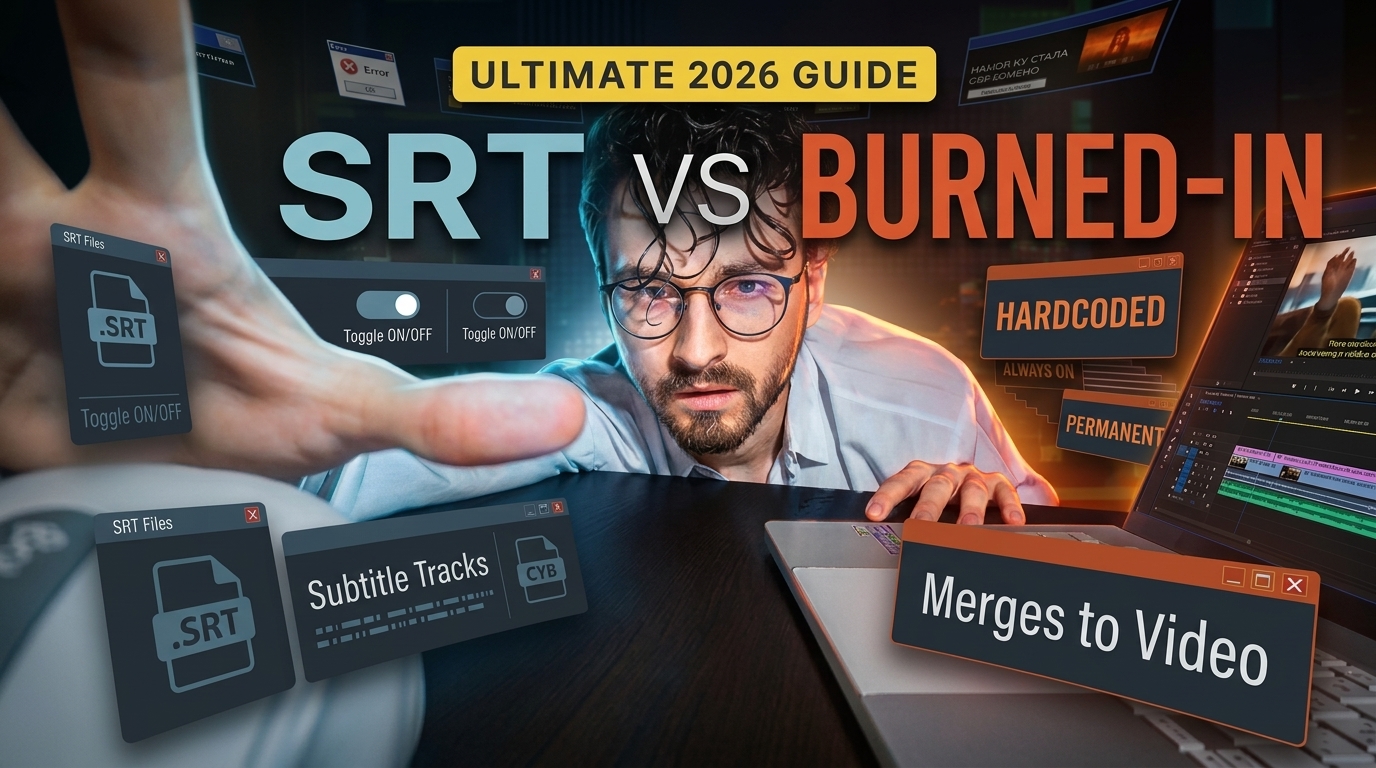
Burning captions directly into your video render when you should have used an SRT sidecar is the fastest way to ruin your YouTube SEO and anger a client who wants multi-language translations. But doing the opposite on TikTok guarantees silent scrollers skip your clip in under two seconds.
I have spent years editing multi-cam podcasts and social clips inside Adobe Premiere Pro. So I can tell you that picking between SRT sidecars and burned-in open captions is not just a matter of visual preference. It is a technical decision that impacts your video SEO, accessibility compliance, and viewer retention across every major video platform.
Key Takeaways
- SRT (SubRip) sidecar files are the gold standard for long-form YouTube videos, website embeds, and accessibility because search engine crawlers can index the raw text metadata.
- Burned-in open captions are mandatory for vertical social media clips (TikTok, Instagram Reels, YouTube Shorts) to hook scrollers watching on mute.
- Never layer both: Publishing burned-in text while activating an SRT closed caption track on the same post causes overlapping double captions that drive viewers away.
- Accuracy matters: Unedited AI transcriptions average 85% to 90% accuracy; human proofreading is required to hit the 99% accuracy threshold demanded by federal accessibility standards.
- Respect the UI safe zone: Keep burned-in text at least 200 pixels above the bottom frame in 9:16 vertical videos to avoid buttons and profile descriptions.
- Speed up post-production: Tools like KreateFlo let you export sidecar SRTs and render dynamic burned-in kinetic text directly inside your Premiere timeline in 90 seconds instead of hours.
What Are SRT Files and Burned-In Captions?
Before picking a subtitle format for your timeline, you need to understand how video players and editing software handle subtitle data under the hood.
How SRT Sidecar Files Work
An SRT (SubRip Subtitle) file is a lightweight, plain-text sidecar document that lives alongside your exported video file [4]. It contains no video pixels or complex visual styling. Instead, it relies on a standardized, sequential text structure:
- A line sequence number (1, 2, 3...)
- Start and end timecodes formatted as
HH:MM:SS,mmm(hours, minutes, seconds, milliseconds) - The spoken transcript text for that duration
Because SRT files use strict comma separators for milliseconds, virtually every desktop media player and online video platform can read them natively [1]. When you upload an SRT file to a video hosting platform alongside your MP4 or MOV file, the platform's video player parses the timecodes and displays the text over the video during playback [4].
1
00:00:01,500 --> 00:00:04,200
Welcome back to the podcast.

2
00:00:04,250 --> 00:00:07,800
Today we are comparing SRT files and burned-in captions.
How Burned-In (Open) Captions Work
Burned-in captions—also referred to as open captions or hardcoded subtitles—are baked directly into your video frame during rendering [6]. The text texturing, font choice, animations, drop shadows, and background bounding boxes become part of the actual pixel data of the MP4 or MOV render [8].
Once you export a sequence with burned-in captions, those text pixels are permanently locked into the video stream [8]. Viewers cannot toggle them off, change their font size, or alter their color in a video player [6].
Understanding Closed vs Open Captions
The core operational difference between these two subtitle methods comes down to user control [7].
- Closed Captions (CC): Delivered via sidecar files like SRT or WebVTT. The viewer can turn them on or off in the video player settings, and search engine crawlers can read the plain-text contents [3].
- Open Captions (Burned-in): Encoded permanently into the video file's image data [6]. They are visible to 100% of viewers at all times, regardless of the platform or video player settings [8].
Pro Tip: Always export a
SRT Files vs Burned-In Captions: Technical Comparison
Choosing between these two formats requires looking at how platform algorithms, web crawlers, and modern video players handle text data.
| Feature | SRT Sidecar Files | Burned-In Open Captions |
|---|---|---|
| Search Engine Indexing (SEO) | Fully searchable by Google and YouTube [3] | Invisible to search engine crawlers [6] |
| Viewer Toggle Control | Viewers can turn text on/off [7] | Always visible, cannot be hidden [8] |
| Styling & Customization | Limited to player default fonts [1] | Unlimited fonts, colors, kinetic animations [8] |
| Social Media Compatibility | Limited on organic post feeds [4] | 100% compatible on all video platforms [8] |
| Accessibility Adjustments | Screen-reader compatible, resizable [3] | Fixed size, can fail contrast rules if styled poorly [8] |
| File Export Time | Near-instantaneous export [1] | Requires full timeline video rendering [8] |
Video SEO and Search Engine Indexing
Search engine crawlers cannot "watch" video pixels to read burned-in text [6]. When you upload a video with hardcoded open captions to YouTube or a website, Google sees the video file as raw visual data.
In contrast, sidecar files like SRT and WebVTT are machine-readable documents [3]. When you attach an SRT file to your YouTube video or HTML5 web player, search engine bots read every word, timestamp, and keyword [3]. This metadata allows Google to index your video for specific search queries, generate automatic video chapters, and rank your content higher in search results [3].
| 65|Sidecar SRT Track | NaN |
|---|
Accessibility Compliance and Customization
Federal accessibility standards, including Section 508 and guidelines enforced by the FCC and DOJ, require accessible video media for viewers who are deaf or hard of hearing [8].
Closed caption SRT files excel here because they give the end-user control [3]. Viewers with low vision can use their browser or device settings to increase the font size, swap font colors for higher contrast, or send the text stream to a screen reader or braille display [3]. Burned-in captions lock the text size in place, which can cause accessibility issues on smaller screens if your font choice is too thin or small [8].
Platform Compatibility Across Web and Mobile
While SRT sidecar files are ideal for web accessibility, short-form social channels ignore them [4]. Platforms like TikTok, Instagram Reels, and Snapchat do not support uploading external SRT sidecar files for standard organic posts [4].
If you want styled text on Instagram Reels or TikTok without using the platform's native text editor, you must burn the captions directly into the video pixels before exporting from Premiere Pro [5].
When to Use SRT Files for Long-Form Video and SEO

If you cut long-form interviews, educational courses, corporate webinars, or YouTube podcasts, SRT files should be your default delivery asset.
       ┌────────────────────────────────────────────────────────┐
       │                Master Video Project                    │
       └───────────────────────────┬────────────────────────────┘
                                   │
                  ┌────────────────┴────────────────┐
                  ▼                                 ▼
   ┌─────────────────────────────┐   ┌─────────────────────────────┐
   │    Long-Form Content        │   │    Short-Form Clips         │
   │  (YouTube, Web Embeds)      │   │ (Reels, TikTok, Shorts)     │
   └──────────────┬──────────────┘   └──────────────┬──────────────┘
                  │                                 │
                  ▼                                 ▼
   ┌─────────────────────────────┐   ┌─────────────────────────────┐
   │   Clean Export + Master     │   │ Dynamic Burned-In Captions  │
   │     SRT Sidecar File        │   │   (Custom Motion Styles)    │
   └─────────────────────────────┘   └─────────────────────────────┘
Optimizing YouTube Long-Form Interviews
When you publish a 40-minute interview on YouTube, uploading an SRT sidecar file provides a massive SEO advantage [3]. YouTube's search algorithm scans the sidecar file to understand the exact context of your discussion [3].
If a viewer searches for a niche term mentioned at minute 24, YouTube can point the viewer straight to that precise timestamp because the SRT file links text to timecodes [3].
Using SRT files on YouTube also gives your audience control. Viewers watching on large monitors can turn captions off, while viewers watching in noisy environments can turn them on [3].
Website Video Embeds and Corporate Content
For corporate clients hosting video on platforms like Wistia, Vimeo, or native HTML5 video tags, sidecar files are critical [5].
Hardcoding large, colorful captions onto a corporate sales video or product launch looks tacky. A clean video render paired with a subtle, toggleable closed-caption SRT track keeps the video looking professional while maintaining full compliance for corporate accessibility audits [3].
Multilingual Subtitles and Translation Files
SRT files are essential for global content distribution [4]. If you produce content that needs to reach an international audience, burning English text into the video pixels traps you. To release a Spanish or German version, you would have to re-render and re-export the entire video file.
With sidecar SRT files, you export your clean video file once [4]. Then, you can translate the master SRT file into dozens of languages—or use automated translation workflows—and attach multiple language tracks (e.g., episode1_EN.srt, episode1_ES.srt, episode1_DE.srt) to a single video upload [4].
When to Use Burned-In Captions for Social Media
When cutting 9:16 vertical clips for Instagram Reels, TikTok, or YouTube Shorts, the rules change entirely. SRT files will not save you here—burned-in captions are mandatory [5].
Capturing Attention in Silent Autoplay Feeds
Social media feeds are visual war zones. Studies show that over 80% of mobile users scroll through social feeds with their device audio muted [8].
If your vertical clip opens with a talking head and no visible text, silent scrollers will swipe past your video in less than two seconds. Burned-in captions display text the millisecond the video autoplays, instantly telling the viewer what the clip is about before they even think about turning the sound on [8].
Dynamic Animated Word-by-Word Styling
Basic SRT files display flat lines of static text at the bottom of the screen [1]. That boring subtitle style fails on vertical social platforms.
Modern short-form audiences expect dynamic, kinetic typography. We are talking about word-by-word highlight animations, active karaoke-style color fills, bold drop shadows, and punchy background boxes [8].
These visual flourishes can only be achieved by rendering burned-in captions directly inside your timeline editor [8]. Dynamic text keeps the viewer's eyes engaged, driving up average watch time and triggering platform recommendation algorithms.
Navigating Vertical 9:16 Safe Zones
One of the biggest issues with platform auto-captions is terrible text placement. Native platform tools often slap text right over the channel handle, caption description, or side engagement buttons.
Burned-in captions give you complete control over text placement. When editing in 9:16 vertical sequences, you can set custom position markers to ensure your text sits inside the platform "safe zone"—keeping titles clear of UI overlays [8].
+-----------------------------------+  <-- Top UI (Search / Camera icons)
|                                   |
|                                   |
|        [ DYNAMIC BURNED-IN ]      |  <-- SAFE ZONE (Center / Upper Third)
|        [  KINETIC CAPTION  ]      |
|                                   |
|                                   |
|                                   |
+-----------------------------------+  <-- Bottom UI (Username, Track, Likes)
Pro Tip: Keep all vertical burned-in captions at least 200 pixels above the bottom frame boundary and 150 pixels in from the right edge. This prevents account usernames, like buttons, and comment overlays from blocking your text on mobile devices.
Common Captioning Mistakes That Ruin Video Engagement

Subtitling seems simple on paper. But minor post-production oversights can ruin a client deliverable. Here are the three most frequent captioning traps video editors step into.
The Double-Caption Overlap Disaster
This happens all the time on short-form feeds: an editor exports a clip with styled burned-in open captions, but the client publishes the clip with Instagram or TikTok's native auto-caption toggle turned on [8].
The result? The platform's text renders directly on top of your carefully crafted burned-in captions [8]. Viewers are left with an unreadable mess of overlapping words that ruins retention instantly [8].
| Before | 90 Seconds |
|---|---|
| After | 4 Hours |
Trusting Unedited AI Transcriptions
Automated speech-to-text tools have gotten remarkably accurate over the last few years. But unedited automated transcriptions still average between 85% and 90% accuracy [8].
That sounds fine until you realize that missing 10% means misspelling your client's brand name, butchering technical jargon, or introducing embarrassing typos [8]. Federal accessibility compliance guidelines from the FCC and DOJ demand at least 99% accuracy for official media distribution [8].
Warning: Never send an SRT file or export a burned-in caption sequence without doing a quick spellcheck. A single misheard word in an opening hook can destroy a creator's credibility.
Ignoring UI Overlays on Vertical Platforms
If you place your captions near the bottom edge of a 1080x1920 vertical sequence, TikTok and Instagram Reel UI elements will obscure your words [8].
Usernames, audio titles, and long video descriptions occupy the bottom 25% of the mobile screen. The right-hand column houses the like, comment, and share icons. So if your text falls into those areas, your audience cannot read it [8].
How to Export Both Formats Fast in Adobe Premiere Pro
If you cut podcasts or short-form content daily in Adobe Premiere Pro, creating clean SRT files and styled burned-in captions can chew up hours of timeline management. Here is how to handle both formats cleanly without killing your editing pacing.
Premiere Pro's Built-in Text Panel Workflow
Premiere Pro includes a solid native Text panel for basic transcriptions and captioning [10].
- Open the Text panel (
Window > Text). - Click Transcribe to generate an automatic speech-to-text transcript of your timeline [10].
- Proofread the text for proper nouns and timing accuracy [8].
- Click Create Captions to generate a Subtitle Track on your timeline [10].
- To export an SRT file: Click the three-dot menu icon in the Text panel and select Export to SRT file [10].
- To burn captions into your export: Go to your Export settings, navigate to the Captions tab, and set the Export Options dropdown to Burn Captions Into Video [10].
While Premiere's native workflow works fine for basic SRT sidecar generation, crafting eye-catching, word-by-word animated burned-in text for short-form video requires converting subtitle tracks into Essential Graphics overlays [10]. Doing that manually across dozens of short clips takes hours of keyframing and styling tweak loops.
Automating Styled Captions with KreateFlo CaptionFlow
When you edit multiple client podcasts per week, speed matters. Manually adjusting graphic layers, keyframing font pops, and fighting Premiere's render previews for graphic text slows down your workflow.
That is why we built CaptionFlow inside KreateFlo—a dedicated Adobe Premiere Pro plugin (CEP extension) designed to automate high-retention subtitle workflows.
Instead of stacking up manual graphic tracks, CaptionFlow gives you 22 animated caption presets built specifically for short-form retention. Because it runs on a custom WebAssembly (WASM) engine, you get real-time previews right inside Premiere Pro [10]. You can adjust font colors, add dark background bounding boxes, or set word-by-word highlight fills without waiting for render bars to load.
[[STAT:99%:Required FCC Accessibility Accuracy]]
Here is how simple a hybrid workflow gets when using KreateFlo v1.0.3:
- Transcribe your sequence inside Premiere Pro or using KreateFlo's voice transcription tool (which supports over 40 languages including Hindi and Bangla).
- Export your clean master video and hit Export SRT inside KreateFlo to save your search-optimized sidecar file in seconds [1, 3].
- For your 9:16 social clips, open CaptionFlow, select one of the 22 animated presets, and adjust your vertical safe zone sliders.
- Render your short-form clips with animated burned-in captions in 90 seconds instead of spending four hours building manual keyframes.
       ┌────────────────────────────────────────────────────────┐
       │             Premiere Pro Timeline Sequence             │
       └───────────────────────────┬────────────────────────────┘
                                   │
                   [ Run KreateFlo v1.0.3 Plugin ]
                                   │
                  ┌────────────────┴────────────────┐
                  ▼                                 ▼
   ┌─────────────────────────────┐   ┌─────────────────────────────┐
   │    Export Master SRT Track  │   │   Apply CaptionFlow Preset  │
   │   (For YouTube & Web SEO)   │   │  (22 Animated WASM Styles)  │
   └─────────────────────────────┘   └──────────────┬──────────────┘
                                                    │
                                                    ▼
                                     ┌─────────────────────────────┐
                                     │  Render Burned-In 9:16 Clip │
                                     │   (For Reels, TikTok, Shorts) │
                                     └─────────────────────────────┘
Look, let's be realistic: KreateFlo is NOT the right pick for everyone. If you only cut one simple three-minute vlog a month, KreateFlo is overkill. Stick to Premiere's free built-in Text panel [10]. You do not need dedicated software for light editing.
But if you run an agency, edit multi-cam podcasts every week, or process hours of client footage, stacking separate subscriptions adds up fast. Apps like FireCut charge per-hour AI billing or high monthly fees. KreateFlo bundles 33+ tools directly inside Premiere Pro—offering a free tier with 3 tools forever (including our Silence Remover), a Pro plan at $19.99/mo with 20 AI hours, and a Studio plan at $44.99/mo with 50 AI hours.
Saving Preset Styles for Client Re-brands
Whether you use Premiere's built-in Essential Graphics or CaptionFlow presets, save your caption styling templates for each client. Standardizing font sizes, primary fill colors, stroke widths, and vertical position offsets across your client roster eliminates guesswork and keeps brand identities consistent across every project.
Pro Tip: If you frequently cut interview content, combine your caption workflow with automated camera switching to speed up production even further. Check out our guide on how to automate multi-cam podcast editing in Premiere Pro to streamline your timeline setups.
SRT Files vs Burned-In Captions: Final Verdict
Knowing when to use sidecar files versus hardcoded pixel text keeps your post-production workflow efficient and your clients happy.
Decision Matrix: Which Format Should You Pick?
Use this quick framework whenever you prepare your final exports:
Pick SRT Sidecar Files when publishing:
- YouTube long-form podcast episodes and interviews [3]
- Corporate training courses, webinars, and website video embeds [5]
- Educational content requiring multi-language translation tracks [4]
- Any project where Section 508 or accessibility compliance is strictly enforced [3]
Pick Burned-In Open Captions when publishing:
- Instagram Reels, TikToks, YouTube Shorts, and Snapchat Spotlight clips [5]
- Paid video advertisements running on silent mobile social feeds [8]
- High-energy marketing promos requiring animated, word-by-word kinetic text [8]
- Content where exact visual branding and text placement must be preserved [8]
Building a Hybrid Workflow for Video Projects
The most efficient video editors do not pick one format over the other—they build a hybrid post-production system.
When you finish cutting your master sequence in Premiere Pro, export your full-resolution video accompanied by a master SRT file [4]. This combination covers all your long-form distribution and search engine indexing needs [3].
Next, pull the best moments from your edit into 9:16 vertical sequences. Apply dynamic, burned-in caption presets to those short clips to capture attention in silent social feeds [8].
By pairing machine-readable SRT files for long-form SEO with animated burned-in open captions for vertical social reach, you maximize your content's visibility, accessibility, and retention across every platform [3, 5, 8].
Frequently Asked Questions
What is the main difference between an SRT file and burned-in captions?
An SRT file is a separate plain-text document containing timestamped text that video players can toggle on or off during playback [1, 4]. Burned-in captions are rendered directly into the video's pixels during export, making them permanently visible on all devices without requiring external files [6, 8].
Do burned-in captions help video SEO on YouTube?
No, burned-in captions do not help video SEO because search engine crawlers cannot read text pixels locked inside a video render [6]. To improve video SEO, you should upload an unburned video along with a machine-readable SRT or WebVTT sidecar file that search engines can crawl and index [3].
Can I convert an SRT file into burned-in captions in Adobe Premiere Pro?
Yes, you can import an SRT file into Premiere Pro's Text panel, convert the subtitle track into Graphic text, and apply custom fonts, background boxes, and animations to render them into your final video as burned-in captions [10].
Why are my captions overlapping on Instagram Reels and TikTok?
Captions overlap when a video with burned-in open captions is uploaded to a platform that also has automated closed captions turned on [8]. To fix this issue, turn off the platform's auto-caption toggle during upload if your video already has hardcoded text [8].
Which caption format is best for YouTube Shorts vs YouTube long-form videos?
YouTube Shorts perform best with dynamic, burned-in animated captions that hook silent scrollers on mobile feeds [5, 8]. YouTube long-form videos benefit more from sidecar SRT files, allowing viewers to turn closed captions on or off and enabling automatic translation tools [3, 4].
Want to stop wasting hours keyframing captions and cutting silences manually in Premiere Pro? Test CaptionFlow inside KreateFlo with real-time WASM preview or download KreateFlo v1.0.3 to try our free tier forever.
References
- dap.berkeley.edu/social-media/video-caption-support
- umaryland.edu/accessibility/creating-accessible-content/social/captions/
- usu.edu/accessibility/captions/benefits
- blog.amara.org/2026/07/17/subtitle-file-formats/
- mediascribe.ai/academy/path-1-captions/module-1-2-1-caption-file-formats-srt-vtt-and-when-to-use-each
- convertaudiototext.com/blog/open-vs-closed-captions
- autocaption.io/blog/open-captions-vs-closed-captions/
- rev.com/blog/benefits-of-burn-in-captions
- st4.ca/blog/burned-subtitles-or-SRT-what-do-the-pros-prefer
- youtube.com/watch
- gotranscript.com/en/blog/caption-file-formats-srt-vs-vtt-legal-training
- vexub.com/blog/captions-increase-video-engagement
- tvtechnology.com/insights/analysis/study-nearly-half-of-americans-always-or-often-watch-video-with-captions
- xr.global/press-releases/captions-are-no-longer-optional-u-s-audiences-now-expect-them-everywhere-they-watch-video
- gotranscript.com/en/blog/closed-caption-vs-open-caption
- kapwing.com/resources/subtitle-statistics/
- lemonlight.com/blog/how-video-captions-help-attract-and-engage-more-users/
- 3playmedia.com/blog/studies-find-captions-improve-engagement/
- convertaudiototext.com/blog/accessibility-captions-ada-compliance
- captionhub.com/blog-post/eaa2025
- blitzcutai.com/blog/auto-captions-vs-manual-captions-tiktok
- reciteme.com/us/news/closed-caption-vs-open-caption-videos/
- closedcaptioncreator.com/blog/articles/eaa-compliance-requirements-for-video.html
- medial.com/post/video-captioning-laws-ada-european-accessibility-act-guide
- queststudio.io/blog/best-ai-caption-generators-video-2026
Try KreateFlo free
3 tools forever, 7-day trial on the rest. No credit card to start.
Download KreateFlo