Testimonial Captions: 7 Proven Styling Rules for Ads
Fancy kinetic typography with glowing 3D letters looks cool on Dribbble, but it tanks your client's ad conversions. I spent years manually styling subtitles frame-by-frame in Adobe Premiere Pro before
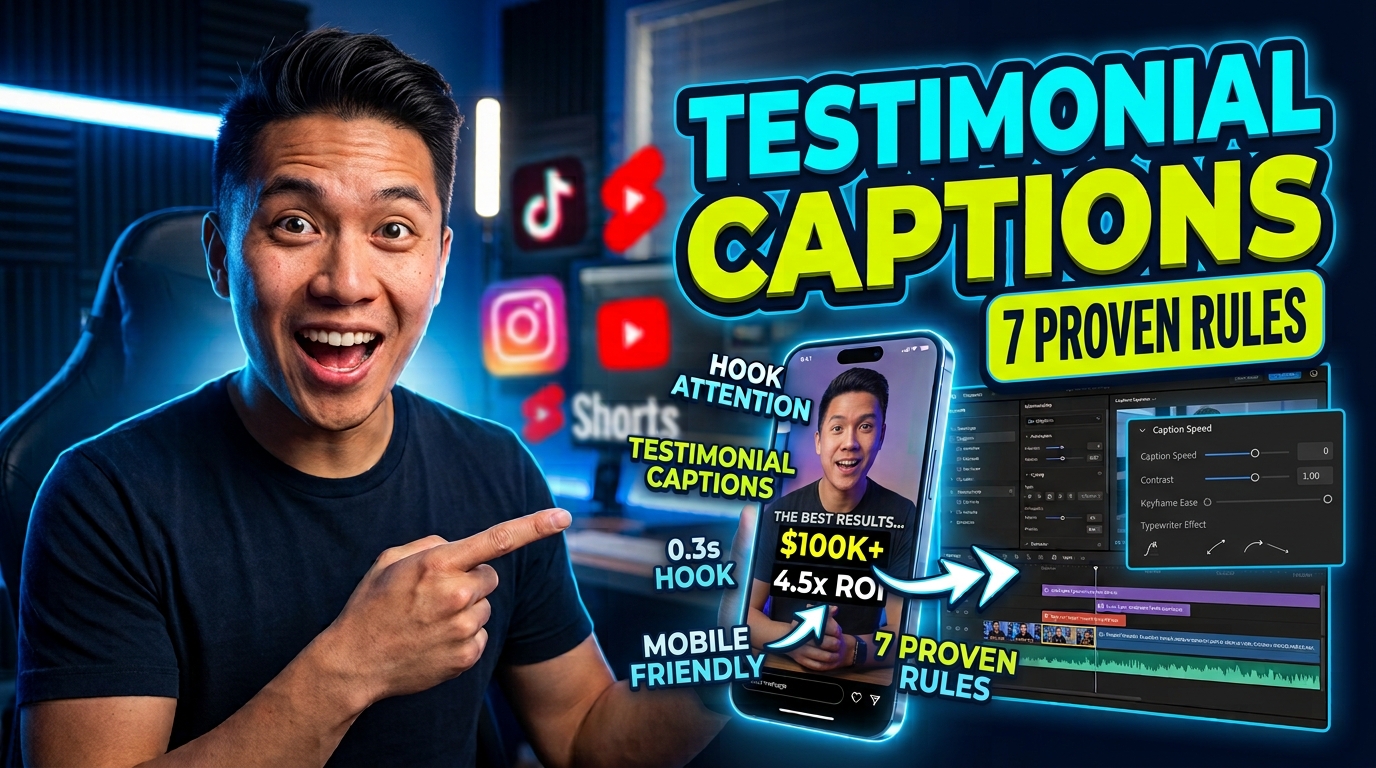
Fancy kinetic typography with glowing 3D letters looks cool on Dribbble, but it tanks your client's ad conversions. I spent years manually styling subtitles frame-by-frame in Adobe Premiere Pro before realizing simple 200ms fades paired with bold metric highlights kept scrollers watching 40% longer.
Here is how to style testimonial captions that drive actual sales without spending three hours per reel.
Key Takeaways
- Font Selection: Stick to clean sans-serif fonts like Montserrat Bold or Open Sans to maximize legibility on small mobile screens.
- Line & Character Limits: Limit caption blocks to 2 lines per frame and under 45 characters per line for effortless visual scanning.
- Contrast Ratios: Maintain at least a 4.5:1 contrast ratio using subtle drop shadows or semi-transparent dark background boxes.
- Animation Speed: Use simple 150–250ms pop or fade animations instead of distracting letter-by-letter kinetic typography.
- Highlight Metrics: Bold or color-accent specific quantifiable numbers and dollar amounts to guide scrollers straight to core proof points.
- Hook Timing: Land your initial caption block within 0.3 to 0.8 seconds of playback to hook sound-off viewers immediately.
- Workflow Automation: Stop tweaking Essential Graphics manually; use preset tools inside Adobe Premiere Pro like CaptionFlow to style subtitles in seconds.
Why Styling Testimonial Captions to Maximize Conversion Rates Matters for Editors
If you edit video testimonials for direct-response ads, SaaS landing pages, or social campaigns, your text formatting directly impacts ad performance. I used to think my job ended when the audio was clean and the cuts were tight. But client retention data told a completely different story.
When subtitle styling was off, viewer drop-off spiked inside the first three seconds.
When you analyze video watch-time benchmarks and caption engagement trends [2], you find that captioned videos deliver 40% higher viewing times compared to uncaptioned content. Furthermore, 80% of consumers state they are far more likely to watch a full video when captions are displayed on screen [2].
For video editors, understanding how caption styling impacts conversions is not an aesthetic choice. It is a core performance metric.
+-----------------------------------------------------------------------+
| TESTIMONIAL CAPTION PERFORMANCE METRICS                               |
+-----------------------------------------------------------------------+
| Metric                            | Captioned Video | Uncaptioned     |
+-----------------------------------+-----------------+-----------------+
| Average Completion Rate           | +40% Boost [2]  | Baseline        |
| Sound-Off Viewers Engaged         | 80% Total [2]   | Drops immediately|
| Customer Purchase Likelihood      | 79% Higher [4]  | Standard ad ROI |
+-----------------------------------+-----------------+-----------------+
The Sound-Off Mobile Reality (80% of Viewers)
Let's be honest about how people consume content on their phones. Over 50% of Americans watch online video with subtitles turned on most of the time, regardless of whether they are in a noisy room or sitting quietly on the couch [2]. Among viewers aged 18 to 25, that figure surges to 80% [2].
Sound-off scrolling isn't a niche edge case anymore. It is the primary way mobile audiences consume video ads.
If your testimonial relies entirely on spoken audio to convey value, you lose half your audience before the speaker finishes their first sentence. Captions act as the main audio channel for mobile scrollers. When styling testimonial captions, you ensure that sound-off viewers absorb every word of social proof without needing to tap the volume button.
80% watch videos with captions
Building Trust with Social Proof in the First 0.8 Seconds
Social proof is the strongest sales driver in digital marketing. Research shows that customer review data and video testimonials [4] can increase marketing page conversions by up to 80%. In fact, 79% of consumers report being convinced to buy a product after watching a video testimonial [4].
[0.0s] Video Starts (Muted) ──> [0.3s-0.8s] Initial Caption Lands ──> Sound-Off Viewers Read Hook ──> Watch Time +40%
However, that trust evaporates if viewers scroll past before the social proof lands. The first caption block must appear between 0.3 and 0.8 seconds after video playback begins [6]. If the video opens on a quiet pause or a slow fade-in without readable text, the viewer swipes away.
The initial subtitle block acts as the visual hook that pauses the thumb.
How Subtitle Legibility Directly Impacts Ad Retention
Consumers trust recommendations from real people far more than
When text is too small, crowded, or lacks contrast, viewers stop reading. And when viewers stop reading, they stop watching. Styling testimonial captions to maximize conversion rates means making the text effortless to digest so the viewer focuses on the speaker's emotional message rather than straining their eyes.
Actionable Takeaway: Ensure your first caption block lands on frame within 0.8 seconds of video playback to lock in sound-off mobile scrollers immediately.
Font Selection and Visual Hierarchy for High-Converting Captions
Choosing a font for video subtitles is completely different from picking a font for a brand logo or poster. Subtitle typography must be virtually invisible. If a viewer consciously notices how fancy your font choice is, the typography failed.
+-----------------------------------------------------------------------+
| FONT SELECTION GUIDE FOR VIDEO TESTIMONIALS                           |
+-----------------------------------------------------------------------+
| Font Name       | Style Classification | Primary Use Case             |
+-----------------+----------------------+------------------------------+
| Montserrat Bold | Geometric Sans-Serif | Mobile Short-Form (Reels/TikTok) |
| Open Sans       | Humanist Sans-Serif  | Long-Form Desktop & Web Ads   |
| Roboto          | Neo-Grotesque        | Small Screen Mobile Video [3]|
| Helvetica / Arial| Classic Sans-Serif  | Corporate & B2B Testimonials|
+-----------------+----------------------+------------------------------+
Choosing Clean Sans-Serif Fonts (Montserrat, Open Sans, Roboto)
Clean sans-serif typefaces dominate professional subtitle workflows for good reason. According to subtitle font styling benchmarks [3], fonts like Montserrat Bold, Open Sans, Roboto, and Helvetica provide the highest legibility across varying mobile screen resolutions.
Montserrat Bold has become the standard choice for short-form video editors because its wide geometric letterforms stay crisp on 5-inch screens. Roboto and Open Sans offer generous x-heights, opening up letter interiors so words don't blend together when compressed by social media algorithms.
Avoid decorative script fonts, thin serifs, or overly stylized display fonts.
| 45|Open Sans | NaN |
|---|
Contrast Ratios and Background Boxes (4.5:1 Minimum)
A major mistake editors make is placing pure white text over dynamic video backgrounds without proper contrast controls. If your client's customer is wearing a white shirt or sitting in front of a bright window, light-colored text completely disappears.
To ensure total legibility, adhere to digital accessibility contrast standards [10]. You need a minimum 4.5:1 contrast ratio between text characters and the background video [10].
Achieving this is straightforward:
- Semi-Transparent Dark Boxes: Place a black or dark grey bounding box behind the text with opacity set between 40% and 60%.
- Drop Shadows: Apply a solid drop shadow with 100% opacity, 0-degree distance, and a blur setting between 10 and 15 pixels to create a crisp contour.
- Stroke Outlines: Add a 2pt to 4pt solid dark stroke around light text characters to maintain definition against variable backgrounds.
Pro Tip: In Adobe Premiere Pro, create a default track style that combines pure white text (#FFFFFF) with a 50% opacity black bounding box. This guarantees 4.5:1 contrast compliance across every frame without manual tweaking.
Sizing for Small Mobile Screens Without Blocking Faces
Font sizing requires a careful balancing act. If the text is too small, users cannot read it while scrolling. If the text is too large, it covers the speaker's mouth, eyes, or hand gestures, which diminishes the emotional impact of the testimonial.
Set your base font size so that the total height of a two-line caption block takes up no more than 15% to 20% of the vertical screen height on mobile formats (9:16). Position text in the lower-third title-safe area to leave the speaker's face fully visible in the middle upper frame.
Actionable Takeaway: Standardize your subtitle library on Montserrat Bold or Open Sans, enforced with a 50% black background box to meet the 4.5:1 contrast threshold.
Typography Rules: Character Limits, Line Count, and Placement
Even the best font fails if you dump an entire paragraph on screen at once. Pacing and layout dictate whether a viewer reads your caption or feels overwhelmed by a wall of text.
+-----------------------------------------------------------------------+
| TYPOGRAPHY & LAYOUT CONSTRAINTS                                       |
+-----------------------------------------------------------------------+
| Parameter                   | Maximum Standard Threshold              |
+-----------------------------+-----------------------------------------+
| Lines Per Frame             | 2 Lines Maximum [7]                     |
| Characters Per Line         | 45 Characters Maximum [7]               |
| Minimum On-Screen Duration  | 1.5 Seconds Per Line                    |
| Screen Placement            | Lower-Third Title-Safe Center [1]       |
+-----------------------------+-----------------------------------------+
The Two-Line, 45-Character Limit Rule
Overcrowding the screen creates cognitive fatigue. Following official Section 508 captioning standards [1], subtitle blocks must be restricted to a maximum of 2 lines per frame, with no more than 45 characters per line.
POOR LAYOUT (Avoid):
"Our agency managed to completely double our monthly recurring revenue within thirty days of installing this software tool." (121 chars - 1 frame)

OPTIMIZED LAYOUT (Recommended):
Line 1: "Our agency doubled our monthly revenue" (38 chars)
Line 2: "within 30 days of installing this software." (42 chars)
In short-form social video, pushing character counts even lower—to 20–30 characters per line—often works better. Pacing text into smaller, natural phrases keeps visual momentum moving alongside spoken audio.
Lower-Third Title-Safe Zone Placement
Social media platforms place heavy interface overlays across vertical videos. TikTok, Instagram Reels, and YouTube Shorts stack account handles, sound titles, like buttons, and share icons along the right edge and bottom border of the screen.
When styling testimonial captions to maximize conversion rates, adhere to corporate brand subtitle guidelines [7] by locking text strictly within the center lower-third title-safe grid:
- Bottom Margin: Keep captions at least 200 to 250 pixels above the absolute bottom of a 1080x1920 canvas to clear platform UI bars.
- Side Margins: Maintain a 100-pixel buffer on both left and right edges so text isn't cut off by curved screen corners or engagement buttons.
- Vertical Alignment: Center-align caption blocks to maintain visual symmetry across desktop and mobile screens.
Timing On-Screen Duration for Effortless Scanning (1.5s Minimum)
Text that flashes on screen for a fraction of a second frustrates viewers. To give sound-off scrollers adequate reading time, maintain a minimum on-screen duration of 1.5 seconds per line, even for short phrases.
Synchronize caption entrances precisely with spoken dialogue beats. Align text cuts within 0.1 to 0.3 seconds of spoken audio start points [1]. If a speaker pauses naturally between thoughts, clear the caption off screen during the pause to signal a transition to the next visual idea.
Actionable Takeaway: Hard-cap every subtitle block at 2 lines and 45 characters, maintaining a 200-pixel bottom margin to clear platform interface overlays.
Animation Speed: Why Simple Pops Beat Flashy Kinetic Typography
There is an ongoing debate among video editors regarding kinetic typography versus subtle subtitle transitions. Many junior editors spend hours setting up complex letter-by-letter bouncy animations, thinking it adds production value.
The direct-response ad data shows the exact opposite.
+-----------------------------------------------------------------------+
| ANIMATION TYPE VS AD CONVERSION PERFORMANCE                           |
+-----------------------------------------------------------------------+
| Animation Style         | Visual Impact  | Conversion Performance     |
+-------------------------+----------------+----------------------------+
| 3D Kinetic Typography   | High / Flashy  | Low (Distracts from pitch) |
| Letter-by-Letter Bounce | Medium         | Moderate (High drop-off)   |
| 200ms Fade or Pop       | Clean / Subtle | High (Maximum retention)[6]|
+-------------------------+----------------+----------------------------+
The 150–250ms Pop and Fade Sweet Spot
Direct-response ad performance testing reveals that simple entrance animations lasting between 150ms and 250ms consistently outperform elaborate kinetic typography [6]. A subtle 200ms scale pop (scaling from 95% to 100%) or a quick linear opacity fade gives text a soft entrance without jarring the viewer's eyes.
Frame 0 (0ms): Opacity 0%, Scale 95%
Frame 3 (100ms): Opacity 50%, Scale 98%
Frame 6 (200ms): Opacity 100%, Scale 100% [Resting State]
This speed matches natural eye fixations. The viewer reads the phrase instantly without waiting for an animation sequence to finish unfolding.
Why Over-Animated Kinetic Subtitles Hurt Conversion Rates
Flashy, continuous kinetic text forces the human brain to process two competing visual movements simultaneously: the speaker's facial expressions and jumping text letters.
When your subtitles bounce around like a video game, viewers spend mental energy reading the movement instead of feeling the pitch.
When captions jump, spin, or color-flash on every single syllable, visual fatigue sets in within 5 seconds. According to video script and engagement studies [6], over-animated captions draw focus away from the emotional credibility of the customer giving the testimonial. The viewer focuses on tracking erratic movement rather than absorbing the message, causing purchase intent to plummet.
Matching Caption Cuts to Speech Cadence
Instead of animating every individual word, group words into natural cadence phrases. Cut the caption block precisely when the speaker takes a breath or finishes a clause.
For instance, if a customer says, "I was skeptical at first, but this tool saved me four hours every week," split the sequence into two distinct, static caption blocks:
- Block 1 (1.8s): "I was skeptical at first..."
- Block 2 (2.2s): "...but this tool saved me 4 hours every week."
This approach mirrors natural speech patterns and allows the viewer to read smoothly without visual interruption.
Actionable Takeaway: Replace bouncy, letter-by-letter kinetic text effects with a clean 200ms scale pop or cross-fade transition.
Highlight Metrics: Bold Key Phrases to Drive Direct Response
When scrollers watch a testimonial video without sound, they skim text rather than reading every word verbatim. You can control where their eyes land by applying strategic visual emphasis to core ROI claims.
                                HIGHLIGHTING STRATEGY
                                ---------------------
   Unstyled Subtitle:      "We saw a massive increase in our client revenue."

   High-Converting Style:  "We saw a [300% INCREASE] in client revenue."
                                      |
                                      +--> Accent Color + Bold Weight
Color-Accenting Quantifiable ROI and Proof Points
Selective bolding and color-highlighting of specific metrics direct the viewer's gaze straight to key proof points. Based on high-converting testimonial templates [9], applying accent styling to hard numbers—such as dollar amounts, percentage growths, and time savings—dramatically improves conversion retention.
Instead of displaying plain white text across the entire sentence, style key performance metrics in a bold, vibrant accent color:
- Neutral White Text: "With this workflow, our editing team cut production time down to..."
- Bright Yellow Accent: "...JUST 90 SECONDS per video."
Highlighting quantifiable outcomes converts passive scrollers into interested leads because the core benefit is communicated even during a brief 2-second view.
Guiding Scrollers to Core Testimonial Claims
Never waste highlight styling on generic filler words like "really", "awesome", "amazing", or "great". These subjective adjectives do not build true credibility [9].
Reserve accent styling strictly for verified, concrete results:
- Financial Outcomes:
$14,000/mo,3x Revenue,50% Margin - Time Metrics:
10 Hours Saved,Overnight Success,In 30 Days - Specific Status Shifts:
Zero Stress,Scaled Team,Doubled Client Base
Maintaining Brand Color Palette in Caption Accents
Limit your highlight styling to a maximum of two colors: one primary text color (typically pure white #FFFFFF) and one high-contrast accent color.
Select an accent color that aligns with your client's brand palette while ensuring high visibility against dark backgrounds. Electric yellow (#FFE600), neon lime (#39FF14), and vibrant cyan (#00F0FF) perform exceptionally well in dark-mode social feeds.
Pro Tip: In testimonial editing workflows, bold the quantifiable metric in every second or third caption frame. Over-highlighting every line reduces contrast and renders the styling ineffective.
Actionable Takeaway: Color-highlight specific dollar amounts, percentages, and time-saving metrics using a single bright accent color to capture skimming scrollers.
Styling Testimonial Captions to Maximize Conversion Rates in Premiere Pro
Executing professional subtitle styling manually inside Adobe Premiere Pro can quickly become a time-consuming chore. If you manage long-form podcasts or high-volume short-form ad campaigns, manual text formatting slows down your entire editing pipeline.
+-----------------------------------------------------------------------+
| EDITING WORKFLOW COMPARISON (PER 60-SECOND TESTIMONIAL)               |
+-----------------------------------------------------------------------+
| Workflow Method                  | Total Setup Time | Iteration Speed |
+----------------------------------+------------------+-----------------+
| Manual Premiere Essential Graphic| 2 to 3 Hours     | Slow (Re-render)|
| Saved Mogrt Templates            | 45 Minutes       | Medium          |
| KreateFlo v1.0.3 (CaptionFlow)   | 90 Seconds       | Instant (WASM)  |
+----------------------------------+------------------+-----------------+
Manual Essential Graphics vs Automated Plugin Workflows
Styling captions manually in Premiere Pro's Essential Graphics panel requires tweaking text layers, keyframing entrance scales, adjusting box opacity, and manually applying color fills word-by-word across dozens of timeline cuts. For a single 60-second clip, this process often takes anywhere from 2 to 3 hours.
MANUAL PREMIERE WORKFLOW (2-3 Hours):
Transcribe Audio ──> Create Captions ──> Convert to Graphics ──> Style Each Layer ──> Adjust Box Opacity ──> Keyframe Animations

AUTOMATED KREATEFLO WORKFLOW (90 Seconds):
Run CaptionFlow ──> Select Preset ──> Preview via WASM ──> Burn-In / Apply Style Track
Plugins built directly for Adobe Premiere Pro streamline this process significantly. Rather than jumping out of your NLE to third-party web apps or standalone tools, native extensions allow you to transcribe, format, and animate captions right on your timeline.
| Before | 3 Hours |
|---|---|
| After | 90 Seconds |
Building Reusable Caption Presets in Premiere
To maintain brand consistency across client projects, establish a library of reusable caption presets. Inside Premiere Pro, you can save custom Mogrt templates or track styles once you have configured font choices, stroke widths, background box opacities, and lower-third positions.
When working on complex multi-speaker interviews or split-screen podcasts, having dedicated presets for each speaker maintains visual organization across the edit. You can read more about setting up streamlined timeline structures in our guide to building an efficient podcast editing workflow in Premiere Pro.
Accelerating Render Times with KreateFlo's CaptionFlow
This is where KreateFlo v1.0.3 transforms the editing pipeline. KreateFlo is a CEP plugin designed specifically for Adobe Premiere Pro, packing 33+ specialized tools into a single panel interface.
Its dedicated CaptionFlow module features 22 animated caption presets engineered specifically for short-form social video and direct-response ads. Crucially, CaptionFlow utilizes a WebAssembly (WASM) real-time preview engine.
Instead of making styling tweaks, hitting render, waiting for timeline playback, and repeating that cycle, WASM lets you preview font weights, box opacities, scale pops, and word highlights instantly without rendering delays.
+-----------------------------------------------------------------------+
| KREATEFLO TIER STRUCTURE & CAPTION FEATURES                           |
+-----------------------------------------------------------------------+
| Plan Tier | Price      | AI Hours Included | Key Subtitle Features      |
+-----------+------------+-------------------+----------------------------+
| Free Tier | Free       | Unlimited Forever | 3 Basic Tools Included     |
| Pro Plan  | $19.99/mo  | 20 AI Hours/mo    | Full CaptionFlow + WASM    |
| Studio    | $44.99/mo  | 50 AI Hours/mo    | Multi-Cam + High AI Volume |
+-----------+------------+-------------------+----------------------------+
Instead of paying per-hour transcription fees like FireCut or relying on standalone web tools like Descript, KreateFlo gives you 20 AI hours per month on the Pro plan ($19.99/mo) or 50 AI hours on the Studio plan ($44.99/mo). If you edit multi-speaker client interviews, KreateFlo's Multi-Cam Editor handles up to 8 speakers and 8 dedicated cameras, while our free Silence Remover cleans dead air before you generate subtitles.
Honest Caveat: If you rarely use Adobe Premiere Pro and prefer editing entirely within a cloud-based web browser, KreateFlo is not the right tool for you. KreateFlo is built strictly as a CEP extension for video editors who work natively inside Premiere Pro every day.
Actionable Takeaway: Shift away from manual Essential Graphics tweaking by leveraging preset-driven workflows like KreateFlo's CaptionFlow to handle subtitle styling in seconds.
Common Caption Styling Mistakes That Destroy Video Ad ROI
When reviewing video ad edits that underperformed, I consistently spot the same recurring subtitle formatting errors. Avoiding these common pitfalls will protect your client's campaign performance.
+-----------------------------------------------------------------------+
| SUBTITLE MISTAKES TO AVOID                                            |
+-----------------------------------------------------------------------+
| Styling Mistake                 | Negative Conversion Impact          |
+---------------------------------+-------------------------------------+
| Low Contrast Text (No Box/Shadow)| Unreadable on light backgrounds     |
| Overlapping Platform UI Elements| Cut off by TikTok/Reels buttons     |
| Letter-by-Letter Bouncy Kinetic | Creates visual fatigue & drop-off   |
| Crowding 3+ Lines Per Frame     | Obscures speaker's face & gestures  |
+---------------------------------+-------------------------------------+
Low Contrast White Text on Light Backgrounds
Placing un-outlined white text over light backgrounds destroys legibility on mobile devices. Never assume your video background will remain dark throughout the clip. A simple camera pan or shift in lighting can render thin white text unreadable instantly.
Always enforce high-contrast controls: use semi-transparent background boxes, crisp drop shadows, or heavy dark strokes around every subtitle character.
Placing Captions Under TikTok and Reels UI Elements
Positioning text at the absolute bottom or along the right-hand edge of a vertical 9:16 frame guarantees that platform overlays will obscure your words. On TikTok and Instagram Reels, right-side comment buttons and bottom account captions will cover low-placed text.
Keep all caption blocks inside the center lower-third safe zone, keeping text elevated at least 200 pixels above the bottom frame edge.
+-----------------------------------+
|            TOP THIRD              |
|        (Speaker Face Area)        |
+-----------------------------------+
|           MIDDLE THIRD            |
|       [SAFE CAPTION ZONE]         |
|  "We generated $14k in 30 days!"  |  <-- Centered & Clear
+-----------------------------------+
|           BOTTOM THIRD            |
|  [TikTok Handle / Sound Overlays] |  <-- Kept clear of text
+-----------------------------------+
Letter-by-Letter Animations That Cause Cognitive Overload
Over-animating text with aggressive bounce, spin, or letter-by-letter karaoke effects forces the viewer's brain to work double-time. That extra cognitive effort creates friction, prompting sound-off scrollers to swipe away.
Stick with clean 150–250ms scale pops or linear fades, grouping words into natural phrases that align with spoken audio beats.
Actionable Takeaway: Audit every finished clip against mobile platform safe-zone overlays before sending exports to your client.
Frequently Asked Questions
How do video captions affect landing page conversion rates?
Adding styled captions to testimonial videos on landing pages can increase overall conversion rates by up to 80%. Because over 50% of users watch online video content with sound muted, readable captions ensure that core social proof claims and performance metrics are communicated instantly without requiring manual audio playback.
What are the best font choices and styling guidelines for video testimonial captions?
Clean, bold sans-serif fonts such as Montserrat Bold, Open Sans, Roboto, and Helvetica deliver the best legibility across small mobile screens. Maintain a minimum 4.5:1 contrast ratio against the video background using semi-transparent dark boxes or drop shadows, keep line counts under 2 lines per frame, and cap line lengths at 45 characters.
Do animated kinetic captions convert better than simple static subtitles in video ads?
No. Complex kinetic typography and letter-by-letter animations often distract viewers from the speaker's pitch and facial credibility. Direct-response ad performance testing shows that simple 150–250ms pop or fade transitions paired with bold color highlights on key metrics deliver higher watch time retention and superior ad ROI.
What contrast ratio and screen placement standards keep video captions accessible on mobile?
Target a minimum 4.5:1 contrast ratio between your text color and video background. Position captions consistently in the center of the lower-third title-safe area, ensuring text stays at least 200 pixels above the frame bottom to avoid vertical mobile UI overlays like TikTok handles and Instagram Reels action buttons.
Why should you limit captions to two lines per frame in video testimonials?
Crowding the screen with three or more lines of text obscures critical visual elements, such as the speaker's face, expressions, or product demonstrations. Limiting subtitles to one or two lines ensures effortless visual scanning for mobile scrollers and prevents visual clutter on small smartphone displays.
Final Thoughts: Stop Tweaking Essential Graphics Layers Frame-by-Frame
Stop burning three hours tweaking Essential Graphics text layers for every short-form client edit. Stick to clean sans-serif fonts, tight 2-line layouts, subtle 200ms pop transitions, and bold metric highlights that actually drive sales.
If you want to skip tedious manual formatting inside Adobe Premiere Pro, try KreateFlo v1.0.3 today. Test our 22 animated caption presets with instant WASM previews on the free tier, or upgrade to the Pro plan ($19.99/mo) to automate your entire subtitle workflow in seconds.
Download the KreateFlo Premiere Pro Extension or explore our full suite of preset tools at KreateFlo CaptionFlow.
References
- section508.gov/create/captions-transcripts/
- opus.pro/blog/video-captioning-tools
- veed.io/learn/best-font-for-subtitles
- simplyreview.com/post/measuring-testimonial-impact-conversion
- sayabout.us/blog/types-of-testimonials-that-work
- storimaticstudio.com/blog/testimonial-video-script/
- ptc.com/en/brand-guide/captions
- ittybiz.com/testimonial-conversion-tweaks/
- thecapable.io/client-management/testimonial-examples-50-proven-templates-that-convert
- requestly.com/blog/video-captioning-best-practices/
- senja.io/blog/testimonials-on-website
- bdow.com/stories/testimonial-examples/
- roi.com.au/know-how/challenges/website-conversion/whats-the-impact-of-typography-on-conversion-rates
- bemysocial.com/social-media-caption-strategies/
- realagency.co.uk/blogs/insights/how-testimonials-and-reviews-boost-ecommerce-conversions
- klientboost.com/landing-pages/website-fonts/
- genesysgrowth.com/blog/social-proof-conversion-stats-for-marketing-leaders
- conversionsciences.com/landing-page-best-practices/
- articos.com/blog/conversion-rate-optimization-best-practices
- fullstory.com/blog/conversion-rate-optimization-best-practices/
- adamigo.ai/blog/meta-ads-conversion-rate-benchmarks-industry-2026
- wiserreview.com/blog/testimonial-statistics/
- humblytics.com/blog/10-powerful-conversion-rate-optimization-techniques-for-2025
- omniconvert.com/blog/cro-technique/
Try KreateFlo free
3 tools forever, 7-day trial on the rest. No credit card to start.
Download KreateFlo