Testimonial Captions: 6 Proven Styling Rules for 2026
Styling Testimonial Captions to Maximize Conversion Rates I used to spend three hours color grading skin tones in Adobe Premiere Pro, completely ignoring the fact that over 85% of Facebook video views
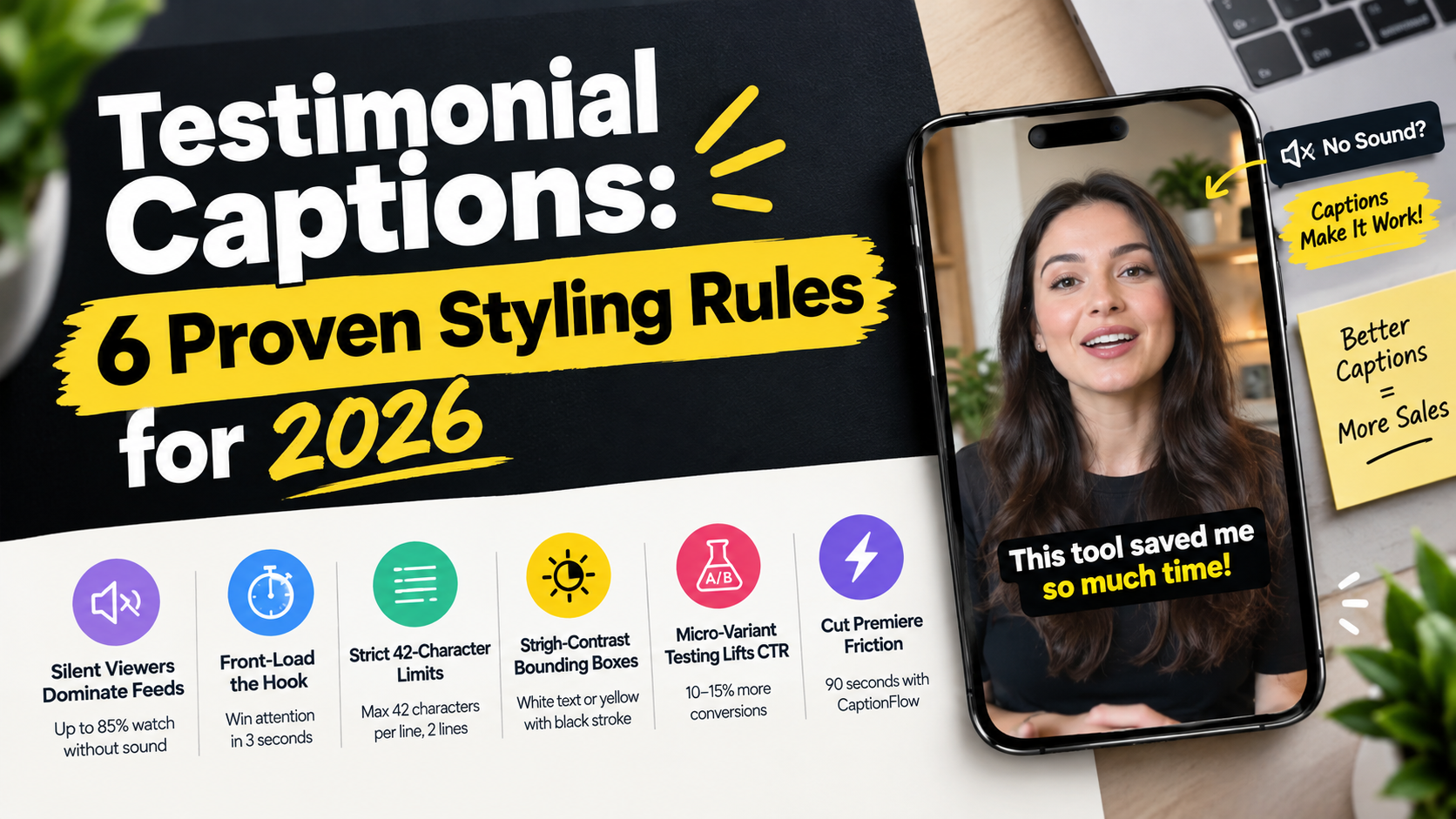
I used to spend three hours color grading skin tones in Adobe Premiere Pro, completely ignoring the fact that over 85% of Facebook video views happen on total mute [2]. If your text overlay looks like a generic system font dropped at the bottom of the frame, your high-budget client creative dies on the scroll before anyone hears a single word [4].
Burning styled, high-contrast captions into your video timeline isn't an aesthetic choice. It's a critical sales lever. Properly formatted subtitles turn silent autoplays into active buyers, boosting video completion rates by up to 40% [9] and lifting overall video ad conversion rates by up to 80% [2].
Key Takeaways
- Silent Viewers Dominate Feeds: Up to 85% of social feeds are watched without sound [4]; styled burn-in captions guarantee your sales pitch lands on every autoplay.
- Front-Load the Hook: Put the customer's core hesitation or quantifiable payoff in text within the first 3 seconds to stop scrolling buyers [7].
- Strict 42-Character Limits: Restrict captions to a maximum of 42 characters per line and 2 lines per frame to preserve mobile readability [3].
- High-Contrast Bounding Boxes: Use white sans-serif text on dark bounding boxes or yellow text with heavy black stroke outlines to prevent text from fading into bright video backgrounds [3].
- Micro-Variant Testing Lifts CTR: Running split tests on caption font weight, accent colors, and CTA wording can yield a 10% to 15% increase in conversions [7].
- Cut Premiere Friction: Hand-keyframing individual word pop-ins takes hours, but native tools like KreateFlo's CaptionFlow handle 22 animated presets with real-time WASM previews in 90 seconds.
The 3-Second Rule for Styling Testimonial Captions to Maximize Conversion Rates
When a social media ad autoplays in a vertical feed, you have exactly three seconds before the viewer's thumb flicks upward. If the audio is muted and the on-screen text merely reads "Hi, my name is Sarah and I love this software," you've wasted your most valuable real estate.
Data from recent ad performance studies reveals that video testimonials boost conversion rates by 25% to 34% on average [1]. Even more striking, 77% of consumers state that watching a testimonial video directly influenced their purchasing decision [8].
But those numbers only apply if the viewer stays long enough to digest the claim [10].
By the Numbers: Up to 85% of social video feed impressions happen on total mute [4].
Hooking Muted Viewers Before They Scroll
To capture attention without relying on audio, your opening caption block must deliver immediate context. When viewers scan a muted clip, their eyes lock onto on-screen typography before taking in background visuals [4].
If your caption text takes four seconds to reveal the product, the viewer has already moved on [7]. Keep your opening text punchy, centered, and visually isolated from clutter so it functions as a bold headline [3].
Front-Loading Customer Doubts and Measurable Outcomes
Front-load the customer's initial hesitation or their biggest quantifiable result instead of starting with generic praise. Caption overlays leading with specific figures create an immediate curiosity gap [5].
A customer testimonial holds an 89% effectiveness rating in influencing prospective buyers [6] because reviews drive nearly 90% of overall purchasing decisions [10]. Styling testimonial captions to maximize conversion rates requires framing real customer stories so silent scrollers grasp the transformation instantly [5].
"If you don't show the payoff in text before frame 90, you aren't editing for conversions—you're editing for the cutting room floor."
Pro Tip: Trim the speaker's introductory filler ("Um, so yeah, basically...") using an automated editing workflow like Silence Remover before generating captions. Starting your video directly on the hardest-hitting sentence saves precious frame time [10].
Actionable Takeaway: Re-write or edit your testimonial's opening caption block so a concrete numerical result or major customer doubt appears on-screen within frame zero.
High-Contrast Typography: Burning Captions into Premiere Pro Timelines
Default closed captions provided by social platforms rely on user toggles and unpredictable platform rendering engines. They often misalign timing, pick terrible default colors, or get obscured by platform UI buttons [4].
For commercial client work and paid ad campaigns, you should always burn custom captions directly into your master video file inside Adobe Premiere Pro [2]. Burned-in text gives you absolute authority over font choice, stroke weight, background padding, and word-level synchronization [3].
Burned-In Captions vs. Native Platform Closed Captions
Native platform subtitles are unpredictable across devices. Depending on OS settings, automated closed captions can show up as tiny grey text or bleed off the side of a mobile screen [4].
| Feature | Burned-In Captions (Premiere) | Platform Closed Captions |
|---|---|---|
| Brand Typography Control | 100% Exact Font & Weight Match | Restricted to Platform System |
| Color Contrast & Outlines | Custom Strokes, Boxes & Accents | Basic Semi-Transparent Overlay |
| Kinetic Pop-In Animation | Supported Word-by-Word Animation | Static Line-by-Line Block Text |
| View Time Impact | Increases View Time by over 12% [7] | Variable Depending on User Toggle |
| Mobile Safe-Zone Protection | Pixel-Perfect Position Lockdown | Often Blocked by Likes/Comments |
When Meta tested video performance across social placements, they discovered that video ads with captions increase total view time by over 12% [4]. Burning styled text into your edits guarantees every single impression receives that lift [7].
Color Pairings and Bounding Box Overlays
To maintain readability across shifting video backgrounds, you need high-contrast typography [3].
Standard unbordered white text disappears the second your speaker passes a white wall. The gold standard for mobile legibility is pure white text set against a dark rectangular bounding box, which provides an ideal 21:1 contrast ratio that meets strict accessibility guidelines [3].
Top Converting Styling Approaches:
- White Text on Dark Box: 60% of high-performing ads [3]
- Yellow Text with Black Outline: 30% of high-performing ads [3]
- Other Custom Styles: 10% [3]
If you prefer a cleaner aesthetic without full background boxes, use heavy sans-serif fonts paired with a 6-to-8-point black stroke outline and a subtle drop shadow [3]. Bright yellow text with a heavy black outline is another proven pairing for energetic vertical ads, offering an 18:1 contrast ratio that draws the eye instantly [3].
Actionable Takeaway: Stop using raw white text without background padding or thick stroke outlines; enforce a 21:1 or 18:1 color contrast ratio across every frame [3].
Essential Styling Testimonial Captions Rules to Maximize Conversion Rates
Typography styling isn't just about legibility; it's about visual hierarchy. When every word looks identical, the viewer's brain treats the caption block as a passive wall of text rather than an active sales message [4].
By selectively applying accent colors, bold weights, and strategic callouts to critical phrase triggers, you guide the buyer's eye directly to the information that drives purchases [2].
Landing Page Conversion Lift by Creative Format:
- No Captions: 22% average conversion rate [1]
- Text-Only Reviews: 39% average conversion rate [1]
- Styled Video Captions: 62% average conversion rate [1]
Emphasizing Trigger Words and Concrete Metrics
When a customer mentions specific outcomes—like "Free Trial," "30 Days," or "$10,000 Saved"—highlight those words in a contrasting accent color like neon yellow or cyan [2].
This visual emphasis turns your captions into a skimmable highlights reel. Research shows that landing pages featuring video testimonials convert up to 62% better [1] than those without, largely because video testimonials build authentic trust [6]. Highlighting key metrics ensures hyper-fast scrollers retain the core numbers [10].
Aligning Text Callouts with On-Screen Action and CTAs
Your final caption block must bridge the gap between the speaker's closing words and the ad's call to action [4]. If the speaker says, "Signing up was the best decision we made this year," your final caption should immediately transition to match the physical button below the post [4].
If your ad button says "Claim Your Free Trial," make sure the final on-screen caption mirrors that exact wording [4]. Aligning the spoken conclusion with on-screen text creates a seamless cognitive path toward clicking the button [4].
For deeper step-by-step guidance on setting up text tracks inside your NLE, check out our guide on Premiere Pro caption workflows.
Pro Tip: Never let a caption line linger on screen after the speaker finishes talking. Match the tail point of the final caption cut directly to the end of the audio wave to maintain snappy pacing [3].
Actionable Takeaway: Set up brand templates in your NLE that automatically apply a high-visibility accent color to dollar figures, percentages, and CTA trigger words [2].
Motion Graphics and Kinetic Styling Testimonial Captions to Maximize Conversion Rates
Static subtitles that display full sentences all at once encourage viewers to read ahead, break focus, and scroll away [3]. Kinetic captions—where words pop onto the screen in sync with the speaker's voice—create a rhythmic visual cadence that anchors viewer attention [4].
Kinetic typography keeps the viewer's brain in a continuous state of anticipation. This explains why professional animated captions increase overall video completion rates by up to 40% [3].
Optimal Kinetic Caption Timing Cadence:
0.0s(Word 1 Pop-In) →0.3s(Word 2 Pop-In) →0.6s(Word 3 Accent Color) →1.0s(Frame Transition) [3]
Word-by-Word Pop-Ins for High-Retention Feeds
Displaying text single-word or two-words at a time works exceptionally well for fast-paced vertical video formats like Instagram Reels, TikTok, and YouTube Shorts [2].
When words spring onto the screen with a micro-scale bounce (scaling from 90% to 100% over 3 frames), it triggers a re-engagement response in the viewer's visual cortex [3]. Keep the animation subtle; over-the-top spinning text or giant bounce effects distract from the speaker's face and lower perceived credibility [3].
Pacing Text for Natural Reading Speed (180–200 WPM)
Speed matters. If captions pop up faster than a human can comfortably process, viewer frustration spikes and retention drops off a cliff [3].
| Platform / Placement | Target Reading Pace (WPM) |
|---|---|
| TikTok / Instagram Reels | 180 - 200 Words Per Minute [3] |
| YouTube Long-Form / Pre-Roll | 160 - 180 Words Per Minute [3] |
| LinkedIn Professional Video | 140 - 160 Words Per Minute [3] |
| Technical / Educational Demos | 120 - 140 Words Per Minute [3] |
Aim for a comfortable target cadence of 180 to 200 words per minute for mobile social feeds [3]. This speed keeps pace with natural speech patterns while giving viewers enough breathing room to process the message without feeling rushed [3].
Actionable Takeaway: Apply subtle 3-frame scale pop-ins to key nouns and verbs while maintaining a strict 180–200 WPM text pacing ceiling [3].
Formatting Character Limits: The 42-Character Rule for Mobile Feeds
One of the most common editing mistakes is slapping full, unformatted paragraph blocks onto a mobile video timeline [4]. Long blocks of text obscure the speaker's face and force mobile scrollers to read instead of watching [3].
To optimize styling testimonial captions to maximize conversion rates on mobile devices, you must enforce strict physical character boundaries [3].
The Gold Standard: Keep text strictly capped at 42 maximum characters per line for mobile feeds [3].
Restricting On-Screen Real Estate to Two Lines
Never let a single caption block exceed two lines of text on screen at any time [4]. Ideally, stick to one strong line containing 3 to 5 words for short-form ad creatives [3].
Maintain a strict limit of 42 characters per line [3]. Pushing past 42 characters forces font sizes down, rendering captions unreadable on compact mobile screens [3]. Keeping character counts low allows you to bump font sizes up to 18–24pt minimums, guaranteeing instant readability [3].
Optimizing Layouts for 4:5 and 9:16 Vertical Video Crops
Aspect ratios dictate where text can safely live. While 9:16 vertical video dominates Stories and TikTok, the 4:5 aspect ratio remains a power player for Meta Feed placements [7].
In fact, campaign data shows that 4:5 vertical video crops outperform 1:1 square layouts by up to 15% in Meta Feed conversions [7].
When positioning captions, keep text firmly inside the middle 80% safe zone [3]. Avoid placing captions in the bottom 15% of the frame where platform overlays—like account names, sound tags, and CTA bar buttons—will completely cover your hard work [4].
Warning: Always test your exported footage against platform interface masks. Text placed too low will be blocked by TikTok's caption UI or Instagram's "Sponsored" tag [4].
Actionable Takeaway: Configure your caption line breaks to hard-cap at 42 characters, keeping all text blocks inside the vertical 80% safe-zone box [3].
Micro-Variant A/B Testing Caption Styles in Social Video Ads
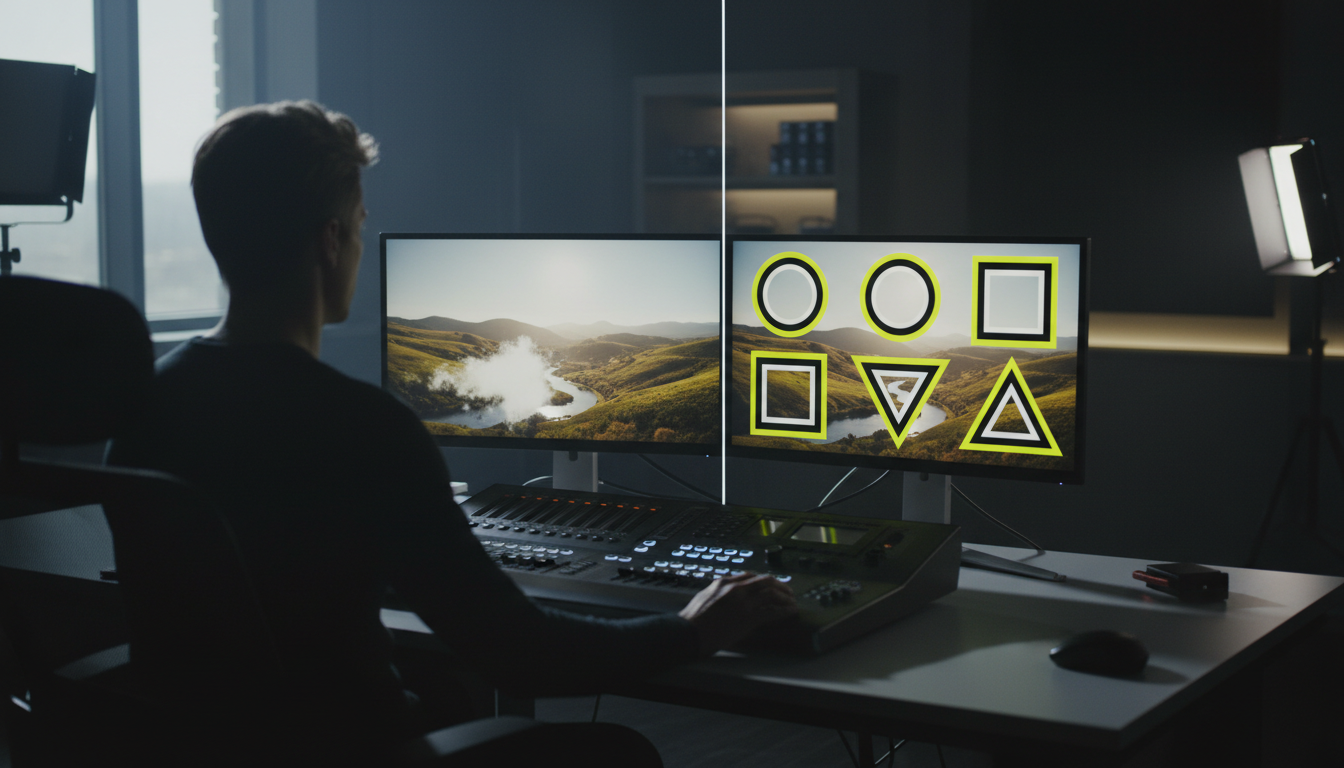
Media buyers spend millions tweaking ad headlines and audience targets, yet editors rarely test creative text variations. That's a massive missed opportunity [4].
Small adjustments to typography, accent colors, and line breaks can radically alter how an ad performs in the wild [3].
Testing Font Weight and Accent Colors for 10–15% Lifts
Running creative micro-variant split tests on caption styling frequently yields 10% to 15% lifts in click-through rates and overall conversions [7].
Try exporting two variants of the exact same testimonial edit:
- Variant A: Heavy white sans-serif text on a solid black background box [3].
- Variant B: Bold yellow text featuring word-by-word kinetic pop-ins and red accent highlights [3].
You'll often find that B2B audiences on LinkedIn respond better to minimalist bounding box layouts, while DTC ecommerce buyers on TikTok convert significantly higher when shown dynamic pop-in text [3].
Iterating Copy Blocks into 25-Word Scannable Bites
Testimonials can be rambly. If a customer spends 90 seconds explaining how they found your product, cut the fluff down to a 25-word scannable story arc [1].
A customer testimonial is trusted 2x more than written reviews and 3x more than numerical star ratings [8]. By distilling long transcriptions into short, high-impact 25-word caption segments, you preserve authentic human trust while matching the attention span of social scrollers [1].
Actionable Takeaway: Export two distinct caption styling variants for every major ad campaign and run them head-to-head in Meta Ad Manager to measure CTR differences [7].
Automated Workflows: How KreateFlo’s CaptionFlow Replaces Manual Keyframing
Let's be honest: hand-styling captions in Premiere Pro is painful. Creating essential graphics text tracks, manually applying color overrides, setting transform keyframes for every word, and adjusting line breaks takes hours per project [3].
If you edit 10 to 20 vertical testimonial clips a week, manual subtitle styling will burn out your editing team faster than client revision requests [3].
WASM Real-Time Previews vs. Render-Loop Friction
This friction is why we built CaptionFlow inside KreateFlo v1.0.3—our native CEP extension plugin for Adobe Premiere Pro.
Instead of forcing you into a tedious render-to-see-changes loop, CaptionFlow uses WebAssembly (WASM) engine processing to deliver instant, real-time animated previews across 22 professional caption presets directly inside your NLE panel. What used to take 4 hours of manual keyframing now takes 90 seconds of automated processing.
You can select high-contrast bounding box styles, single-word kinetic pop-ins, or multi-color accent highlights with a single click, keeping your full editing workflow strictly inside Premiere Pro.
Choosing the Right Tool: KreateFlo vs. Descript and FireCut
We don't believe in hype; trust matters more than sales pitches. KreateFlo is built specifically for editors who live in Adobe Premiere Pro every day and want professional tools bundled together [10].
| Feature / Pricing | KreateFlo v1.0.3 | FireCut / Descript |
|---|---|---|
| Environment | Native Premiere Pro CEP Extension | Third-Party Web App / Standalone |
| Pricing Model | $19.99/mo (Pro, 20 AI hrs) | Per-Hour Billing or $24/mo+ |
| Free Tier | 3 Tools Free Forever | Limited Trial Runs |
| Caption Presets & Previews | 22 WASM Real-Time Presets | Basic Rendering Loops |
| Multi-Cam Capability | Up to 8 Speakers / 8 Cameras | Basic Auto-Switching |
Here's an honest caveat: if you edit exclusively in CapCut, Web browsers, or DaVinci Resolve, KreateFlo is not the right pick for you. KreateFlo is a dedicated extension built exclusively for Premiere Pro.
While standalone competitors like Descript or FireCut charge per-hour transcription fees or operate outside your NLE timeline, KreateFlo gives you 33+ integrated professional tools—including multi-cam editing for up to 8 speakers, automated silence removal, and viral clip detection—for a flat $19.99/mo (Pro tier with 20 AI hours) or $44.99/mo (Studio tier with 50 AI hours). We even offer a permanent free tier with 3 essential editing tools forever.
Actionable Takeaway: Stop wasting hours keyframing individual text layers in standard graphic tracks; use CaptionFlow to style high-converting captions in under two minutes.
Frequently Asked Questions
How do burned-in captions compare to automatic closed captions for video ad conversions?
Burned-in captions give editors complete control over typography, high-contrast background boxes, accent colors, and kinetic timing during muted social autoplays [4]. Automatic closed captions rely on user toggles and platform defaults, often resulting in hard-to-read text that misaligns with core sales hooks [4].
What font styles and character limits maximize caption readability on mobile screens?
Bold sans-serif fonts like Inter, Montserrat, or Helvetica Neue work best on mobile displays [3]. Keep text strictly under 42 characters per line and limit blocks to a maximum of two lines on screen to ensure quick scanning [3].
How should video testimonial captions be structured to capture attention in the first 3 seconds?
Lead directly with the customer's initial hesitation or the primary quantifiable result within the first frame [5]. Placing key benefits like "$10k Saved in 30 Days" upfront stops silent scrollers immediately [7].
What color contrast combinations deliver the highest engagement for video subtitles?
White text on dark bounding boxes provides a gold-standard 21:1 contrast ratio that exceeds accessibility guidelines [3]. Bright yellow accents with a heavy black outline deliver an 18:1 contrast ratio that stands out clearly against bright background footage [3].
How much do styled video testimonial captions increase landing page conversion rates?
Adding styled captions to video testimonials can boost ad conversion rates by up to 80% compared to uncaptioned videos [2]. Landing pages featuring clear, high-trust testimonial clips convert up to 62% better than pages without video social proof [1].
Elevate Your Ad Conversions in Premiere Pro
Styling testimonial captions isn't an artistic post-production afterthought—it's a direct lever for driving video ad conversions. By enforcing strict 42-character lines, high-contrast bounding boxes, and immediate 3-second hooks, you keep muted mobile scrollers engaged through the final call to action [3].
If you edit in Adobe Premiere Pro and want to skip four hours of manual keyframing, grab KreateFlo v1.0.3 and style your next ad campaign in 90 seconds. Head to /download.html to try our free tier today.
References
- getcredibly.org/blog/video-vs-text-testimonials
- almostzero.io/blog/why-ads-with-subtitles-work-better-for-videos
- opus.pro/blog/video-caption-design-placement
- leadenforce.com/blog/why-subtitles-and-captions-matter-more-than-ever-in-social-ads
- goldcast.io/blog-post/video-testimonial-script-examples
- techwyse.com/blog/website-conversion/5-best-practices-for-testimonials-that-lead-to-increased-conversions
- billo.app/blog/meta-ads-best-practices/
- teleprompter.com/blog/video-testimonial-statistics
- opus.pro/research/best-caption-strategy-short-form
- wiserreview.com/blog/video-testimonial-statistics/
- wisernotify.com/blog/testimonial-stats/
- testimonialstar.com/resources/video-testimonial-statistics/
- crodigitalmarketing.com/conversion-rate-optimization-2026-guide/
- wisernotify.com/blog/testimonial-statistics/
- wiserreview.com/blog/testimonial-statistics/
- webfx.com/blog/conversion-rate-optimization/cro-trends/
- aimers.io/blog/conversion-rate-optimization-best-practices
- sayabout.us/blog/types-of-testimonials-that-work
- digitalapplied.com/blog/conversion-rate-benchmarks-2026-industry-channel
Try KreateFlo free
3 tools forever, 7-day trial on the rest. No credit card to start.
Download KreateFlo