Caption Quality Control Checklist: 7 Essential QC Rules
41% of video captions fail initial platform submission because of basic formatting errors, not mistranslations [5]. I learned this the hard way when a broadcast network rejected my master export over
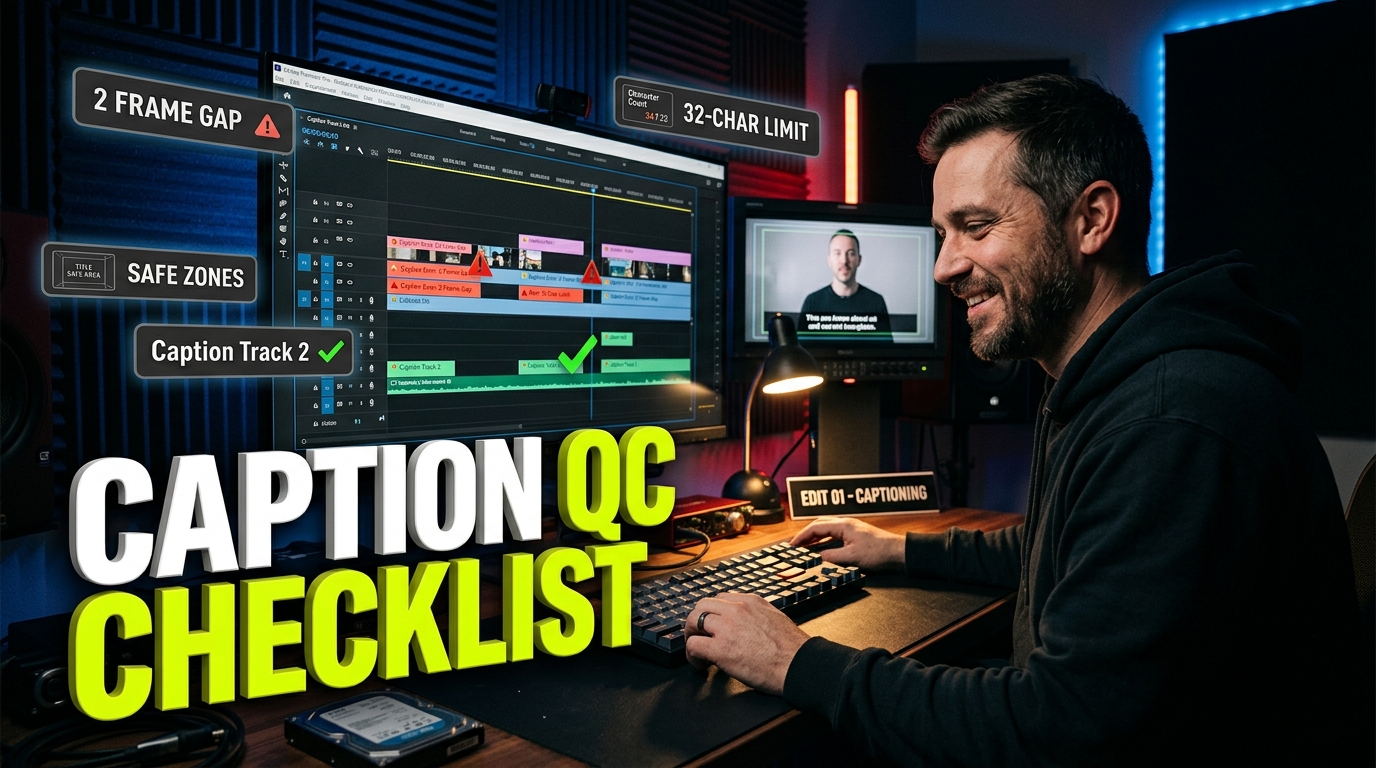
41% of video captions fail initial platform submission because of basic formatting errors, not mistranslations [5]. I learned this the hard way when a broadcast network rejected my master export over a single 1-frame timing overlap. The transcript was 100% accurate. But the video player flickered, and the file got thrown right back at me.
If you edit podcasts or short-form clips in Adobe Premiere Pro every single day, caption quality control (QC) is easily the most tedious part of timeline
I built this guide to kill that headache once and for all. Whether you are delivering broadcast-compliant sidecar files or exporting punchy animated captions for TikTok, following a systematic review workflow saves you from embarrassing client revisions. Here is the exact checklist I run before hitting export.
Key Takeaways
Over 40% of caption file rejections stem from technical formatting errors like character counts and timing overlaps rather than translation mistakes [5].
Always maintain a strict minimum gap of 2 frames between consecutive subtitle events to prevent visual screen flickering [3].
Enforce line length limits of 32 characters for broadcast (EIA-608) and 37 to 42 characters for streaming platforms like Netflix and YouTube [4].
Never break lines mid-phrase; split captions naturally at punctuation, speech pauses, or conjunctions using syntactic chunking [2].
Position subtitles inside platform UI safe zones and shift them vertically when lower-thirds or graphics appear on screen [7].
Streamline your subtitle workflow inside Adobe Premiere Pro using automated real-time tools like KreateFlo's CaptionFlow to eliminate render-preview loops.
Phase 1: Timing and Frame Gaps
Timing issues are the silent killers of professional caption files. When a caption pops up on screen a split second before the speaker opens their mouth, it breaks the viewer's immersion.
Worse, when two consecutive caption events touch without a frame gap, video players glitch. They end up displaying flickering text blocks.
According to standard media captioning best practices [1], synchronous alignment between spoken audio and visual text is non-negotiable. FCC broadcast mandates require captions to land within 1 second of spoken dialogue [4].
In professional NLE workflows, we aim for frame-accurate precision.
Enforcing the 2-Frame Minimum Gap Rule
Snapping the end of one caption block directly to the start of the next creates a zero-frame gap. Many web players and broadcast encoders misinterpret this event boundary.
The screen flashes. Or worse, the engine merges the two events into a single jumbled text block.
To prevent visual flickering, establish a strict 2-frame gap between consecutive subtitle events [3]. In a 23.976 fps or 29.97 fps Premiere Pro timeline, two frames give the rendering engine enough time to clear the screen buffer before drawing the next phrase.
"A zero-frame gap looks fine on your timeline scrubber, but hardware media players will strobe the text overlay almost every time."
If you rely on manual text tracks, zoom into your timeline and trim the tail of each caption clip by 2 frames. If you use automated tools, verify that your minimum gap settings enforce this spacing natively.
Setting On-Screen Duration Limits (1.5s to 6s)
Reading speed dictates how long a caption block must remain visible. Major streaming specifications require a minimum event duration of 5/6 of a second (~833 ms) and a maximum duration of 7 seconds [2].
For standard dialogue editing, aim for an on-screen duration between 1.5 seconds and 6 seconds per caption block [2].
If a single word stays on screen for 10 seconds during a long pause, it feels stuck. Conversely, displaying a 10-word sentence for 0.5 seconds forces the audience to speed-read instead of watching your edit.
Pro Tip: Set your Premiere Pro subtitle track preferences to highlight events shorter than 1.5 seconds or longer than 6.0 seconds. Catching reading-speed violations during rough cuts prevents late-stage timing re-edits.
Actionable Takeaway: Audit your entire timeline for zero-frame transitions. Enforce a 2-frame gap between every caption block while keeping durations strictly between 1.5 and 6 seconds.
Phase 2: Line Breaking Rules and Character Limit Constraints
Bad line breaks ruin reading rhythm faster than poor timing. When a sentence breaks mid-phrase, it leaves a lonely preposition stranded at the end of a line. The human brain stumbles for a fraction of a second to decode the structure.
Following technical quality control checklists [3] ensures that your line counts, character lengths, and grammatical breaks align with industry delivery standards.
Platform / Standard | Max Lines / Block | Max Chars / Line | Reading Speed |
|---|---|---|---|
Broadcast (EIA-608) | 2 Lines | 32 Characters | 150-160 WPM |
Netflix / Streaming | 2 Lines | 42 Characters | 17 Characters/sec |
YouTube / Web | 2 Lines | 43 Characters | 200 WPM |
TikTok / Reels (Short) | 1-3 Words | 15-20 Characters | Fast / Kinetic |
Platform-Specific Character Limits (32 vs 42 Characters)
Character limits vary heavily depending on where your video lives. Standard EIA-608 broadcast captions strictly cap text at 32 characters per line [4].
Streaming platforms allow slightly more breathing room. Hulu caps lines at 37 characters, Netflix at 42 characters, and YouTube at 43 characters [2], [4].
Exceeding these limits causes automatic text wrapping in external video players. That means your clean two-line caption suddenly turns into an ugly three-line block that covers half the speaker's face.
Keep a hard limit of two lines per frame. Never exceed 42 characters per line for long-form content.
Syntactic Chunking: Breaking at Natural Speech Pauses
Never split noun phrases, prepositions, or compound verbs across line breaks. Practice "syntactic chunking" by breaking lines at natural grammatical boundaries such as commas, conjunctions, or sentence pauses [2].
Here is a bad line break:
Incorrect:
Let's all go to the park after lunch.
Now look at the correct syntactic chunk:
Correct:
Let's all go to the park after lunch.
By keeping "to the park" intact, the reader processes the location instantly without visual hesitation [5].
Actionable Takeaway: Enforce a hard 42-character limit per line. Break text blocks strictly at punctuation or logical conjunctions rather than arbitrary word counts.
Phase 3: Safe Zones, Positioning, and Visual Layout Checks

You can have flawless spelling and timing, but if your captions sit underneath TikTok's "Like" button, the edit looks amateur.
As detailed in professional video editing QA workflows [7], reviewing visual hierarchy and layout bounds prevents graphic collisions before export.
Did you know that 69% of people watch videos on mute in public spaces? That means your text formatting isn't just an extra visual layer—for most viewers, it is the audio track.
Navigating Platform UI Overlays (TikTok vs. YouTube Shorts)
Vertical short-form formats present a layout nightmare. TikTok, Instagram Reels, and YouTube Shorts stack interactive UI overlays directly over the bottom 25% and right 15% of the frame.
When setting up animated titles, import platform-specific safe zone overlays into your Premiere Pro program monitor. Keep all caption text inside the central 60% vertical box.
For standard 16:9 horizontal videos, anchor text in the bottom third, centered horizontally. Leave a 10% bottom margin above the screen edge [2].
Dynamic Vertical Shifting for Lower-Thirds
When a lower-third graphic or speaker name tag appears on screen, your captions must move. Do not let caption text sit directly on top of on-screen titles.
In traditional broadcast closed captioning, captions shift to the top of the frame during lower-third appearances [1].
For burnt-in social captions, nudge the text block upward by 150 to 200 pixels for the exact duration of the lower-third graphic. Then return it to the bottom baseline.
Pro Tip: Create a dedicated "Captions - Shifted" track style in Premiere Pro. When lower-thirds pop up on V1 and V2, quickly move those specific text clips up to the secondary track to maintain vertical separation without re-styling every clip manually.
Actionable Takeaway: Test your export against platform UI overlays. Nudge text blocks vertically whenever lower-thirds or lower-screen graphics appear.
Phase 4: Non-Speech Audio Cues and Glossaries
Captions are not just for viewers who muted their phones in a coffee shop. They are critical accessibility tools for deaf and hard-of-hearing audiences.
The FCC mandates 99.5% accuracy for broadcast television captions [4]. Meeting that bar requires capturing essential non-speech audio cues and technical jargon.
Reviewing closed captioning standards and rules [4] helps editors format atmospheric audio elements correctly without cluttering the screen.
Audio Element | Correct SDH Formatting | Incorrect Formatting |
|---|---|---|
Sound Effect (Abrupt) |
|
|
Sound Effect (Ongoing) |
|
|
Speaker ID (Off-Screen) |
|
|
Music Description |
|
|
Formatting SDH Cues [Laughter], [Music], and Speaker IDs
Subtitles for the Deaf and Hard of Hearing (SDH) must describe plot-critical sound effects, speaker changes, and atmospheric background audio.
Use square brackets [...] for sound effects and parentheses (...) for speaker identification [2].
Abrupt sounds use present tense:
[dog barks][2].Ongoing sounds use progressive tense:
[engine idling][2].Objective music descriptors: Use
[upbeat acoustic guitar plays]instead of subjective labels like[beautiful music][2].
When multiple speakers share a scene and off-screen dialogue occurs, precede the spoken line with a speaker ID tag like (Sarah). That way, the audience knows who is talking [1], [2].
Verifying Glossary Terms Against Project Naming Guides
Auto-transcription AI gets confused by brand names, industry acronyms, and specialized terminology. A podcast interview about Web3 might transcribe "Ethereum" as "Etherium" or "SaaS" as "Sass".
Cross-reference every proper noun against a project glossary before running your final QC pass [6].
If you edit content for corporate clients, request a brand guide containing exact spellings for product lines, executive names, and technical terms. Fixing five recurring spelling mistakes in a transcript takes 30 seconds with find-and-replace, but missing them destroys client trust.
Actionable Takeaway: Insert bracketed SDH cues for plot-relevant sound effects. Double-check all proper nouns against a confirmed project glossary.
Phase 5: Short-Form vs. Broadcast Formatting

Short-form social content and traditional long-form editing require completely different captioning philosophies.
Trying to put a static, two-line broadcast caption block onto a fast-paced TikTok Reel kills viewer retention. Conversely, putting bouncy single-word captions on a 45-minute documentary master gets your file rejected by delivery QC managers.
Recent subtitle statistics and engagement studies [9] highlight how viewer habits shift dramatically across platforms. Over 80% of audiences prefer watching videos with subtitles turned on [9], but their visual expectations depend entirely on the medium.
Feature | Short-Form Social (Reels/TikTok) | Long-Form Broadcast / YouTube |
|---|---|---|
Delivery Format | Open Captions (Burnt-In) | Closed Captions (SRT / Sidecar) |
On-Screen Word Count | 1-3 Words at a time | 1-2 Full Lines (up to 42 chars) |
Animation Style | Kinetic / Pop-in / Highlight | Static / Clean Fade |
Font Choice | Bold Sans-Serif (Montserrat, Impact) | Standard Readability (Arial, Helvetica) |
Color Palette | Bright Yellow, Green, Custom BG | White Text on Translucent Box |
Energetic Word-by-Word Kinetic Styling
Short-form video editing relies on visual momentum. Single-word or short three-word animated captions keep the viewer's eyes locked to the center of the frame.
When styling kinetic captions, highlight the active word using contrasting colors, like bright yellow or neon green - against a dark stroke or box shadow.
Keep animations crisp. Pop-in scale transitions (from 90% to 100% scale over 2 frames) add punch without creating visual motion blur.
Traditional Accessibility vs. Social-First Formatting
Broadcast closed captions prioritize legibility above all else. They use white sans-serif text (Arial or Helvetica) on a translucent black box to guarantee high contrast regardless of the underlying footage [2].
Social-first captions prioritize brand identity and visual pop. While you can take creative liberties with color palettes and fonts on Instagram Reels, never sacrifice basic contrast.
If your text blends into a bright background, add a subtle drop shadow or semi-transparent background box.
Want to optimize your full post-production pipeline? Read our guide on building an efficient podcast editing workflow.
Actionable Takeaway: Match your caption styling to the destination platform. Reserve single-word kinetic highlights for short-form clips and clean, two-line block structures for long-form interviews.
How to Automate Caption QC Inside Adobe Premiere Pro
Manual caption cleanup in Adobe Premiere Pro used to mean hours of tedious re-timing, split-second clip dragging, and repeated test exports.
If you noticed a typo on an exported MP4, you had to jump back into your timeline, fix the text track, re-render, and wait all over again.
Using automated video editing workflow tools [8] cuts down on manual review time while keeping your editing inside your primary NLE.
Streamlining Your Pipeline with KreateFlo CaptionFlow
Instead of juggling third-party web tools, exporting SRT files, and re-importing them into Premiere, you can automate caption creation directly inside your sequence using KreateFlo CaptionFlow.
KreateFlo (currently on v1.0.3) is an Adobe Premiere Pro plugin (CEP extension) that bundles 33+ specialized tools into one panel. Inside CaptionFlow, you generate AI voice transcriptions across 40+ languages—including full support for Bangla and Hindi in seconds.
You can select from 22 animated caption presets designed specifically for social clips and long-form podcasts. Instead of spending 4 hours manually building kinetic word-by-word titles, CaptionFlow styles your transcript in about 90 seconds.
Skipping the Render Loop with WASM Real-Time Previews
The biggest bottleneck in Premiere Pro captioning is the render preview loop. Standard motion graphics templates (MOGRTs) lag when you stack hundreds of animated title clips across a 30-minute timeline.
KreateFlo solves this with WebAssembly (WASM) real-time previews. You can adjust font sizes, color highlights, stroke weights, and position baselines, seeing changes instantly in your program monitor without waiting for cache renders.
"Waiting 20 minutes for MOGRT render bars to turn green just to check a font color is a waste of editing billable hours."
If you want to remove dead air before generating your subtitles, run KreateFlo's free Silence Remover tool first. The free tier gives you Silence Remover, Transition Assistant, and Copy & Paste forever.
When you need AI speech transcription and animated captions, Pro starts at $19.99/mo for 20 AI hours, while Studio is $44.99/mo for 50 AI hours.
Honest Caveats: When KreateFlo Is NOT the Right Pick
Let's be direct. KreateFlo is an Adobe Premiere Pro CEP extension—it is not a standalone web app.
If you edit exclusively in DaVinci Resolve or Final Cut Pro, KreateFlo will not work for you. Furthermore, if you only need raw XML broadcast caption sidecars without any visual styling or kinetic presets, you don't need an animated caption extension.
However, if Premiere Pro is your daily driver, keeping your caption QC inside one panel saves hours every week compared to per-hour billing plugins like FireCut or round-trip web services like Descript.
Actionable Takeaway: Use KreateFlo CaptionFlow inside Premiere Pro to auto-generate transcriptions and preview 22 animated title styles in real time without rendering preview caches.
Common Caption QC Mistakes That Reject Your Files
Even experienced video editors trip up on small technical oversights during final delivery. Before sending your sequence to client review, run through these common failure points highlighted in subtitle QC checklists [6].
Orphaned Words and Poor Phrase Chunking
An "orphaned word" happens when a single short word—like "a", "the", or "is"—gets pushed onto its own line at the end of a caption frame.
Bad Orphaned Line:
She decided to buy a new car.
Clean Syntactic Chunk:
She decided to buy a new car.
Orphaned words break visual balance and distract viewers [5]. Always balance your line lengths so both lines in a caption block have roughly equal character counts.
Flickering Subtitles Caused by Zero-Frame Transitions
Zero-frame transitions happen when two adjacent caption clips share a cut point on the exact same frame. On timeline scrubbers, it looks clean.
During hardware playback encoding, the video processor fails to clear the previous overlay before rendering the new text.
The result is a subtle 1-frame strobe effect that triggers QC rejections from streaming delivery platforms [3], [5]. Always double-check that your caption track contains an explicit 2-frame spacing gap between events.
Actionable Takeaway: Conduct a final visual scrub at 200% zoom to fix orphaned single words and delete zero-frame clip collisions before exporting your master file.
Frequently Asked Questions
What is the difference between proofreading, subtitle QC, and delivery QA?
Proofreading focuses strictly on linguistic correctness like spelling, grammar, and proper noun accuracy [6]. Subtitle QC evaluates technical readability—checking frame gaps, reading speeds, line breaks, and safe zone boundaries [5]. Delivery QA validates final export syntax, checking file extensions (.SRT, .VTT, .SCC), character limits, and platform specification compliance [3], [5].
How many characters per line are allowed for video captions on broadcast vs streaming?
Standard EIA-608 broadcast captions limit text to 32 characters per line [4]. Streaming platforms allow slightly longer lines: Hulu allows up to 37 characters, Netflix permits up to 42 characters, and YouTube supports up to 43 characters per line [2], [4].
How do you break caption lines correctly without hurting reading rhythm?
Break caption lines using syntactic chunking—splitting text at natural speech pauses, commas, periods, or before conjunctions [2]. Never separate a preposition from its noun phrase or split compound verbs across line breaks [5].
What are the minimum and maximum on-screen duration rules for video captions?
A caption event should remain visible for a minimum of 1.5 seconds (or at least 833 ms under Netflix streaming standards) to give viewers adequate time to read [2]. The maximum recommended duration for a single caption block is 6 to 7 seconds [2].
What non-speech audio elements must be included in closed captions?
Closed captions (SDH) must include plot-critical sound effects in square brackets like [doorbell rings], atmospheric music descriptions like [tense orchestral music plays], and speaker identification in parentheses like (John) when speakers are off-screen or unidentifiable [1], [2].
Quality control shouldn't take longer than the edit itself. By following a systematic checklist—checking timing gaps, line length, safe zones, and glossary spelling—you guarantee your videos stay compliant and professional.
If you edit in Adobe Premiere Pro, stop wasting hours on tedious text styling and manual timing cleanup. Download KreateFlo today to streamline your captions with 22 animated presets and real-time WASM previews directly inside your NLE.
References
kb.uconn.edu/space/TL/10794827907/Elements+of+Quality+Captioning+and+Best+Practice+When+Captioning authority
colorado.edu/digital-accessibility/captioning-service/captioning-quality authority
oit.colorado.edu/sites/default/files/Captioning%20Standards%20Checklist_0.pdf authority
closedcaptioncreator.com/blog/articles/how-to-qc-closed-captioning-and-subtitles.html
visualdatamedia.com/resources/subtitles-and-captions-whos-watching-and-why/
flikli.com/caption-pacing-how-slow-should-your-captions-be-anyway/
opus.pro/blog/linkedin-video-caption-subtitle-best-practices
influenceflow.io/resources/content-production-checklist-the-complete-2026-guide-for-creators-brands/
teleprompter.com/blog/video-accessibility-checklist-for-creators
primeeditsltd.com/the-ultimate-youtube-editing-checklist-2026-edition/
Try KreateFlo free
3 tools forever, 7-day trial on the rest. No credit card to start.
Download KreateFlo