Caption Quality Control Checklist: Ultimate 2026 Guide
Nothing kills a client relationship faster than a rejected subtitle track because a line flashed on screen for 10 frames. I once spent three hours manually tweaking subtitle timing in Adobe Premiere P
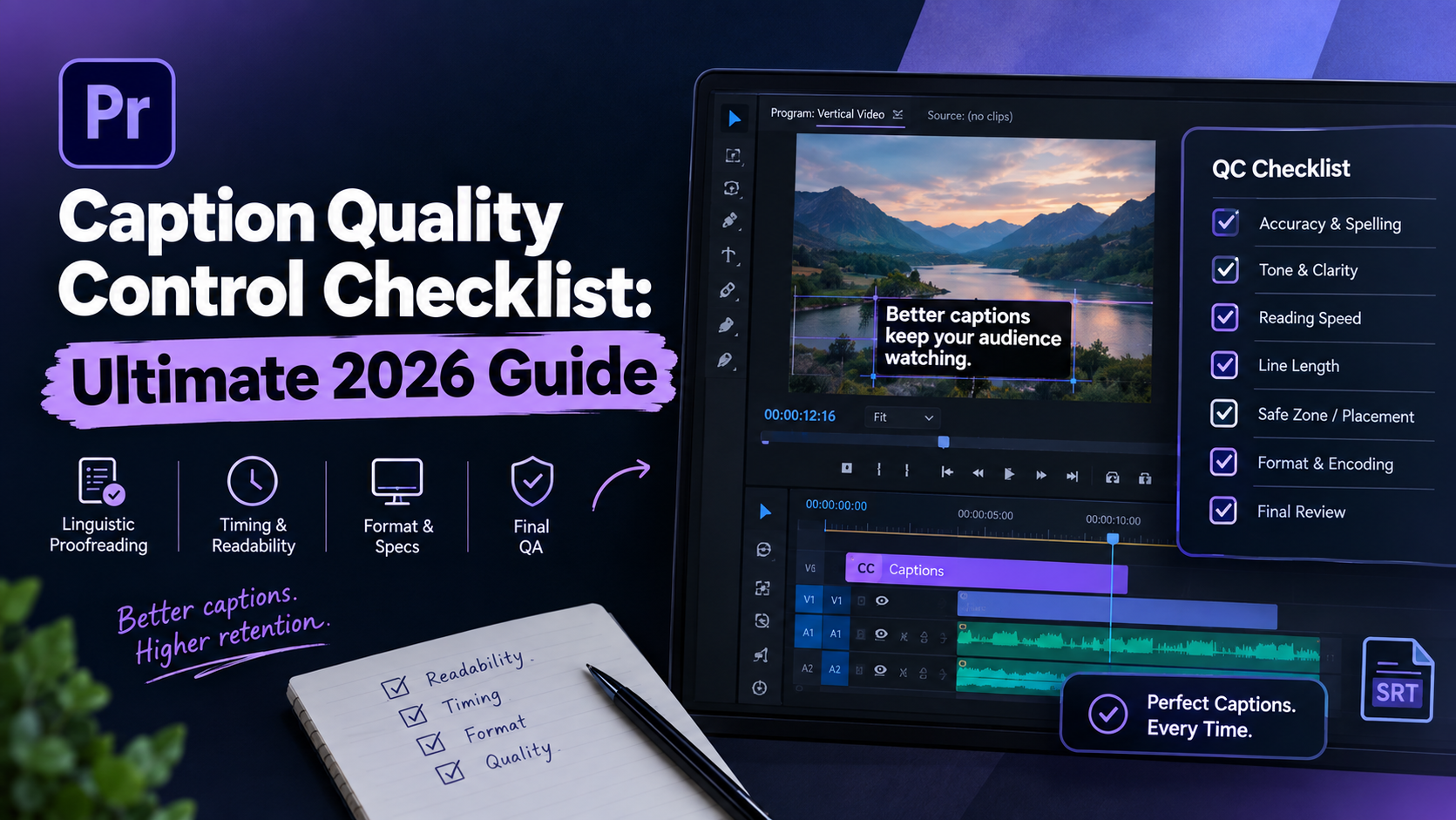
Nothing kills a client relationship faster than a rejected subtitle track because a line flashed on screen for 10 frames. I once spent three hours manually tweaking subtitle timing in Adobe Premiere Pro, only to get a revision request because line 412 covered a lower-third graphic. Subtitle reading speed violations cause most broadcast and streaming subtitle rejections, yet most editors barely glance at character counts before exporting [3, 8]. If you rely on raw timeline playback to spot timing drift and line breaks, you are burning four hours per episode on quality control that should take 90 seconds.
In this guide, I will share the ultimate caption quality control checklist for video editors so you can audit your caption tracks quickly, avoid embarrassing compliance failures, and ship clean edits every time.
Key Takeaways
Enforce strict reading speed limits of 180–200 words per minute (20–21 characters per second) to prevent unreadable text [3].
Limit captions to 32 characters per line for broadcast (EIA-608) or up to 42 characters per line for digital streaming platforms [3, 4].
Maintain a mandatory 2-frame minimum gap between consecutive subtitle events to prevent visual flickering [3].
Separate your QA process into three distinct layers: linguistic proofreading, technical timing, and broadcast spec compliance [8, 10].
Top-align captions whenever speaker lower-thirds, burning graphics, or key visual elements appear at the bottom of the frame [2, 7].
Fix frame rate mismatches early to prevent timecode drift (like conforming 23.976 fps subtitle files to a 29.97 fps timeline) [3].
The Three-Layer Caption Quality Control Checklist Architecture
Ever tried proofreading grammar while checking frame gaps and title safe margins at the same time? Your brain skips errors [8]. I used to hit play in Adobe Premiere Pro and try to catch spelling mistakes, bad line breaks, and lower-third overlaps all in one pass. I missed things every single time.
The secret to fast, reliable subtitle auditing is breaking your review into three distinct layers [10]. Each pass focuses on a specific set of rules. Here's why: this structural approach prevents stakeholder rework and stops clients from flagging basic formatting errors during creative reviews [8].
┌─────────────────────────────────────────────────────────────┐
│              LAYER 1: LINGUISTIC PROOFREADING               │
│    Spelling, Grammar, Tone, Jargon, Speaker Identification   │
└──────────────────────────────┬──────────────────────────────┘
                               │
                               ▼
┌─────────────────────────────────────────────────────────────┐
│             LAYER 2: TECHNICAL READABILITY & QA             │
│   WPM / CPS Limits, CPL Boundaries, 2-Frame Gap Buffer      │
└──────────────────────────────┬──────────────────────────────┘
                               │
                               ▼
┌─────────────────────────────────────────────────────────────┐
│           LAYER 3: DELIVERY & SPEC COMPLIANCE               │
│    Aspect Ratios, UTF-8 Encoding, Safe Zones, Timecodes    │
└──────────────────────────────┴──────────────────────────────┘
Layer 1: Linguistic Proofreading and Tone
Linguistic proofreading focuses entirely on text accuracy, punctuation, and tone [9]. Your AI transcription engine might get 95% of the words right. But it will routinely butcher proper nouns, technical terms, and homophones [3]. During Layer 1, ignore frame counts and screen margins completely. You are strictly checking whether the text faithfully represents spoken audio [1].
You also need to audit tone and register. If your podcast guest speaks with informal contractions ("gonna", "wanna"), decide on a style guide early [9]. Clean up excessive hesitation words like "um" and "uh" unless the delivery spec explicitly demands verbatim captions for court or compliance accessibility [2].
Layer 2: Technical Readability and Timing Rules
Layer 2 is objective and mathematical [8]. This is where you audit reading rates, screen duration, line counts, and inter-caption spacing [3]. A sentence can be grammatically flawless, but if it flies across the screen in 12 frames, viewers will miss it entirely [3, 7].
In this pass, you ensure every subtitle block remains on screen long enough to read comfortably [6]. You also verify that lines break at natural syntactic boundaries rather than splitting phrases mid-thought [9].
Layer 3: Delivery Format and Spec Compliance
Layer 3 verifies technical client requirements [10]. Are you delivering a sidecar .srt file, a .vtt file for web players, or burning open captions directly into a 9:16 vertical video? [3]
This layer checks aspect ratio shifts, font rendering, title-safe boundaries, and timecode offsets [2]. If your timeline is set to drop-frame timecode while your sidecar export uses non-drop-frame, your captions will drift out of sync over a 60-minute interview [3].
Pro Tip: Never mix linguistic and technical passes. Run your text transcript through a spelling and brand dictionary audit before you ever touch caption timing on your sequence timeline [8, 9].
Actionable Takeaway: Divide your review workflow into three dedicated steps (Linguistic, Technical, Delivery) to stop missing timing errors during text edits.
Technical Specs: Reading Speed, Line Length, and Frame Gaps
If you want your subtitles to pass strict quality checks, you must stick to industry standard technical parameters [4, 6]. Ignoring these thresholds leads to subtitle file rejections from major networks and web distributors [3].
Standard Reading Speed Rule: Keep subtitle reading speed under 200 Words Per Minute (roughly 20-21 Characters Per Second) so viewers can absorb visual text comfortably [3, 4].
Characters Per Line (CPL) Limits by Platform
Text limits depend heavily on the delivery medium [3, 4]. Broadcast systems operating under legacy EIA-608 closed caption standards enforce a strict limit of 32 characters per line across up to four rows [3]. Standard digital streaming formats and SDH captions allow up to 42 characters per line across two lines [3, 4].
Exceeding these character counts forces viewers to scan across the entire screen, causing visual fatigue [7]. Staying within standard character-per-line boundaries keeps text block sizes compact and readable [4].
Targeting 180-200 Words Per Minute Reading Speeds
Reading rate is the single most critical
Subtitle Parameter | Broadcast Standard (EIA-608) | Digital / Streaming Standard (SDH) | Short-Form Social (Reels / TikTok) |
|---|---|---|---|
Max Characters Line | 32 characters [3] | 37–42 characters [3, 4] | 15–25 characters |
Max Text Lines | Up to 4 rows [3] | 2 rows max [3] | 1–2 rows |
Target Reading Speed | 160–180 WPM [3] | 180–200 WPM (20–21 CPS) [3, 4] | 200–240 WPM |
Min Event Duration | 1.5 seconds [6] | 5/6 second (~833 ms) [3] | 300–500 ms |
Max Event Duration | 6.0 seconds [6] | 7.0 seconds [3] | 3.0 seconds |
Min Frame Gap | 2 frames [3] | 2 frames [3] | 0–2 frames |
When speakers talk rapidly in a podcast, long full-sentence captions disappear too quickly [3]. To fix reading rate violations, you must either split the text block across multiple events or condense spoken phrasing slightly while retaining the original meaning [9].
Eliminating Flickering with the 2-Frame Gap Rule
When two consecutive caption events sit directly adjacent on the timeline without a gap, visual rendering engines can flicker or skip rendering the second block entirely [3]. Section 508 accessibility guidelines note that rapid flashing or flickering on screen between 2 Hz and 55 Hz creates visual stress and accessibility compliance failures [5].
To avoid this issue, enforce a mandatory minimum gap of 2 frames between consecutive subtitle events [3]. This gap gives rendering software enough time to reset screen buffers, delivering smooth transitions between caption blocks [3].
Actionable Takeaway: Cap your digital caption lines at 42 characters, enforce a 2-frame gap between blocks, and keep reading speeds below 200 WPM [3, 4].
Visual Placement and Safe Zone Checks in Premiere Pro
Caption placement isn't just about putting text at the bottom of the screen. It's about keeping text legible without hiding critical visuals [2, 7].
Top-Aligning Captions for Lower-Thirds
When lower-third graphics, name plates, or burn-in titles appear on screen, bottom-aligned captions collide with them [7]. The Federal Communications Commission (FCC) evaluates caption quality across four standards: accuracy, synchronicity, completeness, and placement [3]. Captions must never obscure lower-third graphics, facial expressions, or important on-screen visuals [2, 7].
Whenever a lower-third graphic enters the frame, move the caption block to the top of the video frame [7]. In Adobe Premiere Pro, you can adjust vertical positioning directly in the Essential Graphics panel or track style settings to keep text clear of visual graphics [3].
Maintaining Title Safe Margins Across Aspect Ratios
Different viewing environments cut off the edges of your frame [2]. Standard 16:9 broadcast monitors use a 90% title-safe area [2]. Short-form 9:16 vertical videos for TikTok and Instagram Reels have UI overlays—like usernames, like buttons, and audio icons—covering the bottom and right edges of the screen.
┌─────────────────────────────────────────┐
│              TOP SAFE ZONE              │
│    (Ideal for lower-third overlaps)     │
├─────────────────────────────────────────┤
│                                         │
│                                         │
│               CENTER FRAME              │
│                                         │
│                                         │
├─────────────────────────────────────────┤
│            BOTTOM SAFE ZONE             │
│   (Keep 10% above frame edge for UI)    │
└─────────────────────────────────────────┘
Always test your text layout using standard title-safe margins [2]. Ensure your text blocks sit at least 10% inside the outer boundaries of the video canvas so no characters get cropped on mobile displays [2, 4].
Formatting Multi-Line Breaks Naturally
Bad line breaks ruin readability [9]. Never split a caption line in the middle of a compound phrase, between an adjective and its noun, or halfway through a person's name [9].
Incorrect:We went to the local hardware store to buy some paint.We went to the local hard-ware store to buy some paint.
Correct:We went to the local hardware storeto buy some paint. [9]
Keep modifiers attached to the words they modify. Split lines after punctuation marks like commas, periods, or natural pauses in speech [6, 9].
Pro Tip: If you're building short-form vertical clips in Premiere Pro, use a master track style that automatically positions captions above the bottom UI zone.
Actionable Takeaway: Shift captions to the top of the frame whenever lower-third graphics appear, and split multi-line captions at natural grammar breaks [7, 9].
Linguistic Proofreading vs Technical Caption Quality Control
Understanding the difference between linguistic proofreading and technical QC saves time during video edits [8, 10]. Think about it: linguistic checks address what the text says, while technical QC controls how the text renders [8].
┌───────────────────────────────────┐     ┌───────────────────────────────────┐
│     LINGUISTIC PROOFREADING       │     │       TECHNICAL CAPTION QC        │
├───────────────────────────────────┤     ├───────────────────────────────────┤
│ • Proper Noun Accuracy            │     │ • Characters Per Line (CPL)       │
│ • Speaker Identification          │  vs │ • Words Per Minute (WPM / CPS)    │
│ • SDH Sound Effects [door slams]  │     │ • Title-Safe Boundary Margins     │
│ • Homophones & Grammar            │     │ • 2-Frame Gap Enforcement         │
└───────────────────────────────────┘     └───────────────────────────────────┘
Verifying Proper Nouns and Technical Jargon
Auto-transcription tools frequently mishear technical terms, brand names, and industry jargon [3]. A podcast discussing "Adobe Premiere Pro" might be transcribed as "Adobe Premier Pro", or "KreateFlo" might turn into "Create Flow" [3].
Maintain a project-specific term list before starting your edit [9]. Search your timeline transcript for known problem words before exporting your client package [8].
Handling Overlapping Speakers in Interviews
Multi-person podcasts and interview shows present unique captioning challenges when speakers talk over each other [1]. When two people speak simultaneously, distinguish their dialogue clearly using speaker tags or dashes [9].
Example:- I think we should start today.- No, let's wait until tomorrow. [9]
If space allows, place speaker names in uppercase brackets like [ALEX] or [SARAH] so viewers can follow fast-paced dialogue easily [9].
Standardizing Non-Speech SDH Audio Cues
Subtitles for the Deaf and Hard of Hearing (SDH) require non-speech audio descriptions [2, 9]. Important sound effects that add context—such as [losing tone], [applause], or [door slams]—must be enclosed in brackets or parentheses [9].
Make sure these cues are clear and concise [9]. Do not transcribe background noise that has no impact on the story [1].
Actionable Takeaway: Run an automated search-and-replace for brand names and industry jargon across your transcript before checking your timing [8, 9].
How to Automate Your Caption Quality Control Checklist Workflow
Manual caption adjustments in Adobe Premiere Pro can consume hours of your editing schedule. Trimming individual subtitle blocks, shifting text positions, and checking character limits by hand takes massive effort. Automated workflows let you run these checks in seconds [3, 8].
Replacing Manual QA with Automated Rules
Instead of adjusting every subtitle clip on your sequence timeline, automated caption processors apply technical rules across the entire sequence at once [3, 10]. Automated tools can instantly enforce max line lengths, trim durations, and flag reading speed violations across long podcasts [8, 10].
The result? You turn 4 hours of tedious trimming into a quick 90-second review, freeing up time for narrative pacing and color grading.
Real-Time Previewing with KreateFlo CaptionFlow
If you edit podcasts and video clips inside Premiere Pro, CaptionFlow simplifies your captioning pipeline. As part of the KreateFlo extension (currently v1.0.3), CaptionFlow includes 22 animated caption presets designed for both horizontal interviews and vertical short-form content.
Unlike web tools that force you to export videos and wait for browser rendering loops, CaptionFlow relies on a WASM real-time engine. You can tweak typography, apply track styles, adjust character boundaries, and preview animations directly on your Premiere Pro sequence without rendering.
If you edit long interviews, KreateFlo also features an AI Multi-Cam Editor that handles up to 8 speakers and 8 cameras, plus dedicated wide-shot switching. For global podcasts, the built-in voice transcription supports 40+ languages (including Hindi and Bangla).
You can start with the Free Tier, which gives you 3 core tools forever (Silence Remover, Transition Assistant, Copy & Paste). When you need full AI powers like CaptionFlow, Pro is $19.99/mo for 20 AI hours, and Studio is $44.99/mo for 50 AI hours. That gives you predictable, flat monthly costs compared to FireCut's per-hour billing model or juggling multiple separate subscriptions like AutoPod, Phantom Editor, Descript, and Opus Clip.
When Automation Falls Short: The Mandatory Human Pass
Automation handles technical metrics like character limits and frame gaps efficiently, but it cannot replace human judgment [3, 8].
Honest Caveat: KreateFlo is a CEP plugin built specifically for Adobe Premiere Pro. It is not a standalone desktop app or browser tool like Descript. If you edit in Final Cut Pro or DaVinci Resolve, KreateFlo will not work in your environment. Even with automated plugins, an editor must still perform a human spot-check to verify proper nouns, emotional tone, and contextual line breaks [3, 8].
Actionable Takeaway: Automate character boundaries and layout styling with Premiere Pro tools like CaptionFlow, then perform a quick 3-minute human spot-check for proper nouns [3, 8].
Common Export and Frame Rate Sync Drift Mistakes
Sync drift is a frustrating error in subtitle editing [3]. Everything looks locked in on your Premiere timeline. But when the client loads the sidecar .srt file into their player, the text drifts out of sync over time [3].
TIMELINE:  [00:00:00] ─── OK ───► [00:15:00] ─── OK ───► [00:30:00] ─── OK ───► OK

DRIFT SRT: [00:00:00] ─── OK ───► [00:15:01] ─── +1s ──► [00:30:03] ─── +3s ──► DRIFTED!
Conforming 23.976 fps and 29.97 fps Timecodes
Why does timing drift happen on exported files? Sync drift usually happens because of frame rate mismatches [3]. Conforming a subtitle file created for a 23.976 fps timeline to a 29.97 fps or 59.94 fps video sequence causes progressive timecode drift [3].
Always confirm that your sequence timecode matches your export format settings [3]. If your project is 23.976 fps, ensure your caption exporter uses matching drop-frame or non-drop-frame specifications [3].
Validating UTF-8 Character Encoding
If your video contains foreign characters, accents, or special symbols, incorrect file encoding will turn your text into unreadable symbols (like � or ’) [10].
Always export sidecar subtitle files (.srt or .vtt) using UTF-8 character encoding [10]. UTF-8 preserves special characters, accented letters, and non-Latin alphabets across all operating systems and video web players [10].
Sidecar SRT Files vs Burnt-In Subtitles
Choose the right delivery method for your target platform:
Sidecar Files (.srt / .vtt): Best for YouTube, broadcast television, and websites [3]. Viewers can toggle captions on or off, and search engines can index the text for SEO [3].
Burnt-In (Open) Captions: Best for social media channels like Instagram Reels, TikTok, and YouTube Shorts. Burnt-in captions guarantee that stylized fonts, colors, and word highlights display identically on every mobile device.
Actionable Takeaway: Match your subtitle file timecode directly to your video timeline frame rate, and export sidecar files using UTF-8 encoding [3, 10].
The Ultimate Caption Quality Control Checklist
Before sending your final video render or sidecar subtitle track to a client, review The Ultimate Caption Quality Control Checklist for Video Editors.
The 10-Point Pre-Flight Verification Pass
1. Reading Speed (WPM / CPS): All subtitle blocks remain under 200 WPM (21 CPS) [3, 4].
2. Character Limits: Text is capped at 32 CPL for broadcast or 42 CPL for digital stream deliverables [3, 4].
3. Line Boundaries: Subtitles use a maximum of 2 lines per screen event [3].
4. The 2-Frame Gap Rule: A minimum 2-frame gap separates every consecutive caption block [3].
5. Duration Constraints: Screen display events run between 833 ms (5/6 sec) and 7 seconds [3, 6].
6. Safe Zone Margins: Text stays 10% inside screen boundaries to avoid mobile UI cropping [2, 4].
7. Graphics & Lower-Third Overlays: Captions move to the top of the frame when lower-third graphics appear [2, 7].
8. Natural Syntactic Line Breaks: Lines break cleanly after punctuation or clauses, keeping modifiers attached to nouns [9].
9. Proper Nouns & Jargon Audit: Technical terms, brand names, and proper nouns are verified against the source script [3, 9].
10. UTF-8 & Timecode Sync: Export files match sequence frame rates and use UTF-8 text encoding [3, 10].
Client Sign-Off Protocols for High-Volume Agencies
If you manage content for multiple agency clients, institutionalize your QA process [8]. Distribute this 10-point checklist to your junior editors and assistant editors [8, 10].
Separating technical validation from creative review prevents unnecessary client feedback rounds, helping your team ship completed edits faster [8, 10].
Frequently Asked Questions
What are the FCC standards for closed captioning quality?
The FCC evaluates closed caption quality across four standards: accuracy (matching spoken words exactly), synchronicity (aligning with spoken timing), completeness (covering the entire video from start to finish), and placement (not obscuring important visual elements or lower thirds) [3].
What is the difference between Subtitle QC and Proofreading?
Linguistic proofreading focuses strictly on text accuracy, spelling, tone, and grammar [9]. Subtitle QC (Quality Control) is a technical process that verifies reading speed (WPM/CPS), line lengths, safe zone margins, frame gaps between caption blocks, and file timecode synchronization [8, 10].
How many characters per line are allowed in video subtitles?
Standard broadcast platforms (EIA-608) limit text to 32 characters per line [3]. Digital and streaming platforms like Netflix allow up to 37 to 42 characters per line, typically spread across a maximum of two lines per screen event [3, 4].
What is the standard reading speed (CPS/WPM) for video captions?
Standard video caption reading speeds range between 180 and 200 words per minute (WPM), which equates to roughly 17 to 21 characters per second (CPS) [3, 4]. Exceeding these thresholds causes captions to disappear before viewers can read them [3, 7].
How do you prevent subtitle sync drift caused by frame rate mismatches?
Sync drift occurs when subtitle timecode drop-frame settings do not match the video timeline (for example, conforming a 23.976 fps subtitle file to a 29.97 fps video) [3]. To prevent drift, generate and export caption files directly within your video sequence frame rate in Adobe Premiere Pro [3].
Streamline Your Captioning Workflow in Premiere Pro
Quality controlling captions doesn't have to mean sitting through a two-hour render checking every word by hand. By separating your QA pass into distinct linguistic and technical layers—and letting automated tools handle character counts and frame gaps—you can protect your client deliverables without killing your schedule [3, 8].
If you edit podcasts in Adobe Premiere Pro, install the free tier of KreateFlo to try CaptionFlow's WASM real-time engine and accelerate your captioning workflow today.
Download KreateFlo for Premiere Pro
References
nlr.gov/comm-standards/web/multimedia-qa-checklist authority
it.umn.edu/services-technologies/how-tos/video-guidelines-editing-auto-generated authority
oit.colorado.edu/sites/default/files/Captioning%20Standards%20Checklist_0.pdf authority
nationaldeafcenter.org/resource-items/captioned-media/compliance-and-standards/
closedcaptioncreator.com/blog/articles/how-to-qc-closed-captioning-and-subtitles.html
pippit.ai/resource/subtitles-qa-ultimate-guide-to-quality-video-content-2025
influenceflow.io/resources/content-production-checklist-the-complete-2026-guide-for-creators-brands/
verbit.ai/blog/accessibility-hub/video-accessibility-guidelines-requirements-and-benefits/
amiralabs.com/blog/broadcast-caption-compliance-eu-ai-act-eaa-fcc-2026
digitizer.rs/en/news-stories/9-video-production-trends-for-2026/
searchlab.nl/en/statistics/digital-accessibility-statistics-2026
Try KreateFlo free
3 tools forever, 7-day trial on the rest. No credit card to start.
Download KreateFlo