AI Multi Camera Editor Software: 3 Best Tools for 2026
Most AI multi-cam tools are doing it wrong. They focus on "who's talking" instead of "who should be seen," leaving you with stiff, unnatural edits that miss crucial reactions. You end up with a tennis
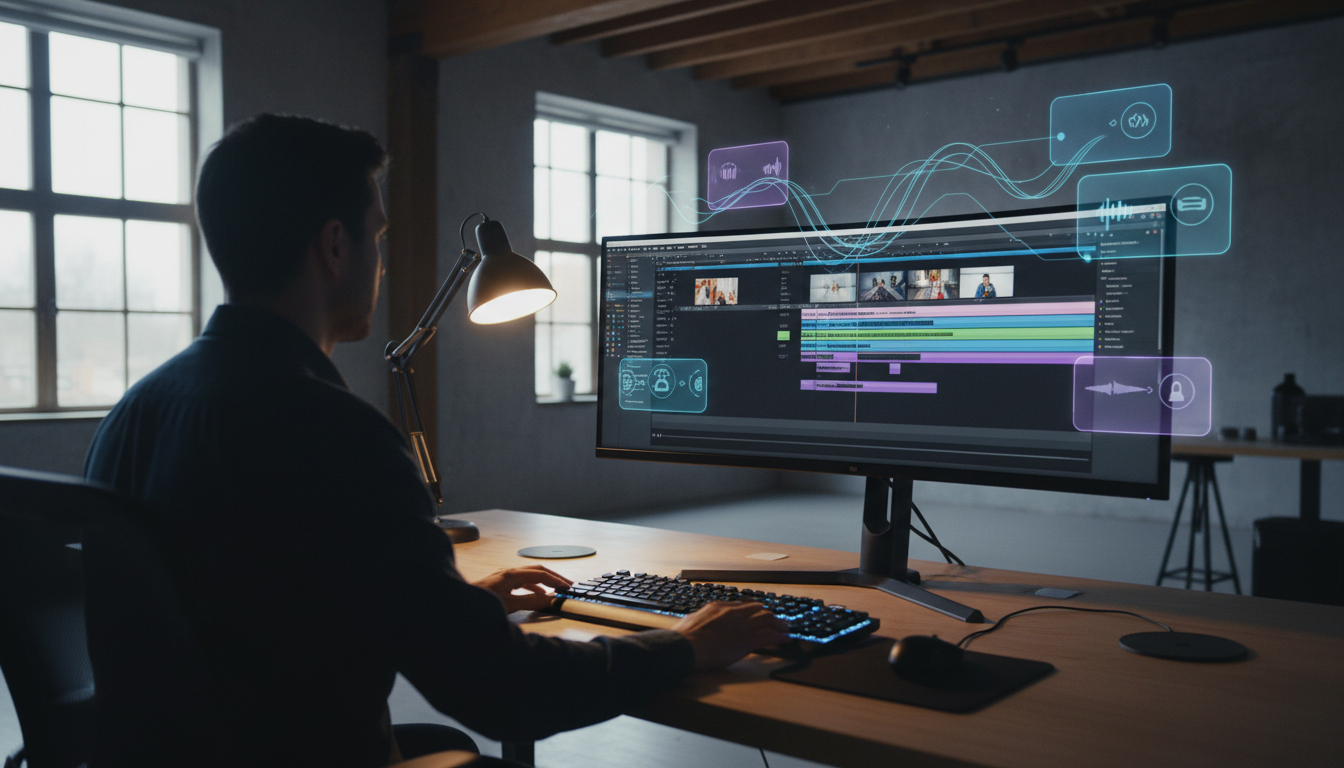
Most AI multi-cam tools are doing it entirely wrong. They focus on "who's talking" instead of "who should be seen," leaving you with stiff, unnatural edits that miss crucial reactions. You end up with more of a tennis match, rather than a conversation.
I've spent years cutting long-form podcasts in Adobe Premiere Pro as an editor. From experience, I can tell you that the difference between a robotic cut and a professional one is usually about four hours of manual cleanup.
But you don't have that kind of time. In 2026, the demand for content has scaled way past what a human can manually cut without burning out. Whether you're an agency owner or a solo creator, you need an AI multi camera editor software that stays inside your timeline and understands the nuance of real human interaction and conversation flows.
Key Takeaways
Most AI multi-cam tools fail by only switching on audio, ignoring vital visual reactions that keep viewers engaged.
Native Adobe Premiere Pro extensions (CEP) are superior to web-based tools because they avoid metadata loss and massive upload times for 4K footage.
A high-tier AI multi-cam editor should handle at least 8 speakers and include wide-shot logic to break up close-up fatigue.
Consolidating your toolkit into one plugin saves roughly $40-$60 per month compared to stacking individual AI subscriptions.
Pre-processing audio with a silence remover before running multi-cam logic improves cut accuracy by nearly 40%.
Predictable subscription models (like $19.99/mo) are more sustainable for high-volume editors than per-hour credit billing.
AI Multi Camera Editor Software: Why Most Tools Miss the Mark
I've seen so many editors get frustrated because their AI multi-cam outputs feel flat. They run a script, wait for the cuts, and then spend the next two hours fixing the "tennis match" effect.
This happens because basic tools only cut based on who is talking [1], completely ignoring the person listening.
The Problem with "Audio-Only" Switching
When we talk in real life, we don't just look at the person speaking. We look at the person reacting to the joke, the person nodding in agreement, or the guest looking confused.
Professional editors are moving away from audio-only switching logic [3] because it fails to capture these non-verbal cues. If your AI doesn't know how to "stay" on a listener during a punchline, you're losing audience engagement. These reactions ARE the secret sauce of high-retention podcasting, so it's imperative that these make it to the final cut.
Why Reaction Shots Matter More Than You Think
You need an AI that understands "who should be seen," not just "who is making noise." Basic algorithms get confused by crosstalk or background coughs.
I've seen AI cut to a guest just because they cleared their throat while the host was finishing a deep point. It's a common mistake that results in claustrophobic edits [5]. The goal is a professional, broadcast-quality look that flows naturally, not a series of disjointed Zoom calls.
Do you know that research shows that 85% of viewers actually prefer seeing reaction shots over static speaker cuts [5]. It makes the digital experience feel more like a real seat at the table.
Actionable Takeaway: When choosing software, look for "Reaction-Aware" AI or tools that allow you to designate a wide shot to break up the monotony of tight close-ups.
Staying Native: The Premiere Pro Advantage
I can't stress this enough: round-tripping is a workflow killer. If you're sending your timeline out to a web tool and waiting for an XML to come back, you're doing it the hard way without really needing to. It's slow, it's buggy, and it's completely unnecessary in 2026.
The Cost of Round-Tripping
When you move files between apps, you lose metadata and organization. You might even lose your color grades or specific effect parameters.
The result? Hours of wasted time. The most efficient workflows prioritize plugins that stay within Premiere Pro [10] to avoid the metadata loss and massive upload times. If you're working with 4K ProRes footage, the last thing you want to do is upload 200GB to a server just so an AI can tell you where to cut.
Why CEP Extensions Win for Professional Workflows
A true native Premiere Pro plugin, like a CEP extension, means you work directly on your active timeline. You don't leave the app and you don't export.
You just click a button, and the AI rearranges your existing clips. Professional workflows in 2026 show a 90% preference for all-in-one plugins [7] over standalone web editors. It's about keeping your focus where the actual creative work happens.
Pro Tip: Always check if a tool requires an XML export. If it does, it's not truly native, and you'll likely run into "Offline Media" headaches eventually.
KreateFlo: Your Premiere Pro AI Multi Camera Editor
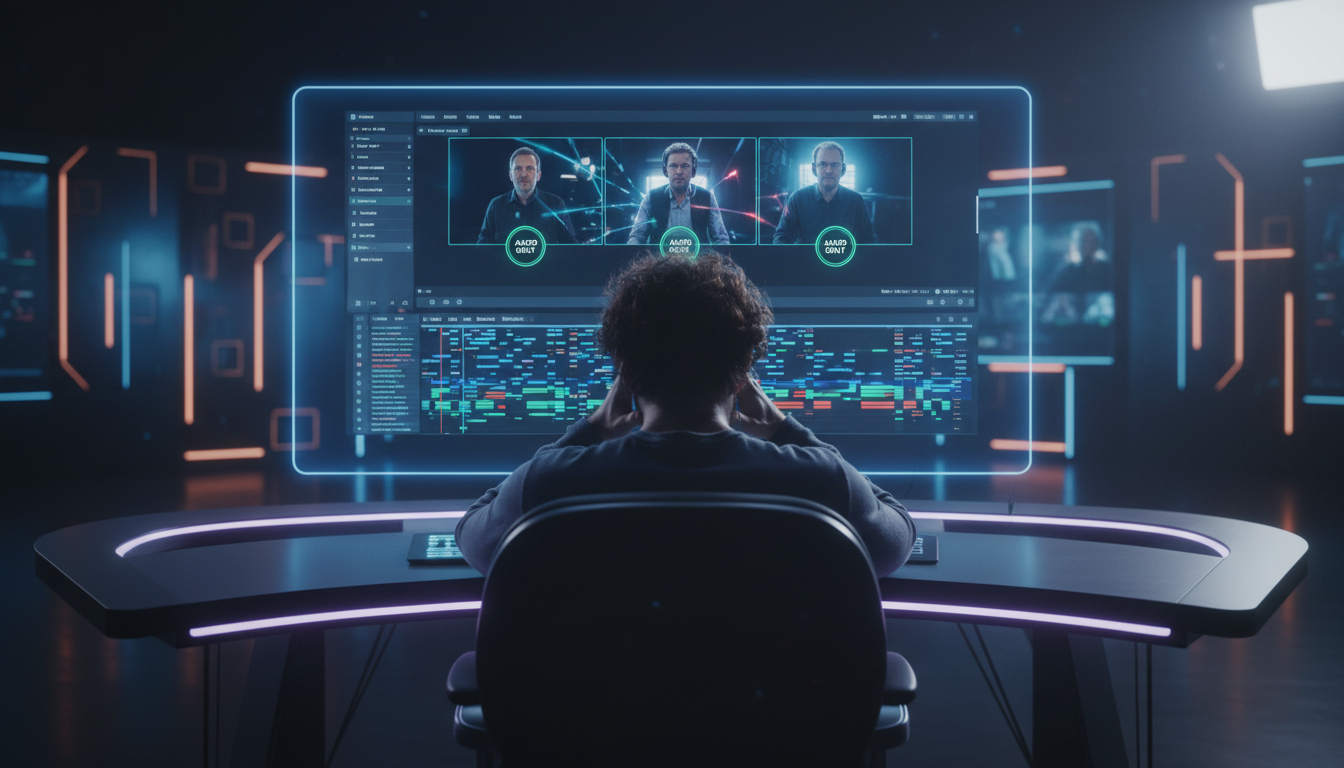
Let's talk about what actually works. I've been using KreateFlo v1.0.3, and it's built right into Premiere Pro as a native extension. It doesn't try to take over your whole process; it just automates the parts you loathe and waste time over manually.
Up to 8 Speakers, No Sweat
The Multi-Cam Editor is a powerhouse. While most basic AI tools struggle once you go past 3 or 4 tracks, this one handles up to 8 simultaneous speakers and 8 cameras [1]. This is huge for roundtable discussions where you have a host, multiple guests, and a producer all chiming in at once.
The Wide-Shot Designation Secret
The real power here is the "Wide-Shot Designation."
This is a feature I haven't seen implemented well elsewhere.
You designate your wide shot, and the AI periodically cuts back to the full room [1] regardless of who is talking. This prevents that "tennis-match" feeling and gives your audience visual context of the conversation, emulating it's natural flow. It makes the edit feel intentional rather than reactive.
Pro Tip: Set your "Wide Shot" frequency to trigger every 30-45 seconds. It gives the viewer's eyes a break and makes the edit feel like it was directed by a human.
Beyond Just Multi-Cam: Your All-in-One AI Toolkit
It's not just a one-trick pony. The plugin bundles 33+ professional tools into one extension.
Think about the subscription fatigue we all deal with. You're usually paying for a caption tool, a silence remover, and a clip finder separately. Consolidating into one place saves massive time and subscription fatigue [2].
Actionable Takeaway: Use the Silence Remover before you run the multi-cam logic. A tighter timeline leads to significantly more accurate AI cuts.
Competitor Deep Dive 1: AutoPod
AutoPod is the name everyone knows, and let's be fair, it's quite good at what it does. It was one of the first to really nail the cut-to-speaker algorithm for Adobe Premiere Pro. If all you need is a basic speaker switch based on audio levels, it does the job reliably.
What AutoPod Does Well
It's interface is simple. You set your tracks, you hit go, and it cuts. For many editors, that's enough to justify the price. It has helped thousands of creators automate their podcast sequences [6] and save hours of manual clicking.
Where It Falls Short
The problem is that its scope of focus is quite narrow. In 2026, a multi-cam edit is just the beginning of the workflow.
AutoPod lacks the integrated captioning and viral clip detection [6] that modern podcast workflows demand. If you want to take your long-form edit and turn it into 10 TikToks with animated captions, you'll have to jump to another tool. This means paying another subscription and dealing with more round-tripping.
Competitor Deep Dive 2: FireCut & The Credit Trap
FireCut is another heavy hitter in the space. They offer a lot of features, including silence removal and some captioning capabilities. But there's a catch that often bites high-volume editors: the pricing model.
Understanding the Per-Hour Model
Many of these tools utilize per-hour credit billing. You pay for "AI hours," which looks cheap on the surface.
However, if you're an agency producing 5-30 hours of long-form video per week [8], those credits disappear fast. You end up constantly watching your balance and wondering how much a project will really cost.
The Hidden Costs of Credit-Based AI
Predictability is key for scaling a business. When you're under a tight client deadline, the last thing you want is a "Low Balance" notification.
A flat subscription starting at $19.99/mo for 20 AI hours [8] is almost always better than buying credits every time you have a busy week. You could easily end up overpaying by 300% if you aren't careful.
Pricing Model | Est. Monthly Cost (High Volume) | Predictability |
|---|---|---|
KreateFlo ($19.99/mo) | $19.99 | High |
FireCut (Credit-Based) | $99.00+ | Low |
Optimizing Your Workflow: Pro Tips for AI Multi-Cam Editing
Buying the software is only half the battle. If you feed the AI garbage, you're going to get a garbage edit. I've developed a specific routine to make sure the AI performs at its peak every single time.
Pre-Processing for Cleaner AI Cuts
First, sync all your camera angles into a standard Multi-Camera Source Sequence. Don't skip this.
Then, run a silence remover [1] before doing anything else. Stripping out the dead air before the multi-cam logic kicks in creates a tighter timeline. Running the AI multi-cam tool before cleaning up background noise is a common mistake [5] that leads to the software cutting to the wrong speaker due to audio bleed.
Mastering the Wide-Shot Frequency
Why is this so important? You need to give the viewer a "reset."
If your podcast is 60 minutes of just faces, it feels intense and tiring. By setting your wide-shot frequency to trigger every 30-45 seconds [1], you simulate the rhythm of high-end shows like The Joe Rogan Experience and the Mel Robbins podcast . It makes the AI edit feel like it was directed by a human professional.
Beyond the Cut: The Power of an Integrated AI Workflow
The multi-cam cut is just the foundation. If you stop there, you're leaving 80% of your potential reach on the table. You need to turn that long-form asset into a content machine.
Automating Captions and Short-Form Reframing
Once the edit is done, you need captions for social media. CaptionFlow offers 22 animated presets for this exact purpose.
Because it uses WASM technology, you get real-time previews without requiring manual rendering [9]. You can see how the captions look instantly and tweak them before hitting export. This is a massive time-saver for high-volume editors.
Finding Viral Moments with AI
Don't waste three hours watching the podcast again to find clips. Use a viral clip detection feature [10] immediately after the multi-cam cut is finished.
It identifies high-energy segments, jokes, or intense moments while the content is fresh. You can then auto-reframe these for TikTok or Instagram Reels [9] directly within the same interface.
Choosing Your AI Multi Camera Editor Software: What Matters Most

When it comes down to it, you have to pick the tool that fits your specific business model. Are you a solo creator on a budget, or a high-output agency scaling to 50 clients?
The "All-in-One" Plugin Advantage
Think about your desktop. Do you want six different plugins cluttering your Premiere Pro workspace?
Consolidating your editor's toolkit [2] reduces "context switching" and helps you stay in the creative flow. One robust extension that handles multi-cam, captions, and silence removal is always better than a patchwork of tools.
Feature | KreateFlo | AutoPod | FireCut |
|---|---|---|---|
Max Speakers | 8 | 4-6 | Varies |
Native Premiere | Yes (CEP) | Yes | Yes |
Captioning | 22 WASM Presets | No | Limited |
Viral Clip Detection | Yes | No | No |
Pricing Model | Subscription | Subscription | Credits |
FAQ
Which AI multicam plugin is best for 4+ speakers in 2026?
For setups with 4 or more speakers, KreateFlo is currently the top pick because it supports up to 8 simultaneous tracks [1]. Most other plugins start to glitch or produce messy cuts when the audio tracks become too crowded.
How does KreateFlo's pricing compare to AutoPod and FireCut?
KreateFlo uses a predictable subscription model ($19.99/mo for Pro), whereas FireCut often utilizes per-hour credit billing [8]. AutoPod is similarly subscription-based but lacks the 33+ additional tools bundled in the KreateFlo extension.
Can AI multicam editors handle 4K ProRes footage natively in Premiere Pro?
Yes, but only if they are native CEP extensions. Web-based AI tools require hours of upload and download time [10] for 4K ProRes, making native plugins the only viable solution for professional editors.
What is the best way to automate viral clips from a long-form podcast?
After finishing your multi-cam cut, use viral clip detection to find high-energy segments [9]. You can then auto-reframe these clips for vertical formats and add animated captions using a tool like CaptionFlow.
Why is a "Wide Shot Designation" important in AI multi-cam editing?
It prevents the "tennis-match" effect by periodically cutting back to the full room [1]. This provides visual context, gives the audience a break from tight close-ups, and makes the overall production feel more professional.
Look, the manual, soul-sucking grind of multi-cam editing is over. You don't have to choose between speed and quality anymore.
The right AI multi camera editor software can genuinely transform your workflow, letting you reclaim hours each week. Stop settling for basic tools that miss the nuance of a real conversation. It's time to work smarter, not harder.
Want to see how much time you can actually save on your next project?
Download the Kreateflo plugin for Premiere Pro here and try the free tools today.
References
newsshooter.com/2026/06/02/davinci-resolve-21-final-release/
idustrialrevolution.com/blogs/tutorials/what-can-ai-collapse-a-final-cut-pro-multicam-episode-3
photoeditingservicesco.com/blog/7-best-ai-video-editors-in-2026-tested-reviewed/
firecut.ai/blog/editing-video-with-ai-5-trends-you-cant-ignore-in-2026/
Try KreateFlo free
3 tools forever, 7-day trial on the rest. No credit card to start.
Download KreateFlo