Delete Silence Premiere Pro: 5 Essential 2026 AI Tips
I once spent four hours ripple-deleting the silences out of a single interview-style podcast episode. Last week, I did the same thing in 90 seconds. If you're still manually scrubbing through your tim
I once spent four hours ripple-deleting the silences out of a single interview-style podcast episode. Last week, I did the same thing in 90 seconds. If you're still manually scrubbing through your timeline to find every 0.5-second gap, you aren't just an editor. You're a data entry clerk who happens to use Adobe Premiere.
In 2026, the industry has shifted away from manual labor toward AI-assisted assembly cuts that are 50x faster [1]. The math is simple: manual silence removal is the single biggest bottleneck in video production. But with Adobe's official rebrand of 'Premiere Pro' to simply Premiere in version 26.0 [9], the 'Delete Silence' workflow has become the core layer of the timeline rather than a hidden feature.
Whether you use the native tools or a dedicated plugin like KreateFlo, you need a system that doesn't make your audio sound like a glitchy robot.
Key Takeaways
- AI-assisted silence removal in 2026 is documented to be 50x faster than manual scrubbing [1].
- Adobe Premiere v26.2's native silence removal currently suffers from a 0.3s padding bug that leaves dead air [10].
- Professional editors recommend a silence detection threshold of 0.15 seconds to maintain natural human pacing [1].
- Using AI to remove pauses typically reduces total podcast runtime by 20-40% [1].
- Large content agencies report saving approximately $2,700 per month in editing costs by automating silence deletion [1].
Understanding Silence Removal in Premiere (2026)
In the past, removing silence was a surgical process. You'd zoom into the waveform, hit 'C' for the Razor tool, and cut. Then you'd repeat that 400 times for a 60-minute podcast. It was soul-crushing work.
In 2026, we've moved into the era of 'Agentic Editing.' The software doesn't just see pixels or waves anymore. It understands the sentiment and flow of the speech [1]. This transition from simple tools to intelligent engines means that video editors using AI for assembly cuts [2] save up to 80% of their manual editing time.
The 2026 update to Premiere v26.0 introduced Live Waveforms that update in real-time [9]. You no longer have to wait for the program to render a preview just to see where the volume drops. This is huge for high-volume creators.
However, speed shouldn't come at the cost of precision. I've seen too many editors set their silence thresholds so tight that the speaker sounds like they've stopped breathing. The goal isn't just to remove the 'dead air.' It's to optimize the pacing while keeping the human element intact.
Pro Tip: Set your transcription to 'Local Processing' in your Premiere Preferences. This forces the software to use your GPU rather than waiting in a server-side queue, which is essential for speeding up silence detection on long files [2].
"In the age of AI, the editor's job isn't to cut out the silence; it's to decide which silences are worth keeping."
Actionable Takeaway: Audit your last project. If you spent more than 20% of your time ripple-deleting pauses, you are failing to use the 2026 workflow.
The Native Premiere Silence Removal Tool: A Double-Edged Sword
Adobe's native solution lives inside the Text-Based Editing panel. You can use the 'Filter by Pauses' feature to identify every gap in the transcript and delete them all at once. It's convenient because it's built-in, but it isn't perfect.
Here is the catch: As of the v26.2 update, there is a well-documented padding bug in Premiere v26.2 that leaves roughly 0.3 seconds of dead air before and after every cut [10]. For a fast-paced YouTube video, that 0.3s adds up to a sluggish edit that feels 'off.'
When you use the native tool, you'll also encounter the 'Global Audio Mute' feature. It's a new addition meant to help focus on dialogue, but it carries a risk. If you forget it's on, you might accidentally export sequences with active background noise tracks [2] that you thought were permanently silenced.
| Feature | Native Premiere (v26.2) | KreateFlo Plugin |
|---|---|---|
| Silence Detection | Based on Transcript | Based on Waveform + AI |
| Padding Control | Fixed (0.3s bug) | Customizable (0.01s - 1.0s) |
| Multicam Support | Limited / Manual | Up to 8 Speakers [3] |
| Transcription | Adobe Sensei (97% accuracy) [4] | Multilingual (99+ languages) |
| Cost | Part of Creative Cloud | $19.99/mo (Pro) |
Actionable Takeaway: If you're using v26.2, double-check your cuts. If you see visible gaps in the waveform after 'deleting pauses,' you're hitting the padding bug and should switch to a third-party extension.
Beyond Native: Best AI Plugins for Silence Removal in Premiere
For those of us editing 5-30 hours of video a week, 'built-in' isn't always 'best.' The rise of AI plugins for Premiere in 2026 [3] has created a market where specialized tools outperform the Swiss-army-knife approach of Adobe.
This is especially true for multicam workflows. If you have three people on microphones and two cameras, the native tool often struggles to keep everything in sync.
The result? Plugins like KreateFlo or AutoCut are designed to handle multicam projects with up to 8 speakers [3]. They don't just look for silence on one track; they analyze the hierarchy of audio to decide which camera should be active based on who is talking.
This consolidation—staying inside Premiere rather than round-tripping to other apps—is why large-scale agencies are saving nearly $2,700 a month [1]. You aren't paying for three different subscriptions or wasting time on XML exports.
Pro Tip: If you're choosing a plugin, look for 'WASM real-time previews.' It allows you to see the animated captions and silence cuts without having to render-to-see-changes.
How to Delete Silence in Premiere (Step-by-Step Workflow)
The 2026 workflow isn't just about clicking a button. It's about the sequence of events. If you delete silence before you handle your multicam switching, you risk misaligned tracks and sync drift [2].
Step 1: High-Accuracy Transcription
Start by transcribing your sequence. In 2026, AI transcription has reached 97% accuracy [4] across 30+ primary languages. If you're working with international clients, ensure your tool supports voice transcription for languages like Hindi or Bangla.
Step 2: Set Your Silence Threshold
Don't just hit 'delete.' You need to define what 'silence' actually is. Industry pros suggest setting the threshold to exactly 0.15 seconds [1].
This is the 'Goldilocks' zone. It's short enough to keep the energy high, but long enough to avoid the robotic, staccato sound of over-editing. If you go too low, you'll strip away the natural emotional weight of the speech [7].
Step 3: Bulk Delete and Ripple
Once identified, use your silence remover tool to perform the ripple delete. If you're using KreateFlo, the AI will automatically group the cuts [3] to ensure that your A-roll and B-roll stay locked together.
Warning: Always verify your sync after a bulk delete. Relying on Text-Based Editing without verification [2] is a common mistake that leads to 'floating heads' where the audio and video are off by a few frames.
Pro Tips for Flawless Audio After Silence Deletion
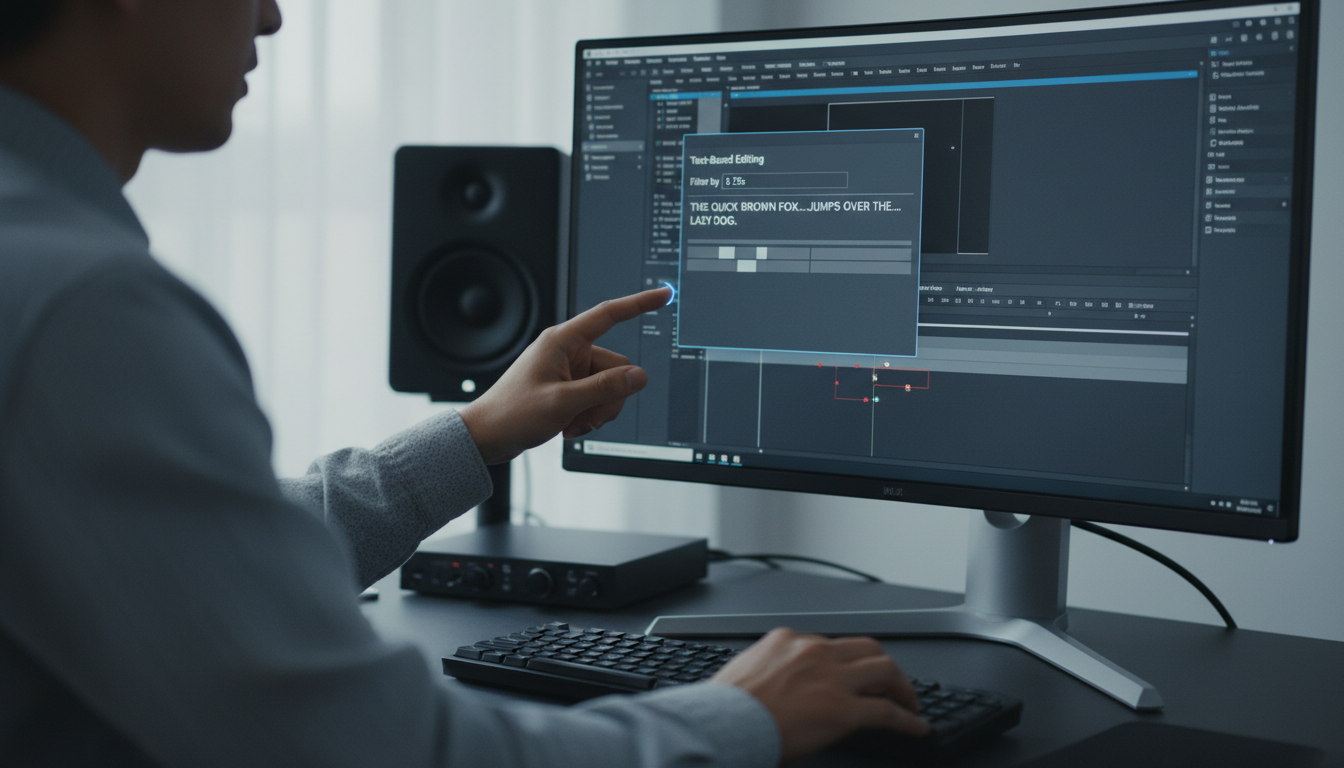
Deleting the silence is only half the battle. When you cut audio 400 times, you introduce 400 potential 'clicks' or 'pops' where the waveform is severed.
In 2026, the Premiere v26.2 update included a massive engine overhaul [9] that helps, but you still need professional finishing touches.
Enhance Speech for Consistency
After you've tightened the edit, apply 'Enhance Speech.' This ensures that the remaining dialogue has a consistent studio-quality floor [2]. When you remove silence, you often remove the 'room tone' that masks minor audio imperfections. Enhance Speech fills that gap with AI-generated clarity.
The Power of Constant Power
Never leave a cut 'naked.' Use the keyboard shortcut (Shift+D by default) to batch-apply 'Constant Power' transitions to every single cut point [2].
This creates a 2-frame crossfade that eliminates digital clicks. In 2026, you can also toggle 'Interactive Fade Handles' to quickly smooth out abrupt audio transitions visually [2].
"A great edit is one you can't hear. Constant Power is your best friend for hiding the seams of a jump-cut world."
Removing Filler Words: The Next Level of Clean Audio
Silence is one thing; 'ums,' 'uhs,' and 'you knows' are another. In 2026, AI tools can now identify and remove filler words [8] with the same ease as removing pauses.
But wait: removing every single filler word can make a speaker sound rehearsed or unnatural. I've found that removing 80% of filler words while leaving a few in for 'flavor' actually builds more trust with the audience.
It sounds like a real person having a clear conversation, not a scripted robot. This is why 85% of Sundance films used Adobe Creative Cloud [9]—the balance between AI power and human control is essential for storytelling.
Saving Time and Money: The Business Case for AI Silence Tools
If you are a content agency producing 5-30 hours of long-form video per week, the business case for AI is undeniable.
Large-scale agencies report saving $2,700 per month [1] just by switching to automated clipping and silence removal. When you factor in the 80% time savings on assembly cuts [2], you aren't just saving money. You're increasing your capacity to take on more clients.
Consider your 'Silence Tax.' Multiply the hours you spend cutting pauses by your hourly rate. If that number is higher than $20, you're losing money every single time you open Premiere without a specialized plugin [7]. Automation allows your team to focus on storytelling, color grading, and sound design—the things that actually build authority and educate customers [6].
FAQ
How do I fix the 0.3s padding issue in Premiere v26.2 silence removal? The best way to fix the v26.2 bug is to use a third-party plugin like KreateFlo or AutoCut. These tools bypass the native transcript-based logic and use waveform analysis to provide tighter, more precise cuts [10].
What is the best AI plugin for multicam silence removal in 2026? Look for a plugin that specifically mentions support for multiple speakers. KreateFlo is a strong contender [3] because it integrates the multicam switch directly into the silence removal workflow, saving you from doing two separate passes.
Can Premiere v26 automatically remove filler words like 'um' and 'uh'? Native Premiere focuses mostly on pauses. For automatic filler word removal, you will generally need an AI extension that offers 'Agentic Editing' features [8].
How much faster is AI silence removal compared to manual editing in 2026? It is documented to be 50x faster [1]. For a standard interview, you can reduce the total runtime by 20-40% in seconds rather than hours [1].
Is it better to use native Adobe silence removal or a dedicated plugin? Native tools are great for basic, single-track social clips. However, for professional agency work or multicam podcasts, dedicated plugins offer better precision and avoid native bugs [7].
The days of spending hours hacking away at dead air are over. If you're still doing that, you're leaving money and time on the table. The 2026 workflow is about using AI to handle the repetitive assembly [2] so you can actually spend your time being an editor.
Ready to stop wrestling with silence and start producing cleaner, faster edits? Download the KreateFlo extension and see how much time you get back in your week.
References
- dl-sounds.com/7-ai-video-workflows-that-will-save-you-10-hours-a-week-in-2026/
- editbuddy.app/blog/how-to-remove-silence-in-premiere-pro
- phantomeditor.video/blog/best-ai-plugins-adobe-premiere-pro-2026
- cutback.video/blog/ai-video-editing-in-2026-best-tools-workflows-automation-explained
- resource.digen.ai/best-ai-video-editing-plugins-premiere-pro-2026-2/
- forasoft.com/blog/article/ai-powered-video-editing-solutions
- autocut.com/en/blogs/best-tool-remove-silences-2026/
- cutback.video/blog/how-to-automatically-remove-filler-words-in-premiere-pro-using-ai
- newsshooter.com/2026/01/20/whats-new-in-adobe-premiere-pro-26-0/
- community.adobe.com/bug-reports-728/removing-pauses-within-the-premiere-text-panel-isn-t-working-properly-it-worked-fine-in-previous-versions-i-m-having-to-use-autocut-or-davinci-resolve-to-make-my-automatic-cuts-please-fix-this-1560876
- livemint.com/technology/capcut-runway-descript-adobe-premiere-pro-opus-clip-top-5-ai-powered-video-editing-apps-2026-11779869867212.html
- blinkl.io/en/blogs/best-premiere-pro-plugins-2026/
- andresseo.expert/business/engineering-ai-driven-audio-post-production-noise-reduction/
- screenapp.io/blog/ai-video-editing-trends
- gling.ai/blog/remove-silence-in-premiere
- aaapresets.com/blogs/premiere-pro-blog-series-editing-tips-transitions-luts-guide/the-future-of-premiere-pro-editing-trends-to-watch-in-2026
Try KreateFlo free
3 tools forever, 7-day trial on the rest. No credit card to start.
Download KreateFlo