Highlight Key Video Words: Essential 2026 Editing Guide
Using Bounce and Pulse Animations to Highlight Key Video Words Guide If you are still manually keyframing text pops line-by-line in Adobe Premiere Pro, you are burning four hours on a job that should
If you are still manually keyframing text pops line-by-line in Adobe Premiere Pro, you are burning four hours on a job that should take 90 seconds. Static captions are dead for short-form retention. But over-animating every single preposition turns your sequence into a visual migraine.
I edit podcast clips and social videos every day. I know how easy it is to ruin a clean edit with bad text animation. Here is how you hit the sweet spot between kinetic motion and crisp legibility using bounce and pulse animations to highlight key video words.
Key Takeaways
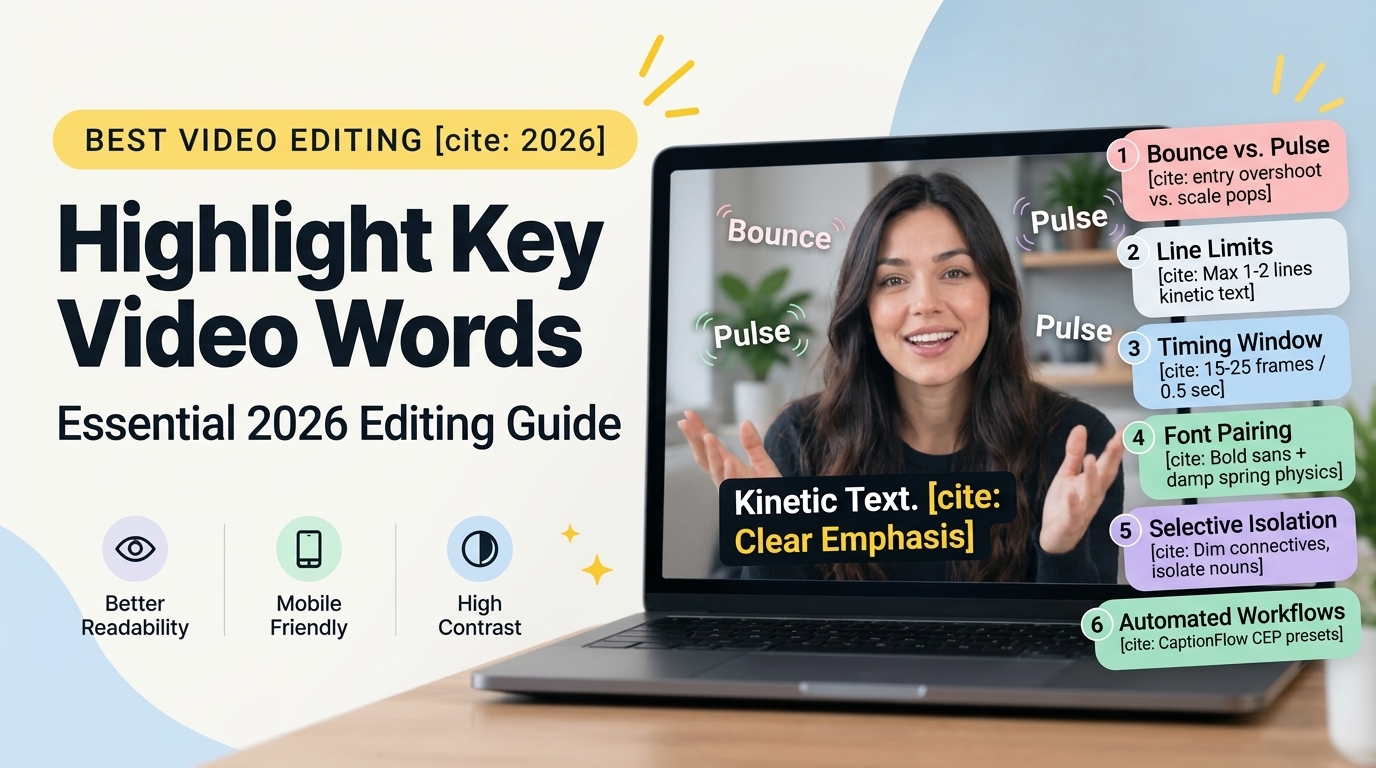
- Bounce vs. Pulse: Bounce animations handle initial word entry overshoots, while pulse animations add uniform scale pops to key emphasis beats.
- Line Limits: Restrict kinetic text blocks to one or two lines maximum on screen to prevent vertical Y-axis overshoots from overlapping adjacent text.
- Timing Window: Target keyframe animation durations between 15 and 25 frames (~0.5 seconds at 30fps) so text movements lock cleanly into fast-paced vocal delivery.
- Font Pairing: Pair bold, heavy sans-serif typefaces with damped spring physics to visually simulate weight and momentum.
- Selective Isolation: Keep connective prepositions and conjunctions static or dimmed so scale pulses immediately draw the eye to core nouns and verbs.
- Automated Workflows: Automate caption generation with KreateFlo CaptionFlow to access 22 animated presets with zero render-loop delays inside Premiere Pro.
Physics of Motion: Why Static Captions Fail on Short-Form Platforms
Static captions were designed for television screens where viewers had time to process horizontal dialogue blocks. On vertical platforms like Instagram Reels, TikTok, and YouTube Shorts, viewers swipe past flat text in under two seconds.
Human visual perception prioritizes sudden spatial shifts and luminance contrast over static shapes [1]. When you apply motion to text, you trigger an involuntary orienting reflex in the viewer's brain.
The Psychology of Eye Tracking in 9:16 Video
Eye-tracking studies demonstrate that viewers scan vertical video in a central focal zone [8]. If text remains static, the viewer's gaze drifts off the screen or toward platform navigation UI [9].
By introducing discrete motion, you anchor the viewer's focal point over your presenter's mouth or chest. Kinetic typography creates a visual rhythm that mirrors spoken audio cadence [7].
Why does this happen?
When text pops in synchronization with speech, comprehension speed increases. The brain processes auditory and visual inputs simultaneously [10]. Aligning a vocal pitch spike with a visual text scale pulse delivers maximum retention.
"Target an optimal kinetic entry duration of 15 to 25 frames. This window gives human vision enough time to process kinetic movement without dragging down the edit pacing."
Damped Spring Curves vs Linear Motion
Linear keyframes look mechanical. Real physical objects do not instantly start, move at a constant velocity, and freeze without decelerating. Damped spring physics mimic real-world mass, oscillation, and gravity [1].
When a word enters the frame using a damped spring curve, it expands past its resting size before settling back into position [1]. This subtle overshoot signals natural momentum to the human eye.
The animation feels smooth rather than harsh [4]. Ditch linear keyframes in your video timeline. Switch to damped spring velocity curves to make text entry feel natural and responsive to human perception.
Core Principles: Bounce Entry vs. Pulse Emphasis
Mastering motion graphics for short-form edits comes down to distinguishing between word entry and word emphasis. Bounce and pulse animations serve two different structural roles on your timeline.
A bounce animation brings text onto the screen from an off-screen position or a reduced scale baseline [2]. The word enters from below or expands, overshoots its target dimensions to around 110%, and dampens down to 100% scale [1]. Bounce animations mark the arrival of a new phrase or thought unit [2].
A pulse animation keeps the word anchored in its existing screen location [2]. Instead of entering from elsewhere, the text scales uniformly along both the X and Y axes. It expands to roughly 115% or 120% before snapping back to 100% [2]. Pulse animations highlight key punchlines, vocal volume spikes, or technical terms without displacing the surrounding layout [2].
| Motion Type | Directional Axis | Primary Function | Ideal Duration |
|---|---|---|---|
| Bounce Entry | Vertical (Y-axis) or Scale Up | Introduces new spoken words onto screen | 15–25 frames [1] |
| Pulse Emphasis | Uniform Scale (X & Y centered) | Highlights spoken punchlines and key nouns | 6–12 frames [2] |
| Static Holding | None | Displays connective prepositions and secondary text | Entire phrase duration [6] |
Selective Isolation: Main Nouns vs Connective Words
Rookie editors make a classic mistake when using bounce and pulse animations to highlight key video words. They animate every single syllable [6].
When every word bounces, no single word stands out [5]. Treat your text like a musical score. Connective words—such as "and", "the", "in", and "with"—should remain visually quiet [6].
Reserve high-impact pulse keyframes exclusively for core nouns, action verbs, and numerical data points [6].
Example Workflow:
- Static Text: "I managed to grow my channel by..."
- Pulse Pop: "...TEN THOUSAND..." (120% Scale Pulse + Color Shift)
- Static Text: "...subscribers in three weeks."
Map out your vocal audio track first. Isolate high-value keywords for scale pulses while keeping connective prepositions static or muted.
Dialing in Keyframe Timing: Damped Springs vs. Uniform Scaling
Timing is everything in kinetic typography. If an animation lags behind the spoken audio track by even three frames, the viewer senses a disconnect between sight and sound.
Targeting 15 to 25 Frame Durations
For snappy short-form edits running at 30 frames per second, a complete bounce entrance should settle within 15 to 25 frames (roughly 0.5 seconds) [1], [3]. Anything longer feels sluggish and bogs down your edit [1].
Set your text layer opacity to transition from 0% to 100% within the first 3 to 5 frames of the bounce curve [1]. This prevents ghosting while ensuring the word is visible before reaching its peak overshoot height [1].
Synchronizing Scale Spikes with Audio Waves
Open your audio track waveforms in Adobe Premiere Pro to identify vocal transients [4]. Look for sharp volume spikes that correspond to stressed consonants like P, T, K, or B.
Align the peak overshoot frame of your scale pulse keyframe directly with the highest point of that audio transient [4]. The result? A tight coupling between sound spikes and visual scaling that creates an addictive, rhythmic snap [7].
Pro Tip: Expand your audio track in Premiere Pro and set keyframe snap points directly on the vocal attack transient rather than relying on visual speech cues alone.
4 Common Kinetic Typography Mistakes That Ruin Readability
Kinetic text can elevate your production value. But careless execution will drive viewers away faster than plain text ever could.
1. Over-Animating Every Single Word
When editors apply continuous spring bounce effects to every word in a 60-second video, viewers experience visual fatigue [5]. The eyes struggle to track words that never stop oscillating, forcing viewers to re-read phrases or swipe away [5].
2. Y-Axis Overshoot Collisions on Multi-Line Text
If you stack captions across three or four lines, vertical bounce entries cause adjacent lines to collide during overshoot frames [5]. A word bouncing up from Line 2 physically clips into the descenders of words on Line 1. Keep your kinetic captions constrained to a strict one or two line maximum on screen [5].
3. Lagging Motion Durations
Setting keyframe durations to 40 or 50 frames creates floaty motion that fails to match energetic vocal delivery [1]. If your presenter speaks at 180 words per minute, your text animation curves must snap in and out in under 12 frames [1].
4. Ignoring Background Contrast and Stroke Shadows
Intense motion cannot compensate for poor color contrast. Bouncing white text over a light shirt destroys legibility [5]. Always apply a subtle dark background bounding box or a crisp 4-pixel drop shadow behind your animated text layer [5].
Step-by-Step Workflow for Premiere Pro Editors
If you want to manually build bounce and pulse keyframes inside Adobe Premiere Pro, here is the process I use on custom timeline builds.
Step 1: Text Layout and Font Selection
- Open Adobe Premiere Pro and select the Essential Graphics panel.
- Create a new text layer using the Type Tool (
T). - Choose a heavy sans-serif typeface such as Montserrat Black, Futura Bold, or The Bold Font. Heavy weights convey inertia during spring physics simulations [1].
- Set text alignment to Center so scale pulse animations expand outward evenly from the middle [2].
Step 2: Building Manual Spring Keyframes
- Select your text clip on the timeline and open the Effect Controls panel.
- Move your playhead to the frame where the speaker begins pronouncing the target word.
- Toggle animation on for Scale and Opacity.
- Frame 0: Set Scale to
80%and Opacity to0%[4]. - Frame 4: Advance 4 frames. Set Scale to
110%and Opacity to100%[4]. - Frame 8: Advance 4 frames. Set Scale back to
100%[4]. - Highlight all three scale keyframes, right-click, and select Temporal Interpolation > Continuous Bezier.
- Adjust velocity handles in the Effect Controls graph to create a steep acceleration peak entering Frame 4 and a smooth deceleration entering Frame 8 [1].
Step 3: Saving Custom Motion Graphic Templates (.mogrt)
Once you build a
Automating Kinetic Text Workflows in Premiere Pro with KreateFlo

Manual keyframing works fine if you edit a single 15-second teaser. But if you cut long-form interview podcasts into dozens of short clips every week, setting manual keyframe handles in Premiere Pro consumes your entire calendar.
That is where KreateFlo comes in. KreateFlo is a native Adobe Premiere Pro plugin—a CEP extension running at v1.0.3 right inside your workspace. It bundles 33+ tools to automate repetitive post-production tasks.
| Workflow Comparison | Execution Time | Setup Process | Cost Structure |
|---|---|---|---|
| Manual Premiere Pro Keyframing | ~4 hours per project | Manual Bezier keyframing frame-by-frame | Included with Adobe NLE |
| KreateFlo CaptionFlow Automation | ~90 seconds per project | Automatic transcript sync + 22 motion presets | Flat $19.99/mo (20 AI hours) |
| Per-Hour Competitor Plugins | ~5-10 minutes per project | External processing export queues | Spikes unpredictably per billing hour |
Using CaptionFlow for 22 Real-Time Animated Presets
Instead of dragging scale curves for hours, KreateFlo's CaptionFlow module lets you auto-transcribe spoken dialogue in 40+ languages (including Bangla and Hindi) and apply stylized kinetic typography in seconds.
CaptionFlow includes 22 animated caption presets, covering bounce entries, pulse highlights, karaoke word tracking, and pop-in effects. You can isolate target keywords automatically, applying pulse scale highlights and background color fills without placing a single keyframe on your timeline.
If you edit multi-speaker shows, combine CaptionFlow with our Multi-Cam Editor. It automates cutting for up to 8 speakers and 8 camera angles with dedicated wide-shot designation. You can also clean up dead air instantly using our Silence Remover or drop seamless cuts with the Transition Assistant before generating captions.
WASM Previews vs. Slow Native Premiere Rendering
Traditional Premiere MOGRTs and third-party motion plugins force you into a frustrating render loop. You change a font size, wait three seconds for Premiere to re-render, check the motion, and repeat.
CaptionFlow utilizes a WASM (WebAssembly) real-time preview engine directly inside the CEP extension window. You can scrub through kinetic animations, test pulse scaling multipliers, and tweak stroke shadows at full frame rates with zero render lag.
Cost Breakdown: $19.99/mo vs Per-Hour Plugin Billing
Competitors like FireCut charge editors on a per-hour AI processing model, meaning your monthly bill spikes unpredictably as client volume grows. Other tools like AutoPod, Phantom Editor, Opus Clip, or Descript require you to leave Premiere Pro entirely or balance multiple point-solution subscriptions.
KreateFlo keeps your workflow inside Premiere Pro with predictable flat-rate pricing:
- Free Tier: 3 tools free forever (Silence Remover, Transition Assistant, and Copy & Paste).
- Pro Tier: $19.99/mo flat, including 20 AI hours per month across all 33+ tools.
- Studio Tier: $44.99/mo flat, including 50 AI hours per month for high-volume agencies.
Pro Tip: Test CaptionFlow on a raw 60-second podcast export. You will instantly see how word-level pulse presets keep captions synchronized with rapid speech delivery.
Honest Caveats: When Kinetic Text Motion Is NOT the Right Pick
I love snappy bounce captions. But kinetic motion is not a universal solution for every edit.
Corporate Interviews vs Social Reels
If you cut corporate mini-documentaries, executive brand films, or B2B testimonial videos, aggressive spring bounce text makes your footage look hyperactive [5]. Corporate audiences value calm, elegant presentation over fast-paced TikTok aesthetics [8].
In
When Plain Captions Outperform Kinetic Motion
If your target audience leans over 50 years old, or if you edit
Furthermore, if you prefer editing in browser-based text apps rather than professional timelines, KreateFlo is not built for you. KreateFlo is a dedicated CEP extension built strictly for Adobe Premiere Pro editors who demand full timeline control inside their native NLE environment.
Frequently Asked Questions
What is the difference between bounce and pulse text animations in video captions?
Bounce animations bring text into the frame using directional movement and spring overshoot physics that settle into place [1], [2]. Pulse animations keep the text anchored in its current screen position while uniformly scaling its dimensions up and down to emphasize key vocal beats [2].
How do you create smooth bounce text animations in Adobe Premiere Pro?
Create a bounce entry by keyframing text Scale from 80% to 110% over 4 frames, then easing down to 100% over the next 4 frames [4]. Highlight your keyframes in the Effect Controls panel, select Continuous Bezier interpolation, and adjust the velocity handles to create a smooth spring curve [1].
Why are spring physics used for animated video captions?
Spring physics mimic real-world mass, momentum, and oscillation, making visual motion feel natural to the human eye [1]. This organic movement catches viewer attention without causing visual fatigue or feeling mechanical [1].
How many lines of text should be visible when using kinetic caption animations?
Limit kinetic captions to a maximum of 1 or 2 lines on screen at any given time [5]. Multi-line blocks risk vertical overshoot collisions where bouncing words physically obscure adjacent lines of text during entry animation frames [5].
Which caption animation style delivers the highest viewer retention on short-form platforms?
A hybrid style that combines word-by-word highlight tracking with subtle scale pulses on primary vocal emphasis words consistently yields the highest viewer retention on TikTok, Reels, and YouTube Shorts [6], [7].
Stop Keyframing Captions by Hand
Manually tuning velocity handles in Premiere Pro for hours is a waste of your editing talent. By focusing kinetic motion on primary keywords, constraining text blocks to two lines, and using damped spring timing, you can create short-form edits that hold viewer attention.
Ready to automate your caption workflow inside Adobe Premiere Pro without leaving your timeline? Try the free tier of KreateFlo or visit our download page to test CaptionFlow with 22 real-time animated presets today.
References
- pmc.ncbi.nlm.nih.gov/articles/PMC9898452/
- videocaptions.ai/caption-styles/bounce
- patents.google.com/patent/US12347013B2/en
- youtube.com/watch
- videocaptions.ai/caption-styles
- freebeatfit.com/blogs/brand-story/best-ai-music-video-generator-with-caption-styling
- advids.co/blog/30-2d-animation-kinetic-typography-video-examples-for-brand-communication
- educationalvoice.co.uk/animation-retention-rates-statistics/
- atlantis-press.com/article/125991294.pdf
- sinc-lab.com/files/nguyen2026like.pdf
- lemonlight.com/blog/how-video-captions-help-attract-and-engage-more-users/
- educationalvoice.co.uk/effective-animated-video-statistics/
- educationalvoice.co.uk/visual-learning-animations-statistics/
- zubtitle.com/blog/5-simple-ways-to-boost-video-engagement-with-animated-captions
- idomoo.com/blog/surprising-video-engagement-statistics/
- sciedupress.com/journal/index.php/wjel/article/viewFile/26331/16286
- iart.ai/blog/kinetic-typography-examples
- upskillist.com/blog/top-7-kinetic-typography-trends-2025/
- svgator.com/blog/50-kinetic-typography-examples/
- youtube.com/watch
Try KreateFlo free
3 tools forever, 7-day trial on the rest. No credit card to start.
Download KreateFlo