Accessible Video Captions: 2026 Guide for Video Editors
Your client does not care how clean your cuts are if their video gets hit with an ADA compliance lawsuit. The Department of Justice just locked in new ADA Title II requirements with mandatory complian
Your client does not care how clean your cuts are if their video gets hit with an ADA compliance lawsuit. The Department of Justice just locked in new ADA Title II requirements with mandatory compliance deadlines starting April 2027, and platform captions will not save you [3]. I used to think burning white text over video in Adobe Premiere Pro was enough. Then a client project failed a formal accessibility audit over missing speaker tags and illegal contrast ratios.
Getting your subtitles to 99% accuracy without spending four hours fixing transcript typos is non-negotiable now. In this guide, I will walk you through the technical rules, common compliance pitfalls, and how to build a lightning-fast caption workflow inside Premiere Pro.
Key Takeaways
- Mandatory Compliance Deadlines: State and local government entities face strict ADA Title II compliance enforcement starting April 26, 2027, under updated DOJ rules [3].
- Contrast Standard: WCAG 2.1 Level AA requires a 4.5:1 color contrast ratio for standard text against background video frames [4].
- Character & Line Limits: Captions must fit within 32 characters per line and max out at 2 lines per screen [1].
- Pacing Rules: Speech rates must stay under 180 words per minute (3 words per second) with frame durations lasting 3 to 7 seconds [2].
- Non-Speech Audio: Compliance audits fail if you omit bracketed sound descriptions like
[applause]or fail to tag off-screen speakers [9].- Closed vs Open Captions: Burned-in open captions cannot replace sidecar closed captions because screen readers require machine-readable text tracks [1].
WCAG and ADA Basics for Video Editors Creating Accessible Captions: The 2026 Legal Landscape
If you edit video for higher education, state agencies, municipal clients, or brands subject to public accommodation laws, accessibility is no longer a "nice-to-have" item at the end of your export queue.
The legal enforcement landscape moved fast over the last two years.
DOJ ADA Title II Enforcement Timelines
The U.S. Department of Justice published updated web accessibility rules under Title II of the Americans with Disabilities Act. Public entities serving 50,000 or more people must make all digital media fully compliant by April 26, 2027 [3]. Smaller public entities serving under 50,000 residents have until April 26, 2028, to meet identical standards [3].
So what does this mean for your timeline?
If you create content published on university portals, public utility sites, or municipal video channels, your deliverables must strictly adhere to DOJ ADA Title II digital requirements [3].
| Target Entity | Compliance Deadline | Legal Requirement |
|---|---|---|
| DOJ Title II Rule Issued | April 2024 | Rule finalized for state/local web media [3] |
| Public Entities (50k+ Population) | April 26, 2027 | Full WCAG 2.1 Level AA compliance mandated [3] |
| **Small Entities (<50k Population)Actionable Takeaway: Audit your client roster today to identify public sector and higher-education accounts that require WCAG 2.1 Level AA compliant caption deliverables. |
Technical Rules: WCAG and ADA Basics for Video Editors Creating Accessible Captions
Meeting compliance standards requires setting precise technical parameters inside your editor. You cannot eyeball font sizes or pick lower-third background colors based on vibe alone.
Contrast Ratios and Background Styling
WCAG 2.1 Level AA Criterion 1.4.3 states that standard text must achieve a minimum color contrast ratio of 4.5:1 against its background [4]. For large text (defined as 18-point or larger, or 14-point bold), the requirement drops to 3:1 [4].
Video backgrounds change constantly as camera angles shift from bright sunlit scenes to dark shadows. White text placed directly over moving video will inevitably drop below 4.5:1 on light frames.
To solve this, apply a semi-transparent or solid black background box behind your caption text. A black box set to 75% opacity guarantees your text passes WebAIM color contrast guidelines [4] across every frame of your edit [5].
Font Selection, Size, and Character Limits
Section 508 design best practices specify using
- Baseline Font Size: Set your caption baseline font to 18-point [1].
- Line Length: Limit text to a maximum of 32 characters per line [1].
- Line Count: Cap caption blocks at no more than 2 lines per screen [1].
Long three-line captions obscure essential visual details. They force the viewer's eyes to scan back and forth across the screen instead of watching the action.
Reading Speed and Word-Per-Minute Caps
Section 508 synchronized media rules cap spoken pace at 180 words per minute, which averages out to roughly 3 words per second [2]. If your podcast host speaks at a rapid 220 words per minute, your subtitle blocks must split the dialogue naturally over multiple frames.
Subtitle blocks should remain visible on screen for a minimum of 3 seconds and a maximum of 7 seconds per frame [2]. Holding a brief two-word caption block for under a second causes screen flicker. That ruins reading comprehension.
| Caption Rule | WCAG / Section 508 Standard | Video Editor Implementation |
|---|---|---|
| Minimum Color Contrast | 4.5:1 for standard text (3:1 for 18pt+ bold) [4] | Add semi-transparent black background box [5] |
| Font Selection | Clear sans-serif typeface [1] | Arial, Helvetica, or Tiresias at 18pt baseline size [1] |
| Line & Character Limits | Max 32 characters/line, max 2 lines/screen [1] | Hard break text at 32 characters [1] |
| Display Duration | 3 to 7 seconds per subtitle block [2] | Sync timing windows between 3.0s and 7.0s [2] |
| Spoken Pace Cap | Max 180 words per minute (3 words/sec) [2] | Split fast dialogue across sequential blocks [2] |
Pro Tip: Create a reusable Caption Track Style preset in Premiere Pro with Arial 18pt font, centered alignment, and a 75% opacity black background box. Saving this preset eliminates repetitive formatting on every project export.
Actionable Takeaway: Lock your sequence caption settings to sans-serif 18pt fonts with a black background box to ensure a compliant 4.5:1 contrast ratio across variable video backgrounds.
Non-Speech Audio: Speaker Identification and Sound Effects

Transcribing the spoken words is only half the battle. Accessible captions must provide complete context for viewers who are deaf or hard of hearing.
This means non-speech audio cues and speaker tags are mandatory [9].
Formatting Off-Screen and On-Screen Speakers
When a video features multiple voices or a speaker talks from off-camera, viewers need to know who is talking. Under Section 508 captioning standards [1], you must identify speakers using uppercase bracketed tags or explicit labels whenever a new voice enters the scene [9].
For example:
[SARAH] We need to finalize the project specs today.[HOST] Welcome back to the show.[NARRATOR, OFF-SCREEN] The expedition departed at midnight.
If an on-screen character is clearly visible and actively speaking in a single-person frame, speaker tags can be omitted. However, as soon as the cut jumps to a wide multi-cam view or an off-screen voice interrupts, explicit labeling becomes mandatory [9].
Transcribing Essential Sound Effects and Music Cues
Non-verbal sound effects convey crucial emotional context and plot developments. Skipping sound effects breaks compliance under W3C WCAG audio description principles [8].
Place significant audio cues inside square brackets using lowercase or sentence case description text [9]:
[upbeat acoustic guitar music plays][applause and cheering][thunder rumbles in distance][door creaks open]
Do not clutter the screen with subtle background ambient noise like basic room tone. Focus strictly on sound effects and music changes that alter the narrative or emotional tone of the video [9].
[SERENE PIANO MUSIC]

[DR. ARLIS]
If we analyze the core data from the audit,
the structural defects are obvious.

[GAVEL SLAMS]

[AUDIENCE GASPS]
Actionable Takeaway: Conduct a dedicated audio-only editing pass to insert bracketed speaker names and narrative sound effects into your subtitle track.
Common Compliance Pitfalls That Fail Video Audits
Even experienced editors get caught by subtle technical errors. Here's why standard timeline passes fall short during formal compliance audits.
Relying on Standard Auto-Captions Without Review
Unedited AI-generated transcriptions routinely misspell proper nouns, drop essential punctuation, and mangle technical jargon [9]. An auto-caption track that converts "WCAG compliance" into "we cat appliance" immediately drops your transcript accuracy below the required 99% threshold [9].
Auto-captions generated by social media platforms also lack speaker tags and non-speech sound indicators [9]. Relying entirely on raw unedited platform text exposes your client to legal non-compliance risks [9].
Bad Placement Over Lower-Thirds and On-Screen Graphics
Placing caption text directly over lower-third graphics, speaker nameplates, or burnt-in text titles creates severe visual clutter.
Section 508 Rule 503.4 mandates that captions must not obscure critical visual information on screen [2]. When lower-third graphics appear on screen, adjust your caption track position. Move the text block to the top third of the frame for the duration of that graphic overlay [2].
+-------------------------------------------------------+
|  [CAPTIONS MOVED TO TOP THIRD DURING GRAPHICS]       |
|  [JOHN] Let me explain our quarter three results.    |
|                                                       |
|                                                       |
|  +---------------------------+                        |
|  | LOWER-THIRD GRAPHIC HERE  |                        |
|  +---------------------------+                        |
+-------------------------------------------------------+
"Never burn captions into the bottom of a frame without checking graphic overlays. Overlapping text elements trigger instant audit failures on corporate sites."
Actionable Takeaway: Scan your final edit timeline specifically for lower-third graphic overlays and reposition overlapping caption blocks to the upper screen area.
Open Captions vs Closed Captions for ADA Compliance
Understanding the technical difference between open and closed captions dictates how you deliver your final post-production files to clients.
Why Burned-in Open Captions Fall Short for Screen Readers
Open captions are permanently rendered into the video pixels during export. While open captions work well for social media channels like Instagram Reels or TikTok where users scroll on mute [7], open captions alone do not satisfy formal ADA requirements for web portals [1].
Here is the problem: assistive technologies and screen readers cannot read pixels rendered into a video frame [1]. Screen readers require raw text data supplied by closed caption tracks [1]. Furthermore, burned-in text prevents users with low vision from increasing text size or altering contrast settings in their video player [4].
When to Deliver Sidecar Files vs Embedded Caption Tracks
To ensure compliance, you must provide closed caption data alongside your video file:
- Sidecar Files (.srt, .vtt): Separate text files delivered alongside your main MP4 or ProRes export. Web platforms like YouTube, Vimeo, and custom HTML5 video players import sidecars to display customizable text tracks.
- Embedded Tracks (CEA-608 / CEA-708): Closed caption data embedded directly into the file container wrapper (common for broadcast MXF or MOV files).
Project Deliverables Folder
├── Final_Video_Export_1080p.mp4
├── Final_Video_Export_Captions.srt  <-- Required for Screen Readers
└── Final_Video_Export_Captions.vtt  <-- Preferred for Web Players
For long-form podcasts and client interviews, delivering a sidecar .srt or .vtt file ensures your media meets convertaudiototext accessibility rules [9]. For a deep dive into formatting sidecar files, check out our guide on how to clean up subtitle transcripts for client delivery.
Actionable Takeaway: Always export a separate .srt or .vtt sidecar caption file alongside your main master video render for client delivery.
Building a Fast 99% Accurate Captioning Workflow in Premiere Pro
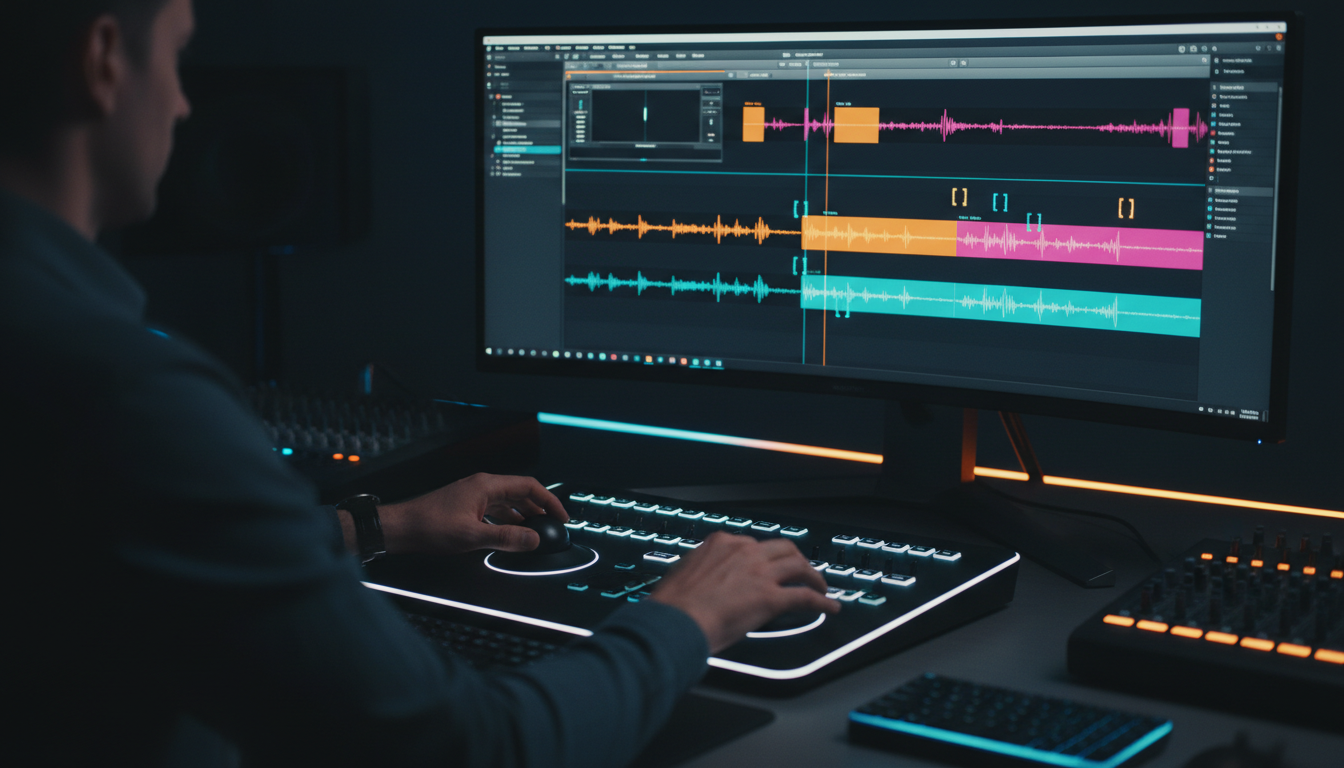
Manual caption editing used to take hours of tedious typing. But you do not need to spend 4 hours manually adjusting SRT subtitle blocks in your timeline to meet compliance standards.
You can complete a compliant pass in 90 seconds using an automated draft pass paired with targeted manual review.
Automating Initial Transcription Without Hour-Long Audits
The fastest way to achieve 99% accuracy is an automated AI draft pass followed by a quick human review pass [9].
Instead of jumping between web-based transcription tools, exporting SRTs, and importing them back into Premiere Pro, use an integrated panel. We built KreateFlo, an Adobe Premiere Pro plugin (CEP extension) designed specifically to handle heavy podcast and interview post-production tasks inside your main editor.
Using KreateFlo's /features/captionflow.html tool, you can automatically transcribe audio across 40+ languages (including Hindi and Bangla) directly on your timeline.
Compared to standalone web tools like Descript or per-hour plugins like FireCut, KreateFlo runs natively inside Premiere Pro v1.0.3. Pro plans start at $19.99/mo for 20 AI hours, while Studio plans cost $44.99/mo for 50 AI hours.
If you edit multi-speaker podcasts, pair your captioning with KreateFlo's [/features/multicam-editor.html](Multi-Cam Editor) to switch up to 8 speakers and 8 cameras automatically before building your subtitle tracks.
Real-Time Styling Previews with KreateFlo CaptionFlow
Traditional Premiere Pro caption workflows require you to render out preview cuts just to see how animated text or background boxes look over your footage.
CaptionFlow solves this with WASM real-time preview rendering. You can preview 22 animated caption presets and adjust text box padding in real-time without hitting render-to-see-changes loops.
Before generating your initial transcript, run KreateFlo's [/features/silence-remover.html](Silence Remover). Stripping dead air and silent pauses upfront prevents your caption track from generating empty subtitle blocks that ruin display timing.
When KreateFlo Is NOT the Right Pick
I believe in giving honest recommendations. KreateFlo is built strictly as a CEP extension for Adobe Premiere Pro.
If you edit primarily in DaVinci Resolve or Final Cut Pro, KreateFlo will not work for your setup.
Similarly, if you only edit legacy TV broadcast formats requiring legacy CEA-608 line-21 analog hardware encoding, specialized broadcast hardware tools remain the better choice. But for Premiere Pro editors shipping modern web, podcast, and corporate video content, staying inside one panel saves hours per project.
Actionable Takeaway: Adopt a two-pass workflow: automate your baseline transcript with KreateFlo inside Premiere Pro, then complete a 5-minute manual check to verify speaker tags and line lengths.
Auditing and Testing Video Captions Before Client Delivery
Before sending final master files to your client, run a systematic audit to verify that your captions meet all WCAG 2.1 Level AA criteria [4].
Contrast Checker Tools for Video Tracks
Never guess whether your caption background provides enough contrast. Use color sampling tools to measure luminance across multiple frames:
- WebAIM Color Contrast Checker: Sample the RGB hex color of your text against the darkest and lightest frames of your background video [4].
- Premiere Pro Program Monitor Scopes: Use the Waveform (Luma) monitor to verify that white text sits near 90–100 IRE while background boxes sit around 10–20 IRE.
Check out 5centscdn's video accessibility compliance guide [10] for detailed technical compliance checklists.
Verification Checklist for Client Sign-Off
Run through this fast 5-point quality checklist before exporting your final files:
- Accuracy: Does the text reach 99% transcription accuracy, including punctuation and technical terms [9]?
- Contrast: Is text backed by a semi-transparent or solid black box achieving a 4.5:1 ratio [4]?
- Formatting: Are line lengths capped at 32 characters and max 2 lines per screen [1]?
- Sound Cues: Are off-screen speakers identified and sound effects tagged in brackets
[like this][9]? - Deliverables: Did you export a clean
.srtor.vttclosed caption sidecar file alongside your master MP4 render [1]?
Actionable Takeaway: Run your final master export through a 5-point verification checklist to guarantee zero compliance pushback from client legal teams.
Frequently Asked Questions
What is the difference between open captions and closed captions for ADA compliance?
Open captions are permanently burned into the video pixels, whereas closed captions exist as a separate text track that viewers can turn on or off [1]. For formal ADA compliance, closed captions are required because they allow screen readers to read the text and let users customize display settings [1].
Are YouTube or social media captions sufficient for WCAG AA compliance?
No. platform captions lack the necessary 99% accuracy standard, often miss punctuation, fail to identify speakers, and omit critical non-speech sound descriptions required under WCAG 2.1 Level AA [9].
What color contrast ratio is required for video captions under WCAG 2.1 Level AA?
WCAG 2.1 Level AA requires a minimum color contrast ratio of 4.5:1 for standard caption text and 3:1 for large text (18pt+ or 14pt+ bold) against its background [4].
What are the differences between ADA Title II and Title III video accessibility requirements?
ADA Title II applies to state and local government entities, which face explicit compliance deadlines starting in April 2027 [3]. ADA Title III applies to public accommodations and commercial businesses, which are bound by general non-discrimination mandates that courts enforce using WCAG 2.1 Level AA benchmarks [3].
How can video editors achieve 99% caption accuracy without spending hours on transcript edits?
Use a hybrid workflow: run an initial automated transcription pass inside Premiere Pro using specialized tools like KreateFlo's CaptionFlow, then perform a fast single-pass review to verify speaker tags, technical terms, and line lengths [9].
Take Control of Your Captioning Workflow Today
Meeting ADA and WCAG video standards is no longer optional for serious video editors. Missing speaker tags or failing contrast ratios can sink a project fast and damage client trust. But you do not need to burn hours manually editing SRT subtitle blocks frame by frame in your timeline either.
Head over to [/download.html](download KreateFlo for Premiere Pro) to test out our free tools (including Silence Remover, Transition Assistant, and Copy & Paste forever). You can also explore /features/captionflow.html to generate compliant, 99% accurate captions with real-time WASM previews right inside Adobe Premiere Pro.
References
- section508.gov/create/captions-transcripts/
- section508.gov/create/synchronized-media/
- ascode.osu.edu/news/new-ada-title-ii-regulations-what-you-need-know
- webaim.org/articles/contrast/
- allaccessible.org/blog/color-contrast-accessibility-wcag-guide-2025
- boia.org/blog/gen-z-more-likely-to-use-captions-when-viewing-video-content
- wgbh.org/culture/film-and-tv/2023-08-23/turn-closed-captions-on-why-gen-z-loves-subtitles-on-movies-shows-and-tiktoks
- w3.org/WAI/WCAG22/Understanding/audio-description-prerecorded.html
- convertaudiototext.com/blog/accessibility-captions-ada-compliance
- 5centscdn.net/blog/video-accessibility-compliance/
- skynettechnologies.com/blog/closed-captions-for-video-accessibility
- swarmify.com/blog/video-accessibility-captions-wcag/
- ai-media.tv/knowledge-hub/insights/ada-title-ii-goes-digital-what-public-entities-need-to-know/
- kapwing.com/resources/subtitle-statistics/
- cablecast.tv/resources/blog/wcag-video-accessibility-cheat-sheet
- testparty.ai/blog/video-captioning-requirements
- jacksonlewis.com/insights/doj-extends-public-entities-compliance-deadline-ada-related-website-accessibility-hhss-may-2026-deadline-still-looms
- squer.io/blog/bridging-the-digital-divide-how-gen-z-is-changing-the-accessibility-conversation-part-1-of-2
- siteimprove.com/blog/media-accessibility-standards/
- aaardvarkaccessibility.com/wcag-guideline/time-based-media/
Try KreateFlo free
3 tools forever, 7-day trial on the rest. No credit card to start.
Download KreateFlo