Mobile Video Captions: 7 Essential Tips for Social (2026)
What Makes Mobile-First Video Captions Effective on Social? If you rely on Adobe Premiere Pro's default auto-transcription to handle vertical video clips, you are throwing away viewer retention. Over
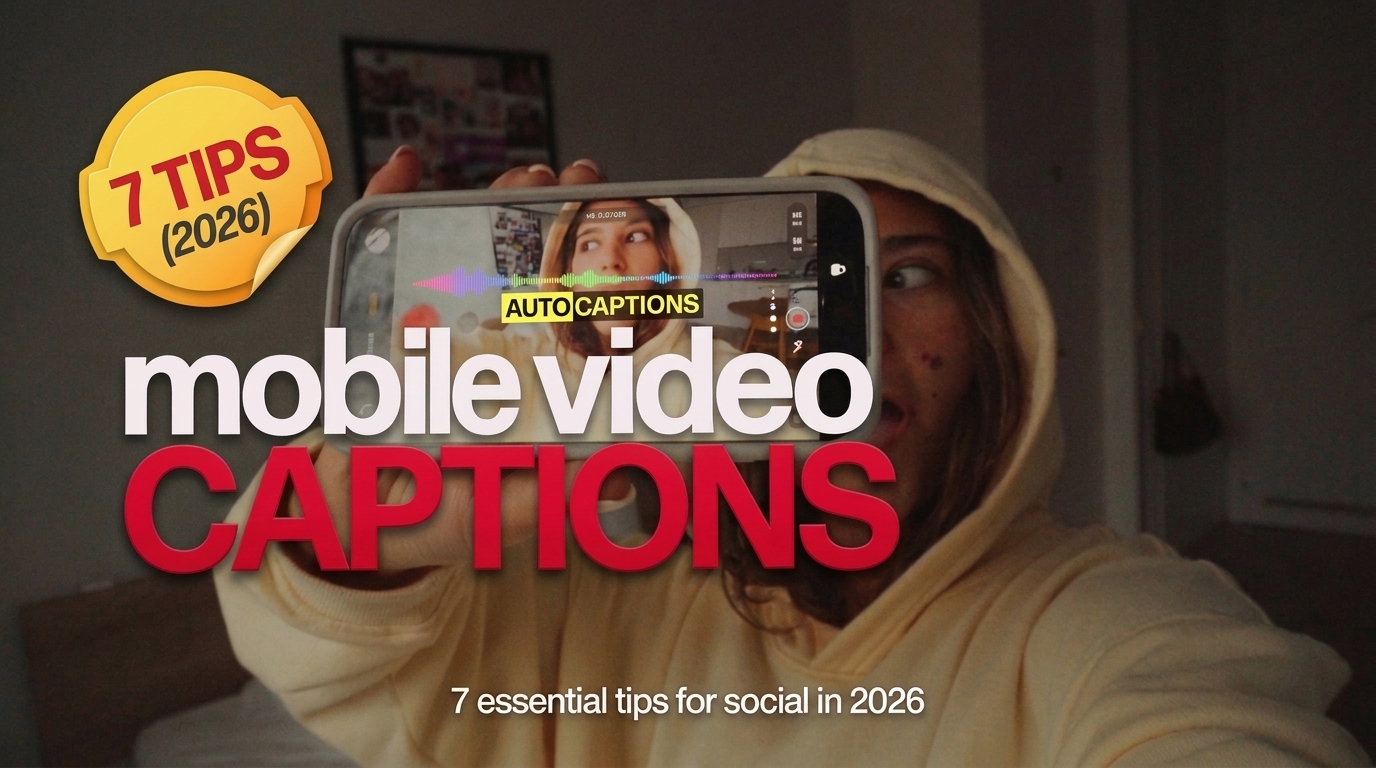
If you rely on Adobe Premiere Pro's default auto-transcription to handle vertical video clips, you are throwing away viewer retention. Over 98.5% of Meta platform users access feeds on mobile devices [1], and the vast majority scroll with their sound turned completely off. Slapping basic subtitles onto a vertical export guarantees a swipe-away in under two seconds.
I edit podcasts and short-form video clips every day. I know the grind. You spend hours tight-cutting multi-cam audio, only to sink another two hours manually keyframing kinetic text in Premiere Pro. Captions aren't an afterthought anymore. They are the main visual driver keeping a viewer's thumb locked on your video.
So, what makes mobile-first video captions effective on social? In this guide, I will break down visual hierarchy, line counts, vertical safe zones, and how to automate keyframing inside Premiere Pro without burning out your wrists.
Key Takeaways
- Mobile captions act as visual attention anchors for sound-off feeds, directly boosting viewer retention.
- Restrict text to 1–2 lines positioned within 9:16 safe zones to prevent UI overlays from blocking your words.
- Dynamic word-by-word animation combined with high-contrast stroke borders keeps viewers focused on fast-scrolling feeds.
- In 2026, social search algorithms index burned-in visual text and audio transcripts to rank vertical videos.
- Burning open captions into your final render ensures 100% typography consistency across TikTok, Instagram Reels, and YouTube Shorts.
- Dedicated Premiere Pro CEP extensions like KreateFlo reduce keyframing work from hours to seconds.
What Makes Mobile-First Video Captions Effective on Social?
When you edit horizontal video for YouTube or broadcast, audio carries the narrative weight. On vertical mobile feeds, visual text takes over that job completely.
Understanding what makes mobile-first video captions effective on social starts with accepting one reality. Most viewers judge your video before they ever hear a single word of spoken audio.
"Visual typography on mobile feeds isn't just translation—it is the visual pacing engine for silent viewers."
Hooking the Sound-Off Scroll
When a user scrolls past your short-form clip on Instagram or TikTok, auto-play kicks in silently. 93% of video marketers report video is an essential part of their content strategy [4], yet millions of edits fall flat because they rely entirely on voice tracks to capture interest. Captions function as visual hooks that replace missing audio cues [7].
Dynamic, high-contrast text gives the viewer's eyes an immediate anchor. Research confirms that captions in short-form mobile video operate primarily as visual retention tools [7], driving up to 3 times higher engagement rates on social media posts [2]. When your text animates in exact sync with natural speech, it creates a visual cadence that halts the scroll.
Pacing and Line Count for Mobile Screens
Dumping a massive block of multi-line text onto a 6-inch smartphone screen will instantly kill your retention. Viewers do not want to read an essay while watching a video clip.
Data demonstrates that 79% of viewers find vertical formats with built-in captions more engaging [3], but only when the layout remains clean. Keep your caption blocks restricted to one or two lines at any given time [6].
Here's why short text blocks work: shorter text chunks under 30 words can outperform wall-of-text captions by 40% [2]. Quick line swaps match human speech rhythm, forcing the brain to process information in fast, digestible bursts.
Actionable Takeaway: Limit every caption block to 1–2 short lines and cut long sentences into snappy phrases that match the speaker's natural vocal emphasis.
Visual Safe Zones: Avoiding Social Media Interface Overlays
You can design the cleanest kinetic title sequence in Adobe Premiere Pro, but if TikTok's like button or comment drawer covers it up, your edit is ruined. Platform UI clutter destroys thousands of video edits every single day.
+---------------------------------------------------+
|               Top 10% (UI Search Bar)             |
|---------------------------------------------------|
|                                                   |
|             SAFE CENTER VISUAL ZONE               |
|            (Place All Captions Here)              |
|                                                   |
|---------------------------------------------------|
|          Bottom 25% (UI Descriptions/Audio)       |
+---------------------------------------------------+
Mapping Platform UI Obstacles
Every short-form app overlays native controls directly on top of your sequence:
- Bottom 25%: Reserved for user account handles, sound titles, and native text descriptions.
- Right Margin: Occupied by like, comment, share, and bookmark icons.
- Top 10%: Covered by search bars, direct message shortcuts, and status indicators.
Placing lower-third titles in vertical 9:16 edits almost always guarantees overlap. To keep your text legible, position captions strictly in the central vertical third of the frame [6].
Setting Up Premiere Pro Guides for 9:16
Before slicing your first clip, build a dedicated visual safe zone overlay in Premiere Pro.
- Open your 1080x1920 vertical sequence settings.
- Go to View > Guide Templates > New Guide Template.
- Create horizontal guides at 15% from the top and 25% from the bottom.
- Add vertical guides 10% from both the left and right edges.
Keeping your text inside this center window ensures that whether your video plays on YouTube Shorts, Instagram Reels, or TikTok, platform UI elements will not block your text [6].
Pro Tip: Save your Premiere Pro guide layout as a preset named "9:16 Social Safe Zone". Load it automatically whenever you create a vertical sequence to instantly verify text boundaries.
Actionable Takeaway: Position all animated captions in the center-middle vertical zone of your 9:16 timeline to avoid overlap with social platform UI elements.
Kinetic Typography and High-Contrast Styling for Eye Tracking

Static subtitles are boring. If text sits still at the bottom of the screen, viewers tune out. Kinetic movement directly improves watch time on fast-scrolling feeds.
Single-Word Active Highlighting
Kinetic captions highlight individual words in real time as the speaker pronounces them. By changing font colors, applying background pops, or scaling the active word slightly larger, you create an active eye-tracking anchor [6].
This visual feedback loop holds viewer focus firmly on your video [6]. Viewers don't just hear your audio—they visually track the cadence.
Background Boxes and Stroke Outlines
Background footage shifts rapidly during fast-paced cuts. Light clothing, dark shadows, or bright outdoor lighting can wash out plain white text instantly.
To maintain continuous legibility across every frame:
- Use Heavy Sans-Serif Fonts: Pick bold typefaces like Montserrat, Arial Black, or Futura. Avoid thin script fonts that blur during mobile video compression.
- Add Solid Stroke Outlines: A 6px to 12px black stroke border maintains separation between white text and bright video backgrounds [6].
- Apply High-Contrast Background Boxes: Dark semi-transparent background boxes make white or yellow text pop regardless of background lighting [6].
| Caption Style | Readability Score | Best Use Case | Risk Factor |
|---|---|---|---|
| Plain White Text | Low | Clean studio shots with dark backgrounds | Blurs over bright footage |
| Black Stroke Outline | High | Fast multi-cam interview clips | Can look harsh if stroke is too thick |
| Solid Background Box | Very High | High-motion outdoor clips & vlogs | Obscures central detail if oversized |
| Kinetic Word Highlighting | Maximum | Viral podcast clips & TikTok Shorts | Sinks hours if keyframed manually |
Actionable Takeaway: Stick to bold sans-serif typefaces with a 10px dark stroke border or solid background box to guarantee high contrast across changing video backgrounds.
Why What Makes Mobile-First Video Captions Effective on Social Drives SEO
Captions aren't just for human eyes—they feed platform discovery algorithms. Social search engines rely heavily on text inputs to index vertical video content in 2026.
Social Search Beyond Hashtags in 2026
Hashtags don't carry the ranking weight they used to. Platforms like Instagram and TikTok rely on computer vision and natural language processing to categorize posts [2]. Search crawlers analyze burned-in text layers and embedded audio transcripts to index vertical video content [5].
When your video includes clear text overlays, platform algorithms decipher the exact topic of your conversation. This allows the recommendation system to deliver your clip to users searching for relevant niche terms.
"Algorithms don't just listen to your master audio anymore—they read your burned-in visual frames line by line."
Optimizing the First 3 Seconds with Keywords
Placing your main topic keyword within the first three seconds of your clip is critical [3]. When primary keywords appear visibly in your opening caption line, both the algorithm and the human viewer instantly register your core topic [2].
If you edit a podcast clip about video editing workflows, ensure terms like "Premiere Pro tips" or "caption workflow" show up on screen right at the start. Caption hooks under 30 words grab attention rapidly [2], driving early retention signals that trigger organic algorithm reach.
Actionable Takeaway: Include your core search terms in the opening 3 seconds of your visual captions to capture both user attention and platform search indexing.
Open Captions vs Closed Captions: Burning Text for Consistent Rendering
As an editor, handing over text styling to platform auto-generators is a massive risk. The debate between open captions (burned-in) and closed captions (SRT files) comes down to creative control and brand consistency.
The Reliability of Burned-In Open Captions
Open captions are baked directly into your MP4 render. What you see on your Premiere Pro preview monitor is exactly what every viewer sees on their phone screen [6].
Open captions guarantee uniform typography, custom colors, animations, and accurate placement across all platforms [6]. You never have to worry about Instagram rendering your text in standard Helvetica or breaking your lines awkwardly.
+-----------------------------------------------------------------+
| Native SRT Subtitles:  Subject to app font overrides & UI overlap |
| Burned-In Open Text:   100% locked typography, positioning & style|
+-----------------------------------------------------------------+
When Native Auto-Captions Fail You
Relying on built-in app auto-captions frequently introduces misspellings, poor line wraps, and terrible breaks [8]. Industry reports show that unedited platform auto-captions often suffer from accuracy errors and low contrast [9].
Furthermore, social media audiences in 2026 expect high production value [10]. According to industry analysis, audiences now expect polished captions across every video format [10]. Unedited automatic text looks amateurish and signals poor quality control.
Pro Tip: Always bake open captions directly into master short-form exports. Keep a clean, non-captioned master sequence backed up in your Premiere Pro project folder in case a client requests clean raw footage later.
Actionable Takeaway: Export vertical video with open captions burned into the MP4 file to lock down visual branding, styling, and text placement across all distribution channels.
Streamlining Captions in Premiere Pro: From Hours to Seconds

Now for the practical reality of
Manual Keyframing vs Integrated NLE Plugins
Manual keyframing gives you full control, but it drains your billable hourly efficiency. Standalone web tools like Descript or Opus Clip force you into an annoying workflow loop: export video, upload to a browser tool, wait for cloud rendering, download, and re-import back into Premiere Pro. That round-trip workflow wastes bandwidth and clutters your local drive storage.
Native Adobe Premiere Pro CEP extensions solve this problem by running directly inside your workspace panel. You keep your project files local, trim cuts natively, and adjust typography on your existing timeline.
Using KreateFlo CaptionFlow for Instant Animation
This is why we built KreateFlo (currently on v1.0.3). We designed KreateFlo specifically for Adobe Premiere Pro editors who need to speed up podcast chops and short-form creation without leaving their NLE.
Instead of spending two hours manually building text blocks, KreateFlo's CaptionFlow tool handles speech transcription in over 40+ languages (including Bangla and Hindi) and applies kinetic animations in seconds. It gives you 22 customizable animated caption presets with real-time WASM previews. You can adjust font sizes, swap active word stroke colors, and review playback instantly without waiting for sequence renders.
+-----------------------------------------------------------------+
| Manual Keyframing:        45 to 120 minutes per 60s clip         |
| KreateFlo CaptionFlow:    90 seconds total inside Premiere Pro  |
+-----------------------------------------------------------------+
Here is how KreateFlo stacks up for working editors:
- Free Tier: Includes 3 core tools forever (Silence Remover, Transition Assistant, Copy & Paste).
- Pro Plan ($19.99/mo): Includes 20 AI hours per month—far more predictable than FireCut's per-hour billing model or managing multiple web app subscriptions.
- Studio Plan ($44.99/mo): Includes 50 AI hours per month alongside advanced features like our Multi-Cam Editor (which handles up to 8 speakers and 8 cameras with dedicated wide-shot designation).
Honest Caveat: KreateFlo is built strictly as an Adobe Premiere Pro CEP plugin extension. If you edit exclusively in Final Cut Pro, DaVinci Resolve, or web browser editors, KreateFlo is NOT the right fit for your pipeline. It requires a desktop Premiere Pro setup.
Actionable Takeaway: Replace manual Essential Graphics keyframing with integrated NLE extensions to generate dynamic captions directly inside Adobe Premiere Pro in under 90 seconds.
Common Mistakes That Ruin Mobile Video Captions
Even seasoned editors make simple mistakes when adapting horizontal edits into vertical short-form content. Avoid these common traps to protect your deliverable quality.
Overcrowding the Screen
Fitting three or four lines of text onto a vertical video forces viewers to read instead of engaging with your subject [6]. When visual text takes up more than a third of the frame, viewers lose sight of the speaker's facial expressions. Keep line counts strictly between 1 and 2 lines [6].
Ignoring Speech Rhythm and Punctuation
AI transcription tools are fast, but they don't have human ears. They often break sentences in awkward places—putting a noun on one line and its modifying verb on the next.
Always run a fast manual review over transcripts. Adjust clip cuts so line breaks match natural speech pauses [8].
Pro Tip: Read the text out loud while watching your timeline playback. If your eyes stutter or your speech pauses awkwardly, adjust the caption clip duration to align with vocal pacing.
Actionable Takeaway: Review your transcript after auto-generation to fix awkward line splits, ensure accurate punctuation, and preserve speech cadence.
Frequently Asked Questions
What is the difference between open captions and closed captions on social media?
Open captions are burned directly into the exported MP4 video file, ensuring identical fonts, colors, and positioning across every app and device [6]. Closed captions (such as SRT files) are optional text overlays managed by individual social platforms, which often override custom styling and font choices [7].
How do video captions impact social search SEO on TikTok and Instagram?
Social platform search crawlers scan both audio transcripts and burned-in visual text to categorize video content [5]. Including target keywords within your visual captions—especially in the opening three seconds—helps platform algorithms index your content for relevant user search queries [2].
Where is the visual safe zone for short-form video captions?
The safe zone is the center vertical third of a 9:16 frame [6]. Avoid placing captions in the top 10% or bottom 25% of the frame, as well as the right edge, where platform UI overlays (usernames, action buttons, sound tags) block viewer visibility [6].
Should short-form social videos use word-by-word captions or full-sentence subtitles?
Word-by-word or short 2–3 word phrase captions perform significantly better on vertical social videos [6]. Kinetic word animations keep eye attention engaged on fast-moving feeds, whereas full-sentence subtitles work best for long-form landscape content [7].
How does muted viewing influence overall video watch time and completion rates?
Because a massive portion of mobile users scroll social feeds with sound turned off, eye-catching visual captions provide the initial hook needed to hold attention [7]. Optimized captions can drive up to 3 times higher overall engagement rates on social posts [2].
Stop Wasting Hours Keyframing Captions in Premiere Pro
Mastering what makes mobile-first video captions effective on social comes down to three operational rules: position text inside 9:16 visual safe zones, apply high-contrast kinetic styling, and keep your line count short.
If you edit long-form interviews or podcasts in Adobe Premiere Pro and want to stop burning hours on manual text animations, test out KreateFlo. With CaptionFlow, you get 22 customizable animated presets, real-time WASM previews, and speech transcription built directly into your NLE workspace.
Download KreateFlo for free today to access 3 free tools forever, or upgrade to Pro for $19.99/mo to cut hours out of your post-production workflow.
References
- planable.io/blog/social-media-statistics/
- bemysocial.com/social-media-caption-strategies/
- ignitesocialmedia.com/mobile-marketing/best-practices-for-mobile-first-social-video/
- sproutsocial.com/insights/social-media-video-statistics/
- slateteams.com/blog/4-reasons-why-captions-are-a-must-in-your-social-media-content
- perfectionint.com/blog/captions-for-social-media-videos
- reap.video/blog/subtitles-vs-closed-captions
- go.verbit.ai/blog/6-reasons-closed-captioning-is-important-in-media/
- flaremediagroup.com/top-10-tips-for-engaging-video-content-in-2026/
- xr.global/press-releases/captions-are-no-longer-optional-u-s-audiences-now-expect-them-everywhere-they-watch-video
- kapwing.com/resources/how-many-people-use-subtitles-in-2026-2/
- zebracat.ai/post/video-marketing-statistics
- poko.video/blog/auto-captions-changed-everything-how-silent-viewing-rewrote-video-strategy
- 3playmedia.com/blog/studies-find-captions-improve-engagement/
- sonix.ai/resources/subtitle-generation-trends/
- ai-media.tv/wp-content/uploads/AI_Media_Whitepaper_Engagement_and_Retention.pdf
- manchesterdigital.com/post/title-productions/mute-is-the-new-norm-why-captions-win-in-2025-video
- sinc-lab.com/files/nguyen2026like.pdf
- bluecarrot.io/blog/important-video-marketing-statistics-for-business/
- atlantis-press.com/article/125991294.pdf
- lemonlight.com/blog/how-video-captions-help-attract-and-engage-more-users/
- blitzreels.com/blog/how-captions-drive-engagement-on-tiktok-and-instagram
- vexub.com/blog/captions-increase-video-engagement
- opus.pro/research/best-caption-strategy-short-form
- rnncommunications.com/16-social-media-and-communications-trends-to-watch-in-2026/
- captionlabs.com/blog/ongoing-evolution-of-social-media-captioning/
Try KreateFlo free
3 tools forever, 7-day trial on the rest. No credit card to start.
Download KreateFlo