Video Podcast Captions: The Ultimate 2026 Strategy Guide
When Should Podcast Teams Add Captions to Video Episodes? If you burn open captions into a 60-minute Adobe Premiere Pro YouTube timeline, stop doing it immediately. You are wrecking your channel's sea
If you burn open captions into a 60-minute Adobe Premiere Pro YouTube timeline, stop doing it immediately. You are wrecking your channel's search indexing, killing mobile accessibility, and forcing desktop viewers into an ugly text overlay they cannot turn off.
Determining when podcast teams should add captions to video episodes is not a stylistic whim. It is a technical distribution strategy. Get it right, and your retention metrics climb. Get it wrong, and you waste hours rendering files that tanks your reach.
Key Takeaways
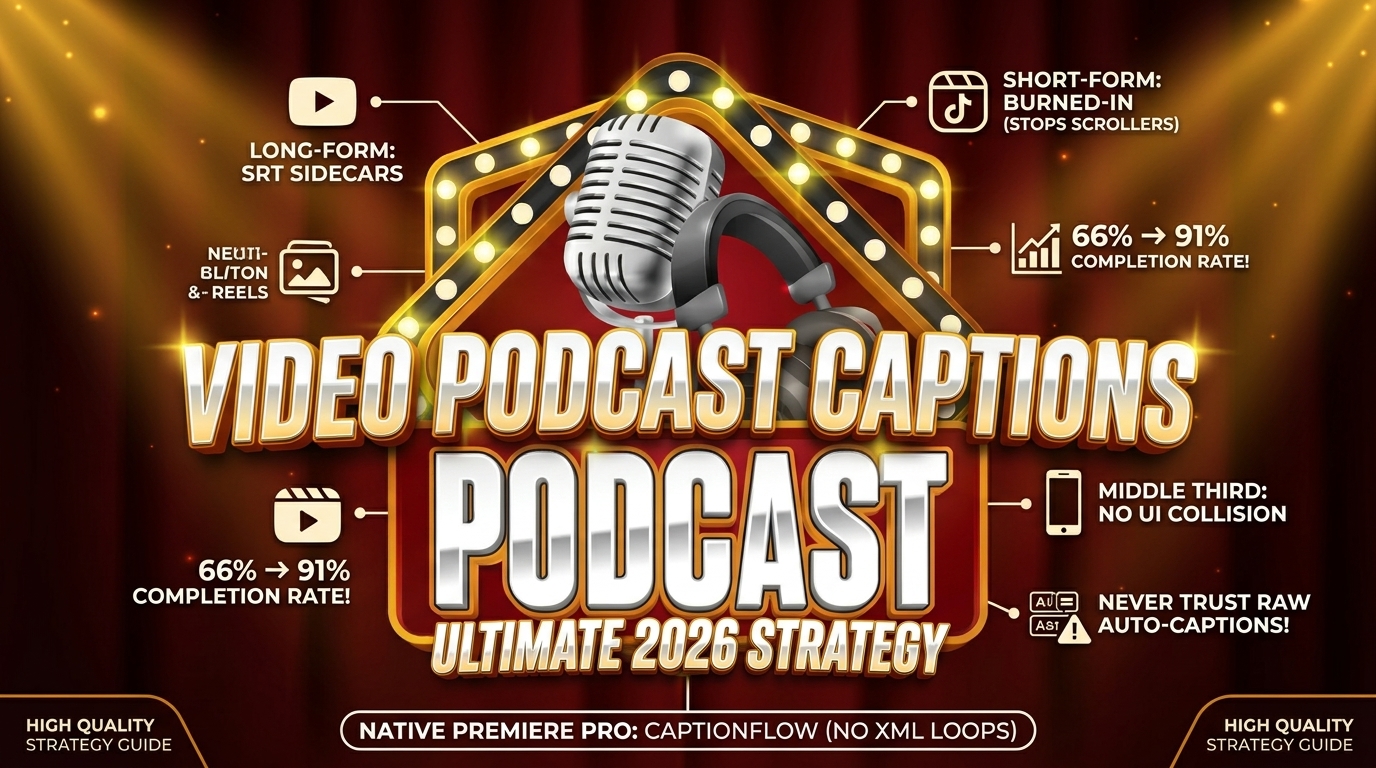
- Long-form YouTube episodes require closed captions (SRT sidecars): Burning open captions into full episodes destroys search engine indexing and deprives viewers of font controls.
- Short-form social promos require open burned-in captions: Feed previews on TikTok, Instagram Reels, and YouTube Shorts play muted, making burned-in dynamic text mandatory to stop scrollers.
- Captions directly boost completion rates: Adding text overlays increases overall video completion rates from 66% to 91% across social and web platforms.
- Avoid UI collisions on vertical clips: Keep short-form open captions in the middle third of the 9:16 frame to prevent overlapping platform handles and engagement icons.
- Never trust raw platform auto-captions: Unedited speech recognition fails on industry terms, technical jargon, and guest names up to 40% of the time.
- Native Premiere Pro integration saves massive render loops: Using timeline-based tools like CaptionFlow eliminates the 4-hour round-trip process of exporting XML files to external web apps.
The Silent Feed Reality: Why Captions Are No Longer Optional
I edit podcasts in Adobe Premiere Pro every single day. A few years ago, adding subtitles was an afterthought. You toggled a quick export setting only if a client specifically asked for accessibility compliance.
Times changed fast. Today, silent playback is the default state of the internet. If your video relies entirely on audio to communicate value in the first five seconds, your audience has already scrolled past you.
Recent data from Deloitte's global video insights report [1] reveals that 87% of U.S. video consumers use captions at least sometimes. Even more striking? 49% keep text toggled on often or always. Subtitles are no longer an auxiliary feature for a small slice of viewers. They are the primary visual interface for digital video.
87% use captions at least sometimes
The Shift in Viewing Behavior Across Platforms
Why has caption usage exploded across every demographic?
Context explains everything. Viewers stream video podcasts on subways, in quiet open offices, in bed next to sleeping partners, and on noisy gym floors. According to TV Technology research on caption adoption [2], roughly 80% of regular caption users are neither Deaf nor hard of hearing. They rely on text to process complex discussions in loud spaces or to follow dense technical dialogue without maxing out their headphone volume.
Gen Z drives this habit harder than anyone else. 90% of Gen Z podcast consumers actively watch video podcast content. Furthermore, Podbean's video podcast research [6] demonstrates that 77% of all podcast consumers alternate fluidly between audio and video formats depending on their physical location.
When these users scroll a social feed, they read before they listen. If there is no text on screen, they keep moving.
| 23|Video & Audio | NaN |
|---|
How Captions Directly Impact Viewer Completion Rates
When you add captions to a video podcast, you do more than hit compliance standards. You extend your watch time.
Comparative publishing tests analyzed in Vidpros's podcast video performance benchmark [7] show that incorporating clear captions boosts average episode completion rates from 66% to 91%. That 25% jump in retention signals platform algorithms that your video holds attention. The result? Superior organic distribution across YouTube and social feeds.
Dual-channel processing explains this retention spike. When the human brain receives synchronized audio and text, visual recall increases significantly.
When an editor provides clean, well-paced text overlays, viewers digest information faster. They stay locked in through conversational lulls. Most importantly, they stay on your timeline longer.
Actionable Takeaway: Audit your active project queue today. Make text integration mandatory for every single video asset leaving your edit suite.
When Should Podcast Teams Add Captions to Video Episodes? (Long-Form vs Short-Form)
The core question isn't if you should add text. The real question is when podcast teams should add captions to video episodes based on asset length and destination channel.
Treating a 60-minute YouTube interview the same as a 30-second TikTok clip is a massive workflow error. You will hurt performance on both platforms.
Full-length episodes and short-form promo clips serve completely different user intents. They operate in different technical spaces.
| Asset Type | Format | Primary Caption Delivery | Key Strategic Benefit | Typical Viewing Environment |
|---|---|---|---|---|
| Full Episode | 16:9 Landscape | Closed Subtitle File (SRT / VTT) | Full SEO search indexing & viewer toggle control | YouTube, Spotify Desktop, Web Browsers |
| Social Promo Clip | 9:16 Vertical | Burned-In Open Captions | Direct visual hook on silent feeds | TikTok, Instagram Reels, YouTube Shorts |
| Micro Promo | 1:1 Square | Burned-In Open Captions | High readability on desktop feeds | LinkedIn, X (Twitter) |
| Clip Compilation | 16:9 Landscape | Closed SRT + Burned-In Callouts | Hybrid accessibility & graphic emphasis | YouTube Mid-roll, Client Portfolios |
Evaluating Full-Length Episode Requirements
For long-form video episodes running 20 to 90 minutes, deliver captions as a separate closed caption sidecar file. Upload an .srt or .vtt file directly to your hosting platform alongside your master render.
When viewers open a full interview on YouTube or Spotify, they expect
Worse yet, it bakes the text permanently into the video stream. Viewers lose the ability to turn subtitles off or scale font sizes for screen readers.
According to NewtonTech's video reach and indexing study [8], over 50% of active podcasts publish full video episodes to YouTube. Providing a dedicated closed caption file allows search bots to scan every spoken sentence on your timeline. This transforms your transcript into indexable search metadata.
Determining Captions for Social Clips and Promos
When cutting 15-to-60-second vertical social clips, the rules invert completely.
Social feeds auto-play videos on mute as users scroll. According to Pristine Podcasts clip caption guidelines [5], social algorithms rely on immediate visual hooks to calculate early drop-off rates.
Mobile platforms do not reliably support external .srt sidecars in feed preview algorithms. Therefore, you must burn open captions directly into your final render.
If your vertical promo lacks burned-in text, silent scrollers skip it in under two seconds. On short-form media, captions are not optional accessibility tracks. They are your primary headline.
Pro Tip: Never use the exact same master export file for YouTube full episodes and TikTok shorts. Export clean video alongside an SRT file for YouTube, then export a 9:16 render with burned-in dynamic text for vertical social feeds.
Actionable Takeaway: Build a dual-export workflow in Premiere Pro. Generate separate SRT sidecars for long-form landscape releases and burned-in open captions for vertical social cutdowns.
Open Captions vs. Closed Captions: Strategic Platform Matching

Understanding the clear distinction between open and closed captions prevents tedious re-exports and client revision notes.
+-------------------------------------------------------------------+
|                    PODCAST CAPTION DISTRIBUTION                   |
+---------------------------------+---------------------------------+
|          OPEN CAPTIONS          |         CLOSED CAPTIONS         |
|        (Burned-in Render)       |         (SRT / VTT File)        |
+---------------------------------+---------------------------------+
| - Permanent pixels in video     | - External text data stream     |
| - Cannot be disabled            | - Viewer toggles ON / OFF       |
| - Custom fonts, colors, motion  | - Standardized system typography|
| - Essential for social clips    | - Essential for long-form SEO   |
| - Ignores platform UI toggles   | - Enables auto-translation      |
+---------------------------------+---------------------------------+
When to Export Open (Burned-In) Captions
Open captions are written into your export's raw pixel data. The viewer cannot turn them off, swap the font, or tweak the colors.
So, when should podcast teams add captions to video episodes using open, burned-in styling?
Here is your checklist:
- Vertical promotional clips for Instagram Reels, TikTok, and YouTube Shorts.
- Square promo videos built for LinkedIn autoplay feeds.
- Video ads or sponsored clips distributed across third-party networks.
- Brand assets where specific typography and animated highlights define your identity.
Data compiled in TestParty's media accessibility statistics [4] confirms that between 70% and 85% of short-form social video is watched without sound. Burned-in captions ensure scrollers see your message regardless of device settings.
When to Supply Closed (SRT / VTT) Files
Closed captions exist as an independent data file containing text strings and millisecond timestamps. Your host platform's native player renders the text over the video on the fly.
Use closed caption sidecar files for:
- Full-length YouTube video podcast episodes.
- Episode embeds placed on custom web landing pages.
- Hosting on Vimeo, Wistia, or private membership portals.
- Shows targeted at global audiences requiring automated subtitle translation.
As detailed in Reloop's open versus closed caption breakdown [10], closed caption sidecars offer essential viewer flexibility. Audiences can rescale text sizes on mobile, enable screen readers for accessibility, or convert English dialogue into foreign languages with a single click.
Actionable Takeaway: Align your subtitle output with platform hardware specs. Use burned-in open captions for social feeds and closed SRT sidecars for long-form YouTube uploads.
When Should Podcast Teams Add Captions to Video Episodes for Maximum YouTube SEO?
Uploading long-form interviews to YouTube without a verified closed caption file leaves search traffic on the table.
YouTube ranks as the second-largest search engine on earth. Its automated web crawlers read text far better than they parse raw multi-track audio.
How YouTube Indexes Closed Caption Files
When you attach a clean .srt file to your upload, YouTube indexes every spoken phrase across your timeline. This transcript data directly controls how your episode surfaces in search results, suggested sidebars, and external Google SERPs.
Research from 3Play Media's video accessibility metrics [3] shows that only 28% of online videos currently carry accurate captions. Uploading verified transcript files gives your content an immediate rank boost over competitors who rely solely on video titles and brief summaries.
Replacing Inaccurate Native Platform Auto-Captions
Why bother uploading an SRT file when YouTube builds free auto-captions?
Here is the problem: unedited automatic speech recognition (ASR) is unreliable for professional productions. Native auto-caption engines suffer error rates between 20% and 40% when handling technical jargon, brand names, and guest acronyms.
RAW PLATFORM AUTO-CAPTION (20-40% ERROR RATE):
"Today we are talking with doctor mark about premiere pro plugins like create flow..."

HUMAN-VERIFIED SRT FILE (100% ACCURACY):
"Today we are talking with Dr. Mark about Premiere Pro plugins like KreateFlo..."
When YouTube's auto-caption bot butchers guest names or garbles technical concepts, the search algorithm misclassifies your video. If your guest discusses "Kubernetes architecture" and the engine transcribes it as "cooper ladies architecture," you lose search rank for those valuable terms.
Uploading a verified transcript locks down accurate keyword indexing while eliminating embarrassing phonetic mistakes.
Pro Tip: Generate your baseline transcript in Premiere Pro using built-in speech-to-text tools. Spend 60 seconds correcting proper nouns and guest names, then export a clean .srt sidecar for YouTube.
Actionable Takeaway: Never leave native YouTube auto-captions unedited. Upload a clean, manually verified SRT file to protect your search optimization.
Short-Form Styling Rules: Pacing, Placement, and Contrast
Styling open captions for vertical social clips demands strict design discipline. Cluttered, unreadable text frustrates viewers and causes immediate drop-off.
+---------------------------------------------------+
|               9:16 VERTICAL SAFE ZONE             |
|                                                   |
|  [ TOP THIRD: AVOID TEXT ]                        |
|  - Platform header, search bar, status overlays  |
|                                                   |
|  +---------------------------------------------+  |
|  | [ MIDDLE THIRD: IDEAL CAPTION ZONE ]        |  |
|  | High readability, no UI interference,        |  |
|  | optimal visual focal point for scrollers.   |  |
|  +---------------------------------------------+  |
|                                                   |
|  [ BOTTOM THIRD: AVOID TEXT ]                     |
|  - Account handle, caption text, music title,     |
|    like/share icons, comment overlays             |
+---------------------------------------------------+
Pacing Text for High Readability (3-5 Words Per Block)
A common mistake video editors make when transitioning from standard subtitles to short-form clips is displaying full, multi-line sentences.
On a vertical 9:16 smartphone display, audiences scan media fast. Heavy 12-word text blocks create visual noise.
Instead, pace your open captions in compact groups of 3 to 5 words per block. Matching your caption cadence to the natural tempo of speech builds a rhythmic visual pull that keeps scrollers watching.
Avoiding Platform UI Safe Zone Collisions
Nothing looks less professional than burned-in subtitles blocked by a TikTok account handle or an Instagram share button.
When framing vertical templates in your NLE program monitor:
- Avoid the top third: Account headers, search bars, and device indicators cover this area.
- Avoid the bottom third: User handles, caption copy, audio titles, and reaction buttons cover the bottom 30% of vertical screens.
- Position text in the middle third: Center your dynamic open captions vertically between 40% and 60% of total frame height.
Visual Styling: Fonts, Colors, and Active Highlights
Follow these basic design rules to keep text readable over shifting video backgrounds:
- Typography: Select bold, heavy sans-serif fonts such as Montserrat, Proxima Nova, Impact, or Anton. Avoid thin scripts or delicate serifs.
- Background Contrast: Add a solid dark stroke outline (4px to 8px) or a semi-transparent background card behind your text.
- Active Word Highlighting: Highlight the active spoken word with a vibrant accent color (like neon yellow, electric cyan, or bright green) against neutral white static text.
Actionable Takeaway: Standardize a vertical caption preset in Premiere Pro with 3-5 word display blocks, heavy stroke contrast, and strict alignment inside the middle third of the 9:16 screen.
Automating Video Podcast Captions Inside Adobe Premiere Pro

Let's address the real editor bottleneck: turn-around time. Manually building animated, word-by-word captions in Premiere Pro using traditional graphic layers takes hours of tedious keyframing.
To bypass this grind, many teams export timeline files out to external web applications like Opus Clip or Descript. But if you cut inside Premiere Pro daily, exporting giant master files or XML timelines wrecks your project structure. It breaks color passes, shifts multi-cam sync, and introduces file management clutter.
LEGACY ROUND-TRIP WORKFLOW (SLOW & DISRUPTIVE):
Premiere Pro -> Export MP4 -> Upload to Web App -> AI Render -> Download Video -> Re-import to Premiere
[Total Time: 45 to 90 Minutes per Episode]

NATIVE PLUGIN WORKFLOW (FAST & TIMELINE-BASED):
Premiere Pro Timeline -> KreateFlo Plugin -> Generate Captions -> Instant WASM Preview -> Final Render
[Total Time: 90 Seconds per Episode]
| Before | 90 Seconds |
|---|---|
| After | 45 Minutes |
Eliminating the Round-Trip App Loop
Native panel extensions solve this exact problem. Instead of forcing you out of your main NLE, timeline extensions process speech recognition and text animation directly inside your working sequence.
If you are exploring AI plugins for Premiere Pro, extensions like KreateFlo v1.0.3 run as a native CEP extension panel inside your workspace. Because processing happens directly against your sequence audio, your markers, color grades, multi-cam cuts, and audio plugins remain untouched.
Real-Time Preset Previews with KreateFlo's CaptionFlow
A major pain point with classic Premiere plugins—including options like FireCut, AutoPod, or Phantom Editor—is render delay. Toggling fonts, testing stroke widths, or previewing alternative presets forces you to render nested sequences just to check basic visual movement.
Inside KreateFlo, the CaptionFlow feature leverages WebAssembly (WASM) engine processing to deliver real-time previews across 22 animated caption presets. You can click through visual motion styles, test brand palettes, and adjust highlight colors instantly without waiting on render bars or managing nested sequences.
If you handle heavy podcast volume, KreateFlo bundles 33+ professional video editing tools into a single Premiere extension:
- Multi-Cam Editor: Cut podcast edits featuring up to 8 speakers across 8 camera angles with automatic wide-shot designation.
- Silence & Filler Word Removal: Strip dead air and repetitive filler words across multi-track audio setups automatically.
- Auto-Reframing & Viral Clip Detection: Identify standout interview moments and convert 16:9 timelines into 9:16 vertical social cutdowns.
- Voice Transcription: Transcribe interview audio in over 40 languages, including Hindi and Bangla.
Pricing and Tier Breakdown:
- Free Tier: Includes 3 core tools forever (Silence Remover, Transition Assistant, and Copy & Paste) with no credit card required.
- Pro Tier: $19.99/month for 20 AI processing hours. This eliminates FireCut's per-hour billing model and beats web platform plans charging $30+ per month for export caps.
- Studio Tier: $44.99/month for 50 AI processing hours built for high-volume content agencies.
Honest Caveat
KreateFlo is NOT the right tool for every workflow. If you edit primarily in Final Cut Pro or DaVinci Resolve, KreateFlo will not work for you because it is engineered exclusively as an Adobe Premiere Pro CEP panel. Similarly, if your team produces audio-only podcasts without publishing video content, an NLE extension offers no practical value. But if you spend 20+ hours a week cutting video podcasts inside Premiere Pro, native timeline extensions eliminate hours of repetitive manual work.
Read our full guide on how AI plugins transform Premiere Pro editing workflows or review our breakdown of multi-cam podcast editing in Premiere Pro.
Actionable Takeaway: Stop exporting XML files to web apps. Use a native Premiere Pro extension plugin like KreateFlo to generate, animate, and style captions directly on your active sequence timeline.
Four Captioning Mistakes That Ruin Podcast Retention
Even experienced video editors fall into simple traps when subtitling podcast content. Avoid these four common mistakes to protect viewer drop-off metrics.
+--------------------------------------------------------------------+
|                   FOUR CAPTIONING MISTAKES TO AVOID                |
+--------------------------------------------------------------------+
| 1. Publishing Raw ASR Transcripts Without Human Pass               |
|    - 20-40% error rate on names, jargon, and technical terms.      |
|                                                                    |
| 2. Overcrowding Vertical Frames with Multi-Line Paragraphs         |
|    - Causes visual noise; limits fast visual processing.           |
|                                                                    |
| 3. Misplacing Text Under App Overlays                              |
|    - Text buried beneath usernames, captions, and side buttons.   |
|                                                                    |
| 4. Low-Contrast Typography Over Dynamic Backdrops                  |
|    - White text disappears when passing over light clothing/bg.    |
+--------------------------------------------------------------------+
1. Publishing Raw Unedited ASR Transcripts
Publishing raw speech recognition text without a quick human pass guarantees errors on screen. Automated speech engines frequently butcher proper nouns, misspell guest names, and transform technical acronyms into random words.
A quick 60-second review pass across your sequence transcript catches basic phonetic errors. Displaying garbled words damages your authority and leads search algorithms to misclassify your content.
2. Overcrowding the Frame with Multi-Line Sentences
Displaying three lines of text simultaneously on a vertical 9:16 display frustrates mobile users. Mobile scrollers scan visual cues quickly.
Limit open captions on short-form assets to one or two short lines maximum, keeping total word count between 3 and 5 words per block.
3. Misplacing Text Under App Overlay Elements
Placing open captions near the bottom margin of a 9:16 vertical render guarantees social app interfaces will obscure your words.
Always turn on platform safe zone guides inside your NLE program monitor. Ensure your captions sit securely within the clear middle third of the frame.
4. Using Low-Contrast Typography Over Changing Backdrops
Thin, light typography without a solid outline stroke or dark background card disappears when a speaker shifts position in front of bright set lighting or white wardrobe.
Enforce clear visual contrast. Pair bright font colors (white or yellow) with bold dark outlines (black or deep gray) to maintain 100% readability over dynamic backgrounds.
Actionable Takeaway: Run a mandatory 60-second visual playback pass on a mobile monitor view before rendering out final vertical cutdowns.
Frequently Asked Questions
What is the main difference between open and closed captions for podcasts?
Open captions are permanently burned into the master video pixels during render and cannot be turned off by the viewer. They are required for vertical short-form social clips on TikTok, Instagram Reels, and YouTube Shorts. Closed captions exist as an independent text file (.srt or .vtt) that viewers toggle on or off in player controls on platforms like YouTube and Vimeo.
Why shouldn't you burn open captions into full-length YouTube episodes?
Burning open captions into long-form YouTube episodes prevents search crawlers from reading your transcript text for keyword indexing. It also stops viewers from disabling subtitles, adjusting font sizes for accessibility, or using auto-translation features.
How many words should appear on screen at once for short-form video captions?
For vertical short-form clips (9:16 ratio), keep captions to 3 to 5 words per block. This pacing matches natural human speech rhythm, maintains legibility on smartphone screens, and prevents cluttering your video frame.
Where should captions sit on vertical social media clips?
Position open captions strictly in the middle third of a vertical 9:16 video (vertically centered between 40% and 60% of frame height). Placing text in the top or bottom third causes app UI elements, account handles, and interaction buttons to cover your text.
Do platform captions help YouTube SEO?
YouTube's native auto-captions provide basic keyword signals, but raw speech recognition engines fail on technical terms, guest names, and niche vocabulary up to 40% of the time. Uploading an accurate, human-verified .srt sidecar file ensures search crawlers index your exact spoken keywords accurately.
Mastering Your Podcast Caption Workflow
Knowing when podcast teams should add captions to video episodes comes down to understanding channel mechanics:
- For full-length YouTube episodes: Always supply closed subtitle files (
.srt) to maximize search indexing, preserve viewer customization, and maintain clean framing. - For vertical social promos (Reels, TikTok, Shorts): Always burn stylized open captions directly into the middle third of the video frame to hook silent scrollers instantly.
If you edit video podcasts inside Adobe Premiere Pro daily, stop wasting time round-tripping master files out to web tools. Take control of your edit timelines with native plugins built directly for your primary NLE.
Ready to streamline your caption workflow without leaving Premiere Pro? Download KreateFlo for Adobe Premiere Pro v1.0.3 today. Try our 3 free tools forever, or test CaptionFlow with 22 animated presets and real-time WASM previews on your next interview cut.
References
- deloitte.com/us/en/insights/industry/technology/technology-media-and-telecom-predictions/2026/video-podcasts-reach.html
- tvtechnology.com/insights/analysis/study-nearly-half-of-americans-always-or-often-watch-video-with-captions
- 3playmedia.com/accessibility-online-video-stats/
- testparty.ai/blog/media-accessibility-statistics
- app.pristinepodcasts.com/blog/podcast-clip-captions-guide
- blog.podbean.com/video-podcast-statistics-2026/
- vidpros.com/podcast-video-statistics/
- newtontech.net/en/blog/23083-captions-increase-viewership-accessibility-and-reach/
- riverside.com/blog/podcast-statistics
- reloop.so/blog/article/open-captions-vs-closed-captions/
- convertaudiototext.com/blog/open-vs-closed-captions
- verbit.ai/blog/accessibility-hub/podcast-accessibility-what-you-need-to-know/
- vexub.com/blog/captions-increase-video-engagement
- podnews.net/press-release/podcast-consumer-2025
- lemonlight.com/blog/how-video-captions-help-attract-and-engage-more-users/
- 3playmedia.com/blog/studies-find-captions-improve-engagement/
- amberscript.com/en/blog/adding-subtitles-for-enhanced-accessibility/
- podtyper.com/blog/podcast-industry-growth-future-projections
- blog.podbean.com/best-tips-for-video-podcasting-in-2026/
- commandyourbrand.com/3-major-podcast-trends-that-will-dominate-2026-and-how-to-leverage-them/
- podsqueeze.com/blog/2025-podcasting-trends/
- blog.podcast.co/inspire/podcasting-trends-predictions-2026
Try KreateFlo free
3 tools forever, 7-day trial on the rest. No credit card to start.
Download KreateFlo