SRT Subtitle Files vs Burned-In Text: 2026 Proven Guide
When to Choose SRT Subtitle Files Over Burned-In Video Text (2026) Hardcoding captions directly into your master video render is the fastest way to ruin a client delivery. You save 90 seconds on expor

Hardcoding captions directly into your master video render is the fastest way to ruin a client delivery. You save 90 seconds on export today, only to spend 4 hours re-rendering a 45-minute sequence when the client catches a single typo in the intro.
I edit podcasts and long-form interview shows inside Adobe Premiere Pro every single week. I used to burn text into every master export because it felt simple. Then a broadcast distributor rejected a 10-episode interview series because the captions were baked into the video frames.
That nightmare taught me an essential lesson. Open burned-in text and closed SRT sidecar files serve completely different jobs in modern video production.
If you want to protect your delivery timelines, boost search visibility, and stop wasting render cycles, you need to know exactly when to deliver an SRT sidecar file over burned-in video text.
Key Takeaways
- SRT sidecar files allow instant typo fixes in text editors without re-rendering master MP4 files [9].
- Search engines index SRT text, directly boosting video SEO on YouTube and web platforms, whereas burned-in text pixels cannot be crawled [3] [10].
- Major streaming distributors and broadcast networks strictly require separate SRT/VTT sidecars and reject hardcoded open captions [7].
- Sidecar subtitles enable multi-language delivery on a single video file, preventing server bloat from duplicate video renders [3] [5].
- Burned-in open captions remain necessary for TikTok, Instagram Reels, and public digital signage where native SRT sidecar uploads are unsupported [5] [9].
- Tools like KreateFlo inside Adobe Premiere Pro allow editors to generate both SRT sidecars and stylized animated open captions from a single transcript.
When to Choose SRT Subtitle Files Over Burned-In Video Text for Master Exports
When you export a master video file with open captions, every character of text gets permanently rasterized into the video pixels. If you spot a missing comma or a misspelled name three days later, your clean video asset is ruined.
You have to open your timeline, correct the graphic, and re-export the entire file.
+-----------------------------------------------------------------------+
|                         MASTER VIDEO DELIVERY                         |
+-----------------------------------------------------------------------+
|                                                                       |
|  [ Clean Video Master (ProRes / MP4) ] + [ SubRip Sidecar (.srt) ]    |
|                                                                       |
+-----------------------------------------------------------------------+
                                   |
                  +----------------+----------------+
                  |                                 |
                  v                                 v
        [ Long-Form Platforms ]           [ Short-Form Derivatives ]
        - YouTube / Vimeo                 - TikTok / Instagram Reels
        - Web Players & LMS               - YouTube Shorts / Stories
        - Broadcast / OTT                 - Muted Autoplay Feeds
        (Indexable, Editable)             (Burned-In Animated Text)
For long-form master deliveries, relying on sidecar files is the only sensible workflow. It keeps your master video track clean. More importantly, it decouples text management entirely from pixel rendering.
Instant Typo Corrections Without Re-Rendering
Replacing a typo in an SRT file takes 10 seconds in Notepad or TextEdit. You open the .srt text file, fix the word, save it, and re-upload it to your server or host player. The video file stays completely untouched on your storage drive [9].
Compare that to hardcoded open captions [9]. Fixing a single word in a 60-minute 4K Premiere Pro export forces your workstation through an entire render cycle.
That wastes 30 to 60 minutes of export time. Plus, you have to re-upload a massive multi-gigabyte video file to client review servers.
| Before | 90 seconds |
|---|---|
| After | 4 hours |
Hardware Transcoding and Streaming Server Performance
Image-burned text forces media servers to process video frames continuously during streaming [3]. On self-hosted video players, media servers like Plex or custom HTML5 engines struggle with pre-rendered graphical subtitle overlays [9].
What happens during playback?
If a client streams a 4K file with burned-in text on a low-bandwidth mobile connection, the server must transcode the entire video stream on the fly to match the target device resolution [9].
Text-based SRT files eliminate this computational bottleneck [3]. The video player simply streams the raw compressed video stream and renders lightweight text overlays on top of the frame using local client CPU resources [3] [7].
Multi-Language Support on a Single Master Asset
Suppose your client needs to deliver content in English, Spanish, French, German, and Hindi. Hardcoding text forces you to export five separate master video files [3] [5].
That consumes hundreds of gigabytes of disk space and drives up cloud storage fees [3].
By using SRT sidecar files, you export a single clean video asset [3] [5]. You pair that video with five lightweight .srt files weighing less than 100 kilobytes each [3]. Viewers then select their preferred language directly inside the player interface [2] [3].
Actionable Takeaway: Always export your primary long-form master video as an un-captioned MP4 or ProRes file accompanied by an SRT sidecar file.
Closed Captions vs Open Captions: Technical Differences
Understanding the technical distinction between closed captions and open captions prevents costly post-production mistakes. Everyday creators often use the terms interchangeably, but the technical mechanics under the hood are completely different [8].
| Feature | Closed Captions (SRT / Sidecar) | Open Captions (Burned-In Text) |
|---|---|---|
| Viewer Toggle Control | Yes (Viewer turns text on/off) [2] [3] | No (Permanently visible on frame) [2] [3] |
| Search Engine Indexing | Fully indexable text metadata [3] [10] | Un-indexable rasterized pixels [3] [10] |
| Text Customization | Viewer adjusts size, font, and color [2] [3] | Fixed graphics burned during export [3] |
| Screen Reader Access | Compatible with assistive software [1] [2] | Inaccessible to text-to-speech tools [1] [2] |
| Post-Export Editing | Editable in any plain text editor [3] [9] | Requires full sequence re-render [3] [9] |
| Multi-Language Support | Unlimited sidecar tracks per file [3] [5] | Requires separate video per language [3] [5] |
How Media Players Render Sidecar Text Files
Closed captions exist as standalone data streams or sidecar files containing plain text line items alongside start and end timecodes. A typical SubRip (.srt) structure looks like this:
1
00:00:02,150 --> 00:00:05,400
Welcome back to the Podcast Editing Show.

2
00:00:05,450 --> 00:00:08,200
Today we are breaking down SRT subtitle workflows.
When a user plays the video, the media player reads these timestamps. It dynamically draws system text over the video frame in real time.
Open captions work differently. They render directly into the frame matrix during export.
The letters become part of the actual RGB pixel data. Once exported, the editing software cannot distinguish between a speaker's face and the letter "A" sitting on top of their shirt.
Customization and Font Scaling for Viewers
Sidecar SRT files give viewers full control over how text displays on their screens. A viewer watching a web video on an iPad can increase font scale, change background contrast, or switch text colors to suit their vision requirements.
Open captions strip away that control. The editor locks font size, position, and styling permanently.
If an open caption graphic sits across the bottom third of the frame, low-vision viewers cannot enlarge it. Meanwhile, neurodiverse viewers who find visual on-screen text distracting cannot hide it.
Screen Reader Compatibility and User Control
Assistive technologies rely on structural text data to read screen content aloud for blind or low-vision users. Screen readers easily parse closed caption sidecar files like SRT or WebVTT.
Here is the catch.
Text-to-speech engine tools cannot read text embedded inside video pixels. Burning captions permanently into your video file blinds assistive tools to your dialogue, creating severe accessibility barriers.
Pro Tip: When editing educational or
Actionable Takeaway: Use closed caption sidecars for any project where viewer accessibility, text scaling, or personalized playback experience is required.
When to Choose SRT Subtitle Files Over Burned-In Video Text for SEO and Web Delivery
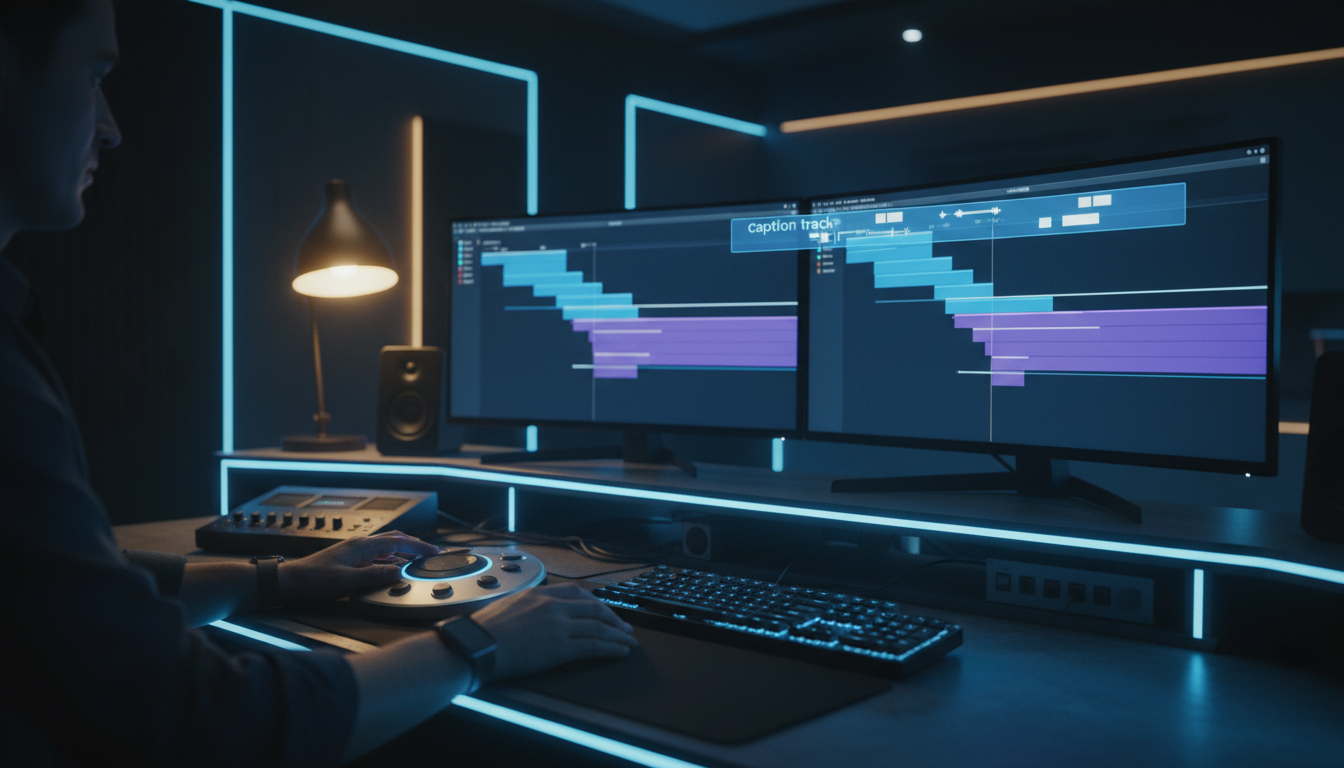
Search engine crawlers are sophisticated, but they cannot watch video frames to read burned-in text pixels [3] [10]. If you hardcode text into your web exports without providing an indexable text file, you waste the organic search potential of your video content [3] [10].
Search Engine Bot Processing:
-----------------------------
[ Video File with Burned-In Text ] ---> Bot Sees: Raw Pixels (No Indexable Text)
[ Video File + SRT Sidecar File  ] ---> Bot Sees: [Full Indexable Transcript Text] [N]
Search Engine Indexing on YouTube and Web Players
Google and YouTube rely heavily on text metadata to understand video context [10]. When you upload a standalone SRT file alongside your YouTube video, search algorithms crawl every line of text, indexing your spoken dialogue word for word [10].
This allows your video to rank for niche, long-tail search phrases spoken halfway through an episode. That happens even if those keywords never appear in your title or description box [10].
If your dialogue stays locked inside burned-in pixels, search crawlers pass right over it [3] [10].
Metadata Extraction for Video Search Rankings
When search engines index your uploaded SRT files, they extract key contextual terms to build automated timestamps and key moments in search results [10]. This metadata helps Google match specific video segments directly to user search queries on the main Google Search results page [10].
What if you publish embedded videos on a blog or company website using native HTML5 players?
Serving a WebVTT or SRT track allows web crawlers to read your video content [3] [10]. That indexable text boosts the overall domain authority and keyword density of your web page [10].
Boosting Completion Rates and Engagement
Delivering accessible text directly improves watch time metrics [10]. According to an extensive consumer study, 80% of viewers are more likely to watch a video to completion when captions are available [4].
[[STAT:80%:viewers more likely to complete captioned videos]]
When viewers stay on your page longer, user engagement metrics signal high value to search algorithms [10]. Research across video hosting platforms shows that captioned videos generate a 7.32% increase in overall engagement compared to un-captioned assets [10].
Actionable Takeaway: Always upload an SRT file alongside your YouTube and self-hosted web videos to allow full search engine indexing and maximize viewer watch time.
When Burned-In Open Captions Are Still Essential
SRT sidecars are superior for master archives, search indexing, and broadcast distribution [3] [7] [9]. But let's be realistic. Open burned-in captions remain an essential part of an editor's daily workflow [5] [9].
| 85|Sound On | NaN |
|---|
Instagram Reels, TikTok, and Muted Autoplay Feeds
Social media platforms are built for silent scrolling [5] [9]. Data shows that 85% of Facebook videos are watched without sound [2]. When users scroll through Instagram Reels, TikTok, or X feeds, videos autoplay on mute by default [5] [9].
If your clip relies on a viewer manually clicking a small "CC" toggle hidden inside a mobile menu, they scroll right past before hearing a single word.
Social feeds require burned-in open captions to grab immediate visual attention. Furthermore, standard organic video uploads on platforms like Instagram Reels do not even support sidecar SRT file attachments.
Digital Signage, Cinema, and Public Displays
If you produce content for trade show screens, stadium displays, airport terminal monitors, or gym TVs, you cannot rely on local media player software settings to enable closed captions.
In public out-of-home environments, playback hardware is basic. Settings often reset automatically.
Burning open captions permanently onto the video frame guarantees every passerby reads your messaging without requiring manual hardware configuration.
Stylized Animated Captions for Short-Form Clips
Standard closed captions look plain. They render in basic system fonts with flat background boxes because media players control the styling.
Short-form content demands bold visuals. Kinetic typography, word-by-word highlights, custom brand colors, and animated pop-ins require burned-in open graphics.
You simply cannot build modern word-level highlight animations inside a standard plain-text SRT file.
Pro Tip: Keep your animated burned-in text within the safe zones of mobile apps. Avoid placing open captions in the bottom 20% of the frame where TikTok and Reels overlay audio titles and action buttons.
Actionable Takeaway: Reserve burned-in open captions exclusively for short-form social clips, advertisement promos, and public displays where playback hardware lacks sidecar support.
Building a Dual-Delivery Workflow in Adobe Premiere Pro
The most efficient post-production houses do not choose between SRT files and burned-in captions. They deliver both from a single master edit sequence.
                    +------------------------------------+
                    |  Premiere Pro Sequence Edit & Sync |
                    +------------------------------------+
                                      |
                                      v
                    +------------------------------------+
                    |    Clean Transcript Verification   |
                    +------------------------------------+
                                      |
                  +-------------------+-------------------+
                  |                                       |
                  v                                       v
    +---------------------------+           +---------------------------+
    | Export Clean Master MP4   |           | Convert Transcript to     |
    | + Standalone .srt Sidecar |           | Stylized Graphic Captions |
    +---------------------------+           +---------------------------+
                  |                                       |
                  v                                       v
    (Long-Form Web & Broadcast)                 (Short-Form Reels & Shorts)
Exporting Clean Video Masters with Sidecar Files
When your long-form edit is locked, create your primary export preset without any graphic text elements on the timeline.
- Transcribe your sequence speech to text within Premiere Pro.
- Edit typos, correct brand names, and fix speaker labels directly on the transcript timeline.
- Export your master video file as an un-captioned ProRes or clean MP4.
- Export the verified transcript as a standalone
.srtsidecar file using standard 37-character line limits and 2-line maximum stacking.
Batch Generating SRTs Alongside Open Captions
Once your clean master and SRT files are saved to your project master folder, you can create your short-form social derivatives.
Duplicate your master transcript or select target highlight clips. Instead of exporting a plain text sidecar, convert those caption tracks into graphics tracks inside Premiere Pro.
Apply stylized font presets, enable active word highlighting, adjust vertical positioning, and render out your short-form MP4 files with open captions burned directly into the video frames.
Avoiding Common Round-Trip Editing Pitfalls
The biggest mistake editors make is exporting video to external web apps just to generate captions, then importing rendered video clips back into Premiere Pro.
Round-tripping video files through web apps causes generation loss, color space shifts, and frame-rate conversion issues.
Keep your master transcript native inside Premiere Pro so text updates automatically sync across both clean SRT exports and animated social sequences.
If you want to streamline this entire process, read our detailed guide on building an automated podcast editing workflow inside Premiere Pro to eliminate manual transcript synchronization.
Actionable Takeaway: Lock your transcript text first before rendering
Legal Accessibility Compliance: ADA, EAA, and Broadcast Rules

Captioning is no longer just a creative workflow choice. It is a legal mandate across major global markets.
Failing to deliver compliant caption tracks can result in massive legal fines, accessibility lawsuits, or immediate platform rejections.
European Accessibility Act (EAA) Mandatory Rules
The European Accessibility Act (EAA) introduced strict accessibility enforcement across all EU member states [6]. Under these rules, commercial web services,
Relying solely on hardcoded open captions fails EAA compliance standards. Pre-rendered text prevents low-vision users from scaling font sizes and stops screen readers from parsing text data [1] [2] [6].
FCC and Ofcom Broadcast Distribution Requirements
In the United States, the Federal Communications Commission (FCC) enforces strict closed caption rules under the Twenty-First Century Communications and Video Accessibility Act [6]. The FCC mandates four core quality standards:
- Accuracy: Full match to spoken dialogue and sound cues [6].
- Synchronicity: Text must align precisely with spoken words [6].
- Completeness: Captions must run from start to finish [6].
- Placement: Text must not obscure critical visual elements [4] [6].
In the United Kingdom, Ofcom imposes strict annual captioning quotas on media broadcasters, requiring up to 100% of programming to feature compliant closed captions [6].
Why Distributors Reject Hardcoded Video Text
If you deliver a feature film, TV pilot, or commercial documentary to streaming networks like Netflix, Apple TV, or Amazon Prime, their delivery specs strictly forbid burned-in text [3] [6].
Distributors require clean video assets so they can deliver localized audio tracks and region-specific subtitle files to global viewers [3] [6]. Hardcoding open captions onto a master deliverable makes international localization impossible, leading to immediate quality control rejections [3] [6].
Actionable Takeaway: Review your target platform's delivery specifications before exporting to ensure your caption format complies with legal regulations like ADA, EAA, and FCC mandates.
Automating Captions and SRT Exports in Premiere Pro
Manually editing transcript lines, fixing word wraps, and building animated captions frame by frame consumes hours of tedious editing time. Doing this manually across dozens of client podcast episodes per week kills editing profitability.
┌────────────────────────────────────────────────────────────────────────┐
│                        KREATEFLO PANEL (v1.0.3)                        │
├────────────────────────────────────────────────────────────────────────┤
│  [ Silence Remover ]   [ Multi-Cam Editor ]   [ CaptionFlow Tool ]     │
│                                                                        │
│  Caption Engine: WASM Real-Time Engine (Zero Render Delay)              │
│  Language Support: 40+ Languages (Includes Bangla & Hindi)             │
│                                                                        │
│  Presets: [ 22 Animated Social Styles ]                                │
│  Exports:  [ Export .SRT Sidecar ]   [ Burn Open Captions ]            │
└────────────────────────────────────────────────────────────────────────┘
Generating SRT Sidecars and Open Captions in One Pass
This is why we built KreateFlo. KreateFlo is an AI-powered Adobe Premiere Pro CEP extension plugin—not a standalone web tool or browser app. It lives directly inside your Premiere Pro workspace as a native panel, bundling 33+ professional editing tools into one interface.
With our CaptionFlow tool, you can transcribe your timeline audio in over 40 languages, including multi-dialect support for regional languages like Bangla and Hindi. Once your transcript is ready, export a clean, perfectly timed .srt sidecar file for your long-form master with a single click.
Need short-form clips for social media? Take that exact same transcript and apply stylized animated open captions directly onto your short-form sequences without leaving your timeline.
Real-Time WASM Previews with KreateFlo CaptionFlow
Traditional Premiere Pro caption workflows require you to render graphics or scrub through sequences just to see how animated text looks.
CaptionFlow uses a custom WebAssembly (WASM) real-time engine directly inside the Premiere Pro CEP panel. You get instant, zero-lag visual previews of your animated captions as you tweak font sizes, colors, and word highlights. There is no render-to-see-changes loop, saving you hours of trial-and-error rendering.
If you edit interview shows with multiple cameras, KreateFlo also features an AI Multi-Cam Editor that automatically cuts sequences for up to 8 speakers and 8 cameras, including dedicated wide-shot designations. Combined with our free Silence Remover, you can cut a full multi-camera podcast episode in minutes.
Cost Comparison: Monthly Subscription vs Per-Hour Billing
Most AI caption tools charge per hour of video transcribed, which quickly adds up when editing multi-speaker long-form shows.
| Tool / Plugin | Type | Pricing Model | AI Transcription Hours | Key Limitation / Caveat |
|---|---|---|---|---|
| KreateFlo (Pro) | Premiere Pro Plugin (CEP) | $19.99 / month | 20 AI Hours / month | Native to Premiere Pro only |
| KreateFlo (Studio) | Premiere Pro Plugin (CEP) | $44.99 / month | 50 AI Hours / month | Native to Premiere Pro only |
| FireCut | Premiere Pro Plugin | Per-hour consumption | Pay-per-minute billing | Costs scale rapidly on long shows |
| AutoPod | Premiere Pro Plugin | $29.00 / month | Multi-cam focus | No integrated animated caption engine |
| Descript | Standalone Web App | Subscription + Usage tiers | Requires cloud re-upload | Forces full video round-tripping |
KreateFlo gives you 3 tools completely free forever: Silence Remover, Transition Assistant, and Copy & Paste.
When you upgrade to Pro at $19.99/month (20 AI hours) or Studio at $44.99/month (50 AI hours), you get predictable monthly costs instead of unpredictable per-minute billing surprises.
Honest Caveat: KreateFlo is strictly an Adobe Premiere Pro CEP extension plugin (v1.0.3). If you edit exclusively in Final Cut Pro, DaVinci Resolve, or prefer editing videos inside a web browser, KreateFlo is NOT the right tool for you. We built it specifically for professional editors who live inside Premiere Pro every day.
Actionable Takeaway: Use KreateFlo inside Premiere Pro to automate your transcriptions, generate instant SRT exports, and apply animated caption presets without leaving your timeline.
Conclusion
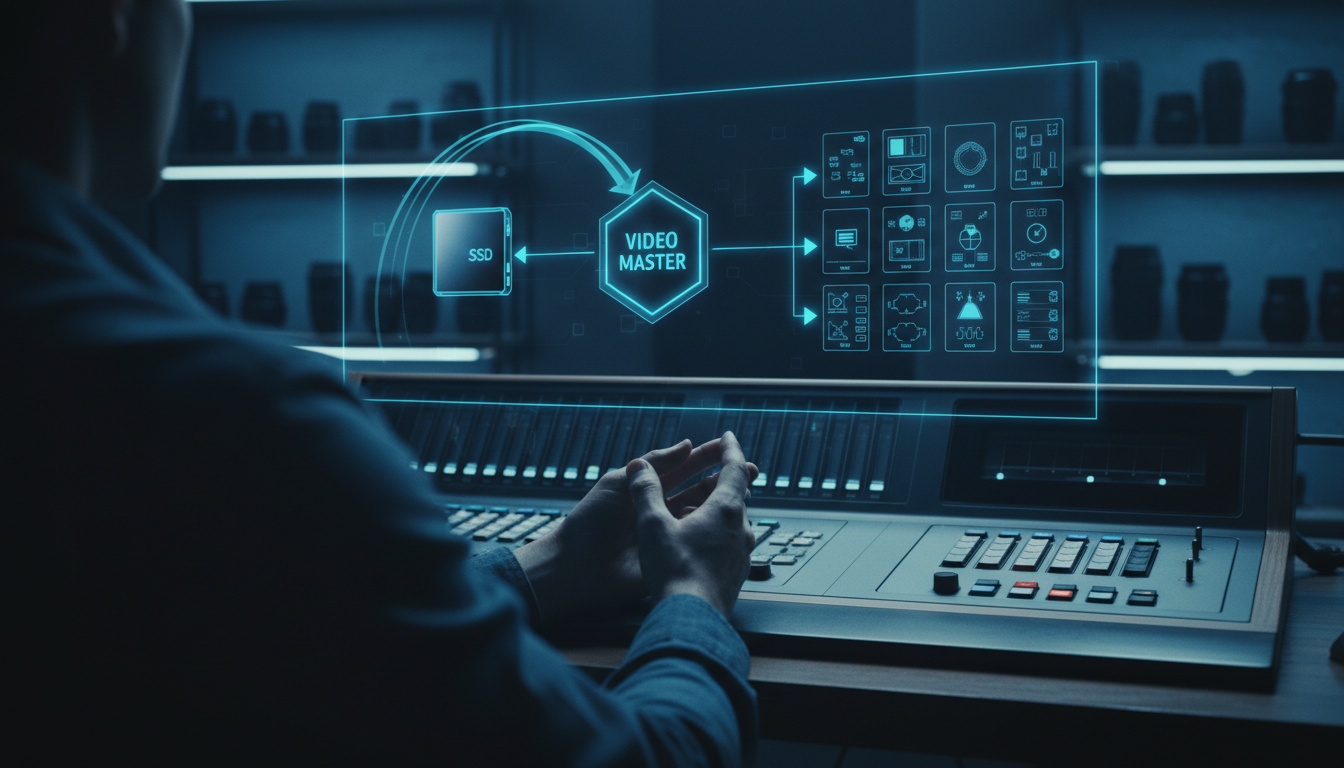
Hardcoding text into long-form video exports creates unnecessary re-renders, limits SEO discoverability, and risks distributor rejection. Keep an un-captioned master MP4 alongside a clean SRT sidecar file for long-form web and course platforms, and reserve burned-in open captions for muted social feeds like TikTok and Instagram Reels.
If you edit in Adobe Premiere Pro and want to automate both SRT exports and animated open captions without leaving your timeline, download KreateFlo today or test out our CaptionFlow tool.
Frequently Asked Questions
What is the main difference between an SRT file and burned-in video captions?
An SRT file is a separate text document containing subtitle lines and timestamps that a video player displays dynamically on demand [8]. Burned-in captions are permanently rendered into the video frame pixels during export and cannot be toggled off or modified without re-rendering the entire video file [3] [9].
Does uploading an SRT file improve YouTube and web video SEO?
Yes. Search engine crawlers cannot read text rasterized into video pixels, but they index the full text inside uploaded SRT sidecar files [3] [10]. This metadata helps search engines understand your video context, index spoken long-tail keywords, and rank your content higher in search results [10].
Why do film and TV distributors require separate SRT files instead of hardcoded text?
Distributors require clean master video assets so they can deliver localized audio and subtitle tracks for different regional markets [3] [6]. Hardcoded open captions prevent international distribution, ruin localization workflows, and fail legal accessibility standards like the ADA and EAA [1] [6].
Can I generate both an SRT file and animated social captions in Premiere Pro?
Yes. You can transcribe your timeline inside Premiere Pro, export a standardized SRT file for long-form web platforms, and use plugins like KreateFlo's CaptionFlow to convert that transcript into stylized animated open captions for mobile social clips—all from a single master sequence.
Are closed captions or open captions better for neurodiverse viewers?
Closed captions (SRT files) are generally better because they give viewers control over the display [2] [3]. Viewers can adjust font size, change text contrast, or disable text completely if visual on-screen text causes focus issues or cognitive overload during video playback [2] [3].
References
- boia.org/blog/how-do-burned-in-captions-affect-accessibility
- boia.org/blog/open-vs.-closed-captions-which-is-more-accessible
- reciteme.com/us/news/closed-caption-vs-open-caption-videos/
- accessiblyapp.com/blog/open-vs-closed-caption/
- fredanderic.com/stories/adding-subtitles-to-your-animated-video-burnt-in-or-srts
- facebook.com/groups/lowbudgetfilming/posts/1587994698592912/
- speechmatics.com/company/articles-and-news/closed-captioning-vs-open-captioning-in-media-distribution
- subanana.com/en/blog/subtitles-vs-captions
- st4.ca/blog/burned-subtitles-or-SRT-what-do-the-pros-prefer
- captioncut.com/blog/video-captions-seo-engagement-2025/
- vexub.com/blog/captions-increase-video-engagement
- sonix.ai/resources/subtitle-generation-trends/
- newtontech.net/en/blog/23083-captions-increase-viewership-accessibility-and-reach/
- sinc-lab.com/files/nguyen2026like.pdf
- accessibility.com/blog/the-seo-benefits-of-closed-captioning
- makeinfluence.com/en/academy/eu-accessibility-act-and-caption-requirements-for-influencer-and-brand-video-content
- sky-scribe.com/en/blog/caption-vs-closed-caption-when-to-burn-in-text-for-social
- umault.com/insights/video-caption-guide
- dubverse.ai/blog/benefits-of-burnt-in-subtitles-improve-video-engagement/
Try KreateFlo free
3 tools forever, 7-day trial on the rest. No credit card to start.
Download KreateFlo