AI Short Form Clips: 5 Best Premiere Pro Guides (2026)
Where to Create AI Short Form Clips Without Leaving Premiere (2026) Uploading a 3-hour podcast to a browser app just to find three 60-second TikTok clips is a complete waste of time. I used to spend 4

Uploading a 3-hour podcast to a browser app just to find three 60-second TikTok clips is a complete waste of time. I used to spend 4 hours per episode exporting master files, waiting on cloud renders, and re-importing footage. All that effort, only to realize the web app stripped my color grade and audio mix.
There is a much faster way. You can extract, cut, and caption viral clips directly inside Adobe Premiere Pro.
Key Takeaways
- Exporting long-form files to web apps destroys color pipelines, audio sync, and project organization.
- Native CEP extensions keep you inside Adobe Premiere Pro so you can edit clips directly on active sequences.
- Auto-removing silences and filler words on raw timelines speeds up viral clip detection.
- WASM real-time previews allow instant animated caption editing without endless render loops.
- Fixed tier plans like $19.99/mo for 20 AI hours beat expensive per-hour web billing models.
Why Web-Based Clip Makers Are Ruining Your Premiere Pro Pipeline
Every time you export a master sequence out of Adobe Premiere Pro to use a browser generator, you throw a wrench into your post-production workflow.
I see editors do this daily. They finish a multi-camera interview cut, export a massive 50GB ProRes file, and drag it into a browser tab. Then they sit there watching an upload bar crawl across the screen.
Web-based tools work fine if you are a social media manager who only has a public YouTube link. But if you are the editor holding raw multi-track audio and camera originals, leaving your NLE makes zero sense.
Uploading Multi-Gigabyte Files Breaks Production Velocity
Let's look at the actual math behind cloud uploads.
A standard two-hour interview recorded in 4K ProRes or high-bitrate H.264 sits between 20GB and 80GB. Even on a gigabit connection, uploading that file to cloud-based clip generators [2] takes 15 to 30 minutes.
Once uploaded, the web server queues your file, transcribes it, and processes clip detection. Traditional browser workflows take anywhere from 10 to 15 minutes to process an hour of video [2].
You lose nearly an hour of active editing time. And for what? Waiting for external servers to read footage that was already sitting locally on your fast NVMe drive.
Broken Color Pipelines and Lost Native Audio Mixes
The biggest headache with web generators isn't just speed. It's asset corruption.
When you export master clips to web tools [7], you flat-render your footage or send un-graded camera logs.
If you send flat log footage, the web tool's AI auto-crop feature applies generic Rec.709 LUTs. That wrecks your highlight roll-off. If you send pre-graded footage, you lose the flexibility to tweak exposure later.
"Web generators strip away audio isolation. Once multi-track dialogue is flattened into a single stereo track, fixing overlapping speech or room tone is almost impossible."
Worse, web tools mix your carefully balanced dialogue, sound effects, and music down to a single flattened stereo track. If a host talks over a guest, you can no longer adjust individual gain levels or apply targeted noise suppression.
The Endless Round-Trip Export Cycle
Say the web app generates five decent vertical clips. Now you need to make client revisions.
The client asks to change a typo in a caption, adjust a cut point by 12 frames, or swap out a background music track. What happens next?
Because the clip lives inside a web browser, you either have to tweak it in a clunky web editor with loose timeline snapping, or download an XML sequence to re-import into Premiere Pro.
Half the time, those imported XMLs drop missing media alerts or mess up track assignments. You end up spending more time fixing broken round-trips than it would have taken to edit the shorts manually from scratch.
Keeping your workflow tied directly to built-in Adobe Premiere Pro features [1] prevents this nightmare entirely.
Pro Tip: Stop exporting full-length video masters for social repurposing. Keep your original raw cuts open on your primary sequence and let native plugins scan the local media directly.
Actionable Takeaway: Eliminate external web uploads entirely by transitioning your clip extraction process to native Premiere Pro plugins that operate directly on active timeline sequences.
Where to Create AI Short Form Clips Without Leaving Premiere: Top 3 Plugins Tested
If you want to stay inside Premiere, you need extensions that live inside the CEP (Common Extensibility Platform) panel system. I spent weeks testing the top native plugins to see which ones actually handle full long-to-short workflows without crashing Premiere.
| Feature | KreateFlo v1.0.3 | FireCut | AutoPod | Opus Clip (Web/XML) |
|---|---|---|---|---|
| Native Premiere Plugin | Yes (CEP Extension) | Yes (CEP Extension) | Yes (CEP Extension) | No (Web Browser) |
| Clip Detection | AI Transcript + Sentiment | AI Silence / Cuts | Cut points only | Cloud AI Virality Score |
| Max Multi-Cam Speakers | 8 Speakers / 8 Cams | Multi-track support | 10 Speakers | 2 Speakers (Web) |
| Animated Captions | 22 WASM Presets | Basic Subtitles | None | Web-based templates |
| Pricing Model | $19.99/mo (20 AI hrs) | Per-hour + Subscription | $29/mo flat | Credit-based ($19-$29/mo) |
| Silence Removal | Included | Included | Included (Separate pack) | Auto-trimmed on upload |
KreateFlo: The All-in-One CEP Extension for Timeline Editors
KreateFlo v1.0.3 is built specifically for editors who refuse to leave Premiere Pro. It sits inside your extension panel and bundles 33+ tools into one workspace.
Instead of buying three separate plugins for cuts, captions, and reframing, KreateFlo handles the full pipeline locally.
It reads your active sequence, analyzes dialogue for emotional hooks, auto-removes dead space, auto-frames 16:9 shots to 9:16 vertical, and applies customizable animated captions. The free tier gives you 3 core tools forever (Silence Remover, Transition Assistant, and Copy & Paste), while paid tiers start at $19.99/month for 20 AI hours.
FireCut and AutoPod: Dedicated Multi-Cam and Cut Tools
FireCut is a solid native plugin if you want automated jump-cuts and basic silence removal inside Premiere Pro. It cleans up pauses quickly and offers AI editing capabilities.
However, its pricing structure leans heavily on per-hour render fees on top of base subscriptions. That gets expensive if you process 30 hours of footage a month.
AutoPod is another popular staple among podcast editors. It excels at multi-camera editing by automatically switching angles based on audio levels.
But AutoPod is a single-purpose suite. It doesn't find viral hooks, auto-reframe footage, or build animated short-form captions. You still need additional tools to finish a vertical clip.
Descript and Opus Clip: Why External Tools Fall Short
Tools like Descript and Opus Clip dominate social media ads, but they aren't built for timeline-first editors. Descript forces you into a document-style editing model that strips away standard NLE precision.
Opus Clip uses a credit-based subscription model [7] where 1 credit equals 1 minute of processed source video. If you feed it a 2-hour podcast to find two minutes of content, you burn 120 credits instantly.
Many editors on community recommendations for YouTube Shorts [4] note that while web clippers are convenient for quick turns, they fall apart when you need granular timeline control and original media quality.
Using native AI assistant panels for Premiere [3] gives you direct access to source clips without burning through external server credits.
Pro Tip: Choose flat monthly AI hours over per-minute credit systems if you regularly edit long-form interviews over 60 minutes.
Actionable Takeaway: Standardize your editing suite on an all-in-one native extension like KreateFlo to eliminate monthly software bloat and avoid per-minute render surcharges.
Step-by-Step: How to Auto-Detect Viral Hooks Directly on Your Timeline
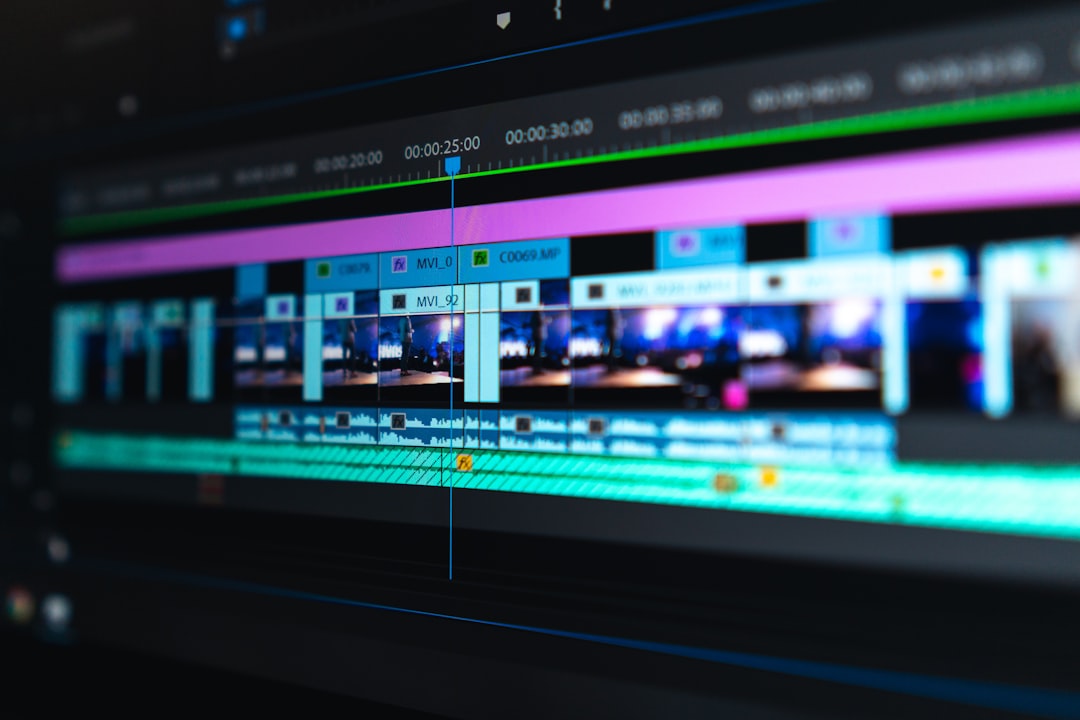
Finding viral moments manually requires scrubbing through hours of audio waveform data. Here is the exact native workflow I use to go from a raw 2-hour interview timeline to five ready-to-post vertical shorts in less than two minutes.
+-----------------------------------------------------------------------+
| STEP 1: Run AI Silence Remover on Raw Multi-Track Audio               |
| -> Strips dead space, awkward pauses, and filler words instantly     |
+-----------------------------------------------------------------------+
                                   |
                                   v
+-----------------------------------------------------------------------+
| STEP 2: Execute AI Viral Clip Detector on Active Sequence             |
| -> Scans transcript sentiment, topic density, and vocal energy       |
+-----------------------------------------------------------------------+
                                   |
                                   v
+-----------------------------------------------------------------------+
| STEP 3: Auto-Isolate Highlight Markers to Vertical 9:16 Sequences    |
| -> Reframes focal subjects and applies WASM animated caption presets |
+-----------------------------------------------------------------------+
Cleaning Up Audio with AI Silence and Filler Word Removal
Before running clip detection, clean up your audio track. Dead air and long pauses confuse AI sentiment analysis.
- Open your main interview sequence in Premiere Pro.
- Launch the KreateFlo panel under
Window > Extensions > KreateFlo. - Select the Silence Remover tool.
- Set your decibel threshold (I usually set mine to -35dB) and minimum silence duration (0.4 seconds).
- Click Remove Silence.
The tool cuts out all dead space across your multi-track sequence in about 5 seconds while preserving track sync.
You can also run filler-word removal to cut "ums", "ahs", and repetitive phrases across your tracks. This mimics the Auto Rough Cut transcription workflow [3] found in high-end studio plugins.
Scanning Active Sequences for High-Engagement Moments
So, how do you find the best parts without re-watching everything?
- Open the Viral Clip Detector inside the KreateFlo extension panel.
- Choose your target clip length (30 to 60 seconds works best for Reels and Shorts).
- Select your clip objective: Virality Hook, High-Density Insight, or Emotional Peak.
- Click Scan Sequence.
The AI reads the sequence dialogue, analyzes speech velocity, and evaluates semantic context using local and cloud-assisted model passes. Modern AI moment detection engines [2] analyze context rather than arbitrary volume spikes, ensuring complete story arcs.
It drops timeline markers with colored tags across your main sequence, ranking each potential clip with a confidence score.
[[BAR:20-40:Typical Short Clips Generated per Episode]]
Generating Vertical Cuts Without Leaving the NLE Flow
Once the AI places markers on your sequence, you don't need to manually slice and copy clips to new sequences.
- Review the marked timeline regions on your active sequence.
- Select the clip markers you want to convert into short-form assets.
- Click Generate Vertical Sequences.
KreateFlo extracts those highlighted segments, creates new 1080x1920 (9:16) sequences in your Project Bin, and places your trimmed media inside them.
You can follow similar automated long-to-short editing tutorials [5] to master this timeline structure.
Actionable Takeaway: Run silence and filler-word removal on your main timeline before running viral clip detection to improve hook accuracy and keep story beats tight.
Multi-Cam Workflows: Converting 8-Camera Podcast Timelines into 9:16 Shorts
Editing a single-camera interview is easy. Editing a multi-cam podcast with four guests talking over each other is where most browser tools fail completely.
If you send a multi-cam sequence to a web app, it collapses all camera angles into a single rendered track. Native Premiere extensions let you perform multi-cam auto-switching directly on raw source clips across up to 8 speakers and 8 camera angles.
Auto-Switching Multi-Cam Angles with Speaker Tracking
When multi-speaker dialogue happens, manual switching takes hours. KreateFlo's Multi-Cam Editor analyzes multi-track audio files simultaneously.
The plugin tracks active audio frequencies per channel and switches the active video angle on your timeline to match whoever is speaking. By leveraging multi-speaker speech recognition [1], the timeline switches based on real voice activity rather than background noise bleed.
[Cam 1: Host]  ------> (Audio Track 1 Active) -------> Auto-Switch Angle 1
[Cam 2: Guest] ------> (Audio Track 2 Active) -------> Auto-Switch Angle 2
[Cam 3: Wide]  ------> (Simultaneous Dialogue) ------> Auto-Switch Wide Layout
Setting Wide-Shot Rules for Dynamic Multi-Speaker Layouts
A common issue with automated multi-cam cuts is rapid jump-cutting. If two speakers laugh or interrupt each other, poorly configured AI switches back and forth every 10 frames, causing visual fatigue.
To stop this, set custom wide-shot rules in KreateFlo before running multi-cam automation:
- Dialogue Overlap Threshold: Set a delay (e.g., 1.5 seconds) before switching angles during rapid back-and-forth speech.
- Wide-Shot Designation: Assign Camera Angle 3 or 4 as your dedicated wide shot.
- Group Interaction Rule: Instruct the plugin to default to the wide shot whenever two or more audio tracks exceed the speech threshold at the same time.
Analyzing conversational dynamics and tracking [2] keeps your multi-speaker cuts looking like they were edited by a human operator.
Preserving Master Audio Tracks and FX Chains
When KreateFlo switches camera angles and generates vertical cuts from your multi-cam timeline, it preserves your original source track routing.
Your parametric EQs, iZotope RX noise suppression plugins, compressor side-chains, and custom bus routing stay active on the sub-sequences. You don't have to re-apply audio presets or fix master bus limiters. Executing automated timeline sequence creation [3] natively ensures complete mix integrity.
Pro Tip: Always assign dedicated audio tracks per speaker before running multi-cam auto-switching. Clean isolated audio tracks result in flawless camera cuts.
Actionable Takeaway: Configure custom wide-shot rules for multi-speaker overlap to prevent nervous, fast-paced jump cutting on vertical clips.
Where to Create AI Short Form Clips Without Leaving Premiere: Animated Captions & Auto-Reframing
Static subtitles don't cut it on TikTok or Instagram Reels. Viewers scroll past basic text overlays. You need dynamic, word-by-word animated captions with active speaker highlighting.
Traditional Workflow:
[Premiere Cut] -> [Export MOGRT / AE Link] -> [Render Loop (10-12 mins)] -> [Final Export]

KreateFlo WASM Workflow:
[Timeline Clip] -> [WASM Engine Preview] -> [Real-Time Instant Render] -> [Final Export]
WASM Real-Time Preview vs Render-Loop Hell
If you've ever tried using After Effects Motion Graphics Templates (MOGRTs) for animated captions in Premiere, you know how painful it is. Every time you change a font size or move a caption box, Premiere hangs while rendering the dynamic link.
KreateFlo eliminates this render loop using a WebAssembly (WASM) preview engine directly inside the CEP panel.
You see font changes, word highlighting, stroke borders, and text animations render in real time at 60fps on your program monitor. There is zero render wait time.
22 Animated Caption Presets Native to Premiere
Inside KreateFlo's CaptionFlow tool, you get 22 pre-built animated caption presets designed specifically for social retention:
- Hormozi Style: Bold yellow and green word highlights with automatic pop-in transitions.
- Karaoke Bounce: Smooth color-progression highlights that track vocal cadence word-by-word.
- Documentary Clean: Minimalist lower-third subtitles with subtle opacity fades for professional interviews.
- High-Energy Shake: Dynamic word scaling with impact animation for fast-paced commentary.
Because these captions generate as native graphic clip animated captions [3], you can adjust font styles, tracking, line spacing, and safe-zone margins across your whole sequence with one click. Voice transcription supports 40+ languages, including Hindi and Bangla, with accurate word-level alignment. Modern tools achieve up to 95% speech-to-text accuracy in modern AI clippers [2].
[[STAT:95%:speech-to-text accuracy in modern AI clippers]]
Auto-Reframing 16:9 Sequences into 9:16 Formats
Manually keyframing Motion Position controls to keep a moving speaker centered in a vertical 9:16 crop is tedious.
KreateFlo uses AI facial tracking to keep the active speaker centered in the vertical frame. It detects head movement and smoothly pans the crop frame without erratic motion jitter.
This works alongside Adobe Auto Reframe focal tracking [1] and third-party automated clip generation workflows [6] to deliver polished, client-ready vertical compositions in seconds.
Pro Tip: Keep your animated captions positioned inside the vertical safe-zone overlay (150 pixels above the bottom edge) so platform UI elements on TikTok and Reels don't block your text.
Actionable Takeaway: Use WASM-powered native captioning to bypass slow After Effects
Cost Analysis: In-NLE Plugins vs the Web Subscription Trap

Let's look at the actual cost of running an agency or editing workflow using web-based clippers versus native Premiere extensions.
Flat-Rate AI Hours vs Per-Hour Web Billing
Most web tools use opaque credit caps or per-hour billing models. For example, FireCut charges per-hour usage fees for complex AI operations, and web-based apps limit your monthly processing hours.
If you edit four podcast episodes a month (each 2 hours long), you feed 8 hours of raw footage into the system. Web clippers charge between $29/mo and $49/mo for basic plans, but cap your uploads at 300 minutes (5 hours) per month [7]. Once you exceed that limit, you are forced to buy expensive add-on credit packs.
KreateFlo gives you flat, predictable processing hours that don't penalize you for uploading long raw files just to extract short clips.
"Buying per-minute web credits forces editors to carefully count render time. Fixed monthly AI hours let you process raw files without worrying about overage fees."
Free Tier vs Pro and Studio Pricing Breakdown
KreateFlo structures its pricing so solo editors and high-volume post houses can scale sustainably:
- Free Tier ($0/mo): Includes 3 core tools forever — Silence Remover, Transition Assistant, and Copy & Paste. Perfect for cleaning up basic audio without spending a dime.
- Pro Tier ($19.99/mo): Unlocks 20 AI processing hours per month, full Viral Clip Detector access, Auto-Reframing, and CaptionFlow presets.
- Studio Tier ($44.99/mo): Designed for post-production agencies. Includes 50 AI processing hours per month, multi-cam switching across 8 cameras, priority cloud processing, and team workspace support.
Comparing these options against monthly credit limits on web tools [7] or checking standard online AI clip generator pricing [2] shows that native plugins cost significantly less per hour of completed video.
Time Savings Math: 90 Seconds vs 4 Hours per Episode
Let's calculate the real labor cost per project:
Manual Workflow:
- Scrubbing footage for clips: 90 mins
- Manual vertical reframing: 40 mins
- Keyframing animated captions: 90 mins
- Render & export: 20 mins
TOTAL TIME: ~4 Hours per Episode

KreateFlo Native Workflow:
- Silence removal pass: 5 secs
- Viral clip detection scan: 30 secs
- Auto-reframe & sequence creation: 15 secs
- WASM caption preset application: 40 secs
TOTAL TIME: ~90 Seconds per Episode
If you charge clients $50/hour, saving 3.5 hours per episode puts $175 back in your pocket per project. Editing four episodes a month saves you over $700 in billable time.
Actionable Takeaway: Calculate your true software spending by adding up per-minute overage charges across web services, then switch to a fixed-tier extension to protect your margins.
When In-NLE AI Plugins Aren't the Right Choice for Your Workflow
I believe in using the right tool for the job. While native Premiere extensions are superior for professional editors holding master files, there are specific scenarios where KreateFlo or native plugins aren't the best fit.
Non-Premiere Editors and Web-Only Content Teams
KreateFlo v1.0.3 is built strictly as an Adobe Premiere Pro CEP extension. It does not run inside DaVinci Resolve, Final Cut Pro, or CapCut.
If your primary editing system runs on Resolve or Final Cut Pro, installing a Premiere-native extension won't help you.
Similarly, if your team consists of social media managers who don't know how to navigate an NLE timeline, using browser-based editing suites [7] with simplified web interfaces might be easier for their non-technical workflow.
Quick Social Edits Without Master Raw Footage
What if you don't own the source files?
If you don't own the raw video files and just need to paste a YouTube link to pull a quick 30-second meme quote, web generators are convenient.
When you don't care about audio bitrates, color grading space, or multi-track audio control, browser clippers handle quick downloads easily. Many creators discussed on creator feedback on Reddit [4] prefer web apps when working exclusively from public web URLs without local media storage.
Hardware Requirements for Native Extension Processing
Native plugins rely on local CPU and GPU acceleration to execute real-time sequence processing inside Premiere Pro.
If you run Premiere on an older laptop with 8GB of RAM and integrated graphics, running complex local AI plugins alongside local timeline rendering will slow down your machine.
In those limited hardware cases, offloading processing to external cloud servers via web generators saves local computer hardware strain. Make sure your workstation meets standard Premiere Pro hardware optimization [1] guidelines before running intensive native extensions.
Actionable Takeaway: If you edit on DaVinci Resolve, Final Cut Pro, or run weak hardware without raw footage, stick to web tools; if you edit daily in Premiere Pro with master media, stick to native extensions.
Frequently Asked Questions
How do I generate TikTok clips from long videos inside Premiere Pro?
You can install a native CEP plugin like KreateFlo inside Adobe Premiere Pro. Open your active sequence, run the AI viral clip detector, and convert high-engagement markers directly into 9:16 vertical sequences on your timeline [3].
Is there an AI plugin for Premiere Pro that auto-crops videos to 9:16?
Yes. KreateFlo automatically tracks speaker faces on your active sequence and reframes 16:9 landscape footage into vertical 9:16 layouts without leaving Premiere Pro [1].
What is the best alternative to web-based clip generators for Premiere Pro?
Native extensions like KreateFlo are the best alternative. They process clips directly on your timeline, preserving your original color grades, audio plugins, and project organization without requiring file uploads [7].
How do I turn multi-cam podcasts into shorts without leaving Premiere Pro?
Use KreateFlo's Multi-Cam Editor tool. It analyzes audio tracks for up to 8 speakers and auto-switches camera angles directly on your multi-cam sequence before auto-reframing into vertical shorts [2].
Can Premiere Pro automatically find viral hooks in long-form edits?
Standard Premiere Pro cannot do this natively, but adding an AI plugin like KreateFlo allows you to scan timeline transcripts for emotional hooks, viral moments, and high-density speech topics [3].
Take Back Your Editing Pipeline
Stop breaking your editing pipeline with browser uploads. If you edit in Adobe Premiere Pro every day, keeping your workflow inside the timeline keeps your color grades intact, saves hours of upload time, and reduces software costs.
You can test KreateFlo's free tools today or unlock full AI automation by heading over to the download page.
- adobe.com/products/premiere/ai-video-editing.html
- choppity.com/tools/free-ai-clip-maker/
- cutback.video/blog/how-to-instantly-create-viral-shorts-from-long-videos-using-ai-(inside-premiere-pro)
- reddit.com/r/PartneredYoutube/comments/1ffr8bu/what_are_the_best_ai_tools_to_create_short_videos/
- youtube.com/watch
- wayin.ai/tools/clip-maker/
- airpost.ai/blog/best-ai-clipping-tools
Try KreateFlo free
3 tools forever, 7-day trial on the rest. No credit card to start.
Download KreateFlo