9:16 Caption Placement: Complete Safe Zone Guide 2026
There is nothing worse than burning kinetic captions into a 9:16 edit, exporting the final video, and realizing TikTok's like button covers half your text. You spent four hours tweaking typography in
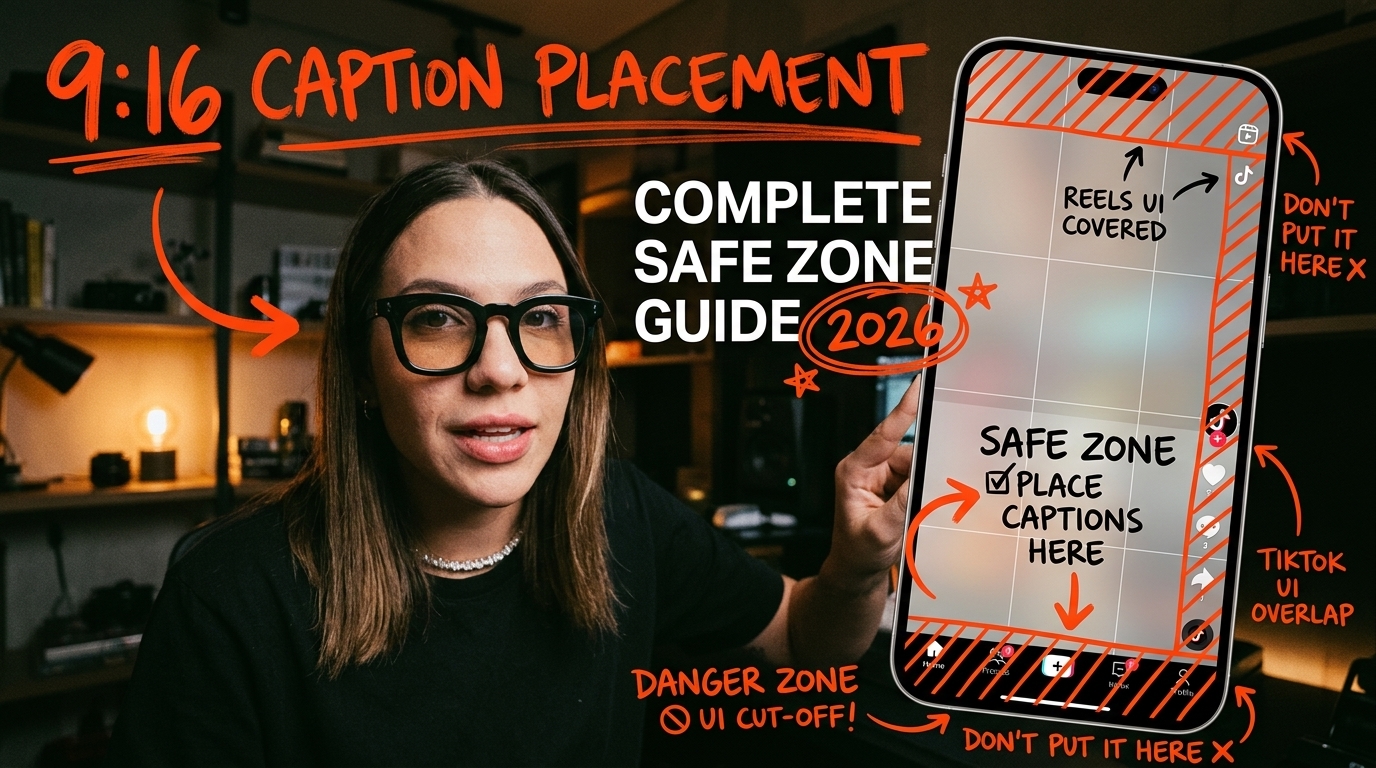
There is nothing worse than burning kinetic captions into a 9:16 edit, exporting the final video, and realizing TikTok's like button covers half your text. You spent four hours tweaking typography in Adobe Premiere Pro, only to let platform UI ruin your engagement because your subtitles sit in a dead zone.
I see this mistake daily. Editors design for the full 1080x1920 canvas as if it were a
Position your text carelessly, and native platform interfaces will chop off your punchlines.
Here is the exact layout framework I use to place captions accurately across TikTok, Instagram Reels, and YouTube Shorts without re-rendering master files for every platform.
Key Takeaways
- Stick to a universal 900x1400px centered box on your 1080x1920 canvas to keep subtitles visible across TikTok, Instagram Reels, and YouTube Shorts.
- Position spoken captions in the lower-middle third of the frame between Y=1200 and Y=1550 on a 1920px vertical timeline.
- Keep text away from the right margin by at least 120–164 pixels to prevent TikTok engagement icons from covering words.
- Cap caption lines at 24 to 28 characters per line so text does not awkwardly wrap on mobile screens.
- Ensure every caption segment stays on screen for a minimum of 1.3 seconds to maintain reader retention.
- Import a transparent safe zone PNG overlay into Adobe Premiere Pro during editing and hide it before rendering.
The Vertical UI Chrome Problem: Why Your Text Gets Cut Off
Mobile device users hold their phones vertically 94% of the time [1]. Because of this habit, short-form video apps reserve the full native 9:16 (1080x1920 pixel) screen canvas [4]. But designing for that full rectangular resolution is a trap.
When you upload a clip, social platforms place
Understanding Dynamic Native App Chrome
App chrome is not static. It stretches and contracts depending on the viewer's screen hardware, caption length, and whether the post is organic or paid [5]. On Instagram Reels, Meta guidelines recommend keeping essential visual content clear of the top 14%, bottom 35%, and side 6% UI zones [4].
If an account description runs four lines long, the platform expands the bottom overlay higher up the frame [2]. If a user views your video on a device with a lower aspect ratio, the top header drops down [7].
You cannot control native app chrome. So your layout must accommodate the worst-case scenario.
The Hidden Dead Zones on TikTok, Reels, and Shorts
Every platform imposes distinct boundary constraints on your sequence:
- TikTok: Obstructs the bottom 320 to 350 pixels with text descriptions and audio tracks [2]. It also claims 120 to 164 pixels on the right margin for the interaction button column [2].
- Instagram Reels: Reserves 108 to 220 pixels at the top and expands the bottom dead zone up to 450 pixels to fit new audio attribution interfaces [2].
- YouTube Shorts: Claims approximately 120 pixels at the top and 300 pixels at the bottom [2]. Shorts is slightly more forgiving on the right side, taking up only about 48 pixels [2].
If you put captions inside these regions, viewers scroll past because they cannot read your words [9].
Pro Tip: Treat native UI overlays as permanent obstacles when blocking out graphics. If you edit with the full canvas in mind, your final client delivery will look amateurish the second it goes live.
Where to Place Captions in 9:16 Video for TikTok and Reels: The Universal Safe Zone
When you edit videos for clients who cross-post across multiple networks, creating separate exports with different text positions for TikTok, Reels, and Shorts destroys your hourly efficiency. You need a single placement strategy that works everywhere.
The 900x1400px Universal Safe Zone Box
The solution is building your edit inside a universal cross-platform safe zone [2]. This safe area is a centered 900x1400 pixel rectangle inside your standard 1080x1920 sequence [2].
+-----------------------------------+  Y = 0px
|        TOP DEAD ZONE (380px)      |
|  +-----------------------------+  |  Y = 380px
|  |                             |  |
|  |     SAFE CONTENT AREA       |  |
|  |        (900x1400px)         |  |
|  |                             |  |
|  |  +-----------------------+  |  |  Y = 1200px
|  |  |  IDEAL CAPTION ZONE   |  |  |
|  |  +-----------------------+  |  |  Y = 1550px
|  |                             |  |
|  +-----------------------------+  |  Y = 1780px
|      BOTTOM DEAD ZONE (140px)     |
+-----------------------------------+  Y = 1920px
   X=60px                     X=960px
By constraining all subtitle tracks and callouts inside this 900x1400px box, your content clears TikTok's right button column, Reels' expanded audio bar, and Shorts' subscribe tag without requiring re-renders [2].
Vertical Y-Axis Guidelines (Y=1200 to Y=1550)
Vertical placement along the Y-axis determines whether your text gets read or ignored. The ideal position for spoken open captions sits in the lower-middle third of the screen canvas [2].
On a 1080x1920 timeline, anchor your caption baseline between Y=1200 pixels and Y=1550 pixels [2].
Why this specific window?
- UI Clearance: Y=1550 leaves roughly 370 pixels of empty space at the bottom, keeping text clear of native descriptions [2].
- Facial Visibility: Placing captions near Y=1200 keeps text below the speaker's mouth and eyes [2]. Viewers can read dialogue while capturing emotional facial expressions [8].
- Focal Distance: The viewer's eye travels a shorter distance between the speaker's face and the subtitle line, reducing visual fatigue [2].
Accounting for Right-Edge Engagement Icons
The right-edge dead zone causes the most client revisions [2]. TikTok's vertical button stack—the profile avatar, like heart, comment bubble, bookmark, and share icon—occupies between 120 and 164 pixels along the right border [2].
If you center-align a long caption line across the full 1080px frame width, the last 3 to 4 characters of your text will hide under the like button on TikTok [2]. You must enforce a horizontal boundary from X=60px to X=960px [3]. Never let text extend past X=960px [2].
Essential Caption Formatting: Character Limits, Font Sizes, and Timing

Proper spatial placement means nothing if your typography is unreadable. Mobile screens require different typographic rules than broadcast television or desktop displays [1].
Character Limits Per Line (24-28 Characters)
Standard television broadcast guidelines like CEA-608 accommodate up to 32 characters per line [1]. If you apply that 32-character standard to a 9:16 vertical sequence, the text shrinks or stretches too close to the narrow phone edges [1].
For short-form mobile video, restrict line length to 24 to 28 characters per line [1]. Keep captions to a maximum of two lines per segment [1]. Single-line or two-line blocks allow viewers to process text at a glance without blocking background footage [8].
Optimal Font Sizing for Mobile Display (70pt Rule)
Tiny subtitles kill watch time. Avoid 24pt to 32pt text settings; they are impossible to read on small screens [4].
For burnt-in vertical captions, use a baseline font size around 70pt in Premiere Pro with bold, clean sans-serif typefaces like Montserrat, Helvetica, or Bebas Neue [1]. Combine this size with a strict 5% title safe border margin around your canvas boundaries [1].
Always add visual contrast. Use a 4px to 8px black stroke, a drop shadow with high opacity, or a solid background box. Without contrast elements, white or light text disappears when the background footage shifts to bright lighting [3].
Minimum On-Screen Display Time (1.3 Seconds)
Fast kinetic captions are popular, but rapidly flashing single words frustrate viewers if the cadence is off. Research indicates that caption segments should stay visible for a minimum of 1.3 seconds to maintain comfortable reading speed on mobile displays [1].
If a word or phrase flashes on screen for only 0.3 seconds, the viewer's eye cannot process it while watching the visual content [1]. Balance fast-paced cuts with enough duration for effortless comprehension.
Pro Tip: Use all-caps for short kinetic phrases, but switch to title case for sentences longer than six words. Full upper-case blocks on long sentences take longer for the eye to scan on mobile screens.
How to Set Up 9:16 Safe Zone Overlays in Adobe Premiere Pro
You do not need to guess pixel coordinates while editing. You can set up exact safe zone guides right inside Adobe Premiere Pro.
Importing a Transparent Reference PNG
The most reliable way to keep graphics compliant is by using a transparent safe zone PNG overlay [7].
- Create or download a 1080x1920 transparent PNG that visually highlights the platform dead zones (top 380px, bottom 420px, right 164px) [3].
- Import the PNG into your Adobe Premiere Pro project panel.
- Drag the overlay to the top video track (e.g., Track V3 or V4) on your timeline.
- Extend the clip across the entire duration of your edit.
With the overlay layer visible, you can drag your caption boxes around the Program Monitor with immediate visual feedback [7].
Configuring Premiere Pro Program Monitor Guides
If you prefer s built-in guide system:
- Open your vertical sequence in the Program Monitor.
- Go to the top menu and select View > Add Guide...
- Add horizontal guides at Y = 380px, Y = 1200px, and Y = 1550px.
- Add vertical guides at X = 60px and X = 960px.
- Save these guides as a guide template named
9x16_Universal_Safe_Zone.
Whenever you open a new short-form project, load this guide preset to view exact visual boundaries directly over your footage.
Disabling Reference Layers Prior to Final Render
Before sending your final render to Adobe Media Encoder, turn off the reference overlay layer.
Click the toggle track output (the eyeball icon) on Video Track V3 to hide your overlay graphic [7]. Leaving reference overlays visible on final exports is a common amateur mistake that ruins client deliverables.
3 Mistakes Editors Make When Deciding Where to Place Captions in 9:16 Video
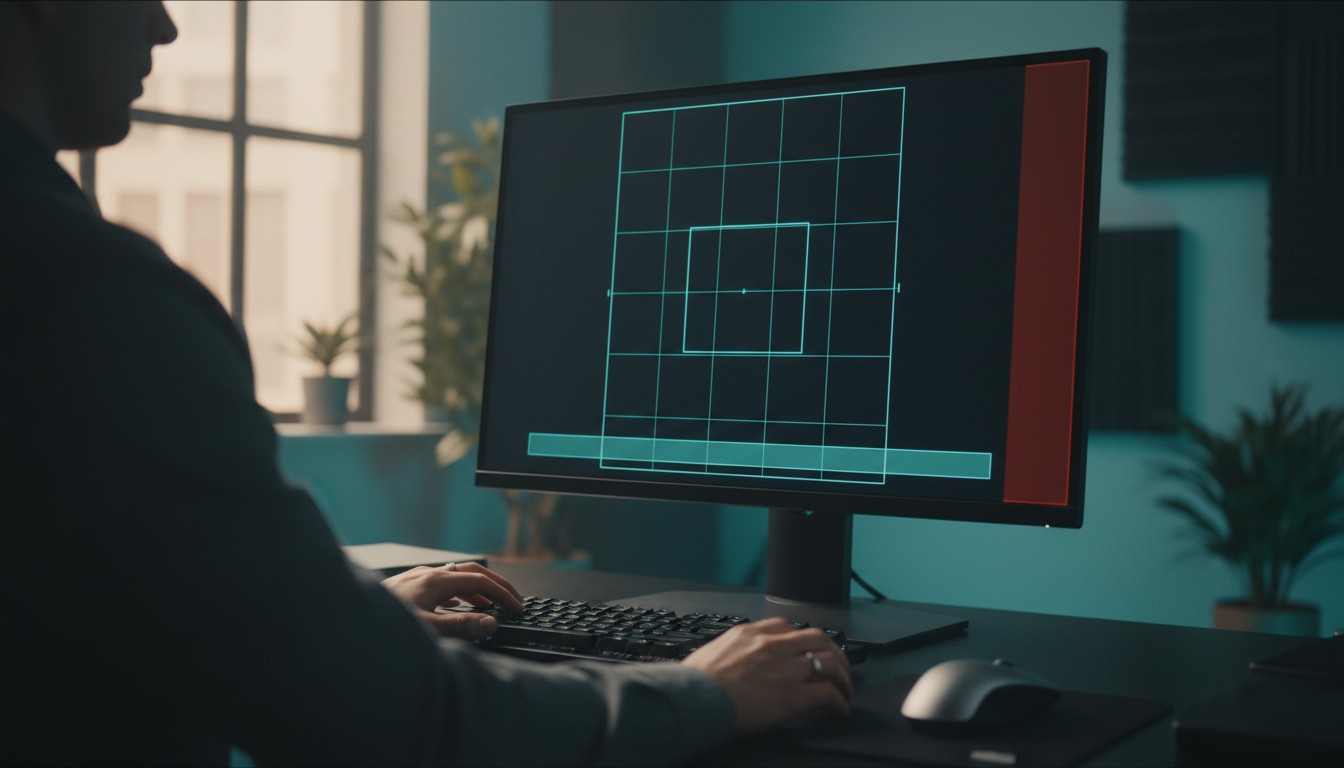
Even experienced long-form editors stumble when switching to short-form vertical edits. Avoid these common placement mistakes.
1. Stretching Subtitles to the Full 1080px Frame Width
Designing captions that stretch across the full 1080px canvas width guarantees cutoff text [2]. While full-width centering looks balanced in desktop editing software, right-aligned words hide under TikTok's engagement icons [2].
Always constrain your text bounding box to the middle 900 pixels [2].
2. Burying Disclaimers and Key Text in the Lower 35%
Lower-third graphics are standard in 16:9 widescreen video, but placing critical text below Y=1550 in vertical 9:16 video buries it under native UI [4].
Usernames, caption descriptions, and call-to-action buttons fill the lower 35% of mobile screens [4]. Keep lower-third lower: move your callouts up into the lower-middle zone (Y=1200–1550) so they remain visible [2].
3. Relying Solely on Desktop Previews Without Testing on Mobile Devices
Your 27-inch desktop monitor lies to you. Text that looks giant in your Premiere Pro Program Monitor often feels tiny or misplaced when rendered on a physical phone [4].
Always export a quick draft, transfer it to your mobile device, and review it inside an unlisted upload preview on TikTok or Reels before signing off on the edit [1].
Automating UI-Safe Captions with Premiere Pro Plugins
Manually adjusting text layer positions, line wraps, and keyframes across 30 short-form clips per week consumes massive editing hours. Automation tools solve this workflow bottleneck.
| Editing Approach | Execution Time per Clip | Positioning Accuracy | Cost | Best Suitable For |
|---|---|---|---|---|
| Manual Premiere Text Layers | 25 – 45 Minutes | High (Manual Alignment) | Included with Premiere | Occasional 15-second reels |
| KreateFlo (CaptionFlow Plugin) | 90 Seconds | Automated 900x1400 Safe Zone | $19.99/mo (Pro Tier) | Editors running high volume |
| FireCut / AutoPod | 3 – 5 Minutes | Variable Safe Boundaries | Per-hour billing / Sub | Multi-cam & transcript cuts |
| Descript / Web Editors | 10 – 15 Minutes | Requires Export Round-trip | $12 - $24/mo per user | Non-editors / basic podcasters |
Manual Caption Placement vs Automated Tools
Building kinetic vertical captions manually in Adobe Premiere Pro takes anywhere from 25 to 45 minutes per short clip. You have to create the caption track, split speech, format fonts, apply motion presets, and adjust bounding boxes to avoid dead zones. Multiply that by 20 reels a month, and you lose over 10 hours to repetitive text adjustments.
Dedicated plugins shorten this workflow to roughly 90 seconds per clip. Automated speech-to-text engines generate formatted, UI-compliant kinetic subtitles inside your timeline.
How KreateFlo CaptionFlow Keeps Subtitles Inside UI Boundaries
If you edit podcasts and short-form video in Premiere Pro daily, KreateFlo offers a streamlined approach. KreateFlo operates as a CEP extension panel directly inside Premiere Pro v1.0.3, meaning you never have to leave your timeline or round-trip media files through external web apps like Descript or Opus Clip.
Inside KreateFlo, the CaptionFlow tool includes 22 animated caption presets pre-configured to lock within vertical mobile safe boundaries.
Instead of re-aligning text layers frame-by-frame:
- CaptionFlow automatically snaps subtitles inside the Y=1200 to Y=1550 vertical zone and caps line lengths at 28 characters.
- It includes a real-time WebAssembly (WASM) preview engine inside the Premiere panel, letting you sample animation styles instantly without render-to-see delays.
- Voice transcription supports over 40 languages including Hindi and Bangla, generating auto-styled open captions synced to your audio track.
At $19.99/month for the Pro plan (which includes 20 AI hours across all 33+ tools), KreateFlo avoids per-hour billing models like FireCut while keeping your caption workflow fully native to Premiere Pro.
Honest Caveats: When You Do Not Need a Premiere Extension
KreateFlo is built for editors producing volume content inside Adobe Premiere Pro. However, it might not be right for your setup if:
- You only edit one 15-second Reel a month. Manual Premiere Pro Essential Graphics text tracks work fine for low output.
- You edit exclusively in CapCut, Final Cut Pro, or DaVinci Resolve. KreateFlo is strictly a Premiere Pro extension.
- You prefer web-based drag-and-drop editors rather than working on a professional NLE timeline.
Getting text placement right on vertical video isn't complicated, but it requires respecting platform UI boundaries. Keep captions within the 900x1400px box, anchor your text between Y=1200 and Y=1550, and cap lines at 28 characters.
If you want to stop re-aligning text layers manually for every reel, check out CaptionFlow inside KreateFlo to auto-format vertical captions in Premiere Pro, or download KreateFlo free to test the built-in timeline tools on your next export.
Frequently Asked Questions
What is the universal safe zone size for 9:16 videos on TikTok, Instagram Reels, and YouTube Shorts?
The universal cross-platform safe zone is a centered 900x1400 pixel box within the standard 1080x1920 vertical video frame [2]. Keeping text inside this boundary prevents platform buttons, descriptions, and headers from covering your content [2].
Why are my video captions covered by TikTok's like and share buttons?
TikTok's right-edge interactive column occupies 120 to 164 pixels of the frame [2]. If your captions span the full 1080px width, right-aligned words sit directly under the like, comment, and share icons [2].
How far from the bottom of the frame should text be placed in vertical videos?
Keep captions positioned between Y=1200 and Y=1550 on a 1920px vertical height canvas [2]. Reserve the bottom 370px (below Y=1550) exclusively for native video descriptions, audio titles, and account handles [2].
What font size and line length work best for vertical mobile captions?
Use a font size around 70pt in Adobe Premiere Pro and restrict line length to 24-28 characters per line [1]. Short lines prevent text from wrapping weirdly on narrow mobile screens [1].
Should subtitles cover the speaker's face in short-form video content?
No. Position captions in the lower-middle third of the frame so they sit under the speaker's face without dipping down into the lower platform UI dead zone [2].
References
- closedcaptioncreator.com/blog/articles/captioning-for-9x16-video.html
- blitzcutai.com/blog/best-caption-placement-short-form-video
- houseofmarketers.com/guide-to-safe-zones-tiktok-facebook-instagram-stories-reels/
- edicionvideopro.com/en/editing-techniques/916-aspect-ratio-guide-vertical-video-for-tiktok-reels/
- zeely.ai/blog/tiktok-safe-zones/
- getkoro.app/blog/tiktok-safe-zone-guide
- ugcfactory.io/blog/the-ultimate-guide-to-safe-zones-for-tiktok-facebook-and-instagram-stories-reels-2025
- opus.pro/blog/video-caption-design-placement
- ninatrankova.com/content-creation/maximizing-engagement-with-vertical-content/
- mediacheatsheet.com/blog/social-media-safe-zones-explained-instagram-reels-tiktok-shorts-and-ads/
- pictory.ai/blog/tiktok-captions
- orsonlord.com/articles/free-safe-zone-overlays-for-reels-tiktok-and-shorts
- fileflippers.com/tools/safe-zones
Try KreateFlo free
3 tools forever, 7-day trial on the rest. No credit card to start.
Download KreateFlo