Dynamic Text Animations: 7 Proven Video Retention Tips
Static subtitles are dead on short-form feeds—out of 13.5 million analyzed clips, 78.6% used animated captions while only 1.6% relied on static text [2]. If you are still slapping traditional two-line
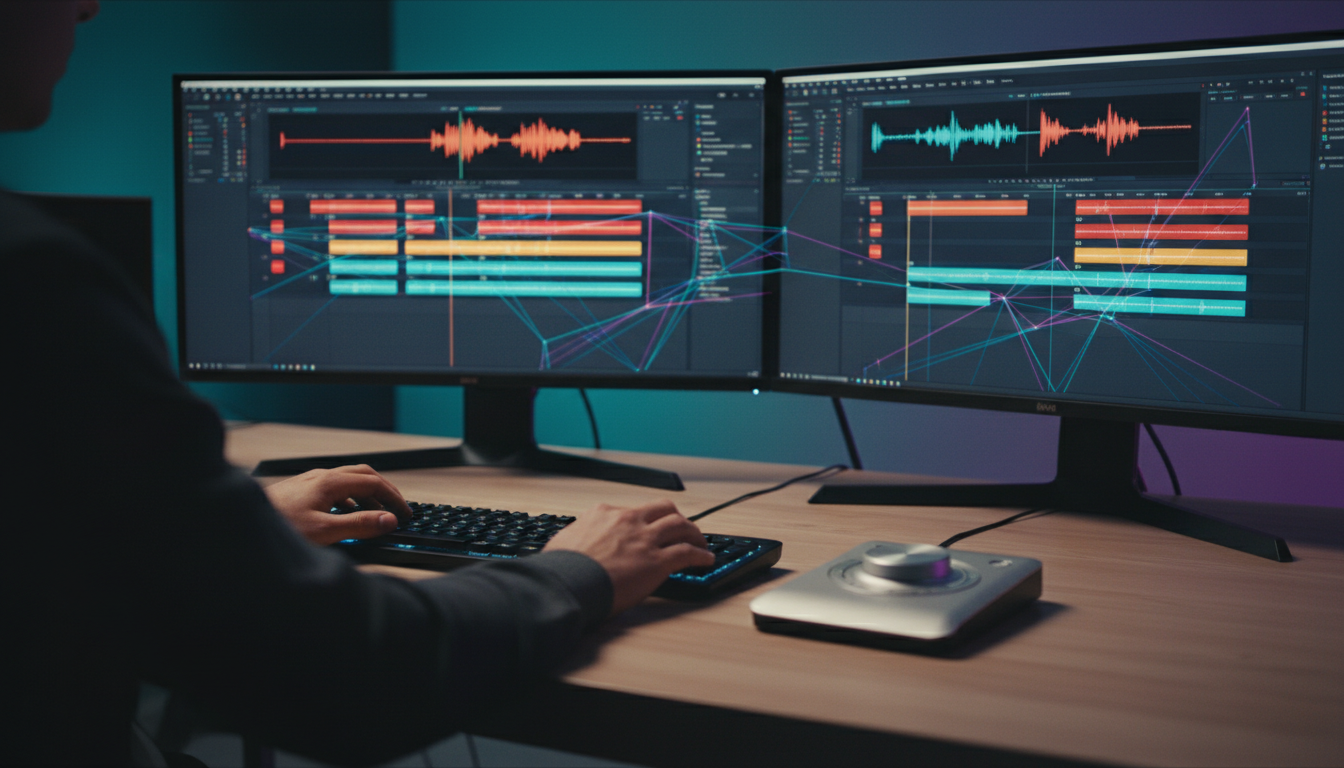
Static subtitles are dead on short-form feeds—out of 13.5 million analyzed clips, 78.6% used animated captions while only 1.6% relied on static text [2]. If you are still slapping traditional two-line static subtitles onto your client reels in Adobe Premiere Pro, you are giving away half your watch time to editors who know how to keep eyes locked on the screen.
Key Takeaways
- Animated captions dominate short-form feeds, appearing in 78.6% of top-performing short clips compared to just 1.6% for static subtitles [2].
- Word-by-word dynamic text boosts average view duration by 40% to 80% over basic static lines [3].
- Over 80% to 85% of social feed video is consumed with the sound turned off [2], [4].
- Precise word-level timing prevents visual fatigue and maintains visual rhythm [7], [9].
- Over-animating text with spins or continuous screen bounces causes viewer friction; subtle pop-ins and key-word highlights win [1], [7].
- Built-in Premiere Pro workflow extensions like KreateFlo's CaptionFlow swap slow render loops for WASM real-time previews.
The Retention Data: Why Dynamic Text Animations Outperform Static Subtitles
I used to burn hours manually placing static subtitle blocks in Adobe Premiere Pro. I thought clean, centered two-liners at the bottom of the frame looked professional.
Then I looked at my retention curves on TikTok and Instagram Reels. Viewers were dropping off five seconds in.
The numbers explain why dynamic text animations crush static subtitles across every major social platform. Static lines feel like reading a textbook. Dynamic text feels like part of the video.
"Static lines treat text as an afterthought. Dynamic captions turn words into keyframe anchors that direct the viewer's focus frame by frame."
| 78.6|Static Subtitles | NaN |
|---|
The 13.5 Million Clip Analysis Breakdown
When research teams analyzed 13.5 million short-form clips, the data was brutal [2]. Over 80% of all published short-form clips used captions of some kind [2]. But out of those captioned videos, 78.6% utilized animated captions [2]. Only 1.6% used traditional static subtitles [2].
The remaining percentage relied on custom title cards or non-standard graphics [2]. Here's why that matters: algorithms on TikTok, YouTube Shorts, and Instagram Reels prioritize average view duration above everything else.
When you use dynamic motion, your clips stay on screen longer. Viewers simply do not swipe away during audio pauses [3]. In fact, animated formats deliver up to 41% higher engagement rates than static layouts [6], [8].
Sound-Off Viewing and the 80% Rule
We have all heard that people watch social media on mute. But the real metrics are eye-opening. Studies show that 80% to 85% of video content on social feeds is initially watched with the sound turned off [2], [4].
If your clip relies solely on spoken audio to hook the viewer, you are invisible to four out of five people scrolling by [4]. Adding well-styled captions instantly increases average watch time by 15% to 25% compared to uncaptioned clips [2].
Facebook's early video research confirmed a 12% boost in total view time simply from introducing text overlays [5]. Even better, adding stylized captions drives a 10% to 25% increase in share rates because viewers can digest the message anywhere [3].
Actionable Takeaway: Audit your last ten published short-form reels today. If any use static full-sentence subtitles, convert them to dynamic word-by-word captions to reclaim lost sound-off viewers.
Psychological Triggers Behind
Why
Static subtitles sit dead at the bottom of the frame.
| Before | 12% |
|---|---|
| After | 80% |
Dual-Channel Processing in Short-Form Feeds
The brain processes visual motion far faster than static text blocks [1]. According to cognitive research published by Amara on caption psychology, text overlay acts as visual stimulation rather than a simple translation layer [1].
When audio and animated text pop up simultaneously, the brain engages dual-channel processing [1]. This dual-channel stimulus lowers cognitive load [1]. The viewer does not have to actively "read" full sentences across the screen [1].
Instead, words appear exactly when spoken. This allows the brain to absorb speech and visuals effortlessly [1]. Over 80% of consumers report being far more likely to watch a video through to completion when dynamic text overlays guide their eyes [4], [5].
Preventing Mid-Clip Drop-Off with Continuous Motion
Mid-clip drop-off kills reach. You might have a killer hook, but if the speaker pauses for 1.5 seconds between sentences, the viewer swipes away.
Eye-tracking studies from the University of Manchester on dynamic subtitle UX prove that dynamic text keeps gaze patterns closer to natural video viewing [9]. Traditional static subtitles force the eye to bounce up and down between the middle of the frame and the bottom text bar [9].
Dynamic text placed near the speaker's face keeps the viewer's gaze anchored right where you want it [9]. Continuous motion tricks the brain into expecting the next word, bridging silence gaps and locking attention [3], [9].
Actionable Takeaway: Keep text anchors centered near the speaker's eye level or upper chest to minimize jarring vertical eye movements across cuts.
Design Rules: Why Dynamic Text Animations Outperform Static Subtitles When Done Right
Pro Tip: Stick to a 1–3 word display limit per pop-in block. Never let a dynamic caption line stretch past 18 characters on mobile portrait feeds.
Word-by-Word Timing vs. Full-Sentence Blocks
The single biggest mistake I see editors make in Adobe Premiere Pro is leaving long blocks of text on screen while using word-highlighting presets [7]. Showing a full 10-word sentence all at once ruins the delivery.
The viewer reads ahead in 500 milliseconds, finishes the sentence, gets bored, and swipes away before your audio clip even finishes [3], [7]. Break your captions into snappy 1–3 word blocks instead [7].
When you display single words or micro-phrases on cadence, the viewer reads at the exact speed of your speaker [7]. Academic studies on dynamic learning visual formats show that step-by-step visual reveals hold focus and significantly improve comprehension compared to static slide layouts [10].
"If the viewer can read your entire punchline before the speaker finishes talking, your retention graph will drop off a cliff."
Safe Zone Positioning and Avoiding UI Overlays
Nothing looks less professional than dynamic captions buried under TikTok’s username handle or Instagram’s right-hand action buttons [7]. You spent time editing those words, so make sure people can actually see them.
Always edit inside platform safe zones:
- Bottom Margin: Keep text at least 250 pixels above the bottom edge on a 1080x1920 vertical sequence [7].
- Right Margin: Leave a 120-pixel buffer on the right side so platform icons (like, comment, share) do not block your words [7].
- Top Margin: Keep text below the top 15% header line where platform tab navigation sits [7].
Restraint and Color Highlights Over Visual Noise
You do not need every single word bouncing, flipping, and changing color [7]. Excessive animation creates visual noise that drives viewers crazy [1], [7].
Use primary dynamic styles—like a clean, subtle pop-in—for 80% of your dialogue [7]. Reserve high-contrast highlight colors (like bright yellow, electric green, or cyan) specifically for high-impact keywords, numbers, or emotional hooks [7]. That subtle contrast draws the eye directly to key phrases without overwhelming the frame [7].
Actionable Takeaway: Build a standardized Premiere Pro vertical safety overlay graphic and lock it on your top track whenever styling animated captions.
Common Pitfalls That Destroy Short-Form Engagement
Understanding why dynamic text animations outperform static subtitles also requires knowing what destroys them. I have seen great podcast clips get zero traction simply because the caption timing was off by three frames.
Over-Animating and Causing Visual Fatigue
When motion graphics tools first introduced automatic captioning, editors went wild. Text flew in from the left, spun 360 degrees, and flashed red and blue.
That style aged terribly. Over-animating text forces the viewer's eye to chase motion rather than absorb content [1], [7]. When reading becomes exhausting, watch time plummets [7].
Restraint is key [7]. Simple scale pop-ins or clean word-by-word reveals beat chaotic flying text every single time [7].
Misaligned Audio Sync and Bad Rhythm
Dynamic captions rely entirely on rhythm [7]. If a word appears 100 milliseconds after the speaker says it, the disconnect feels cheap and amateurish [7].
Automatic AI transcribers often miss exact audio word boundaries, especially on fast speakers or accented speech [7]. You must use tools that offer precise word-level timing adjustments on the sequence timeline [7]. If the visual motion does not hit on the exact audio transient, viewer engagement drops fast [7].
Actionable Takeaway: Always zoom in on your Premiere timeline and align your caption visual cuts precisely with the vocal transients on your audio waveform.
Editing Workflow: Automating Animated Captions in Premiere Pro
Let's talk workflow reality. Creating word-by-word dynamic captions manually in Adobe Premiere Pro used to be absolute torture.
You had to create Essential Graphics text layers, cut them every two words, adjust scale keyframes, and re-center text boxes. A 60-second reel took 45 minutes just for captions. Doing that across 20 client clips a week was completely unsustainable.
Manual Mogrt Workflow:    [Cut Text] -> [Keyframe Scale] -> [Color Highlight] -> [Re-center] = 45 mins/clip
KreateFlo WASM Workflow:  [Select Preset] -> [Instant Preview] -> [Apply to Timeline]      = 90 seconds/clip
Moving Beyond Slow Native Premiere Workarounds
Native Premiere Pro speech-to-text has come a long way. But turning built-in captions into animated short-form text graphics is still clunky.
You either have to upgrade captions to graphic lines and apply Mogrts, or export XMLs round-trip into third-party web tools like Descript or Opus Clip. Web tools force you to upload full video files, wait for cloud renders, edit on a web timeline, and re-export back into your master project.
That completely breaks your editing flow and wastes local storage.
Using KreateFlo’s CaptionFlow for Instant WASM Previews
That round-trip grind is why we built CaptionFlow inside KreateFlo. KreateFlo runs directly as a CEP extension panel inside Adobe Premiere Pro v1.0.3. You never leave your timeline.
CaptionFlow brings 22 animated caption presets straight into Premiere Pro with WebAssembly (WASM) real-time preview technology. That means you do not have to render a clip just to see if a font size or bounce animation looks right.
You tweak the preset in the panel, watch the real-time preview instantly, and hit apply. What took 45 minutes manually now takes 90 seconds.
Honest Caveat: KreateFlo is built specifically for editors who produce high-volume short-form clips, podcasts, and social video inside Premiere Pro. If you edit 90-minute indie feature films or traditional broadcast documentaries that only require basic static captions at the bottom of the screen, you do not need KreateFlo Pro.
Our free tier (which includes 3 tools free forever: Silence Remover, Transition Assistant, and Copy & Paste) is plenty for basic work. But if you ship multiple podcast reels per week, the $19.99/mo Pro plan (with 20 AI hours) pays for itself on day one compared to FireCut's per-hour billing model.
Pro Tip: Combine CaptionFlow with KreateFlo's Silence Remover tool. Strip dead air first, generate dynamic captions second, and export your polished reel in under three minutes total.
Actionable Takeaway: Stop round-tripping video files through browser apps. Keep your media inside your native NLE project to eliminate duplicate rendering steps.
Detailed Comparison: Dynamic Captions vs. Static Subtitles
To make the right choice for your editing pipeline, you need a head-to-head metrics comparison between these two text styles.
| Performance Metric | Static Subtitles | Dynamic Text Animations | Editor Impact |
|---|---|---|---|
| Average View Duration | Baseline [3] | +40% to +80% higher [3] | Keeps content favored by social algorithms [3] |
| Sound-Off Retention | Moderate [4] | Up to 2x higher [2] | Captures the 80%+ sound-off feed audience [2], [4] |
| Content Share Rate | Baseline [3] | +10% to +25% boost [3] | Drives organic viral reach across feeds [3] |
| Viewer Visual Fatigue | High on long blocks [7] | Low with 1–3 word reveals [7] | Reduces early scroll-away drop-off [7] |
| Manual Editing Time | Fast native creation | Slow manually / 90s with CaptionFlow | Automated extensions solve the time barrier |
| Best Used For | Long-form film, TV, YouTube | Shorts, Reels, TikTok, Podcasts | Format-dependent editing decisions |
Metrics Breakdown: Watch Time, Shares, and Completion
The data clearly favors dynamic text for short-form media [2]. Captions overall raise average video view time by 15% to 25% over uncaptioned videos [2]. But when you split those captioned videos into dynamic versus static, dynamic formats achieve roughly double the retention performance of static lines [2].
When viewers see words popping up on cadence, over 80% stick around to finish the clip [4], [5]. That complete view count signals the algorithm to boost your clip into more user feeds [3].
When Static Subtitles Are Still the Right Choice
Dynamic animations are not a magic fix for every genre. If you edit long-form YouTube tutorials, corporate interviews, or narrative documentaries, static subtitles are still superior.
Animated kinetic captions on a 30-minute documentary would irritate viewers instantly [7]. Static subtitles give viewers standard, predictable translation without distracting from complex imagery or emotional storytelling [7], [9]. Match the text tool to your format.
Actionable Takeaway: Use dynamic text exclusively on vertical short-form reels under 90 seconds. Stick to static, multi-line subtitles for horizontal long-form YouTube cuts.
Advanced Tactics to Maximize Retention in 2026
Once you transition to dynamic captions, you can deploy advanced text strategies to stretch retention even further.
Layering Secondary Callout Text
Do not limit text to just word-by-word transcription. Layer secondary static title callouts on screen above your dynamic text to highlight key takeaways, speaker names, or stats [7].
For instance, if your podcast guest mentions a specific revenue number, keep a secondary title card reading "REVENUE BREAKDOWN" pinned at the top of the frame while
Testing Pacing and Color Styles Against Audience Data
Different audiences prefer different visual paces [7]. Younger TikTok audiences respond well to fast, single-word pop-ins with high-contrast color shifts [7]. B2B audiences on LinkedIn preference two-word reveals with subtle underline animations [7].
Track your retention graphs inside Instagram Insights or YouTube Studio [7]. Check the retention curve right around second 3 through second 7 [7]. If you see a sharp dip, your intro caption style is likely too slow or hard to read [7].
Pro Tip: Test alternating yellow highlight words on dark backgrounds for finance or tech clips. Use electric neon green highlights for sports and gaming content to match platform culture.
Actionable Takeaway: Review your social video retention curves monthly. Adjust your default caption preset font size and highlight colors based on drop-off trends.
Stop Keyframing, Start Retaining

Switching from static subtitles to dynamic text animations isn't about chasing cheap editing trends. It is about matching how human eyes process video on fast social feeds [1], [9].
By sticking to 1–3 word blocks, placing text in UI safe zones, and applying subtle pop-ins, you can double your retention without overwhelming your viewer [7].
If you edit in Adobe Premiere Pro and want to skip manual keyframe grinds, grab KreateFlo v1.0.3 and test CaptionFlow's 22 animated presets on your next client reel. You get 3 tools free forever, or full AI features on Pro for $19.99/mo—saving you hours on every timeline you cut.
Frequently Asked Questions
Why do animated captions perform better than static subtitles on TikTok and Instagram Reels?
Animated captions create continuous visual motion that draws the eye and matches the fast visual pacing of short-form feeds [1]. This visual rhythm holds viewer attention longer, significantly reducing mid-clip drop-off compared to static text lines [3], [9].
What percentage of viral short-form clips use dynamic text animations?
An analysis of 13.5 million short-form clips revealed that 78.6% used animated captions, while only 1.6% relied on traditional static subtitles [2]. The remaining clips used custom graphics or no text at all [2].
How do dynamic text animations affect watch time and audience retention?
Word-by-word animated captions can increase average view duration by 40% to 80% compared to uncaptioned videos or basic static subtitles [3]. They help keep viewers engaged even when audio is muted [2], [4].
Can over-animating text captions hurt video engagement?
Yes [7]. Using extreme spins, continuous screen bounces, or erratic color changes causes visual fatigue and forces viewers to scroll away [7]. The best results come from subtle pop-ins, steady positioning, and selective color highlights on key words [7].
How do I generate dynamic animated captions inside Adobe Premiere Pro?
While native Premiere Pro requires manual text keyframing or complex Mogrts, plugins like KreateFlo's CaptionFlow automate word-level transcription and styling. You can apply 22 animated presets with real-time WASM previews directly on your sequence timeline without leaving Premiere Pro.
References
- blog.amara.org/2024/07/25/the-psychology-behind-captioning-and-subtitles-how-they-influence-viewer-engagement-and-memory/
- opus.pro/research/best-caption-strategy-short-form
- clipspeed.ai/blog/ai-captions-increase-views.html
- clipspeed.ai/blog/subtitles-vs-captions-which-better.html
- rendercut.io/how-ai-generated-captions-impact-conversion-rates
- eilandigital.com/newsletter/why-businesses-are-switching/
- rendercut.io/best-caption-styles-retention-engagement
- educationalvoice.co.uk/animation-vs-static-content/
- pure.manchester.ac.uk/ws/portalfiles/portal/31958338/FULL_TEXT.PDF
- ajet.org.au/index.php/AJET/article/download/7639/1955/27989
- contentfries.com/blog/the-science-of-video-captions-how-they-impact-audience-retention
- blog.videoscribe.co/why-animated-content-outperforms-static-posts
- eilandigital.com/newsletter/the-importance-of-motion-graphics-in-fixing-low-engagement-and-short-attention-span/
- thesocialcat.com/glossary/kinetic-typography
- yansmedia.com/blog/kinetic-typography-marketing-videos
Try KreateFlo free
3 tools forever, 7-day trial on the rest. No credit card to start.
Download KreateFlo