AutoPod Alternative: 5 Best Reasons to Choose KreateFlo
AutoPod changed podcast editing two years ago, but paying $29 a month for a tool that glitches every time guests laugh over each other is a raw deal. I spent three hours last week cleaning up false ca
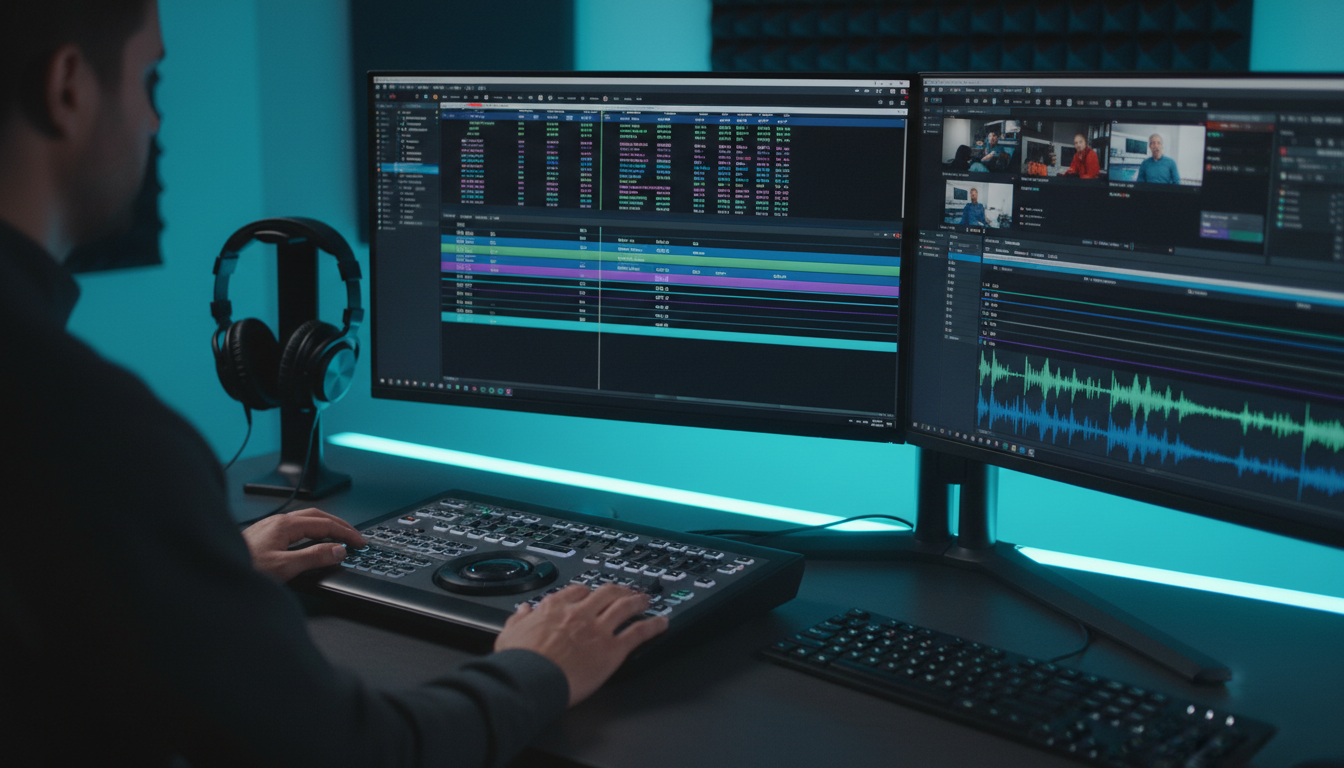
AutoPod changed podcast editing two years ago, but paying $29 a month for a tool that glitches every time guests laugh over each other is a raw deal. I spent three hours last week cleaning up false camera cuts caused by mic bleed on a four-person interview. That was my breaking point. Here is why I finally dumped AutoPod and moved my Adobe Premiere Pro workflow to KreateFlo.
Key Takeaways
- Cost Discrepancy: AutoPod costs $29/mo for just one multicam feature, while KreateFlo Pro delivers 33+ tools inside Adobe Premiere Pro for $19.99/mo [3].
- Technology Gap: Loudness-gated multicam tools fail on mic bleed and crosstalk, causing rapid jump cuts; semantic speech recognition fixes this [3].
- Subscription Inflation: Stacking AutoPod, caption plugins, and web clipping tools inflates monthly software bills past $88/mo ($1,056/yr) [3].
- Camera Handling: KreateFlo processes up to 8 cameras and 8 speakers with dedicated wide-shot logic for smooth group switching [3].
- Real-Time Captions: CaptionFlow in KreateFlo offers 22 animated presets with WASM real-time previews without waiting for render loops [3].
- Platform Lock-In: KreateFlo operates purely as an Adobe Premiere Pro CEP extension—if you edit in DaVinci Resolve or Final Cut Pro, it will not run [3].
AutoPod Is Dated: Why Editors Are Switching from AutoPod to KreateFlo
AutoPod made a massive splash when it first hit the market. It took a manual process that used to burn four hours of timeline trimming and turned it into an automated script.
But video editing tech moves fast. Paying $29 every single month for a plugin that only cuts camera angles feels absurd. It is like paying a full monthly software subscription for a glorified calculator.
The core issue? AutoPod relies on legacy audio volume thresholds. It analyzes track decibels to decide which camera angle to put on your program monitor.
When you have a single host speaking cleanly into a soundproofed dynamic microphone, volume thresholding works fine. But actual client footage is rarely clean.
+-----------------------------------------------------------------------+
|                       LEGACY AUDIO GATING                             |
| Speaker A Speaks ---> Decibel Spike Detected ---> Cut to Cam A         |
| Speaker B Coughs ---> Decibel Spike Detected ---> Cut to Cam B (ERROR)|
+-----------------------------------------------------------------------+
|                     SEMANTIC SPEECH RECOGNITION                       |
| Audio Track ---> Whisper AI Transcribes Text ---> Identifies Speaker  |
| Decibel Spike Ignored (Bleed) ---> Natural Cut Retained               |
+-----------------------------------------------------------------------+
The Frustration with Audio Threshold Switching
If you edit long-form interviews daily, you already know the drill. Two guests start laughing simultaneously, or the host interjects with a quick "yeah," and the timeline goes wild.
AutoPod gets confused by volume spikes. So it generates erratic, rapid camera cuts that look like a security feed switching channels [3].
Cleaning up those jump cuts manually takes almost as long as cutting the episode from scratch. According to recent cost-saving analysis for podcast editing software [3], editors lose hours tweaking threshold sliders that never quite fix physical acoustic spill.
The Rise of Native Unified Extensions in 2026
Modern post-production pipelines demand way more than rough-cut camera switching. Over half of all podcasts now release full-length video episodes on YouTube [7].
Audiences expect dynamic pacing, animated subtitles, jump-cut silence removal, and bite-sized social media clips. So running four different single-purpose plugins inside Adobe Premiere Pro wastes system memory and crashes project files.
Industry studies on trends influencing digital content workflows [2] show editors actively migrating toward unified extension panels. Instead of running clunky utility scripts, editors want a comprehensive suite right inside their NLE panel dock.
Actionable Takeaway: Audit your current plugin list today. Isolate any legacy extensions that rely solely on decibel gates rather than transcript-aware AI logic.
Volume Gating vs Semantic Speech Recognition
Why are so many editors swapping AutoPod for KreateFlo? Look at how the underlying engines process media.
Volume gating is totally blind. It doesn't know who is speaking; it only knows which track is loud. If your guest speaks quietly while the host accidentally bumps their desk, a volume-gated plugin switches the camera to the host's empty face.
Semantic speech recognition operates on a completely different level. KreateFlo uses AI transcription to read the actual words being spoken. It maps dialogue directly to speaker tracks before making a single cut.
| Feature | Legacy Volume Gating (AutoPod) | Semantic Speech Recognition (KreateFlo) |
|---|---|---|
| Primary Trigger | Audio decibel peaks | AI transcript text alignment |
| Crosstalk Response | Rapid back-and-forth jump cuts | Automatic wide-shot default |
| Mic Bleed Handling | High rate of false camera cuts | Ignores spill on adjacent tracks |
| Max Cameras / Speakers | Standard multi-cam tracks | Up to 8 cameras & 8 dedicated speakers |
| Additional Toolkit | 1 tool (Multi-cam only) | 33+ tools inside 1 extension panel |
| Base Monthly Cost | $29.00 / month | $19.99 / month (Pro tier) |
Why Mic Bleed Ruins Volume-Gated Multicam
Mic bleed happens when sound waves from Speaker A travel across the room into Speaker B's microphone. In untreated studio spaces or multi-person panel shows, mic bleed is physically unavoidable.
When Speaker A speaks loudly, their voice hits Speaker B's track at -18dB. A volume-gated tool sees that -18dB spike, assumes Speaker B is talking, and cuts to Speaker B.
The result? You end up with false cuts highlighting a guest who is sitting silently while someone else talks.
Fixing this requires zooming into the timeline, deleting bad edit points, and dragging out clip handles. That tedious manual cleanup completely defeats the point of buying automation software [6].
How Speech-Recognition Multicam Handles Crosstalk
How do we handle multi-person chaos without losing our minds? KreateFlo uses semantic analysis and dedicated wide-shot logic.
The engine analyzes speech patterns across all tracks using natural language processing [10]. When two or more people speak at once, or when sudden laughter erupts across the room, KreateFlo recognizes the overlap.
Instead of panicking and cutting rapidly between single shots, KreateFlo cuts directly to your designated wide angle. Pacing remains natural, comfortable, and cinematic.
You can assign up to 8 distinct speaker tracks and 8 matching camera angles inside KreateFlo v1.0.3. That keeps large panel discussions completely clean.
Pro Tip: When setting up multi-cam tracks in KreateFlo, always assign a wide camera angle to the Master Wide slot. Set your crosstalk delay threshold between 800ms and 1200ms so brief interjections hold smoothly or switch naturally to the wide view.
+--------------------------------------------------------------------+
|                         CROSSTALK ROUTING                          |
|                                                                    |
| Speaker 1: "I completely agree with--" \                           |
|                                         +--> Overlap Detected      |
| Speaker 2: "[Laughter] That is crazy!" /          |                |
|                                                   v                |
|                                     Switch to Wide Camera Angle    |
+--------------------------------------------------------------------+
Actionable Takeaway: Stop wrestling with noise gates on raw tracks. Switch to speech-recognition switching to bypass acoustic spill entirely.
The True Cost of Stacked Single-Feature Subscriptions
Let's look at the financials. Video editors often fall into the single-feature software trap without noticing how fast the monthly charges pile up [3].
You buy one tool for multi-cam. You buy another for captions. Then you subscribe to a third web service for clipping shorts.
Stack A (Fragmented):
AutoPod ($29/mo) + Caption Tool ($30/mo) + Web Clipper ($29/mo) = $88/mo ($1,056/yr)

Stack B (Unified):
KreateFlo Pro ($19.99/mo) = 33+ Tools Included ($239.88/yr)
Doing the Math on $88+ Monthly Plugin Stacks
A standard editor stack using fragmented tools easily scales past $88 per month [3]. Over a twelve-month period, you spend over $1,050 just to perform basic rough cuts and social reformatting.
Data from a recent professional editor tool usage study [4] shows that managing multiple subscriptions creates unnecessary software overhead for freelance editors and agencies alike.
And according to the podcast production technology market report [9], tool consolidation is now the top priority for production teams trying to protect their profit margins.
One Extension vs Three Monthly SaaS Invoices
Why pay three separate SaaS bills when you can handle your entire post-production pipeline inside one panel?
KreateFlo offers a free tier that includes 3 core tools forever—Silence Remover, Transition Assistant, and Copy & Paste—without requiring a credit card.
When you upgrade to KreateFlo Pro for $19.99/mo, you get 20 AI hours per month along with all 33+ integrated editing tools. For heavy-volume content houses, the Studio tier costs $44.99/mo for 50 AI hours.
Pro Tip: Before renewing single-tool subscriptions this month, add up your total monthly software invoices. If you spend over $30/mo across separate utilities, migrating to a unified NLE extension instantly cuts your overhead in half.
Actionable Takeaway: Consolidate single-purpose editing tools into a single extension panel to slash monthly overhead.
Why Editors Are Switching from AutoPod to KreateFlo for Complete Workflows
Cutting multi-cam footage is only step one of a modern podcast edit. Once the camera switches are locked, you still have to trim dead air, generate subtitles, pick out viral highlights, and reframe horizontal footage into 9:16 vertical clips.
From Long-Form Assembly to Short-Form Viral Clips
AutoPod stops cold after inserting camera cuts. It leaves you with an unpolished timeline that still requires hours of manual trimming and asset creation. You have to open a secondary plugin or export XML files to external software.
KreateFlo handles the end-to-end editing workflow directly inside Adobe Premiere Pro:
- AI Multi-Cam Editor: Cuts multi-speaker dialogue across up to 8 cameras based on semantic speech recognition.
- Silence Remover: Trims dead air and awkward pauses automatically across all audio tracks.
- AI Repeat Removal: Identifies redundant takes or stuttered phrases and cleans up the dialogue track.
- Viral Clip Detection: Scans the sequence transcript to find high-engagement hooks for short-form clips.
- Auto-Reframing: Converts 16:9 horizontal cuts into 9:16 vertical sequences, tracking active speakers automatically.
Real-Time WASM Animated Captions inside Premiere Pro
Captioning short-form content used to mean sitting through endless render loops. If you spotted a typo in a burned-in caption, you had to re-render the entire clip just to preview the fix.
KreateFlo solves this with its native CaptionFlow tool. Built on WebAssembly (WASM), CaptionFlow offers 22 animated caption presets with real-time preview directly inside the Premiere Pro program monitor.
You can change fonts, adjust word highlighting, swap color schemes, and tweak animations instantly without waiting for intermediate timeline renders [3]. Furthermore, the built-in voice transcription handles over 40 languages natively, including Bangla and Hindi.
+--------------------------------------------------------------------+
|                   WASM REAL-TIME CAPTION ENGINE                    |
| Text / Style Tweak ---> Instant WASM Render ---> Immediate Preview |
| (Zero render-to-see-changes wait loops inside Premiere Pro)        |
+--------------------------------------------------------------------+
Media analysis published in media and technology predictions for 2026 [8] shows that real-time local rendering engines are rapidly replacing cloud-dependent video processing tools.
Actionable Takeaway: Use WASM-powered subtitle tools inside your NLE to eliminate render-wait times when polishing social clips.
Local Premiere Pro Panel vs Browser Upload Bottlenecks

A major issue with cloud-based tools like Descript or web clippers is the requirement to upload raw video files [3]. Browser tools sound convenient until you try pushing 60GB of raw 4K camera footage over a standard internet connection.
BROWSER WORKFLOW (DESCRIPT / WEB CLIPPERS):
[Raw 4K Footage] -> Upload Queue (Hours) -> Cloud Compression -> External Edit -> Export XML -> Relink Broken Media (Painful)

LOCAL NLE WORKFLOW (KREATEFLO CEP PANEL):
[Raw 4K Footage] -> Local CEP Panel -> Instant Timeline Edits -> Zero Compression -> Native Export (Clean)
The Nightmare of Web-Based Offline Relinking
Uploading multi-gigabyte source files creates massive bandwidth bottlenecks. Cloud platforms compress high-bitrate media into low-res proxies for browser playback.
When you export an XML sequence back into Adobe Premiere Pro, you are forced to go through tedious offline-to-online proxy relinking [3].
Even worse, external round-trip exports regularly destroy timeline structures. Keyframes get wiped out, custom audio effect chains break, and nested sequences collapse.
Keeping Keyframes and Sequences Intact
KreateFlo operates purely as a native CEP panel extension inside Adobe Premiere Pro v1.0.3. It does not export your footage to external editors, nor does it generate fragile XML files.
When KreateFlo runs, it edits active sequence timelines locally on your system. Your original high-resolution footage stays intact, your color grades remain untouched, and your custom keyboard shortcuts work without interruption.
Critical reviews in critique of overrated production software [6] emphasize that browser-based editors often compromise professional timeline integrity. Keeping processing local preserves full creative control over high-bitrate media.
Warning: Never export complex multi-track timelines to web-based text editors if you plan on doing advanced color grading or surgical audio cleanup in Premiere Pro. XML round-trips routinely strip audio effect plugins and keyframe curves.
Actionable Takeaway: Choose native NLE extensions over external cloud tools to avoid proxy relinking loops and sequence corruption.
Honest Caveats: When KreateFlo Is NOT the Right Pick
I do not believe in hype. KreateFlo is a powerful extension, but it is definitely not the right tool for every editing setup. Trust matters more than sales pitches.
+--------------------------------------------------------------------+
|                     SOFTWARE FIT GUIDE                             |
|                                                                    |
| USE KREATEFLO IF:                                                  |
|  - You edit inside Adobe Premiere Pro daily                        |
|  - You want local timeline edits on high-res source files          |
|  - You need multi-cam, captions, and silence removal in one panel  |
|                                                                    |
| DO NOT USE KREATEFLO IF:                                           |
|  - Your primary NLE is DaVinci Resolve or Final Cut Pro            |
|  - You insist on text-based script editing in a browser            |
|  - You want fully hands-off cloud generation with zero NLE control |
+--------------------------------------------------------------------+
Non-Premiere Editors (DaVinci & Final Cut)
First and foremost: KreateFlo is strictly an Adobe Premiere Pro CEP panel extension.
If your main editing software is DaVinci Resolve or Final Cut Pro, KreateFlo will not run on your computer.
If you work in Resolve, plugins like AutoCut or FireCut offer cross-platform support [5]. Do not buy KreateFlo expecting a standalone desktop app—it requires Adobe Premiere Pro to operate.
Ultra-High Volume Cloud Rendering Needs
Second, if you prefer a text-editor interface where you edit video by deleting sentences in a web browser, Descript might suit your style better.
Similarly, if you are a social media manager who wants to paste a YouTube link into a website and let cloud servers generate short clips automatically without opening an NLE timeline, cloud services like Opus Clip are built for that.
KreateFlo is built specifically for working video editors who want fine-grained timeline control inside Premiere Pro.
Actionable Takeaway: Match software architecture to your editing environment. Never buy CEP extensions if you edit outside Premiere Pro.
How to Migrate Your Podcast Editing Pipeline to KreateFlo v1.0.3

Switching your production pipeline to KreateFlo is straightforward. You don't need to rewrite your workflow or re-learn timeline navigation.
Setting Up Up to 8 Cameras and Speakers
To set up a multi-cam project inside Adobe Premiere Pro using KreateFlo v1.0.3:
- Open Adobe Premiere Pro and launch KreateFlo from
Window > Extensions > KreateFlo. - Select your multi-camera sequence on the active timeline.
- Open the Multi-Cam Editor tab inside the KreateFlo panel.
- Assign video tracks to matching speaker audio channels (supports up to 8 cameras and 8 audio sources).
- Designate your wide-shot camera angle and set your crosstalk sensitivity threshold.
+--------------------------------------------------------------------+
|                   KREATEFLO MULTI-CAM MAPPING                      |
| Video Track 1 (Cam 1) <---> Audio Track 1 (Host A)                 |
| Video Track 2 (Cam 2) <---> Audio Track 2 (Guest B)                |
| Video Track 3 (Cam 3) <---> Audio Track 3 (Guest C)                |
| Video Track 4 (Wide)  <---> Assigned to Master Wide Crosstalk      |
+--------------------------------------------------------------------+
Executing Your First Automated Cut in 90 Seconds
Once tracks are mapped, hit Process Sequence. KreateFlo's speech-recognition engine scans the audio tracks, aligns speaker dialogue, and executes native razor cuts directly across your timeline in under 90 seconds [3].
From there, you can run the Silence Remover to trim dead air, open CaptionFlow to apply animated subtitles, and use ClipGenius to identify viral moments for social shorts. Check out our detailed guide on speeding up podcast edits in Premiere Pro for advanced keyboard mapping strategies.
Research from data reliability studies [1] and podcasting industry benchmark reports [10] confirms that automating mechanical rough cuts lets editors spend more time on high-value creative polishing.
Pro Tip: Save your multi-cam speaker track mappings as a workspace preset inside KreateFlo. For recurring podcast clients, you can launch project files and execute multi-cam cuts with a single click.
Actionable Takeaway: Save custom multi-cam track presets for recurring podcast clients to accelerate weekly assembly setups.
Frequently Asked Questions
Why does AutoPod produce erratic camera cuts during multicam edits?
AutoPod relies on legacy volume threshold gating [3]. When speakers talk over each other, laugh, or cause mic bleed across adjacent microphones, the software gets confused by volume spikes and rapidly switches back and forth between camera angles.
What is the cost comparison between AutoPod and KreateFlo?
AutoPod costs $29/mo for single-feature multicam switching [3]. KreateFlo Pro costs $19.99/mo and includes 33+ integrated editing tools, such as AI multicam, silence removal, animated captions, viral clip detection, and auto-reframing [3].
How does speech-recognition multicam differ from audio loudness gating?
Audio loudness gating cuts based strictly on decibel peaks, making it prone to errors from mic bleed and room echo. Speech-recognition multicam transcribes spoken text first to verify who is actually talking before triggering camera cuts [3].
Does KreateFlo require exporting footage out of Adobe Premiere Pro?
No. KreateFlo operates as a native CEP extension panel inside Adobe Premiere Pro [3]. All cuts, captions, and edits are applied directly to your active sequence timelines without external XML exports or cloud uploads.
Can I use KreateFlo with DaVinci Resolve or Final Cut Pro?
No. KreateFlo is built exclusively as an Adobe Premiere Pro extension panel. If you use Final Cut Pro or DaVinci Resolve, KreateFlo will not run on your system.
If you are tired of spending $29 a month on AutoPod only to manually fix timeline cuts caused by crosstalk, it is time to upgrade your stack.
Switching to KreateFlo gives you AI multicam switching that actually understands human speech, plus 32 additional editing tools right inside Adobe Premiere Pro for $19.99/mo.
Ready to cut your editing time in half? Download KreateFlo today and test the free tier on your next project.
References
- statmodeling.stat.columbia.edu/2026/07/08/is-fabricating-data-worse-than-fabricating-results-is-failing-to-correct-a-known-false-report-more-or-less-serious-than-making-the-false-report-in-the-first-place/
- workflow.ap.org/news/6-trends-influencing-future-of-content-creation/
- kreateflo.com/blog/is-the-best-ai-podcast-editing-software-worth-the-price
- inkbotediting.com/blog/how-52-professional-copyeditors-are-using-llms-in-2026
- autocut.com/en/blogs/autopod-vs-autocut-alternative/
- polyinnovator.space/tools-i-think-are-overrated/
- insideradio.com/free/video-reshapes-podcasting-as-audience-hits-new-high-study-finds/article_7bcc18a5-45a6-4a2a-98ba-0e137d7a62cb.html
- reutersinstitute.politics.ox.ac.uk/journalism-media-and-technology-trends-and-predictions-2026
- grandviewresearch.com/industry-analysis/podcast-production-technology-market-report
- blog.podcast.co/inspire/podcasting-trends-predictions-2026
- airtable.com/articles/product-management-trends
Try KreateFlo free
3 tools forever, 7-day trial on the rest. No credit card to start.
Download KreateFlo