Kinetic Typography: Essential 2026 Video Retention Guide
Static captions are dead space on TikTok and Instagram Reels. If your text isn't moving, viewers scroll right past your timeline edits. Marketing data shows video featuring kinetic typography achieves
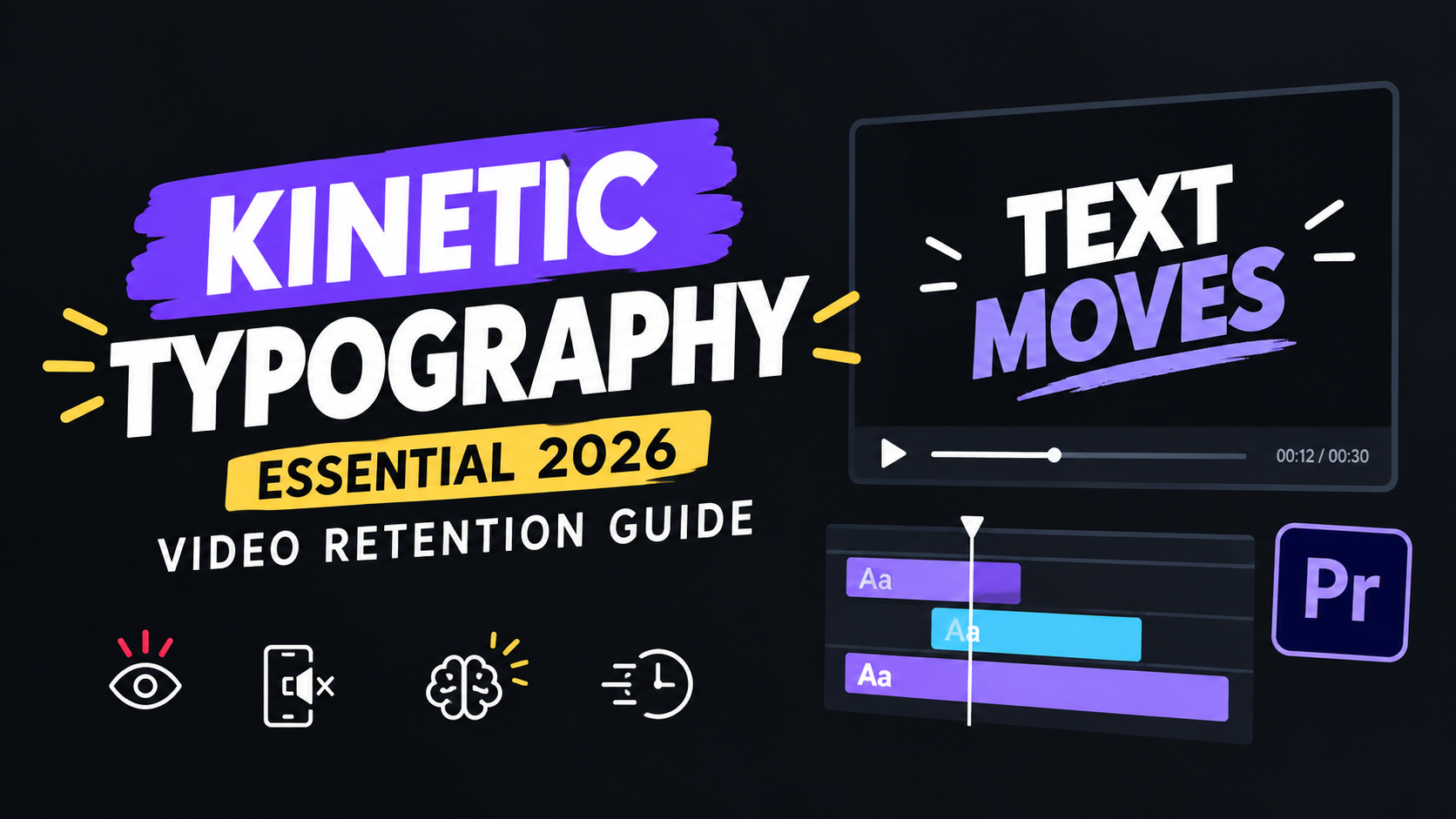
Static captions are dead space on TikTok and Instagram Reels. If your text isn't moving, viewers scroll right past your timeline edits. Marketing data shows video featuring kinetic typography achieves a 42% higher completion rate, yet most editors working in Adobe Premiere Pro still waste 3 hours per project manually keyframing word-by-word pop-ins.
I've cut hundreds of short-form podcast clips over the last few years. Static lower-thirds simply don't cut it anymore. Here is why motion text controls viewer retention in 2026 and how you can automate kinetic typography across your Premiere Pro timeline in under 90 seconds.
Key Takeaways
Visual Tracking: Kinetic typography acts as a biological pattern interrupt that triggers natural human motion tracking reflexes.
Higher Retention: Videos featuring animated text achieve a 42% greater completion rate than those with static caption overlays.
Sound-Off Browsing: Over 80% of social media feeds are navigated with audio muted, making
Cognitive Ease: Pacing text animation with natural speech cadence reduces cognitive load and keeps viewers locked in.
Automation Velocity: Manual text keyframing takes 3 to 4 hours per vertical clip, while native Adobe Premiere Pro extensions automate the process in under 90 seconds.
Avoid Over-Animation: Bouncing every single syllable creates visual clutter that increases drop-off after the first 3 seconds.
Why Kinetic Typography Keeps Viewers Engaged on Short-Form Video: The Science of Motion
When you scroll through Instagram Reels or TikTok, your eye doesn't focus on static graphics. Human vision is hardwired to track movement before our brain even processes linguistic meaning [1].
When static text sits on top of a talking-head video, the brain treats it like background noise. Kinetic typography reverses that
The math behind viewer attention on vertical video is brutal. Meta research shows that motion-based video ads capture 5X more initial attention than static image formats [2]. Vertical video now accounts for 58% of global watch time [3]. Relying on plain text overlays is an easy way to kill your client's retention metrics.
"Dynamic text isn't just about design aesthetics. It's about maintaining visual momentum when audio alone fails to stop the scroll."
Visual Motion Tracking and Biological Reflexes
Our peripheral vision acts as an early warning radar. When a word pops onto the screen, changes color, or scales upward in sync with audio, it triggers a peripheral tracking reflex [3]. The viewer's eyes automatically lock onto the center of the frame.
Eye-tracking studies on kinetic movement reveal that s gaze wander off-screen toward the comment section, kinetic text anchors focus right where you want it.
Reducing Cognitive Load Through Text Pacing
Static subtitles force a viewer's brain to read an entire sentence ahead of the speaker's actual audio delivery. That creates cognitive friction because the visual timing clashes with the spoken cadence.
Motion graphics agency insights show that breaking dense statements into bite-sized visual steps reduces mental effort [2]. Words appear precisely as they are spoken. Viewers absorb information effortlessly without choosing between reading ahead or listening to the host.
Converting Sound-Off Viewers into Engaged Viewers
Let's face reality. A massive portion of social media users browse feeds with sound completely turned off. Adding standard static subtitles ensures they can read what is happening, but it doesn't give them an emotional reason to stay.
Kinetic typography translates vocal energy, tone, and pacing into visual movement [3]. A punchline bounces onto the screen. A crucial statistic snaps into scale. An intense point vibrates.
By turning speech cadence into motion, you give sound-off viewers the exact same emotional beats as those listening through headphones.
Actionable Takeaway: Stop using sentence-long static subtitles on vertical clips. Break your audio transcript into 1 to 3 word phrases that animate in direct sync with the speaker's vocal transients to hold sound-off attention.
Biological Pattern Interrupts: How Animated Text Beats Sound-Off Scrolling
The first three seconds of any short-form clip determine whether your edit reaches thousands of viewers or gets buried by algorithms. A user's thumb moves across a feed in milliseconds.
To stop that thumb, your edit needs a visual pattern interrupt. You need a sudden change in visual rhythm that forces the brain to pause.
The First 3 Seconds: Curbing Immediate Scroll Behavior
Static text overlays look identical to standard social UI or boring stock templates. When a viewer sees a static subtitle block at the bottom of the screen, their visual brain recognizes the pattern and categorizes it as predictable. They swipe away before the speaker finishes their first sentence.
Animated text disrupts that habit immediately. A bold title snaps onto the screen, expands slightly, and shifts color on the very first syllable. It halts brainless feed scrolling.
Captions and video focus analysis show that adding dynamic captions increases average view time on platforms like Facebook by 12% [4]. Targeted campaigns see watch time boosts up to 25%.
Building Tactility with Kinetic Subtitles
Subtitles on
When words flash across the screen in rhythm with the speaker's voice, viewers feel like they are actively riding the pacing of the edit. It creates a hypnotic rhythm similar to rhythm-based video games.
The constant visual feedback delivers micro-dopamine rewards every few milliseconds. A 60-second interview clip feels like it lasted only 15 seconds.
Visual Hooks vs Static Subtitle Overlays
Compare two different editing approaches for the exact same podcast audio clip:
Option A: A standard static subtitle bar at the bottom of the frame displaying 10 words at a time in plain white Arial font.
Option B: Centered, bold kinetic typography where key words pop in word-by-word, with crucial emphasis points shifting to bright brand colors while scaling up 15%.
Option A acts as an accessibility overlay for people who need reading assistance. Option B acts as an active retention engine.
Digital marketing data points show that captioned YouTube videos experience a 7.32% overall view increase over non-captioned counterparts [5]. That growth is driven by the engagement value of dynamic text.
Pro Tip: Place your main kinetic typography track in the middle third of the vertical 9:16 frame. Mid-screen captions perform significantly better than bottom-screen text on short-form feeds because they land directly in the viewer's primary line of sight.
Actionable Takeaway: Design a high-contrast visual hook in the first 1.5 seconds of your short-form video by animating a 3-word headline at 120% scale before settling into your standard caption rhythm.
Why Kinetic Typography Keeps Viewers Engaged on Short-Form Video More Than Static Subtitles

The gap in performance metrics between static subtitles and kinetic typography is massive. If you are pitch-presenting clip packages to agency clients or podcast network producers, retention is the primary metric they care about. High completion rates directly signal social algorithms to push clips onto primary discovery feeds.
Static Subtitles vs Dynamic Word-by-Word Pop-Ins
Static subtitles present text in bulk blocks. This approach forces the viewer to process linguistic syntax while simultaneously trying to watch the video background.
Feature / Metric | Static Subtitles | Kinetic Typography (Word-by-Word) |
|---|---|---|
Primary Function | Accessibility & Translation | Audience Retention & Visual Hook |
Viewer Completion Rate Lift | Baseline [4] | Up to +42% Lift [1] |
Ad Recall & Attention Capture | 1X Baseline [2] | 5X Higher Initial Attention [2] |
Screen Real Estate Usage | Bottom 10-15% | Middle 20-30% Visual Focus |
Sound-Off Comprehension | Passive Reading | Active Rhythmic Tracking |
Production Time (Manual) | 30 minutes / clip | 3 to 4 hours / clip |
Production Time (KreateFlo) | 90 seconds / clip | 90 seconds / clip |
Memory Retention and Information Recall Metrics
Approximately 65% of the general population are visual learners who absorb information far better when text animates in direct tandem with audio [7]. Visual learning statistics confirm that pairing spoken narrative with synchronized kinetic movement drastically improves long-term message recall compared to static presentations [7].
Suppose a host drops an important statistic, like "$100,000 in monthly recurring revenue." Having that number snap, change to highlight gold, and settle onto the screen creates a double-encoding effect in the viewer's brain. They hear the number and visually process its movement simultaneously.
The 42% Completion Rate Advantage
Short-form videos under 60 seconds produce 2.5x higher engagement per impression than longer formats [6]. But getting a viewer to watch past the 50% mark requires constant visual progression.
Retention benchmarks confirm that clips using animated typography achieve up to a 42% higher completion rate compared to videos relying on traditional static overlays [1, 9]. On platforms like TikTok and Instagram Reels, pushing completion rates past 60% is the single threshold required to trigger viral distribution.
"If an editor spends four hours keyframing captions on a single 60-second clip, that isn't attention to detail—that is a broken post-production workflow."
Actionable Takeaway: Transition your client templates from full-sentence subtitle captions to single-word or two-word kinetic pop-ins to push average completion rates past the 50% threshold.
Matching Easing Curves and Cadence to Audio in Adobe Premiere Pro
Creating
I see many video editors drop default linear keyframes inside Premiere Pro. Linear keyframes look robotic and cheap. Professional kinetic typography relies on smooth velocity easing curves that mimic physical motion. Check out our Premiere Pro keyframe easing guide to master velocity graphs.
Aligning Animation Timing with Word Cadence
When editing in Adobe Premiere Pro, open your audio waveforms wide. You want your text pop-ins to hit exactly at the start of each vocal transient.
If a speaker talks with fast, energetic cadence, your text needs quick 2-frame scale pops. If the speaker slows down for an emotional story, your typography should glide in with subtle position slides.
Matching motion rhythm directly to vocal emphasis builds an organic visual connection that keeps viewers glued to the screen [10].
Selecting Motion Easing to Fit Brand Tone
Not all kinetic typography should look like a chaotic gaming clip. Motion design easing curves communicate brand identity [2]:
Snappy Elastic Pops: Ideal for comedy podcasts, high-energy YouTube Shorts, and reaction clips. Text scales quickly up to 115% before snapping back to 100%.
Smooth Linear Glides: Ideal for tech interviews, finance channels, and B2B SaaS reels. Words slide smoothly upwards 20 pixels with ease-out timing curves.
Impact Highlight Stabs: Ideal for sports content and motivational clips. Words slam onto the screen with a subtle motion blur effect.
Keyframing Transitions Without Visual Clutter
Keyframing every single word manually in Premiere Pro requires creating essential graphics tracks, applying transform effects, adjusting velocity handles in the Effect Controls panel, and copy-pasting keyframes across dozens of cuts. Doing this manually takes 3 to 4 hours for a single 60-second vertical clip.
When keyframing manually, avoid over-complicating transitions. Stick to two motion variables at most per word, such as scale and opacity, or position and scale. Combining rotation, scale, position, color shifts, and tracking blurs on every word creates severe motion chaos.
Pro Tip: In Premiere Pro's Effect Controls panel, right-click your motion keyframes and select Temporal Interpolation > Ease In. Drag the velocity handles to create a steep acceleration curve so the text snaps quickly into frame and gently settles into position.
Actionable Takeaway: Establish two distinct kinetic caption styles in your editing workflow—one high-energy pop-in for fast-paced interview clips and one subtle ease-out slide for educational or corporate content.
Common Motion Typography Mistakes That Kill Retention
Kinetic typography is a powerful tool, but overusing it destroys viewer experience faster than static text. When text animation gets too chaotic, viewers suffer visual fatigue and swipe away immediately.
Understanding where text animation fails is just as critical as knowing how to use it. Here are the three most common short-form video editing mistakes editors make when applying kinetic text.
Over-Animating Every Single Syllable
The biggest mistake junior editors make is applying bounce, spin, and color-rainbow effects to every single spoken word. When every word screams for attention, no word stands out.
The science of video captions shows that text overload causes cognitive exhaustion [8]. Use motion for rhythm, but save dramatic scale pops, neon color shifts, and underline animations for key statistics, punchlines, or emotional thesis statements.
Poor Font Contrast and Layout Fatigue
If your text bleeds into the background video footage, viewers have to squint to read it. That instantly increases cognitive load and causes viewer drop-off.
Always select bold, readable sans-serif typefaces like Montserrat, Impact, Inter, or Arial Black [8]. Apply a subtle drop shadow (30% opacity, 10px blur) or a solid background box behind your kinetic text to ensure high contrast against any video background.
Ignoring Safe Zones on TikTok and Reels
Nothing looks unprofessional like text covered by social media UI elements. TikTok, Instagram Reels, and YouTube Shorts all place interface overlays on top of your video:
Right Side: Like, comment, share, and profile icons.
Bottom: Captions, audio track title, and search bar.
Top: Following/For You tabs and status bars.
Keep your kinetic typography strictly within the central safe zone—roughly 20% in from the left and right edges, and within the vertical center 60% of the 9:16 frame [8].
Actionable Takeaway: Test your export settings by rendering a test frame and overlaying a standard 9:16 social media safe zone template to verify that zero kinetic text collides with platform UI buttons.
Automating Animated Captions with Real-Time WASM Preview in 2026
If you edit video for a living, you know the biggest problem with kinetic typography in Premiere Pro. Standard Motion Graphics Templates (MOGRTs) are terribly slow.
Loading 50 MOGRT instances on a timeline bogs down Premiere Pro playback. It requires endless timeline rendering and turns a quick short-form edit into a laggy nightmare.
This is where native panel technology changes the workflow completely. Instead of relying on heavy MOGRT files or round-tripping to standalone web apps, modern plugins handle kinetic typography natively right inside your NLE.
Ditching Slow Native MOGRT Renders
Standard Premiere Pro MOGRT files force After Effects rendering engines to process every frame in the background. That creates choppy playback and forces you to pre-render your timeline just to check word timing.
KreateFlo solves this bottleneck by operating as a native CEP plugin inside Adobe Premiere Pro (currently on v1.0.3). Through our CaptionFlow tool, we leverage WebAssembly (WASM) technology to deliver zero-latency real-time previews of animated caption presets directly on your timeline. You adjust text styles, sizing, and motion curves, and instantly see the playback without waiting for render bars.
CaptionFlow Preset Library in KreateFlo
Instead of building motion keyframes from scratch, KreateFlo gives you 22 professional animated caption presets right out of the box. Whether you need the viral word-by-word highlight pop, a sleek B2B slide, or clean line-by-line subtitle reveals, you select the preset and hit generate.
The plugin automatically transcribes your spoken audio across 40+ languages—including hard-to-find options like Bangla and Hindi—aligns the word timestamps to speech transients, and generates native text tracks on your timeline in under 90 seconds.
Eliminating Per-Hour Billing Traps
Main competitors like FireCut charge creators through expensive per-hour transcription billing models that rack up costs as your editing volume scales. Standalone tools like Descript or Opus Clip force you out of Premiere Pro entirely, requiring you to export XMLs or video files back and forth between browser tools and your NLE.
KreateFlo bundles 33+ tools into a single Premiere Pro panel. Our pricing structure is built for high-volume editors:
Free Tier: 3 tools forever (Silence Remover, Transition Assistant, and Copy & Paste) with no credit card required.
Pro Plan: $19.99/mo including 20 AI hours and access to all professional editing tools.
Studio Plan: $44.99/mo including 50 AI hours for agency workflows.
Honest caveat: KreateFlo is strictly an Adobe Premiere Pro extension. If you edit in Final Cut Pro, DaVinci Resolve, or prefer browser-based drag-and-drop web clippers where non-editors cut videos without opening an NLE, KreateFlo is NOT the right tool for you. We built this specifically for professional editors who live inside Premiere Pro every day.
Pro Tip: When using CaptionFlow, select the "Word Highlight" preset and set the max words per line to 2. This creates the exact high-retention cadence used by top podcast production agencies.
Actionable Takeaway: Stop using laggy MOGRT files that freeze your Premiere Pro playback. Install a native panel extension that uses WASM real-time previews to tweak kinetic text without rendering delays.
Combining Motion Captions and Multi-Cam Workflows for Maximum Output
Combining kinetic typography with automated rough cuts is how top content agencies turn long-form interviews into viral short clips at scale. If you are still manually cutting silences, keyframing subtitles, and reframing landscape video by hand, you are burning billable hours that could be spent taking on new monthly retainers. Check our full short-form podcast repurposing workflow for a complete breakdown.
Building a Scalable Short-Form Repurposing Workflow
A modern short-form editing pipeline should look like this:
Silence Removal: Drop your long-form interview onto the timeline and run KreateFlo's Silence Remover to cut out dead air, pauses, and filler words in seconds.
Multi-Cam Cutting: If you shot with multiple cameras, use our Multi-Cam Editor to automatically switch between up to 8 speakers and 8 cameras with dedicated wide-shot logic.
Kinetic Captions: Launch CaptionFlow to generate real-time WASM-previewed kinetic typography across your selected clip highlights.
Auto-Reframe: Reframe landscape footage into 9:16 vertical video instantly without manual keyframing.
Turning Long-Form Interviews into Viral Shorts
What used to take 4 hours per vertical clip—manual silence trimming, cut switching, multi-cam sync, caption keyframing, and reframing—now takes under 90 seconds.
By streamlining repetitive editing tasks inside Premiere Pro, you can convert a 60-minute podcast episode into 10 high-retention vertical clips in under 30 minutes total editing time.
Combining Silence Removal and Motion Captions
When you pair fast-paced silence removal with synchronized kinetic text, you eliminate every possible drop-off point in your clip. Pauses and hesitation marks are removed audio-wise, while kinetic text keeps the visual feed constantly dynamic.
This dual-layer approach keeps completion rates comfortably above the 50% threshold needed to win with social algorithms [9].
Actionable Takeaway: Automate your repetitive editing tasks inside Adobe Premiere Pro by pairing AI silence removal with real-time kinetic caption presets to cut turnaround times from 4 hours down to 90 seconds per clip.
Frequently Asked Questions
How does kinetic typography improve viewer retention in short-form video?
Kinetic typography triggers biological visual tracking reflexes by introducing continuous motion that interrupts mindless feed scrolling [1]. It syncs spoken audio visually with word delivery, reducing cognitive effort and boosting completion rates by up to 42% [1].
Why are animated captions more engaging than traditional static subtitles?
Static subtitles force viewers to read blocks of text ahead of the audio, breaking the emotional pacing of spoken words [8]. Animated captions reveal words in real time alongside the speaker's cadence, keeping visual energy high and keeping sound-off viewers locked in [3].
Does KreateFlo work natively inside Adobe Premiere Pro?
Yes. KreateFlo is a native CEP plugin extension for Adobe Premiere Pro (version v1.0.3). All motion captions, silence cuts, multi-cam edits, and audio transcriptions generate directly on your timeline without exporting files to external web tools.
What is the best tool for creating kinetic typography in Premiere Pro without slow render times?
KreateFlo's CaptionFlow tool uses WebAssembly (WASM) technology to provide zero-latency real-time previews of 22 animated caption presets, eliminating the render-and-wait playback loops caused by heavy native MOGRT files.
How long does it take to add kinetic typography to a 60-second Reel using AI tools?
While manual keyframing inside Premiere Pro takes between 2 to 4 hours per video, automated tools like KreateFlo transcribe, align, and apply animated caption presets across a full timeline in under 90 seconds.
Take Control of Your Timeline Retention
Kinetic typography isn't decorative flair. It is your clip's primary engine for holding viewer attention on sound-off social feeds. If you are still wasting hours keyframing text pop-ins manually inside Premiere Pro, you are burning client billable hours and risking low retention.
Stop wrestling with laggy MOGRTs and per-hour billing traps. Test KreateFlo's free tier today (3 tools forever, no credit card required) or grab a Pro plan for $19.99/mo to auto-generate high-converting kinetic captions on your timelines in seconds.
Download KreateFlo for Adobe Premiere Pro
References
3playmedia.com/blog/studies-find-captions-improve-engagement/
digitalapplied.com/blog/video-marketing-statistics-2026-data-points
contentcreatures.com/benefits-and-uses-of-kinetic-typography-for-communications/
contentfries.com/blog/the-science-of-video-captions-how-they-impact-audience-retention
longstories.ai/blog/retention-benchmarks-animated-youtube-videos
rdp.co.uk/bringing-words-to-life-the-power-of-kinetic-typography/
educationalvoice.co.uk/animation-retention-rates-statistics/
Try KreateFlo free
3 tools forever, 7-day trial on the rest. No credit card to start.
Download KreateFlo