KreateFlo vs CapCut Desktop: 7 Proven Reasons Pros Switch
Why Pro Editors Choose KreateFlo Over CapCut Desktop: Guide CapCut Desktop looks great until you hit export on a 2-hour multi-cam interview and realize you just lost your color pass and full magnetic
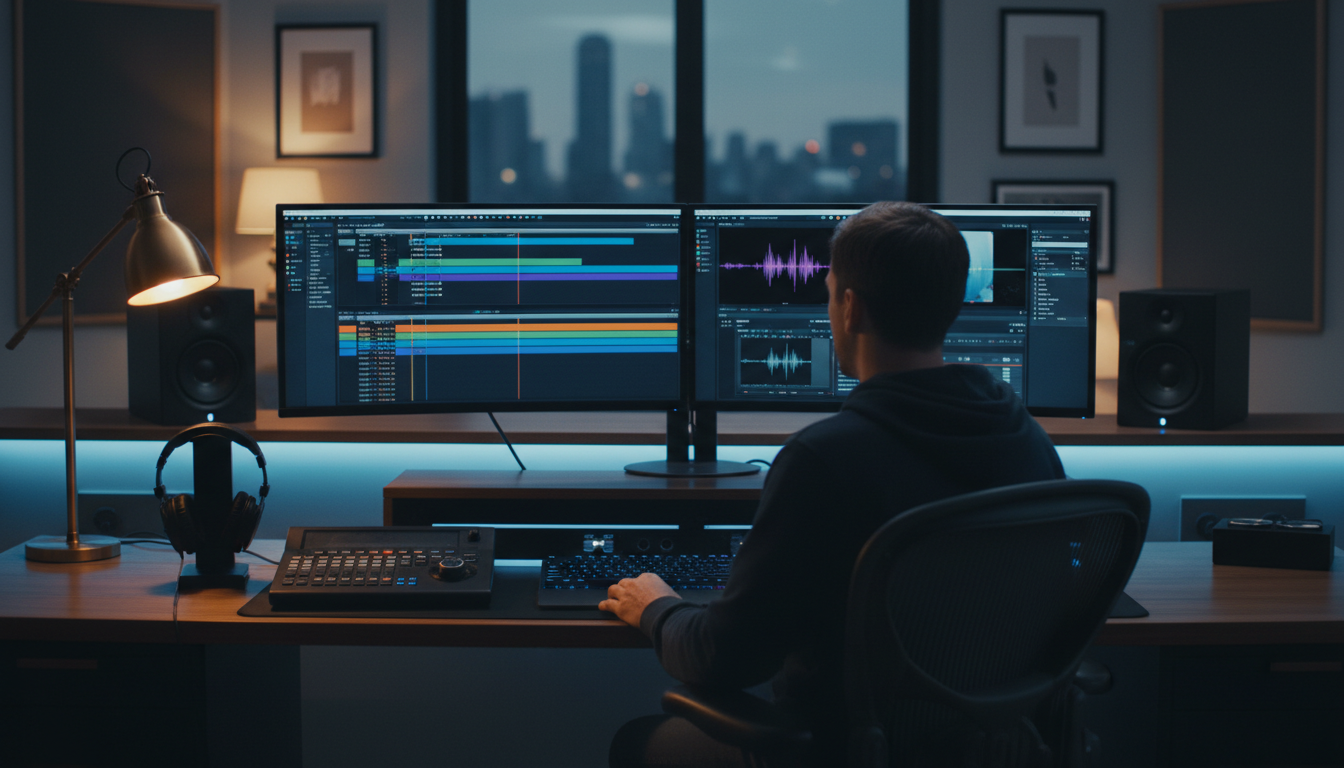
CapCut Desktop looks great until you hit export on a 2-hour multi-cam interview and realize you just lost your color pass and full magnetic timeline control. I used to round-trip clips between CapCut and Adobe Premiere Pro to snag quick captions. Sure, I saved 10 minutes on auto-subtitles. But I burned 3 hours re-syncing audio and fixing broken XML tracks.
If you edit podcasts, brand interviews, or client video daily, that round-trip workflow is a silent time sink. CapCut PC is built for fast short-form social clips. Running high-volume client deliverables through a consumer tool breaks down fast. Professional video editors are shifting back to native Premiere Pro CEP plugins like KreateFlo (currently on v1.0.3) to keep everything on one non-destructive timeline.
Key Takeaways
- Native Integration Wins: KreateFlo runs directly inside Adobe Premiere Pro as a CEP extension, eliminating round-trip file exports and clip re-syncing.
- Non-Destructive Workflows: Edits made in KreateFlo stay on your professional Premiere timeline with raw cut points, Lumetri color passes, and audio stems intact.
- Advanced Multi-Cam Automation: KreateFlo's Multi-Cam Editor handles up to 8 speakers and 8 camera angles automatically with wide-shot designation—a feature missing in CapCut PC.
- No Paywall Surprises: Transparent $19.99/mo pricing for Pro (20 AI hours) prevents sudden export-time paywalls and unpredictable billing shifts.
- Brand Kit Consistency: Native caption styling via CaptionFlow and WebAssembly (WASM) real-time previews keep client visual assets uniform across hundreds of shorts.
Why Pro Editors Choose KreateFlo Over CapCut Desktop for Non-Destructive Editing
When you edit long-form video for paying clients, non-destructive editing isn't a luxury feature. It's your insurance policy. CapCut PC operates as a standalone consumer editor [1]. That setup forces you to export flattened intermediate MP4 or ProRes files before bringing them back into your main NLE timeline [2].
Here is the problem. When you collapse multi-track sequences into flat media, you lose your raw clip handles. You lose your underlying audio layers. And worst of all? You destroy your color pipeline.
CapCut Desktop Workflow (Destructive):
[Raw Footage in Premiere] -> Export MP4 -> Import to CapCut -> Edit & Auto-Caption -> Export MP4 -> Re-import to Premiere (Flat Video / Lost Stems)

KreateFlo Workflow (Non-Destructive):
[Raw Footage in Premiere] -> Open KreateFlo CEP Panel -> Run AI Tools -> Non-Destructive Cuts & Captions Applied Directly on Timeline
Keeping Raw Clips and Color Grades Intact
In Premiere Pro, every Lumetri color grade, adjustment layer, and camera LUT stays linked to your original source camera files. Pushing raw log footage through CapCut PC bakes in basic color adjustments [3]. So, what happens when your client asks for a subtle exposure tweak on speaker two after you've captioned the entire 45-minute show? You have to redo the edit from scratch [4].
KreateFlo operates directly inside Premiere Pro as a CEP extension. It places standard cut points and subtitle layers onto your active sequence. Need to nudge a cut by three frames? Want to tweak a camera grade? Your raw clips and Lumetri color passes remain completely untouched.
Multi-Track Timeline Handling Without Performance Lag
CapCut Desktop handles three or four video tracks well enough for simple social media edits [5]. But stack eight camera angles, three lavalier mics, graphics tracks, and lower thirds, and the software begins to stutter [5].
Professional NLE software like Premiere Pro is built to handle deep multi-track arrangements and heavy pro codecs [1]. Why Pro Editors Choose KreateFlo Over CapCut Desktop comes down to timeline reliability. KreateFlo executes its processing in the background while Premiere Pro manages the heavy playback decoding.
Direct Premiere Pro CEP Extension vs Standalone Consumer Tool
CapCut requires a complete context switch. You leave Premiere Pro, launch CapCut Desktop, drag files into its media bin, wait for imports, execute your edits, and render out intermediate files [2].
KreateFlo lives inside Premiere Pro as a dockable panel. You select your timeline clips, open the plugin, run your task, and watch the cuts populate on your sequence [3]. No file round-trips. No duplicate files clogging your local storage drives.
Pro Tip: Stop exporting interim MP4 files just to generate social captions. Keep your edits on native timeline tracks so client revisions take 30 seconds instead of half a day.
Actionable Takeaway: Keep your main edit timeline intact inside Premiere Pro by using CEP plugins that place native razor cuts instead of flattening video tracks through external consumer apps.
The Hidden Trap of CapCut Desktop Paywall Creep and Export Limits
CapCut Desktop built its massive user base by offering powerful tools completely free [2]. But over the past year, ByteDance has steadily shifted essential capabilities behind its CapCut Pro subscription [2].
+------------------------------------+------------------------------------+------------------------------------+
| Feature                            | CapCut Desktop                     | KreateFlo (v1.0.3)                 |
+------------------------------------+------------------------------------+------------------------------------+
| Architecture                       | Standalone App (Win/Mac/Web)       | Adobe Premiere Pro CEP Extension   |
| Multi-Cam Support                  | None (Manual Layering Only)        | Up to 8 Cameras / 8 Speakers       |
| Caption Real-Time Preview          | Requires Render Loop               | WASM Real-Time (Zero Latency)      |
| Language Support                   | Limited Core Languages             | 40+ Languages (Hindi, Bangla, etc.)|
| Free Tier                          | Freemium (Gated Features)          | 3 Tools Free Forever               |
| Pro Pricing                        | $7.99 - $19.99/mo (Unpredictable)   | $19.99/mo (20 AI Hours)            |
+------------------------------------+------------------------------------+------------------------------------+
The Freemium Shift: Features Gated at Export
Few things irritate a working video editor more than finishing a time-sensitive clip, hitting export, and seeing a popup demanding a paid upgrade [2]. CapCut has progressively moved auto-captions, key AI visual effects, and high-quality export options into its paid tier [2].
You might build a quick promo clip for a client, only to discover that the specific text animation or vocal cleanup tool you applied locks your export behind a $179.99 annual subscription paywall [2].
Predictable Subscription Costs vs Sudden Price Hikes
CapCut Pro desktop pricing fluctuates across platforms and regions, ranging from $7.99/mo up to $19.99/mo or $179.99 per year [2][5]. In contrast, KreateFlo maintains clear, predictable pricing built specifically for agency and podcast budgets:
- Free Tier: 3 tools free forever (Silence Remover, Transition Assistant, Copy & Paste).
- Pro Tier: $19.99 per month for 20 AI processing hours.
- Studio Tier: $44.99 per month for 50 AI processing hours.
When compared against FireCut's per-hour billing model or CapCut's shifting tier gates, KreateFlo gives freelance editors predictable monthly operating costs.
Licensing Risks for Commercial and Client Projects
When you edit commercial work for corporate clients, licensing terms matter [2]. CapCut is owned by ByteDance, and its built-in music and sticker libraries carry complex commercial usage limits [2][6].
Using trending audio clips from CapCut's desktop library on a paid corporate campaign can trigger copyright strikes or client takedown notices [2]. With KreateFlo, you process native media using your own licensed asset libraries directly inside Premiere Pro [1].
Actionable Takeaway: Audit the licensing terms and export limitations of your editing tools before using them on commercial client projects to avoid unexpected paywalls and copyright issues.
AI Multi-Cam and Transcripts: Why Pro Editors Choose KreateFlo Over CapCut Desktop
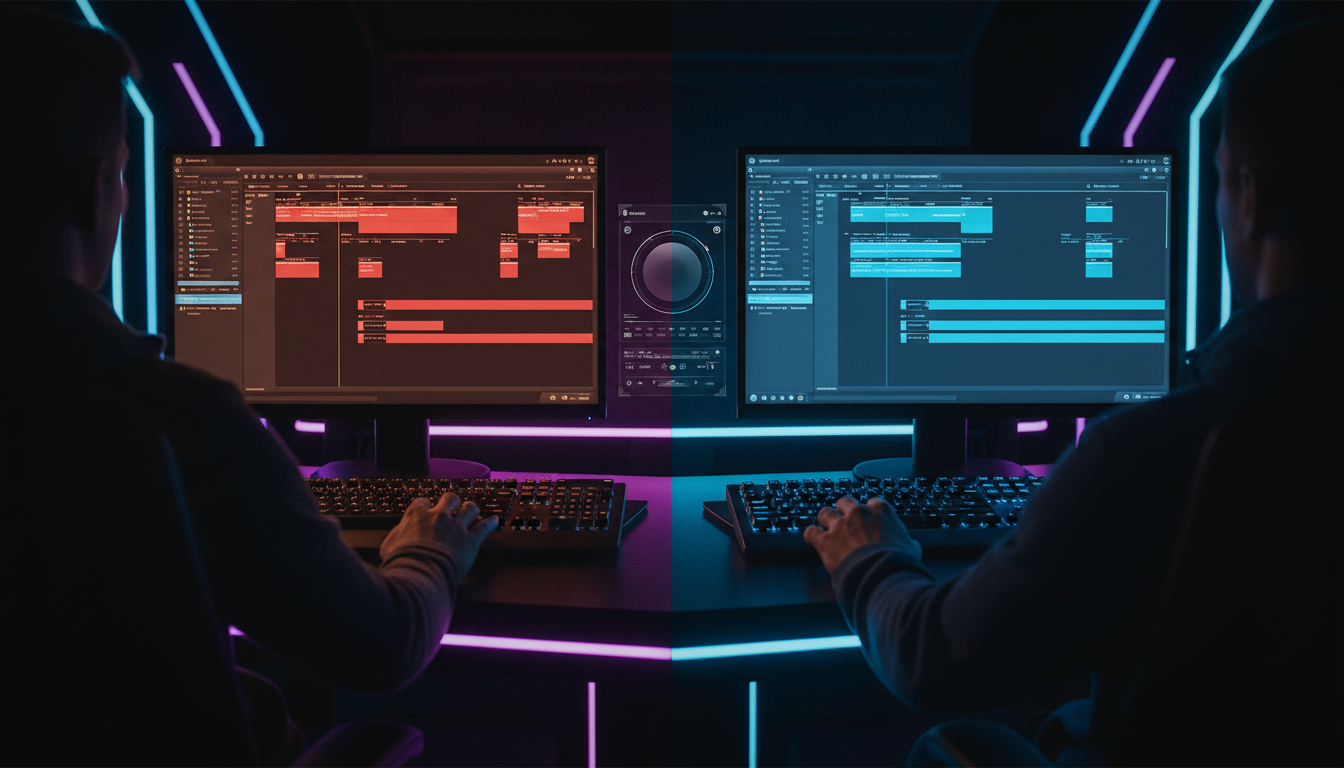
Editing multi-camera podcast interviews manually is brutal work. Syncing tracks, cutting between host and guest angles, and hiding quick audio edits can take four hours for a single episode.
Manual Multi-Cam Editing: 4 Hours
[Sync Audio] -> [Manual Cuts Every 5 Secs] -> [Fix Overlaps] -> [Color Pass]

KreateFlo Multi-Cam Automation: 90 Seconds
[Select Sequence] -> [Designate Wide Shot] -> [Run Multi-Cam Tool] -> [Done]
Cutting 8-Camera Podcast Setups in 90 Seconds
CapCut PC completely lacks a dedicated multi-camera switching engine [2]. If you import footage from a three-camera setup into CapCut PC, you have to stack the video layers manually and razor blade back and forth across every speaking turn [5].
KreateFlo's Multi-Cam Editor automates multi-camera switching for up to 8 speakers and 8 camera angles. It intelligently detects who is speaking based on isolated audio tracks and switches to the active camera angle automatically. You can designate dedicated wide shots for group laughter or multi-person cross-talk, trimming a 4-hour manual editing task down to 90 seconds.
Speech Recognition for 40+ Languages Including Hindi and Bangla
CapCut's auto-caption tool reaches roughly 92% to 95% transcription accuracy on clear English speech [5]. However, its accuracy drops sharply when handling technical jargon, fast dialogue, or non-Western languages [2][5].
KreateFlo includes voice transcription supporting over 40 languages, including Hindi and Bangla. Whether you're editing local interviews or international podcasts, transcription accuracy stays high without forcing you to re-type whole sentences manually [5].
Automated Repeat and Filler-Word Stripping
CapCut Desktop lets you trim audio visually. But it won't automatically scan your dialogue to locate stuttered words, repeated phrases, or filler sounds like "um" and "uh" [2].
KreateFlo's AI repeat and filler-word removal tools scan your dialogue track, highlight redundant takes, and remove them from your sequence while maintaining natural audio cadence.
[Raw Audio Track]
"So, um, what we wanted to, uh, show you today..."
                    │
                    ▼  (KreateFlo AI Filler Removal)
[Cleaned Audio Track]
"So what we wanted to show you today..."
Pro Tip: When running automated multi-cam cuts on long podcasts, set your wide-shot threshold to trigger whenever two or more speakers talk over each other for more than 1.5 seconds. This keeps the camera switching natural.
Actionable Takeaway: Automate repetitive multi-camera switching and filler-word removal inside Premiere Pro to save up to 3.5 hours per podcast episode.
Brand Kits, Caption Flow, and WASM Real-Time Previews vs Basic Text Templates
Snappy animated captions drive engagement on vertical video platforms. But managing text styles across dozens of client brand guidelines can be tedious [1][7].
CaptionFlow with 22 Animated Presets
CapCut offers fun text animation templates for casual social posts [1][8]. But if a client requests clean, corporate-approved caption animations with specific font weights and stroke widths, CapCut's consumer templates fall short [2].
KreateFlo's CaptionFlow tool comes pre-loaded with 22 professional animated caption presets built specifically for short-form video editors. From bouncy word-by-word highlights to clean corporate subtitles, you can apply styled text animations instantly across your timeline [3].
Real-Time WASM Previews Without Render Loops
In CapCut PC, previewing caption text animations often requires rendering intermediate frames [5]. Change a font size or text color, and you face playback lag while the software recalculates the text effect [5].
KreateFlo uses WebAssembly (WASM) technology to deliver real-time caption previews right inside Adobe Premiere Pro [3]. You can tweak caption colors, positions, shadow offsets, and animations instantly without hitting a render-to-preview bottleneck.
CapCut Caption Adjustment:
[Change Font] -> [Wait for Render] -> [Play Preview] -> [Tweak Color] -> [Wait for Render]

KreateFlo WASM Preview:
[Change Font / Tweak Color] -> [Instant Real-Time Playback (Zero Latency)]
Maintaining Client Brand Kits Across Hundreds of Short-Form Shorts
CapCut Desktop lacks a dedicated brand kit feature to save custom fonts, exact hex colors, and logo placements for reuse across different project files [2]. Every time you launch a new project, you have to manually rebuild your caption formatting from memory [2].
With KreateFlo, you save your client brand settings once inside Premiere Pro. Whether you're cutting 5 shorts or 50, your caption styling, brand colors, and graphic overlays apply with a single click.
"The lack of saved brand kit presets in consumer editing apps causes endless formatting inconsistencies when scaling short-form production across multiple client accounts." — Video Production Workflow Report 2026 [2][4]
Actionable Takeaway: Use WASM-powered caption plugins inside Premiere Pro to preview subtitle animations in real time and enforce consistent brand styling across all client deliverables.
Native Premiere Pro Integration vs The Round-Trip Nightmare
Every time you export intermediate video files between software applications, you waste time and degrade quality [4][10]. Why Pro Editors Choose KreateFlo Over CapCut Desktop comes down to eliminating this round-trip friction entirely.
Eliminating MP4 Intermediate Renders
A typical round-trip workflow looks like this:
- Edit your main video in Premiere Pro.
- Export a 10GB ProRes or MP4 master clip.
- Import the master clip into CapCut PC.
- Generate captions and cut short clips.
- Export individual MP4 clips from CapCut.
- Re-import clips back to Premiere for final mastering.
That workflow wastes hours of processing time and eats up hundreds of gigabytes of disk space [4]. KreateFlo operates directly inside your working sequence. You process your cuts and auto-captions natively, skipping render steps completely.
Preserving Multi-Channel Audio and Stems
When you export a flattened video file to CapCut, your multi-channel audio stems get mixed down into a flat stereo track [2]. Need to separate background music, sound effects, and individual voice tracks later? You are out of luck [2][4].
KreateFlo works directly with your raw sequence audio tracks [3]. Your host mic, guest mic, sound effects, and music tracks remain completely isolated, giving you full mixing control inside Premiere's Audio Track Mixer [1].
Flattened Round-Trip Audio (CapCut):
[Host + Guest + Music + SFX] = Single Stereo Track (No Re-mixing Possible)

Native Stem Preservation (KreateFlo):
[Track 1: Host Mic] ──┐
[Track 2: Guest Mic]  ├── Fully Isolated for Mixing in Premiere Pro
[Track 3: Music]      │
[Track 4: SFX]        ──┘
Fast Batch Re-framing for TikTok, Reels, and Shorts
Converting a 16:9 landscape interview into vertical 9:16 video for TikTok, Instagram Reels, and YouTube Shorts used to require manual re-positioning [5].
KreateFlo automates auto-reframing natively inside Premiere Pro. It tracks speaker movement and keeps the subject centered in 9:16 vertical space. So, you can convert long-form interviews into viral shorts without leaving your main NLE timeline [4].
Pro Tip: If you frequently repurpose landscape podcasts into vertical shorts, use KreateFlo to auto-reframe your wide sequence first, then apply your CaptionFlow preset in a single automated pass.
Actionable Takeaway: Stop round-tripping media through external apps. Keep your multi-channel audio tracks and video clips inside Premiere Pro to speed up final exports and maintain mix flexibility.
Honest Caveats: When CapCut Desktop Is Actually Better Than KreateFlo
KreateFlo is built specifically for working editors using Premiere Pro. But let's be honest. KreateFlo is not the right tool for every editing scenario.
Quick Meme Edits and Trending TikTok Filters
If your primary goal is building quick 15-second meme videos with trending TikTok sound effects, funny voice filters, and pre-built video templates, CapCut PC is hard to beat [1][8]. ByteDance updates CapCut's template library constantly to reflect current social media trends [1][8].
Solo Creators Without Premiere Pro Subscriptions
KreateFlo is a CEP extension designed strictly for Adobe Premiere Pro. It is not a standalone video editor [3]. If you don't own an active Adobe Creative Cloud subscription and want a free editor for basic cuts, CapCut PC is a solid entry-level choice [2][5].
Simple One-Track Mobile Content Production
If you shoot quick talking-head videos directly on your phone and edit simple single-track videos on a laptop without complex multi-track audio or color grading, CapCut PC handles that simple workflow cleanly [2][5].
+------------------------------------+------------------------------------+
| Use CapCut Desktop If:             | Use KreateFlo If:                  |
+------------------------------------+------------------------------------+
| You don't use Premiere Pro          | You edit inside Premiere Pro daily |
| You make quick 15-sec TikTok memes | You edit long-form interviews      |
| You want trending mobile filters   | You cut multi-cam podcasts (2-8 cams)|
| You only need basic 1-track edits  | You manage client brand guidelines |
+------------------------------------+------------------------------------+
Actionable Takeaway: Choose CapCut PC for quick casual meme edits on single-track clips, but switch to KreateFlo when managing complex multi-camera client workflows inside Premiere Pro.
Why Pro Editors Choose KreateFlo Over CapCut Desktop for Pricing and Privacy
As video production scales, software pricing predictability and corporate compliance become critical factors for agencies and production houses [2][6].
Predictable Monthly Costs vs CapCut Pro Tier Changes
CapCut's shift toward paid gating has left many creators frustrated by sudden paywalls at export time [2]. CapCut Pro desktop costs vary across regions, ranging from $7.99 to $19.99 per month, or $179.99 annually [2][5].
KreateFlo offers clear, upfront pricing models:
- Free Tier: 3 core tools (Silence Remover, Transition Assistant, Copy & Paste) completely free forever [3].
- Pro Tier ($19.99/mo): Includes 20 AI processing hours per month [3].
- ***Pro Tip:Actionable Takeaway: Protect your agency workflows by choosing professional Premiere Pro tools with clear pricing structures, enterprise-compliant data privacy, and reliable technical support.
Take Control of Your Premiere Pro Timeline Today
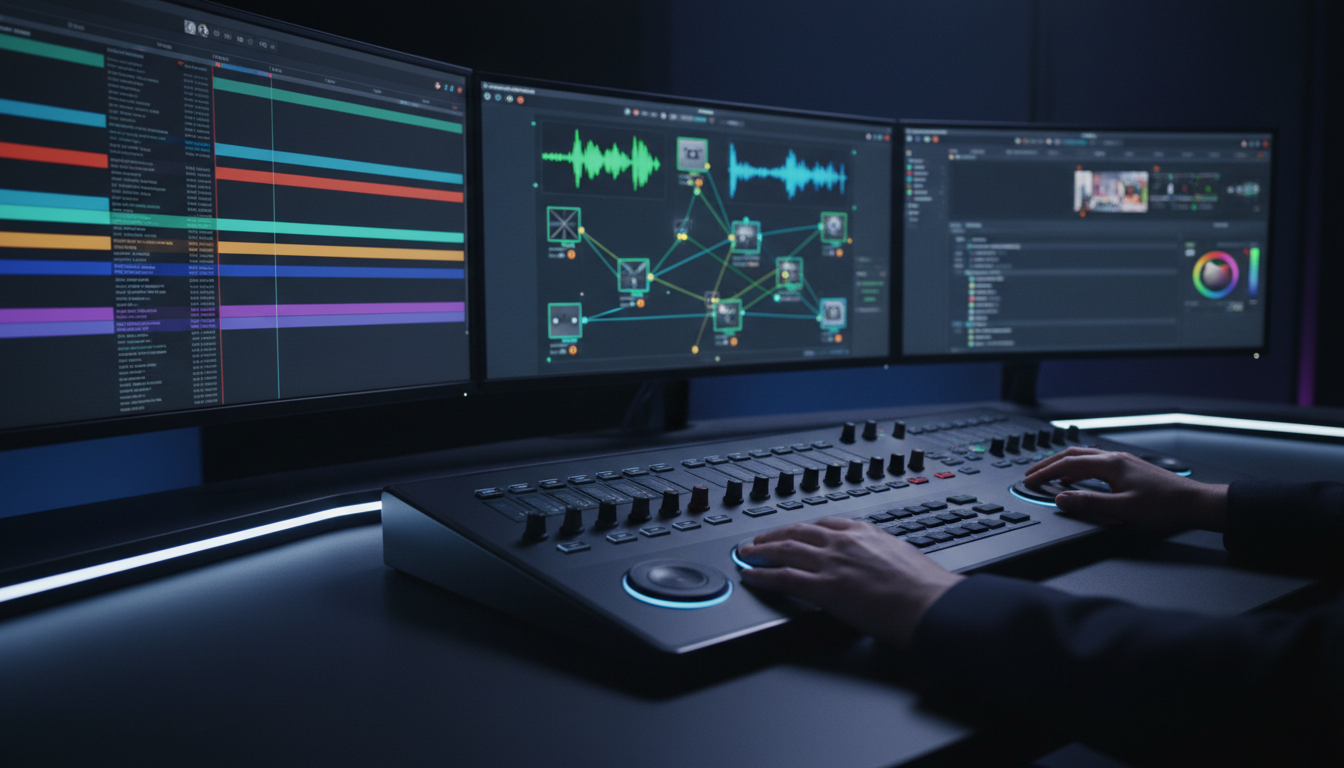
CapCut Desktop is a fine consumer editor for single-track social media clips and trending TikTok videos [1][8]. But if you edit long-form podcasts, multi-cam interviews, and client deliverables inside Adobe Premiere Pro, round-tripping files through an external consumer app wastes hours of editing time [2][4].
KreateFlo keeps your editing workflow inside Premiere Pro. With AI multi-cam cutting for up to 8 cameras, native 40+ language voice transcription, WASM real-time caption previews, and non-destructive timeline cuts, you can edit faster without giving up NLE control [3].
Ready to speed up your podcast editing workflow? Download KreateFlo for free today and test our free tools on your next sequence—no credit card required.
Frequently Asked Questions
Why do professional video editors choose Premiere Pro AI plugins over CapCut Desktop?
Pro editors choose NLE-integrated plugins like KreateFlo to keep their timelines non-destructive, preserve Lumetri color grades, retain multi-channel audio stems, and avoid time-consuming file round-trips between apps [2][4].
Does CapCut Desktop support multi-cam interview editing?
No. CapCut Desktop lacks native multi-camera switching engines [2]. You have to cut layers manually, whereas KreateFlo automates up to 8 cameras and 8 speakers inside Premiere Pro [3].
Can I use KreateFlo without an Adobe Premiere Pro subscription?
No. KreateFlo is a dedicated CEP extension built explicitly for Adobe Premiere Pro, not a standalone editing application [3].
How does KreateFlo handle animated captions compared to CapCut?
KreateFlo features CaptionFlow with 22 animated presets and real-time WebAssembly (WASM) previews directly in Premiere Pro, eliminating render loops and allowing full client brand kit customization [3].
Is KreateFlo free to try for podcast editing?
Yes. KreateFlo includes 3 free tools forever (Silence Remover, Transition Assistant, and Copy & Paste) with no credit card required to install [3].
- tech-insider.org/au/best-video-editing-software/
- bigvu.tv/blog/capcut-desktop-review-2026-features-pricing-smart-alternatives/
- enchanted.media/the-5-best-capcut-alternatives-in-2026/
- ngram.com/blog/capcut-vs-flexclip
- atomisystems.com/screencasting/capcut-pc-review-2026-is-free-video-editing-really-worth-your-time/
- flowith.io/blog/why-small-businesses-choosing-capcut-over-final-cut-pro-marketing/
- finance.yahoo.com/technology/ai/articles/best-ai-design-tools-2026-100000469.html
- marketscale.com/industries/marketing-tech/capcut-earns-back-to-back-software-experts-recognitions-for-ai-powered-content-and-design-production
- nemovideo.com/blog/capcut-review-2026
- sqmagazine.co.uk/browser-based-video-editing-trend/
- metricool.com/ai-video-editor-trends/
- pixflow.net/blog/capcut-vs-premiere-pro/
- capcut.com/help/latest-capcut-editing-trends
Try KreateFlo free
3 tools forever, 7-day trial on the rest. No credit card to start.
Download KreateFlo