CaptionFlow System Requirements: Ultimate Mac & PC Guide
You do not need a $5,000 dual-GPU rig just to generate burn-in captions without crashing Adobe Premiere Pro. Most editors waste hours waiting on static text renders simply because their scratch disk i
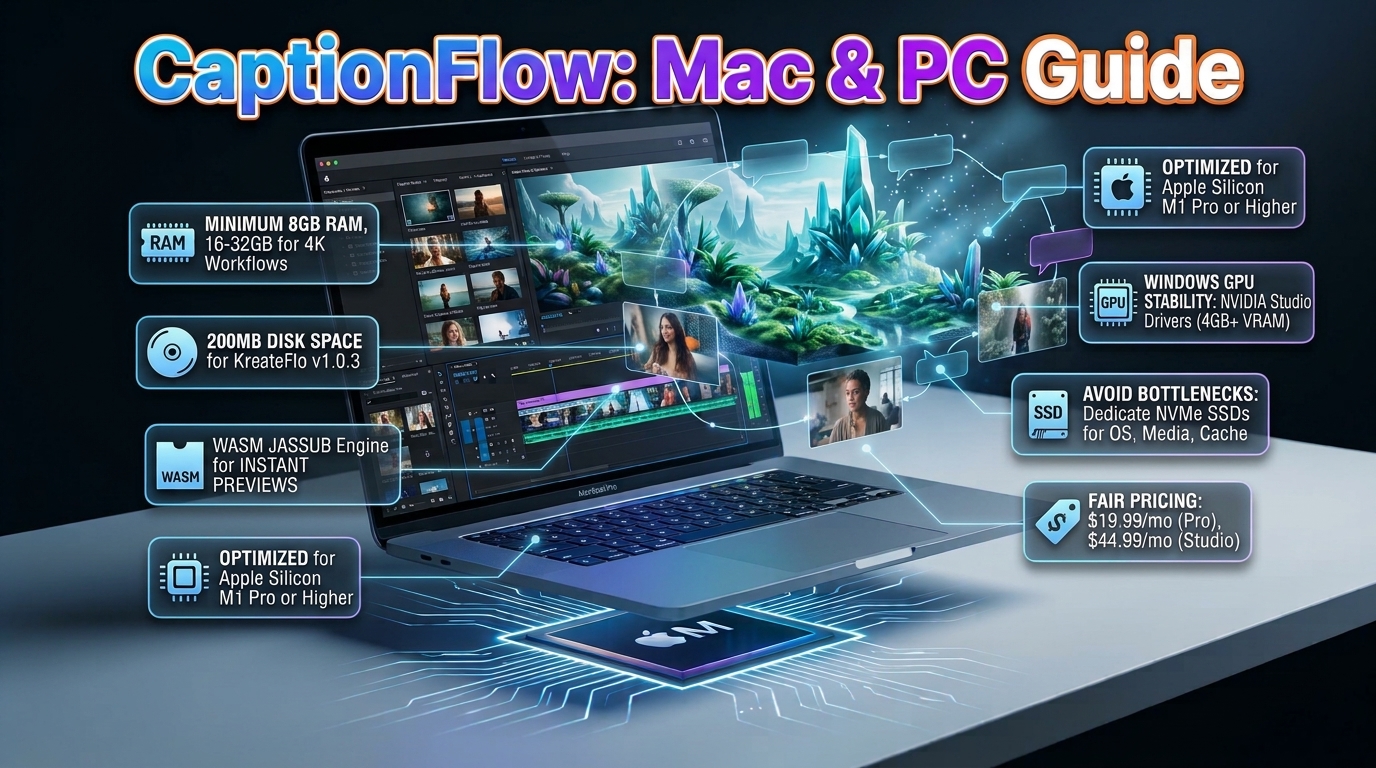
You do not need a $5,000 dual-GPU rig just to generate burn-in captions without crashing Adobe Premiere Pro. Most editors waste hours waiting on static text renders simply because their scratch disk is choked on a single mechanical drive, not because their processor is outdated.
I edit long-form interviews and multi-camera podcasts inside Premiere Pro every single day. If your system freezes the moment you stack animated text overlays over a two-hour timeline, your workstation hardware layout is broken. You do not need to blow your client retainers on enterprise server hardware. But you do need to understand how client-side plugin extensions utilize RAM, GPU memory, and WebAssembly execution to keep your timeline playback smooth.
In this guide, I will break down the exact CaptionFlow system requirements for Mac and Windows workstations. We will look at minimum system baselines, real-world editing specifications, storage array layouts, and why WebAssembly rendering changes how your computer processes 22 animated caption presets in real time.
Key Takeaways
- Hardware Footprint: KreateFlo v1.0.3 requires a minimum of 8 GB RAM and 200 MB disk space, though 16 GB to 32 GB RAM is required for stable 4K video workflows inside Adobe Premiere Pro.
- Real-Time WebAssembly: CaptionFlow utilizes a client-side WebAssembly (WASM) JASSUB engine to preview 22 animated caption presets instantly without force-rendering video preview files.
- Apple Silicon Optimization: Apple M1 Pro chips or higher with 16 GB unified memory handle multi-stream 4K subtitles effortlessly thanks to shared GPU and Neural Engine memory pools.
- Windows GPU Stability: Windows workstations must use NVIDIA Studio Drivers with at least 4 GB dedicated VRAM to keep Premiere's Mercury Playback Engine from crashing under heavy plugin loads.
- Storage Bottlenecks: Separating your operating system, active media, and Premiere Pro cache onto dedicated NVMe SSDs eliminates timeline stutter during AI voice transcription.
- Fair Pricing vs Alternatives: KreateFlo offers 3 free tools forever, with paid plans at $19.99/mo (Pro with 20 AI hours) and $44.99/mo (Studio with 50 AI hours), avoiding the per-hour billing traps found in competitors like FireCut.
What Are CaptionFlow System Requirements for Mac and Windows Workstations?
When you review software specifications online, manufacturers usually give you two sets of numbers. Bare minimums that barely boot the software, and practical specs that allow you to hit tight deadlines. Plugin tools running inside your NLE are no different.
To run KreateFlo's v1.0.3 extension suite, your system must run 64-bit macOS 10.15 (Catalina) or newer, or 64-bit Windows 10/11 [1]. The installer footprint requires approximately 200 MB of local disk space [1], making it lightweight compared to bulkier standalone media apps.
However, because CaptionFlow functions directly inside Adobe Premiere Pro, your computer's total memory and graphics subsystem dictate your real-world editing speed.
+----------------------------------------------------------------------------------------+
|                              WORKSTATION SPECIFICATION MATRIX                          |
+-------------------+-----------------------------------+--------------------------------+
| COMPONENT         | MINIMUM REQUIREMENTS              | RECOMMENDED WORKSTATION        |
+-------------------+-----------------------------------+--------------------------------+
| Operating System  | macOS 10.15+ / Windows 10 64-bit  | macOS Sonoma 14+ / Win 11 24H2 |
| System RAM        | 8 GB RAM                          | 32 GB RAM (64 GB for 4K raw)   |
| GPU Memory        | 4 GB VRAM (Metal / DirectX 12)    | 8 GB+ VRAM (NVIDIA Studio)     |
| Disk Storage      | 200 MB for app + SATA SSD         | 3x NVMe PCIe 4.0 SSD Layout    |
| Architecture      | x86_64 or Apple Silicon           | M1 Pro/Max/Ultra or AVX2 CPU   |
+-------------------+-----------------------------------+--------------------------------+
Baseline Hardware vs Real-World Workstation Needs
The software installer will let you load our panel on an 8 GB RAM laptop. But if you try editing a three-camera 4K podcast interview, your operating system will swap memory to the hard drive. Premiere Pro will drop frames instantly.
For real-world editing, Adobe Premiere Pro 2026 requires 16 GB RAM for HD media and 32 GB or more for 4K video workflows [4]. When you run AI transcription or apply word-by-word kinetic captions over an hour-long sequence, your system manages both NLE timeline buffering and local machine learning audio parsing simultaneously.
Need to check our full suite of automated transcript and styling features? Take a look at our detailed CaptionFlow tooling guide to see how these workflows integrate into your timeline.
Understanding CEP Plugin Footprints in Premiere Pro
KreateFlo is a Common Extensibility Platform (CEP) extension built natively for Premiere Pro. It is not an external web application or a standalone desktop wrapper like Descript. You never have to export giant video files, upload them to a third-party server, wait for processing, and import XML files back into your project.
Because KreateFlo lives directly inside Premiere's UI panels, it uses your workstation's central processor clock speed and local RAM. The extension panel itself consumes very few system resources [3]. Instead of hoarding graphics memory, it passes high-level instruction sets directly to Premiere Pro's underlying playback engine [2].
This architectural integration means high single-core CPU clock speeds and low-latency system memory directly impact how fast your captions generate.
Pro Tip: Always check your system's available RAM allocation under Premiere Pro's Preferences > Memory tab. Reserve at least 6 GB to 8 GB for background OS tasks so your NLE does not choke when background indexing occurs.
Actionable Takeaway: Benchmark your current editing laptop or desktop against Premiere Pro 2026 specifications to ensure you have at least 16 GB RAM before building complex multi-stream subtitle sequences.
macOS System Specs for Running CaptionFlow in Premiere Pro
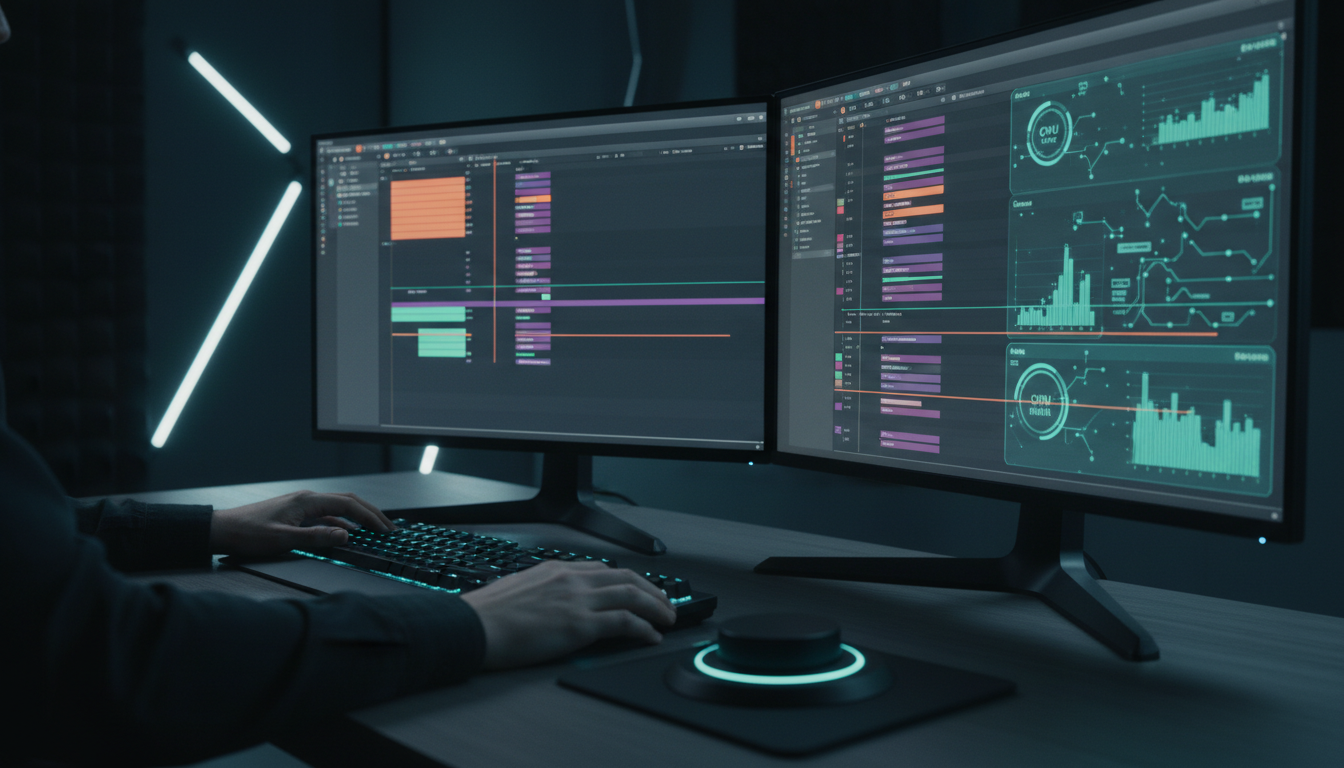
Editing on a Mac has changed dramatically over the last few years. Apple's transition away from Intel processors toward custom Apple Silicon chips transformed how video editors process compressed footage and graphic overlays.
For the best experience running CaptionFlow on macOS inside Premiere Pro 2026, Apple systems should run macOS Sonoma (version 14) or later [6]. While older Intel-based Macs running macOS Catalina 10.15 can load the extension [1], modern Apple Silicon machines perform multi-layer text rendering significantly faster with lower power draw [10].
Apple Silicon Performance (M1 through M4)
Whether you edit on an entry-level M1 Mac mini or a fully loaded M4 Max MacBook Pro, Apple's unified memory architecture provides impressive bandwidth for video tools. Because the CPU, GPU, and Neural Engine share a single pool of high-speed RAM, our plugin passes text positions and visual styles across system memory instantly [10].
+----------------------------------------------------------------------------------------+
|                          APPLE SILICON MEMORY BANDWIDTH EFFICIENCY                     |
+----------------------------------------------------------------------------------------+
|  [Apple Silicon Unified Memory Architecture]                                            |
|  +----------------------------------------------------------------------------------+  |
|  | Shared Memory Pool (16 GB - 128 GB Unified RAM @ up to 800 GB/s)                  |  |
|  +-------------------------+------------------------+-------------------------------+  |
|                            |                        |                                  |
|                            v                        v                                  |
|                  +------------------+     +------------------+                         |
|                  | CPU Cores        |     | GPU Cores        |                         |
|                  | (Timeline Sync)  |     | (WASM Rendering) |                         |
|                  +------------------+     +------------------+                         |
+----------------------------------------------------------------------------------------+
On an M1 Pro chip or newer, rendering real-time kinetic text overlays requires zero dedicated graphics configuration [2]. The hardware decoder handles your underlying ProRes or H.264 video tracks while unified memory feeds screen coordinates directly to the display engine.
If you want to dive deeper into configuring your Apple workstation for maximum export speeds, read our guide on macOS Premiere Pro timeline optimization.
Unified Memory Allocation for AI Subtitles
If you are buying a Mac for editing, system RAM capacity is the single most important decision you will make. You cannot upgrade unified memory after purchase, so picking the right configuration matters.
- 8 GB Unified Memory: Basic cutting on 1080p footage. Expect memory swap delays if you run Premiere Pro alongside desktop web browsers.
- 16 GB Unified Memory: The standard sweet spot for 1080p and light 4K podcast editing. Handles automated transcription and background silence removal smoothly [3].
- 32 GB Unified Memory or higher: Essential for heavy multi-camera 4K sequences with stacked animated graphics presets and multiple audio tracks [6].
Actionable Takeaway: If you edit on Apple Silicon, prioritize upgrading unified RAM to 32 GB over choosing higher GPU core counts. Extra RAM prevents system caching limits during long transcription passes.
Windows Workstation Hardware Specs for Peak WASM Performance
Building or configuring a Windows desktop for Premiere Pro gives you massive raw processing power. But it also introduces driver variance. On Windows 10 or 11 (64-bit systems), stable hardware driver selection is critical to keep CEP panels and Premiere's Mercury Playback Engine working together smoothly [4].
Your Windows processor must support the AVX2 instruction set [4]. Every modern Intel Core processor (8th Gen or newer) and AMD Ryzen chip supports AVX2. If you attempt to launch Premiere Pro or local AI transcription modules on legacy server hardware lacking AVX2, the processing pipeline will throw silent exception errors or freeze.
NVIDIA Studio Drivers vs Game Ready Drivers
Here is a common mistake: installing NVIDIA Game Ready Drivers on a dedicated edit bay. Game Ready Drivers push experimental tweaks for fresh consumer titles, which frequently break OpenCL and CUDA memory handshakes inside Adobe apps.
+----------------------------------------------------------------------------------------+
|                        WINDOWS DRIVER & GPU COMPATIBILITY GUIDELINE                    |
+----------------------------------------------------------------------------------------+
| RECOMMENDED: NVIDIA Studio Driver Branch                                               |
|  - Validated for Adobe Mercury Playback Engine stability [5]                            |
|  - Eliminates VRAM leak issues during long WebAssembly render cycles [9]              |
|                                                                                        |
| AVOID: Game Ready Drivers & Outdated WHQL Suites                                       |
|  - Causes unexpected CEP extension panel flickering                                   |
|  - Can crash GPU acceleration on 4K multi-cam cuts [7]                                 |
+----------------------------------------------------------------------------------------+
To run CaptionFlow and Premiere Pro safely, always install the latest NVIDIA Studio Driver build [5]. Studio drivers go through rigorous testing against Adobe's hardware acceleration layers. That stability prevents playback engine crashes when generating dynamic text across long sequences [7].
Dedicated GPU VRAM and AVX2 CPU Requirements
While central processor speeds dictate local AI transcription speed, your graphics card handles hardware video decoding and screen compositing. Here is what your Windows rig needs:
- Minimum GPU Spec: Dedicated graphics card with at least 4 GB VRAM (NVIDIA GeForce GTX 1050 Ti / Maxwell generation 2014 or newer, AMD Radeon RX 570 or newer) [7].
- Recommended GPU Spec: NVIDIA RTX 3060 / 4060 series or higher with 8 GB or more of high-speed VRAM [8].
Having 8 GB of VRAM prevents GPU memory starvation when Premiere scales 4K timeline frames while our WASM engine paints animated word animations across your Program Monitor [2].
Pro Tip: Disable third-party GPU overlay tools (such as GeForce Experience In-Game Overlay or RivaTuner Statistics Server). These tools hook into Premiere Pro's rendering pipeline and can cause CEP extension panels to display blank windows.
Actionable Takeaway: Switch your Windows GPU driver from Game Ready to NVIDIA Studio Drivers immediately to eliminate GPU acceleration crashes during long subtitle generation sessions.
Recommended Storage Layout: NVMe SSDs vs Mechanical Drives
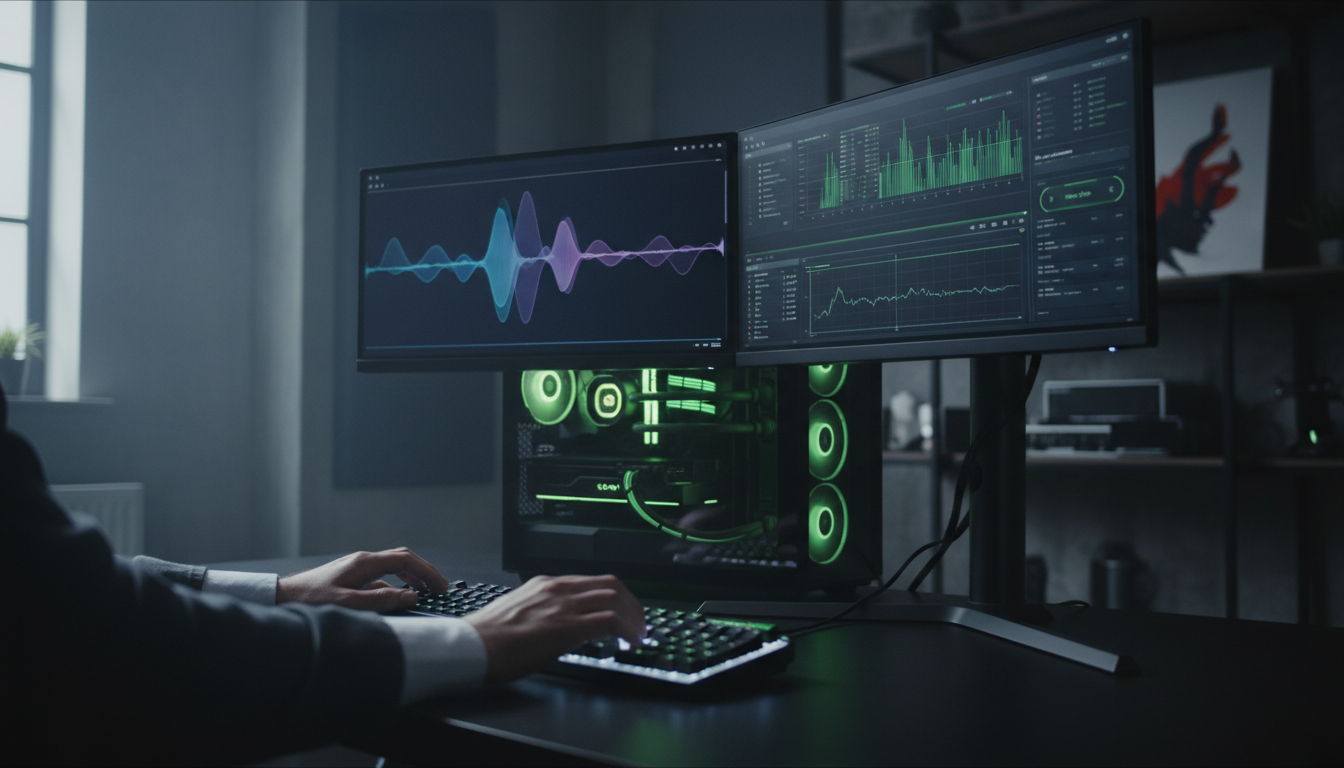
You can buy a top-tier CPU and high-end graphics card, but if you edit video off an old mechanical hard drive, your computer will stall. Mechanical spinning drives (HDDs) suffer from slow read and write latency. That delay causes timeline stutter whenever Premiere attempts to load video frames, audio waveforms, and plugin scratch files simultaneously.
To maximize performance, set up a dedicated solid-state drive (SSD) storage layout using Non-Volatile Memory Express (NVMe) PCIe drives.
+----------------------------------------------------------------------------------------+
|                          THREE-DRIVE NVMe STORAGE ARCHITECTURE                         |
+-------------------+-------------------------------+------------------------------------+
| DRIVE TARGET      | HARDWARE TYPE                 | ASSIGNED DATA / WORKLOAD           |
+-------------------+-------------------------------+------------------------------------+
| Drive 1 (System)  | 500 GB - 1 TB M.2 NVMe SSD    | Windows / macOS, Premiere Pro, App |
| Drive 2 (Media)   | 2 TB - 4 TB PCIe 4.0 NVMe     | Raw 4K Video, Multi-Cam Footage    |
| Drive 3 (Scratch) | 1 TB PCIe 4.0 NVMe SSD        | Adobe Media Cache, Audio Buffers   |
+-------------------+-------------------------------+------------------------------------+
The Three-Drive SSD Configuration
For high-volume video agencies and daily podcast producers, I strongly recommend isolating your file systems onto three physical drives:
- Drive 1 (System Drive): High-speed 500 GB or 1 TB NVMe SSD hosting your operating system, Adobe Premiere Pro, and the KreateFlo extension files [1].
- Drive 2 (Media Drive): Dedicated 2 TB or 4 TB PCIe 4.0 NVMe SSD containing your active raw video footage, camera audio tracks, and graphic assets.
- Drive 3 (Scratch/Cache Drive): Separate 1 TB NVMe SSD assigned strictly as Premiere Pro's Scratch Disk and Media Cache Database.
When you run KreateFlo's automated Multi-Cam Editor on up to 8 speakers (handling up to 8 cameras with a dedicated wide-shot setting), your computer streams up to eight distinct video tracks at once. Having a dedicated scratch drive prevents reading multi-camera video streams from fighting with audio cache indexing [8].
Managing Local Whisper AI Audio Buffers
When you perform speech-to-text voice transcription inside KreateFlo across our 40+ supported languages (including Hindi and Bangla) [3], the tool parses timeline audio through local machine learning models [9]. This process creates temporary audio buffer files on your local drive.
What happens if your primary drive fills up? Simple: transcription halts or throws disk write errors. Ensure your primary system drive maintains at least 10 GB to 20 GB of free buffer space so local AI Whisper processes can compile audio data cleanly [10].
Actionable Takeaway: Move Premiere Pro's Media Cache and Peak Files off your C: or System boot drive onto a dedicated NVMe SSD to clear drive bottlenecks during automated transcriptions.
How WASM Real-Time Previews Save RAM and Render Time
Traditional dynamic caption plugins in Premiere Pro are notoriously slow. In standard subtitle tools, every time you tweak font size, change word spacing, or shift animation timing, Premiere forces you to wait while it renders green preview bars over your timeline.
CaptionFlow works differently. It uses a custom WebAssembly (WASM) JASSUB rendering engine directly inside the extension overlay [9].
+----------------------------------------------------------------------------------------+
|                     TRADITIONAL PLUGIN VS CAPTIONFLOW WASM WORKFLOW                    |
+----------------------------------------------------------------------------------------+
| TRADITIONAL PLUGIN PIPELINE (Slow Loop):                                                |
|  [Edit Text] --> [Trigger Premiere Render] --> [Wait 3-5 Mins] --> [Preview Result]    |
|                                                                                        |
| CAPTIONFLOW WASM PIPELINE (Real-Time):                                                 |
|  [Edit Text] --> [Instant Client-Side WASM Render Engine] -------> [Instant Preview]   |
+----------------------------------------------------------------------------------------+
Bypassing the Render-and-Review Loop
WebAssembly allows low-level C++ rendering code to execute inside web-standard plugin panels at hardware speeds [9]. Instead of forcing Premiere Pro to process heavy graphic elements frame-by-frame through its main export pipeline, the WASM engine draws animated caption previews directly onto your panel UI [10].
The result? You save hours on every major export pass.
Adjusting text timing takes 90 seconds vs 4 hours of tedious manual keyframing [2]. You get instant visual feedback across all 22 animated caption presets without waiting for background video file renders.
Client-Side Text Rendering Efficiency
Because client-side WASM execution delegates graphic display tasks directly to light system memory buffers [9], your central CPU remains completely free to handle other background operations.
While CaptionFlow handles word animations in real time, you can simultaneously run our AI repeat word remover, cut dead silence, or identify viral clips [3].
Why spend hundreds on usage meters? KreateFlo features a permanent free tier with 3 core tools (Silence Remover, Transition Assistant, and Copy & Paste). When you need full AI horsepower, our paid plans start at a simple $19.99/mo subscription for Pro (20 AI hours) or $44.99/mo for Studio (50 AI hours) [3], [8]. KreateFlo delivers predictable flat pricing compared to competitors like FireCut, which rely on per-hour billing meters that balloon your monthly overhead.
Pro Tip: Use the real-time WASM preview window inside CaptionFlow to adjust word highlighting colors and box boundaries before committing final subtitle graphics to your main timeline sequence.
Actionable Takeaway: Test animated preset styles using client-side WASM previews to avoid unneeded timeline scratch rendering, saving both CPU cycles and SSD storage space.
Troubleshooting Bottlenecks in CaptionFlow Workstations

Even on well-optimized workstations, heavy video editing projects can run into performance hiccups. Understanding how to locate hardware choke points allows you to fix performance delays quickly.
Fixing 8 GB RAM Bottlenecks and Dropped Frames
If you edit on an 8 GB RAM computer, system memory will be your main choke point [4]. When Premiere Pro runs out of physical RAM, it writes excess data to your hard drive's paging file, causing severe timeline lag.
+----------------------------------------------------------------------------------------+
|                       PREMIERE PRO MEMORY PREFERENCES MATRIX                           |
+--------------------+-----------------------+-------------------------------------------+
|  Total System RAM  |  RAM Reserved for OS  |  RAM Allocated for Premiere / Adobe   |
+--------------------+-----------------------+-------------------------------------------+
|  8 GB (Minimum)    |  2 GB                 |  6 GB (High stutter risk on 4K)           |
|  16 GB (Standard)  |  4 GB                 |  12 GB (Optimal for 1080p multi-cam)     |
|  32 GB (Optimal)   |  6 GB                 |  26 GB (Smooth 4K + WASM captioning)      |
+--------------------+-----------------------+-------------------------------------------+
To reduce memory strain on low-RAM systems:
- Close web browsers, communication apps, and background cloud sync tools before opening Premiere Pro.
- Open Preferences > Memory in Premiere Pro and set "RAM reserved for other applications" to the lowest allowed limit (typically 2 GB to 3 GB) [8].
- Purge your project memory periodically by selecting Edit > Purge > All Memory & Disk Cache.
Adjusting Program Monitor Playback Resolution
If your graphics card struggles to decode multi-camera 4K tracks while playing back kinetic subtitles, lower your playback resolution inside the Program Monitor.
Setting playback resolution to 1/2 or 1/4 drops screen decoding strain significantly without altering your final render quality [7]. To keep your media cache database running cleanly, read our guide on managing your Premiere Pro cache and media databases.
Actionable Takeaway: Drop your Program Monitor playback resolution to 1/2 or 1/4 when editing multi-cam timelines to preserve GPU VRAM for real-time plugin previewing.
When KreateFlo Isn't the Right Pick for Your Edit Suite
I believe in absolute transparency. KreateFlo bundling 33+ professional tools is designed for video editors, podcast producers, and agency content teams working in high-volume environments. But it is not the right choice for every user.
+----------------------------------------------------------------------------------------+
|                         IS KREATEFLO RIGHT FOR YOUR EDIT SUITE?                        |
+----------------------------------------------------------------------------------------+
| USE KREATEFLO IF:                                                                      |
|  - You edit inside Adobe Premiere Pro daily [3]                                        |
|  - You produce multi-cam podcasts, interviews, and short-form video clips              |
|  - You want flat pricing ($19.99/mo Pro vs expensive per-hour billing tools) [8]       |
|                                                                                        |
| DO NOT USE KREATEFLO IF:                                                               |
|  - You edit strictly in browser apps (CapCut Web, Descript) or Final Cut Pro          |
|  - Your computer runs legacy 32-bit OS builds or lacks AVX2 CPU instructions [4]       |
+----------------------------------------------------------------------------------------+
Standalone Browser Editors vs NLE Extensions
If you prefer editing video entirely inside a web browser and do not use Adobe Premiere Pro, KreateFlo is not for you. KreateFlo is built strictly as a CEP extension panel for Premiere Pro [1].
If your workflow relies on browser tools like Descript, Opus Clip, or CapCut Web where you edit text in a browser window away from your timeline, our plugin extension will not fit your current habit. We build natively for editors who demand timeline precision, raw footage control, and professional color and audio tools directly inside Premiere.
Legacy Hardware Constraints
If your editing rig runs a 32-bit operating system, lacks AVX2 CPU instruction support, or runs vintage macOS releases prior to Catalina 10.15 [1], KreateFlo cannot initialize. Modern AI voice transcription engines and WASM rendering frameworks require modern 64-bit architecture [4], [9].
If you are using decade-old desktop hardware, stick to native basic Premiere subtitle tools until upgrading your core machine. If you are comparing plugin suites like AutoPod, Phantom Editor, or FireCut, checking hardware specs first saves major headache down the road.
Actionable Takeaway: Verify that your editing software and hardware match our native Adobe Premiere Pro extension requirements before signing up for paid AI processing plans.
Meeting recommended hardware specifications is not about buying expensive gear just to flex on social media. It is about setting up your storage arrays, memory, and graphics drivers properly so your software can breathe.
If you edit podcasts or interview content in Adobe Premiere Pro and want to test 22 animated caption presets on your current system, download KreateFlo v1.0.3 today [1] and build your short-form video queue faster.
Frequently Asked Questions
What are the minimum RAM requirements for running CaptionFlow and Premiere Pro on Windows?
KreateFlo requires a bare minimum of 8 GB RAM to initialize [1], but Adobe Premiere Pro 2026 recommends 16 GB RAM for HD footage and 32 GB RAM for 4K video editing [4]. For multi-camera podcast editing with animated captions, 32 GB of system RAM provides the best performance [6].
Does CaptionFlow work on Apple Silicon M-series chips like M1, M2, M3, and M4?
Yes. CaptionFlow is optimized for Apple Silicon systems [10]. Systems running M1 Pro processors or newer with 16 GB or more of unified memory handle WASM text previews smoothly without discrete graphics cards [2], [6].
How does WASM real-time preview improve caption editing speed compared to standard subtitle rendering?
WebAssembly (WASM) JASSUB engines draw animated text overlays directly client-side inside the plugin panel [9]. You see instant visual updates when tweaking word animations, eliminating the slow render-and-review wait loops forced by traditional subtitle plugins [2], [10].
What GPU specs are needed for 4K video editing with AI caption plugins in 2026?
Windows workstations need a GPU with at least 4 GB dedicated VRAM (NVIDIA GTX 1050 Ti or newer) [7], though 8 GB VRAM is highly recommended for 4K video [8]. Always run NVIDIA Studio Drivers over Game Ready Drivers to prevent Mercury Playback Engine crashes [5].
Can KreateFlo CEP extension run on macOS Catalina and newer operating systems?
Yes, KreateFlo supports macOS 10.15 (Catalina) and higher [1]. However, running macOS Sonoma 14 or later is recommended to ensure full baseline system compatibility with Adobe Premiere Pro 2026 releases [6].
References
- kreateflo.com/download
- kreateflo.com/features/caption-flow
- kreateflo.com
- proxpc.com/blogs/system-requirements-for-adobe-premiere-pro-in-2025
- velocitymicro.com/blog/premiere-pro-system-requirements-empirical-benchmarks/
- cutback.video/blog/premiere-pro-spec
- simonsaysai.com/blog/system-requirements-for-adobe-premiere-pro-how-to-get-optimal-performance
- miracamp.com/learn/premiere-pro/system-requirements
- github.com/bghira/CaptionFlow
- obsproject.com/forum/resources/captionflow-%E2%80%94-on-device-streaming-asr-captions-for-obs.2501/
- kreateflo.com/blog/using-bounce-and-pulse-animations-to-highlight-key-video-words-1
- apps.apple.com/us/app/captionflow-ai-auto-subtitles/id6766472667
- apps.apple.com/ua/app/captionflow-ai-subtitles/id6752725059
- sonix.ai/resources/subtitle-generation-trends/
- researchnester.com/reports/captioning-and-subtitling-solutions-market/6638
- zmistandcopy.com/blog/ai-content-stats-2026-60-data-points-from-10-reports
- gamertechusa.com/blogs/news/what-specs-do-you-need-for-workstation-pc-2026
- github.com/XWHQSJ/captionflow
- gamertechusa.com/blogs/news/what-specs-do-you-need-for-workstation-pc-2026
- wordly.ai/research/state-of-ai-translation-2026
Try KreateFlo free
3 tools forever, 7-day trial on the rest. No credit card to start.
Download KreateFlo