Subtitle Timing Drift: 5 Proven Fixes (2026 Guide)
How to Fix Audio and Subtitle Timing Drift in CaptionFlow (2026) Most editors blame the AI transcription engine when animated captions drift out of sync by the end of a long podcast. They are wrong. S
How to Fix Audio and Subtitle Timing Drift in CaptionFlow (2026)
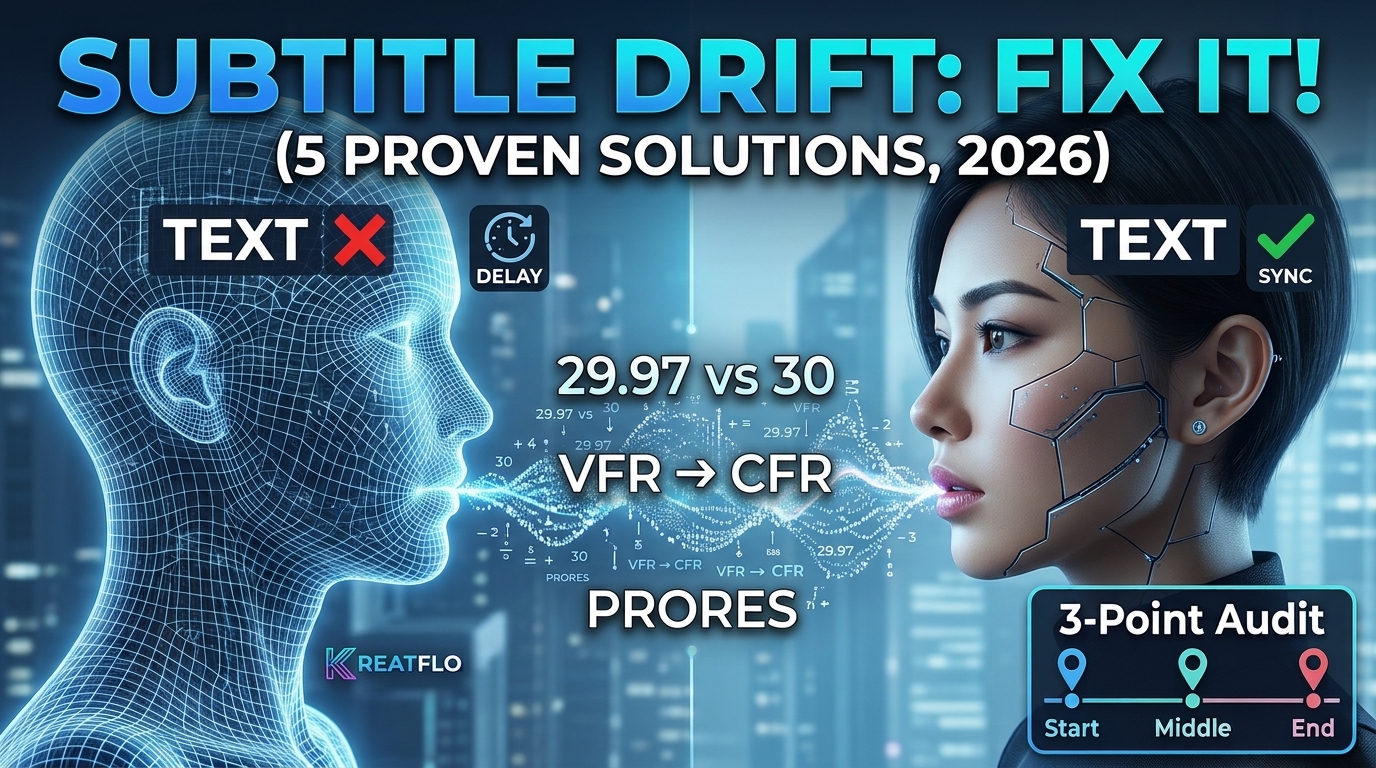
Most editors blame the AI transcription engine when animated captions drift out of sync by the end of a long podcast. They are wrong. Subtitle drift is almost never a speech recognition bug. It is a mathematical clock mismatch between your video frames, audio sample rates, and sequence timecode in Adobe Premiere Pro. If you are tired of manually dragging hundreds of individual caption blocks across your timeline, here is how we fix audio and subtitle timing drift in CaptionFlow for good.
Key Takeaways
Subtitle drift is caused by math mismatches in frame rates, sample rates, or VFR footage—not bad AI transcription.
A 29.97 FPS vs 30.00 FPS mismatch causes 1.8 frames lost per minute, building up to 1.2 seconds of lag in a 20-minute video.
Constant offset requires a simple single-frame shift, while progressive drift demands proportional multi-point retiming.
Transcoding smartphone VFR clips to Constant Frame Rate (CFR) ProRes before importing eliminates 90% of timing errors.
Silero VAD pre-processing prevents timestamp smearing during quiet or silent passages in long-form podcasts.
CaptionFlow's WASM real-time engine allows instant previewing of timing fixes without rendering temporary video files.
Offset vs Drift: Diagnosing Your Caption Sync Issue
Don't start dragging hundreds of subtitle blocks across your sequence timeline yet. You first need to diagnose what kind of timing error you have. I see editors make this mistake every single week.
They notice captions are late at the end of an episode, so they shift the entire subtitle track back by two seconds. Suddenly the end looks fine, but the first five minutes are broken.
In subtitle quality control, timing errors fall into two distinct mechanical categories: uniform delay (constant offset) and proportional speed mismatch (progressive drift) [5]. Knowing which one you have takes less than 60 seconds.
The 3-Point Timeline Audit
I use a simple three-check diagnosis protocol whenever I spot subtitle alignment issues [8]. Open your sequence in Premiere Pro, load your CaptionFlow caption track, and inspect subtitle alignment at three precise moments [8]:
The Start: Jump to the first spoken phrase at the 10-second mark.
The Middle: Jump to a clear dialogue exchange around the 15-minute mark.
The End: Jump to the final sign-off phrase near the 30- or 45-minute mark.
Are your captions delayed by exactly 500 milliseconds at all three points? If so, you have a uniform offset [5].
But what if captions align perfectly at 10 seconds, lag by 600 milliseconds at 15 minutes, and fall 2.2 seconds behind at 45 minutes? You are dealing with progressive timing drift [5].
| 45|Frame Rate Mismatches | NaN |
|---|
Uniform Delay vs Progressive Speed Mismatch
A uniform delay happens when the caption generation process adds a fixed latency buffer at the start [5]. Scratch audio tracks with leading silent padding or sequence timecodes starting at 01:00:00:00 often trigger this [5].
Fixing a uniform delay is effortless. You nudge the track left or right on your timeline [5].
Progressive speed mismatch is a completely different beast [5]. It means your video playback clock and caption timecode clock run at slightly different speeds [3].
Over short 15-second TikTok reels, progressive drift remains invisible. But over a 60-minute interview, even a 0.1% clock variance builds into a sync failure [3].
Pro Tip: Always perform your three-point audit before modifying a single caption cue. Fixing progressive drift with a global shift guarantees that 90% of your sequence stays out of sync [8].
Actionable Takeaway: Audit caption alignment at the start, middle, and end of your timeline to determine whether you need a global time shift or proportional multi-point retiming [8].
Root Causes of Audio and Subtitle Lag in Premiere Pro
When captions drift in Adobe Premiere Pro, editors usually blame the software plugin. But KreateFlo version v1.0.3 processes audio timestamps using exact word-level telemetry [9].
The drift on your monitor stems from media file discrepancies. These mismatches corrupt Premiere's internal playback clock [3].
Smartphone Variable Frame Rate (VFR) Chaos
Smartphones, Zoom calls, and screen recorders like OBS do not capture video at a fixed frame rate [2]. They dynamically shift between 23.98, 28.50, and 29.97 FPS to save battery and processing power [2]. This is Variable Frame Rate (VFR) [2].
Drop VFR clips directly into Premiere Pro, and the sequence conformed frames clash [2]. Premiere duplicates or drops video frames to keep visual playback smooth, but the underlying audio sample clock runs continuously [2].
When CaptionFlow reads the sequence timeline to generate captions, the timing math diverges [3]. The result? Text drift that gets progressively worse over time.
| Before | 90s |
|---|---|
| After | 4 hours |
The 29.97 FPS vs 30.00 FPS Drop-Frame Trap
Broadcast frame rates contain subtle mathematical traps. Webcams and screen recordings default to true integer 30.00 FPS [3]. Standard NTSC broadcast video runs at 29.97 FPS [3].
This mismatch between 29.97 FPS broadcast timecode and a 30.00 FPS caption model leads to 1.8 frames lost per minute [3]. Here is how that minor discrepancy adds up over a long podcast edit:
1 Minute: 1.8 frames of lag (~60 ms)
10 Minutes: 18 frames of lag (~600 ms)
20 Minutes: 36 frames of lag (~1.2 seconds) [3]
60 Minutes: 108 frames of lag (~3.6 seconds)
Mixing 24.00 FPS film speed with 23.976 FPS video creates a 1.001 speed ratio. That produces 3.6 seconds of drift per hour of content [7]. Uncorrected drop-frame drift will cause instant rejection during broadcast quality control [7].
44.1 kHz vs 48 kHz Sample Rate Discrepancies
Video editing sequences run at a standard audio sample rate of 48 kHz (48,000 samples per second) [4]. USB microphones, mobile voice memos, and budget zoom recorders default to CD-quality 44.1 kHz [4].
Placing a 44.1 kHz audio file into a 48 kHz sequence forces Premiere Pro to resample the audio on the fly [4]. Resampling works cleanly on short clips [4].
On long timelines, rounding errors accumulate in Premiere's conforming cache [4]. The visual waveform detaches from actual audio output, forcing subtitle cues to trigger prematurely or lag behind spoken words [4].
Mismatch Type | Primary Media Source | Mathematical Impact | Resulting Drift Rate |
|---|---|---|---|
VFR vs CFR | iPhone, Zoom, OBS | Dynamic frame drops [2] | Unpredictable non-linear drift [2] |
29.97 vs 30.00 FPS | NTSC vs Web video | 0.1% speed discrepancy [3] | 1.2 sec per 20 minutes [3] |
23.976 vs 24.00 FPS | NTSC film vs Cinema | 1.001 speed ratio [7] | 3.6 sec per 60 minutes [7] |
44.1 kHz vs 48 kHz | USB Mics, Scratch Audio | Audio clock buffer drift [4] | Progressive waveform alignment loss [4] |
Actionable Takeaway: Identify source media frame rates and sample rates before editing to catch NTSC drop-frame and VFR clock mismatches early [3, 4].
How to Fix Audio and Subtitle Timing Drift in CaptionFlow
Now that we understand the math, let's fix it inside Premiere Pro. KreateFlo provides pre-processing and preview tools engineered specifically to eliminate clock variance during caption generation [9].
Enabling Silero VAD Pre-Processing
Standard AI speech recognition models process audio in fixed 30-second chunks [3]. Long pauses, background noise, or crosstalk in podcasts cause timestamp smearing [3]. The model guesses word boundaries across silence, pushing subtitle start cues out of sync [3].
To stop timestamp smearing, CaptionFlow integrates Silero Voice Activity Detection (VAD) alongside faster-whisper [9]. Silero VAD acts as an acoustic gate [9].
It strips non-speech regions and establishes millisecond-accurate word boundaries based directly on voice energy [9].
Follow these steps to enable Silero VAD pre-processing:
Open the KreateFlo Extension panel inside Adobe Premiere Pro.
Select CaptionFlow from the tool suite.
In the Transcription Settings tab, toggle Silero VAD Pre-Processing to ON.
Set the Silence Threshold to -35 dB (ideal for studio podcast microphones).
Click Generate Captions.
Anchoring subtitle cues to real voice boundaries prevents silence hallucinations and keeps timestamps locked to spoken words [9].
RAW WHISPER: [── 30-Second Fixed Window ──] ──> Timestamps smear over silent gaps
SILERO VAD:  [Speech] ── (Silence Cut) ── [Speech] ──> Millisecond-accurate word bounds
Utilizing WASM Real-Time Previews for Sync Adjustments
In standard Premiere workflows, testing subtitle adjustments takes forever. You modify a track style, render a preview file, play it back, spot a flaw, and repeat the loop.
CaptionFlow fixes this with a WebAssembly (WASM) real-time preview engine built inside its CEP panel architecture. When you tweak caption timing or animated presets, the WASM engine calculates render matrices on your GPU memory.
You get live visual feedback on your monitor instantly without rendering temporary video files. Inspect changes live at 60 FPS while saving hours of render time.
Applying Recalibrated Sequence Timecodes
If your subtitle drift stems from a sequence frame rate mismatch, recalibrate your sequence settings inside Premiere Pro [3]:
Go to Sequence > Sequence Settings in Premiere Pro's top menu.
Check the Timebase setting. If it reads 30.00 FPS, change it to 29.97 FPS (or 23.976 FPS for film).
Under Display Format, select 29.97 fps Drop Frame Timecode.
Open CaptionFlow and click Recalibrate Timecode Anchors.
Recalibrating aligns Premiere's internal playback clock with CaptionFlow's timing model, fixing progressive drift across long timelines [3].
Pro Tip: If you edit multi-speaker interviews, use KreateFlo's Silence Remover to cut dead air before running CaptionFlow. Removing silence chunks upfront narrows the transcription window and eliminates non-speech audio lag entirely [9].
Actionable Takeaway: Enable Silero VAD pre-processing in CaptionFlow to enforce millisecond-level word boundaries and prevent timestamp smearing across silent gaps [9].
Pre-Processing VFR Footage with HandBrake and FFmpeg
If your raw video files were recorded on an iPhone or captured via Zoom and OBS, NLE settings alone cannot repair underlying VFR clock errors [2].
The permanent solution is converting raw footage into Constant Frame Rate (CFR) files before importing into Premiere Pro [10].
90% encounter VFR timing issues
Batch Converting Smartphone Video to Constant Frame Rate
HandBrake is a free open-source transcoder that converts variable smartphone video into stable CFR master files [10].
Follow these steps to batch transcode smartphone clips:
Launch HandBrake and drag your source video files into the window [10].
Navigate to the Video tab.
Under Framerate (FPS), select Constant Framerate [10].
Set the frame rate value to match your sequence (e.g., 23.976 or 29.97) [10].
Under Encoder, choose H.264 (x264) or H.265 (x265) with Quality set to RF 18.
Click Add to Queue and start batch encoding [10].
Transcoding smartphone footage to CFR takes about 90 seconds per clip. That tiny investment saves up to 4 hours of downstream troubleshooting on your timeline [10].
Generating Edit-Friendly ProRes Masters
High-volume video agencies and podcast studios can use FFmpeg to script batch conversions of VFR screen captures into edit-friendly Apple ProRes 422 files [10]. ProRes preserves color fidelity and decodes smoothly without crushing your CPU [10].
Run this FFmpeg command in your terminal:
ffmpeg -i input_vfr_video.mp4 -c:v prores_ks -profile:v 2 -r 23.976 -c:a pcm_s16le -ar 48000 output_cfr_prores.mov
This command performs three critical jobs at once [10]:
-r 23.976: Forces a rigid 23.976 Constant Frame Rate [10].-c:v prores_ks -profile:v 2: Encodes video to Apple ProRes 422 [10].-c:a pcm_s16le -ar 48000: Resamples audio to uncompressed 48 kHz 16-bit PCM [10].
Once transcoded, import the ProRes file into Premiere Pro [10]. Your audio, video, and CaptionFlow animated captions will stay locked from start to finish [10].
Actionable Takeaway: Transcode raw mobile and screen-recorded footage to Constant Frame Rate (CFR) ProRes or H.264 using HandBrake or FFmpeg prior to sequence creation [10].
Two-Point Anchor Synchronization for Progressive Timing Drift
Received an existing .srt file from a client that lags by the end? You do not need to manually drag hundreds of subtitle blocks across your timeline [6].
You can fix the entire track using two-point anchor synchronization [6].
Calculating the Exact Drift Ratio
Two-point anchor synchronization relies on simple linear scaling [6]. By measuring the timing error at the start and end of your sequence, you calculate the exact drift ratio [6].
Here is how to calculate your drift ratio [6]:
Find Anchor A (the first clear spoken word near the start). Note the exact video timecode ($V_1$) and subtitle cue timecode ($S_1$) [6].
Find Anchor B (the final spoken word near the end). Note the exact video timecode ($V_2$) and subtitle cue timecode ($S_2$) [6].
Apply the linear drift formula [6]:
$$\text{Drift Ratio } (M) = \frac{V_2 - V_1}{S_2 - S_1}$$
For example, if your video duration between anchors ($V_2 - V_1$) is 2,400 seconds, but your subtitle duration ($S_2 - S_1$) measures 2,404 seconds, your drift ratio ($M$) is:
$$M = \frac{2400}{2404} \approx 0.998336$$
Proportional Retiming Across Hundreds of Caption Blocks
Once you have your drift ratio ($M$), scale every subtitle timestamp proportionally across the entire sequence [6]. Proportional retiming multiplies each cue timestamp by $M$ instead of shifting clips by static seconds [6].
Execute proportional retiming automatically in CaptionFlow:
Select your caption track on the Premiere Pro timeline.
Open CaptionFlow Settings and navigate to Sync Calibration.
Enter your Anchor A and Anchor B timecodes [6].
Click Apply Proportional Scale.
CaptionFlow recalibrates all 22 animated caption presets across your sequence in a single click, restoring millisecond sync [6].
BEFORE SCALING:
Cue 1 (00:01:00) ──> Sync OK
Cue 50 (00:20:00) ──> 2.0s Lag
Cue 100 (00:40:00) ──> 4.0s Lag

AFTER PROPORTIONAL SCALE (M = 0.998336):
Cue 1 (00:00:59.9) ──> Sync OK
Cue 50 (00:19:58.0) ──> Sync OK
Cue 100 (00:39:56.0) ──> Sync OK
Pro Tip: For a deeper dive into managing caption character limits, reading speeds, and broadcast title-safe zones, check out our guide on The Ultimate Caption Quality Control Checklist for Video Editors [7].
Actionable Takeaway: Use two-point anchor synchronization to calculate your timeline's drift ratio and scale subtitle cue durations proportionally instead of moving blocks manually [6].
Clearing Premiere Pro Media Cache and Sample Rate Errors
Does timing drift persist after conforming frame rates and transcoding VFR files? Corrupted media cache files or sample rate mismatches inside Adobe Premiere Pro are usually the culprits [4].
Purging Corrupted Audio Peak Files
When you import media, Premiere generates auxiliary peak files (.pek) and conformed audio files (.cfa) to display visual waveforms on your timeline [4]. Background indexing crashes can corrupt these files [4].
Corrupted peak files cause Premiere to display visual waveform peaks at incorrect timeline positions [4].
Purging these cache files forces Premiere to rebuild clean waveforms [4]:
Save your project and close Adobe Premiere Pro.
Open Premiere Pro without opening a project.
Go to Preferences > Media Cache (macOS: Premiere Pro > Settings > Media Cache).
Click Delete next to "Remove Media Cache Files".
Select Delete all media cache files from the system and click OK.
Relaunch Premiere Pro and reopen your project.
Conforming Audio Scratch Files to 48 kHz Standards
Mixing 44.1 kHz scratch audio with 48 kHz studio tracks causes audio buffer drift over long sequences [1]. Resample all external audio to uncompressed 48 kHz WAV files before editing [1].
Batch conform scratch audio inside Premiere Pro [1]:
Select your 44.1 kHz audio clips in the Project Panel [1].
Right-click and choose Edit in Adobe Audition > Clip.
In Audition, go to File > Sample Type > Change Sample Rate.
Set Sample Rate to 48000 Hz and Bit Depth to 24-bit.
Save the file and switch back to Premiere Pro.
Conforming scratch audio to a uniform 48 kHz standard stops audio buffer drift and gives CaptionFlow clean telemetry [1, 4].
Actionable Takeaway: Delete Premiere Pro's media cache files and conform all project audio assets to 48 kHz 24-bit WAV files to resolve persistent waveform alignment errors [1, 4].
Preventative Workflow: How to Fix Audio and Subtitle Timing Drift in CaptionFlow Projects
The fastest way to solve subtitle drift is preventing it entirely. A standardized pre-edit workflow keeps your deliverables locked in sync while saving hours of manual labor [7].
Standardizing Project Templates for Multi-Cam and Captions
If you produce recurring podcast episodes, build a master project template [7]. Pre-configuring sequence settings eliminates timebase mismatches before you cut a single clip [7].
Follow this checklist for every new project:
Step 1: Transcode all mobile, Zoom, or OBS media to Constant Frame Rate (CFR) ProRes 422 using HandBrake or FFmpeg [10].
Step 2: Ensure all recorded audio tracks are saved as 48 kHz 24-bit WAV files [1, 4].
Step 3: Build a master sequence set strictly to 23.976 FPS or 29.97 FPS Drop Frame timebase [3, 7].
Step 4: Run KreateFlo's Multi-Cam Editor to automate multi-speaker switching (supports up to 8 cameras / 8 speakers with dedicated wide-shot rules).
Step 5: Run KreateFlo's Silence Remover to clean up dead air across dialogue tracks.
Step 6: Launch CaptionFlow with Silero VAD pre-processing enabled to generate animated captions with zero timing drift [9].
When KreateFlo Is (and Isn't) the Right Tool
Let's talk honestly about where KreateFlo fits into your workflow. KreateFlo is an Adobe Premiere Pro plugin (a CEP extension).
It runs directly inside Premiere Pro and After Effects, bundling 33+ tools into a single extension.
Here is when KreateFlo is the right choice for your suite:
You edit long-form interviews, podcasts, or video clips directly inside Adobe Premiere Pro every day.
You want flat pricing instead of per-hour fees: KreateFlo offers a Free Tier with 3 tools forever (Silence Remover, Transition Assistant, Copy & Paste), Pro at $19.99/mo for 20 AI hours, and Studio at $44.99/mo for 50 AI hours. That beats FireCut's per-hour billing model and stops you from paying for separate tools like AutoPod, Phantom Editor, Descript, and Opus Clip.
You need deep timeline control, multi-speaker multi-cam switching (up to 8 speakers/cameras), and 22 animated caption presets with WASM real-time previews inside Premiere.
But here is when KreateFlo is NOT the right pick:
You do not edit in Adobe Premiere Pro. If your team relies entirely on DaVinci Resolve or Final Cut Pro, KreateFlo will not run in your NLE.
You want a browser-based text editor for non-editors. If you prefer cloud apps where non-technical staff edit video by editing text in a browser window, standalone tools like Descript fit that use case better.
Actionable Takeaway: Implement a pre-edit checklist (CFR transcoding, 48 kHz audio conforming, and unified sequence templates) to eliminate timing drift permanently across all client deliverables [7].
Frequently Asked Questions

Why do subtitles fall out of sync over time in Premiere Pro?
Subtitle timing drift is usually caused by frame rate mismatches (such as 29.97 FPS broadcast timecode vs a 30.00 FPS CFR caption model), Variable Frame Rate (VFR) smartphone footage, or audio sample rate conflicts between 44.1 kHz scratch audio and 48 kHz sequences [2, 3, 4].
What is the difference between constant subtitle offset and progressive subtitle drift?
Constant offset means the subtitles are delayed or advanced by the exact same time shift throughout the entire video [5]. Progressive drift means the subtitle desynchronization gradually worsens as the video plays, growing from milliseconds at the beginning to full seconds by the end [5].
How do you convert Variable Frame Rate (VFR) video to Constant Frame Rate (CFR)?
You can convert VFR video to CFR using free tools like HandBrake or FFmpeg [10]. In HandBrake, load your video, navigate to the Video tab, select Constant Framerate, choose your desired frame rate (e.g., 23.976 or 29.97 FPS), and encode the file before importing it into Premiere Pro [10].
How do sample rate mismatches between 44.1 kHz and 48 kHz affect video audio sync?
When 44.1 kHz audio is placed in a 48 kHz sequence without proper conforming, Premiere Pro attempts to re-sample the audio on the fly [4]. Over long timelines, subtle mathematical rounding discrepancies cause the audio waveform and generated caption timestamps to drift out of sync [4].
How does CaptionFlow handle real-time caption previews without lag?
CaptionFlow uses a WebAssembly (WASM) real-time preview engine built directly into its Premiere Pro CEP extension interface. This allows you to inspect and modify subtitle styling and timing dynamically without needing to render video preview files.
Eliminate Subtitle Drift in Your Premiere Pro Workflow
Subtitle drift is a math problem, not an AI flaw [3]. Once you align your clocks, transcode VFR footage, and utilize Silero VAD, subtitle lag disappears [9, 10]. With tools like CaptionFlow, you get real-time WASM previews and forced speech alignment directly inside Premiere Pro—saving hours of manual timeline tweaking [9].
Ready to stop manually dragging caption blocks across your sequence? Download KreateFlo today to test our 3 free tools forever, or upgrade to Pro for $19.99/month to unlock 20 AI hours and automate your podcast editing workflow.
References
kreateflo.com/blog/the-ultimate-caption-quality-control-checklist-for-video-editors-1
subtitlesedit.com/blog/subtitle-drift-vs-subtitle-lag-causes-and-fixes
giiresearch.com/report/gmi2061407-captioning-subtitling-solutions-market-opportunity.html
researchnester.com/reports/captioning-and-subtitling-solutions-market/6638
Try KreateFlo free
3 tools forever, 7-day trial on the rest. No credit card to start.
Download KreateFlo