Kinetic Typography in Premiere Pro: 5 Fast Steps (2026)
Opening Dynamic Link to After Effects for basic pop text burns 15 to 20 minutes per clip in render lag and background crashes. I used to spend 4 hours keyframing simple animated titles until I realize
Opening Dynamic Link to After Effects for basic pop text burns 15 to 20 minutes per clip in render lag and background crashes. I used to spend 4 hours keyframing simple animated titles until I realized you can build high-retention text moves right on your timeline in under 90 seconds. Here's how to build clean kinetic typography in Adobe Premiere Pro without leaving your sequence.
Key Takeaways
- Convert standard caption tracks into editable graphic layers using Graphics and Titles > Upgrade Caption to Graphic.
- Always center text layer anchor points with Ctrl + Alt + Home before adding scale or rotation keyframes.
- Build a classic pop-up text animation by keyframing scale from 0% to 115% to 100% across an 8-frame duration.
- Stack Offset and Echo effects on duplicated stroke text layers to generate retro trailing graphics natively.
- Save custom text animation keyframes as reusable Effect Presets to instantly apply across future projects.
- Automate caption generation with KreateFlo CaptionFlow to access real-time WASM previews without manual keyframing.
Why Kinetic Typography in Premiere Pro Without Using After Effects Saves Your Sanity
I edit podcast clips and interview reels every single day. For years, my standard operating procedure for vertical content involved sending every 60-second clip over to After Effects via Dynamic Link. It felt like the professional thing to do—until I looked at my actual time logs.
The hidden time tax of Dynamic Link round-tripping
Dynamic Link sounds great in Adobe promotional videos. But in a real editing workflow? It's a constant bottleneck.
You send a clip to After Effects, create a couple of text layers with scale keyframes, jump back to Premiere, and watch your timeline preview turn red. Suddenly, you're rendering timeline previews every time a client asks you to change "the" to "a" or shift a word by two frames. Dynamic link round-tripping creates bloated project files [9] and forces you into endless render preview loops that ruin your editing momentum.
When you edit 15 vertical clips a week, those 15-minute render delays add up to hours of wasted time. The solution is simpler than you think.
| Before | 4 Hours |
|---|---|
| After | 90 Seconds |
Sound-off viewing and why punchy typography drives retention
We can't ignore how people actually consume video content on social feeds. Over 75% of mobile viewers watch Instagram Reels, TikToks, and YouTube Shorts on mute [1]. If your text is boring, viewers swipe away before your subject finishes their first sentence.
Dynamic motion text acts as a visual anchor [7] that holds viewer attention when audio is silent. When you animate individual words to pop, shift color, or bounce on spoken emphasis, you replace the missing audio cue with visual energy. It keeps eyes glued to the screen.
75% Watch vertical video on mute
Native keyframing vs external composition rendering
When you handle kinetic typography natively on your Premiere Pro timeline, your playback stays snappy. You can adjust timing in real time alongside your audio waveform without waiting for RAM previews.
You also keep your project tidy in a single .prproj file instead of managing dozens of linked .aep compositions. Native keyframing gives you instant feedback, which means faster turnarounds and zero headaches when clients ask for quick text revisions.
Actionable Takeaway: Stop sending simple short-form text layers to After Effects. Keep your graphics on the native Premiere Pro timeline to eliminate Dynamic Link background rendering and speed up edit revisions.
Converting Speech-to-Text Captions into Keyframeable Vector Graphics
Before you can build t cut it.
Generating tight short-form subtitles in Premiere Pro
Start by opening Premiere Pro's Text panel and running automated speech-to-text transcription. If you use native captions, tweak your subtitle creation settings before generating the track.
For high-retention vertical reels, set your maximum length to 15–18 characters per line [1]. Set your minimum duration to 1.2 seconds, and select Single Line. This setup gives you punchy, bite-sized text blocks instead of long horizontal paragraphs that cover your subject's face.
Standard Subtitle Stream (Locked to Track)
   │
   ▼  [Graphics and Titles > Upgrade Caption to Graphic]
   │
Keyframeable Vector Graphic Layer (V2/V3 Timeline)
Using Upgrade Caption to Graphic to unlock vector keyframes
Here's the problem: standard subtitle caption tracks in Premiere Pro are strictly functional. You can't apply keyframe velocity curves, stack native video effects like Echo or Offset, or convert them into individual graphic layers directly on the timeline.
To fix this, highlight your generated caption segments on the sequence. Navigate to Graphics and Titles in the top menu bar, and select Upgrade Caption to Graphic [2]. Premiere Pro instantly converts your subtitle track into editable Essential Graphics items on a standard video track (like V2 or V3).
Upgrading captions to graphics elements transforms basic accessibility captions [7] into keyframeable vector elements. Now you can manipulate every single word.
Setting the perfect anchor point with Ctrl + Alt + Home
Here's where most editors mess up. If you try to keyframe scale on a newly upgraded graphic layer, the text often flies off the screen or scales unnaturally from the bottom-left corner.
To stop this, select your upgraded text graphic, open Effect Controls, and hit Ctrl + Alt + Home on Windows (or Command + Option + Home on Mac). This keyboard shortcut instantly centers the text layer anchor point [1] directly in the middle of your text block. Now, when you keyframe scale or rotation, the text expands cleanly from its center.
Pro Tip: Select all upgraded graphic clips on your timeline at once and press Ctrl + Alt + Home. Centering all anchor points in one batch saves you from manually adjusting origin points line by line later.
Actionable Takeaway: Generate short caption blocks (15–18 characters max), select Graphics and Titles > Upgrade Caption to Graphic, and hit Ctrl + Alt + Home to center anchor points across all text layers.
The 8-Frame Text Pop: Creating Dynamic Kinetic Subtitles
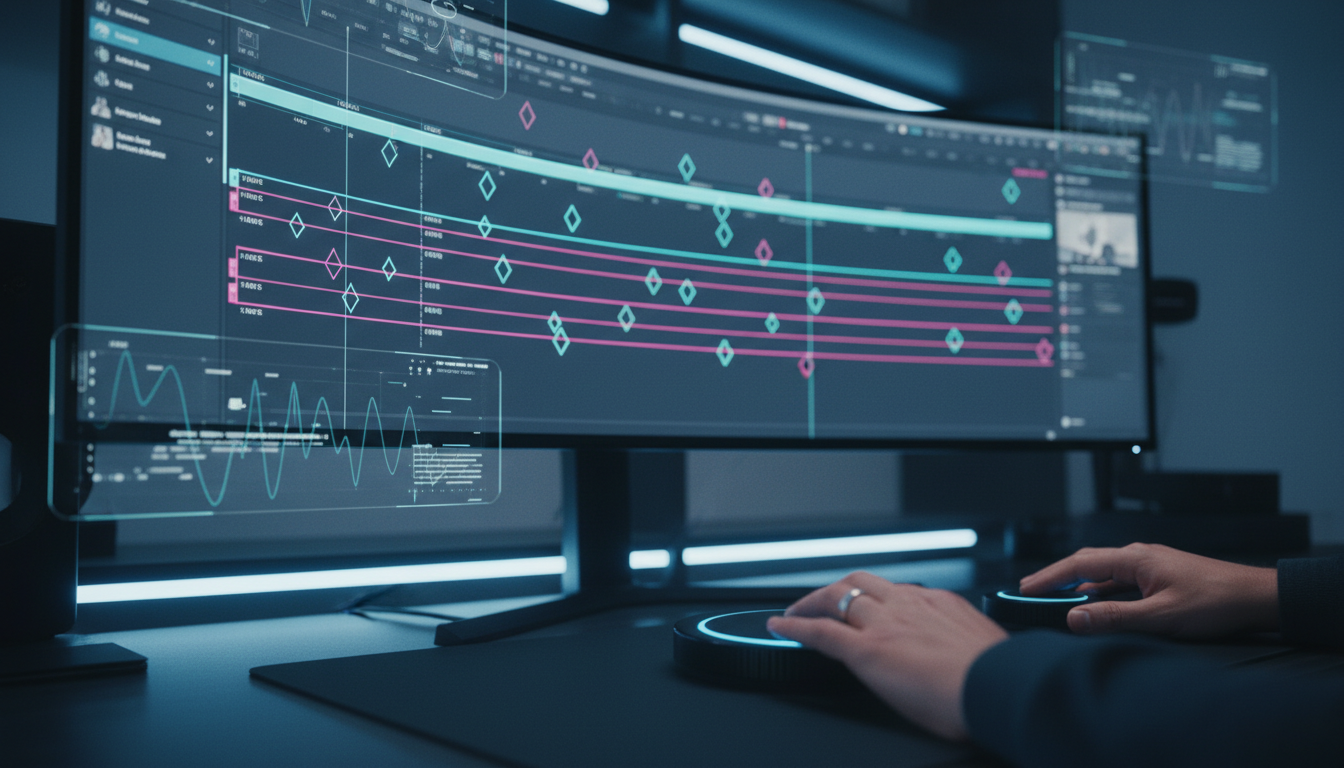
The classic short-form subtitle pop animation gives text an energetic bounce without feeling overly chaotic. You can build this exact move in Premiere Pro in seconds using basic scale keyframes.
Setting scale keyframes from 0% to 115% to 100%
Position your playhead at the exact starting frame where the speaker begins talking. In Effect Controls under Vector Motion or Motion, turn on keyframing for Scale.
Set your keyframe sequence across an 8-frame duration:
- Frame 0: Set Scale to 0%.
- Frame 5: Step forward 5 frames and set Scale to 115% (this creates the overshoot pop).
- Frame 8: Step forward 3 more frames and set Scale back down to 100%.
When you play this back, your text pops onto screen with an energetic bounce. It pulls the viewer's eye straight to the center of the frame.
Scale (%)
 120% │               ◆ (Frame 5: 115%)
 100% │───────────────────◆ (Frame 8: 100%)
  80% │              / \
  60% │             /   \
  40% │            /     \
   0% │ ◆─────────/       \
      └─┴──┴──┴──┴──┴──┴──┴──┴── Time (Frames)
        0  1  2  3  4  5  6  7  8
Applying Ease In and Ease Out temporal interpolation
Linear keyframes look robotic and cheap. So how do we smooth them out?
Highlight your keyframe triad in Effect Controls, right-click the middle keyframe (115%), and set Temporal Interpolation to Ease In. Right-click the final keyframe (100%) and set Temporal Interpolation to Ease Out [8].
Open the drop-down velocity graph under Scale and pull the keyframe handles slightly to create a smooth, organic deceleration curve [3]. This small adjustment transforms a stiff bounce into fluid movement.
Selective emphasis vs over-animating every single word
A common mistake among newer editors is trying to apply an 8-frame scale pop to every single word in a 60-second clip. Don't do it. When every word is violently popping, nothing stands out, and your viewer gets visual fatigue.
Kinetic typography works best when editors apply emphasis selectively [7] to punchlines, core statistics, or high-energy verbs. Leave basic supporting words static or use simple opacity cuts. Then trigger your 8-frame pop animation on the specific power words that carry the emotional weight of the edit.
Actionable Takeaway: Animate text scale across 8 frames (0% -> 115% -> 100%), apply Ease In/Ease Out interpolation, and apply this motion exclusively to high-impact keywords.
Building Retro Text Echo Trails with Native Premiere Pro Effects
Want stylized text moves for music videos, podcast intros, or brand spots? Stacking native effects directly inside Premiere Pro yields surprisingly sophisticated results.
Duplicating text layers for stroke-only graphic fills
To create a layered, 3D kinetic text trail without opening After Effects, follow these steps:
- Hold Alt (or Option on Mac) and drag your graphic text clip up to duplicate it onto video track V2.
- Select the top clip on V2 and open Essential Graphics.
- Uncheck Fill and check Stroke, setting the stroke width to 4 or 6 pixels with a bold contrasting color.
- Keep the bottom clip on V1 set to solid white or yellow fill without a stroke.
This
Stacking Offset and Echo effects for 3D depth
Select the bottom text layer on V1 and navigate to the Effects panel. Search for Offset and Echo, then drag both onto your V1 clip.
The Offset effect allows you to shift the center point of the graphic, pushing the background fill slightly down and to the right. Combining native video effects like Offset and Echo enables editors to craft layered motion aesthetics [8] that look like complex After Effects compositions.
Tweaking echo time and minimum operator settings
To make the echo trail clean and readable, adjust your parameters carefully. Set Echo Time (seconds) to -0.065 [3] and increase Number of Echoes to 5 or 8. Crucially, change Echo Operator from Add to Minimum [4].
Setting the operator to Minimum prevents white text from blowing out into a blinding smudge. It creates a clean, cascading trailing effect behind your primary text layer as it moves across the sequence.
[ V2 ]  Stroke-Only Text Layer (Foreground Reading Layer)
[ V1 ]  Fill-Only Layer  ──► Offset Effect ──► Echo Effect (Time: -0.065s, Op: Minimum)
Actionable Takeaway: Duplicate your text graphic onto two tracks, set the upper layer to stroke-only, and apply Offset alongside Echo (set to Minimum) on the lower layer to create retro 3D text trails natively.
Scaling Your Workflow: Presets, MOGRTs, and Automated Caption Tools
Manual keyframing works great when you're building a custom title for a hero project. But when you have to turn around five 30-minute podcast episodes every week, keyframing line by line will quickly burn you out.
Saving keyframe sequences as reusable Effect Presets
Once you build an 8-frame text pop or a subtle bounce that you love, don't re-create it from scratch. Save it.
In the Effect Controls panel, select the Motion or Transform effect where your keyframes live. Right-click the effect header and select Save Preset. Name it "Shorts Text Pop - 8 Frames" and set Type to Scale FX.
Now, whenever you need that exact pop animation, simply drag the preset from your Effects panel directly onto any text graphic on your timeline. Saving customized keyframe sequences as reusable Effect Presets inside Premiere Pro [7] significantly speeds up client turnarounds.
Customizing MOGRT templates directly in Essential Graphics
What if you need more intricate kinetic typography like sliding highlight boxes, multi-colored word tracks, or lower third slates? That's where Motion Graphics Templates (.MOGRT files) come in.
You can import .MOGRT files directly into your Essential Graphics panel. Motion Graphics Templates allow editors to customize font, color, stroke width, kerning, and animation timing [5] directly inside Premiere Pro [6], without ever launching After Effects or breaking render pipelines [10].
Speeding up animated captions with KreateFlo CaptionFlow
Even with presets, manually applying effect presets onto hundreds of separate text layers in a long interview takes considerable time. This is where dedicated plugins change the math.
We built KreateFlo as a CEP extension plugin directly inside Adobe Premiere Pro. Inside KreateFlo (currently on v1.0.3), our CaptionFlow tool automatically turns transcriptions into animated captions. Instead of manually splitting clips and dragging presets, CaptionFlow gives you 22 animated caption presets with real-time WASM previews right inside Premiere.
You can preview the exact text motion, tweak highlight colors, and apply word-by-word kinetic typography across a 60-second reel in about 3 seconds. And you do it without ever touching After Effects or waiting for background renders.
| Method | Setup Time (60s Reel) | Real-time Preview? | Revisions Speed | Render Time |
|---|---|---|---|---|
| After Effects Dynamic Link | 15–20 Mins | No (Requires RAM Preview) | Very Slow | High |
| Manual Premiere Keyframing | 5–8 Mins | Yes (Native Timeline) | Medium | Zero |
| KreateFlo CaptionFlow | Under 10 Seconds | Yes (WASM Real-Time) | Instant | Zero |
Pro Tip: If you edit high volumes of short-form content, use manual Premiere keyframing for unique brand titles, but switch to CaptionFlow for fast word-by-word subtitle pops across your daily edit timeline.
Actionable Takeaway: Save your custom keyframe moves as native Effect Presets, and leverage KreateFlo CaptionFlow inside Premiere Pro to automate word-by-word animated captions across long-form projects.
Advanced Kinetic Typography in Premiere Pro Without Using After Effects: Text FX Tricks
Once you master basic scale pops and echo trails, you can apply advanced native tricks to elevate your typography even further.
Motion blur workarounds using the Transform effect
One major limitation of standard Vector Motion in Premiere Pro is that keyframed scale and position moves lack motion blur. This can make fast text moves look stiff.
To add realistic motion blur directly on your Premiere timeline, follow this simple workflow:
- Skip keyframing standard Motion or Vector Motion parameters.
- Go to your Effects panel and apply the Transform effect (Video Effects > Distort) to your text clip.
- Uncheck Use Composition's Shutter Angle inside the Transform effect controls.
- Set Shutter Angle to 180 or 240.
Now, keyframe Scale or Position inside the Transform effect rather than the standard Motion tab. The 180-degree shutter angle automatically generates natural, directional motion blur along the vector of your movement.
Text Graphic Clip
   └── Apply Effect: Distort > Transform
         ├── Uncheck: Use Composition's Shutter Angle
         ├── Set: Shutter Angle = 180°
         └── Keyframe: Position / Scale inside Transform panel
Combining color wipe transitions with kerning adjustments
Another dynamic trick is animating kerning alongside a quick color wipe transition.
In your Essential Graphics panel, create your main title text. Keyframe Tracking from -50 to 0 over 12 frames to create a sleek text expansion move. Simultaneously, drag a native Linear Wipe effect onto the text clip, set Wipe Angle to -90 degrees, and keyframe Transition Completion from 100% to 0%.
This causes your text to slide out smoothly while expanding its tracking distance in a clean, cinematic fashion. It takes seconds to set up.
Creating dynamic background highlights without external plugins
Want to build high-visibility text highlight boxes like the ones in top finance podcasts? Here's how to do it natively:
- In Essential Graphics, click the New Layer icon and select Rectangle.
- Drag the rectangle shape layer below your text layer in the Essential Graphics layer stack.
- Check Background or set a solid fill color (like pastel yellow or neon green) for the rectangle.
- Animate the horizontal scale of the shape layer from 0% to 100% just as the speaker utters the highlighted word.
This creates a
Actionable Takeaway: Use the Transform effect with a 180-degree shutter angle for motion blur, and stack shape layers beneath graphic text for quick highlight boxes natively.
When You Should (and Shouldn't) Ditch After Effects for Text Motion
I love editing directly on the Premiere timeline, but as professional editors, we need to be honest about our tool choices. Premiere Pro is an elite non-linear editor, while After Effects is a procedural compositor.
So when should you stay on the timeline, and when should you send a clip to After Effects?
Best use cases for fast timeline text animation
You should keep your kinetic typography entirely inside Premiere Pro when working on:
- Podcast Clips & Talking Heads: High-volume vertical content where speed and audio-sync accuracy are critical.
- Social Media Reels & Shorts: Dynamic word-by-word pop captions, color highlights, and scale bounces.
- Fast Client Turnarounds: Projects requiring quick copy edits or frequent client text changes.
- Lower Thirds & Callouts: Simple brand graphic overlays powered by MOGRTs or saved Effect Presets.
Complex 3D camera rigs and character rigging edge cases
On the flip side, you should still jump over to After Effects when your project requires:
- True 3D Camera Depth: Text flying around 3D extruded shapes with complex lighting, shadows, and camera depth of field.
- Character Rigging & Vector Morphing: Complex paths where individual letter shapes morph into illustrative icons.
- Particle & Fluid Simulations: Text dissolving into liquid, smoke, or disintegrating particles using heavy third-party plugins like Trapcode.
Honest breakdown of KreateFlo vs manual keyframing and FireCut
Manual keyframing in Premiere is completely free, but it takes time. Using After Effects
When looking at third-party Premiere extensions to automate this process, pricing models matter. Plugins like FireCut use per-hour credit systems or higher tier subscriptions that can get expensive if you edit hours of multi-cam podcasts every week.
| Before | $19.99/mo |
|---|---|
| After | Per-Hour Billing |
At KreateFlo, we built our plugin as a single bundled toolset for Premiere Pro with clear pricing. We offer 3 tools free forever (our Silence Remover, Transition Assistant, and Copy & Paste tools). For advanced AI captioning, our Pro tier is $19.99/mo (includes 20 AI hours) and Studio is $44.99/mo (includes 50 AI hours).
We also include a dedicated Multi-Cam Editor that handles up to 8 speakers and 8 cameras with automatic wide-shot switching, plus voice transcription supporting 40+ languages (including Hindi and Bangla).
Let's be real about when KreateFlo is NOT the right pick. KreateFlo is an Adobe Premiere Pro plugin (CEP extension), not a standalone web app like Descript or Opus Clip. If you prefer editing inside a web browser, KreateFlo isn't right for your workflow. But if you live inside Premiere Pro every day, it keeps your entire edit on one timeline.
Pro Tip: Use manual Premiere keyframing for single custom titles, but rely on dedicated timeline plugins like KreateFlo when you need to automate captions and cut hours out of your weekly workflow.
Actionable Takeaway: Use Premiere Pro native text tools and KreateFlo for fast social edits and podcast clips; reserve After Effects strictly for complex 3D camera rigs and custom shape morphing.
Frequently Asked Questions
Can you create kinetic typography in Premiere Pro without using After Effects?
Yes. You can create complete kinetic typography inside Adobe Premiere Pro by converting caption tracks to graphic layers, manually keyframing Motion and Transform parameters, or using native effect plugins like Echo and Offset [1], [2], [8].
How do you convert subtitle captions into editable graphics in Premiere Pro?
Select your caption track clips on the timeline, open the top menu bar, go to Graphics and Titles, and click Upgrade Caption to Graphic [2]. This converts standard captions into keyframeable vector graphic layers [7].
How do you add motion blur to text inside Premiere Pro?
Instead of keyframing standard Motion scale or position, apply the Transform effect under Distort to your text clip. Uncheck Use Composition's Shutter Angle and raise the shutter angle to 180 to add realistic motion blur.
Why does my text scale off-center when I keyframe it in Premiere Pro?
This happens when the graphic layer anchor point is positioned at the corner or default origin [1]. Select the text layer and press Ctrl + Alt + Home (Windows) or Command + Option + Home (Mac) to center the anchor point before adding keyframes [1].
What is the fastest way to animate word-by-word captions in Premiere Pro?
Using dedicated plugins like KreateFlo CaptionFlow inside Premiere Pro lets you pick from 22 animated presets with real-time WASM previews, eliminating the need to set manual keyframes for hundreds of individual words.
Take Control of Your Timeline Typography
You don't need to open After Effects every time a client asks for
Want to cut your text editing time down even further? Download KreateFlo today to test our 3 free forever tools or start a Pro trial to automate your animated captions in seconds.
References
- pradumnafx.in/blog/dynamic-text-animation/
- blog.nobledesktop.com/learn/premiere-pro/transforming-captions-to-graphics-for-enhanced-visibility-in-adobe-premiere-pro
- youtube.com/watch
- youtube.com/watch
- youtube.com/watch
- youtube.com/watch
- kreateflo.com/blog/why-kinetic-typography-keeps-viewers-engaged-on-short-form-video
- eilandigital.com/newsletter/the-importance-of-motion-graphics-in-fixing-low-engagement-and-short-attention-span/
- wearefevr.com/what-is-kinetic-typography
- experienceleague.adobe.com/en/docs/creative-cloud-enterprise-learn/cce-learning-hub/videooverview/videotutorials/motion-graphics-templates
- spacecoastdaily.com/2026/04/5-best-tools-for-dynamic-subtitles-and-dynamic-captions-in-2026/
- youtube.com/watch
- youtube.com/watch
- youtube.com/watch
Try KreateFlo free
3 tools forever, 7-day trial on the rest. No credit card to start.
Download KreateFlo