Premiere Pro Transitions: 7 Proven Fixes for v26.0
You updated to Adobe Premiere Pro v26.0 expecting a productivity boost. Instead, you're staring at a red-rendered timeline and a transition library that looks like a ghost town. It's the same old stor
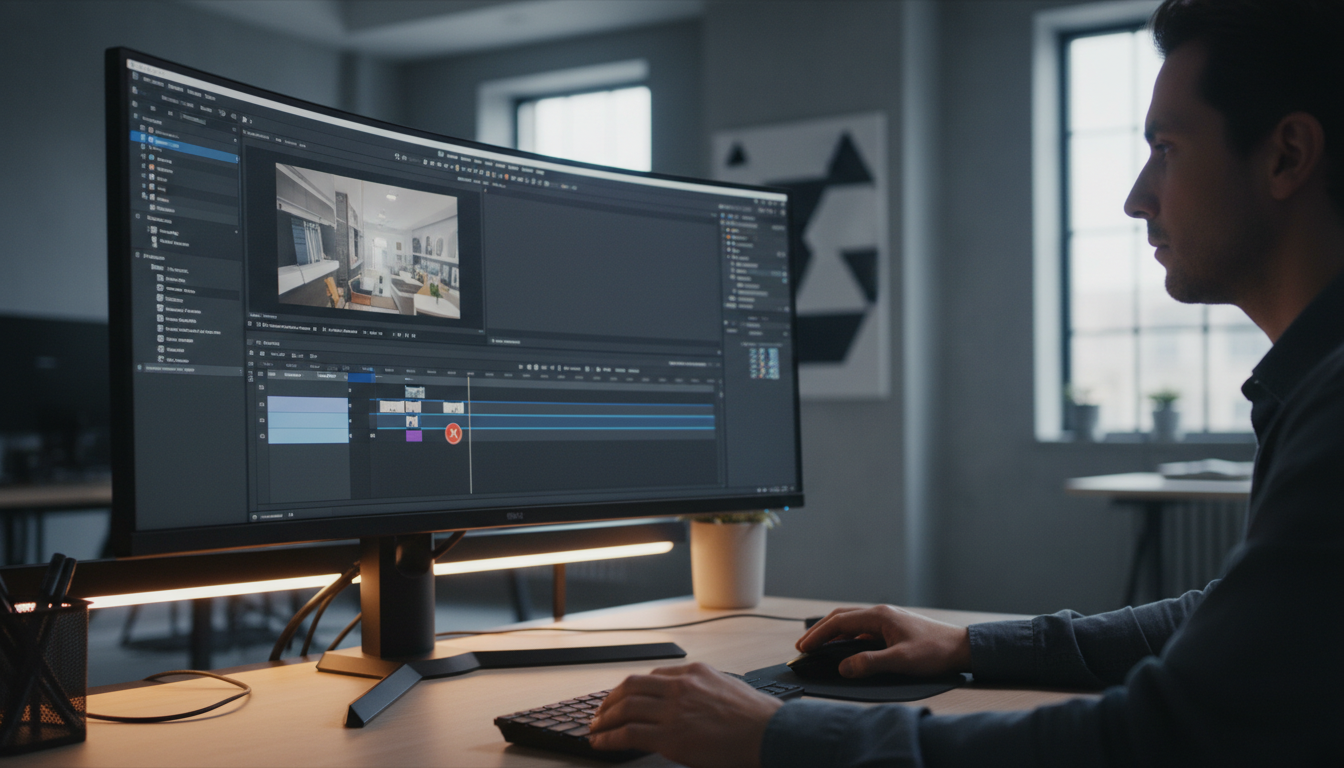
You updated to Adobe Premiere Pro v26.0 expecting a productivity boost. Instead, you're staring at a red-rendered timeline and a transition library that looks like a ghost town. It's the same old story: Adobe pushes a major architectural update, and suddenly the tools we rely on to hit deadlines start acting like they've never seen a video file before. If you're seeing "GPU Acceleration Required" errors on basic dissolves or your third-party panels are coming up as empty white boxes, you aren't alone, trust me. The transition from the legacy Common Extensibility Platform (CEP) to the new Unified Extensibility Platform (UXP) is the biggest architectural pivot in a decade for Premiere Pro [5]. Understand that isn't just a minor software patch; it's a complete rewrite of how Premiere handles plugins and effects. While the goal is better performance, the reality for many editors in 2026 is a broken workflow that costs hours of billable time. I've spent the last week digging through crash logs and forum threads to figure out why these libraries are failing and how to get them back online without a full OS wipe.
Key Takeaways
- Most transition issues in v26.0 stem from the hard cutoff of legacy CEP support [9].
- GPU acceleration errors on native transitions often require a driver handshake refresh, specifically NVIDIA/AMD Studio Driver v595.79 or higher [8].
- Empty UXP panels are a known bug in version 26.0.0; updating to version 26.0.2 is mandatory [1].
- Large Productions in v26 may require a system page file increase to 200GB to prevent freezing during transition rendering [1].
- Vertical video (9:16) sequences have documented "Render and Replace" glitches that can be bypassed by nesting clips before applying transitions [4].
- Using integrated tools rather than a patchwork of 10 different legacy plugins reduces the RAM overhead, as each CEP panel can eat 250MB of RAM [1].
Why Your Premiere Pro Transitions Aren't Working
The 2026 update changed the underlying DNA of how Premiere Pro talks to your hardware and your plugins. For years, we relied on CEP, which essentially ran a miniature version of the Chrome browser inside Premiere Pro to power our panels. Adobe is finally killing that off in favor of UXP, which uses native C++ rendering. It's faster, sure, but it means legacy plugins often fail to load because the host application no longer recognizes their manifest.xml files [10]. Think of it like trying to play a Blu-ray in a VCR; the technology is simply speaking a different language.Common Causes: What's Really Going On?
When your transition library disappears, it's usually one of three things: a manifest failure, a cache corruption, or a GPU driver mismatch. In version 26.0, we're seeing a high rate of empty UXP panels where the plugin interface simply refuses to draw [1]. This is often tied to the UXP cache folder getting stuck in a loop. The Actionable Takeaway here is: Before you assume your transition pack is dead, check your Premiere Pro version. If you're on 26.0.0, you are essentially a beta tester for a broken build. Patch to 26.0.2 immediately.When Premiere Pro Just Says No
We've all seen the "GPU acceleration required" warning. In v26, this is happening even when the Mercury Playback Engine is already set to GPU acceleration. This is a documented bug in the 2026 rendering engine that affects native dissolves and VR effects [3]. It happens because the software loses its "handshake" with your graphics card during the transition calculation.The architectural shift in v26.0 is the most significant hurdle for third-party developers since the move to Creative Cloud, requiring a total rethink of plugin stability.
Basic Checks: Your First Line of Defense
I know it sounds like IT support 101, but you have to start with the basics because v26 is sensitive to system state. A simple restart doesn't just clear your screen; it flushes the Chromium instances used by legacy panels that might be hanging in the background [1].The Classic Restart: Premiere Pro and Your Machine
Don't just close the app. Check your Task Manager or Activity Monitor. If you see "Adobe Premiere Pro" or "CEPHTMLEngine" still running after you've closed the program, force quit them. These zombie processes prevent the transition library from re-indexing correctly on the next launch and more fatigue for your GPU.Checking for Updates: Don't Skip This Step
Adobe released patches 26.0.1 and 26.0.2 specifically to address missing object mask data and empty panels [1]. If you are working on a professional project, you cannot afford to stay on the base 26.0 release. Verify your GPU drivers as well. Version 26.0 requires the latest Studio Drivers for stable rendering of transitions [8]. Gaming drivers won't cut it here; they lack the stability certifications needed for the new UXP rendering pipeline.New Project, New Hope: Testing Isolation
If your transitions work in a brand new project but not your current one, your project file is likely bloated or corrupted. Try importing the sequence into a new project rather than opening the old file directly [6]. This forces Premiere to rebuild the transition cache for that specific timeline. Actionable Takeaway: Use the "Simplify Sequence" command before moving to a new project to strip out any offline clips or hidden markers that might be triggering the glitch.Corrupted Files and Cache: The Silent Killers
 Media cache is the number one cause of "ghost" frames in transitions. This is usually where you see a flash of a different clip during a cross-dissolve. In v26, the cache management has changed to accommodate the UXP architecture's native rendering [5].
Clearing Your Media Cache: The Digital Dust Bunnies
Don't just use the "Delete" button in Preferences. Go to the actual folder on your drive:- Windows: %AppData%\\Adobe\\Common
- Mac: \~/Library/Application Support/Adobe/Common
Delete the Media Cache, Media Cache Files, and PTX folders. This forces Premiere Pro to re-index everything. If you've been moving from v25 to v26, your old cache files are likely incompatible and causing the system to freeze [1].
Trashing Preferences: A Fresh Start
Hold Shift + Alt (Windows) or Shift + Option (Mac) while launching Premiere. This resets your preferences. It's a pain to set up your workspace again, but it clears corrupted transition library metadata that often survives a standard reinstall [7].| Version | Stability Status | Known Issues |
|---|---|---|
| v25.0 | Stable | Legacy architecture |
| v26.0 | Buggy | Empty panels, GPU errors |
| v26.0.2 | Recommended | Fixed UXP handshake |
Analyzing Project File Integrity
If you're working in a Production environment, the 2026 update has been reported to cause system freezes during the migration process [1]. If a specific transition is crashing your machine, check your system page file. Some editors have found that increasing the page file to 200GB is the only way to get through a heavy render in v26 [1]. Pro Tip: Always keep your project files on a separate drive from your media cache. When transitions fail to render, it's often due to a disk I/O bottleneck where Premiere is trying to read the clip and write the cache to the same slow SSD.Dealing with Third-Party Premiere Pro Transition Library Glitches
If you use packs like FilmImpact or automated tools, the v26 update probably hit you hard. Many users have reported being unable to use transitions from the FilmImpact dashboard in this version [2].Disabling and Re-enabling Plugins
The new UXP system is picky. If you have a legacy plugin that hasn't been updated for 2026, it can consume 150MB to 250MB of RAM just sitting idle [1]. Here's the kicker: If your transitions are sluggish, disable all third-party panels and see if native performance improves. If it does, you've found your leak.Reinstalling Problematic Packs
If a transition pack doesn't show up in the "Effects" panel, the manifest.xml file is likely the culprit [10]. Reinstalling the pack often forces the installer to register the plugin with the new UXP manifest folder. Check the developer's website for a "v26 compatible" installer. If they haven't updated since 2024, it's time to consider an alternative. Actionable Takeaway: Check your transition presets for JSX scripts below version 4.0 [6]. These often fail to affect the first clip of a cut in the 2026 update because of how the new engine handles frame handles.Plugin Conflicts: How to Find the Culprit
 In the 2026 ecosystem, plugins don't just fail; they conflict. Because Adobe confirmed UXP is now the primary system, many developers are rushing out updates that might not play well with others [1].
The Gradual Disablement Method
If Premiere Pro is crashing during a transition render, it's usually not the transition itself but a conflict with another panel. Disable everything. Then, re-enable your transition library. If it works, add your other tools back one by one. This is the only way to find which legacy panel is hogging the Chromium instances and causing the crash [1].Checking Crash Logs for Clues
On Windows, use Event Viewer > Windows Logs > Application. Look for "Application Error" involving Premiere Pro.exe. On Mac, use the Console app. Look for "GPU Transition Error" or "UXP Plugin Timeout." These logs will often name the specific .dll or .plugin file that failed.Are Your Effects Even Loaded?
Ever feel like the software is playing hide and seek? Check the "Effects" panel search bar. If you have a filter active, your transitions won't show up. In v26, there is also a known issue where vertical video sequences hide certain horizontal-only transitions [4]. Pro Tip: Use the "Ripple Edit" tool to verify you have at least 15-30 frames of "handle" footage on both sides of a cut. Without handles, Premiere Pro 2026 often refuses to apply complex transitions, making the library look "broken" when it's actually just a lack of frames.Optimizing System Performance for Transitions
Transitions are some of the most resource-heavy tasks in your edit. If your system isn't optimized for v26's native UXP rendering, you'll see dropped frames and "GPU Acceleration" errors [5].GPU Acceleration and Drivers: Make Sure It's On
Go to File > Project Settings > General. Ensure "Renderer" is set to Mercury Playback Engine GPU Acceleration. If it's greyed out, your GPU driver is likely outdated for the 2026 requirements [8]. If it is on but still failing, toggle it to "Software Only," hit OK, then immediately toggle it back to "GPU." This forces a hardware handshake refresh.RAM Allocation and Disk Space
Transitions in v26 prioritize native rendering over embedded web views, which means they need fast access to your RAM [1]. Ensure you have at least 10GB of RAM reserved for other applications in Preferences > Memory. This prevents your OS from "stealing" the memory Premiere needs to calculate transition frames.Managing RAM isn't just about how much you have; it's about how much you allow Premiere Pro to dominate. In v26.0, memory leaks from legacy panels are the silent killer of render stability.
Actionable Takeaway: If a transition still won't play back, use Sequence > Render Selection. If it turns green and plays smoothly, your hardware is fine, but your real-time playback settings are too high for the v26 engine.
When All Else Fails: Reinstalling and Reverting Premiere Pro
Sometimes the update just didn't take correctly. Or worse, the 2026 version has a specific conflict with your hardware that hasn't been patched yet.The Clean Reinstallation Process
Don't just hit uninstall. Use the Adobe Creative Cloud Cleaner Tool. This removes the deep-seated library files and UXP cache that a standard uninstallation leaves behind. After cleaning, reinstall Premiere Pro 26.0.2. This ensures you're not carrying over corrupted manifest data from a previous install [10].Reverting to an Older Stable Version
If your client deadline is in four hours and your transitions are still broken, reverting to v25.0 is the smartest move [1]. You can install older versions via the "Other Versions" tab in the Creative Cloud app. Just remember that project files are not backwards compatible; you'll need to export an XML of your sequence from v26 to open it in v25.Streamline Your Workflow: Less Troubleshooting, More Editing
![ed manifest data from a previous install [10]. Reverting to an Older Stable Version If your client d](https://res.cloudinary.com/dvr973bpw/image/upload/v1781033032/rankhiker-articles/uftjedagagkoh9lmjzrh.png) Let's be honest: we're editors, not software engineers. Spending three hours debugging why a zoom transition won't render is a massive waste of energy and time. The problem with the current Premiere Pro ecosystem is the "patchwork" approach which uses ten different plugins from ten different developers, each with their own memory leaks and manifest issues [1].
Let's be honest: we're editors, not software engineers. Spending three hours debugging why a zoom transition won't render is a massive waste of energy and time. The problem with the current Premiere Pro ecosystem is the "patchwork" approach which uses ten different plugins from ten different developers, each with their own memory leaks and manifest issues [1].Integrated Tools vs. Patchwork Solutions
When you use a fragmented set of tools, you increase the chance of conflict. If Plugin A is built on legacy CEP and Plugin B is built on the new UXP, they are competing for system resources in a way that often leads to the "white screen" freeze. This is why we built KreateFlo. Instead of juggling a dozen different installs, we bundled 33+ professional tools into a single Premiere Pro extension. Our Transition Assistant is designed to work within the 2026 architectural limits. Because it's one unified plugin, it's significantly more stable than running a bunch of individual legacy panels that each eat 250MB of RAM [1].The Power of a Unified Editing Experience
Imagine having your multi-cam editor, your animated captions, and your silence remover all in one place. No more round-tripping to separate apps or fighting with transition dashboards that crash on launch. Our CaptionFlow even uses WASM for real-time previews, so you don't have to wait for a render just to see if your text looks right. Pro Tip: If you're tired of the "GPU Acceleration" errors on third-party transitions, try using our Auto-Reframe tool for short-form content. It's built to handle the vertical video glitches in v26 without the need for manual nesting [4].FAQ: Premiere Pro Transition Library Troubleshooting
What causes Premiere Pro transitions to disappear? In version 26.0, this is usually due to the shift from CEP to UXP. If a plugin's manifest isn't updated for the new architecture, Premiere Pro simply won't load the library [5]. Corrupted media cache and outdated preferences are also common culprits. How do I fix a Premiere Pro transition that's not working? Start by updating to version 26.0.2. If that doesn't work, clear your media cache and reset your preferences by holding Shift+Alt on launch. If you see a GPU error, ensure you are on the latest Studio Driver (v595.79+) and toggle your Mercury Playback Engine settings [8]. Why are my third-party transitions crashing Premiere Pro? It's likely a memory conflict. Legacy CEP panels can consume up to 250MB of RAM each, and the 2026 version of Premiere is less tolerant of these background processes [1]. If a plugin is poorly coded, it can trigger a "GPU timeout" during rendering. Can an outdated GPU driver affect Premiere Pro transitions? Yes. Version 26.0 uses a new rendering pipeline that requires modern driver handshakes [3]. If your driver is more than 3 months old, you'll likely see red lines and "Acceleration Required" errors on even simple cross-dissolves. What's the best way to prevent Premiere Pro transition library problems?- Stick to a unified toolset that is actively updated for the v26 UXP architecture [1].
- Maintain a clean media cache, use Studio Drivers.
- Always test new updates in a non-critical "sandbox" project before moving your main client work over.
Look, we all just want to edit. We don't want to spend our mornings debugging software or searching for missing panels. By following these troubleshooting steps, you're building a more stable environment so you can actually hit your deadlines. If you're tired of fighting your software and want a tool that "just works" in the new Premiere Pro 2026 environment, it's time to simplify. Stop juggling ten different transition packs and start using a unified system. Download KreateFlo for Premiere Pro and see how much faster you can move when your tools aren't fighting each other. References
- hyperbrew.co/blog/nab-2026-ai-hype-vs-reality-for-adobe-plugins/
- community.adobe.com/questions-729/pr-v26-0-version-unable-to-use-transitions-from-film-impact-dashboard-1547823
- community.adobe.com/bug-reports-728/premiere-2026-acceleration-what-happened-to-adobe-premiere-1556912
- community.adobe.com/bug-reports-728/pr-26-0-render-and-replace-issues-1546966
- metadesignsolutions.com/blog/custom-adobe-cep-vs-uxp-plugin-development
- youtube.com/watch
- youtube.com/watch
- youtube.com/watch
- community.adobe.com/questions-606/cep-uxp-roadmap-should-developers-stop-building-cep-plugins-and-what-happens-to-existing-ones-1614807
- github.com/tmoroney/auto-subs/issues/571
- community.adobe.com/questions-729/transition-presets-not-working-after-update-1391065
- note.com/87_kaba/n/n2b90e28789c3
- reap.video/blog/future-of-ai-video-editing-2026
Try KreateFlo free
3 tools forever, 7-day trial on the rest. No credit card to start.
Download KreateFlo