Vertical Video Subtitle Positioning: Proven 2026 Guide
UI-blocked text drops vertical video ad conversion rates by an average of 30% [1]. Yet I still see editors spend four hours crafting a beautiful promo sequence in Adobe Premiere Pro, only to let TikTo
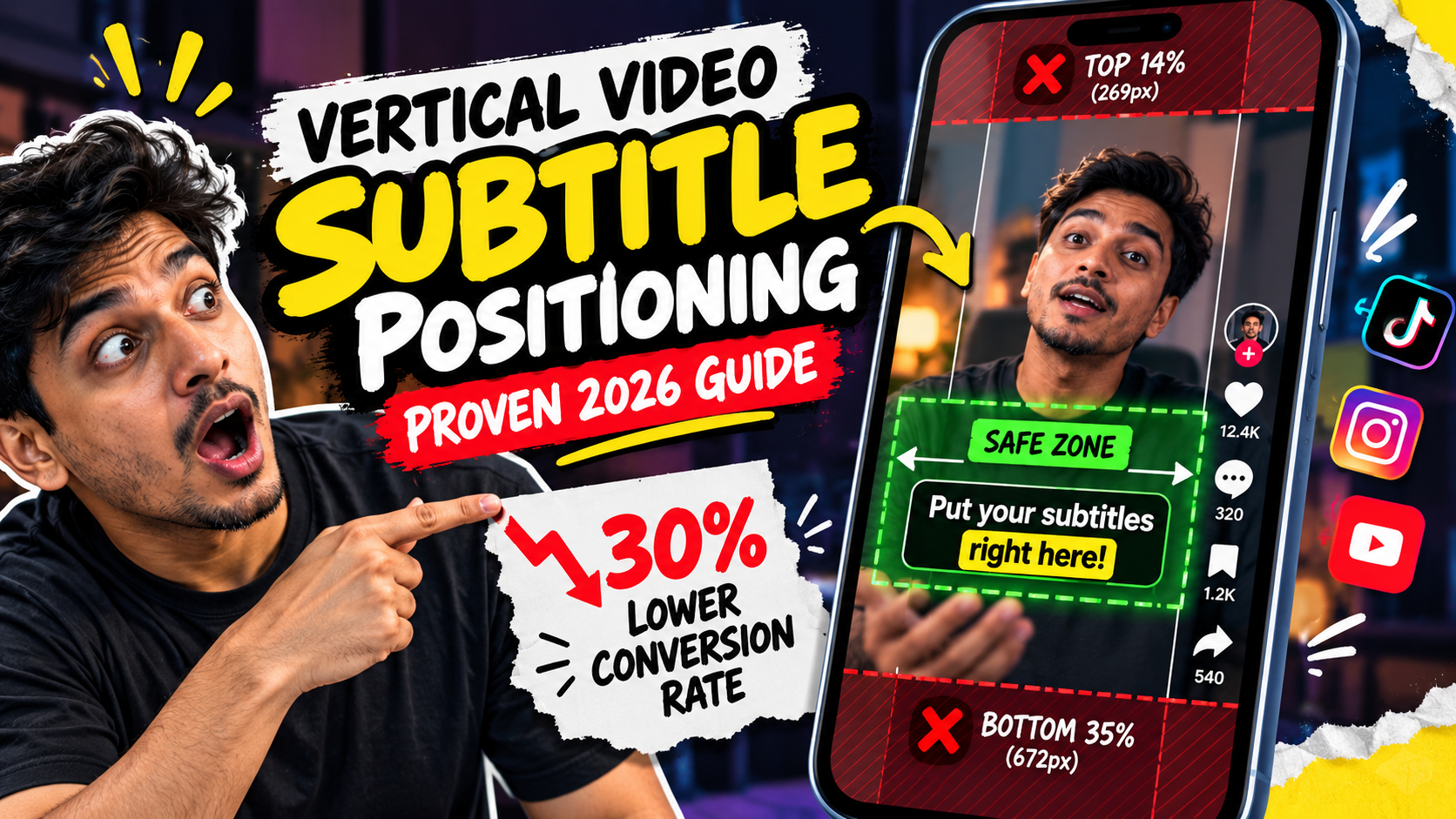
UI-blocked text drops vertical video ad conversion rates by an average of 30% [1]. Yet I still see editors spend four hours crafting a beautiful promo sequence in Adobe Premiere Pro, only to let TikTok's comment button cover the discount code completely [1].
When 80% of mobile users scroll through vertical feeds with the sound off [3], bad subtitle placement destroys your ad spend.
Key Takeaways
- UI-blocked text drops vertical video ad conversion rates by an average of 30% [1].
- Around 80% of users watch vertical social videos without sound, making subtitle placement critical [3].
- Keep main subtitle text bounded vertically between Y=1200px and Y=1550px on a standard 1080x1920 canvas [4], [8].
- Restrict subtitle width to the central 900px to keep text clear of right-side engagement buttons [1], [4].
- Meta's unified guidelines reserve the top 14% (269px) and bottom 35% (672px) as off-limits for key text [5], [6].
- Use real-time WASM safe-zone preview tools in Adobe Premiere Pro to avoid costly render-and-reupload cycles [1].
The Hidden Conversion Killer in Mobile Feeds
I ruined three major client campaigns last year before I realized Adobe Premiere Pro was lying to me.
You look at a clean 1080x1920 canvas in your program monitor. Everything looks perfectly legible [1]. But the second that MP4 hits TikTok, Instagram Reels, or YouTube Shorts, native app overlays cover half your text [1], [4].
Think about it.
30% from UI-blocked text
The Rise of Sound-Off Feed Consumption
Social media users do not watch feed videos like moviegoers in a theater. They scroll on public transit, in quiet offices, or late at night in bed [8].
Recent industry data shows that 80% of social media users consume vertical videos with the sound turned off [3]. If your captions are missing, obscured, or misplaced, your video is functionally mute [2].
Research confirms that videos featuring subtitles are watched to completion 91% more often than videos without subtitles [2]. When viewers cannot read your message instantly, they do not turn their volume up. They swipe to the next creator in under two seconds [8]. Captions do not just assist accessibility anymore. They drive core retention [2].
How Interface Elements Block Your Message
When you edit in Premiere Pro, you work on a blank digital slate [1]. Mobile apps do not give you a blank slate [1]. Native app interface elements wrap directly over top of your raw footage [1], [4].
TikTok, Instagram Reels, and YouTube Shorts each lay down heavy interface controls [1], [7].
TikTok UI overlays occupy up to 25% of the frame at the top and bottom [3], [9]. On top of that, there is a 120–164px dead zone along the right edge [3], [4]. Instagram Reels adds an even larger bottom dead zone for boosted posts [1]. So if your captions sit near the bottom margin or span full width, platform chrome renders your CTA unreadable [1], [4].
Pro Tip: Build your primary vertical ad master against boosted ad safe-zone guidelines rather than organic specs [1]. Organic feeds look spacious. But the second a client puts paid ad budget behind a reel, native CTA banners expand upward by an extra 100 pixels [1], [5].
Actionable Takeaway: Design every 9:16 ad timeline assuming the audience is watching on mute with full native app interface overlays active [1], [3].
Why Subtitle Positioning Matters for Vertical Video Ads
Understanding why subtitle positioning matters for vertical video ads directly impacts your bottom line [1], [5]. Misplaced text is not just a visual error. It directly inflates your cost per acquisition [5], [6].
Direct Impact on Cost Per Acquisition (CPA)
When a paid advertisement runs on Meta Ads Manager or TikTok Ads Manager, every impression costs real money [5], [6]. If your key offer, promo code, or primary value proposition sits behind a comment input box, viewers cannot act on the pitch [1], [6].
UI-blocked text and calls-to-action drop vertical video ad conversion rates by an average of 30% [1].
When conversion rates drop by nearly a third, your Cost Per Acquisition (CPA) jumps by 40% to 50% for the exact same audience reach [1], [5]. Paying $45 for a customer acquisition that should cost $30 drains client ad budgets fast [5].
Boosting Completion Rates with Visible Captions
Mobile algorithms reward watch time and video completion rates above almost everything else [3], [7]. Platforms want users staying inside their feeds [7].
Fullscreen 9:16 vertical video delivers a 36% increase in audience reach compared to horizontal video formats [3]. But that only happens if viewers stay past the hook.
Clear subtitle placement guides the eye without causing cognitive friction [8]. When viewers can read the hook while scanning the visual action, watch time surges [2], [8].
Actionable Takeaway: Position captions where they naturally guide viewer eyes without blocking central visual actions or getting buried behind app UI [1], [8].
Understanding Unified Safe Zones for TikTok, Reels, and Shorts

Trying to manage separate sequence duplicates in Premiere Pro for TikTok, Instagram Reels, Facebook Reels, and YouTube Shorts is a nightmare [1]. It takes hours of tedious manual adjustment [1].
The solution? Establish a single universal safe-zone layout that clears every platform's interface in one go [1], [10].
| Platform / Metric | Top Exclusion Zone | Bottom Exclusion Zone | Side Exclusions | Safe Inner Canvas |
|---|---|---|---|---|
| Meta Reels & Stories (Unified) | Top 14% (269px) [5], [6] | Bottom 35% (672px) [5], [6] | 6% (65px) each side [5], [6] | 950 x 1019 px centered [5] |
| TikTok Ads & Organic | Top 108px [1], [9] | Bottom 320px [1], [9] | 120px right / 60px left [1], [9] | 900 x 1492 px offset [1] |
| YouTube Shorts | Top 150–250px [1], [4] | Bottom 250–510px [1], [4] | 120px right / 60px left [1], [4] | 900 x 1160 px centered [1] |
| Universal Safe Zone | Top 250px [1], [4] | Bottom 510px [1], [4] | 90px left & right [1], [4] | 900 x 1160 px centered [1], [4] |
Meta's Unified 9:16 Guidelines
Meta updated its ad creative standards across all vertical formats [5]. Meta unified 9:16 safe zone guidelines across Instagram Reels, Instagram Stories, Facebook Reels, and Facebook Stories [5].
The top margin accounts for profile headers and "Sponsored" tags [5], [6]. The bottom margin protects interactive swipe-up bars, account handles, and caption descriptions [5]. Treating the bottom 35% as off-limits guarantees your paid ad survives Meta's placement variations [5], [6].
TikTok's Right-Hand Dead Zone
TikTok presents a unique horizontal layout challenge [1], [9]. Top and bottom margins look similar to Meta's formats. But TikTok stacks interactive buttons vertically along the right screen edge [1], [9].
According to TikTok cross-platform safe zone benchmarks [9], the rightmost 120 to 164 pixels are completely blocked [4], [9]. This column holds the creator profile avatar, like heart, comment bubble, bookmark icon, and audio share link [1], [4].
Centering full-width text on a 1080px timeline causes the final three letters of every sentence to hide behind TikTok's like button [1], [8].
| 58|Bottom Danger Zone | NaN |
|---|
Pro Tip: Always pull the right-hand margin of your subtitle bounding box inward by at least 120 pixels in Adobe Premiere Pro [1], [4]. This prevents right-side engagement buttons from cutting off sentence endings [1], [8].
Actionable Takeaway: Use Meta's conservative 35% bottom margin and TikTok's 120px right-side clearance to create a cross-platform safe preset [1], [5].
Exact Pixel Dimensions for Clean Subtitle Placement
Stop guessing where your captions land on mobile screens [1]. Lock your timeline graphics to precise pixel coordinates. That way, you ensure clean rendering across every modern smartphone [1], [10].
+-------------------------------------------------+ (1080 x 1920 Full Canvas)
| TOP EXCLUSION ZONE (0px to 250px)               | -> Search, Headers, Camera Cutouts
+-------------------------------------------------+
|                                                 |
| UPPER THIRD (Y=300px to Y=500px)                | -> Shift captions here during lower UI demos
|                                                 |
| =============================================== |
| LOWER-MIDDLE SWEET SPOT (Y=1200px to Y=1550px)  | -> DEFAULT SUBTITLE BOUNDING BAND
| =============================================== |
|                                                 |
+-------------------------------------------------+
| BOTTOM EXCLUSION ZONE (Y=1550px to Y=1920px)    | -> Captions, Handles, CTAs, Audio Tags
+-------------------------------------------------+
|<-- 90px -->|     900px SAFE CENTER AREA     |<-- 90px -->|
The Vertical Y-Axis Sweet Spot (Y=1200px to Y=1550px)
In Adobe Premiere Pro, position coordinates run from Y=0 at the top edge down to Y=1920 at the bottom edge [8].
Placing your text baseline inside this horizontal band keeps captions comfortably below the speaker's face and main action [8]. Simultaneously, it leaves at least 370 pixels of empty clearance above the bottom frame edge [1], [8]. This avoids native audio tags, account handles, and comment input fields [1], [8].
Horizontal Centering and Line Margins
Horizontal alignment requires equal discipline [8].
Restrict your subtitle text box to a maximum horizontal width of 900 pixels [1], [8]. Center this box horizontally on your 1080px timeline [1], [8]. This leaves 90 pixels of margin on both left and right sides [1], [8].
The 90px left margin prevents text clipping on curved mobile screens. The 90px right margin keeps characters clear of stacked interactive icons [1], [8].
Actionable Takeaway: Set your subtitle bounding boxes in Premiere Pro to strictly stay between X=90/X=990 and Y=1200/Y=1550 [1], [4], [8].
Typography Rules for High-Converting Mobile Captions
Correct pixel positioning alone will not save poorly styled text [8]. If viewers cannot decipher your font in split-second feed passes, your conversion rates will still fall flat [2], [8].
Sizing Fonts for Fast Mobile Scannability
Mobile viewers scroll through feeds rapidly [8].
Avoid delicate, ultra-thin, or decorative script typefaces [8]. Stick to clean, bold sans-serif fonts such as Inter, Montserrat, Arial, or Helvetica Bold [8]. Keep text length capped at 1 to 2 lines per screen, with a maximum of 32 to 40 characters per line [8]. This allows viewers to comprehend words instantly without blocking the background video [8].
Contrast, Strokes, and Background Boxes
Video background footage changes light levels continuously [8]. White text that looks crisp over a dark shirt becomes completely invisible when the subject walks past a brightly lit window [8].
To guarantee legibility on both light and dark backgrounds, apply high-contrast styling [8]:
- Semi-Transparent Backing Box: Add a rectangular dark background box with 50% to 70% opacity black (
#000000) behind white text [8]. - Solid High-Contrast Stroke: Apply a 2px to 4px solid black outer stroke outline around white sans-serif characters [3], [8].
- Drop Shadow Blur: Use a 70% opacity black drop shadow with a 4px distance and 8px blur to separate text from complex video textures [8].
Pro Tip: Save two distinct Essential Graphics track styles in Premiere Pro: Vertical_LowerMiddle_Y1350 and Vertical_UpperThird_Y400 [8]. Both should feature Inter Bold 68pt with a 50% black background box [8]. This allows you to re-style and reposition long caption tracks across multi-clip timelines in seconds [8].
Actionable Takeaway: Use bold sans-serif fonts sized between 60pt and 80pt with a 50% black backing box to ensure high scannability across changing backgrounds [3], [8].
How to Fix Subtitle Positioning for Vertical Video Ads in Premiere Pro

Manually tweaking Essential Graphics track coordinates, keyframing line shifts, and waiting for timeline renders across dozens of short-form ads wastes hours of billable time [1], [8]. Editing short-form ad variations should take minutes, not afternoons [1], [8].
| Before | 4 Hours |
|---|---|
| After | 90 Seconds |
Automating Captions with KreateFlo CaptionFlow
We built CaptionFlow directly into KreateFlo—our CEP extension plugin for Adobe Premiere Pro—to fix this timeline bottleneck [1], [8]. CaptionFlow includes 22 animated caption presets engineered specifically for 1080x1920 safe-zone compliance [1], [10].
KreateFlo bundles 33+ post-production tools into a single extension panel [1], [8]. It includes our AI Multi-Cam Editor (handling up to 8 cameras and 8 speakers with dedicated wide-shot designation), Silence Remover, and AI repeat/filler-word removal [1], [8]. Voice transcription supports 40+ languages, including Bangla and Hindi [1], [8].
Here is an honest caveat: KreateFlo v1.0.3 is strictly an Adobe Premiere Pro plugin (CEP extension) [1], [8]. If you edit inside CapCut, DaVinci Resolve, or web browser tools like Descript or Opus Clip, KreateFlo is NOT the right pick for you [1], [8]. But if you edit inside Premiere Pro every single day, keeping transcription, multi-cam cuts, and auto-captioning inside one timeline eliminates tedious context switching [1], [8].
Real-Time Preview vs Render-and-Reupload Loops
What causes the biggest speed bump in native Premiere Pro captioning? Waiting for text preview renders [1]. Adjusting font scale, tracking, or vertical position forces you into a slow render-and-playback loop [1].
CaptionFlow solves this by integrating a WebAssembly (WASM) real-time preview engine directly inside the panel [1], [8]. You drag positioning sliders and check playback changes instantly with zero rendering wait times [1], [8]. What used to take 4 hours of manual keyframing takes 90 seconds [1], [8].
Traditional Premiere Keyframing Workflow:
[ Edit Captions ] --> [ Render Sequence ] --> [ Export Draft MP4 ] --> [ Test on Mobile ] --> [ Spot UI Overlap ] --> REPEAT (4 Hours)

KreateFlo WASM Workflow:
[ Select Safe Preset ] --> [ Real-Time WASM Preview ] --> [ Export Final MP4 ] (90 Seconds)
At $19.99/mo for the Pro tier (which includes 20 AI hours) or $44.99/mo for Studio (50 AI hours), KreateFlo easily beats FireCut's per-hour billing model and AutoPod's single-purpose tools when batching daily client ads [1], [8]. Our free tier includes 3 tools forever: Silence Remover, Transition Assistant, and Copy & Paste [1], [8].
You can learn more in our detailed breakdown of 1080x1920 safe zone caption rules [1] and product demo caption strategies [8].
Actionable Takeaway: Use KreateFlo's CaptionFlow extension in Premiere Pro to lock text to 1080x1920 safe zones with real-time WASM previews in 90 seconds [1], [8].
Four Subtitle Layout Mistakes That Drain Your Ad Budget
Even experienced video editors fall into common layout traps when rushing tight deadlines [1]. Avoiding these four critical mistakes keeps your ad campaigns profitable [1], [8].
Mistake 1: Placing Text at the Extreme Bottom Edge
Placing text near the bottom edge around Y=1700 looks completely fine in Premiere's preview monitor [1], [8]. But once published on TikTok or Reels, native captions, account handles, and audio titles sit directly over top of your text [1], [8]. Viewers get confused by overlapping text layers and swipe away immediately [1], [8].
Mistake 2: Full-Width Captions Truncated by Like Buttons
Spanning subtitle lines across the entire 1080px horizontal width leads straight to cut-off text [1], [8]. TikTok's right-side interactive icons eat up to 164 pixels along the right edge [2], [4]. When sentences span full width, key words get hidden behind double-tap heart icons [1], [8].
Mistake 3: Stacking Subtitles in Header Search Bars
Shifting text upward to avoid bottom UI elements can cause a secondary mistake [8]. Placing captions in the top 14% of the canvas (above Y=250) causes text to collide with platform search bars, "Following / For You" tabs, and top navigation headers [1], [5], [8].
Mistake 4: Ignoring 20:9 Aspect Ratio Display Auto-Zooming
Many newer Android smartphones feature 20:9 aspect ratio displays, which are taller and narrower than standard 9:16 displays [5]. According to Meta ad safe zone updates [5], platforms utilize "Smart Zoom" on these devices, automatically cropping the outer 10% of left and right edges [5]. Text placed too close to the side margins gets sliced off on modern mobile hardware [5].
Actionable Takeaway: Always constrain captions horizontally within the central 80% (900px) of the canvas to survive auto-zooming on 20:9 devices [5].
Frequently Asked Questions

Where should subtitles be placed on vertical short-form video ads?
Subtitles should be placed in the lower-middle third of a 1080x1920 timeline, specifically bounded between Y=1200px and Y=1550px from the top edge [4], [8]. Keep text constrained within a central 900px horizontal bounding box to clear side interaction buttons [1], [4].
What are Meta's unified safe zone specifications for Reels and Stories?
As of March 2026, Meta recommends keeping critical text clear of the top 14% (269px), bottom 35% (672px), and 6% (65px) on both left and right sides of the canvas [5], [6]. This ensures text renders cleanly across Instagram Reels, Instagram Stories, Facebook Reels, and Facebook Stories [5].
How much does obstructed on-screen text lower video ad conversion rates?
UI-blocked text and calls-to-action drop vertical video ad conversion rates by an average of 30% [1]. Obscuring key promotional details or offer codes forces viewers to scroll past without converting [1], [6].
Why do TikTok and Instagram Reels buttons cover bottom captions?
Platforms overlay native interactive elements—including account handles, comment inputs, audio attribution bars, and like buttons—in fixed overlay regions along the bottom and right edges of 9:16 feeds [1], [4], [8]. Text placed outside universal safe zones collides directly with this native UI [1], [4].
What font size is best for mobile vertical video captions?
Mobile captions require a bold sans-serif font sized between 60 pt and 80 pt [3]. Pair text with a 2–3px high-contrast stroke or a 50% black background box to maintain scannability within 1–2 seconds on small mobile displays [3], [8].
Stop Guessing and Lock Your Vertical Safe Zones Today
Getting your captions inside the vertical safe zone isn't hard, but ignoring it will cost you 30% of your ad conversions [1]. Stick to the Y=1200px to Y=1550px horizontal band [4], [8], restrict your line widths to 900px [1], [8], and stop rendering blindly [1].
If you edit in Adobe Premiere Pro every day, try KreateFlo's CaptionFlow extension to test 22 built-in animated caption styles with real-time WASM preview [1], [8]. Download the free tier to get 3 tools forever, or upgrade to Pro for $19.99/mo to start shipping clean, high-converting vertical ads today [1].
References
- kreateflo.com/blog/safe-caption-placement-for-1080x1920-vertical-videos-1
- amberscript.com/en/blog/video-engagement-subtitling-practices/
- postmypost.io/resources/vertical-video-2026-safe-zones-text-and-editing-how-to-create-content-that-doesn-t-cut-through-algorithms
- blitzcutai.com/blog/best-caption-placement-short-form-video
- billo.app/blog/meta-ads-safe-zones/
- adsuploader.com/blog/meta-ads-safe-zones
- socialinsider.io/blog/tiktok-vs-reels-vs-shorts/
- kreateflo.com/blog/how-to-optimize-caption-placement-for-product-demos-1
- adaptlypost.com/blog/social-media-safe-zones-2026-complete-guide
- kreatli.com/guides/safe-zone-guide
- sonix.ai/resources/subtitle-generation-trends/
- azelify.com/blog/captions-for-vertical-video
- embryo.com/blog/30-vertical-video-stats/
- yansmedia.com/blog/vertical-video
- reloop.so/blog/article/social-media-safe-zones/
- strikesocial.com/blog/complete-guide-to-youtube-advertising-in-2025/
- adnova.ai/blogs/meta-ad-safe-zones-guide
- facebook.com/fb-answers/best-practices-for-video-subtitles/
- nimdzi.com/subtitling-vertical-videos-guidelines-where-art-thou/
- bminty.com/social-media-subtitling-best-practices
Try KreateFlo free
3 tools forever, 7-day trial on the rest. No credit card to start.
Download KreateFlo