3-2-1 Backup Rule: Essential Video Editing Guide for 2026
Your expensive local RAID setup is not a backup. That Google Drive sync folder you rely on is actually one accidental keystroke away from deleting your client's entire 4K project [3]. With nearly 1.42
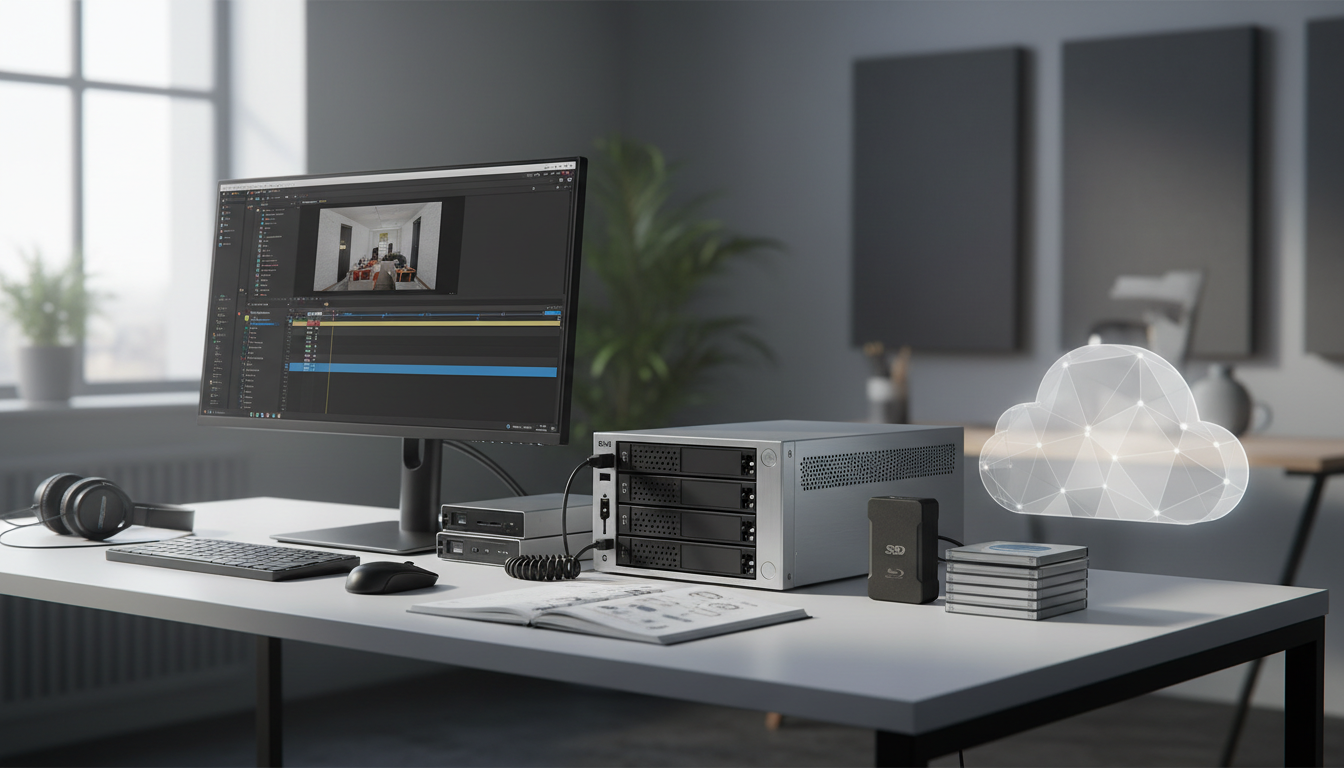
You know that Google Drive sync folder you rely on? Yeah you're actually just one accidental keystroke away from deleting your client's entire 4K project [3].
With nearly 1.42% of mechanical hard drives failing every single year [7], relying on a single working drive is a gamble that eventually destroys careers [1].
If you edit high-stakes projects in Adobe Premiere Pro daily, you cannot afford to play Russian roulette with your footage.
Look, I get it. We have all finished a grueling 12-hour editing session, seen the export bar hit 100%, and just wanted to close the laptop. But if your current backup strategy is "I will copy it to a portable drive later," you are inviting bad luck to come kick you in the teeth.
Whether you are an agency editor, a solo YouTuber, or a podcast producer handling multi-cam interviews, a solid data recovery pipeline is your only real shield against client lawsuits.
The industry standard for data protection is the 3-2-1 rule [2]. Originally popularized for creative assets by photographer Peter Krogh [3], this framework is a simple mnemonic designed to prevent catastrophic data loss [5].
Here is the reality: editing video is a brutal process that wears down hardware, and files get corrupted [1].
Key Takeaways
A local RAID array protects against drive failure but will not save your footage from fires, theft, power surges, or ransomware [2].
Cloud synchronization tools like Dropbox are not backups because they instantly mirror accidental file deletions and corruptions across all devices [3].
Hardware failures account for 40% of all data loss events, making secondary local storage copies essential for fast restores [10].
The modern 3-2-1-1-0 backup framework introduces air-gapped immutable copies and automated recovery testing to combat targeted ransomware [5].
Running checksum verifications (like MD5 or xxHash64) during camera card offloads is the only way to catch file corruption before you start editing [1].
KreateFlo v1.0.3 speeds up your Premiere Pro editing timeline, but it cannot protect your raw footage from physical hard drive crashes.
The RAID Lie: Why the 3:2:1 Rule in Video Editing Saves Lost Footage
Many editors believe that editing on a multi-bay RAID array means their data is safe. I used to think this way too. I bought a fancy 4-bay RAID 5 enclosure, felt like a genius, and assumed my projects were bulletproof.
But I'm sorry to burst your bubble - RAID is a redundancy, not a backup [2].
Why RAID is Redundancy, Not a Backup
A redundant array of independent disks (RAID) is designed for uptime, not data protection [2]. If you configure your working drive in RAID 5 or RAID 6, your system can survive a single or double hard drive failure without crashing [1].
You replace the bad drive, the array rebuilds, and you keep editing [1].
But a RAID controller is stupid by design and let me explain why:
If a power surge hits your studio, it can fry every single drive in that enclosure simultaneously.
If you accidentally delete your primary sequence, the RAID controller immediately deletes it across all drives.
If ransomware infects your computer, it encrypts the RAID partition just as quickly as your internal SSD [2].
And what happens if a localized fire breaks out in your editing bay?
Your high-end RAID system melts into a plastic puddle because physical proximity is the enemy of data survival [3].
The True Cost of Data Loss in Post-Production
Data loss is not some rare, abstract threat. Statistics show that 67.7% of businesses experienced significant data loss over the past year [7]. Even worse, research indicates that nearly 30% of users lose important files specifically due to accidental deletions or system failures [9].
In post-production, losing files translates directly to lost revenue, missed deadlines, and destroyed reputations [1].
Let us look at a real-world scenario: Imagine you are editing a multi-cam corporate podcast with 8 speakers and 8 cameras. You have 20 hours of raw 4K footage.
If your working drive fails and you have no backup, a simple data recovery service can cost over £7,500 with absolutely no guarantee of success [6]. If recovery fails, you have to tell the client they must spend $25,000 on reshoots.
That is a conversation that, in most cases, client-relationship killer.
This is why the 3:2:1 rule in video editing saves lost footage [2]. It forces physical and geographical separation of your media assets, ensuring that no single accident can wipe out your hard work [5].
Actionable Takeaway: Stop treating your local RAID array as a backup solution. Buy a separate, independent external drive today specifically to mirror your working assets [3].
Breaking Down the Classic 3-2-1 Blueprint for Premiere Pro Timelines
To build a reliable workflow, you have to understand how the classic 3-2-1 backup rule applies specifically to video editing [2].
The rule is incredibly simple: Keep three copies of your data, store them on two different media types, and keep at least one copy offsite [3].
Three Copies: The Ground Rules
You need three distinct copies of your project files and assets [3].
The Primary Copy: This is your live, working project. You edit off high-speed local storage, like an internal NVMe SSD, to ensure smooth playback in Premiere Pro [2].
The Local Backup: This is a complete mirror of your project, project files, and raw footage. It sits on a local external hard drive or a Network Attached Storage (NAS) device in your office [3]. It is there for fast, local recovery if your primary drive fails [3].
The Offsite Backup: This copy lives in a geographically separate location [3]. It is your ultimate insurance policy against fire, flood, or theft [1].
Managing these copies becomes complicated when you use proxies to edit heavy 4K or 8K footage [2]. You must ensure that your backup scripts copy both the lightweight proxies and the original high-resolution camera files [2].
If you only back up the proxies, you are in for a nightmare when it is time to grade.
Two Different Media Types
Storing your backups on the same type of media leaves you vulnerable to shared failure modes [3]. If your primary copy is on spinning mechanical hard drives (HDDs), do not make your only backup on another identical HDD [1].
A standard hybrid model uses fast NVMe SSDs for your active timeline, a high-capacity HDD RAID for your local backup, and cloud object storage or LTO tape for your long-term archives [2].
If you want a physical offline option, LTO tapes have a verified shelf life of 30+ years [1].
By comparison, mechanical hard drives left on a shelf can become completely unreadable in as little as 3 to 5 years [1] due to lubricant failure in the spindle motor.
Even optical storage options, like dual-layer Blu-ray discs that store up to 50GB of data with a 100-year lifespan, can serve as stable, inexpensive backups for small projects [8].
One Offsite Location
A NAS sitting on the floor next to your desk does not count as an offsite backup [3].
If a thief breaks into your studio, they will grab your computer and your NAS [2].
You must keep one copy geographically isolated [3]. The easiest way to achieve this is through a cloud backup service [3].
Services like Backblaze cost as little as $99/year for unlimited computer backup [3].
If you prefer physical media, you can write your backup to an external drive and store it at a trusted colleague's house or a bank safety deposit box [3].
The core goal is simple: ensure that a localized physical disaster cannot destroy all your copies [5].
Backup Tier | Typical Media Type | Primary Benefit | Risk Level | Cost Estimate |
|---|---|---|---|---|
Copy 1: Working | Internal NVMe SSD | Blazing speed, real-time Premiere playback | High (wear & tear) | Already owned |
Copy 2: Nearline | External HDD RAID / NAS | Fast local recovery, high capacity | Medium (local disaster) | $100 - $800 [3] |
Copy 3: Offsite | Cloud Object Storage / LTO | Geographically secure, disaster-proof | Low (requires internet) | $5 - $15/mo per TB [10] |
Actionable Takeaway: Configure your backup software to automatically mirror your Premiere Pro project file directory to a cloud storage bucket every evening [3].
Ransomware and Synced Folders: Why the 3:2:1 Rule in Video Editing Saves Lost Footage in 2026

We have all done it.
We drop our Premiere Pro project files into Dropbox, Google Drive, or OneDrive and assume they are safe because they are "in the cloud" [3].
The Dropbox and Google Drive Trap
Cloud sync services are designed for collaboration, not data protection [10]. They run in the background and monitor your local folder [3]. The instant you make a change, that change is mirrored in the cloud [3].
But what happens if you accidentally corrupt your project file?
Or what if you delete a folder of raw audio files by mistake?
The sync software instantly replicates those deletions and corruptions to the cloud [3]. Within seconds, your cloud-based copy is just as broken as your local copy.
While some sync tools have basic version history, user errors account for up to 30% of failed recovery attempts [9]. If you do not notice the error immediately, those synced files can be permanently overwritten or purged from the trash.
A true backup is a historical, read-only snapshot of your files that remains completely unaffected by local changes [10].
How Modern Ransomware Attacks Local Backups
The threat landscape has changed drastically. Ransomware is no longer just a corporate headache. It is an active threat to independent creators and post-production studios [5]. In fact, ransomware attacks increased by over 150% recently, targeting both individuals and small businesses [10].
Modern ransomware does not just encrypt your primary C: drive.
It actively scans your local network for connected storage devices [4].
It looks for network-attached storage (NAS) systems, external USB drives, and shared folders. If your backup drive is plugged in and mounted to your system, the ransomware will encrypt your backups alongside your active project files [3].
This is why physical and administrative separation is non-negotiable [4].
At KreateFlo, we focus on building tools that speed up your timeline workflows, like our silence remover CEP extension.
But we have to be honest: if ransomware encrypts your entire hard drive, no editing plugin can save you.
We want you to keep editing, but you must secure your raw footage first.
That starts with a disconnected, air-gapped backup drive that is only plugged in when running a backup [5].
Actionable Takeaway: Do not rely on cloud sync folders as backups. Use a dedicated, zero-knowledge cloud backup client that keeps multiple, unalterable historical versions of your files [10].
Setting Up a Bulletproof Post-Production Storage Architecture
Building a secure post-production pipeline does not have to be overly complicated or expensive. A hybrid storage model balances speed and security, keeping your costs manageable [2].
The Hybrid Storage Model
To edit high-resolution video efficiently, you need a tiered storage setup [2].
Tier 1 (Online): Use an internal PCIe NVMe SSD or a high-speed Thunderbolt RAID [2]. This gives you the massive throughput (often exceeding 1,500 MB/s) required to play back multiple raw camera angles in real time [1].
Tier 2 (Nearline): Set up a high-capacity local NAS or a multi-bay USB-C hard drive array [2]. This array holds your inactive archives and serves as your daily local backup destination [3].
Tier 3 (Offline/Cloud): Use an automated tool to push your daily changes to a secure cloud platform, such as Backblaze B2, Amazon S3, or Wasabi [2].
If you are a solo creator, this personal 3-2-1 setup will cost you around $160 to $200 in your first year [3], which is a tiny price to pay for absolute peace of mind.
For a growing content agency or production company, a reliable business backup setup ranges from $500 to $1,500 initially [3], depending on your total storage footprint.
Pro Tip: If you edit on a laptop, do not leave your backup drive plugged in all day. Use a smart scheduler to run backups at night, and automatically unmount the drive once the transfer completes. This prevents ransomware from hopping onto your backup disk.
Enforcing Zero Trust and MFA on Cloud Accounts
If someone hacks your cloud storage account, they can wipe out years of archival footage in seconds [4]. To prevent this, you must secure your cloud consoles using Zero Trust principles [4].
Always enable Multi-Factor Authentication (MFA) across your backup storage consoles [4]. Use an authenticator app rather than SMS verification, as SIM-swapping attacks are common [4].
Limit access privileges so that your daily editing machine only has write access to your cloud backup buckets, never delete access [5].
This ensures that even if your main machine is compromised, the attacker cannot delete your historical cloud archives [5].
Actionable Takeaway: Go into your cloud backup settings right now, turn on MFA, and disable the ability to delete files without secondary administrator approval [4].
Beyond 3-2-1: Transitioning to the Modern 3-2-1-1-0 Framework
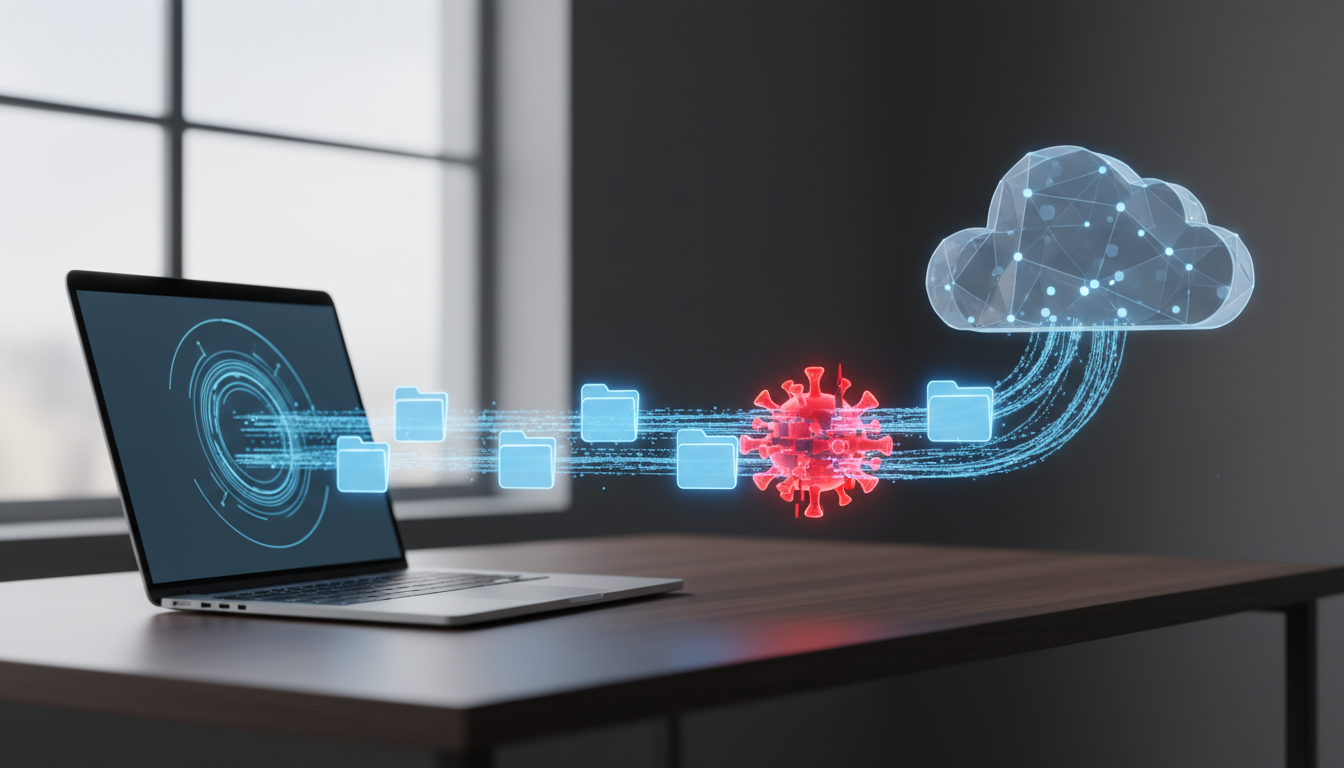
The classic 3-2-1 rule was designed for a world before advanced cyberattacks [4].
In 2026, the industry is transitioning to an updated framework: the 3-2-1-1-0 rule [5].
This enhanced model adds two critical layers of security: an immutable copy and zero-error recovery testing [5].
The Immutable Copy (1)
The first extra "1" in the 3-2-1-1-0 rule stands for an immutable or offline backup [5]. An immutable backup uses Write-Once, Read-Many (WORM) technology [5].
Once your files are written to an immutable cloud bucket (using tools like AWS Object Lock), they cannot be modified, overwritten, or deleted by anyone, not even your system administrator for a set retention period [5].
If ransomware strikes, it cannot touch these locked files [5]. Alternatively, keeping a physical backup drive completely disconnected from your network (air-gapped) serves the same purpose [5].
Zero Errors via Recovery Testing: (0)
The "0" in the 3-2-1-1-0 rule stands for zero errors verified through regular restore testing [5].
An untested backup is just a false sense of security [4].
You do not want to discover that your cloud backup is corrupt when you are trying to recover a project under a tight client deadline [9].
Statistics show that only 57% of backups succeed completely, and only 61% of restores are successful on the first try [7]. Even worse, delaying recovery attempts can reduce the likelihood of complete data retrieval by up to 50% [9].
Schedule a regular quarterly restoration drill. Pull down a random folder of raw footage from your cloud archive and make sure it opens flawlessly inside Premiere Pro.
Pro Tip: Treat your identity and project configuration files as a critical data class [4]. Back up your Premiere Pro keyboard shortcuts, workspaces, and plugin settings alongside your footage [4].
Actionable Takeaway: Set a calendar reminder for the first Monday of every quarter to run a test restore of a previous project file from your offsite archive [3].
Automating Your Ingest and Backup Workflows Without Losing Creative Time
Let us be real: backup management is boring, and it takes time away from your actual editing work [2]. If you have to copy files manually every day, you will eventually stop doing it. The key to a successful backup strategy is automation [6].
Checksum Verifications on Ingest
Never use standard drag-and-drop to copy files from your camera cards to your working drives [2]. Standard OS copies do not verify if the transfer was perfect.
A tiny file transfer error can corrupt a massive raw video file [1].
Always use dedicated offload software like ShotPut Pro, Silverstack, or Hedge [2]. These tools generate a digital "fingerprint" using algorithms like MD5 or xxHash64 to verify that the copied file is 100% identical to the source [1].
You can also use the terminal on macOS to run free rsync backups with checksum verification [1]. Here is the command I use:
rsync -avh --progress --checksum /Volumes/CAMERA_CARD/ /Volumes/Project_RAID/Backup/
This ensures your initial ingest copy is verified before you format the camera card [2].
Balancing Technical Backups with Accelerated Editing Tools
While your backup automation runs in the background, you can use KreateFlo to speed up the actual creative assembly on your timeline. Our plugin is an Adobe Premiere Pro CEP extension built to automate the most tedious parts of video editing.
If you are editing multi-cam podcasts or interviews, our multi-cam editor can automate your cuts across up to 8 cameras in 90 seconds. Doing that manually would easily take you 4 hours.
We even built in a dedicated wide-shot designation to keep your multi-cam edits looking natural.
Compare that to competitor plugins like AutoPod, FireCut, Phantom Editor, Descript, or Opus Clip, which charge based on per-hour usage or expensive monthly tiers.
KreateFlo Pro is just $19.99/month for 20 AI hours, and our Studio plan is $44.99/month for 50 AI hours.
We also have a free tier with 3 tools forever, including our transition assistant, our silence remover, and a basic copy & paste utility.
Once you have automated your edits, you can generate animated subtitles using CaptionFlow [2]. It includes 22 highly customizable animated presets with WASM real-time preview, so you do not have to wait for a render loop just to see your changes.
Plus, our voice transcription engine supports over 40 languages, including Bangla and Hindi.
When is KreateFlo not the right pick?
If you edit highly stylized, sound-design-heavy narrative films where every single frame of silence is a deliberate creative choice, an automated silence remover is not going to help you.
And if you do not use Adobe Premiere Pro, our CEP extension will not work for you.
We do not support DaVinci Resolve or Final Cut Pro yet.
By streamlining your actual editing time with KreateFlo, you save hours of creative energy. That gives you the breathing room to focus on your backup hygiene and system health.
Actionable Takeaway: Use checksum verification software for every card ingest, and use KreateFlo v1.0.3 to recover the hours you used to waste on manual cuts and captions.
Frequently Asked Questions
What is the difference between a backup and cloud synchronization?
Cloud synchronization instantly replicates changes across all connected devices. If you accidentally corrupt or delete a project file locally, it is instantly deleted in the cloud [10]. A true backup is a historical, read-only snapshot of your files that remains unaffected by local changes [10].
Is a local RAID setup considered a true backup?
No, a local RAID is a drive redundancy system [2]. It protects your active timeline against a single hard drive failure, but it does not protect against file corruption, power surges, physical theft, fires, or ransomware attacks that affect your entire workspace [2].
What is the modern 3-2-1-1-0 backup rule?
The 3-2-1-1-0 rule expands on the classic framework by requiring 3 copies of your data, stored on 2 different media types, with 1 copy offsite, 1 offline or immutable copy (air-gapped), and 0 recovery errors verified through regular backup testing drills [5].
How often should video editors test their backup recovery plans?
Video editors should perform restoration drills at least quarterly [3]. This involves pulling down older, archived raw footage and project files from offsite cloud storage to ensure they open seamlessly in Premiere Pro without missing media [3].
What are the best local storage media types for video editing backups?
The most effective hybrid model uses high-speed NVMe SSDs for active timeline playback, high-capacity HDDs in a RAID or NAS array for daily local backups, and secure LTO tape or enterprise-grade cloud storage buckets for long-term cold archives [2].
Do not let a hardware crash or a bad sync delete your hard work. Establish your 3-2-1 backup pipeline today so you can edit with complete peace of mind. Once your storage is secure, optimize your timeline speed by downloading the KreateFlo extension to handle the heavy editing tasks for you.
References
dittools.eu/blogs/how-to/how-to-backup-large-video-files-3-2-1-strategy
blog.barracuda.com/2026/03/31/world-backup-day--is-the-3-2-1-backup-rule-still-relevant-
crashplan.com/blog/75-data-loss-statistics-for-2026-the-complete-guide/
videomaker.com/article/c12/15683-5-reasons-optical-storage-is-not-dead/
pacdbag.com/blog/top-file-recovery-software-for-windows-tips/
savedelete.com/article/whats-the-best-cloud-backup-top-3-online-backup-services/
akkerins.com/new-blog/film-production-insurance-complete-guide-2026
greymatter.com/content-hub/world-backup-day-2026-recommended-processes-and-solutions/
tgceastdelhi.com/what-is-the-321-rule-of-video-editing-a-detailed-and-complete-guide/
techtarget.com/searchdatabackup/tip/How-the-3-2-1-1-0-backup-rule-reflects-modern-needs
wwt.com/blog/primary-storage-in-2026-trends-priorities-and-strategic-shifts
akave.com/blog/the-future-of-cloud-storage-5-trends-shaping-2026
Try KreateFlo free
3 tools forever, 7-day trial on the rest. No credit card to start.
Download KreateFlo